
Hours Of Operation
This tutorial guides you through configuring variant types and setting hours of operation. This setup allows users to easily update opening and closing times within the design.
Video Tutorial
1. Mark Opening Hours as a Variant
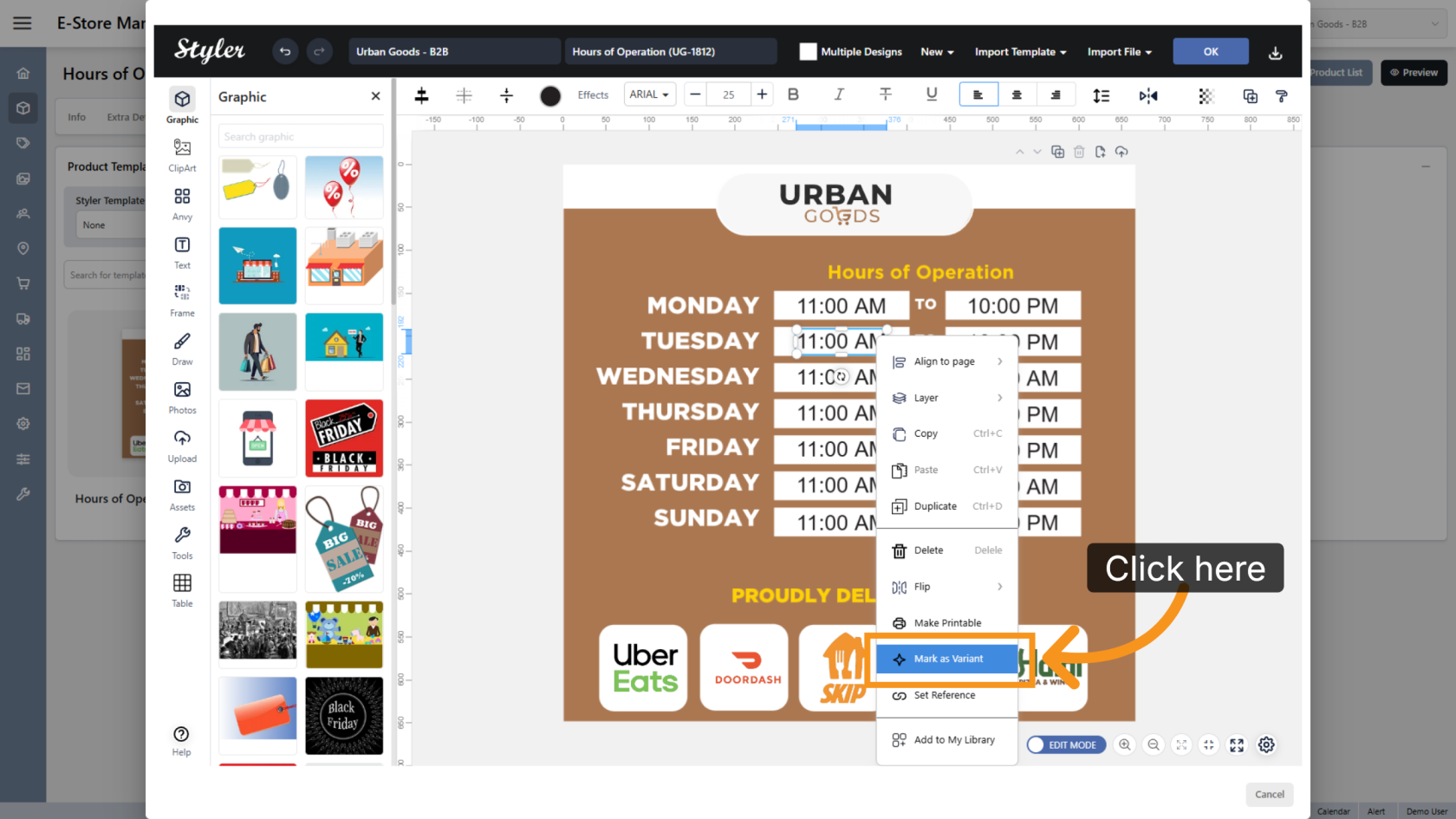
Right-click the opening hours object you want users to edit, then select Mark as Variant.
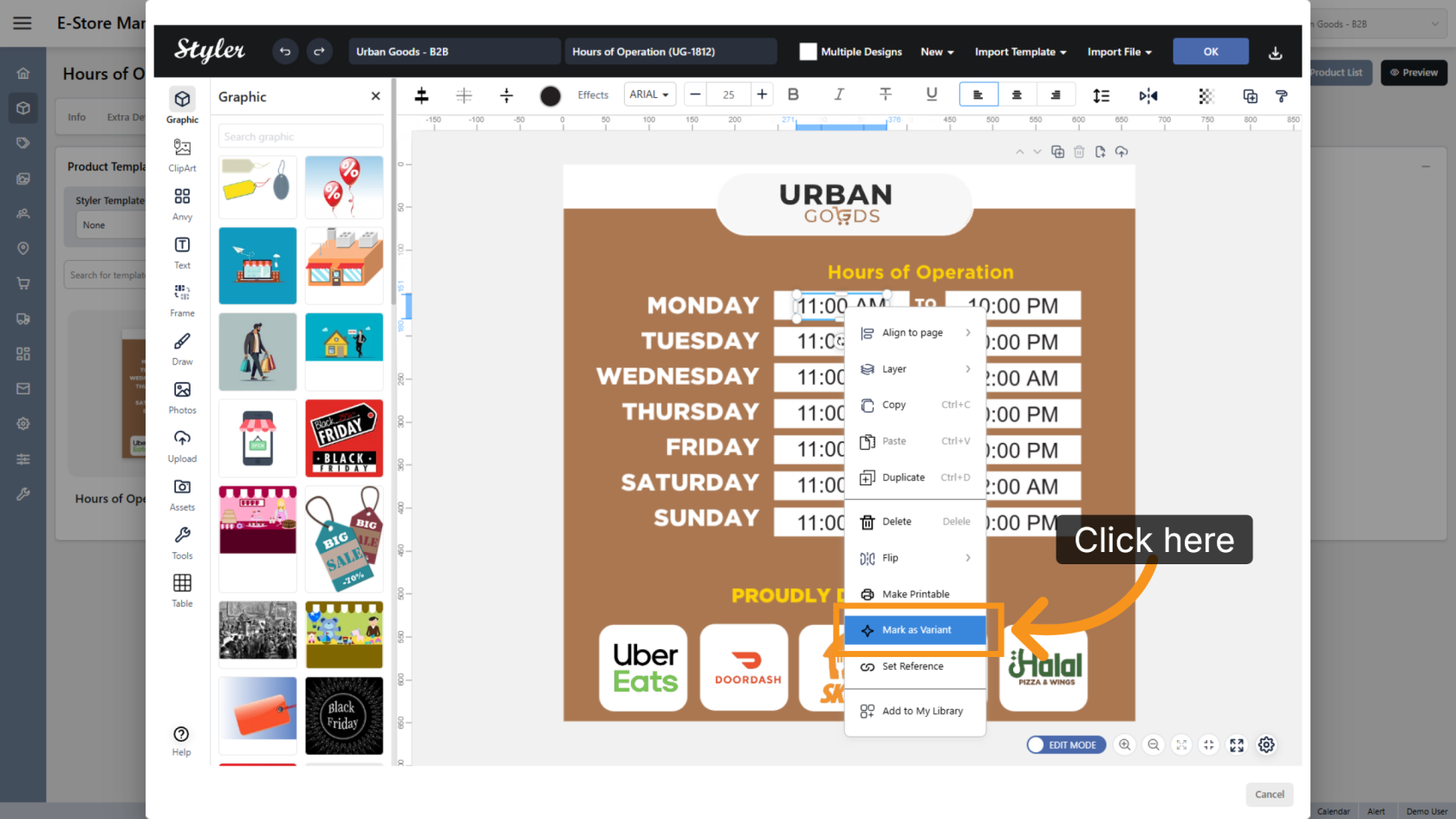
2. Select the Opening Time Variant Type
Click Select a variant type and choose Opening Time for the editable field.
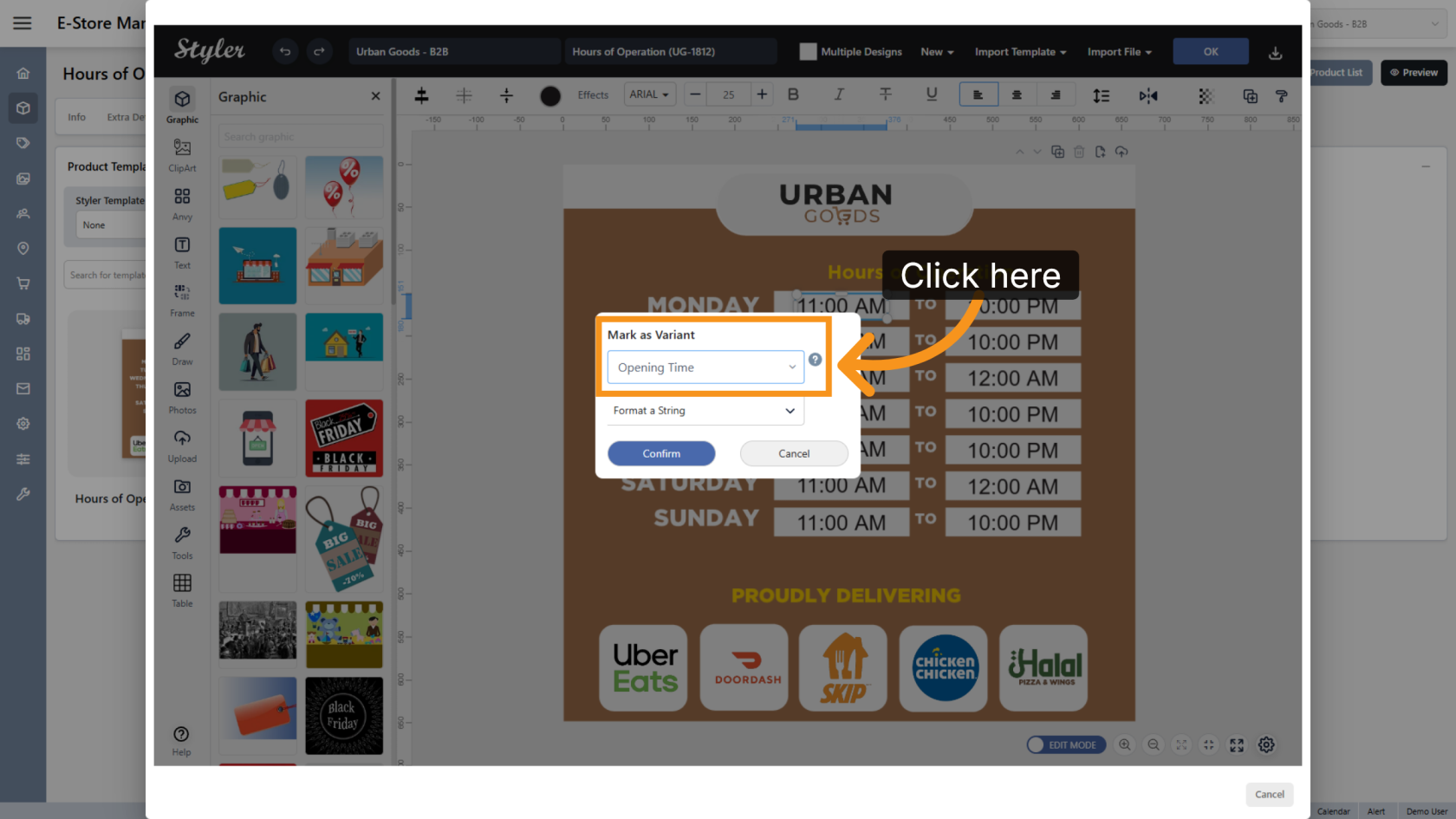
3. Confirm the Variant Settings
Click Confirm to save the variant settings.
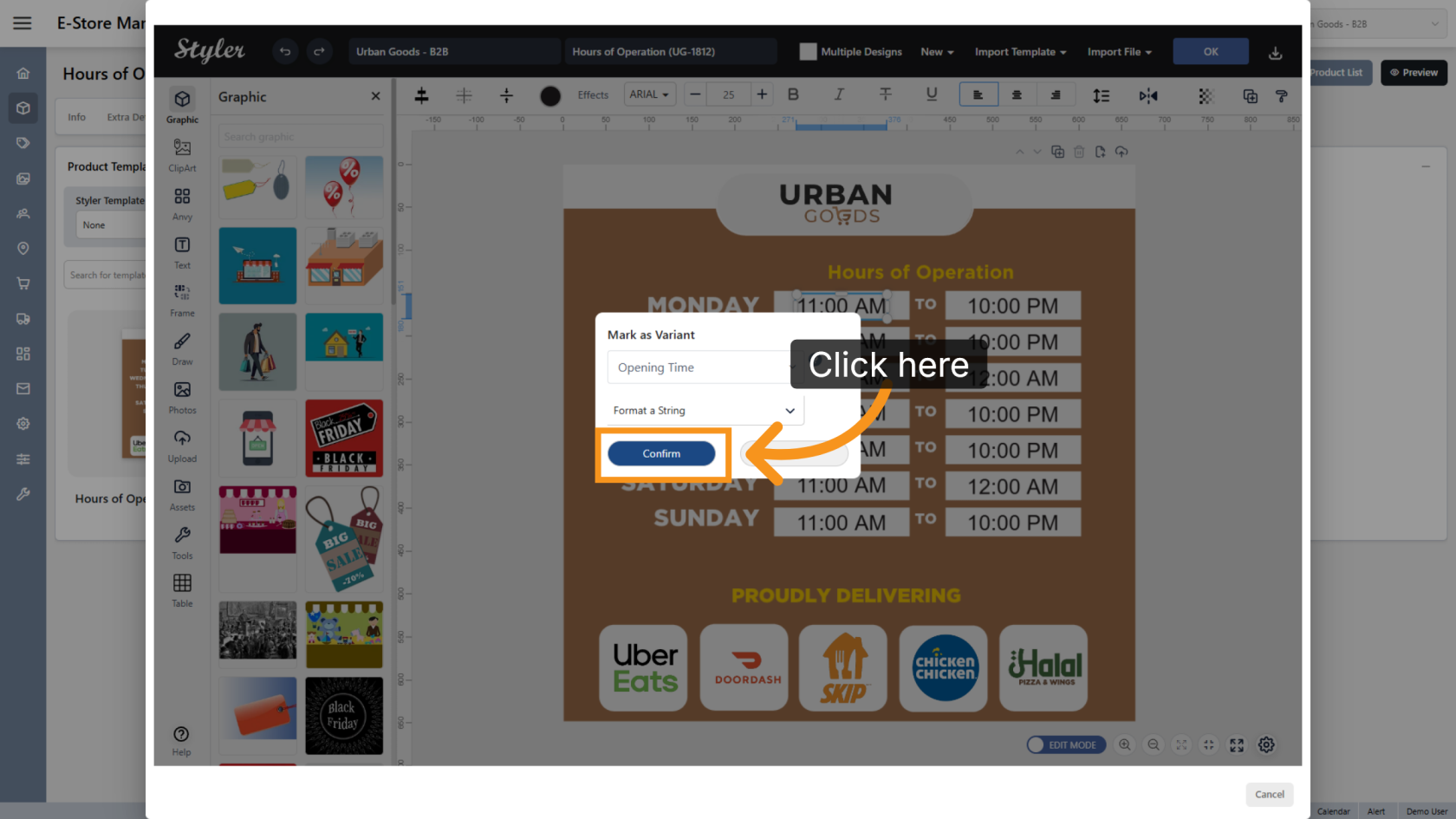
4. Mark Closing Hours as a Variant
Right-click the closing hours object you want users to edit, then select Mark as Variant.
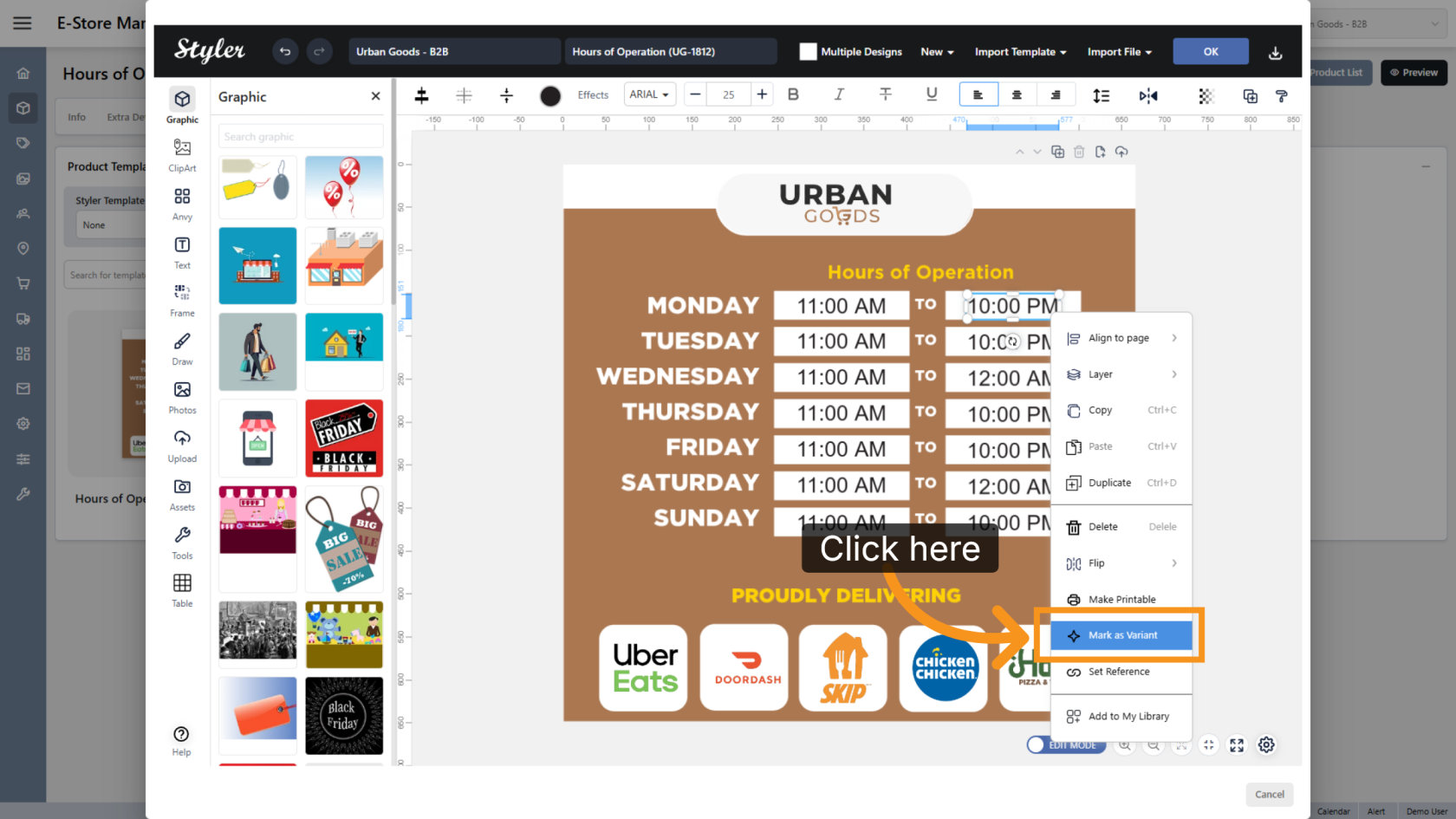
5. Select the Closing Time Variant Type
Click Select a variant type and choose Closing Time for the editable field.
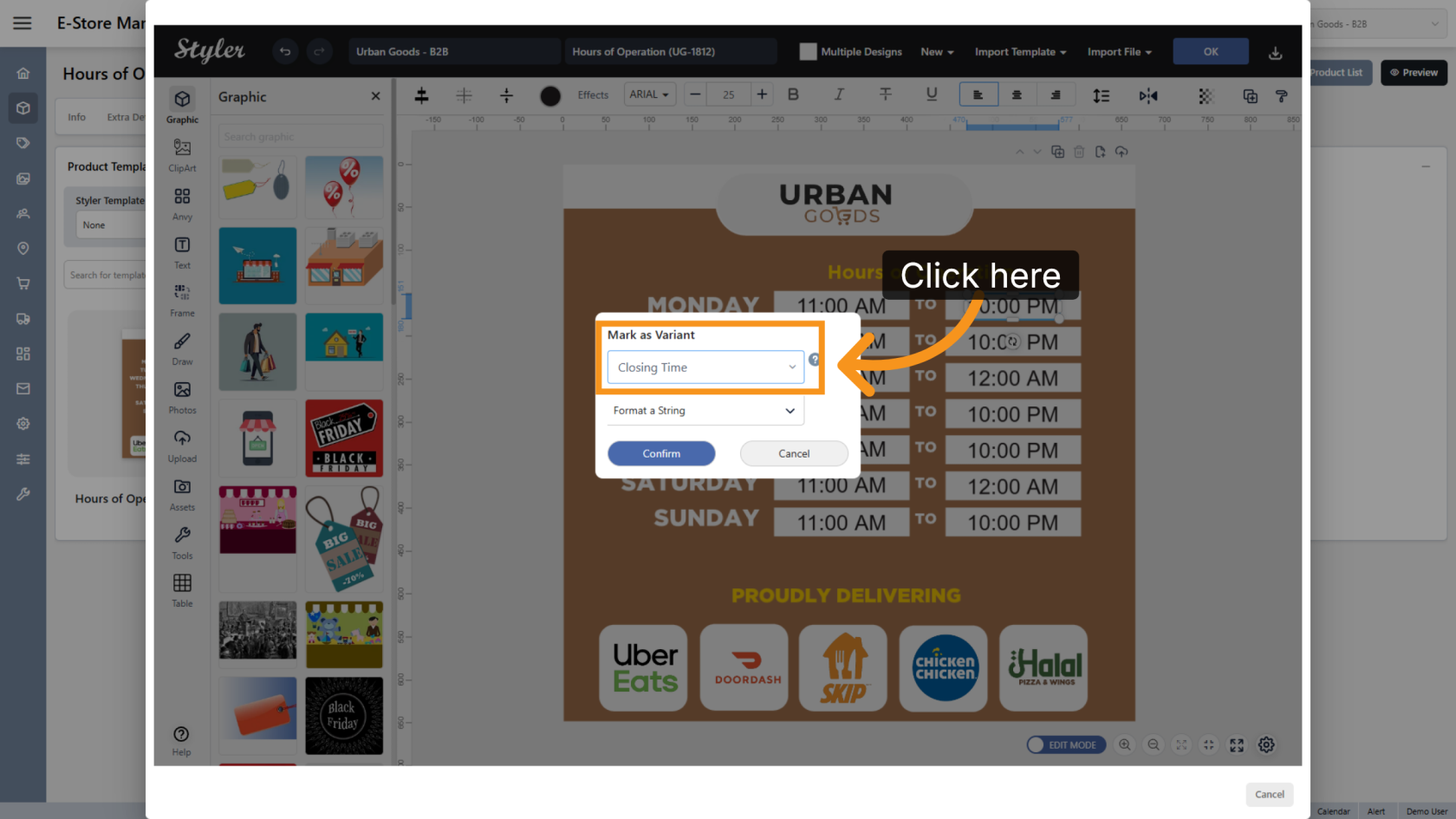
6. Confirm the Time Settings
Click Confirm to save the variant configuration.
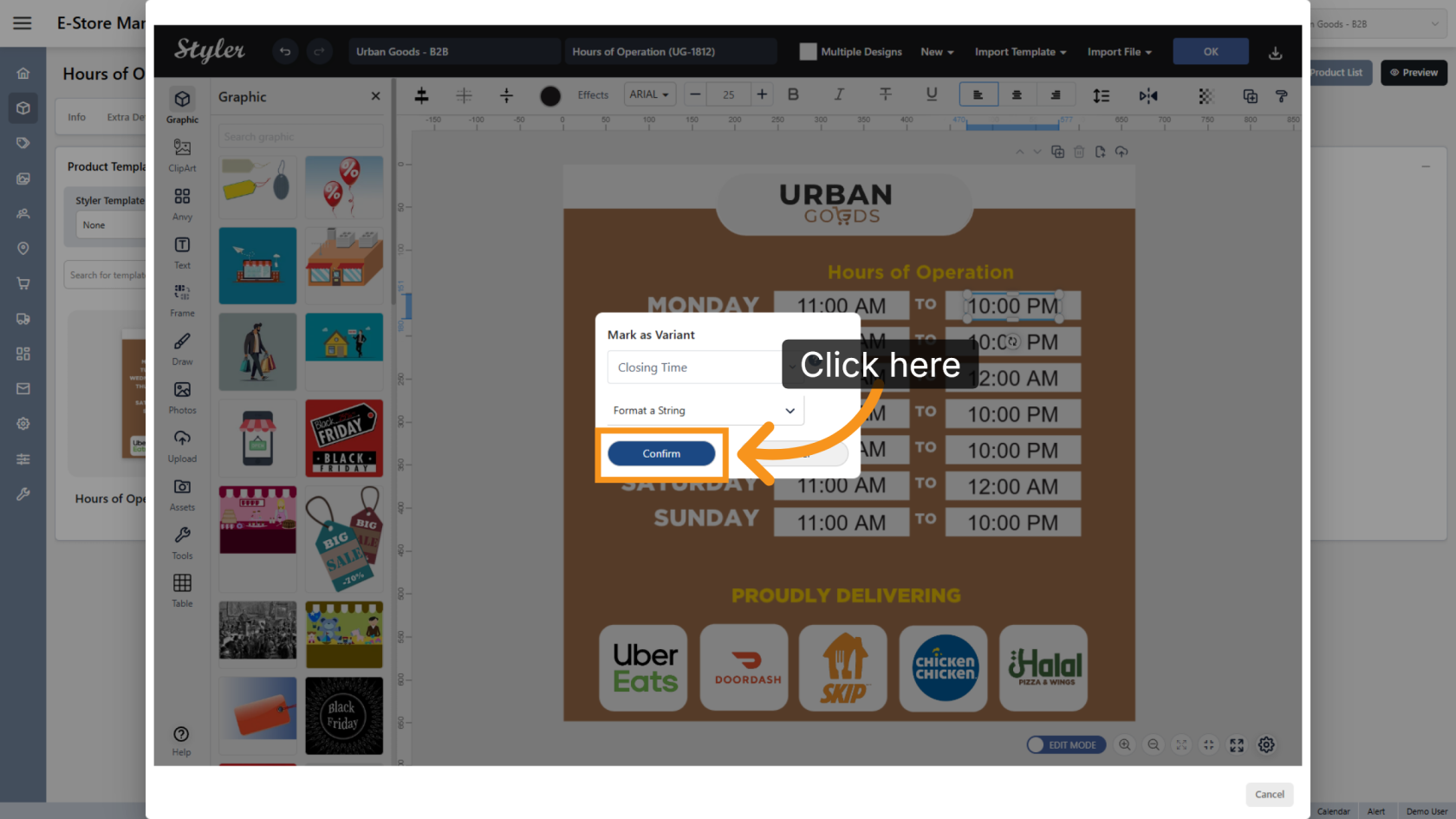
7. Repeat for Other Time Fields
Repeat the same setup for all opening and closing time objects in the design.
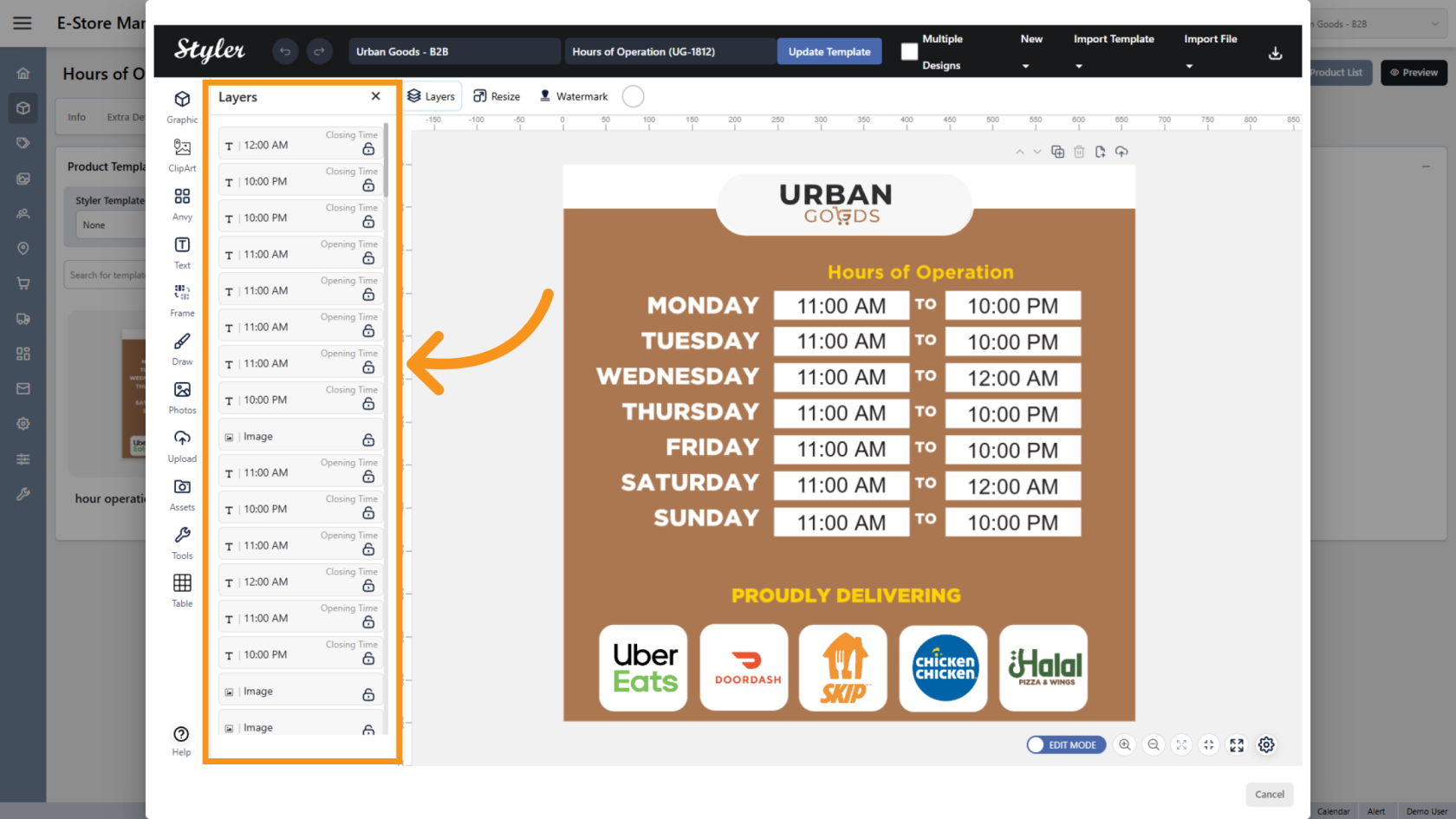
8. Open the Layer Panel
Click Layer to open the layer panel in the template.
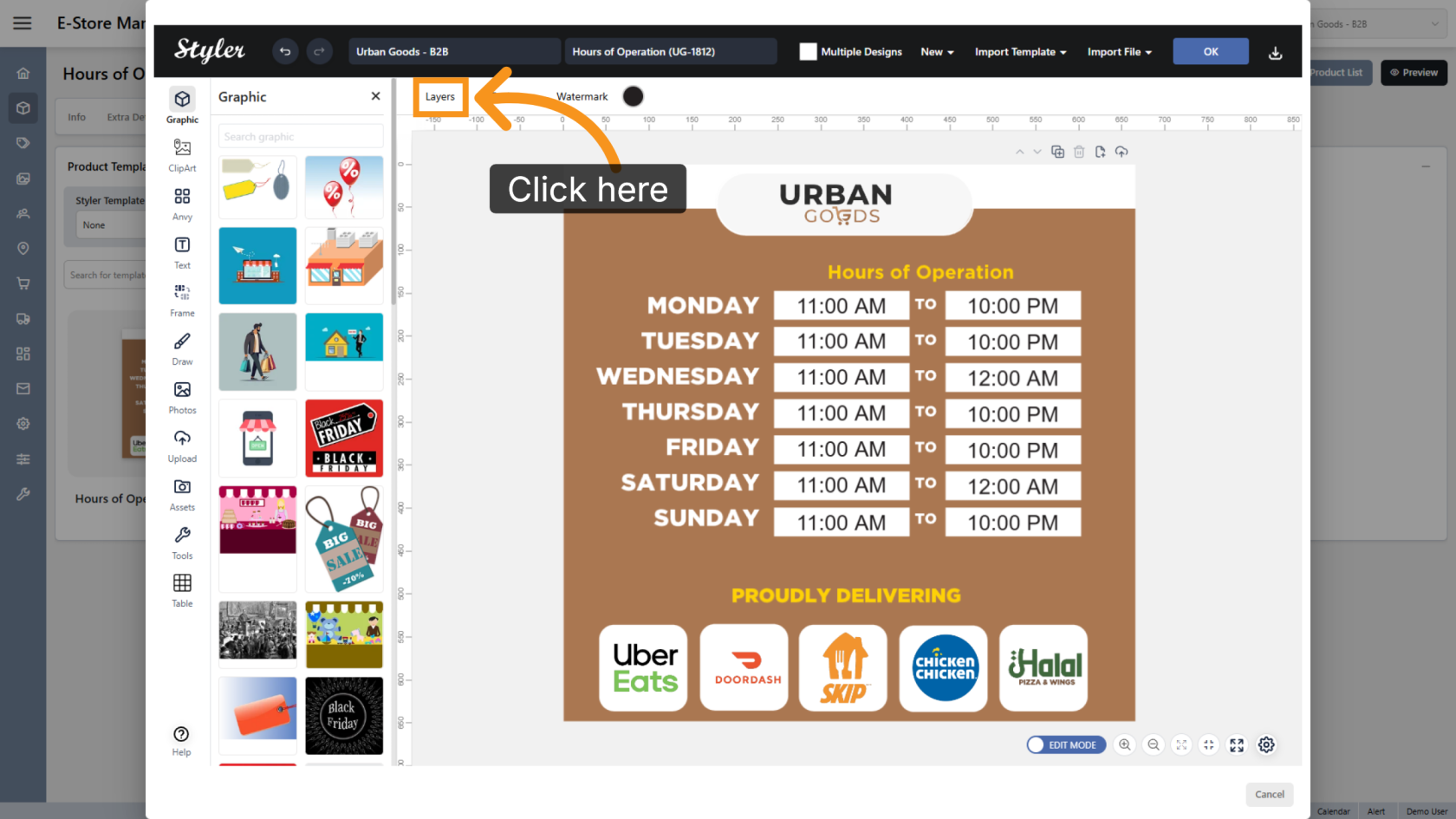
9. Organize the Layers
Click and drag the layers to match the object order in the design. This helps keep the template organized and easier for users to edit.
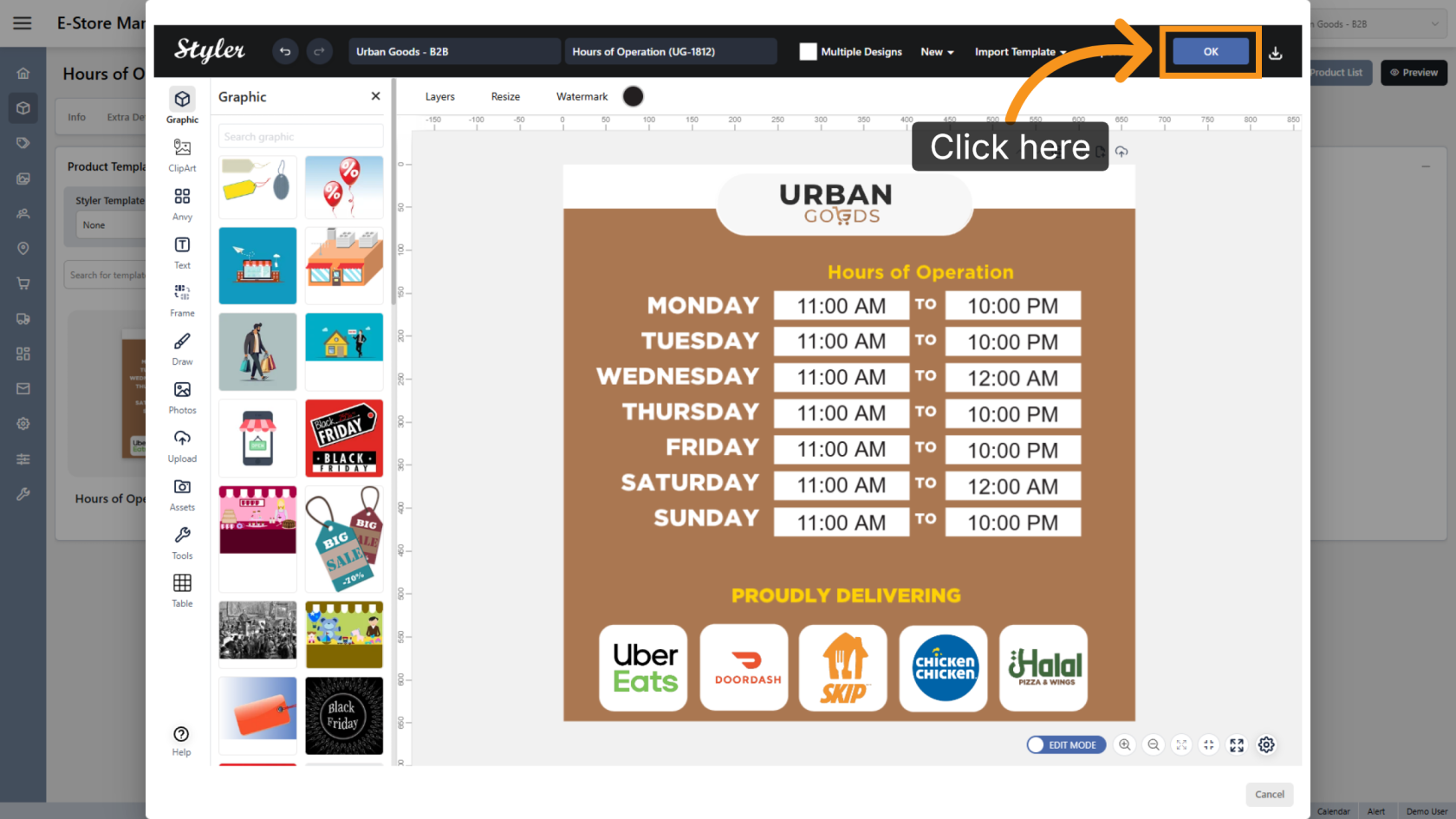
10. Confirm the Configuration
Click OK to finalize the settings.
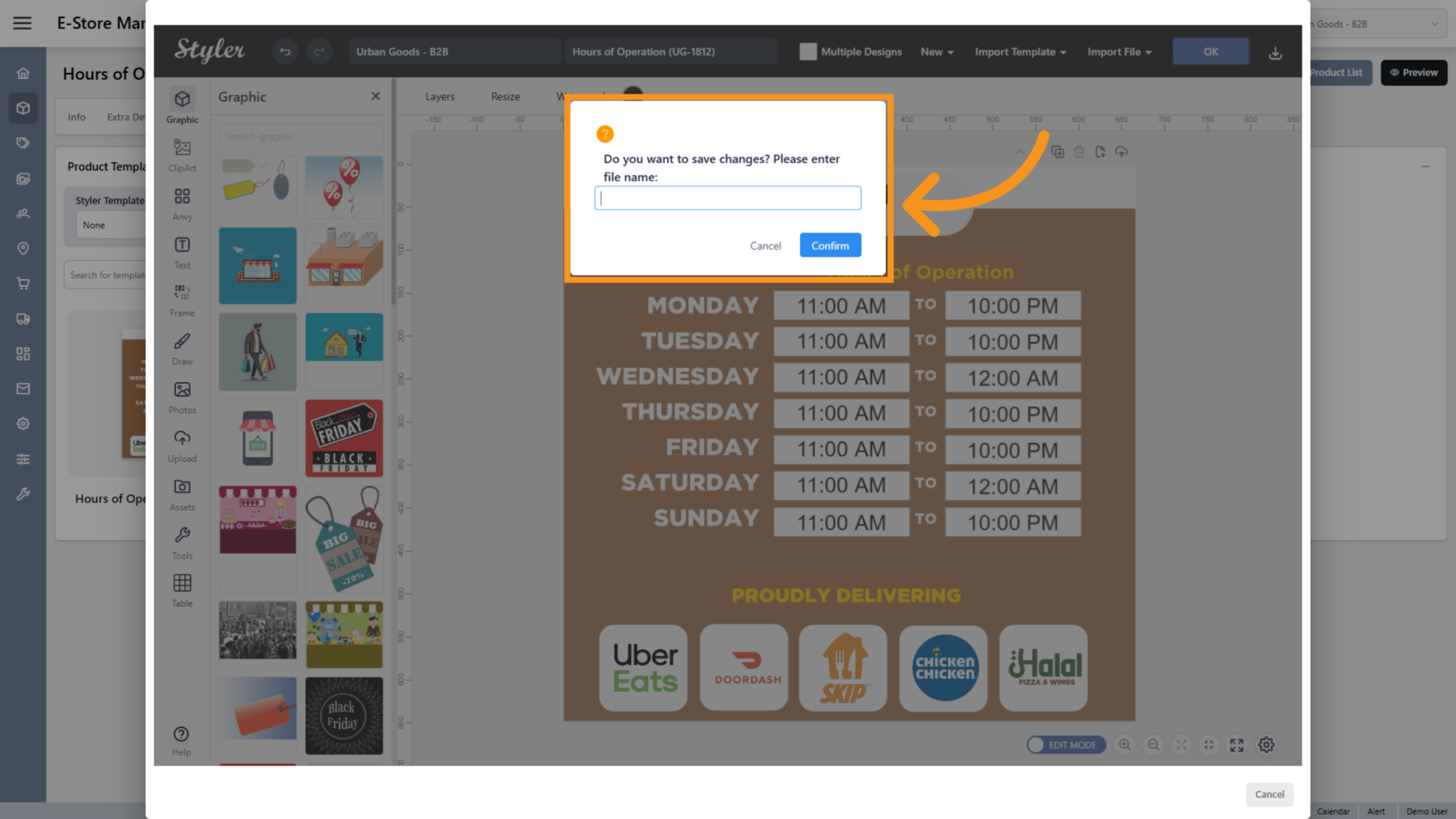
11. Enter the File Name
Enter the file name, then click Confirm.
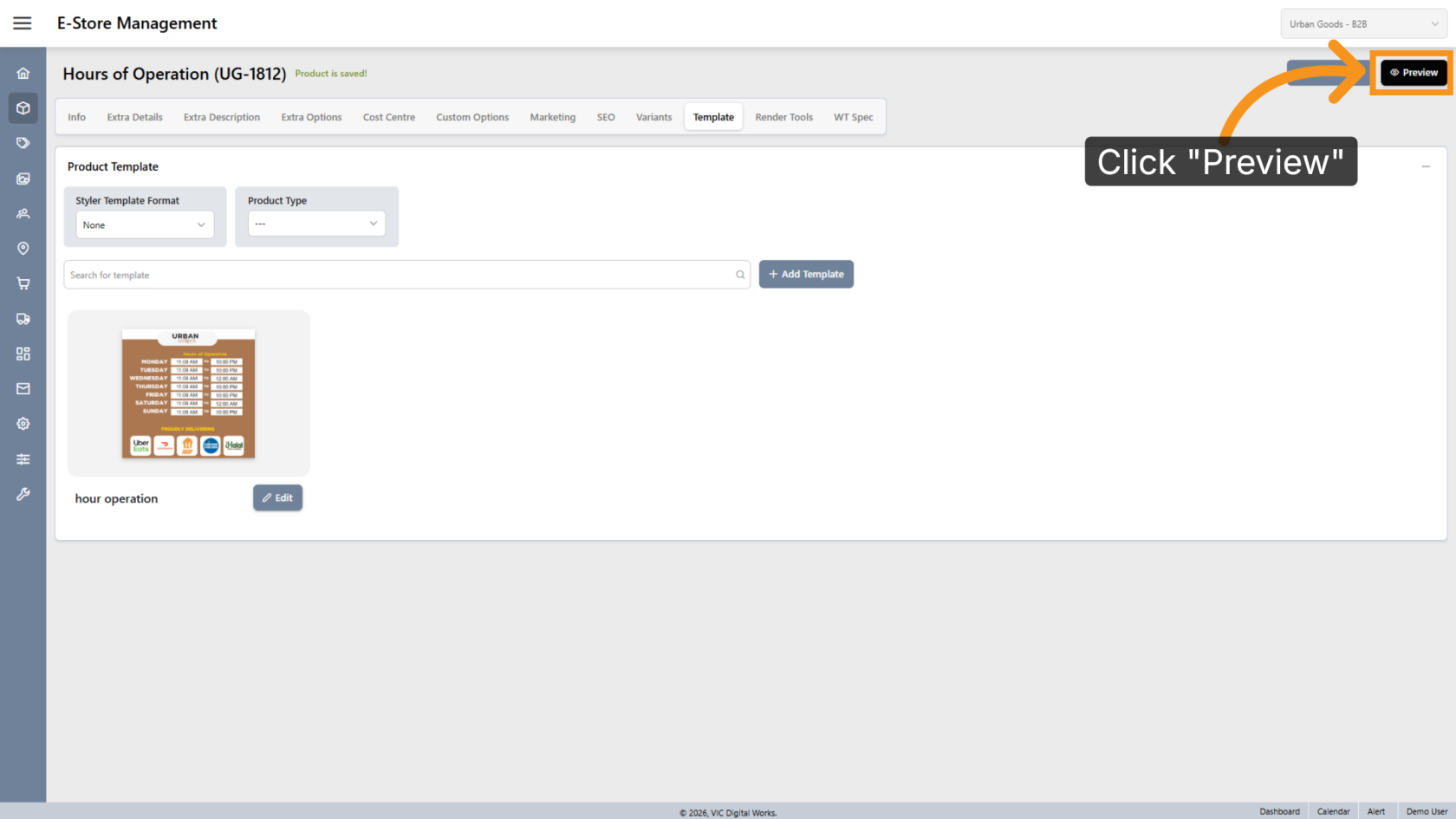
12. Preview the Design
Click Preview to review the final layout.
13. Browse Available Designs
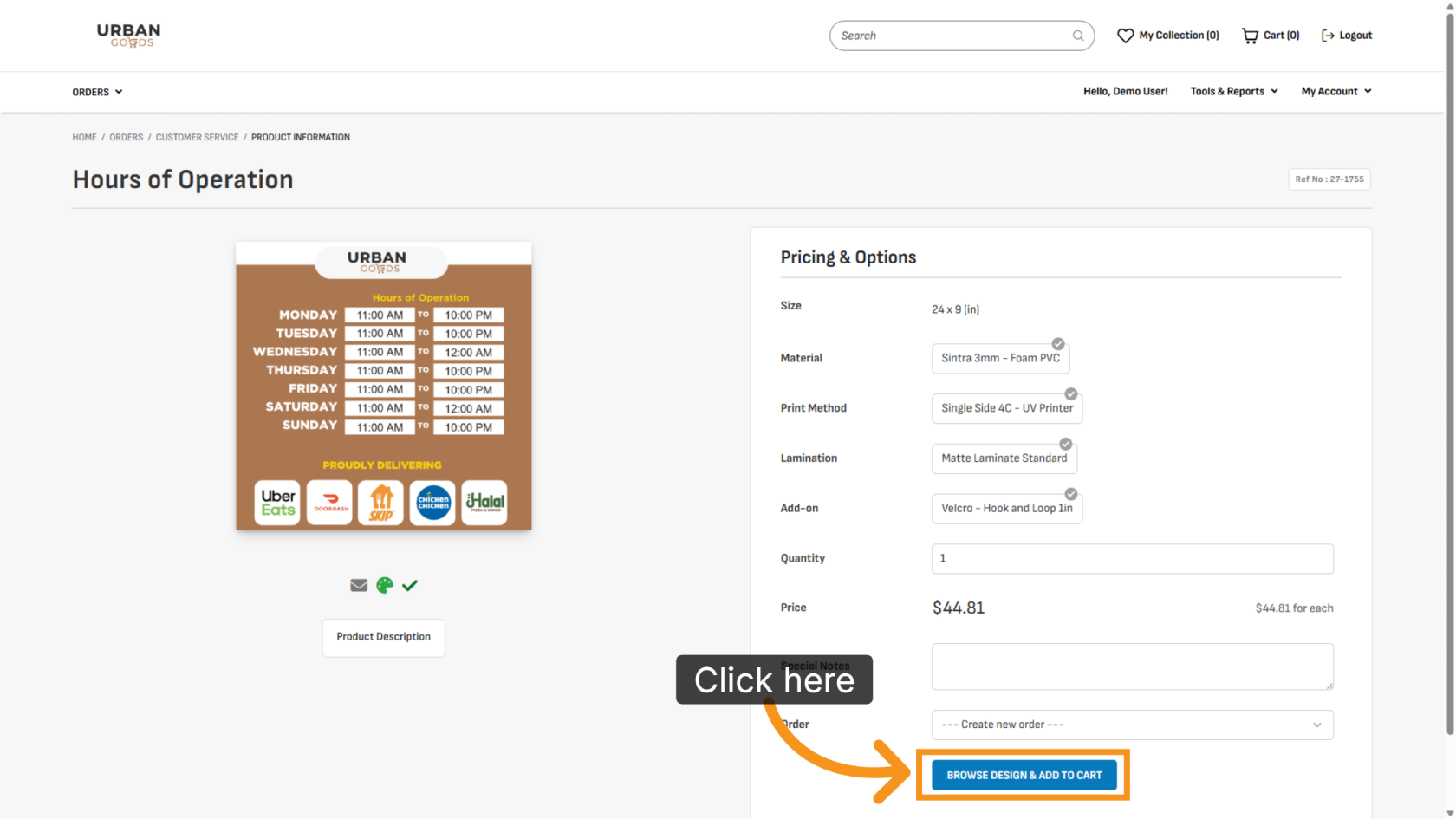
Click BROWSE DESIGN & ADD TO CART to select a design for printing.
14. Show Layers
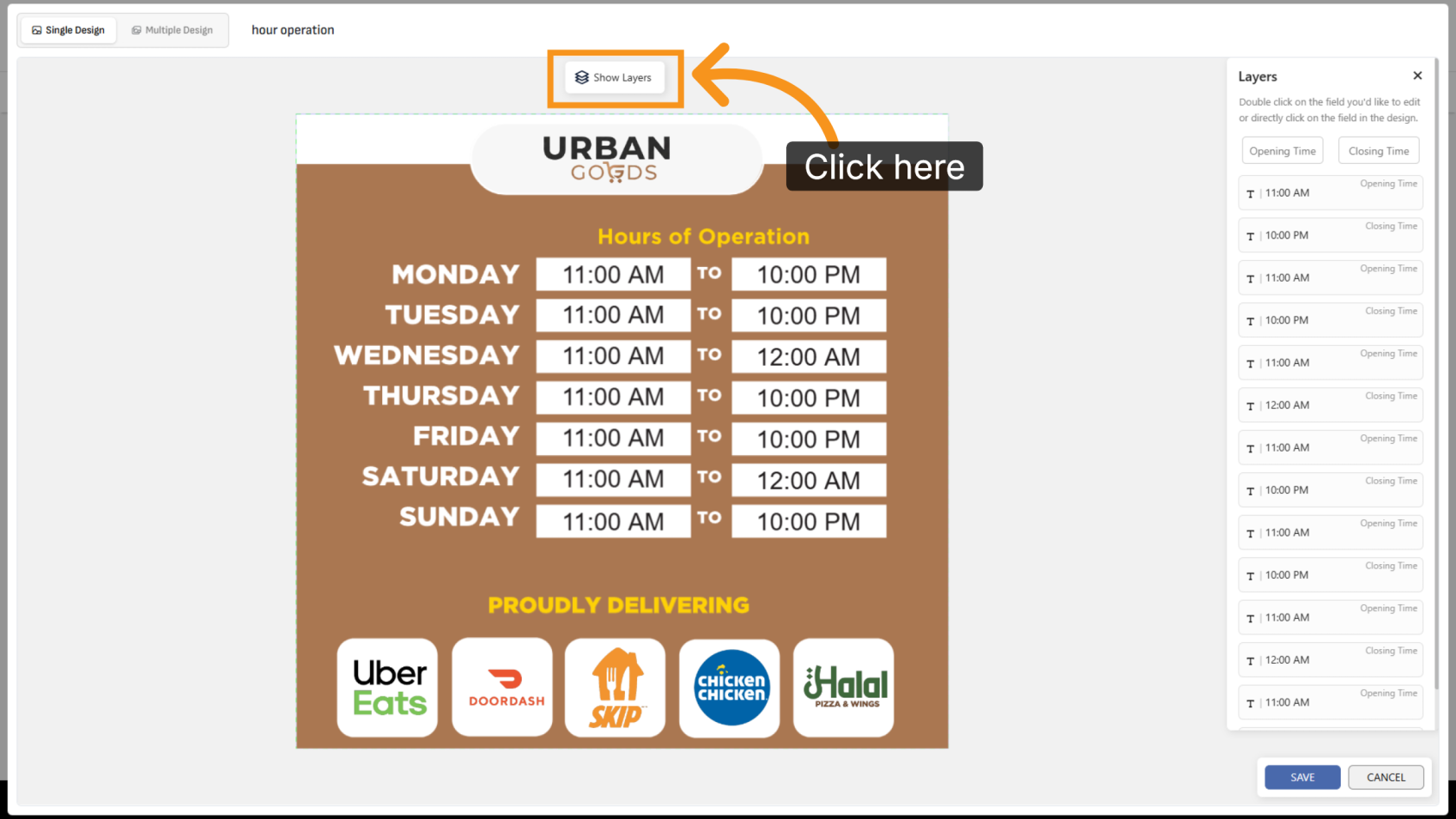
Click Show Layer to display all variant layers in the design.
15. Edit the Hours
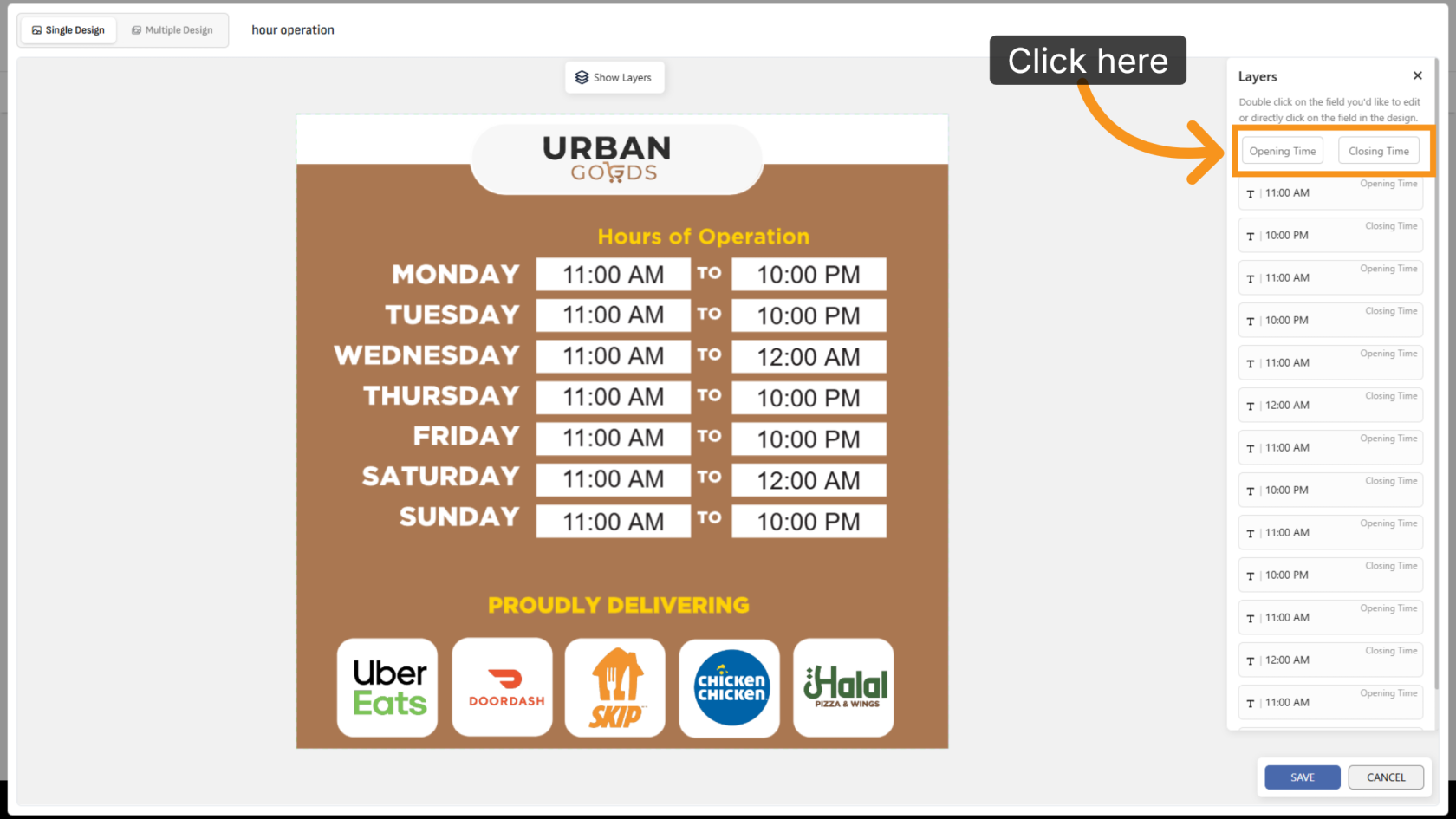
Click the Opening Time or Closing Time fields to update the operating hours.
16. Review the Design Update
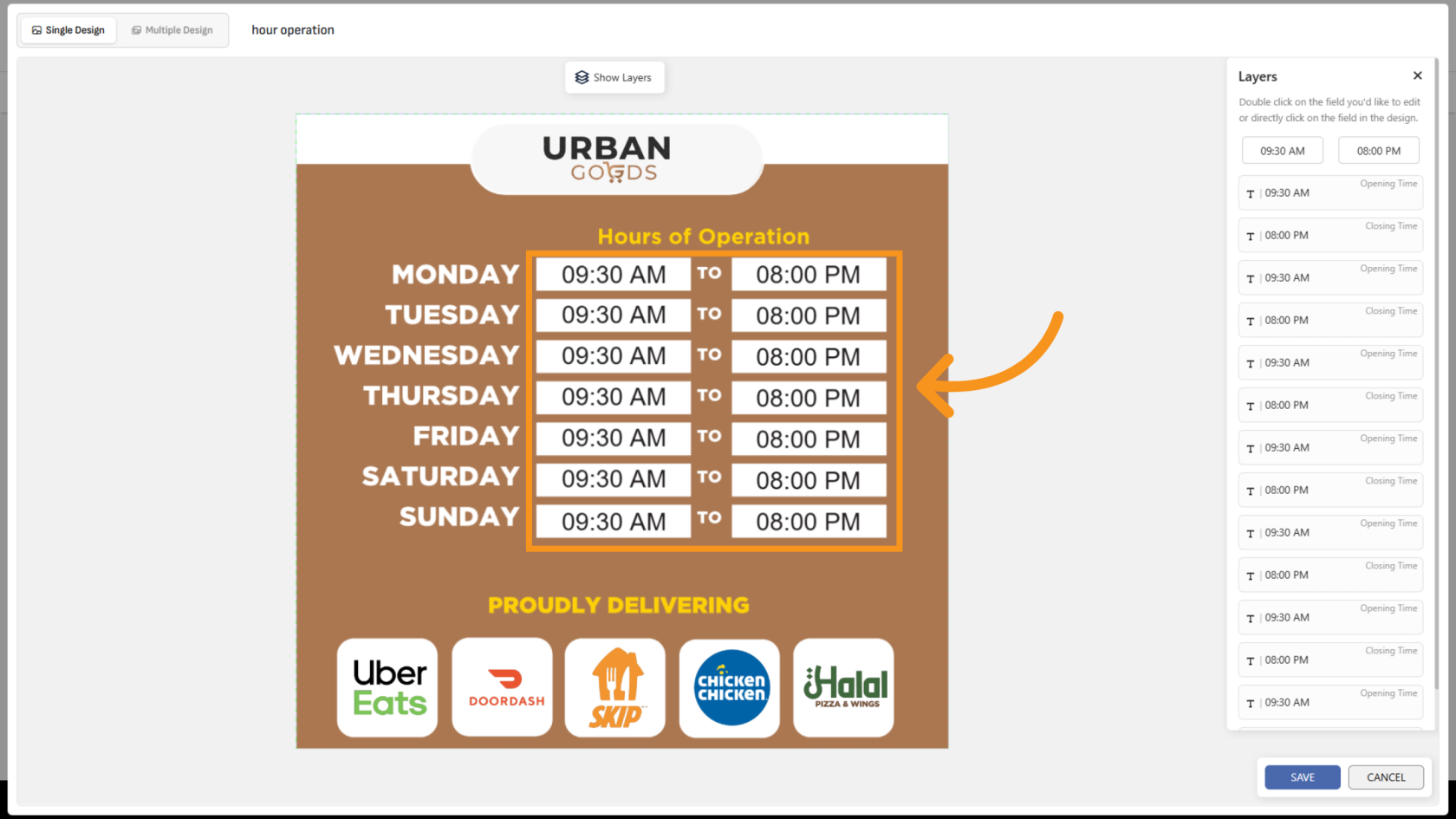
After updating the time values, the design will automatically update in real time.
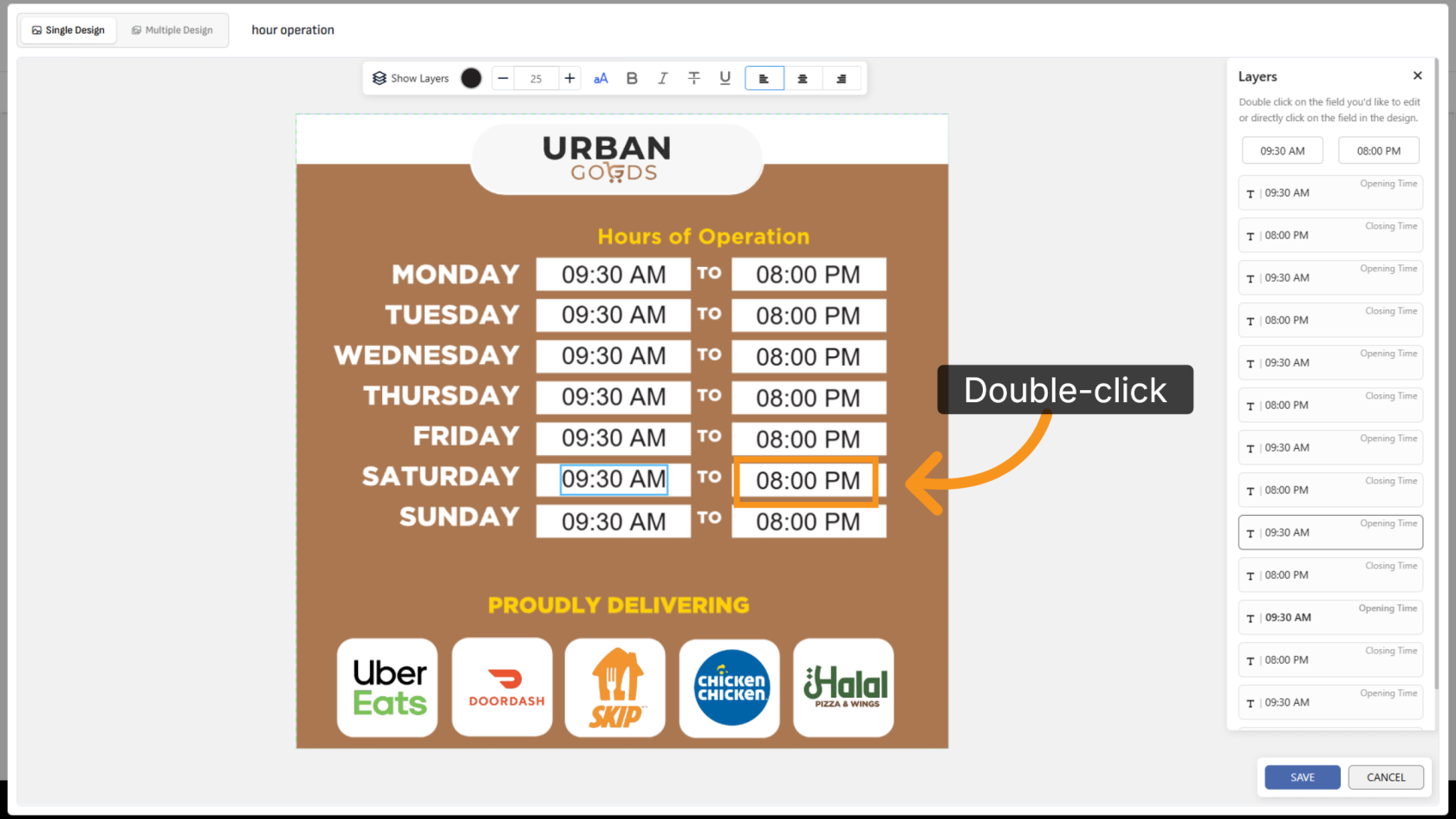
17. Add Custom Time Values
If a specific date requires different operating hours, double-click the field and manually enter the desired time.
You have successfully configured hours of operation variants. Review the template to ensure all operating hours and variant settings are correctly configured.