
Relative Position
This tutorial guides you through setting up relative positioning. Relative positioning allows a non-variant object to automatically move and maintain spacing when the related variant text changes.
Tutorial
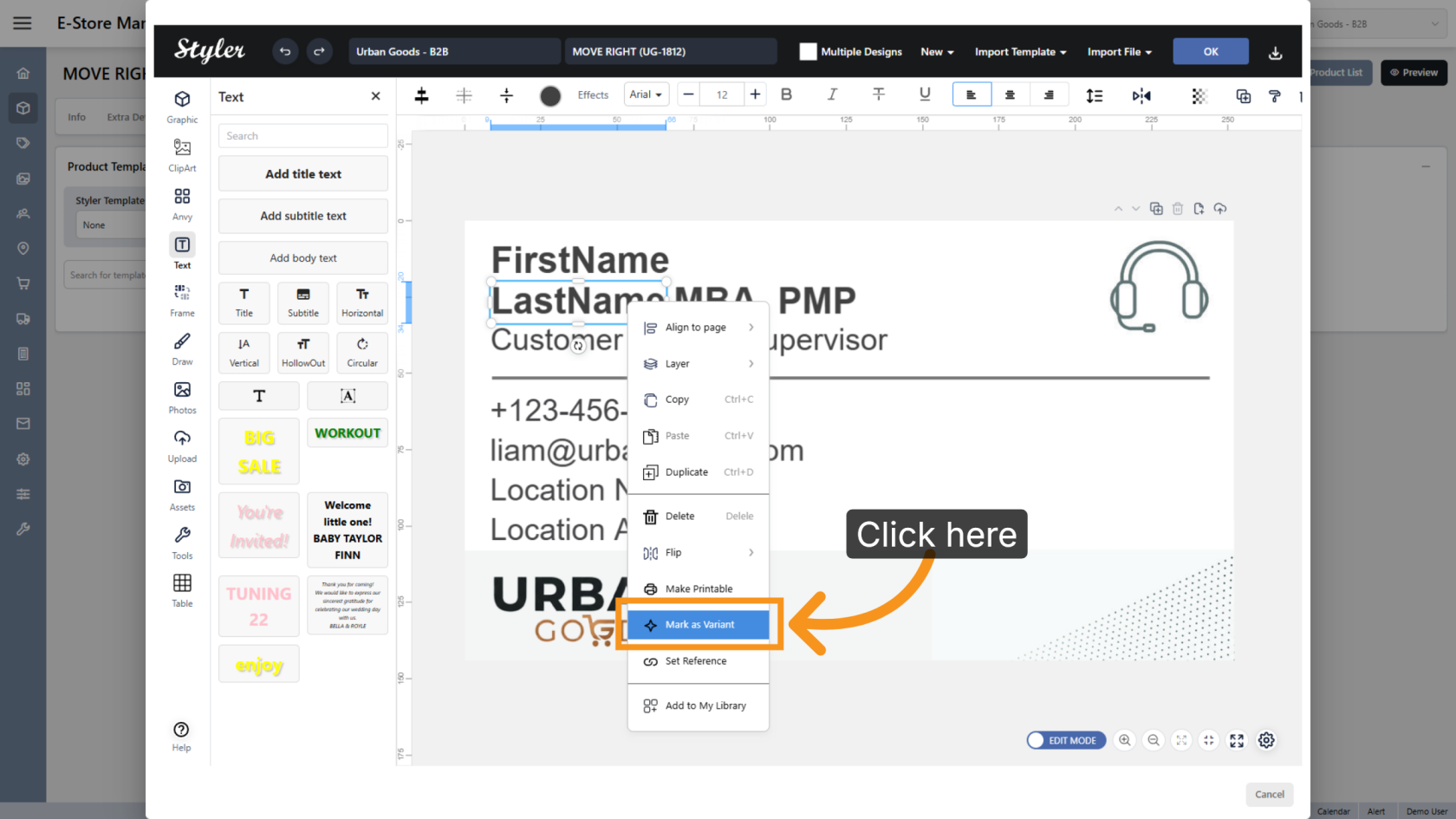
1. Mark an Object as a Variant
Right-click the object you want users to edit, then select Mark as Variant.
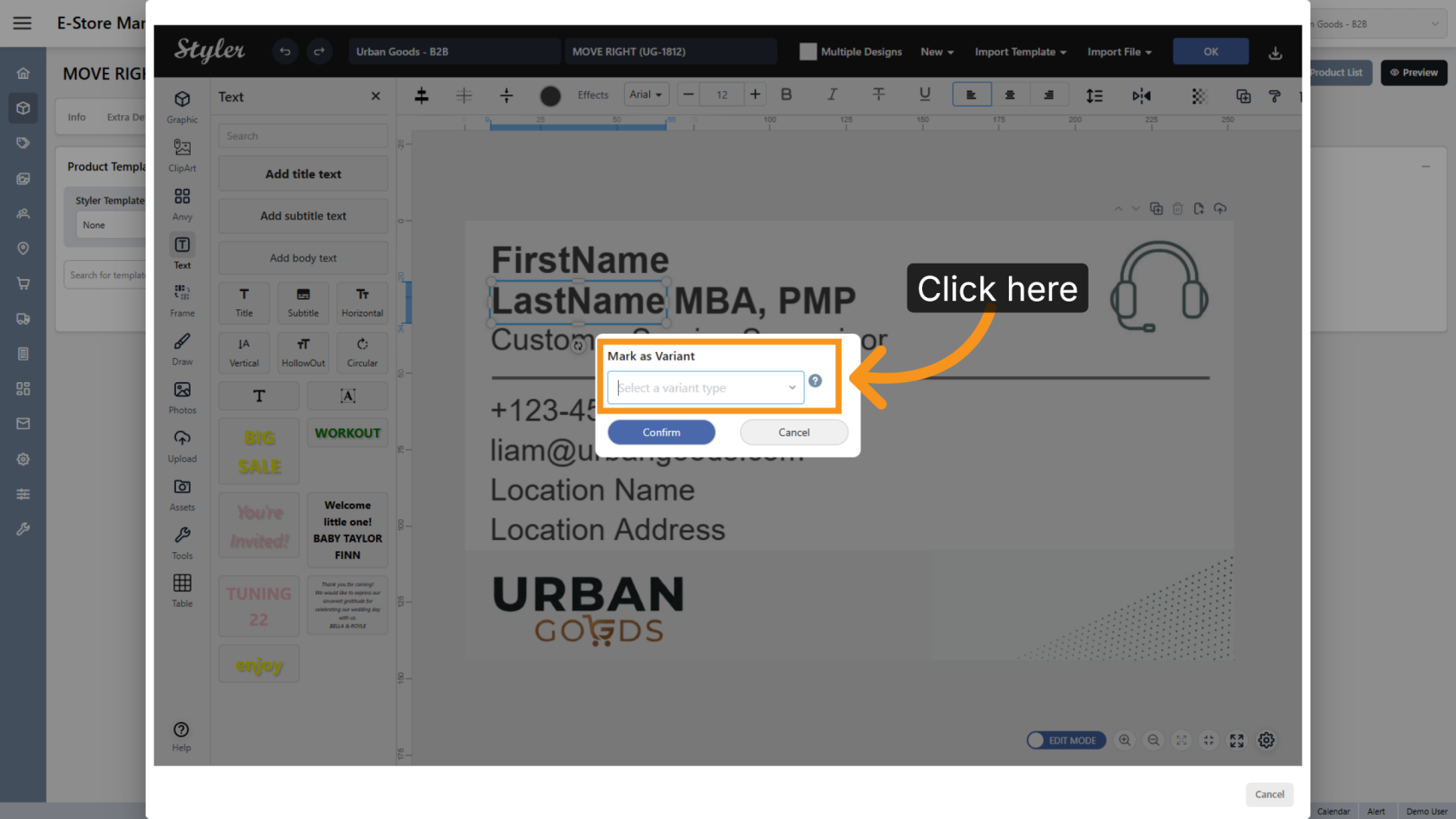
2. Choose a Variant Type
Click Select a variant type and choose the appropriate type for the editable field. The variant type should clearly describe the information users need to enter.
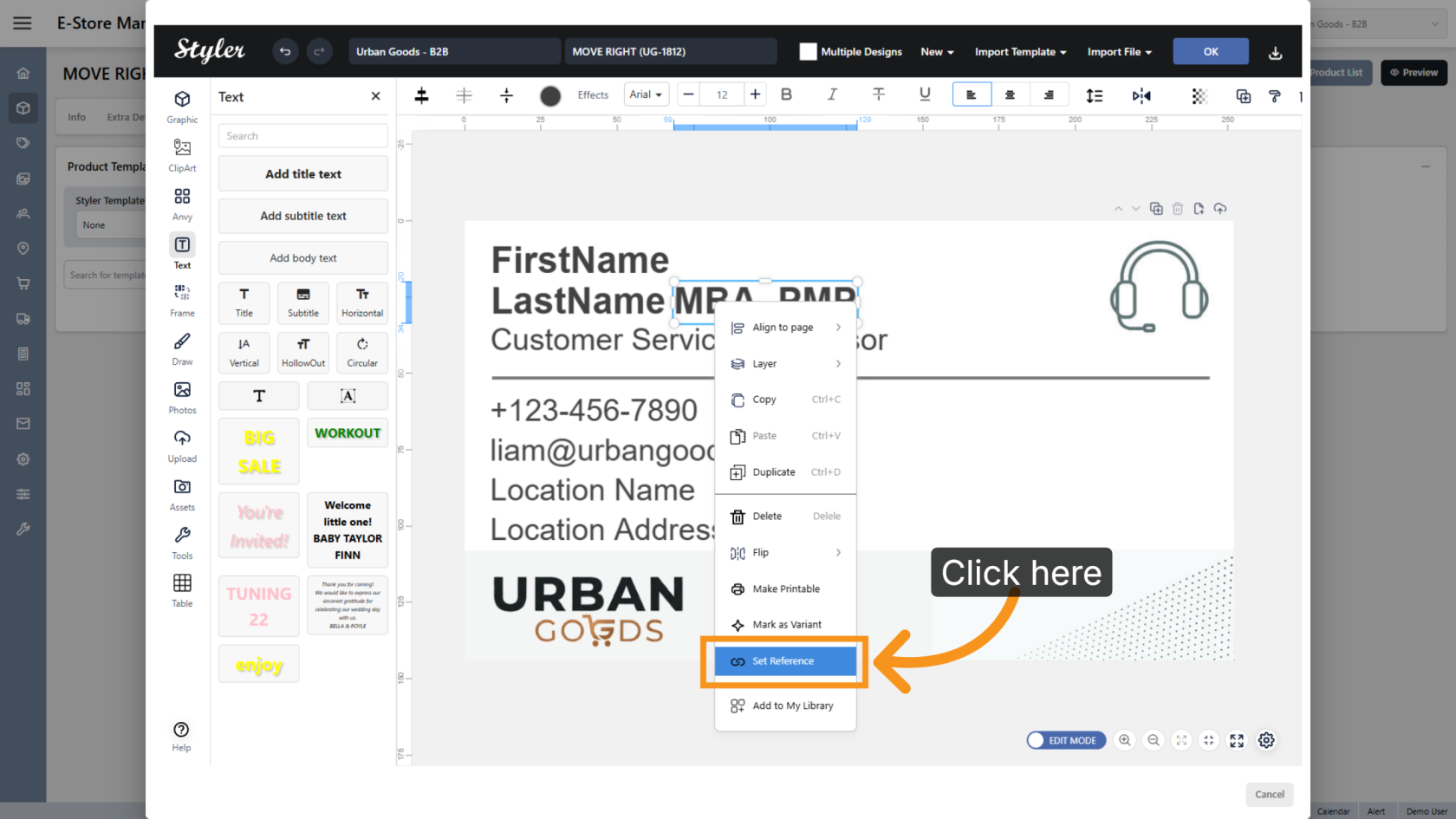
3. Open Reference Settings
Right-click the non-variant object that should move together with the variant object, then select Set Reference.
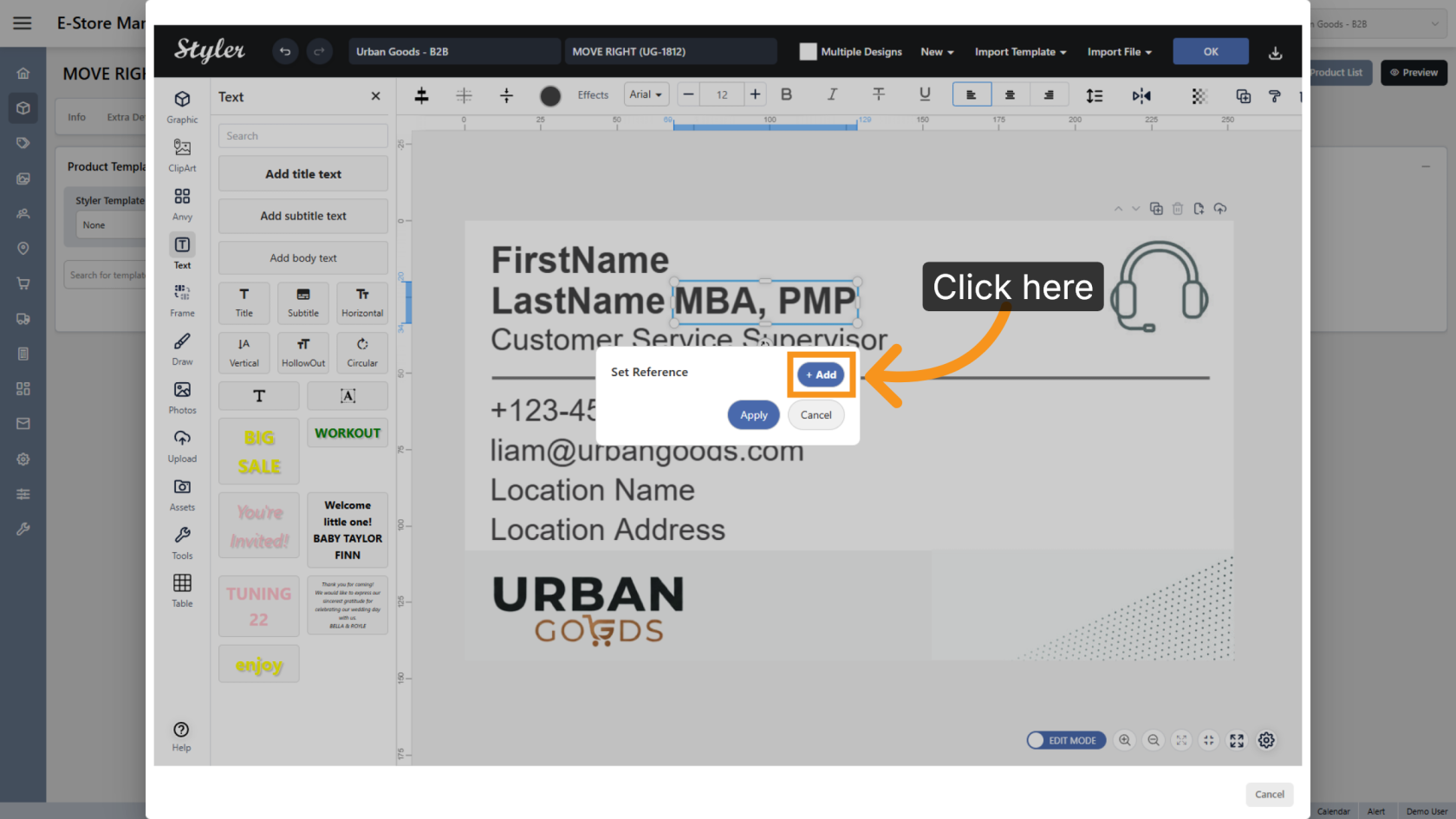
4. Add a New Reference
Click Add to create a new reference configuration.
5. Configure the Adjust Direction
Set Adjust to Horizontal so the object can automatically reposition while maintaining horizontal alignment.
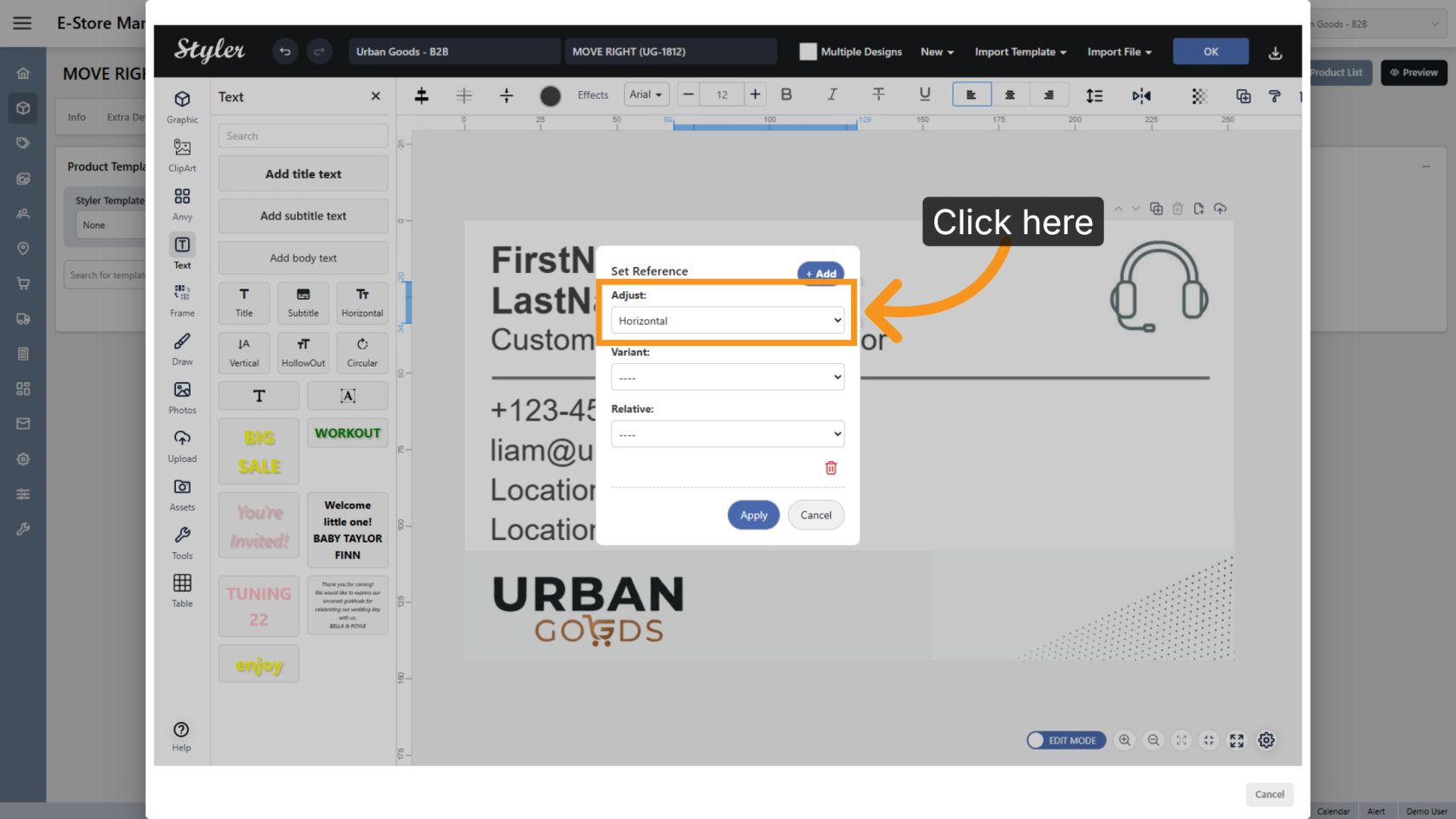
6. Select the Variant Reference
Choose the variant object you previously configured.
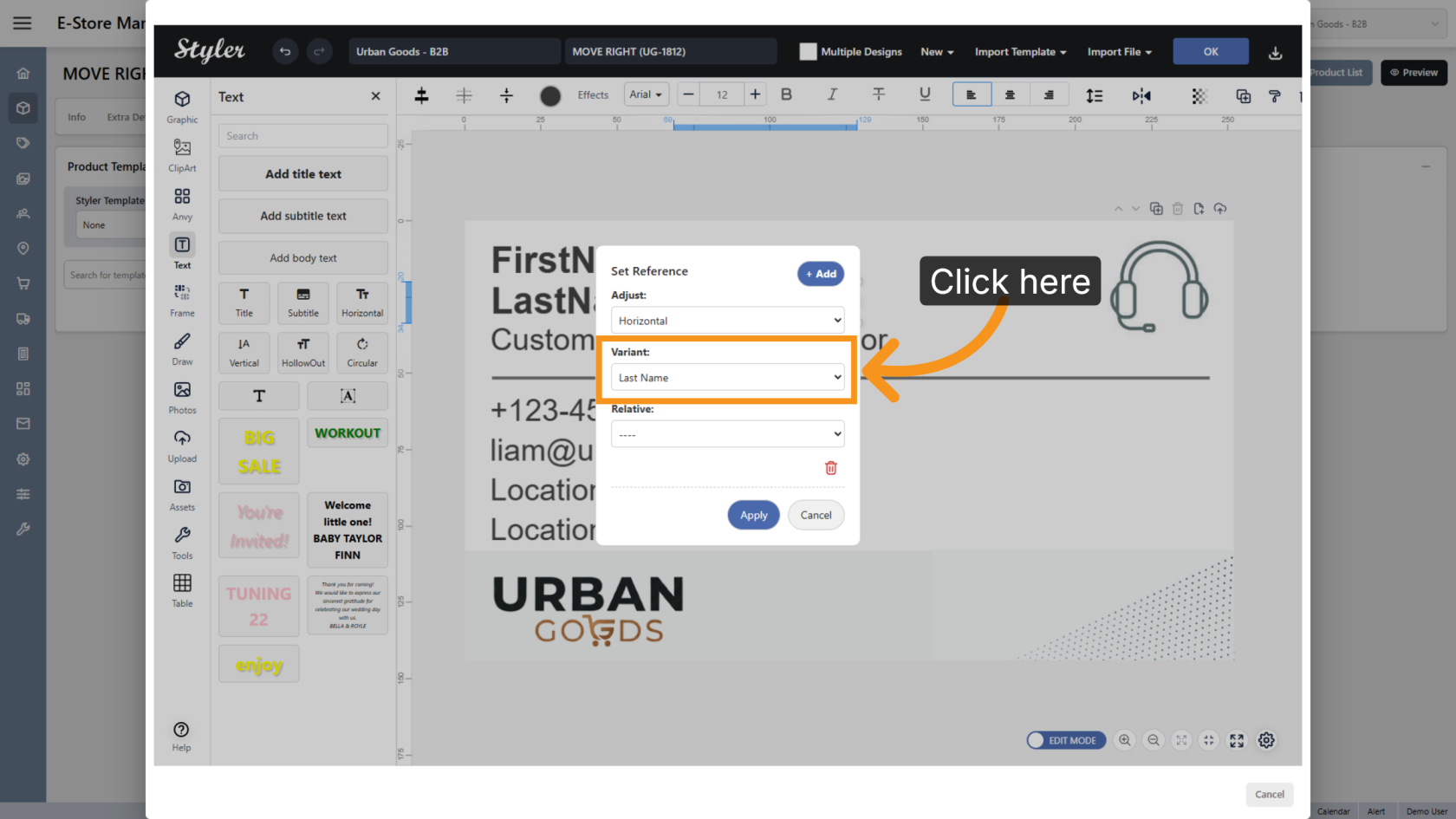
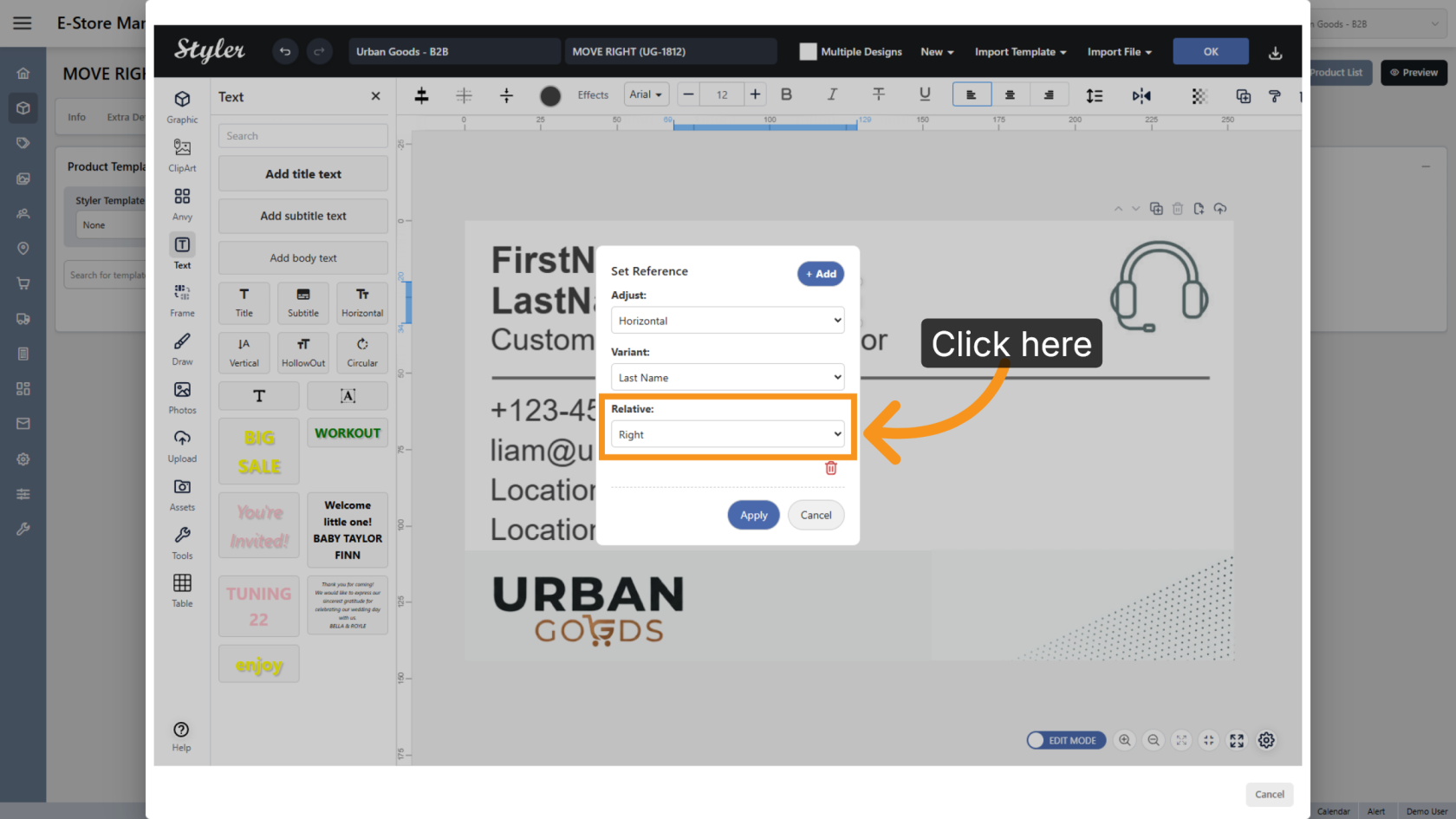
7. Set the Relative Position
Select the relative position of the non-variant object compared to the variant object.
For example, if the object should stay on the right side of the variant text, select Right.
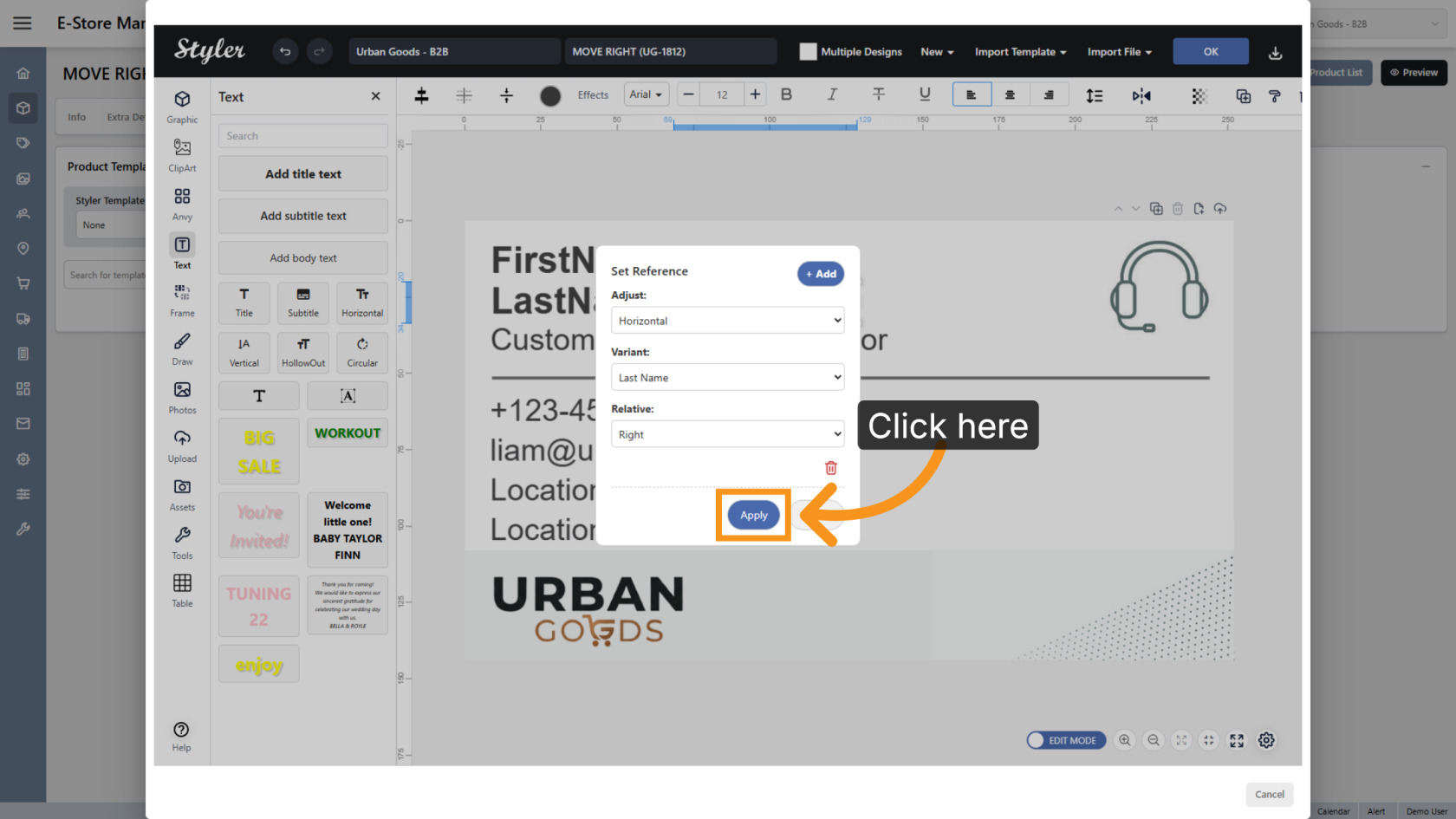
8. Apply the Reference Settings
Click Apply to save the reference configuration.
9. Confirm the Configuration
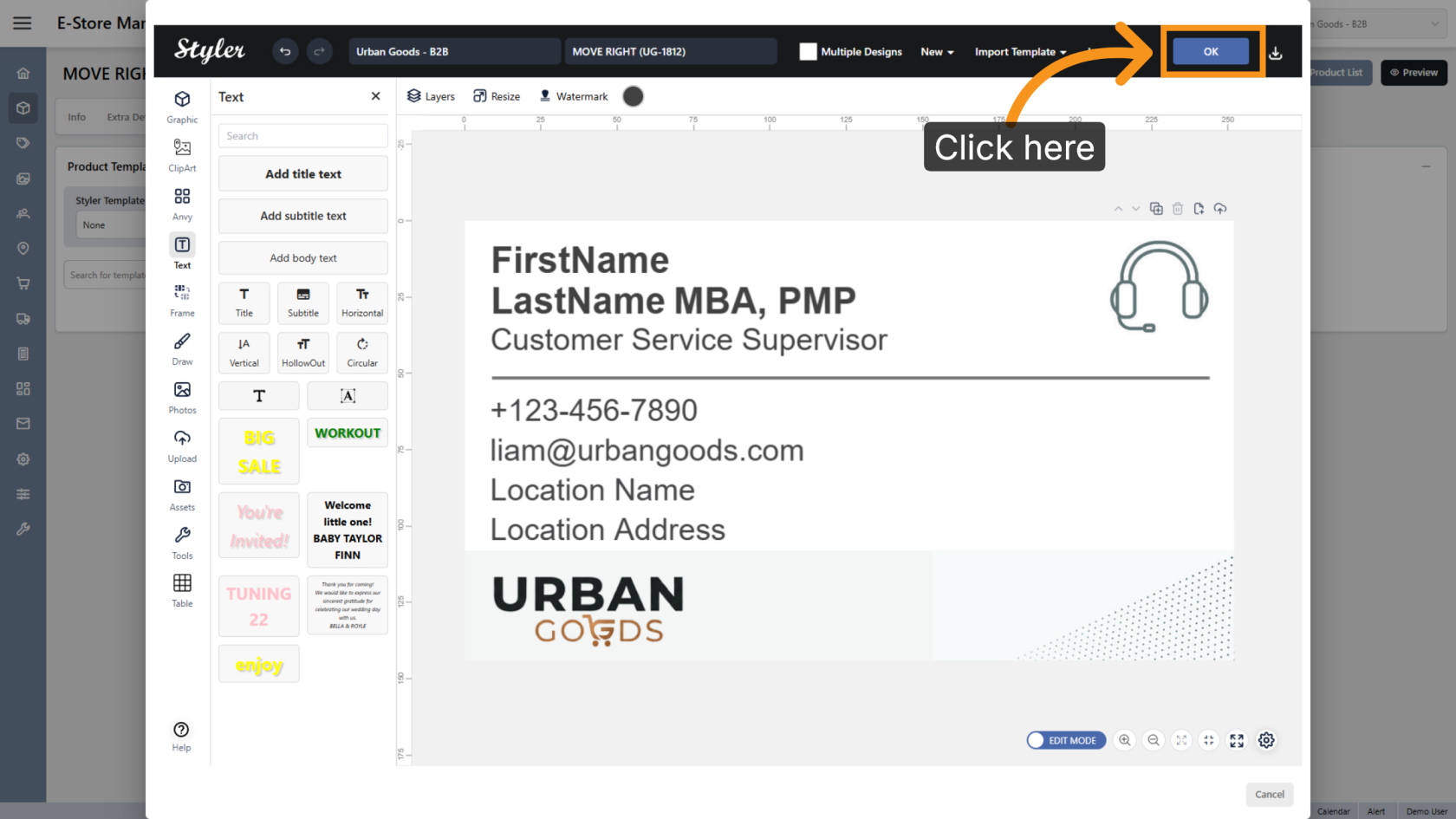
Click OK to finalize the settings.
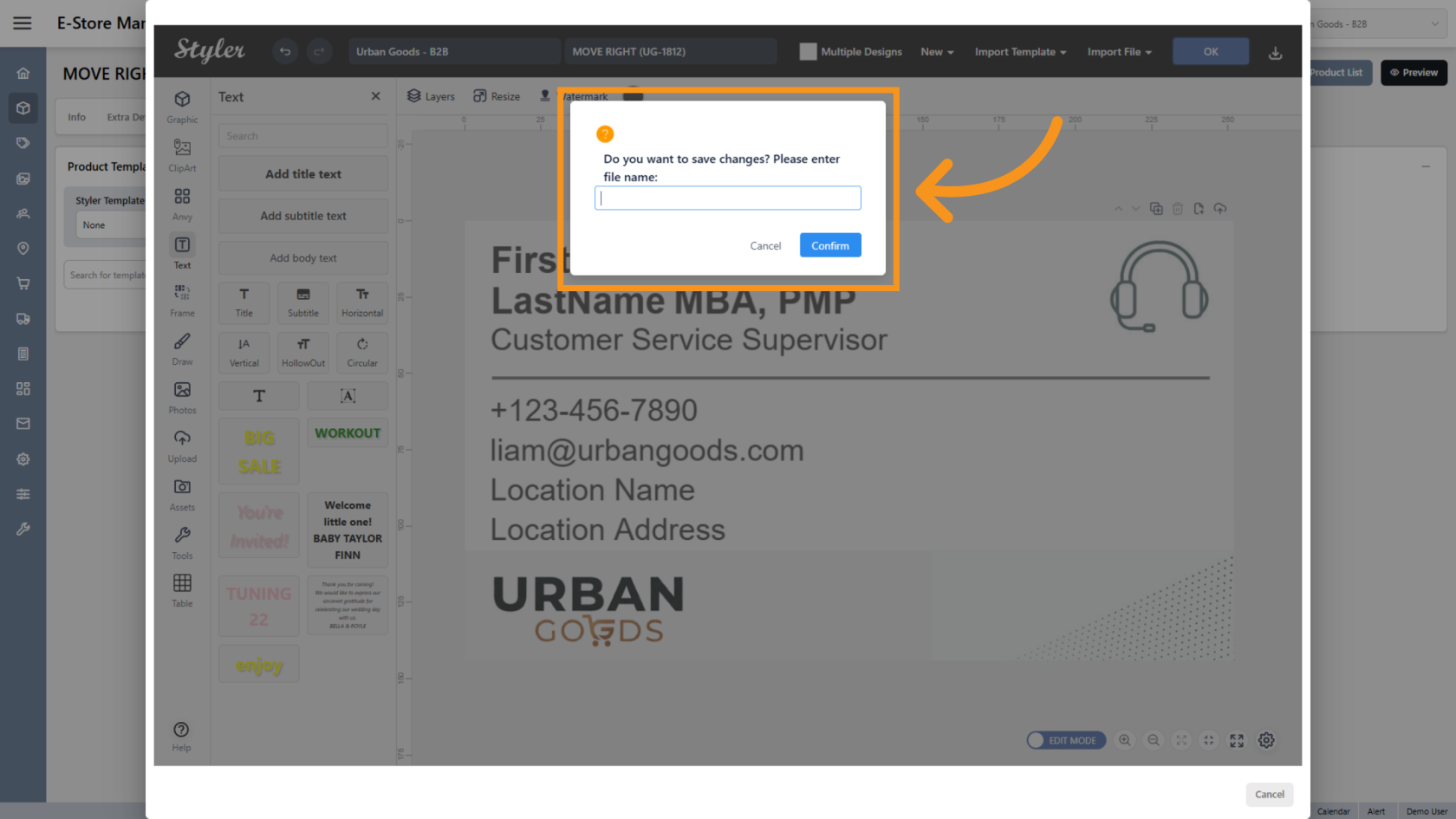
10. Enter the File Name
Enter the file name, then click Confirm.
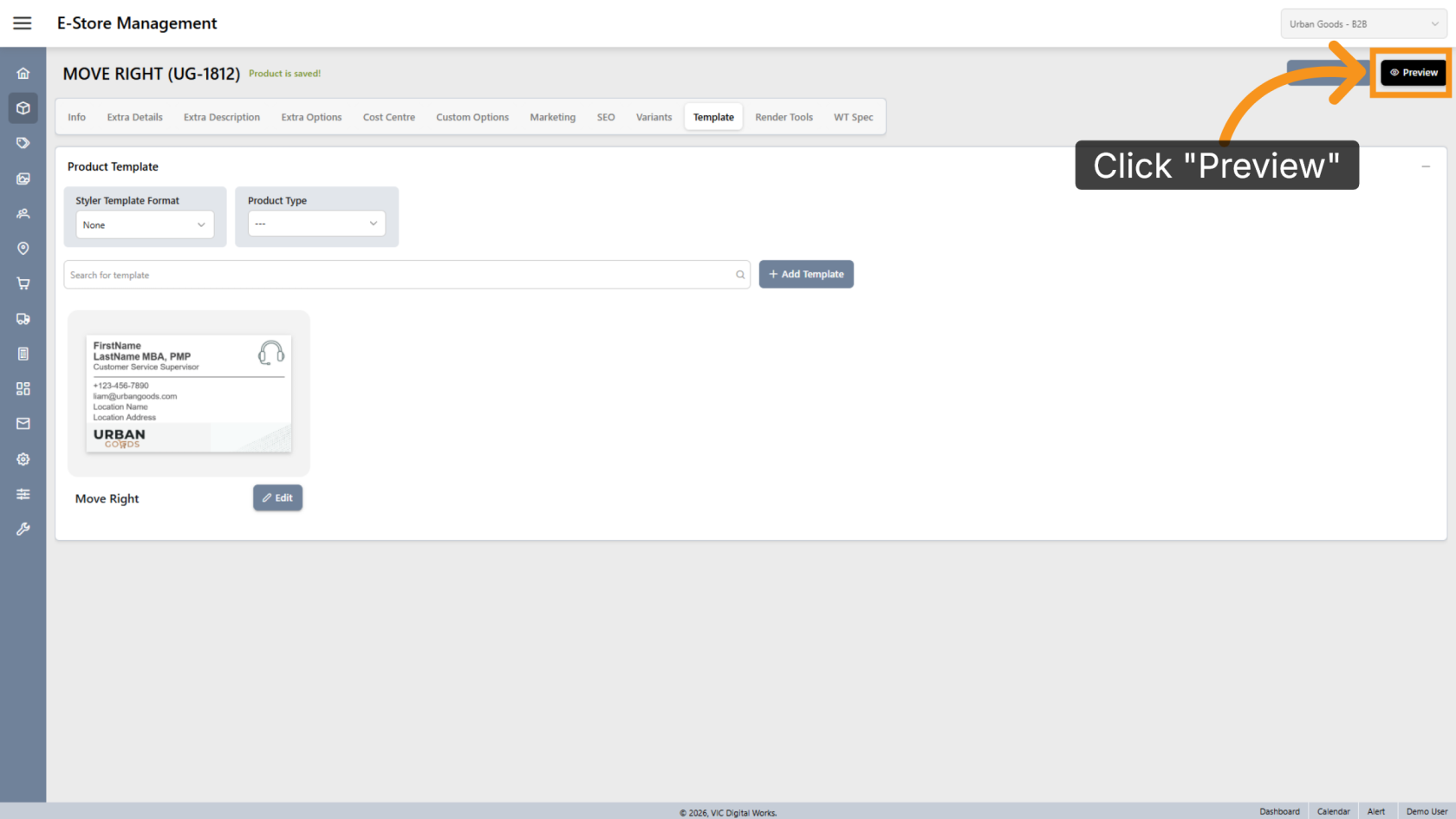
11. Preview the Design
Click Preview to review the final layout.
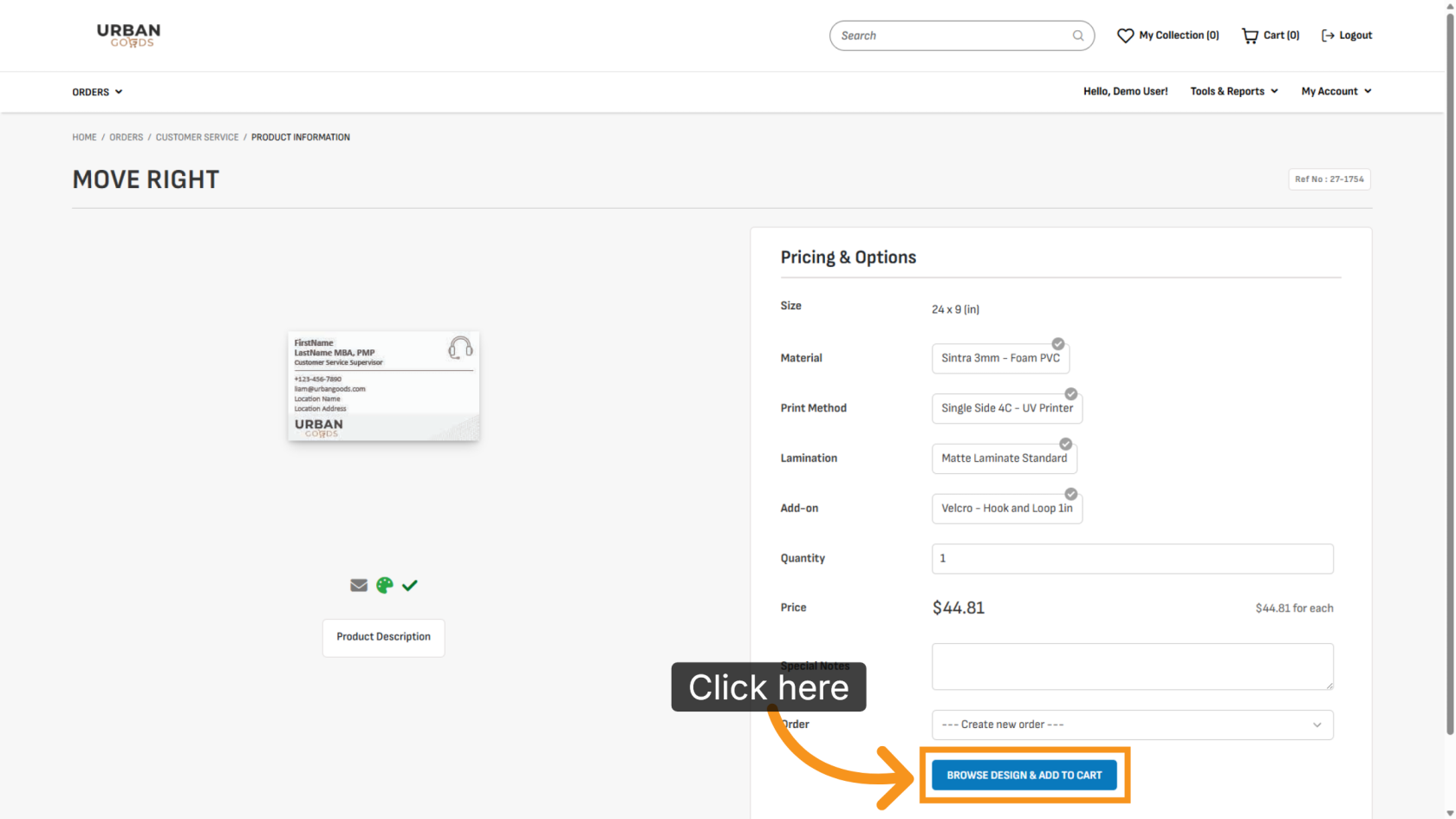
12. Browse Available Designs
Click BROWSE DESIGN & ADD TO CART to select a design for printing.
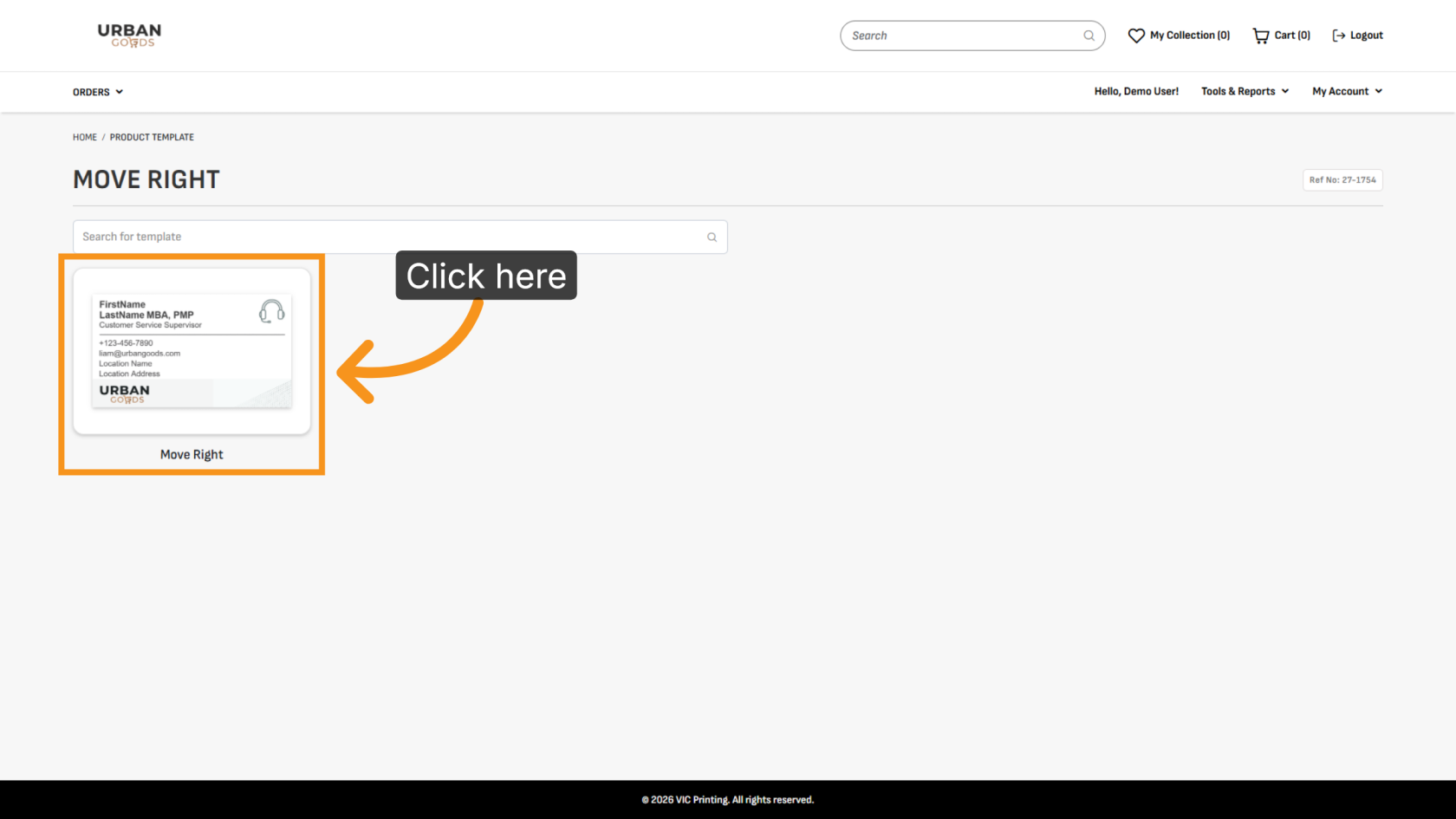
13. Select a Template
Choose the template you want to use.
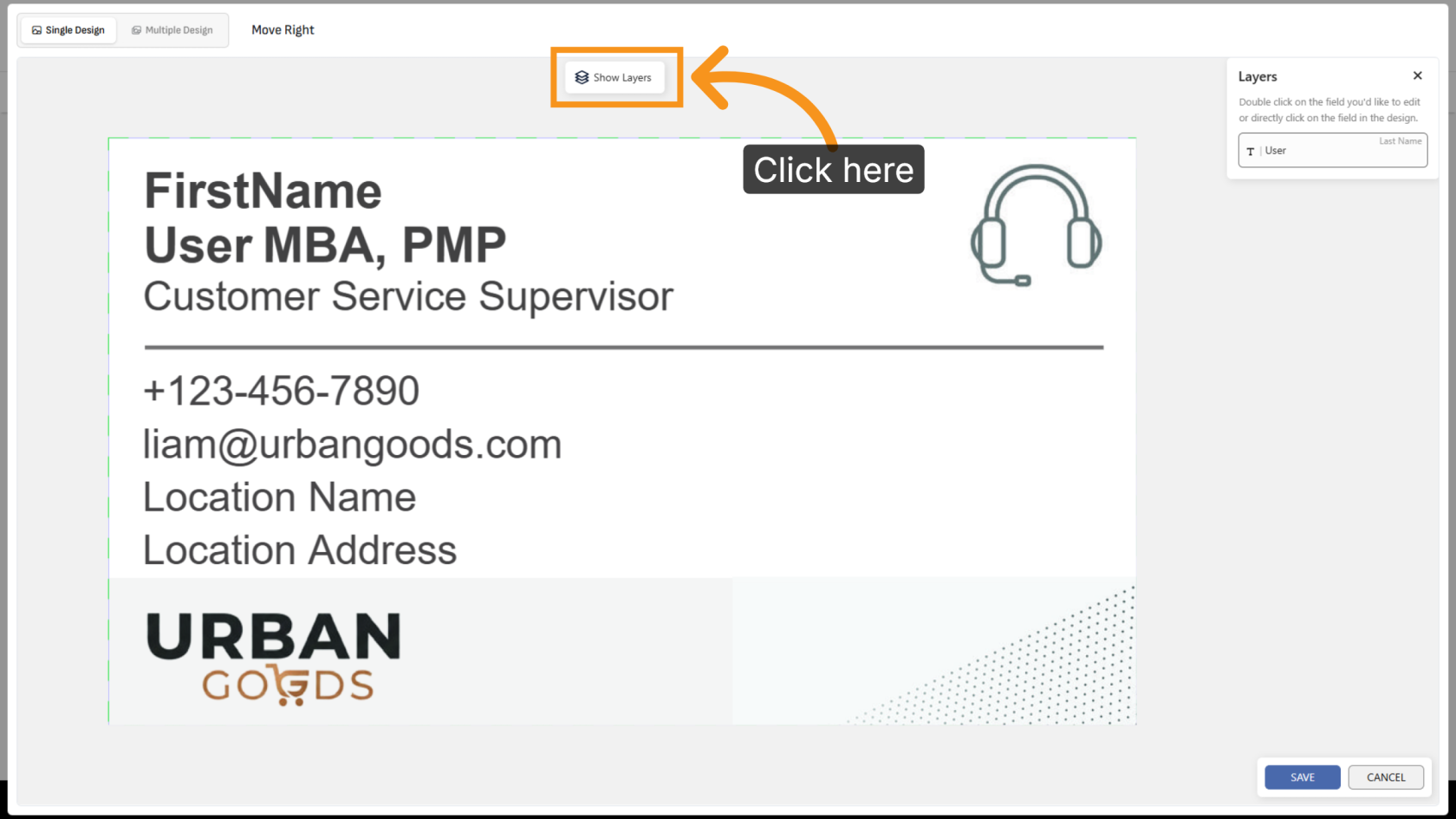
14. Show Layer
Click Show Layer to display all variant layers in the design.
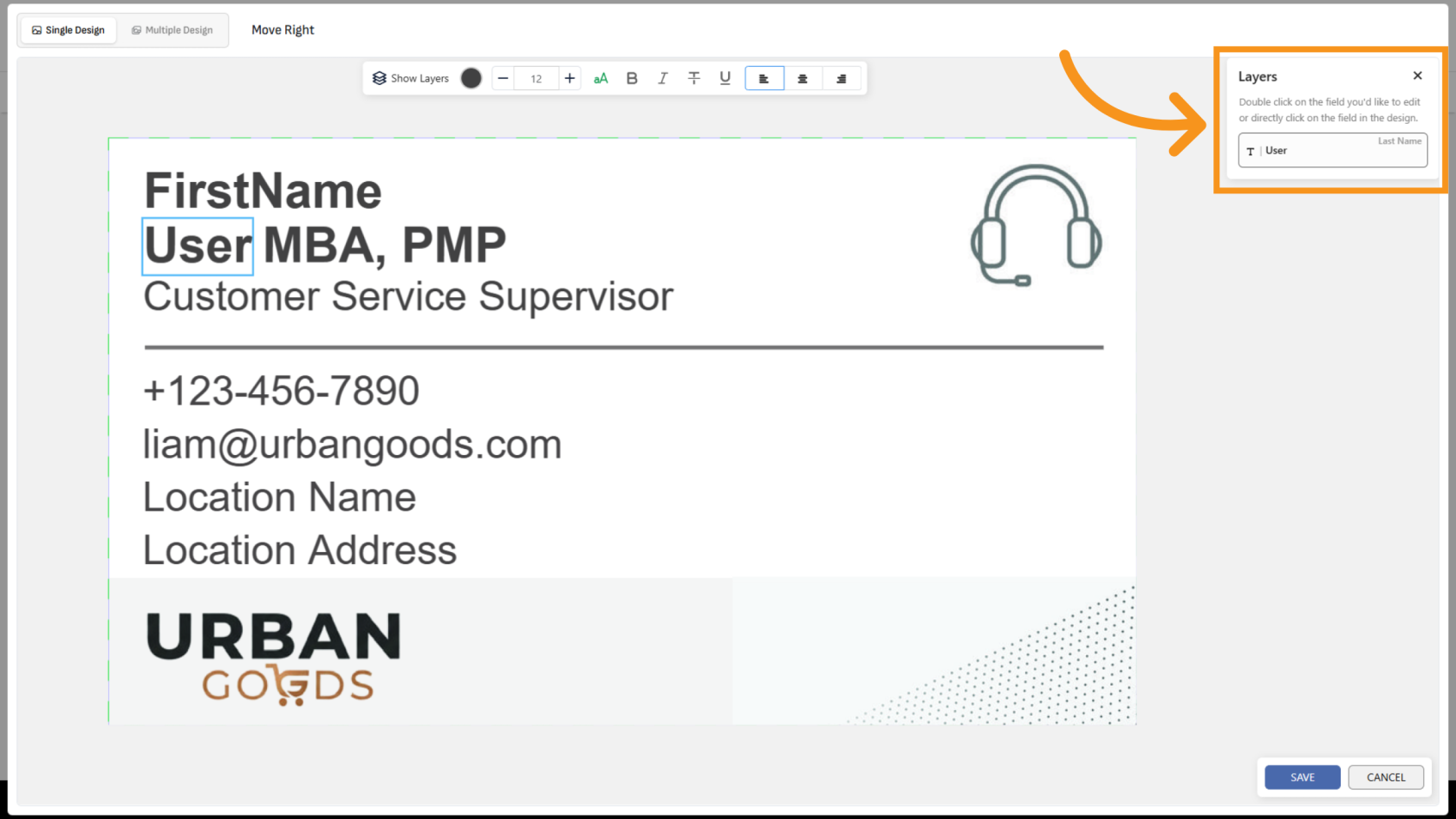
15. Review Variant Layers
All configured variants will appear as editable layers for easier management.
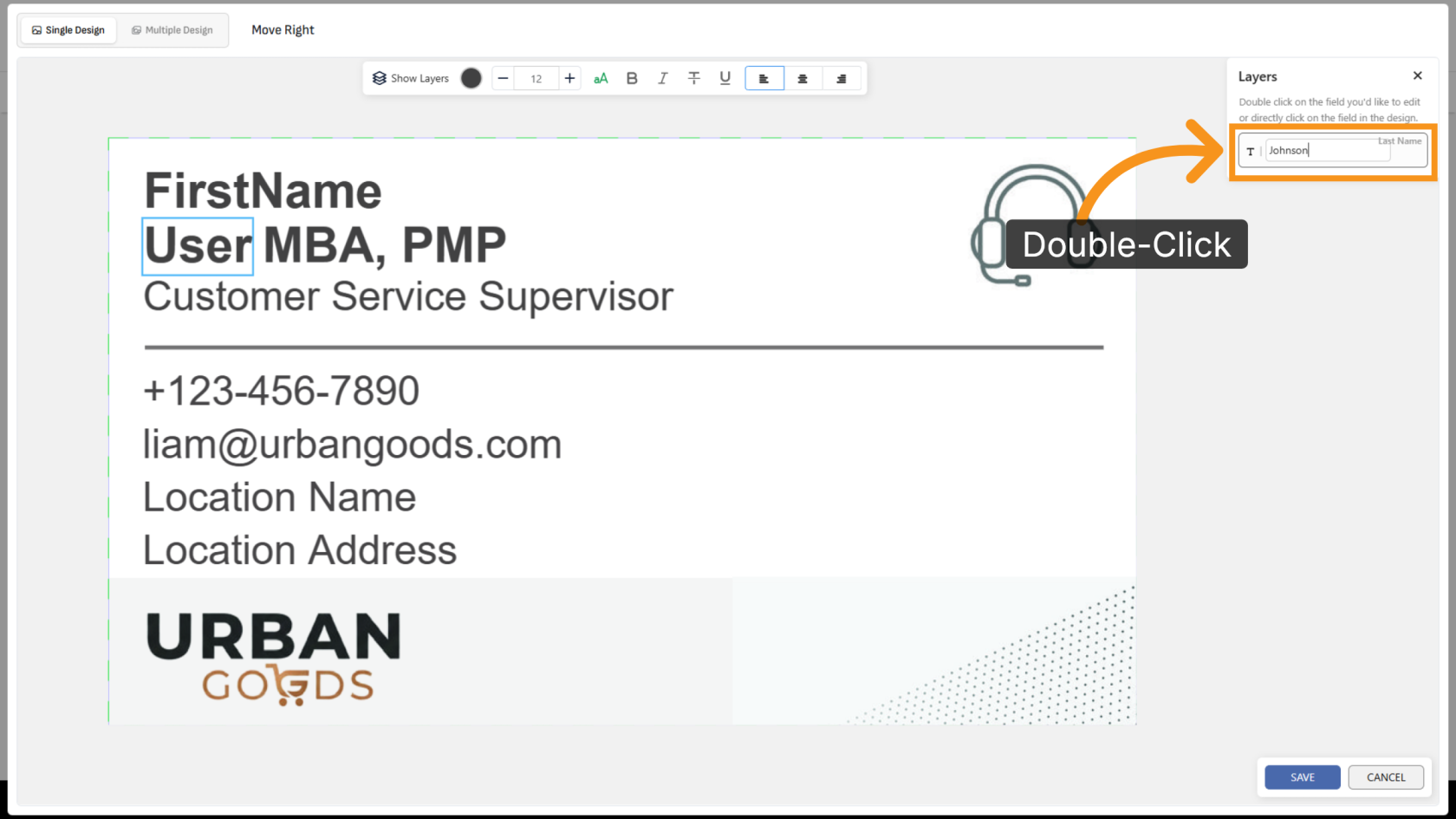
16. Edit Variant Values
Double-click the layer you want to edit, then enter the desired value.
17. Review the Dynamic Positioning
When the variant text changes, the referenced non-variant object will automatically adjust its position while maintaining the defined spacing.
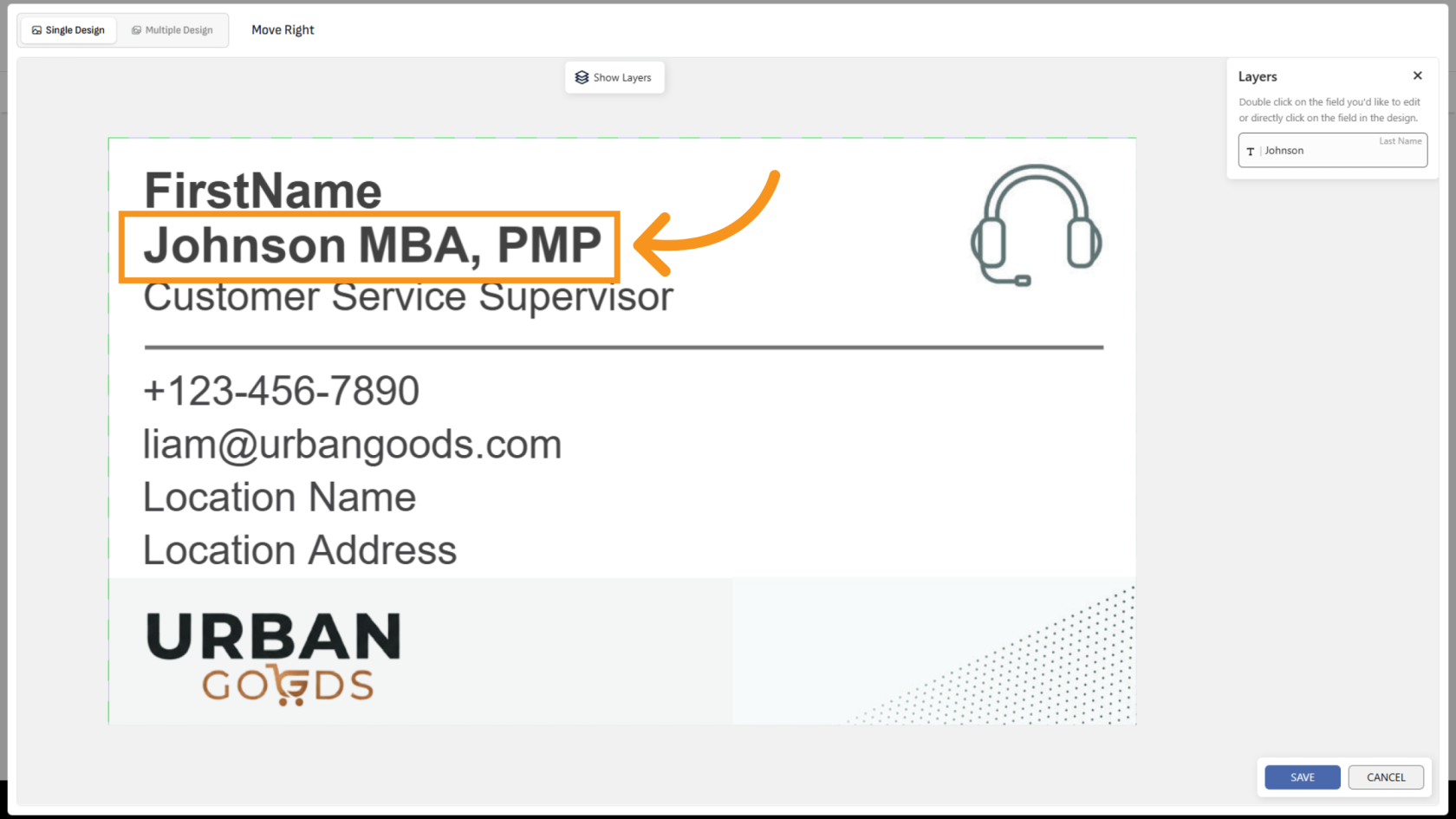
You have successfully configured relative positioning. This setup helps maintain consistent spacing and alignment when editable text changes dynamically.