
Add New Country & Provinces
This tutorial guides you through adding a new country and its provinces into WorkTraq
Video Tutorial
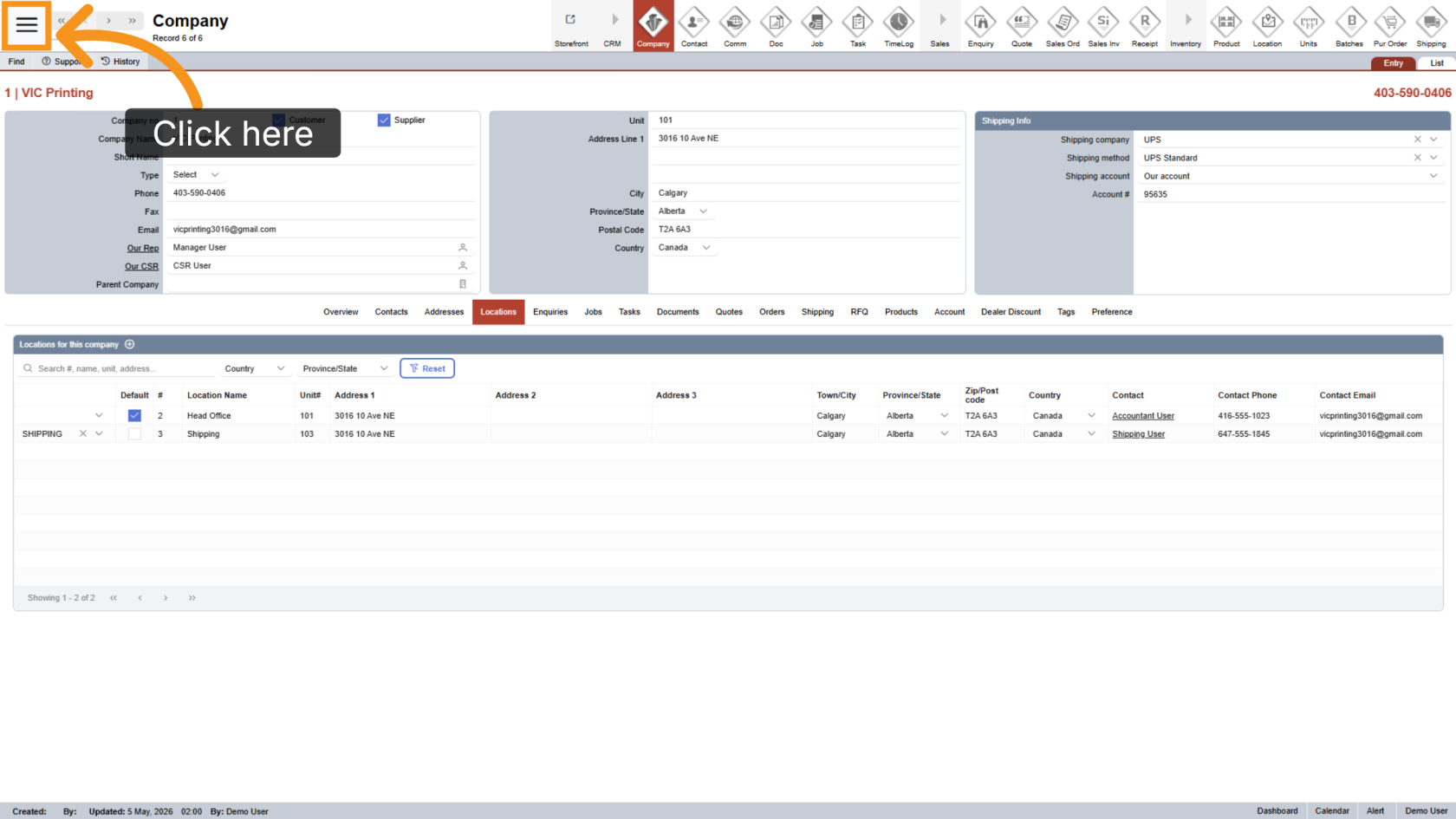
1. Open Main Menu
Click the  main navigation menu to access system options.
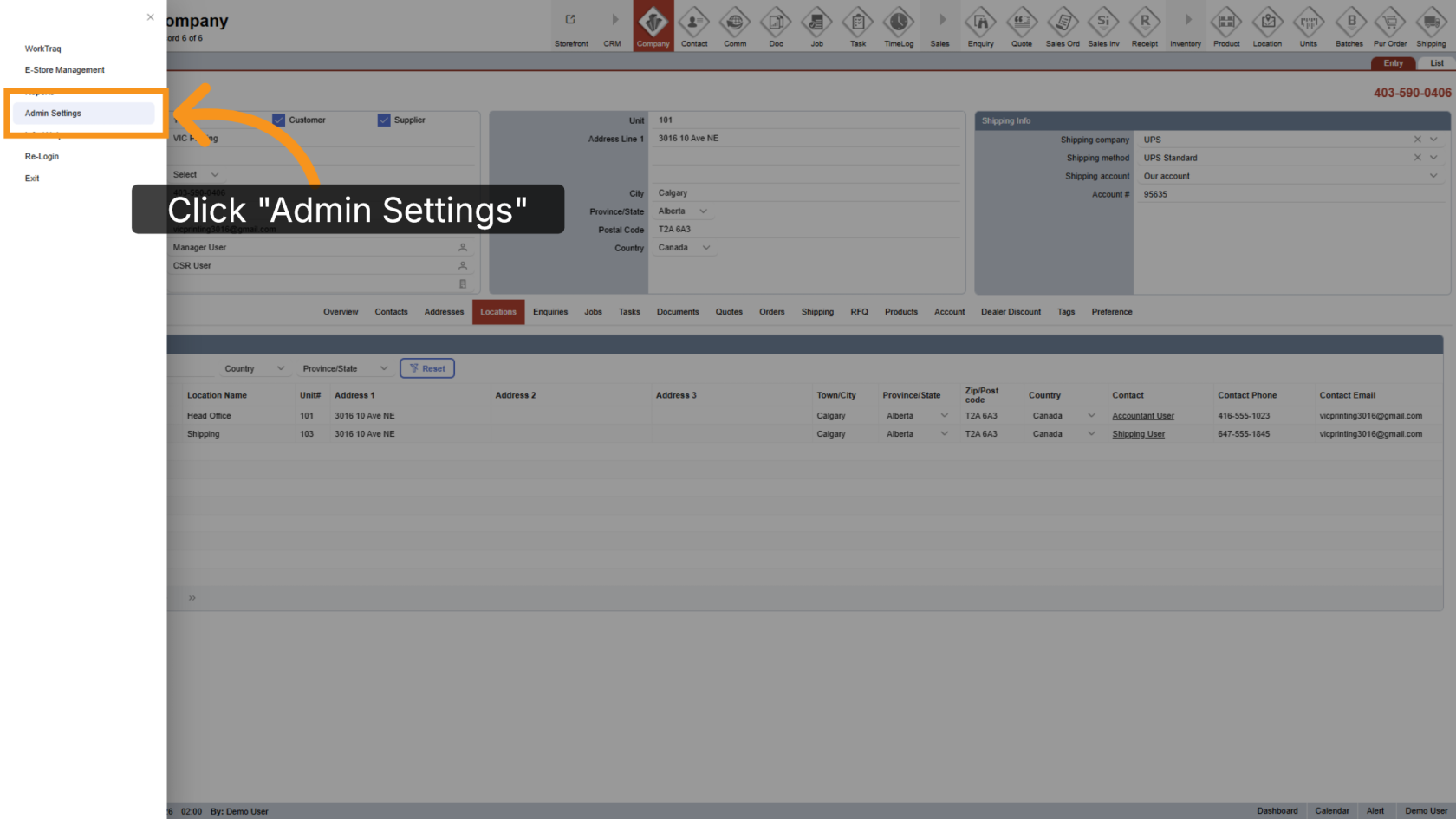
2. Go to Admin Settings
Click "Admin Settings" to open the administration panel.
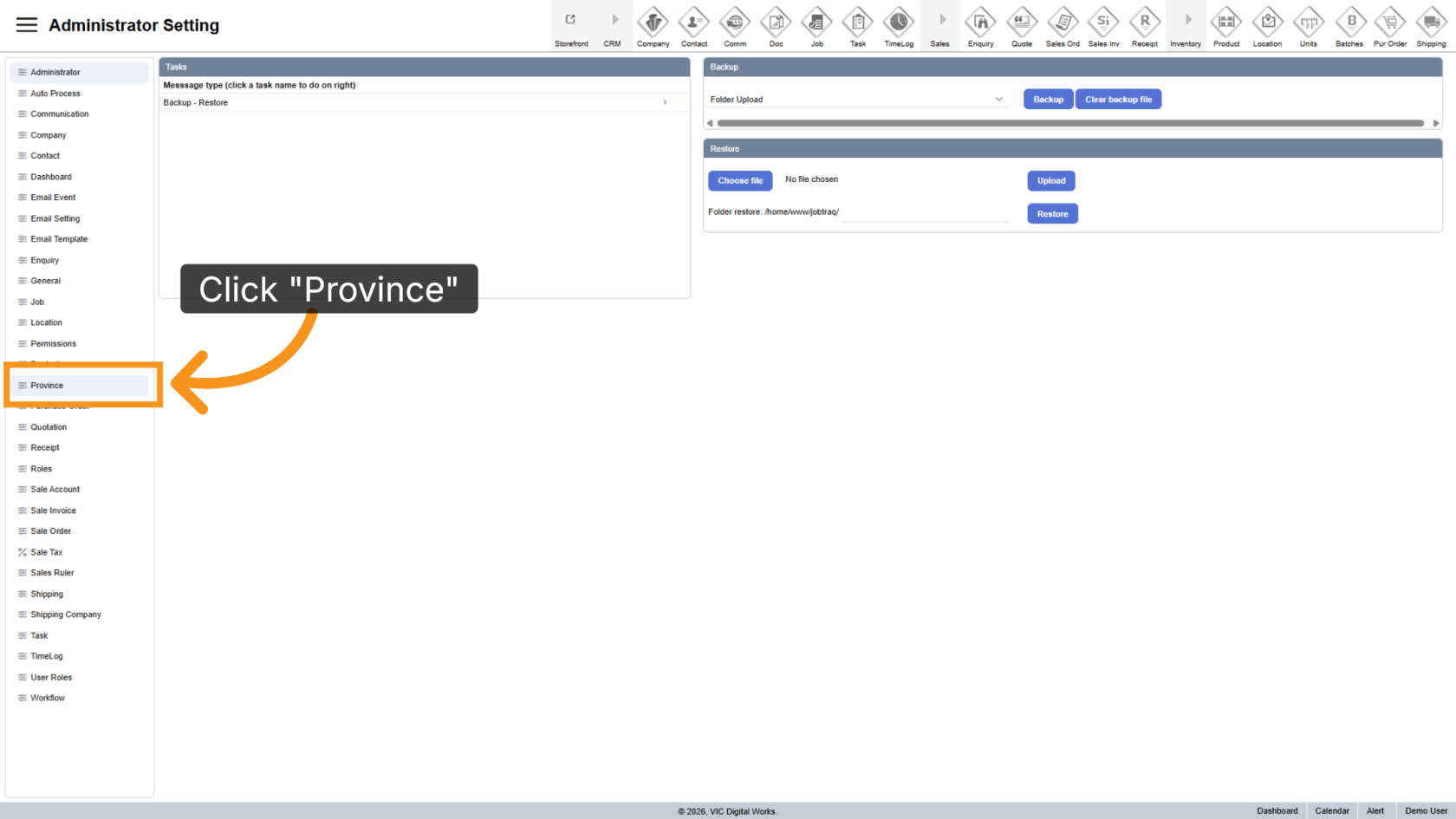
3. Open Province Settings
Click "Province" to open the configuration section.
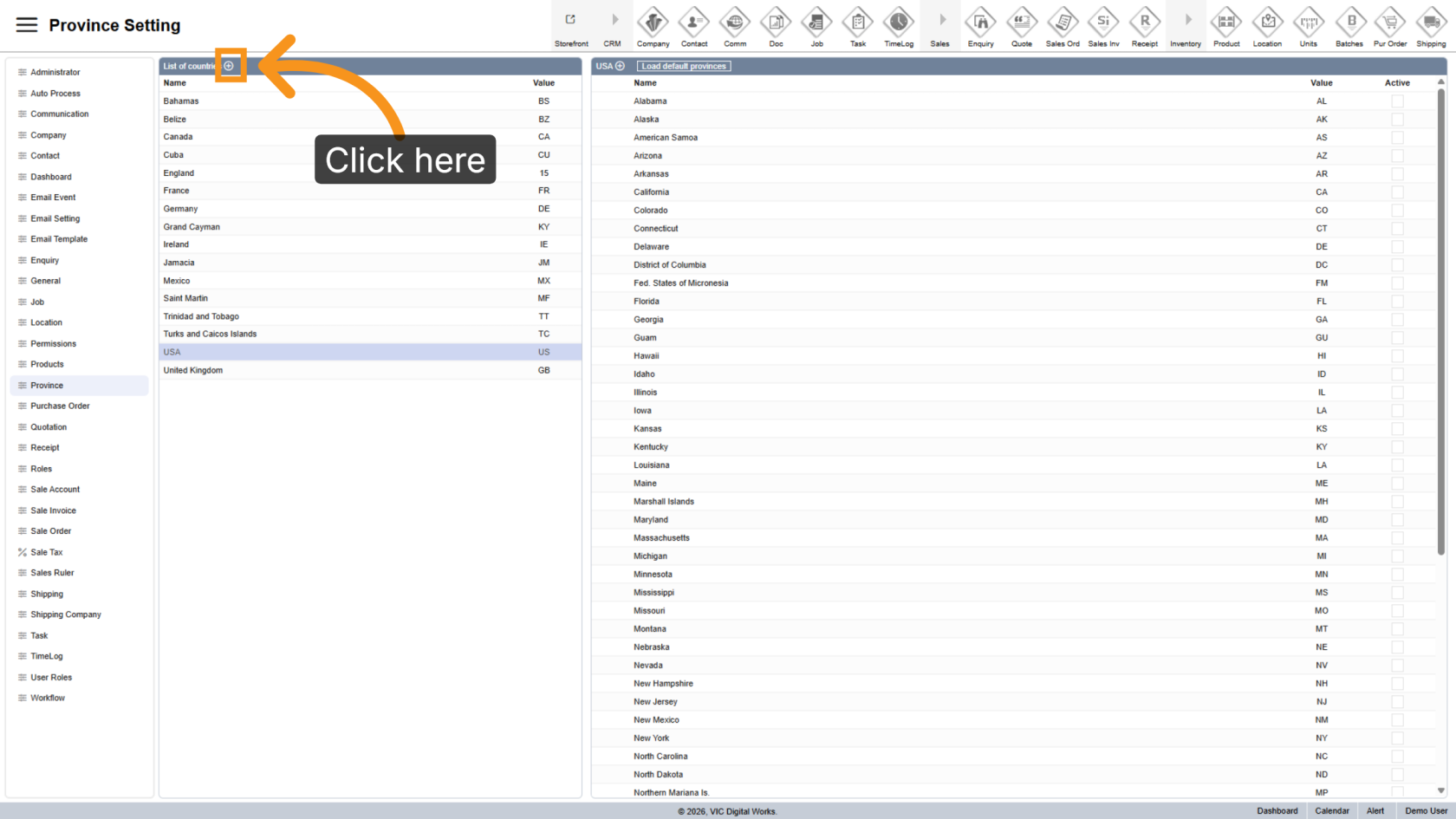
4. Add a New Country
Click the  plus icon to add a new country to the system.
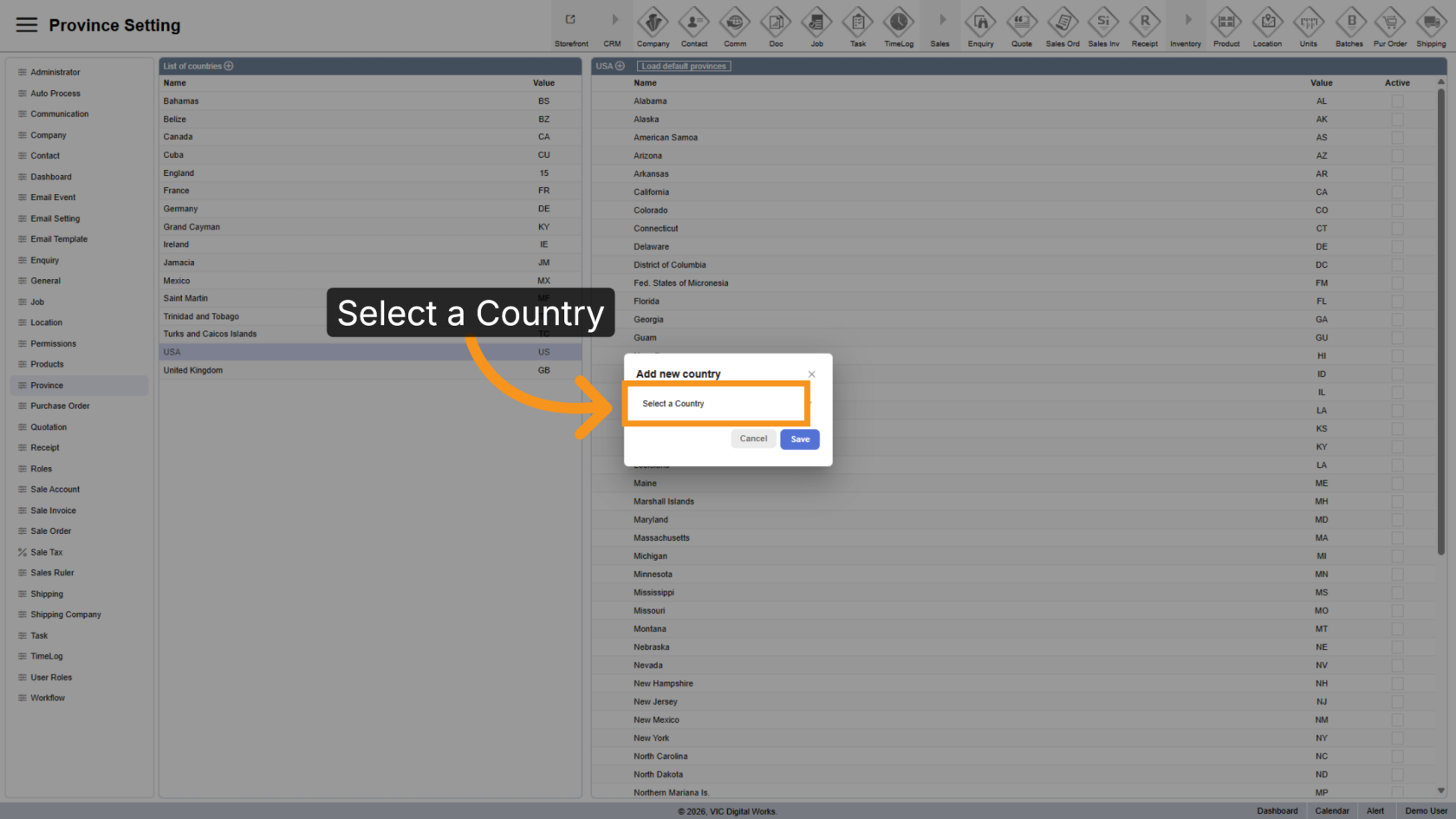
5. Select a Country
Click "Select a Country" and choose the country you want to add.
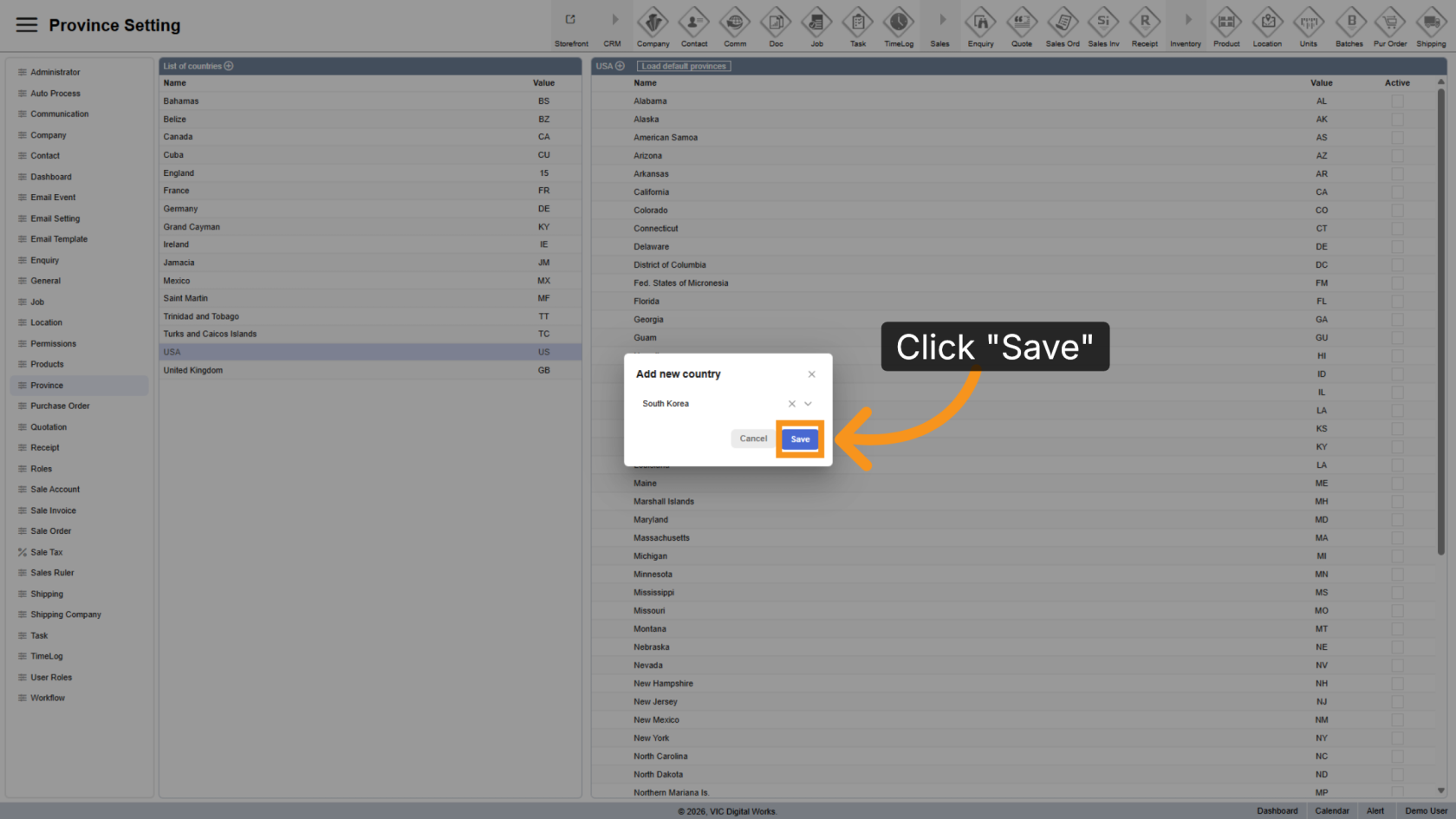
6. Save the Country
Click "Save" to confirm your selection and apply the changes.
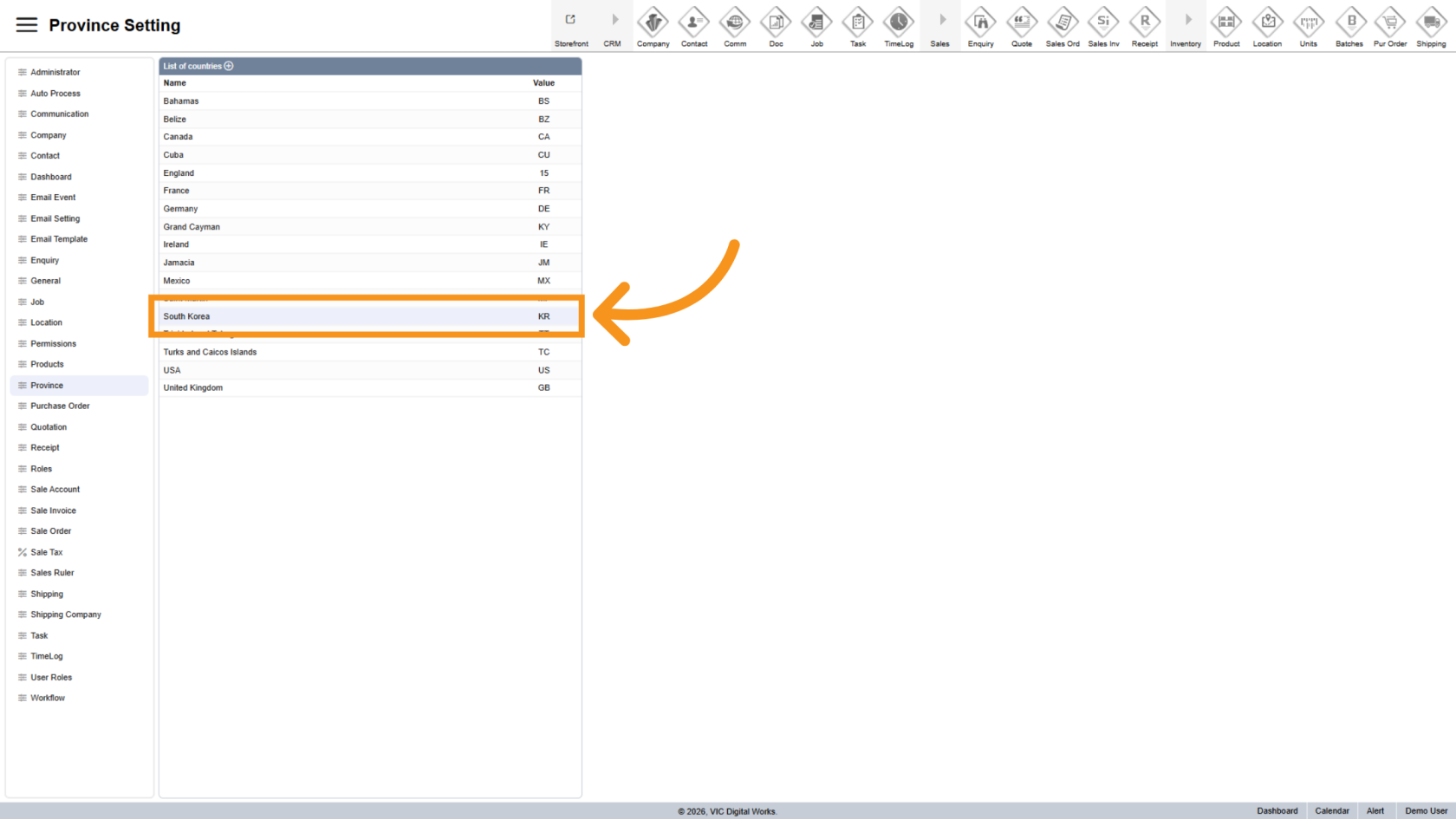
7. Add Provinces
Click on the country you just added.
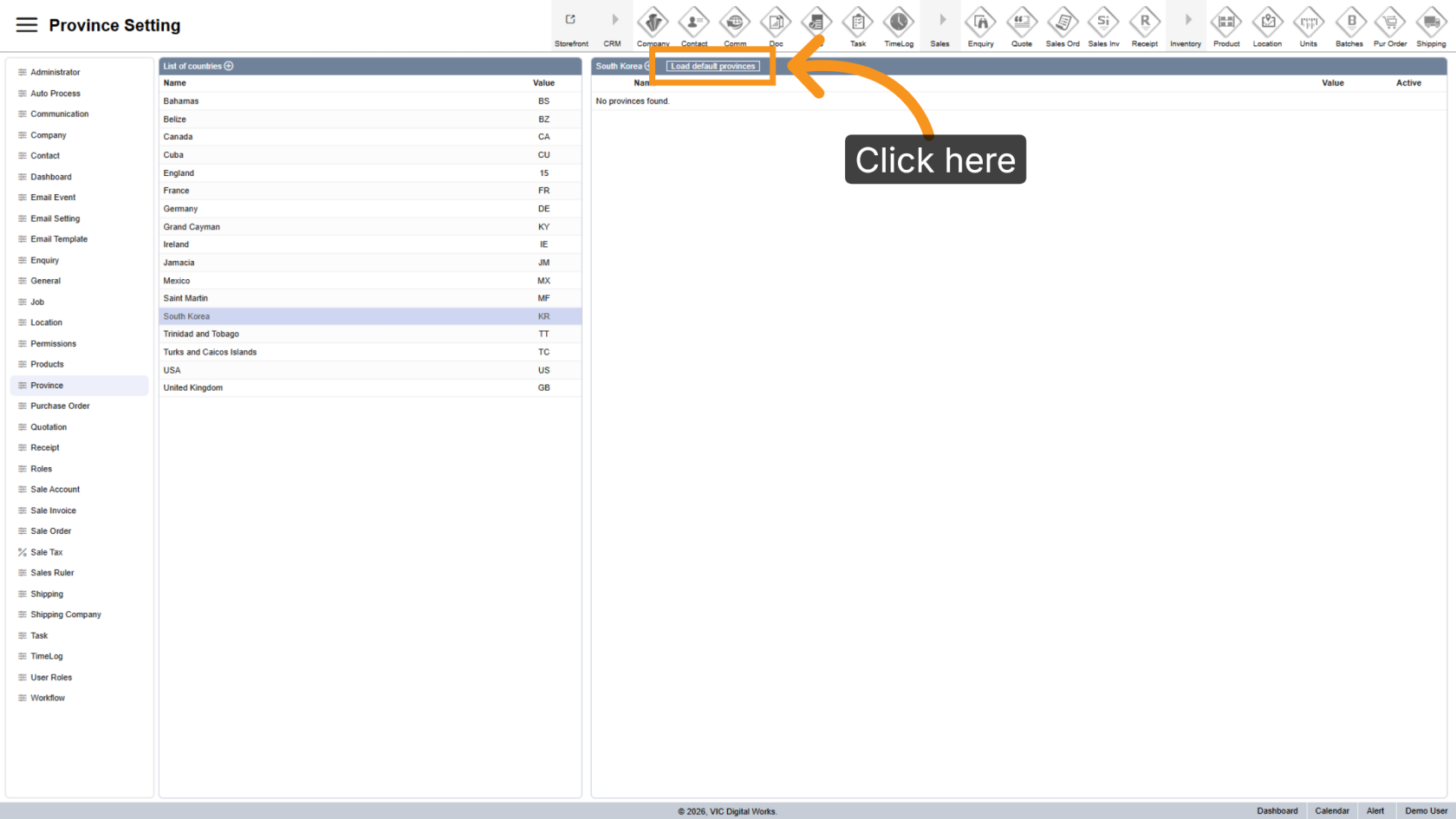
8. Load Default Provinces
Click "Load Default Provinces" to automatically load all default provinces for the selected country.
9. View All Provinces
The list of default provinces will appear below.
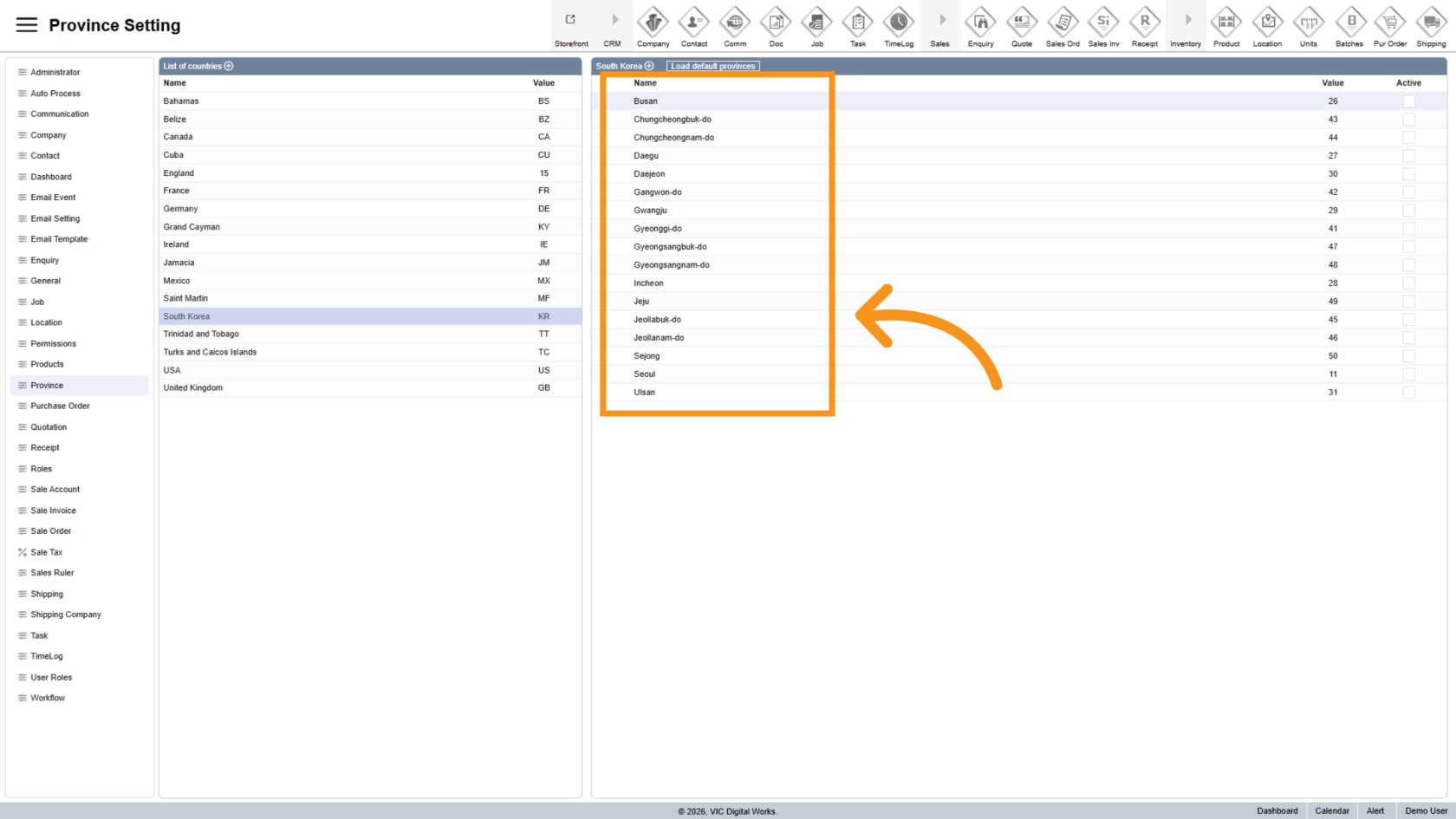
You have successfully added a new country and its default provinces in the WorkTraq application. This setup helps ensure accurate regional data management and supports workflow customization.