
Add Quotation Reject Reason
This tutorial will guide you through adding a new quotation reject reason in the WorkTraq application.
Video Tutorial
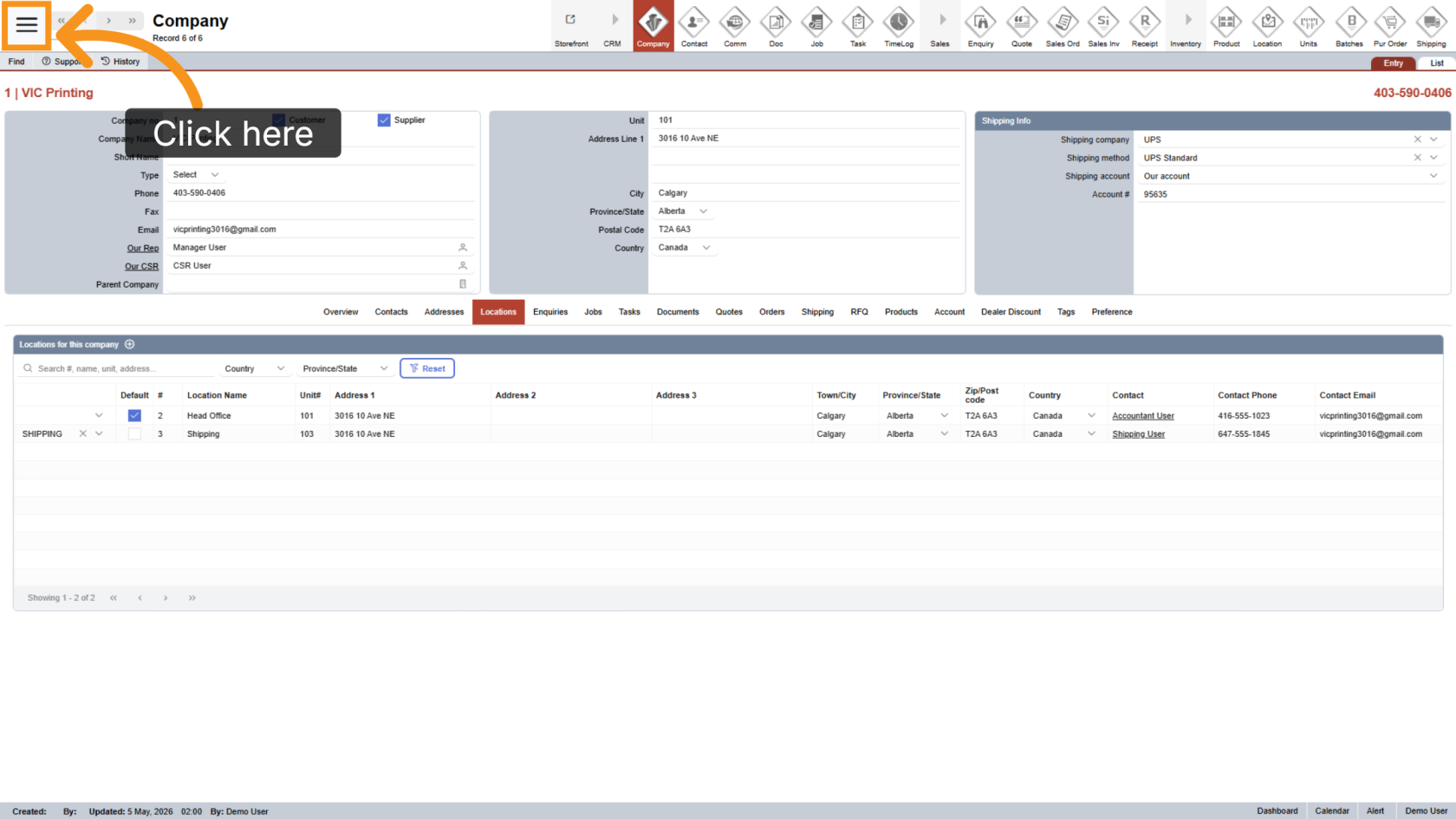
1. Open Main Menu
Click the  main navigation menu to access system options.
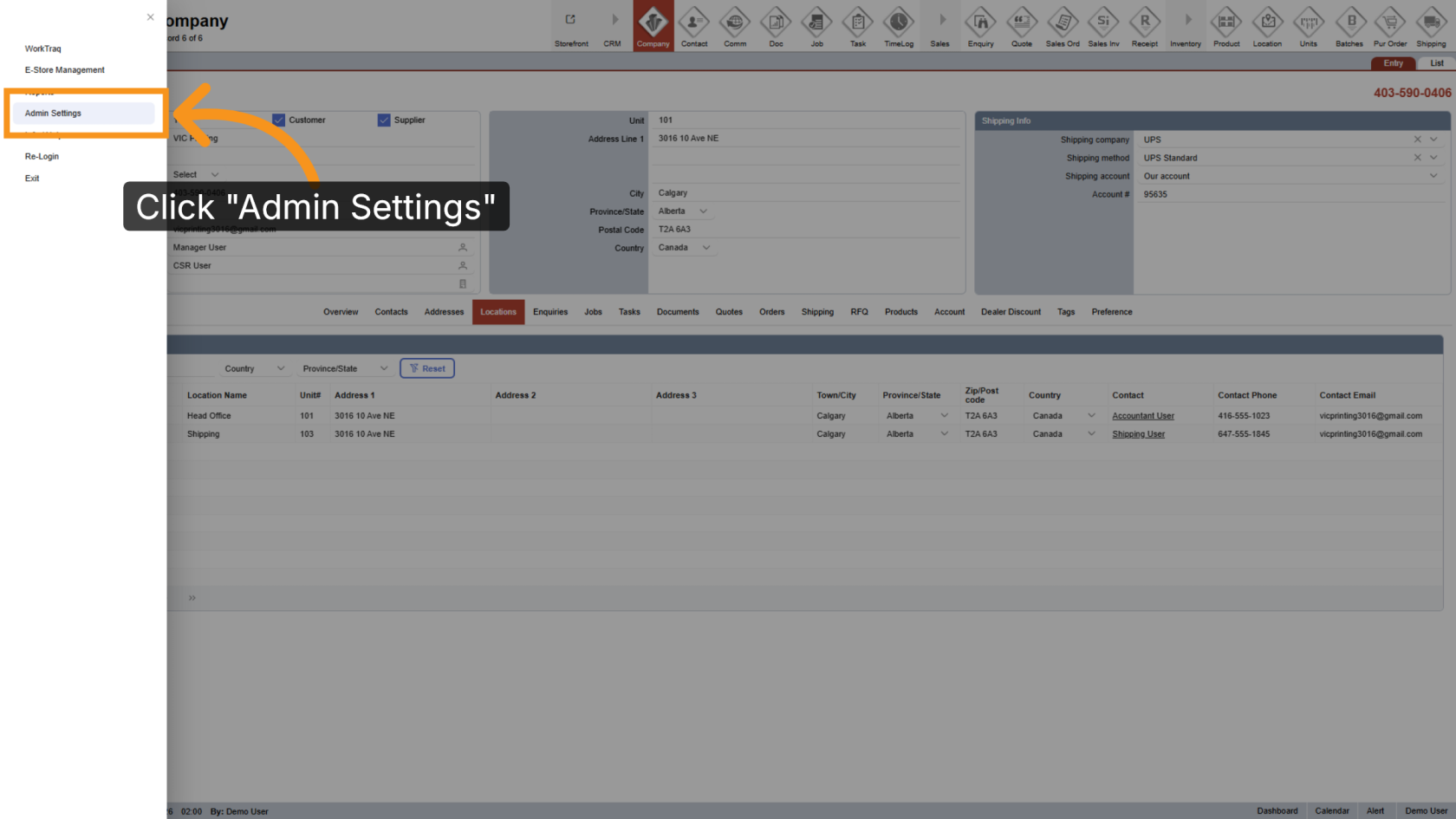
2. Go to Admin Settings
Click "Admin Settings" to open the administration panel.
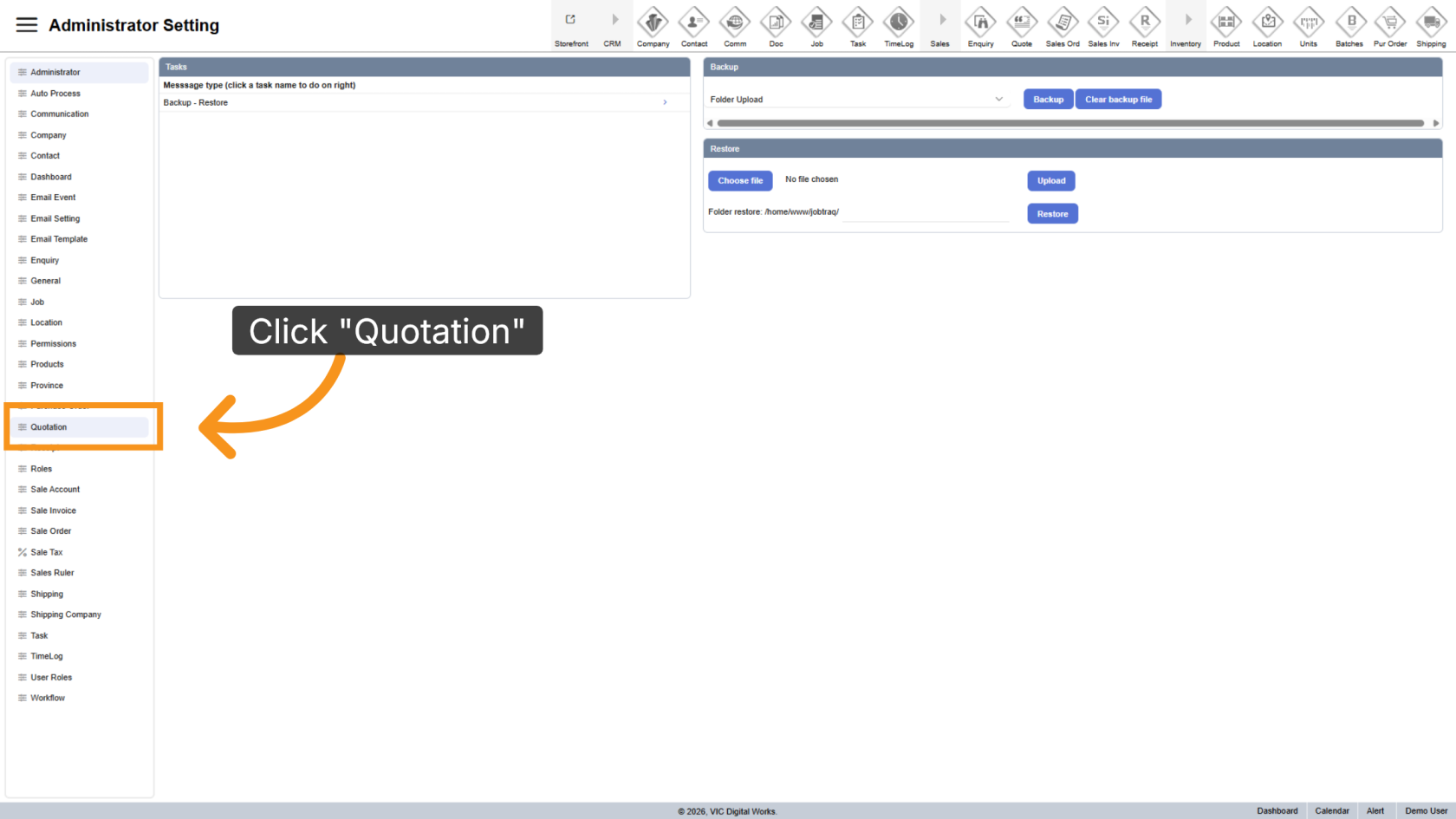
3. Open the Quotation Menu
Click "Quotation" to access quotation management options.
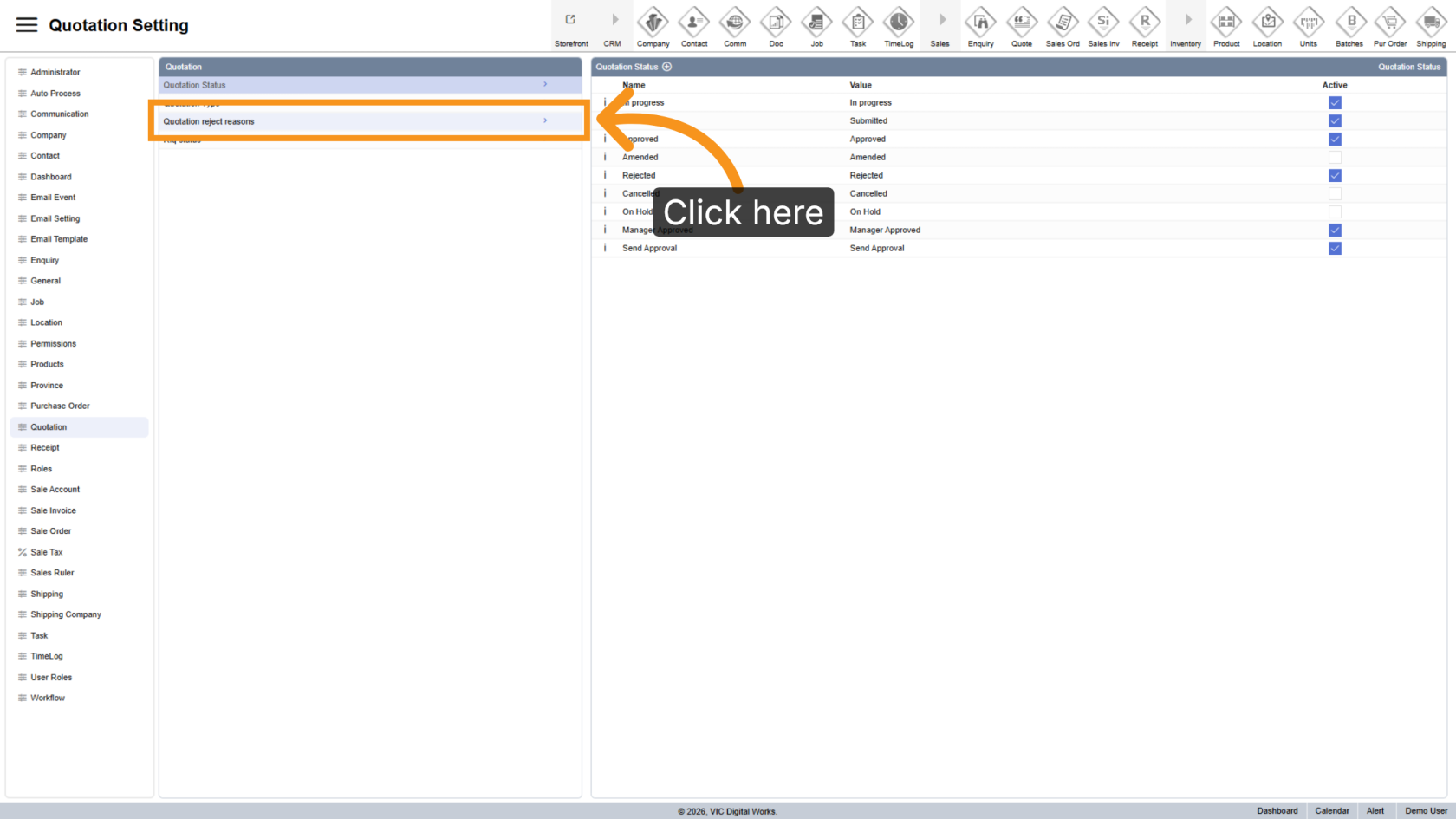
4. Open Quotation Reject Reasons
Click "Quotation Reject Reasons" to manage reject reasons.
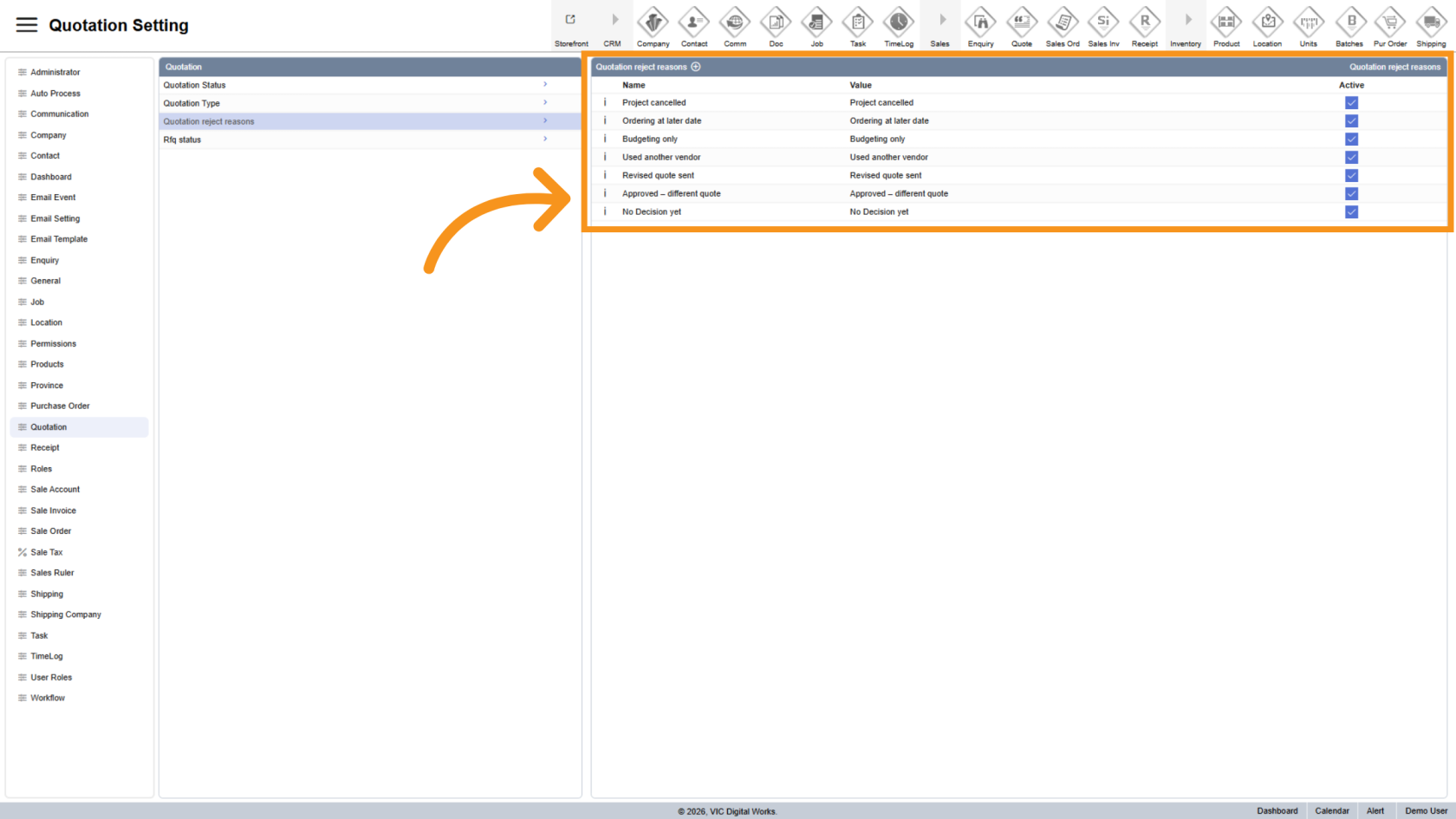
5. View Existing Reject Reasons
All existing rejection reasons will appear on the right side of the screen.
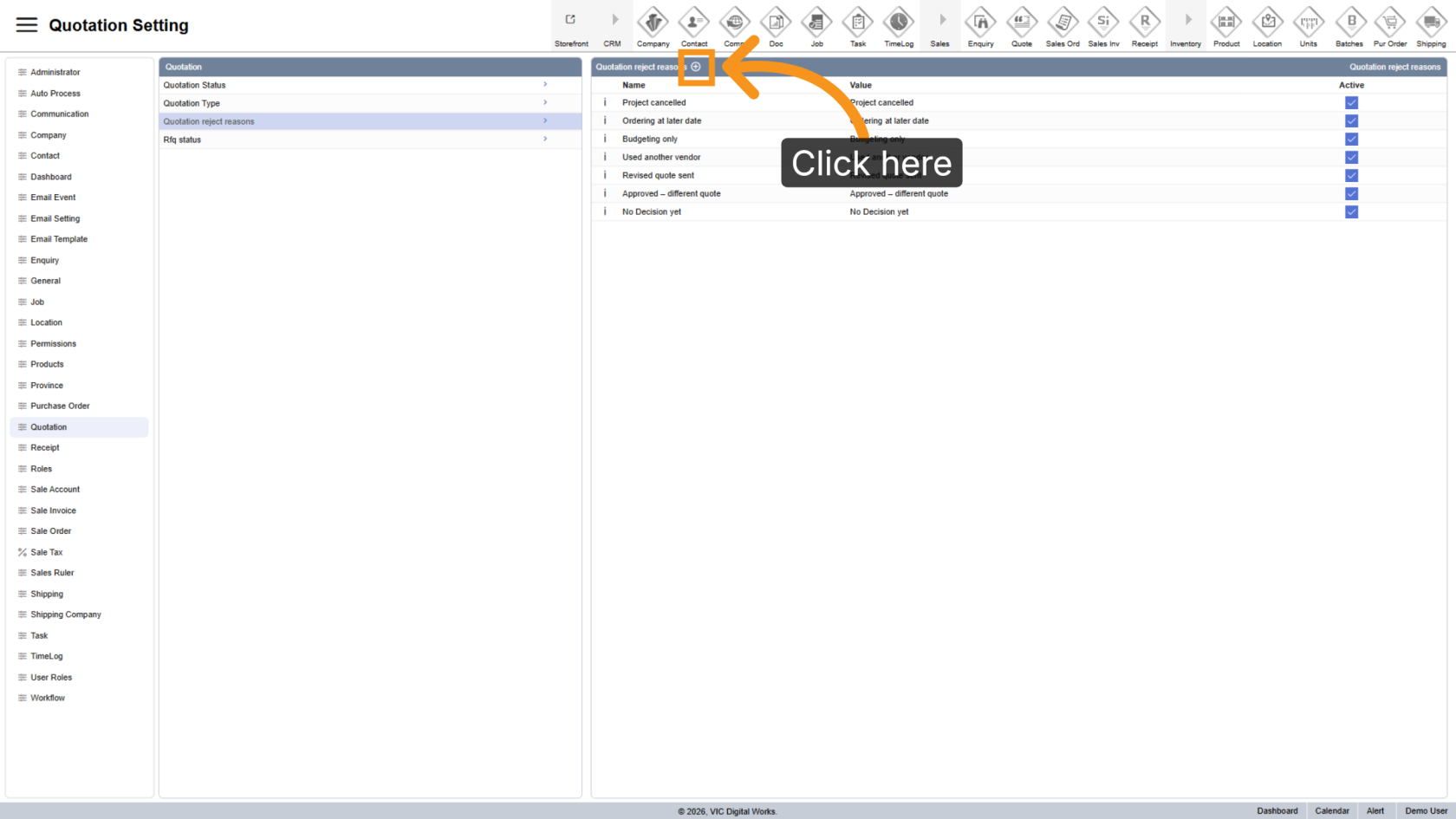
6. Add a New Reject Reason
Click the  plus icon to create a new reject reason.
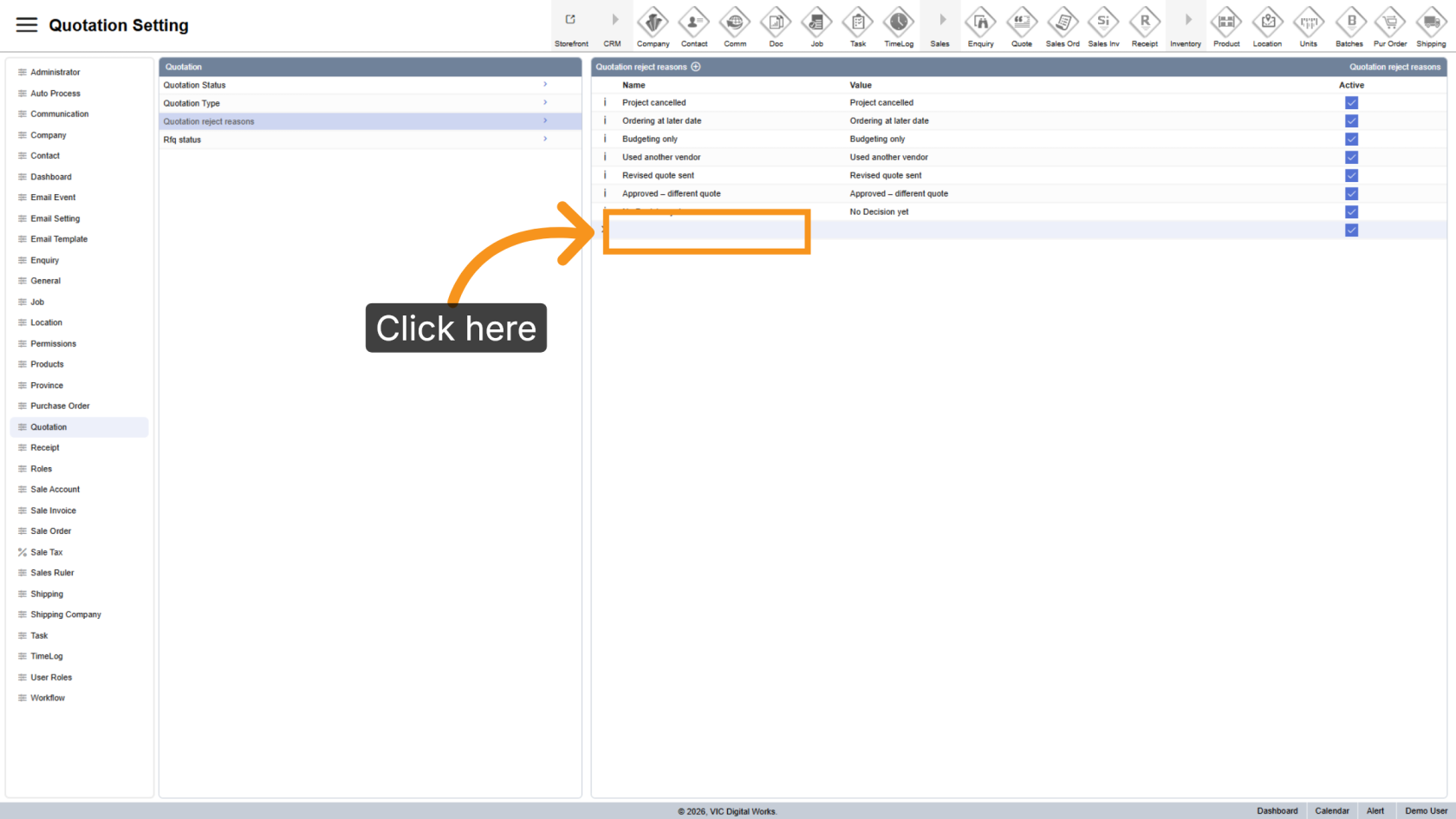
7. Enter the Reason Name
Type the reject reason into the Name field.
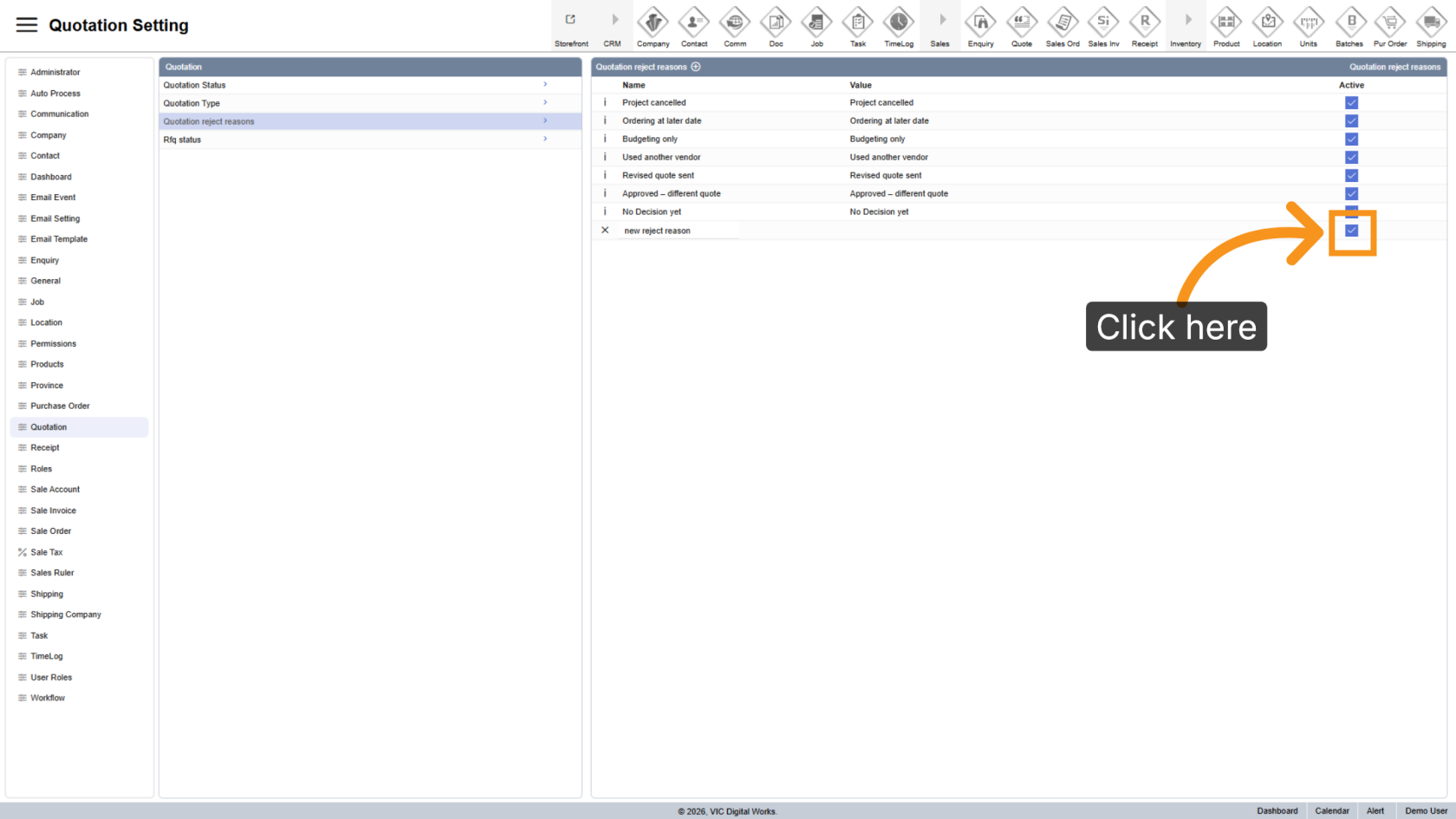
8. Set the Reason Status
Uncheck Active if you want to hide the reason from the reject reason list.
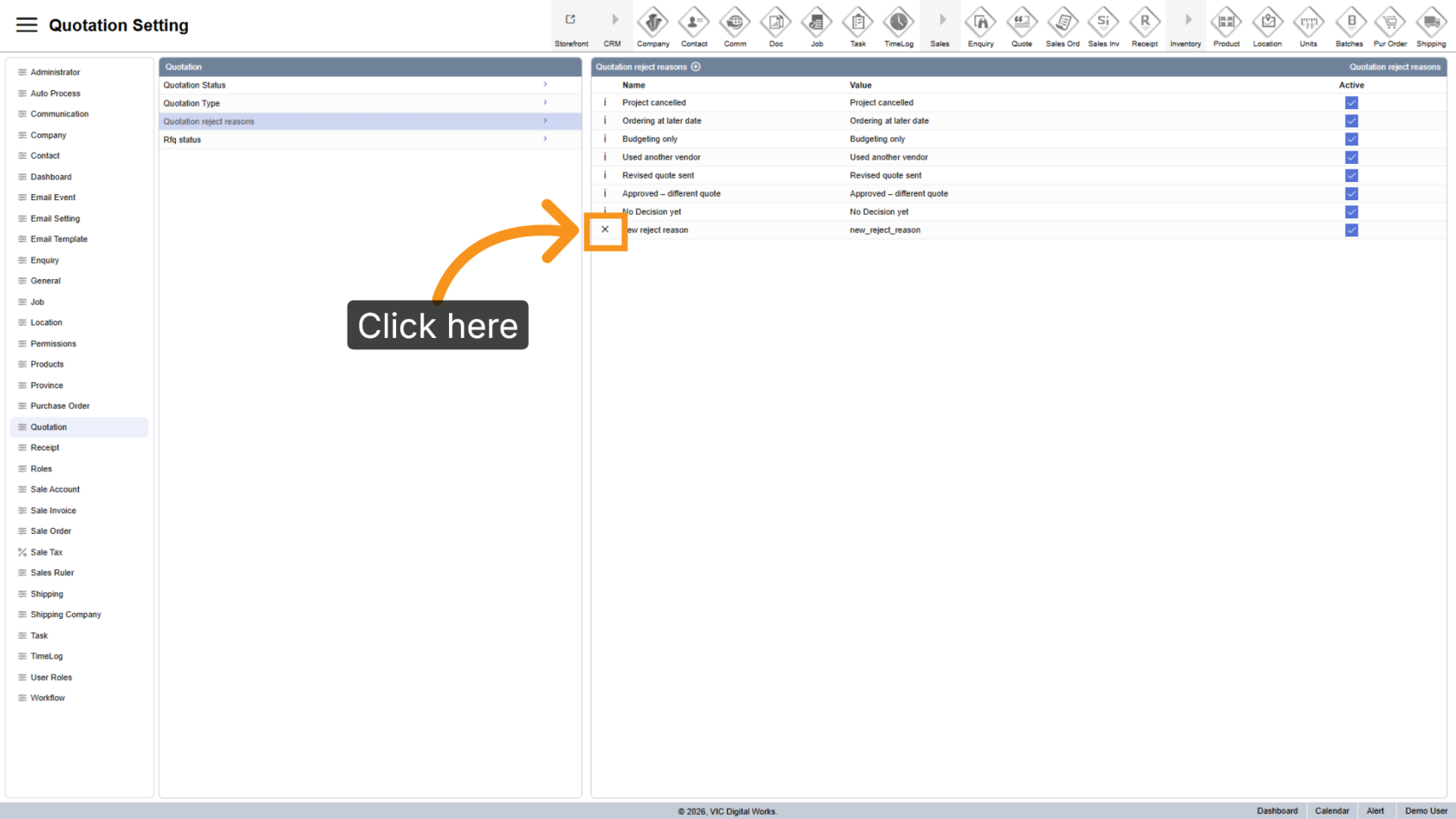
9. Delete a Reject Reason
Click the X delete icon to remove the reject reason from the system.
You have successfully added and configured a quotation reject reason in the WorkTraq application.