
Configure Sales Tax Rates
This tutorial guides you through configuring sales tax rates in the WorkTraq application. Sales tax rates can be added to tax groups for customized tax calculations.
Video Tutorial
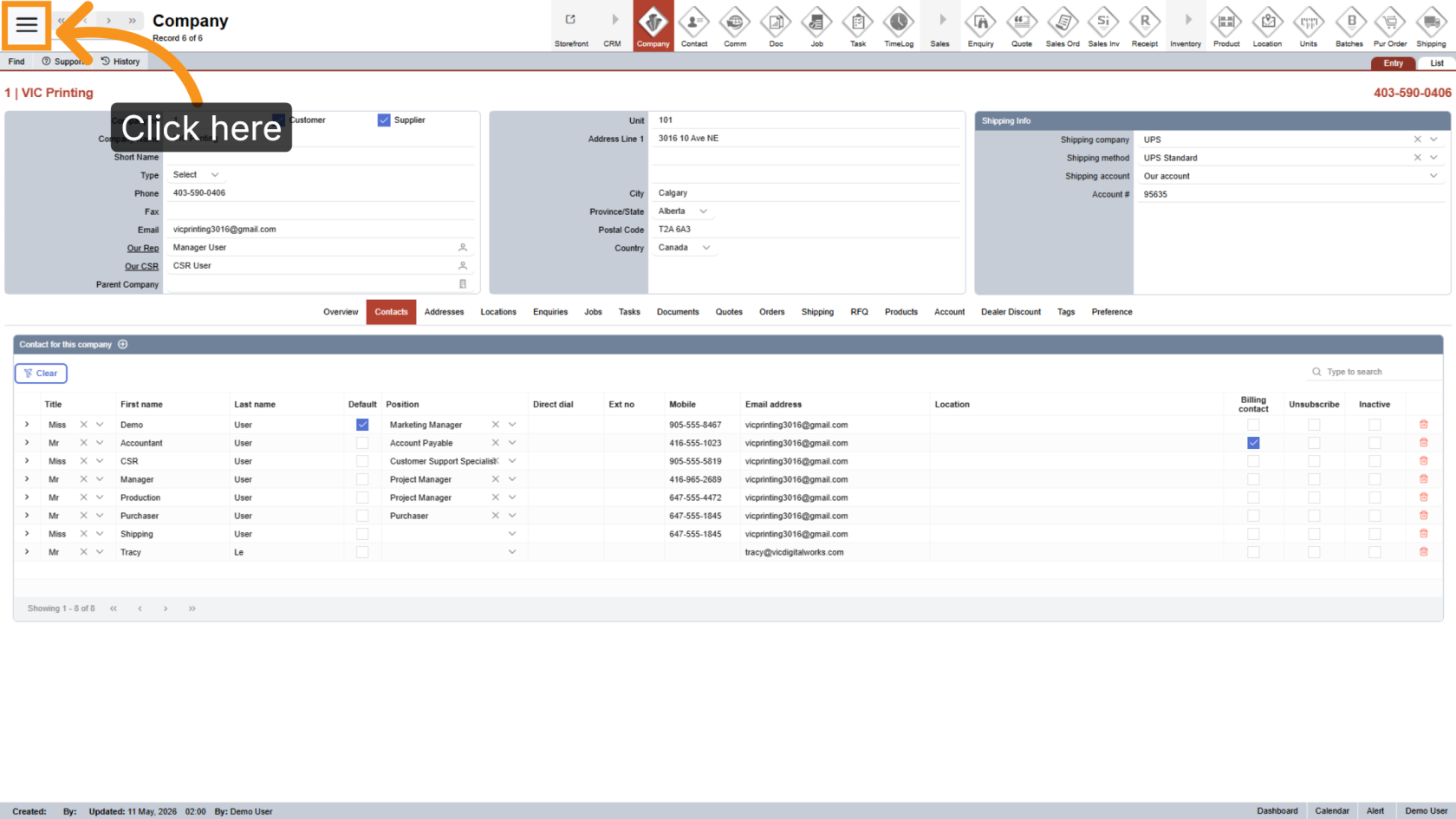
1. Open the Main Menu
Click the  main navigation menu to access system options.
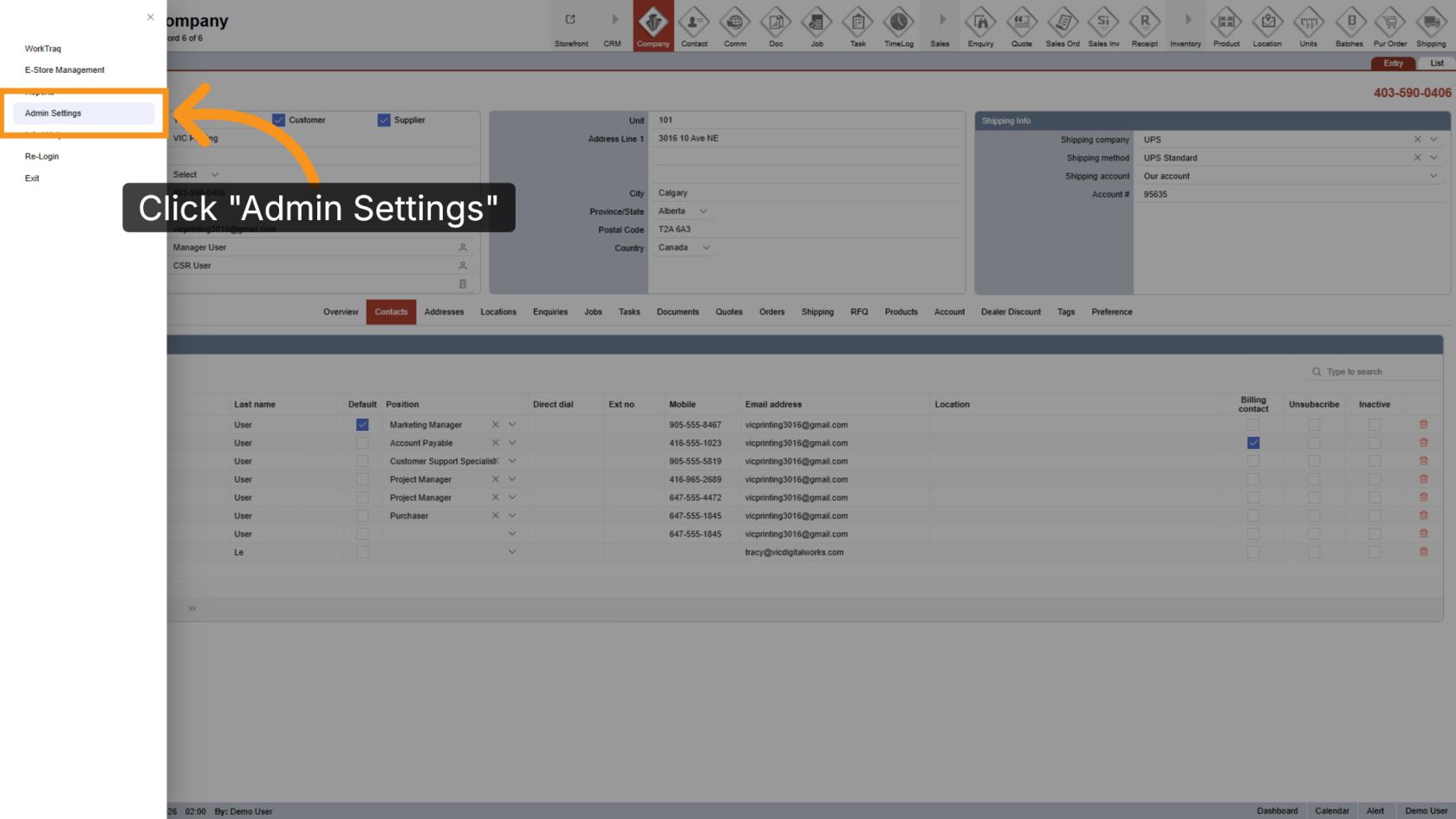
2. Go to Admin Settings
Click "Admin Settings" to open the administration panel.
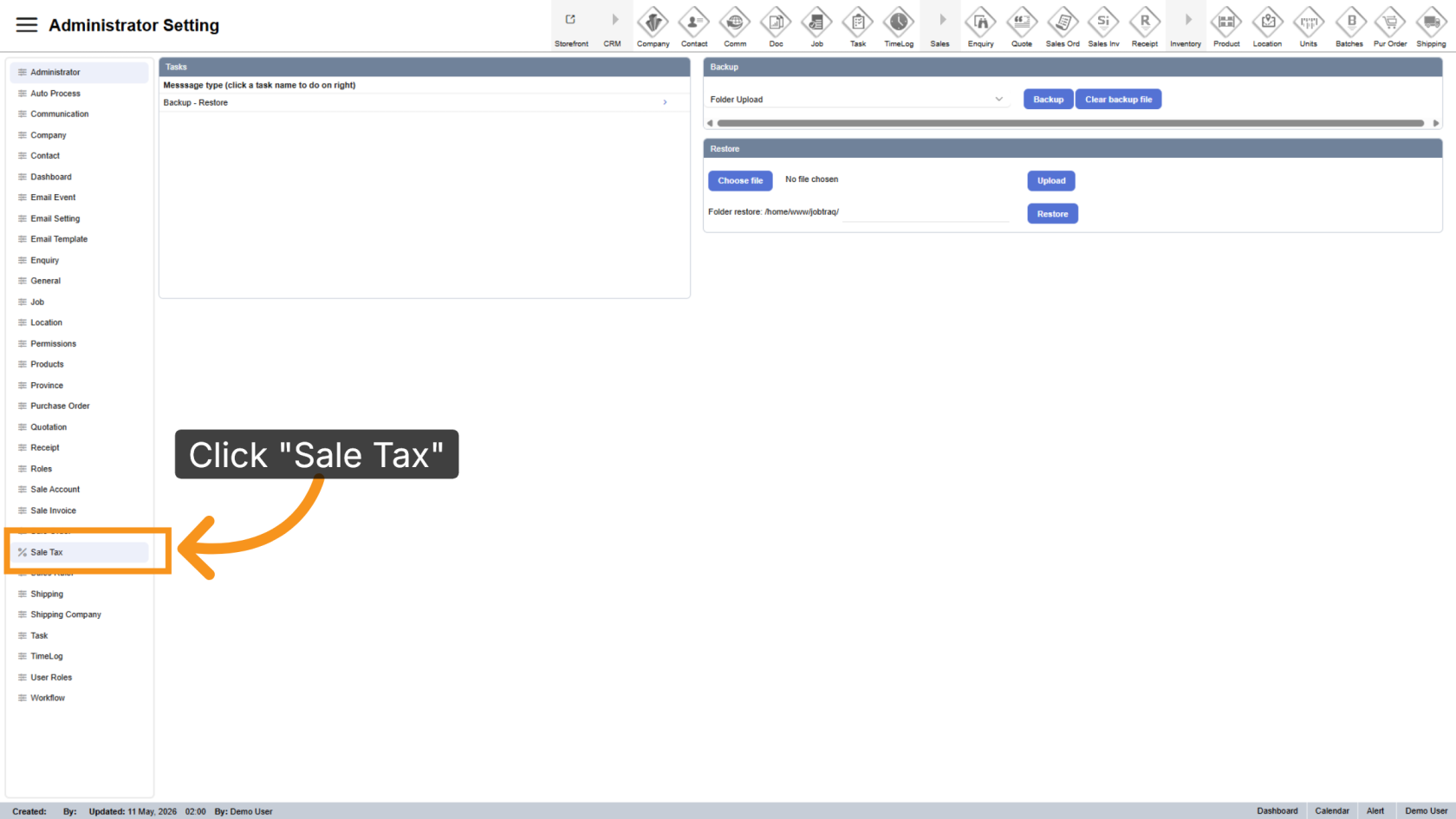
3. Navigate to Sale Tax Section
Click "Sale Tax" to open the sales tax configuration area.
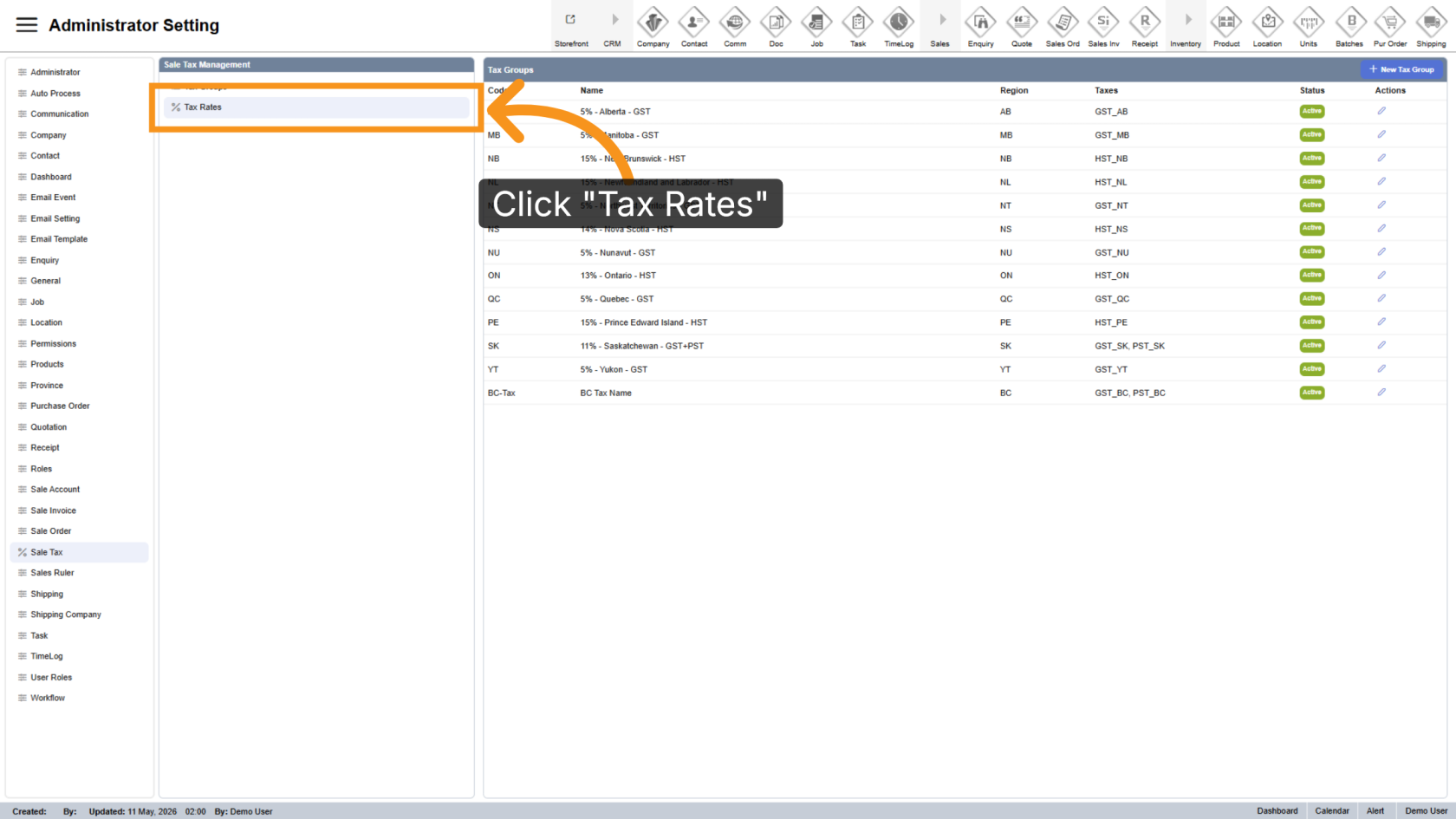
4. Open Tax Rates
Click "Tax Rates" to view and manage existing tax rates.
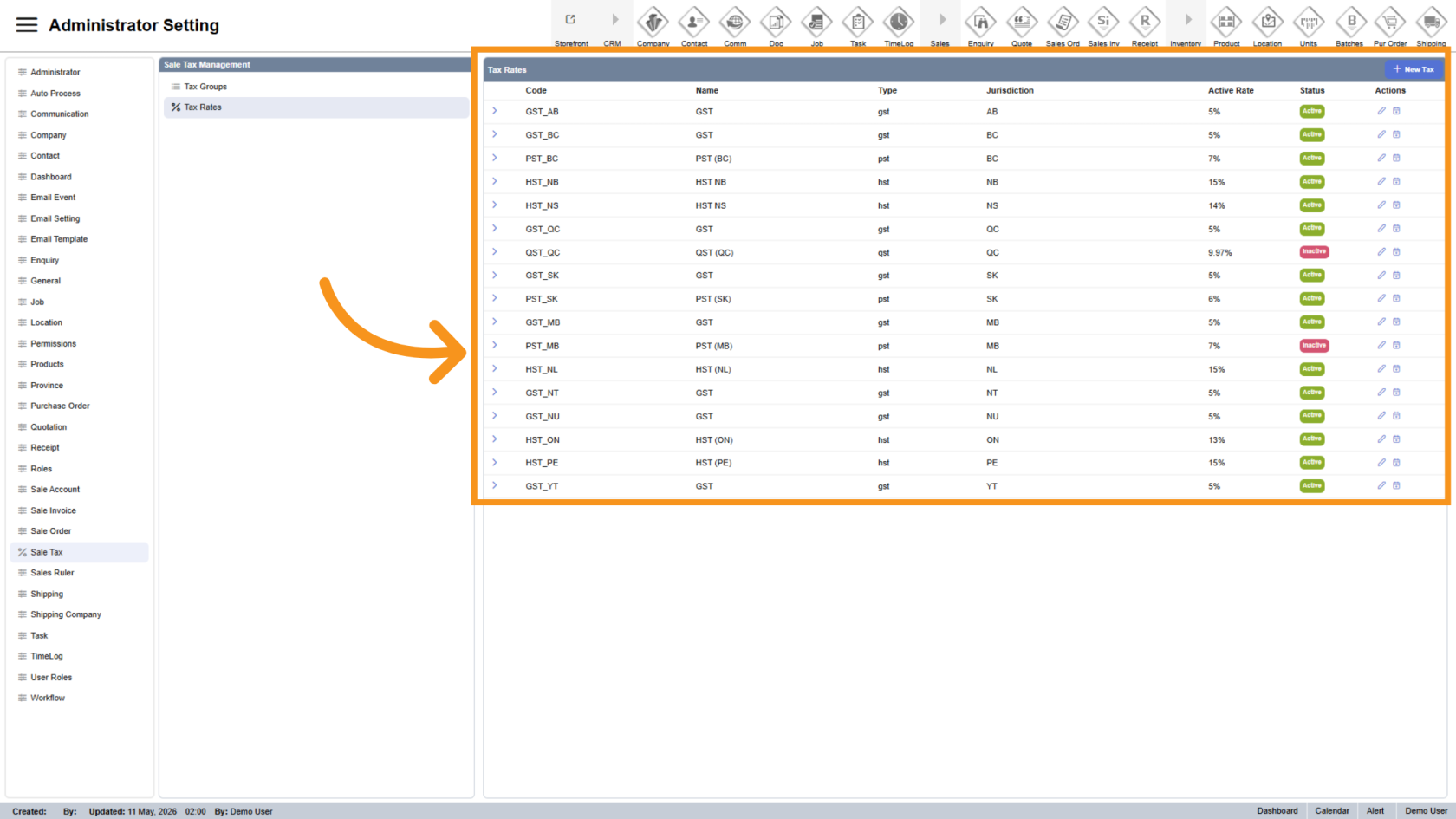
5. View Existing Tax Rates
All existing tax rates will appear on the right side of the screen.
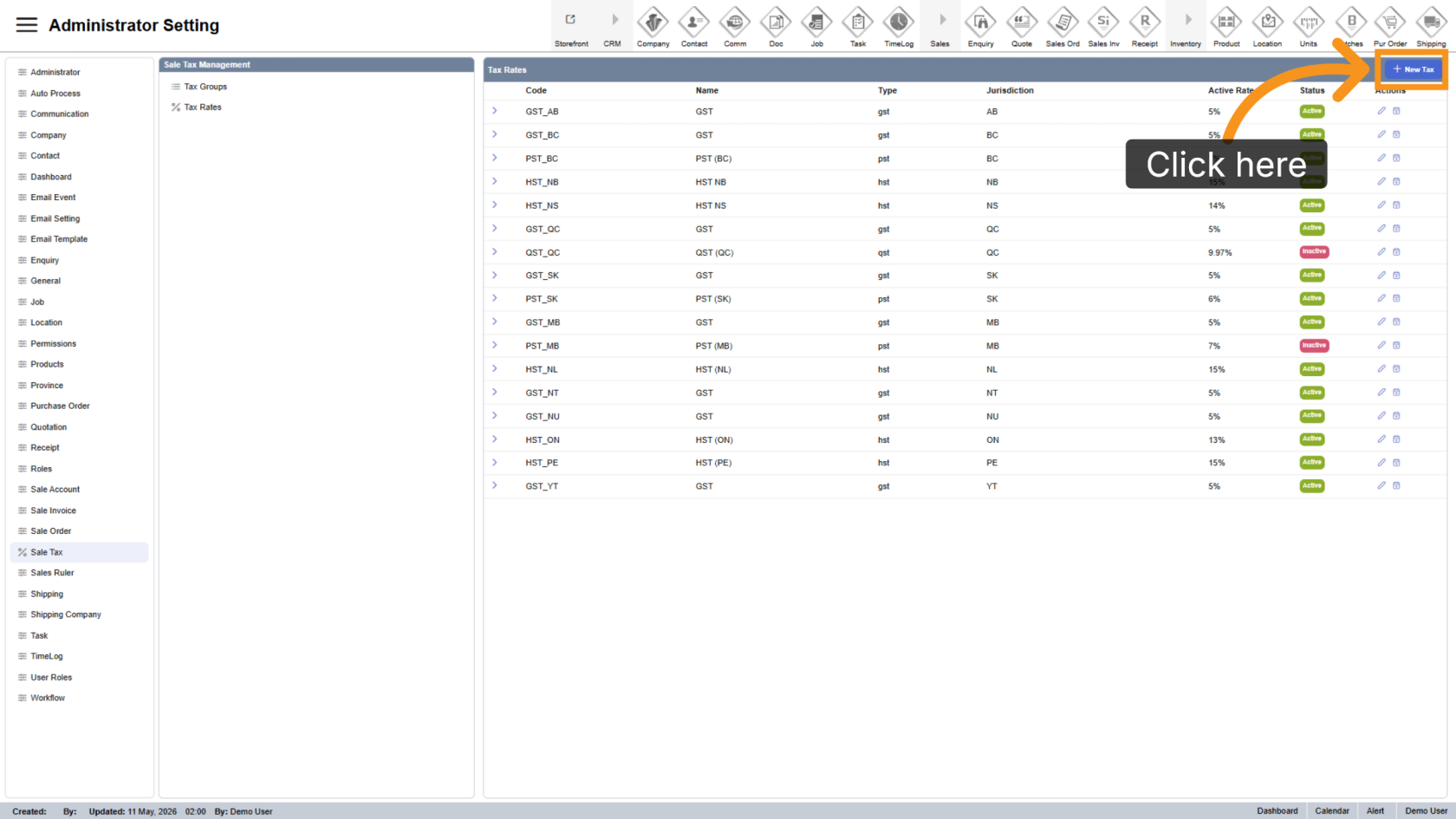
6. Create a New Tax
Click "New Tax" to create a new tax rate.
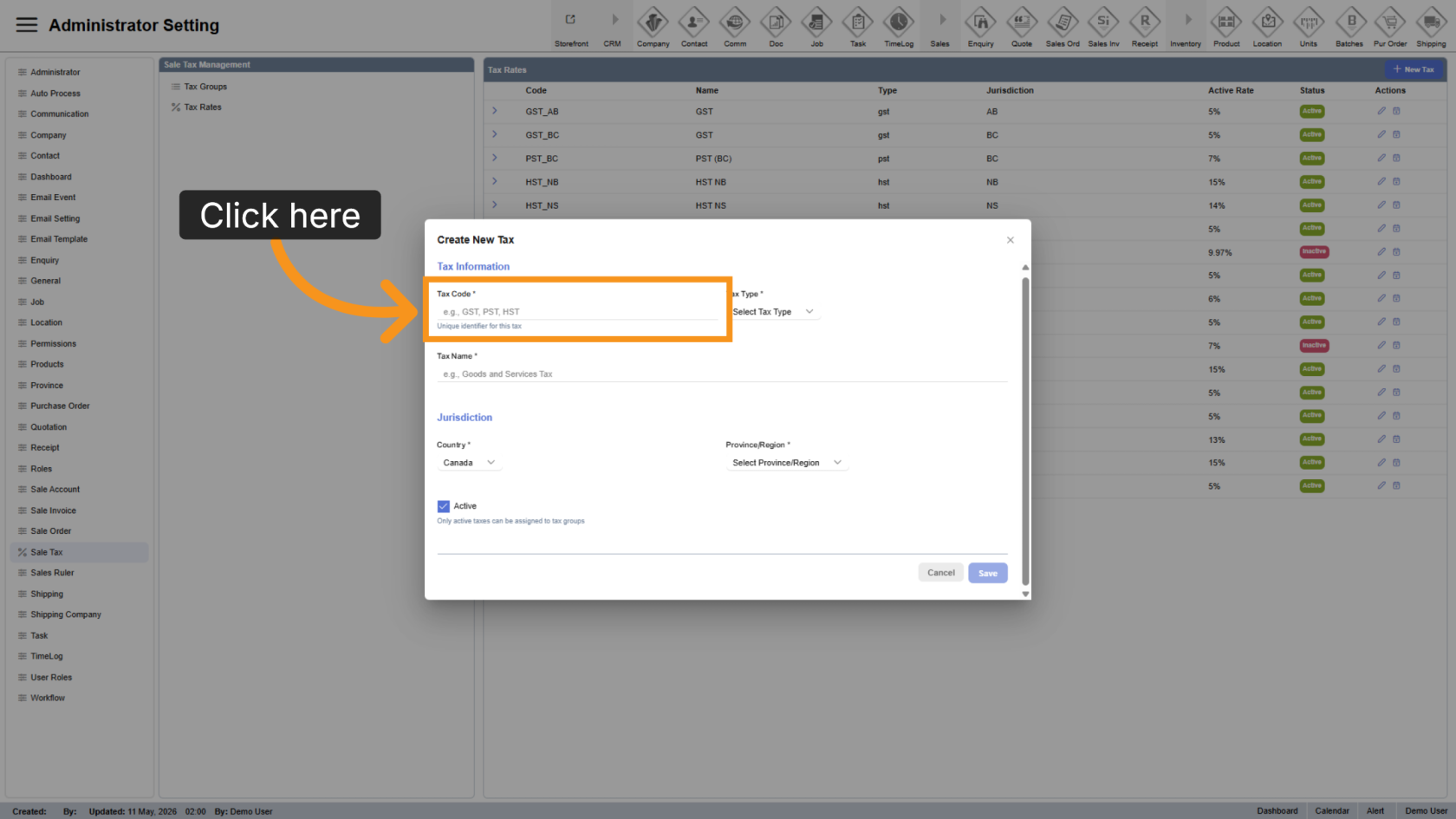
7. Enter the Tax Code
Enter a unique tax code in the Code field. The code can be customized but must not duplicate any existing tax rate code.
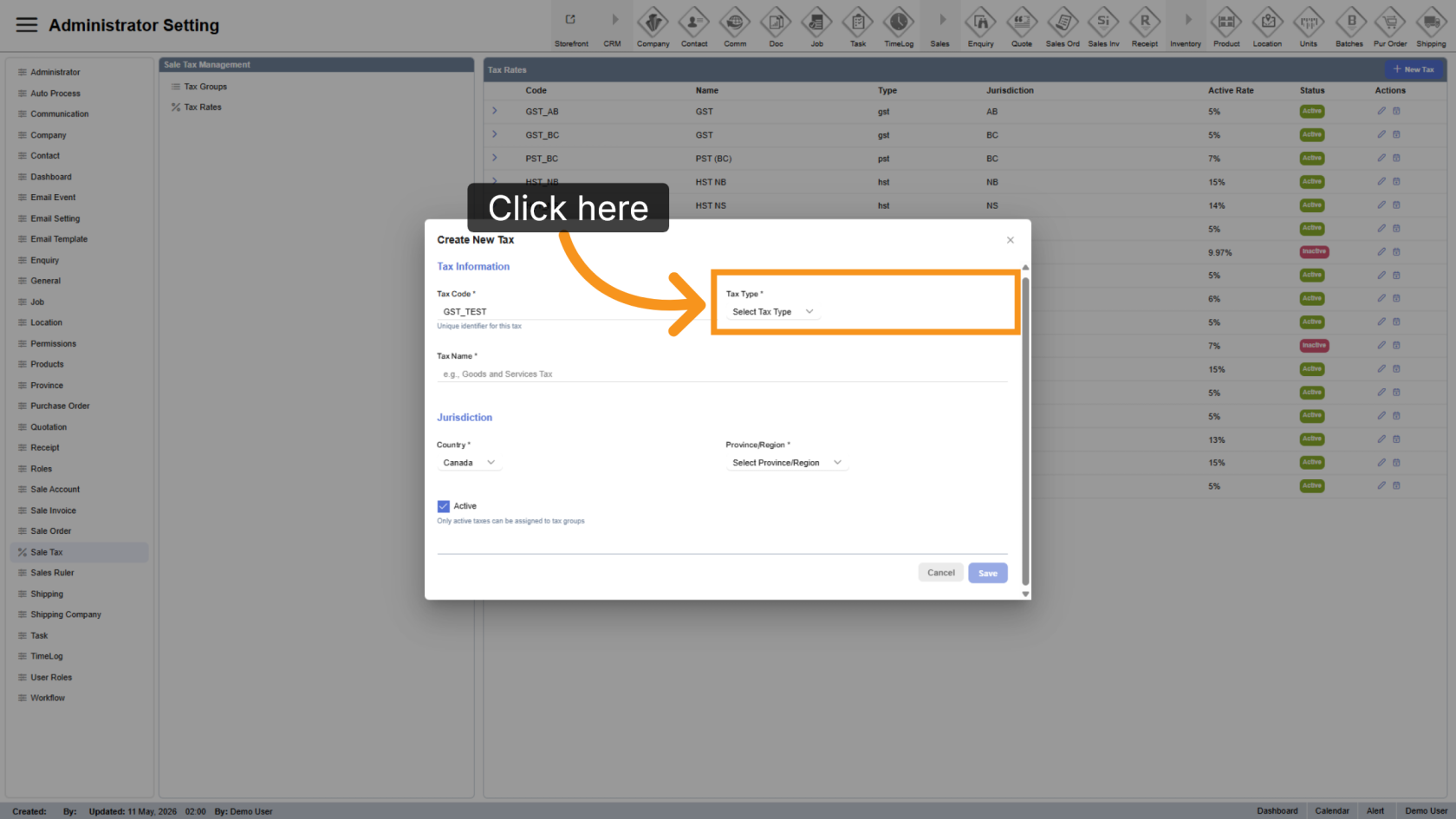
8. Select the Tax Type
Click "Select Tax Type" to choose the applicable tax category.
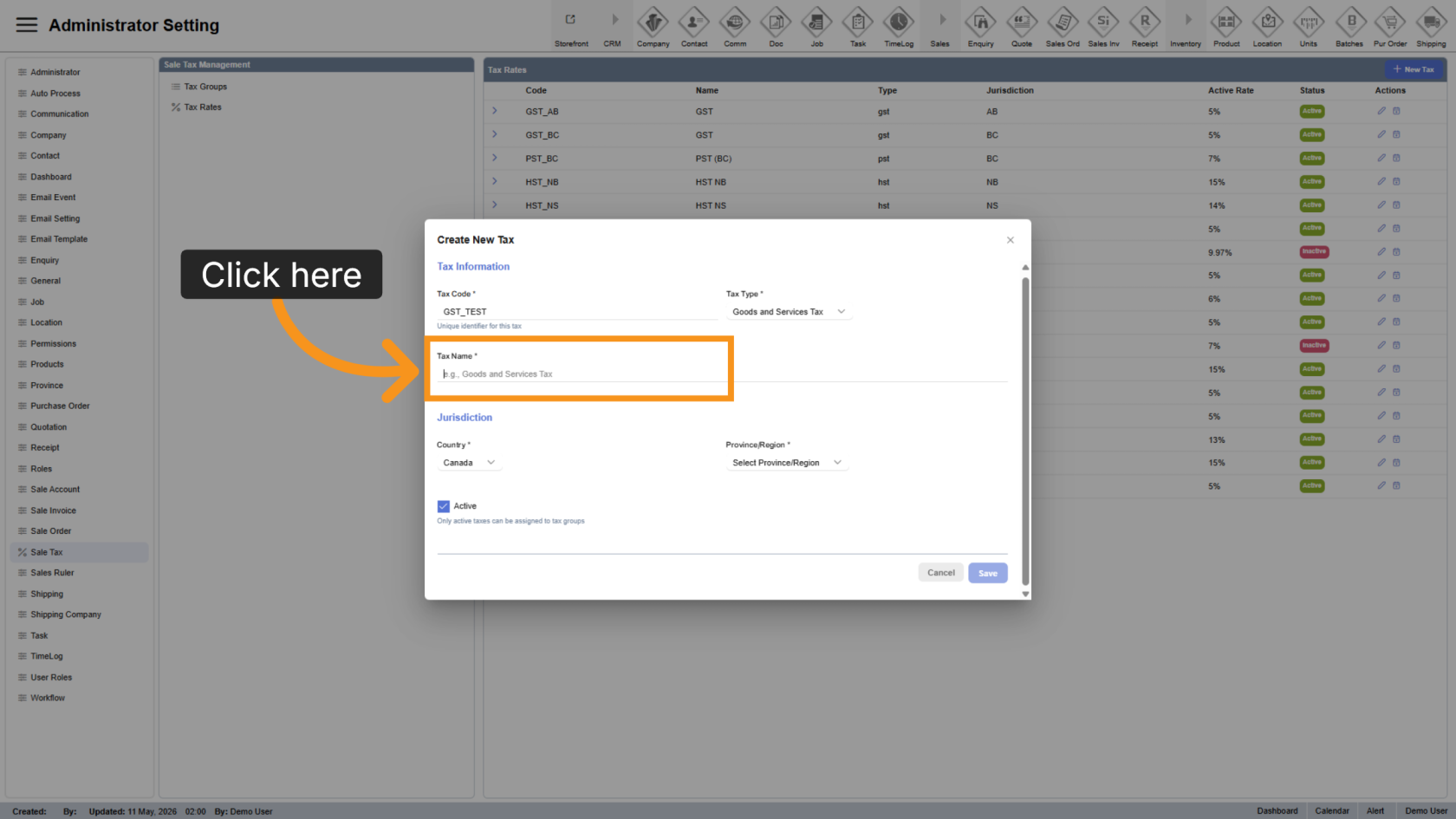
9. Enter the Tax Name
Enter a unique and easily identifiable name for the tax in the Name field.
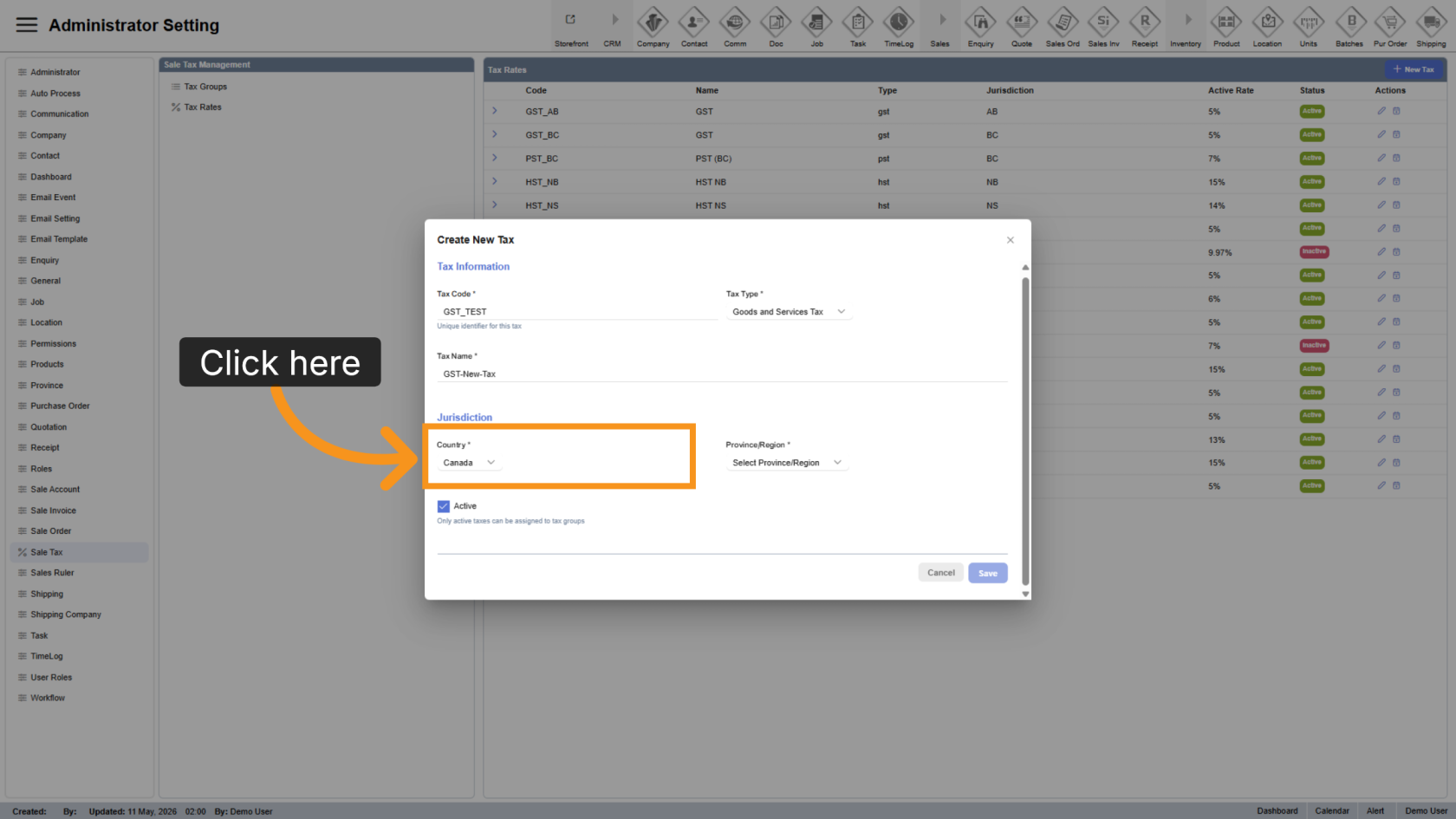
10. Select a Country
Click "Country" to choose the country for the tax.
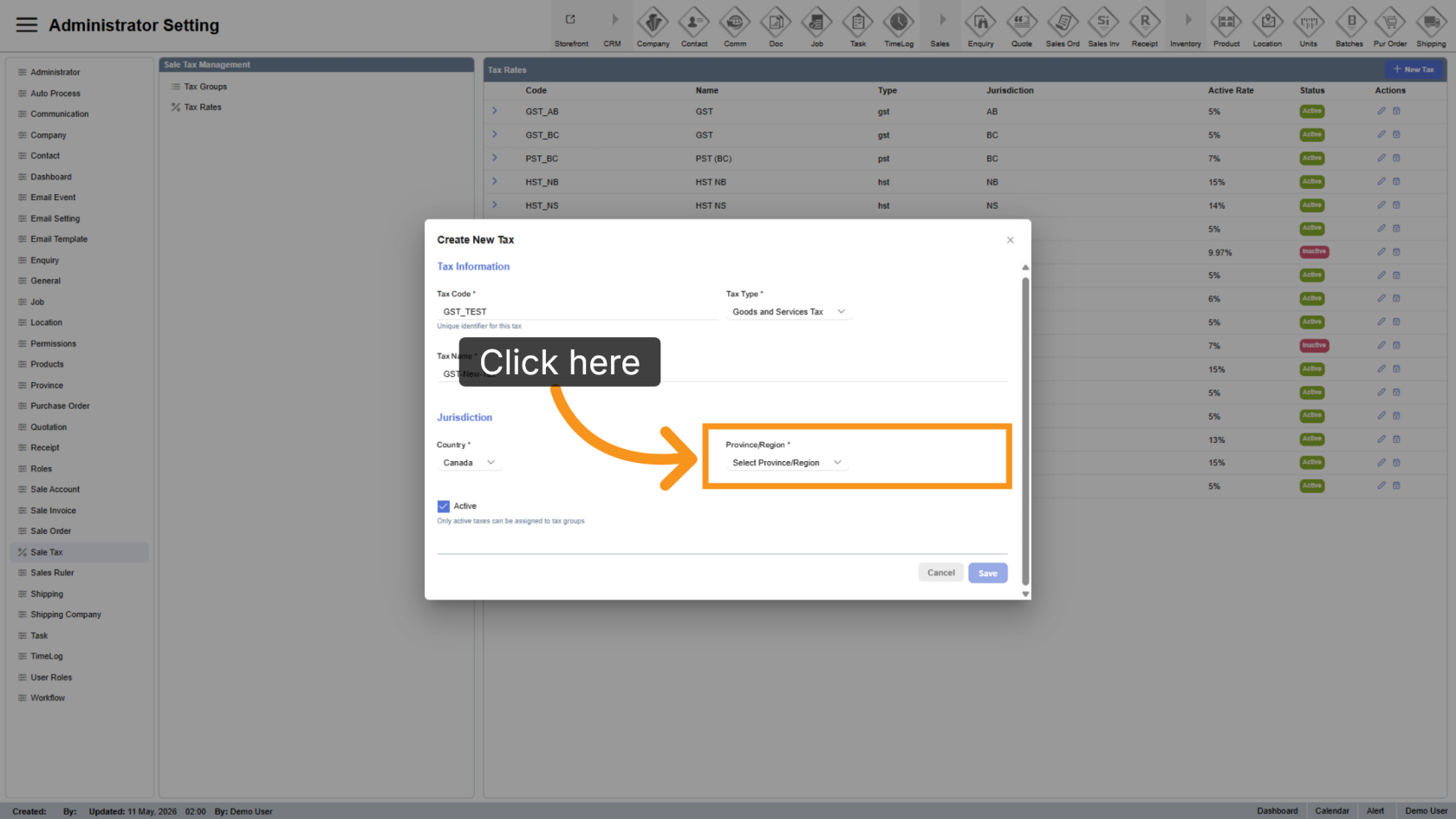
11. Select a Province or Region
Click "Select Province/Region" to choose the applicable province or region for the tax.
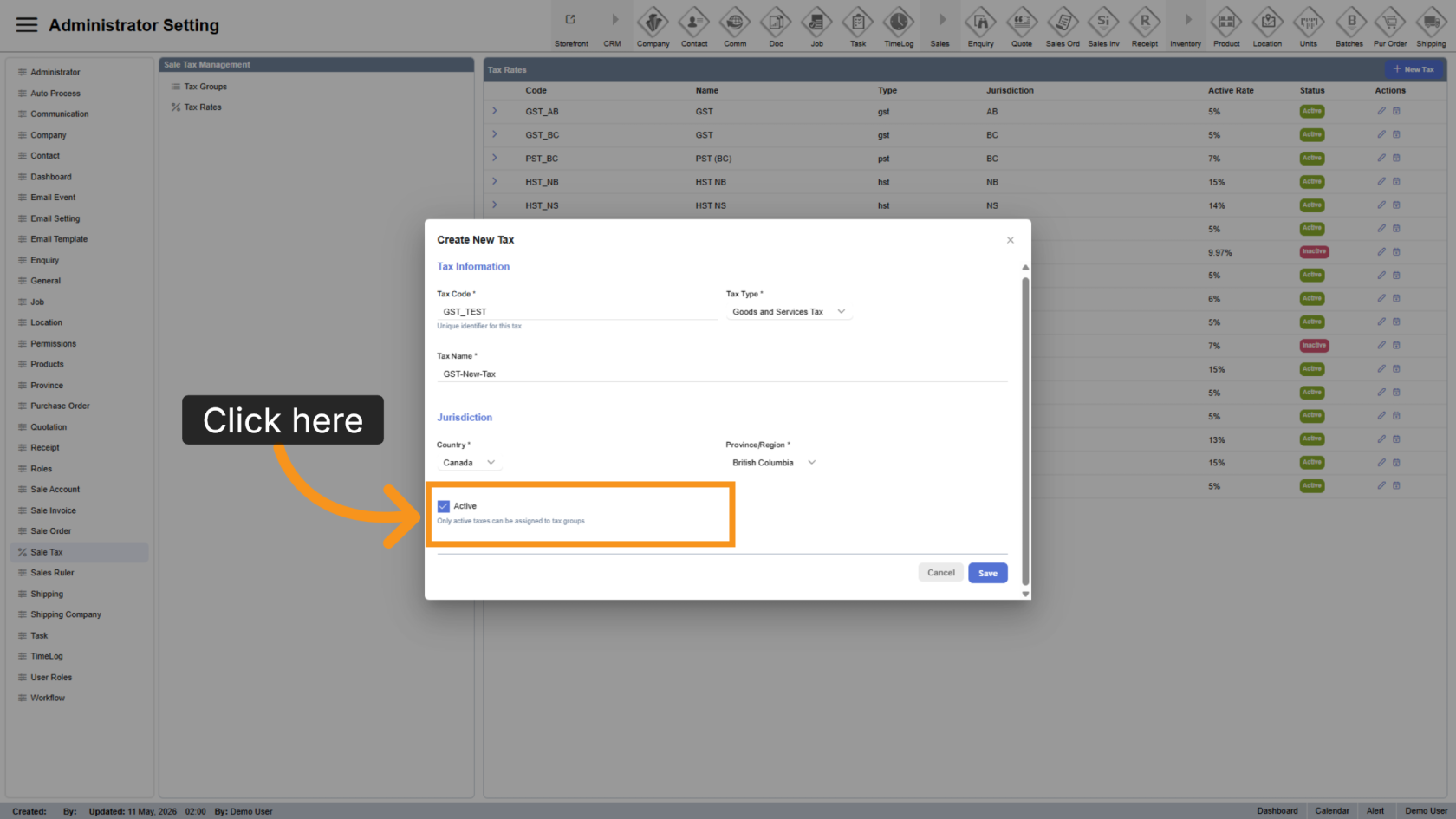
12. Set Active Status
The tax is active by default. Uncheck Active if you want to make the tax inactive.
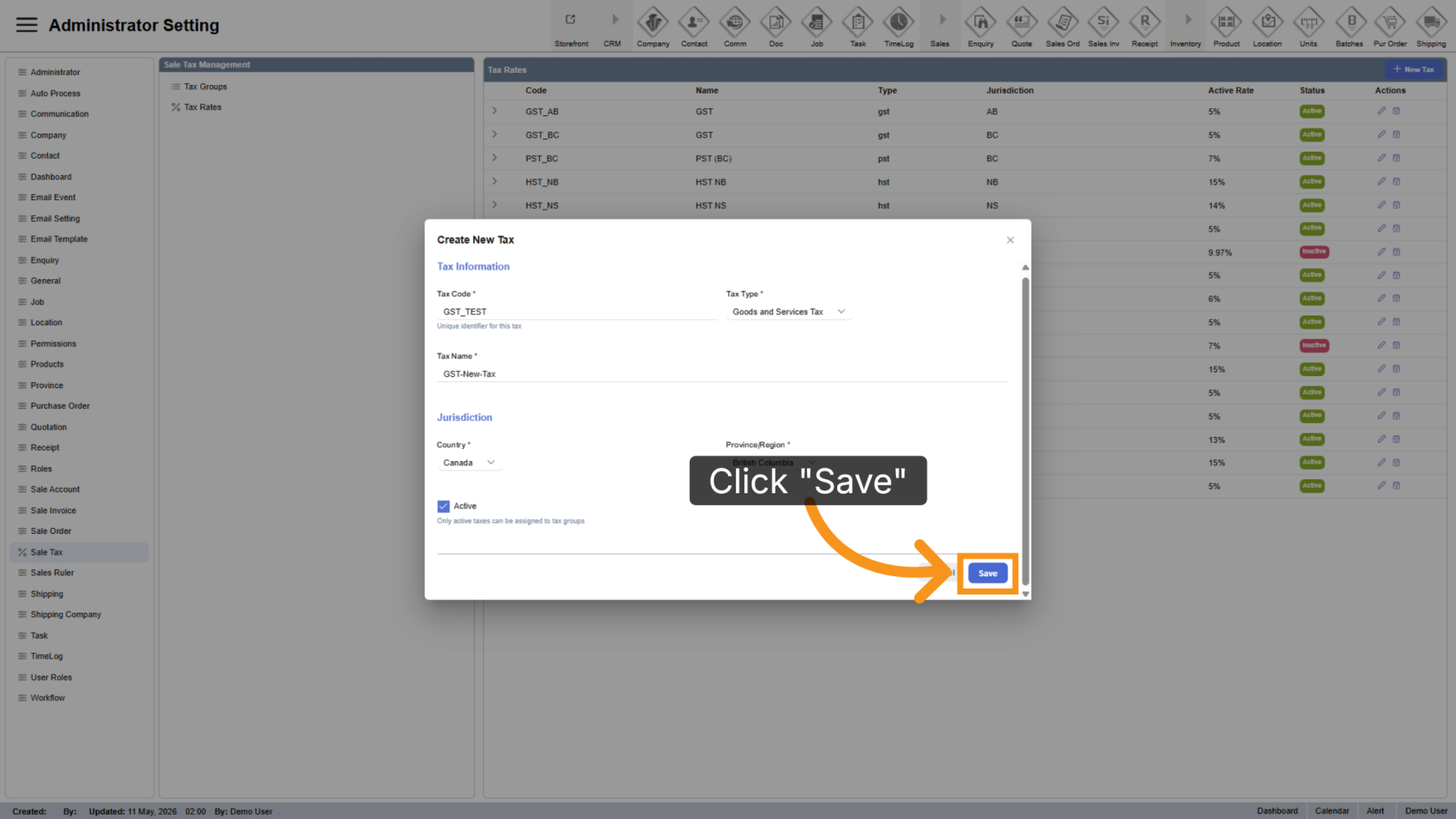
13. Save the Tax Rate
Click "Save" to apply and save the new tax rate configuration.
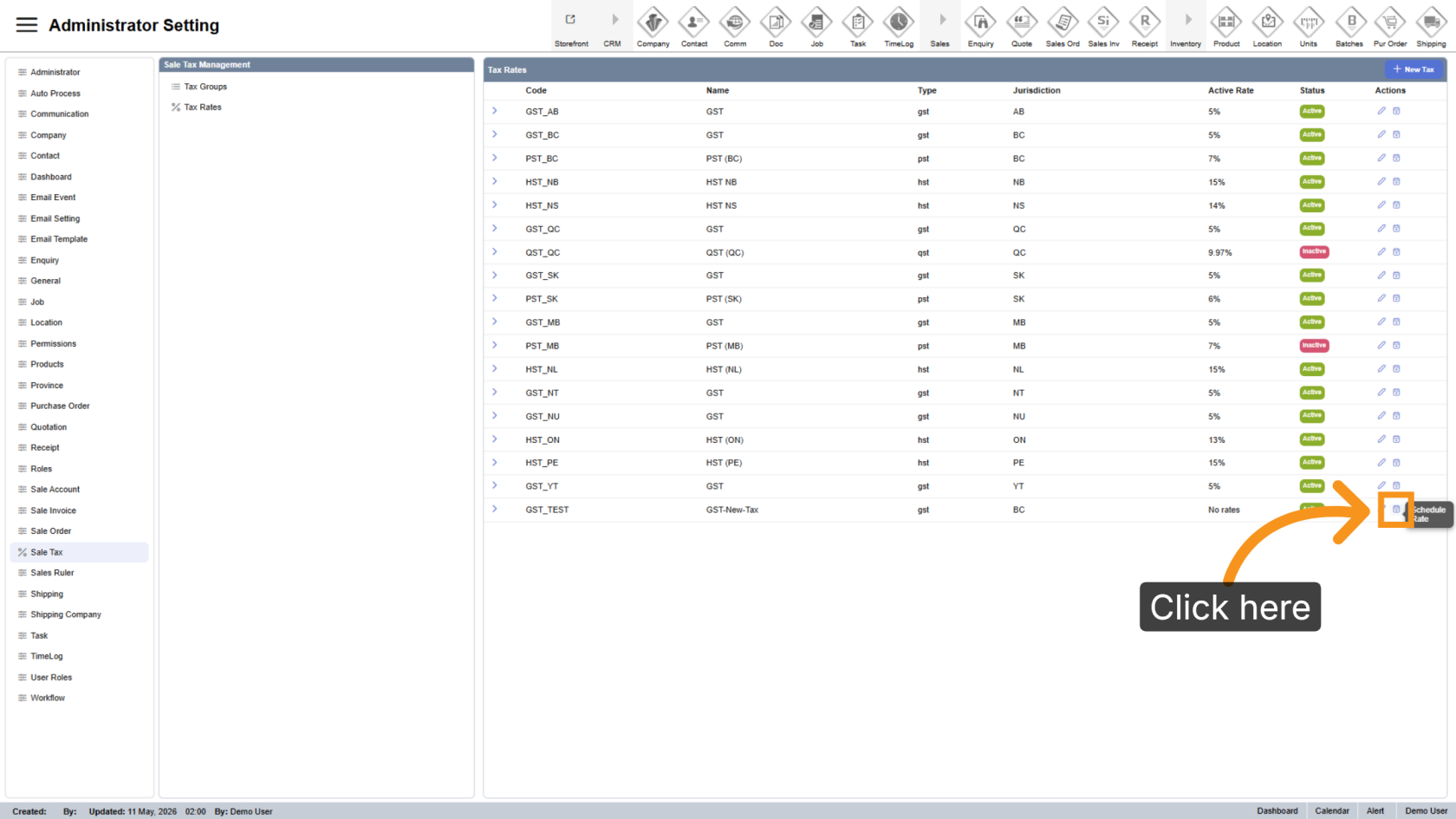
14. Configure the Rate Percentage
Click the  Schedule Rate icon to continue configuring the tax percentage.
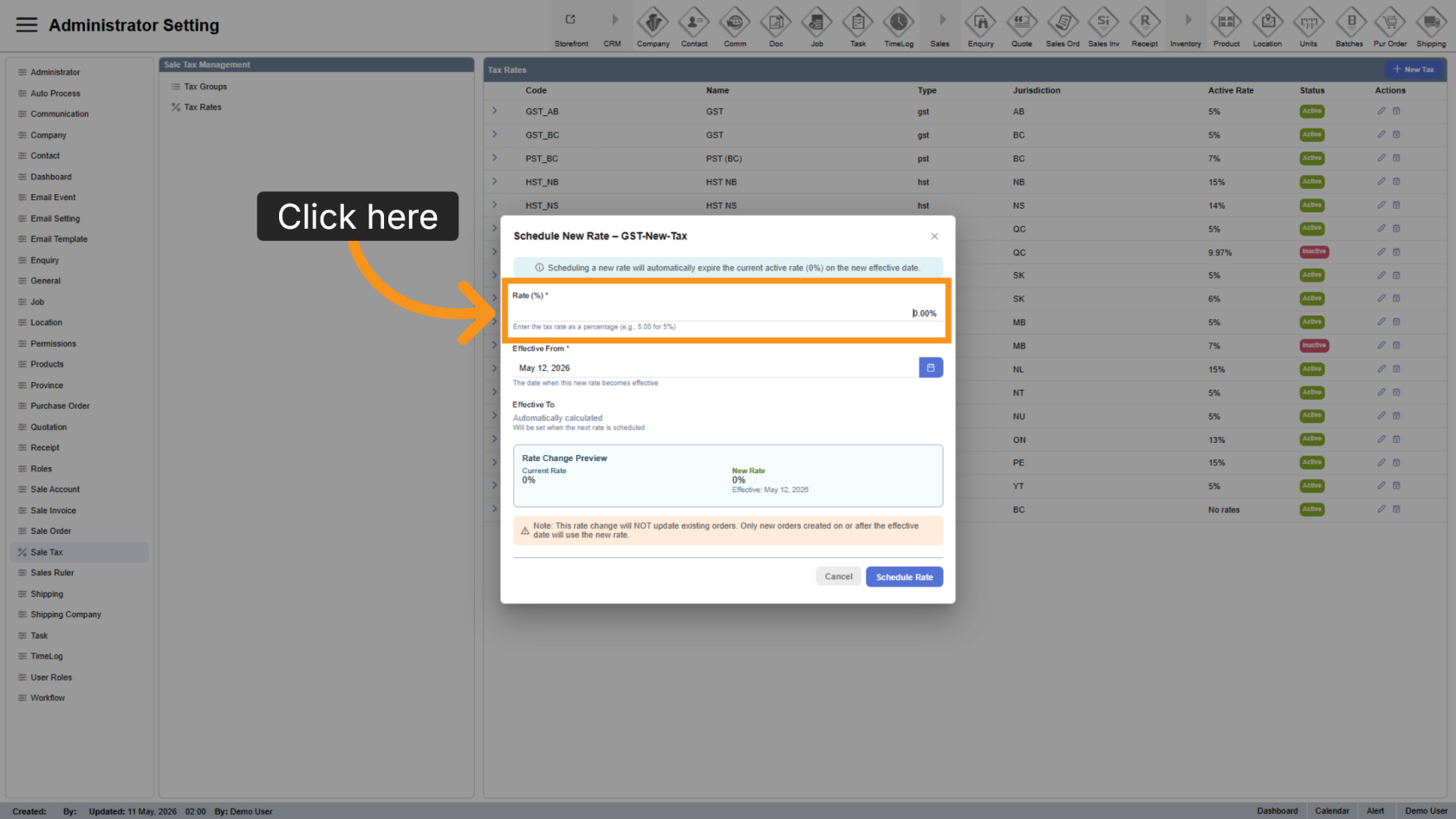
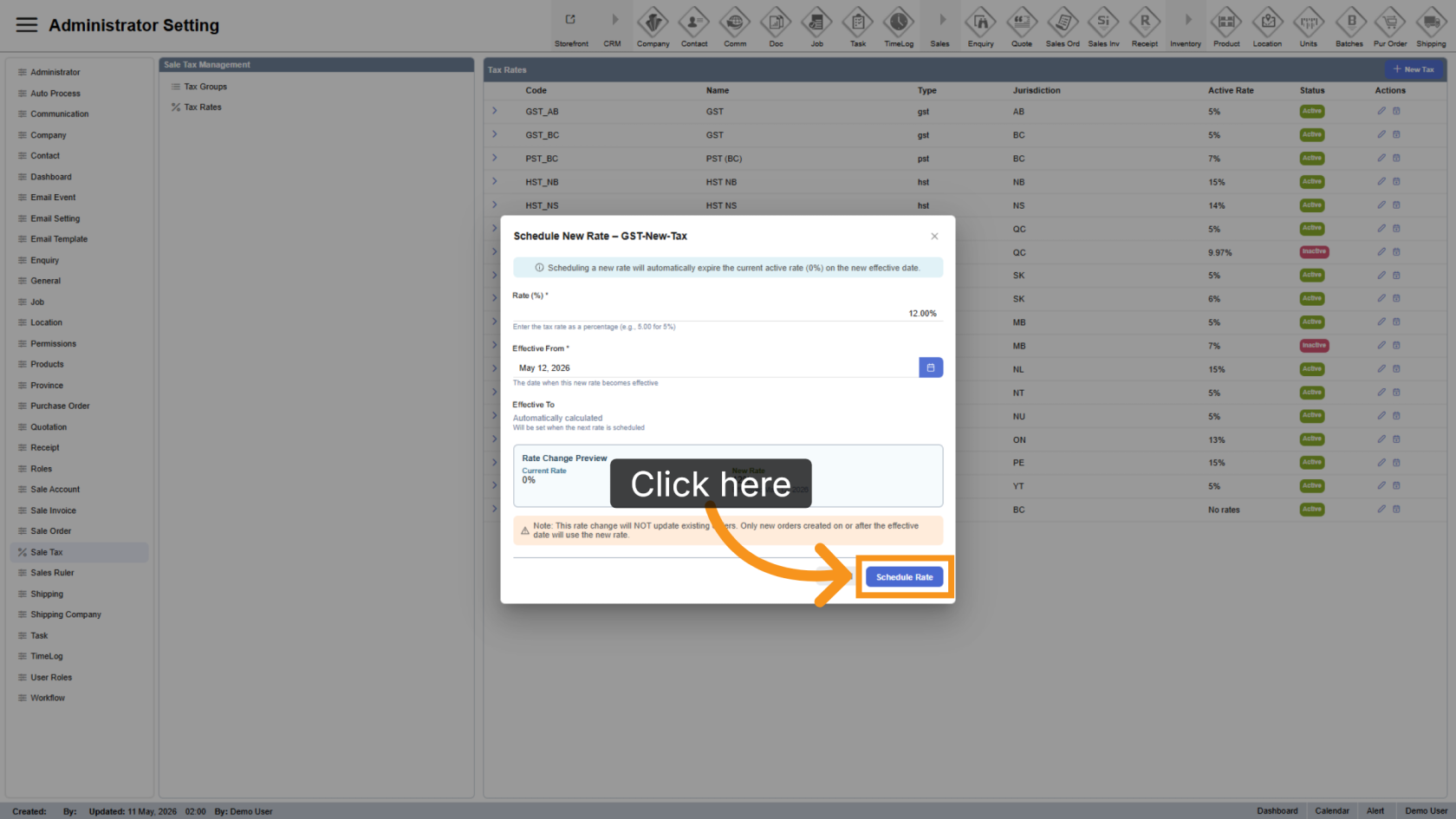
15. Enter the Rate Percentage
Enter the tax percentage to apply for the new tax.
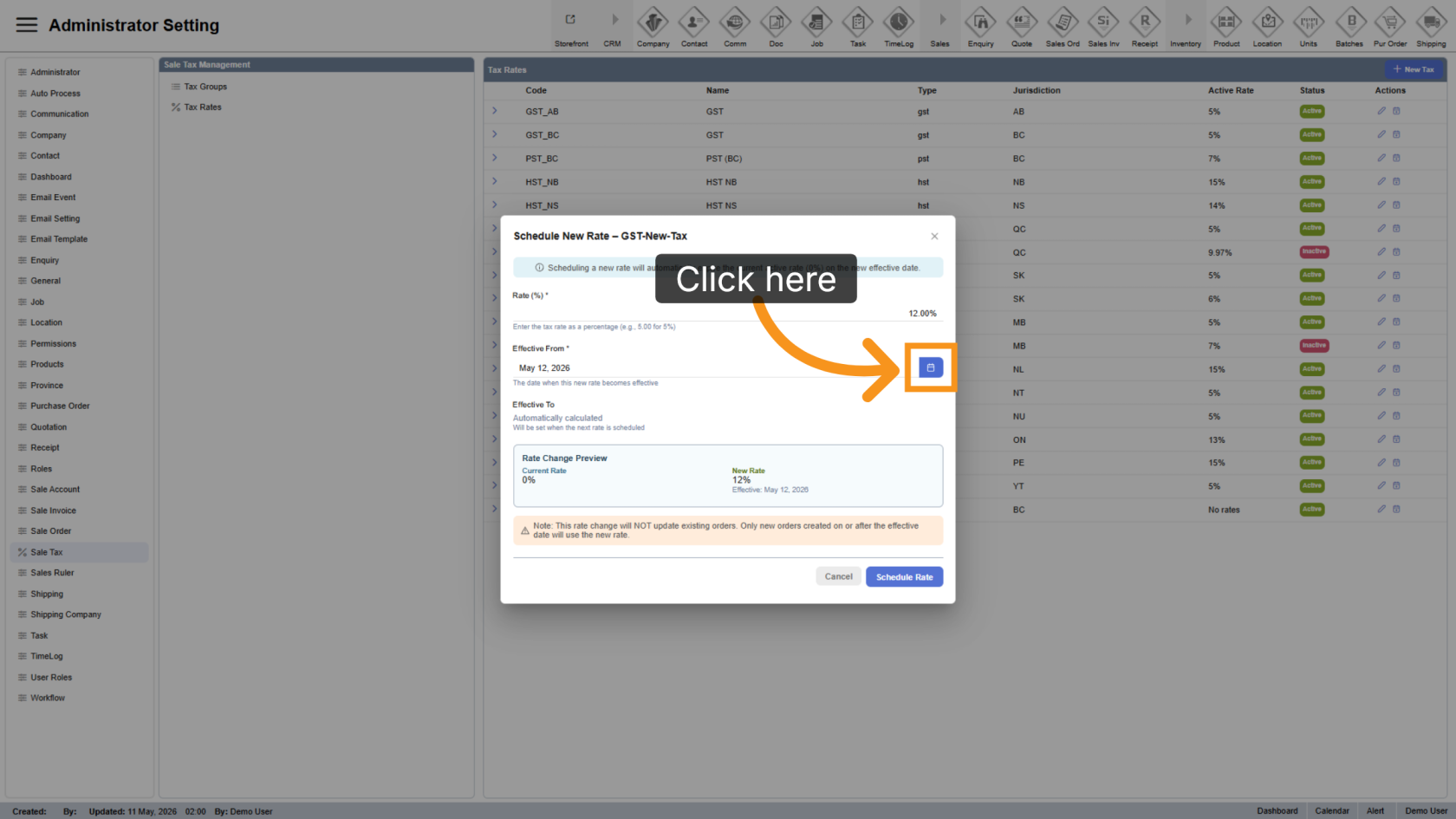
16. Select the Effective Date
By default, the tax becomes effective on the date it is created. To apply the tax from a specific date, click the  date picker icon and select the effective start date.
17. Schedule the Rate
Click "Schedule Rate" to save the tax rate changes.
18. View Tax Settings
Click the  arrow icon to view the configured tax settings.
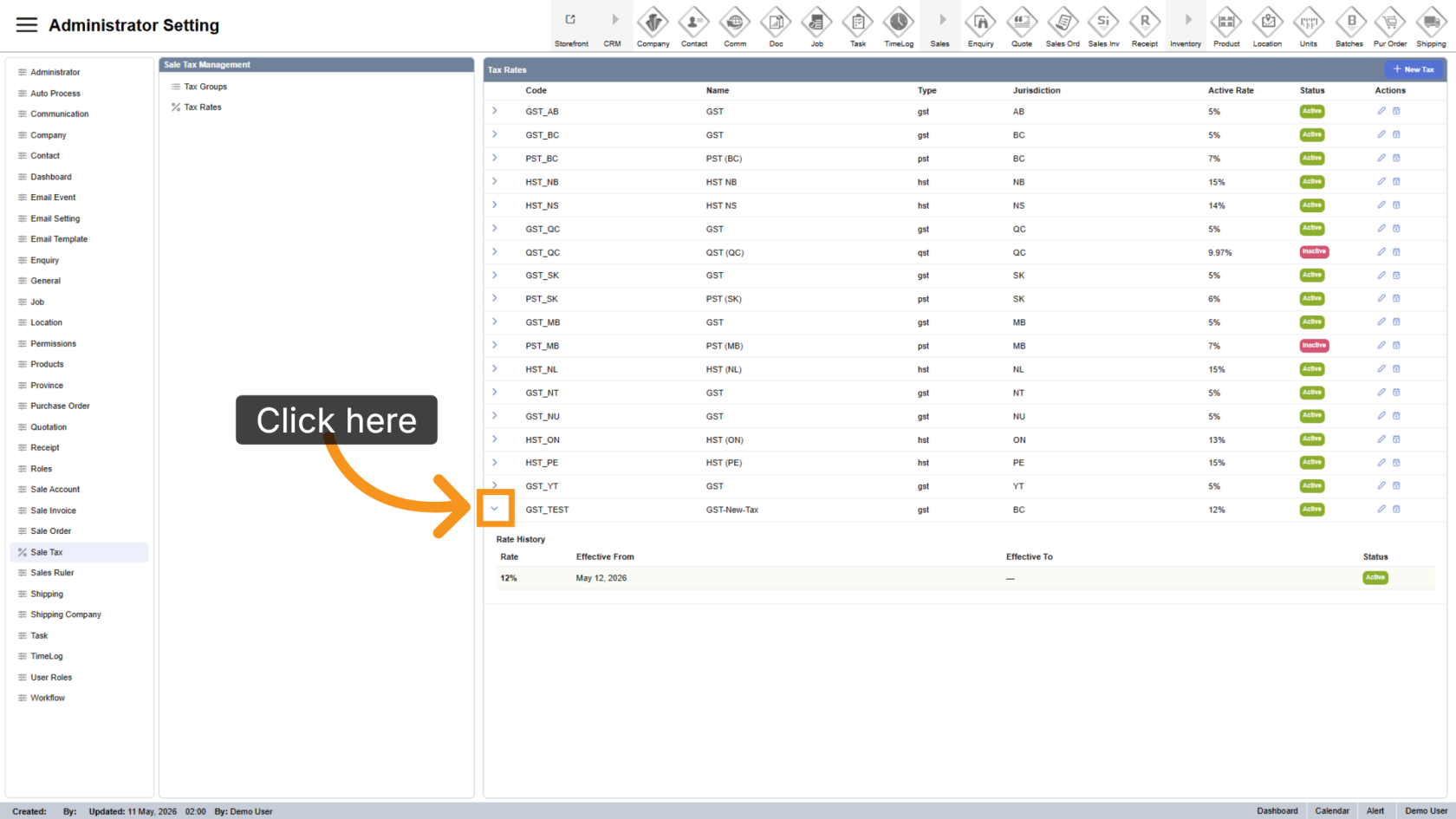
You have successfully configured a new sales tax rate in the WorkTraq application by setting tax codes, tax types, regions, percentages, and effective dates. To further manage taxes, you can also configure tax groups.