
Employees Working Hours Settings
This tutorial walks you through configuring employee working hours settings in the Worktraq app.
Video Tutorial
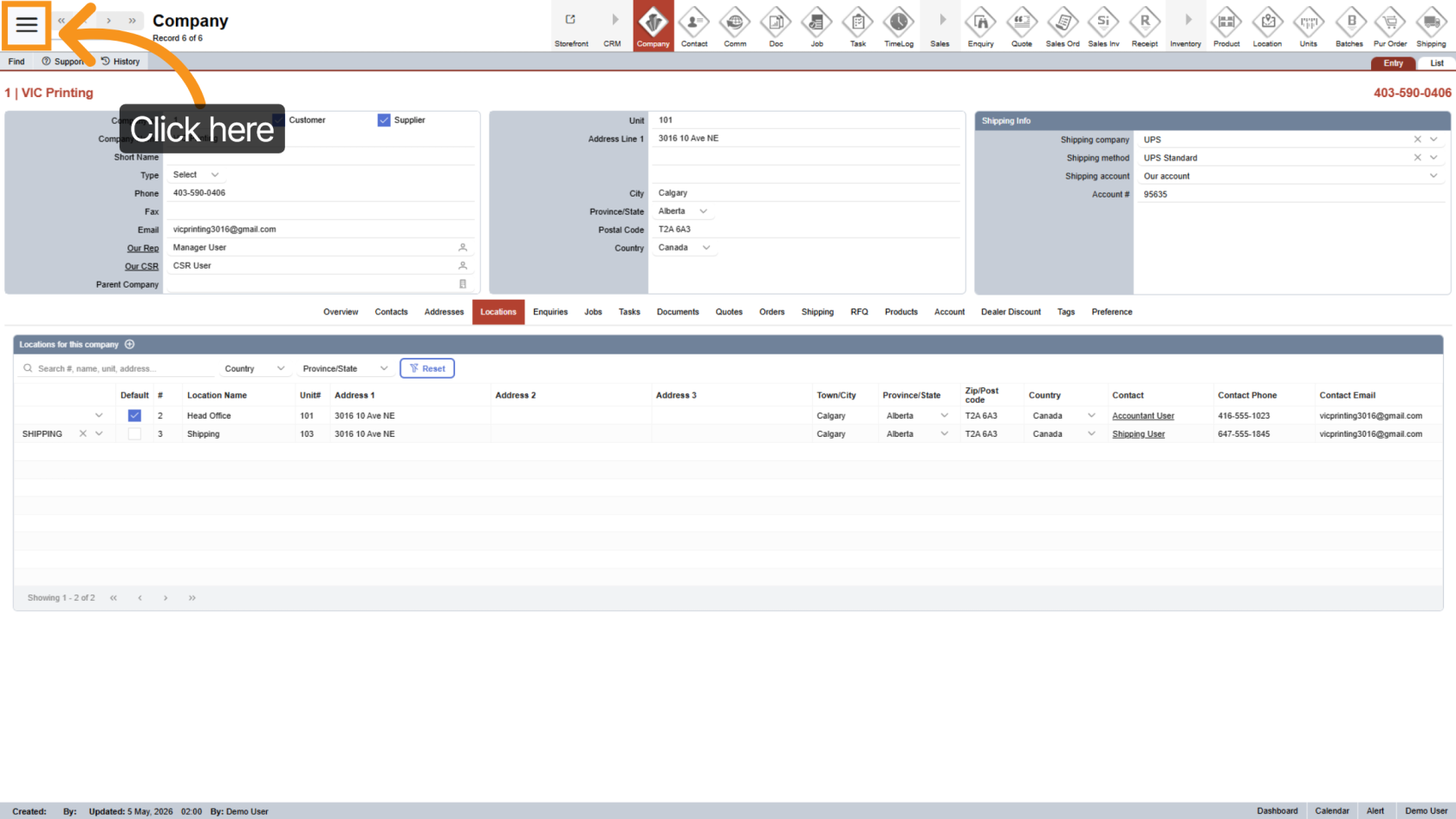
1. Open Main Menu
Click the  main navigation menu to access system options.
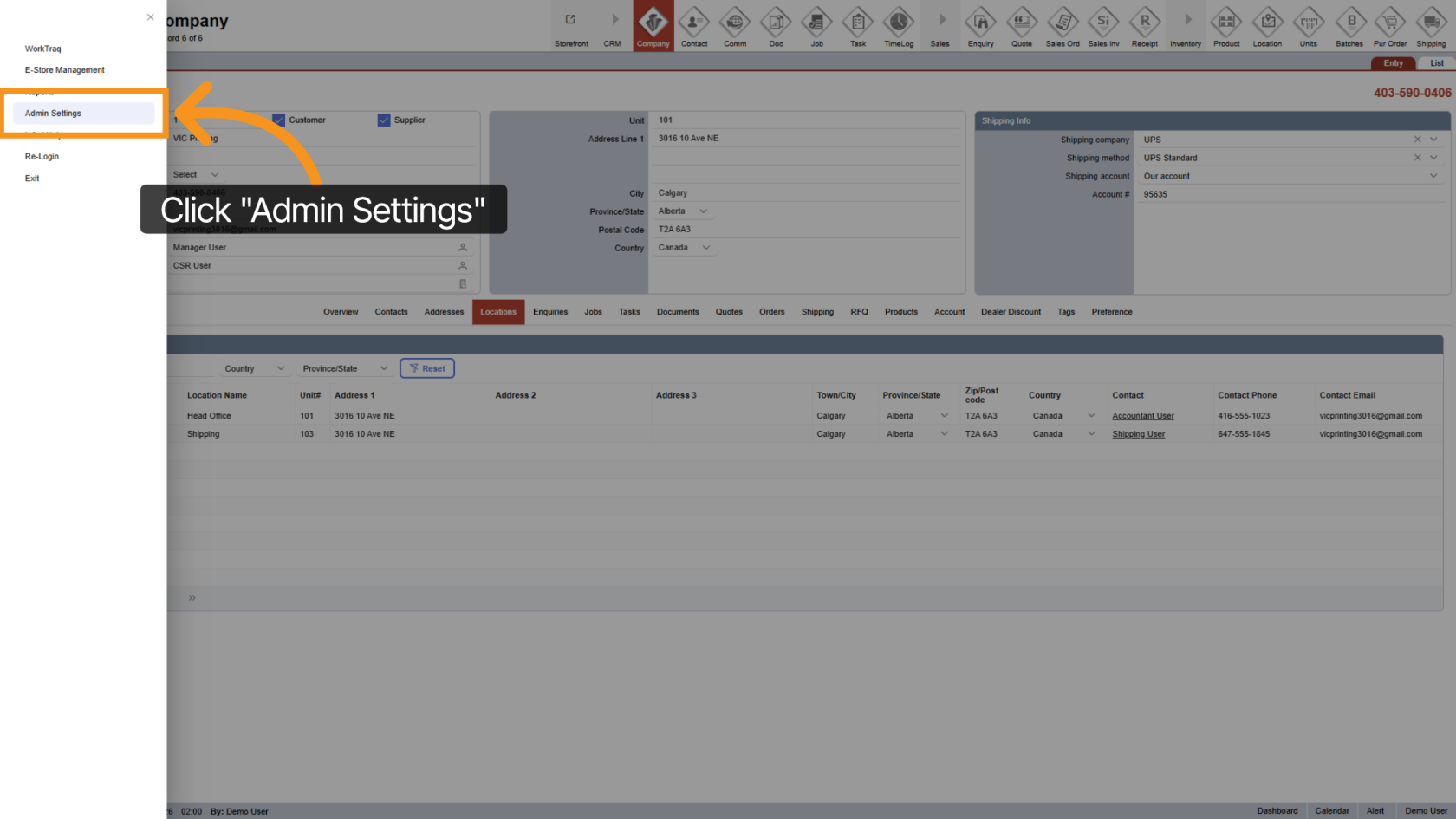
2. Go to Admin Settings
Select "Admin Settings" to open the administrative configuration panel.
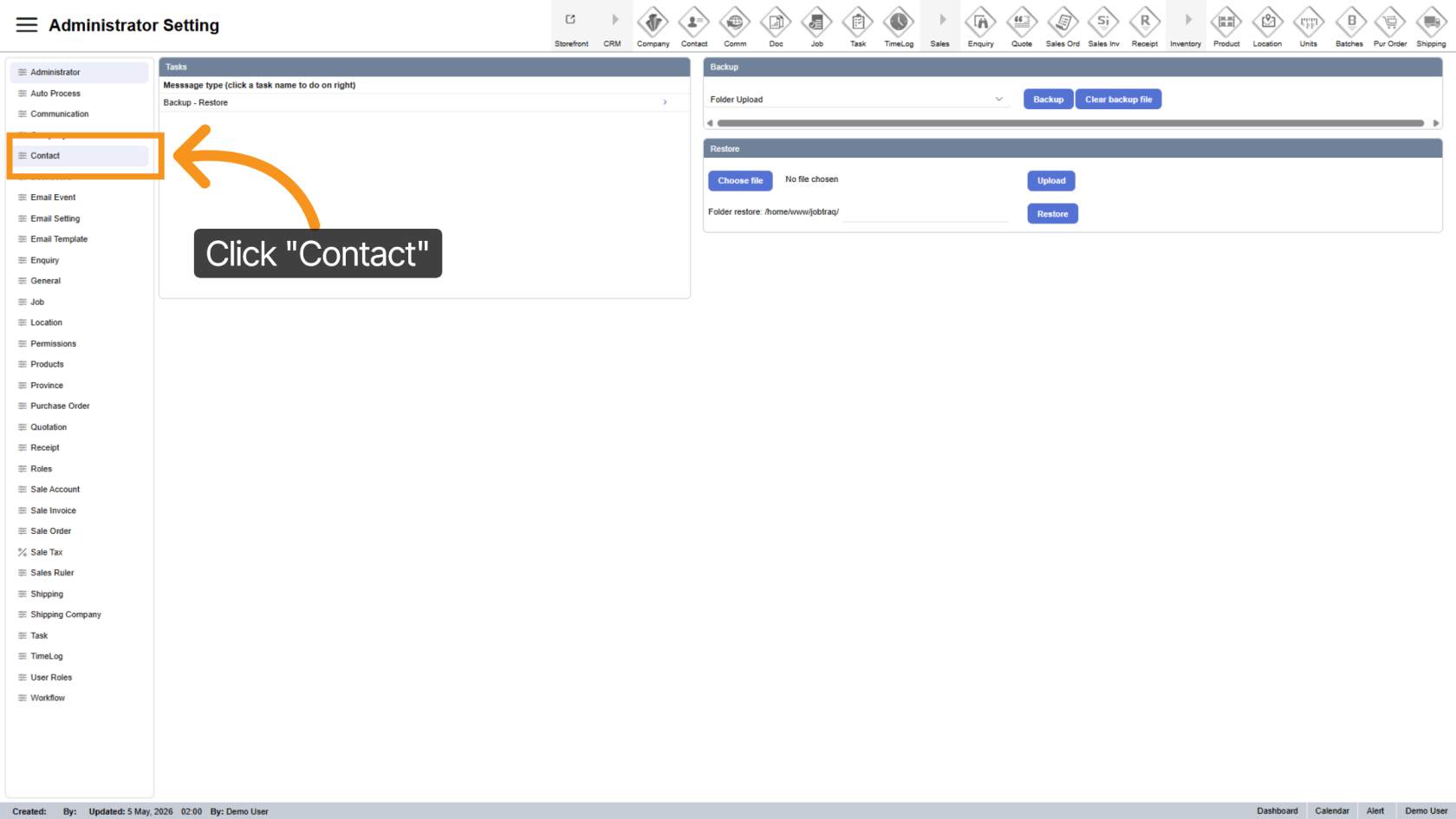
3. Select Contact Settings
Click "Contact" to access contact-related settings within the admin panel.
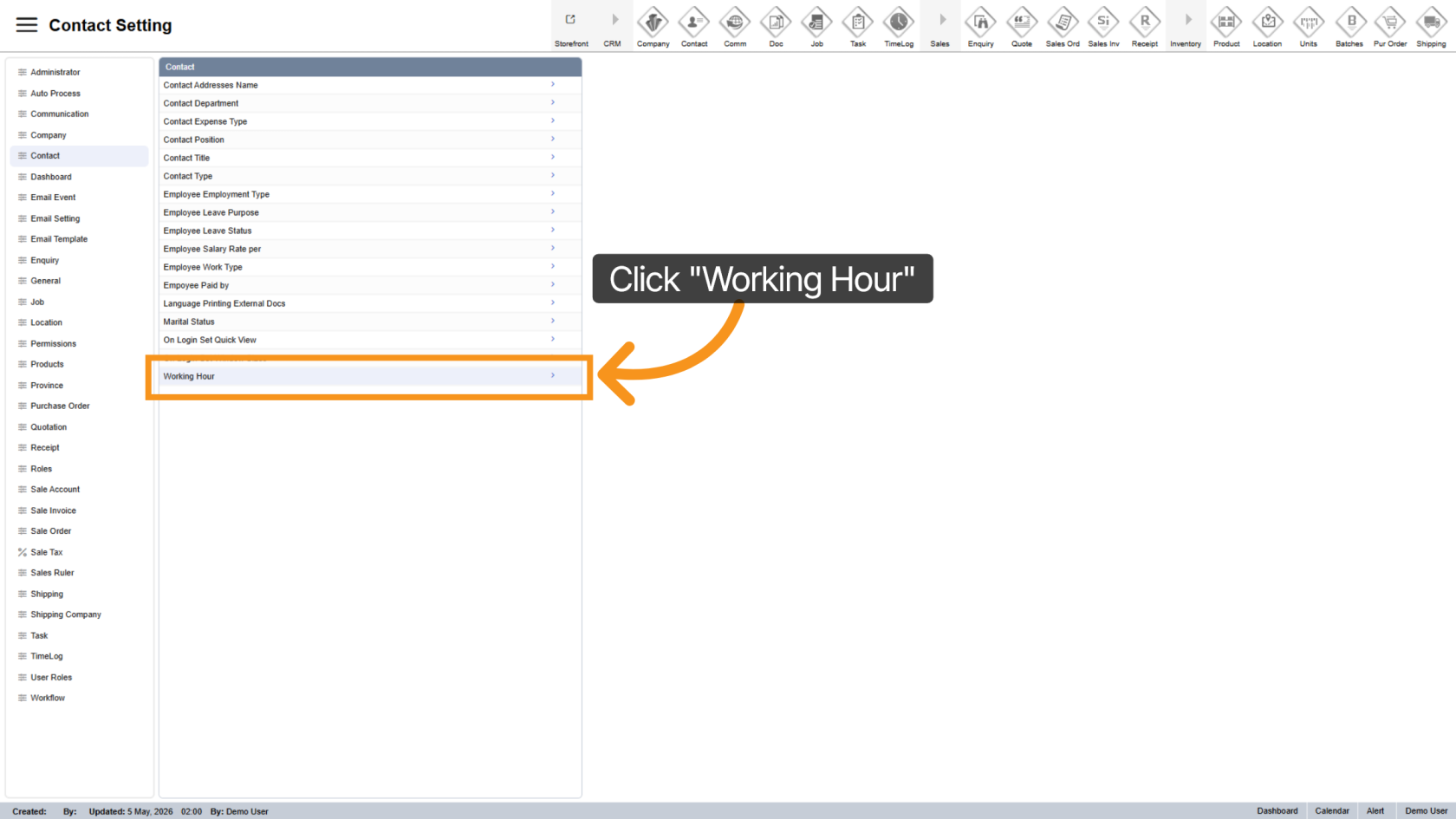
4. Access Working Hour Settings
Click "Working Hour" to open the working hours configuration section.
5. Open Working Hours Panel
The working hours panel will appear on the right side.
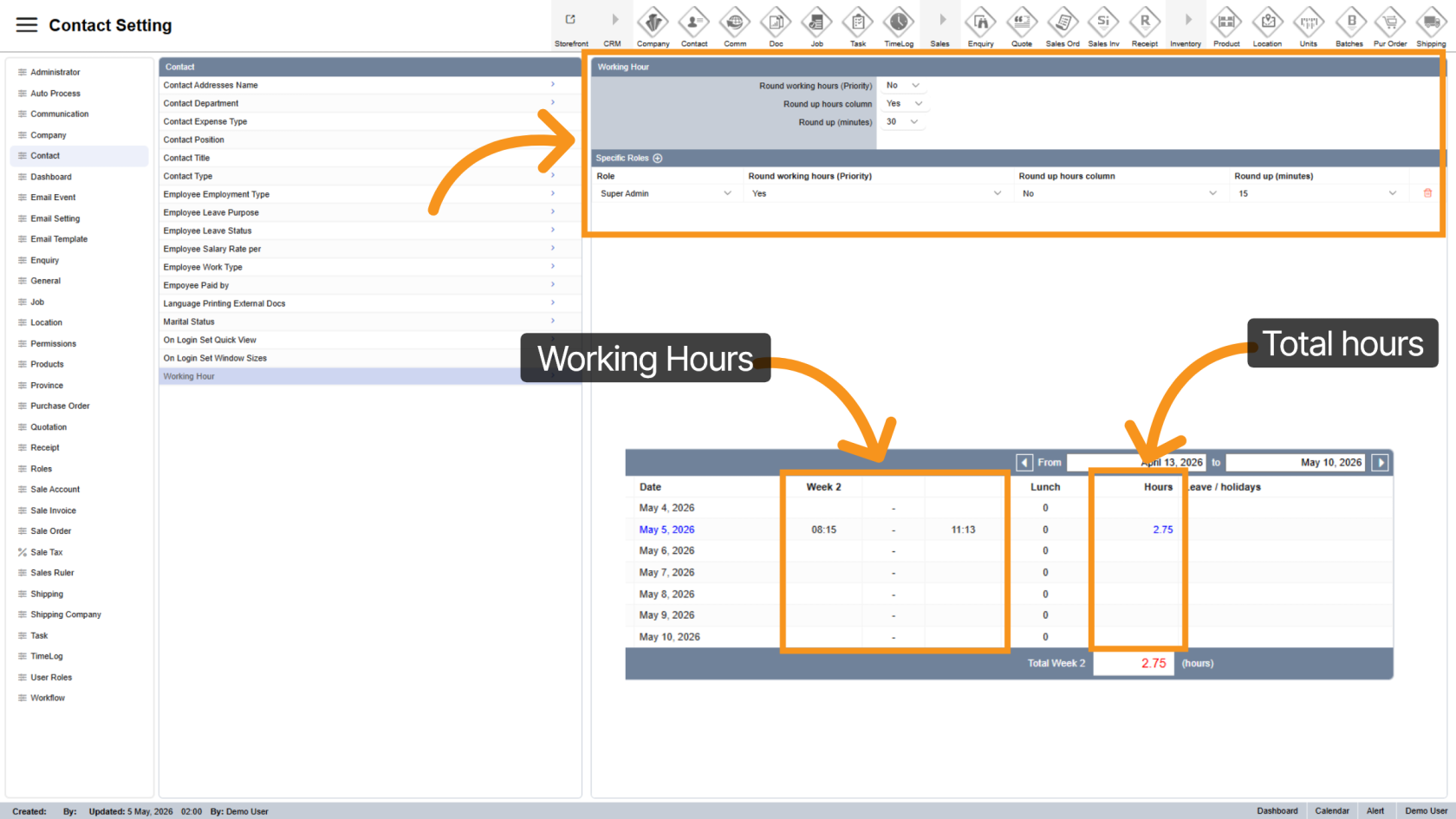
- The top section contains general settings.
- The lower section allows role-specific settings.
- Round Working Hours applies rounding to login and logout times (highest priority).
- Round Total Hours applies rounding to total hours worked per day.
6. Set Round Working Hours
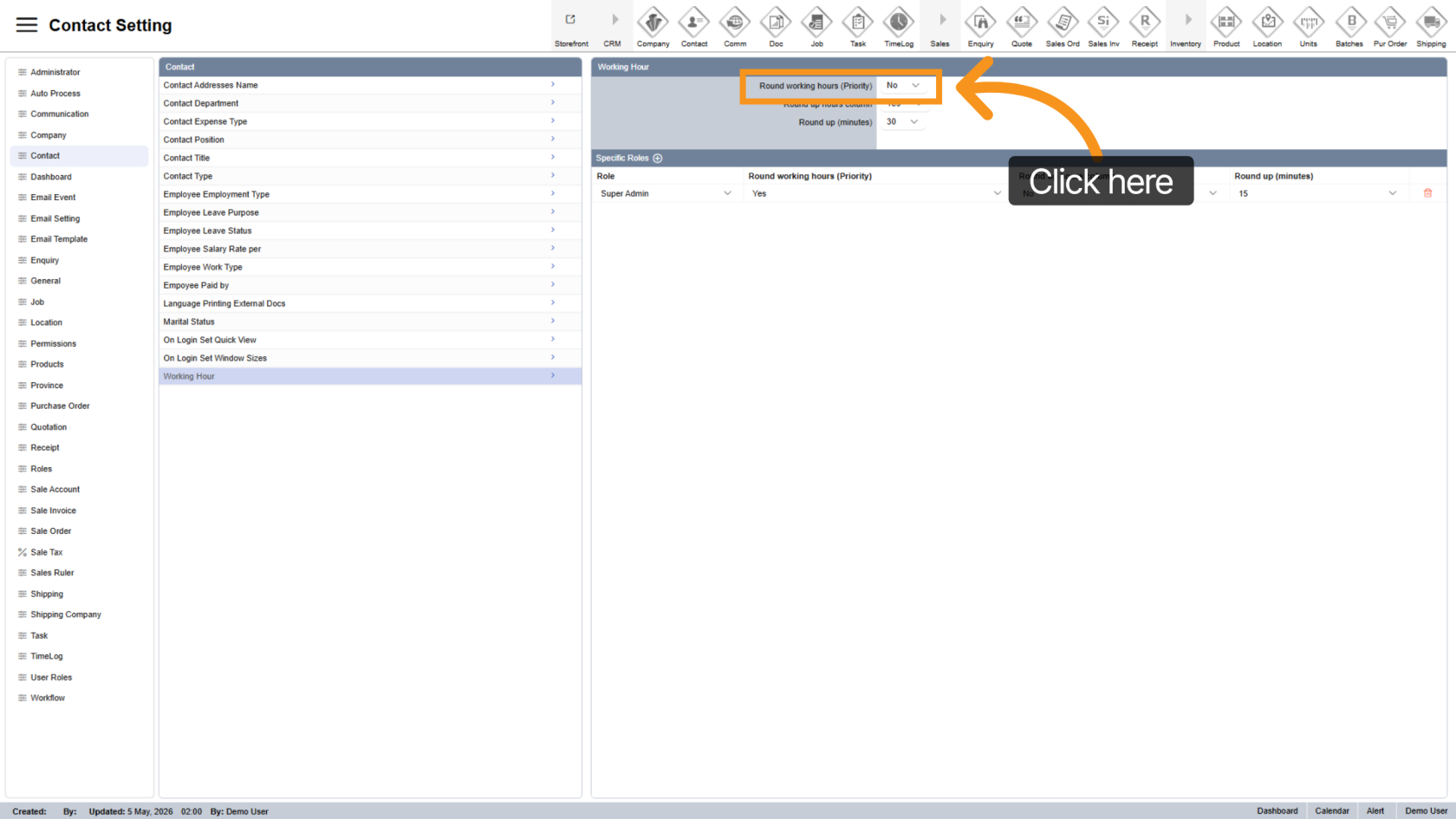
Enable and configure Round Working Hours if you want login, logout times to be rounded.
Example: If rounding is set to 15 minutes, a login at 8:16 AM will be rounded to 8:30 AM.
7. Enable Round Total Hours
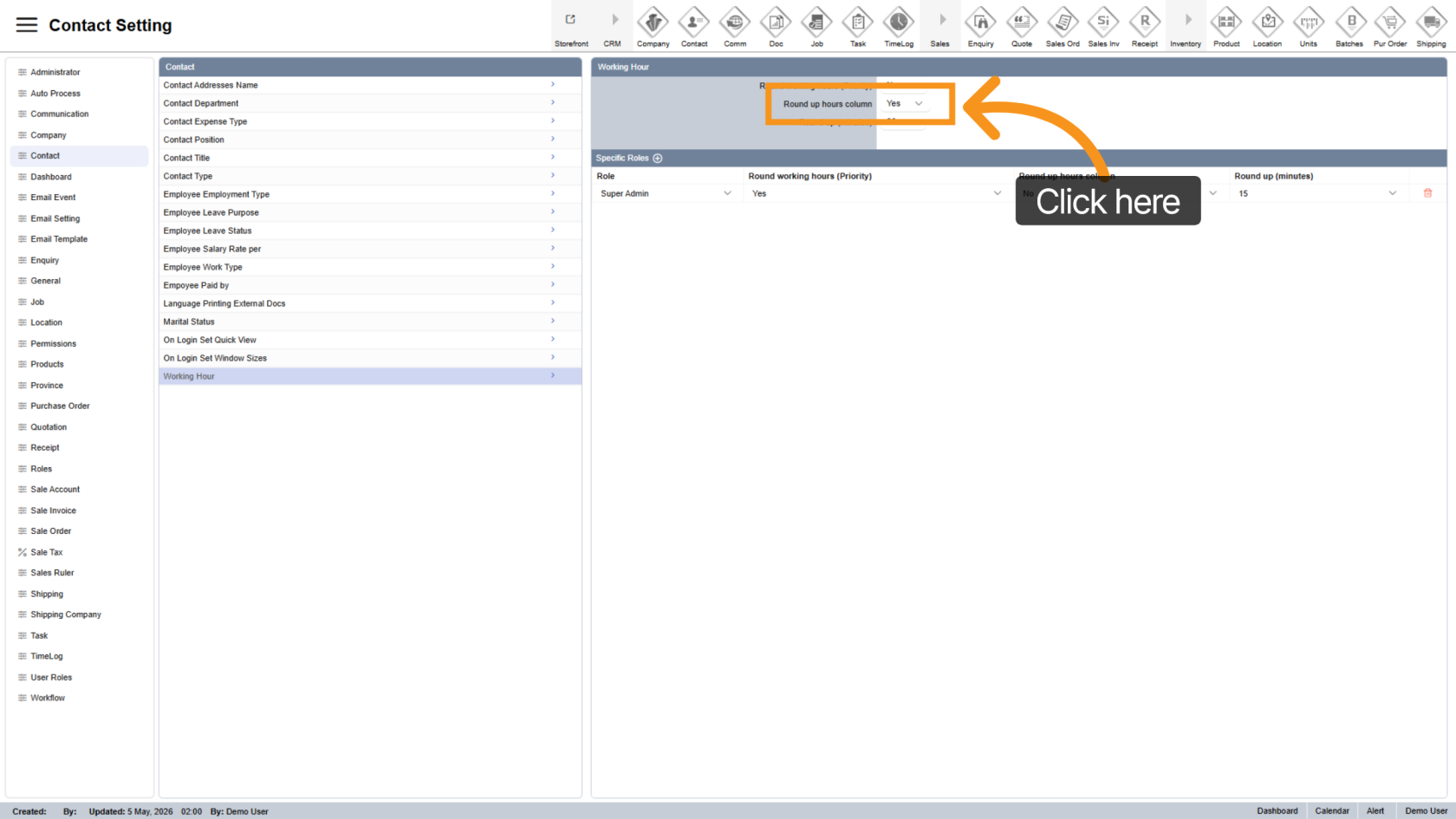
Select Yes in the Round up hours column to round total daily working hours.
Example: If an employee works 2.75 hours and rounding is set to 15 minutes, the total will be rounded to 3 hours.
8. Select Round Up Minutes
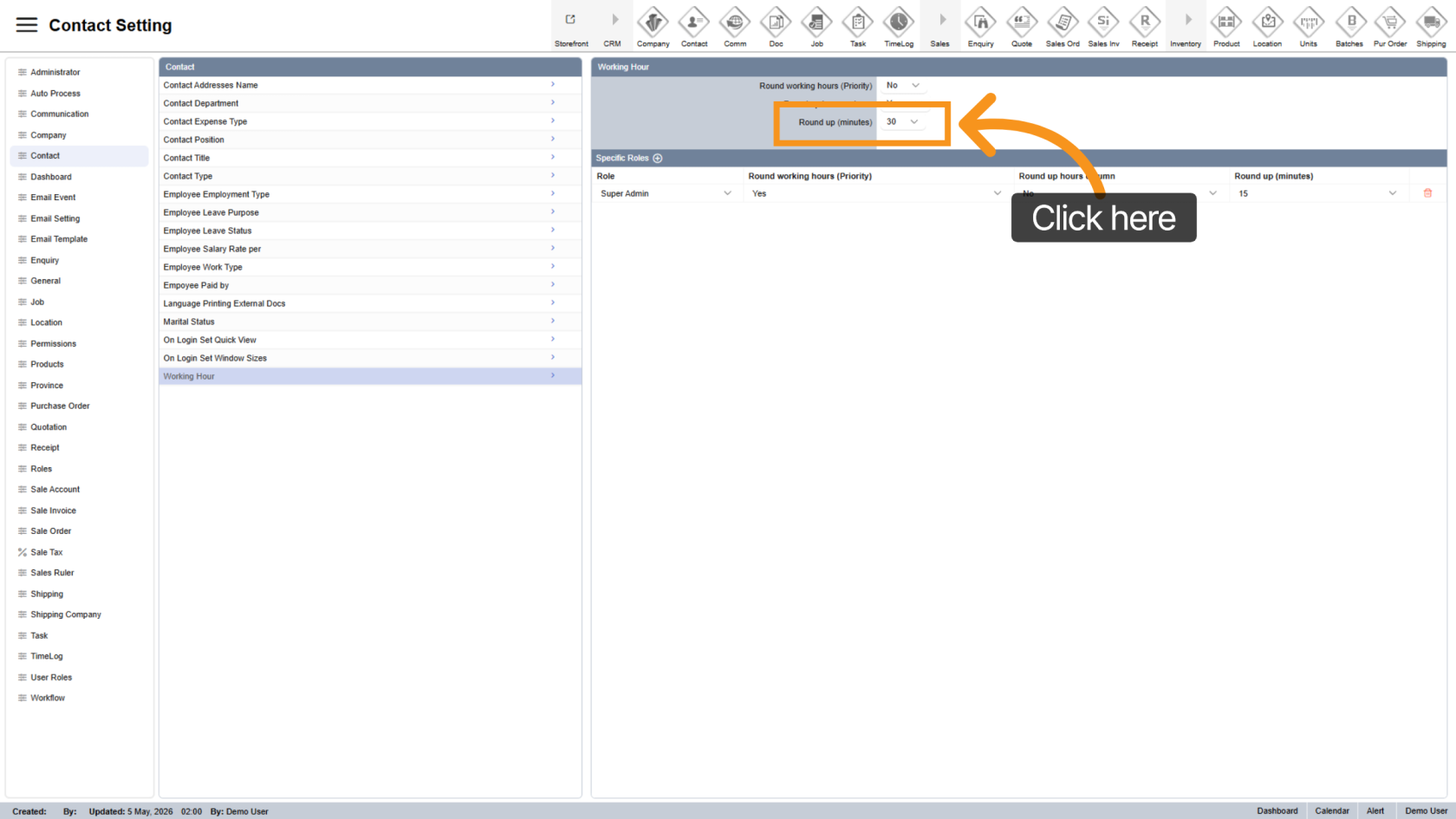
Choose the rounding interval, such as 5, 10, 15 minutes based on your requirements.
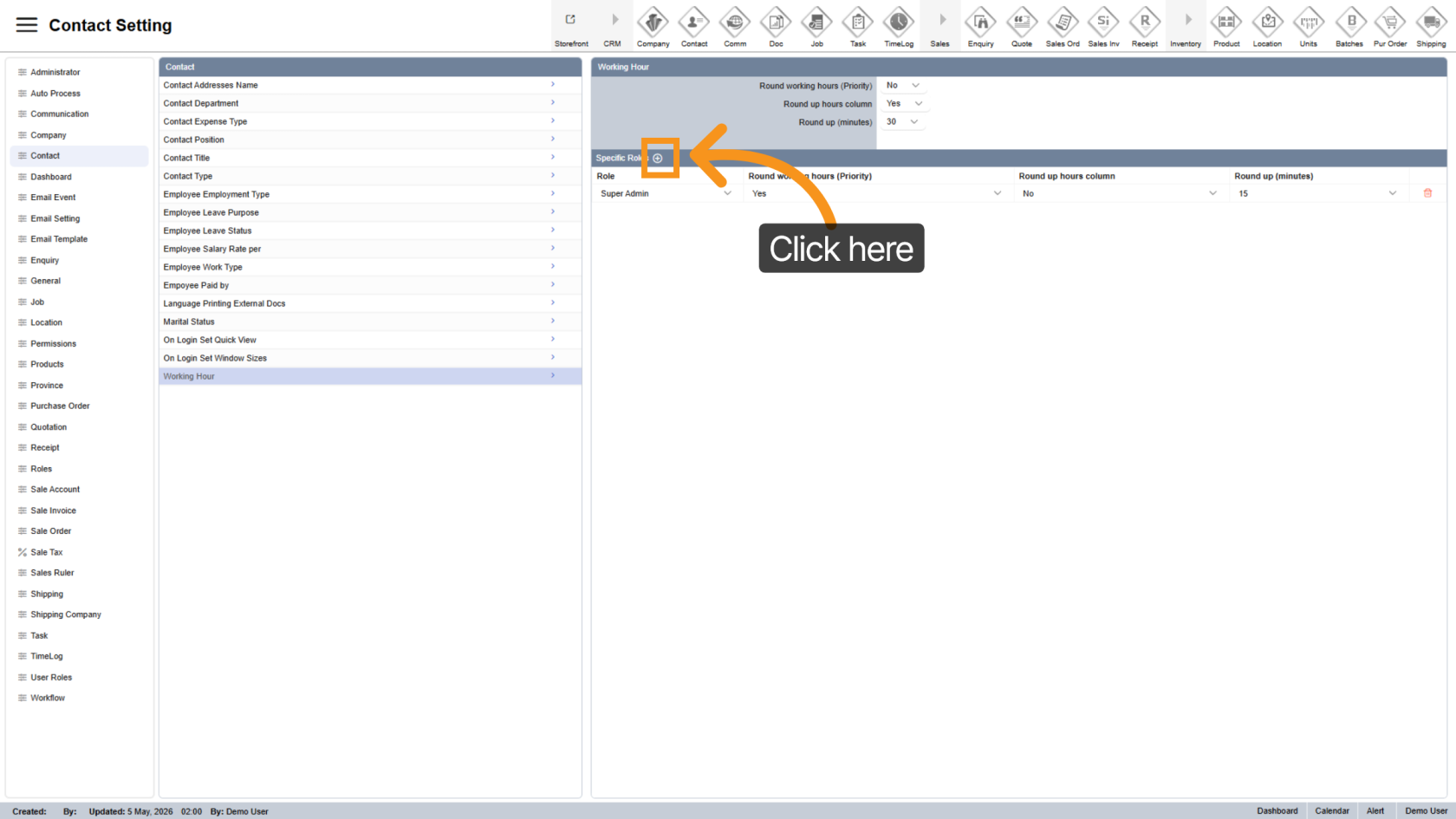
9. Set Up for Specific Roles
To apply different settings for specific roles, click the plus  icon to add a role.
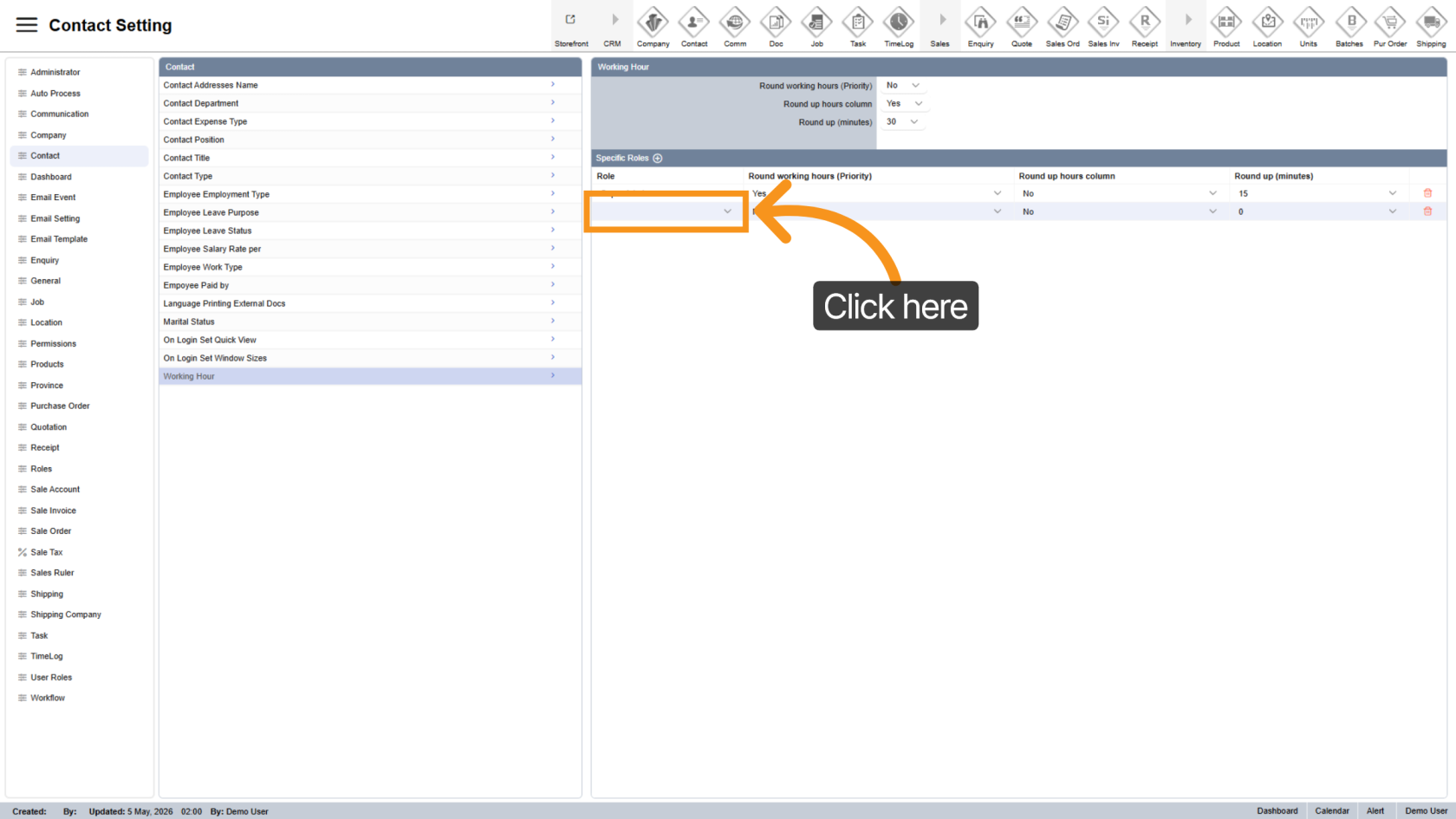
10. Select Role
Choose the role you want to configure from the role selection menu.
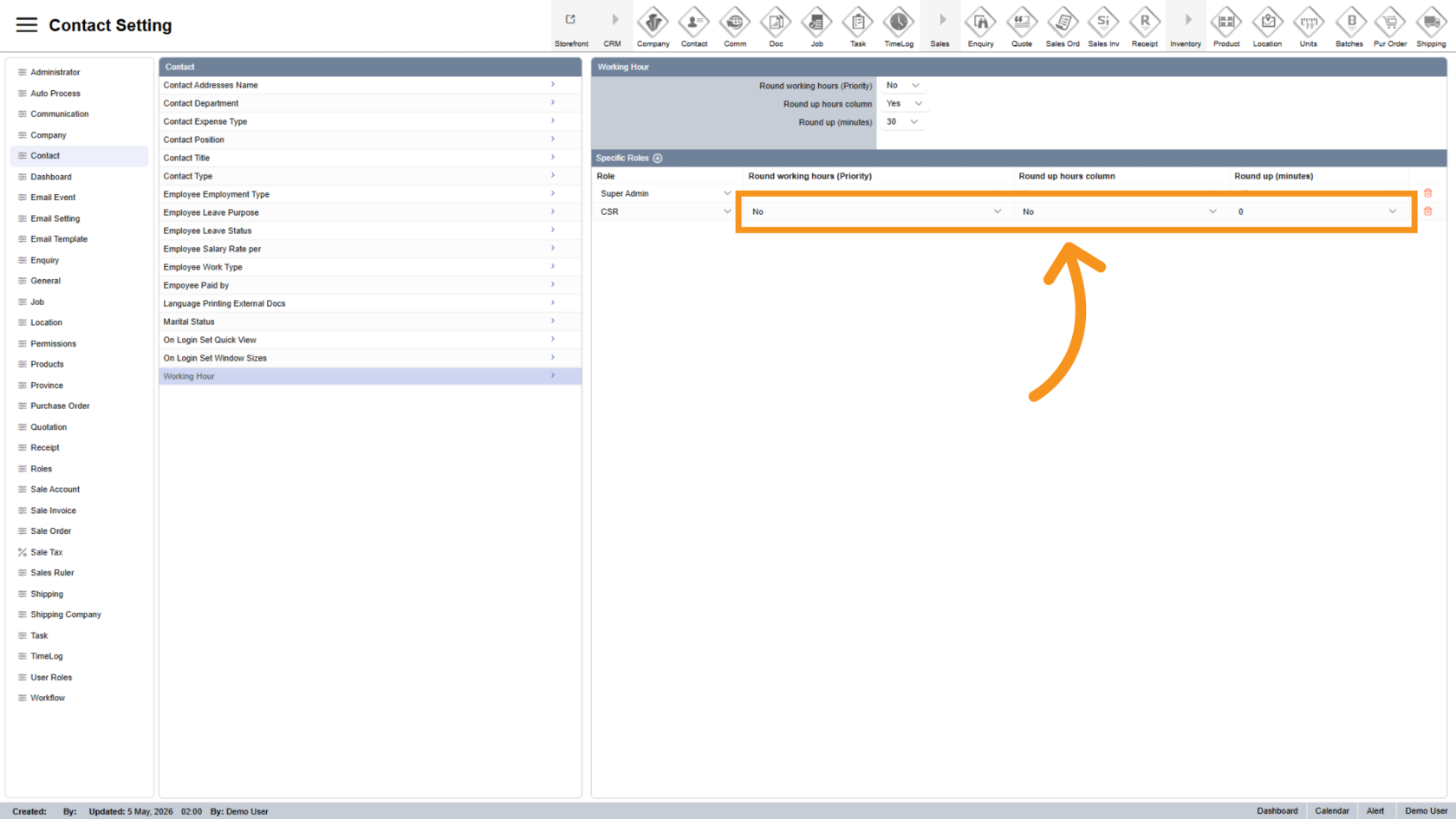
11. Configure Role Settings
Set up the same options for the selected role. These settings will override the general settings for that role.
You have now successfully configured working hours settings in the Worktraq app. Make sure the rounding rules and time intervals match your requirements for accurate time tracking.