
Process Products Settings
This tutorial guides you through configuring Process Product settings in the Worktraq app. These products are used to define the number of versions available on the online eStore.
Video Tutorial
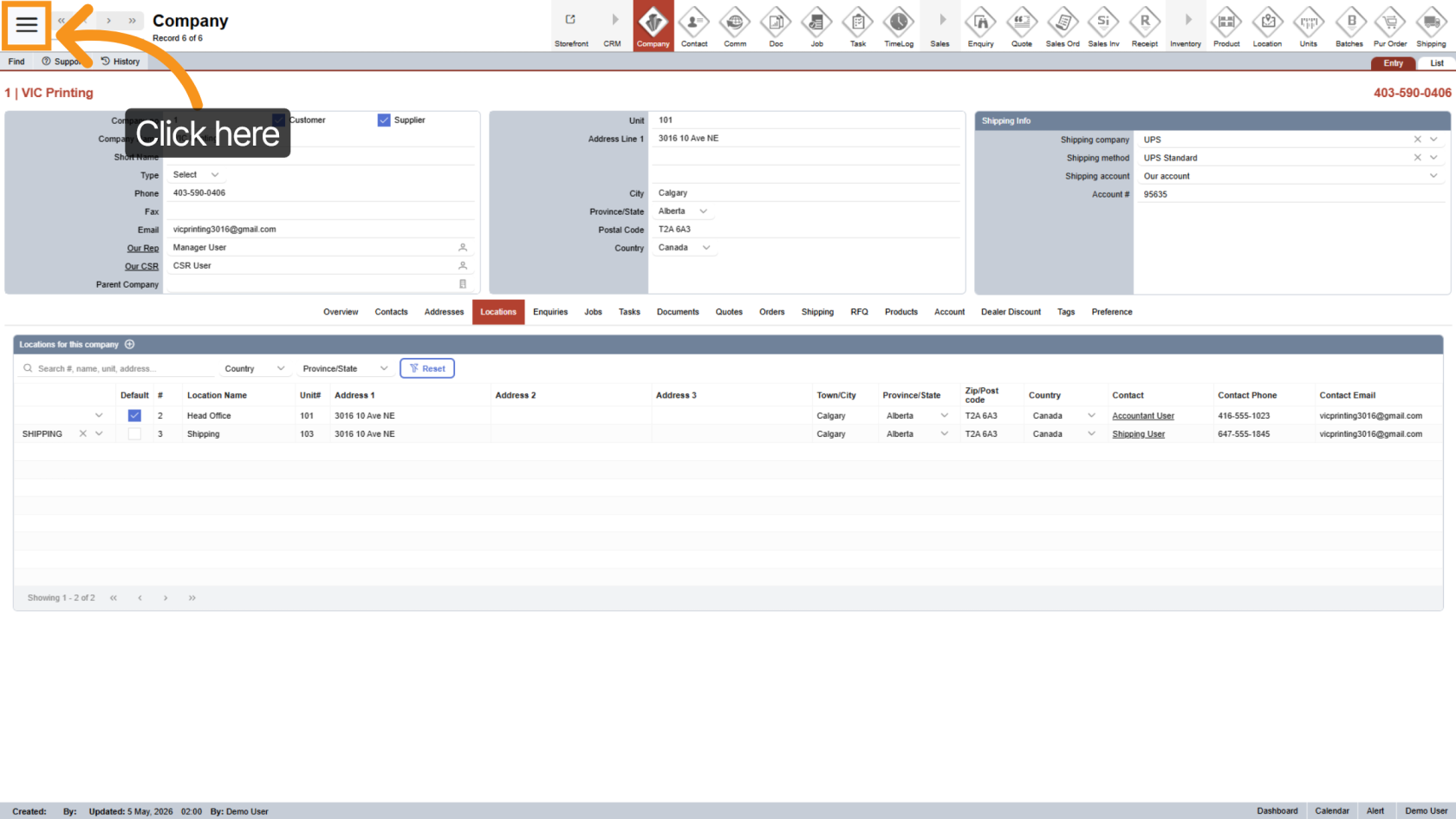
1. Open Main Menu
Click the  main navigation menu to access system options.
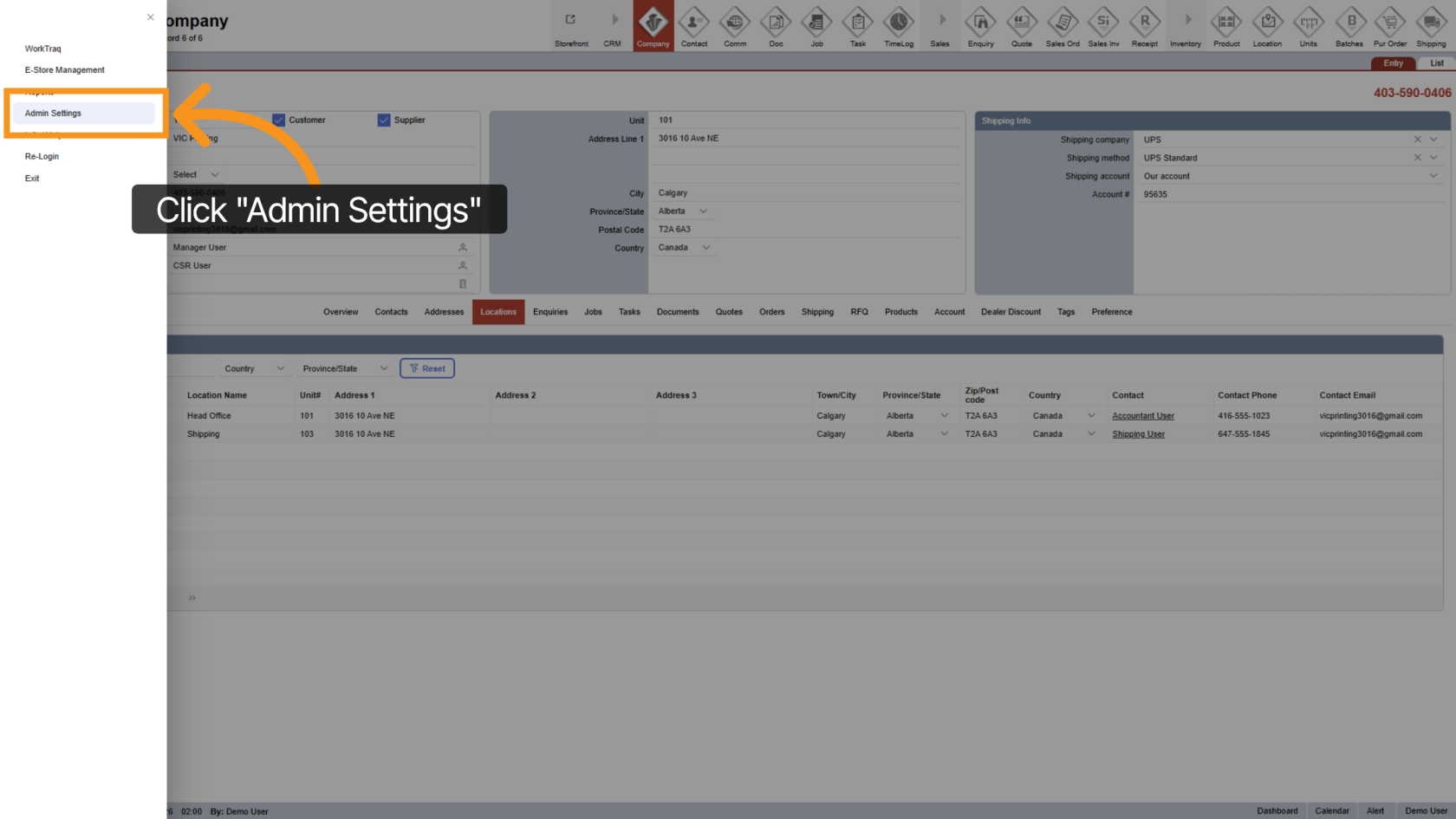
2. Go to Admin Settings
Click "Admin Settings" to open the administration panel.
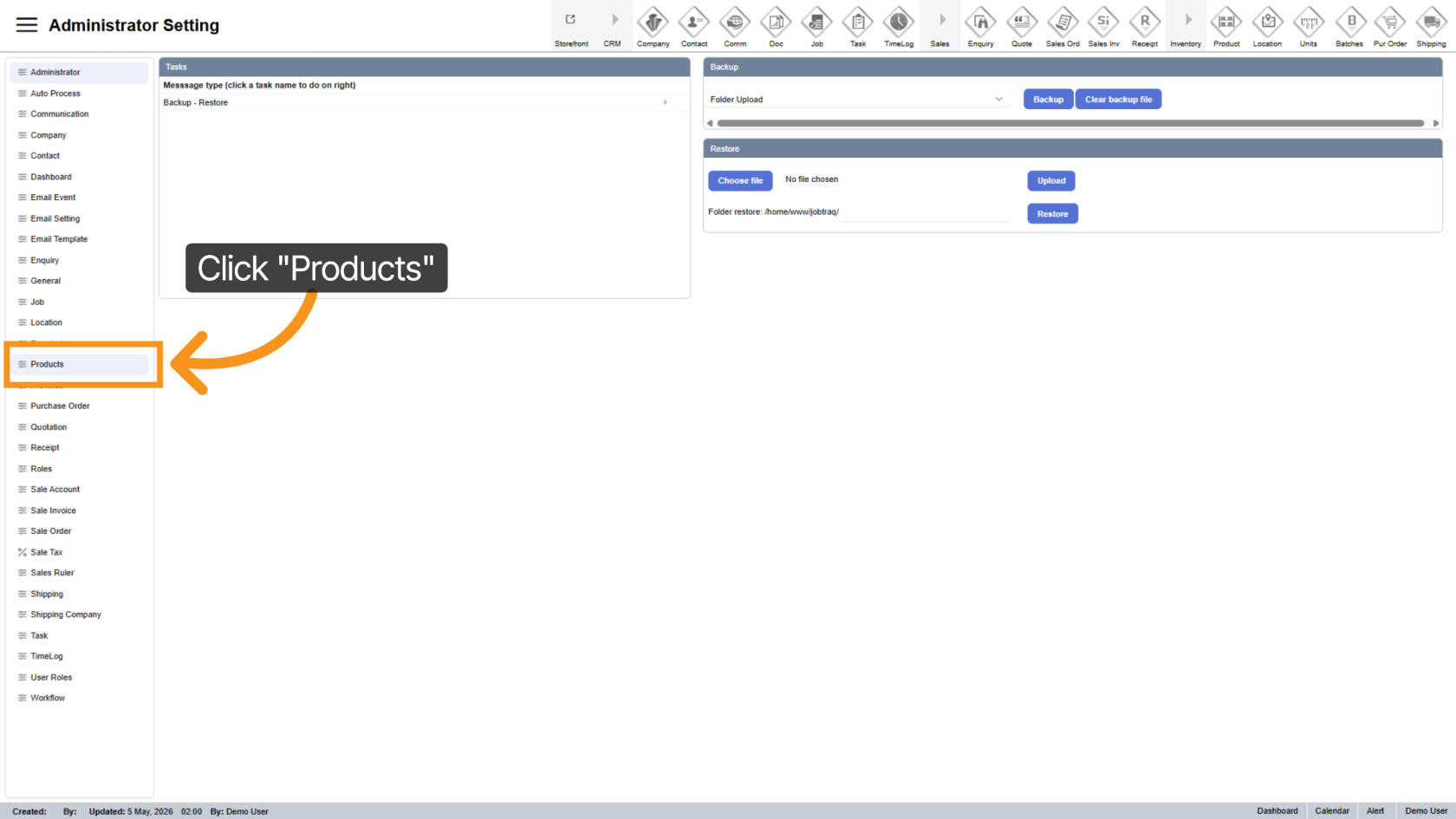
3. Navigate to Products Section
Click "Products" to view the product management options.
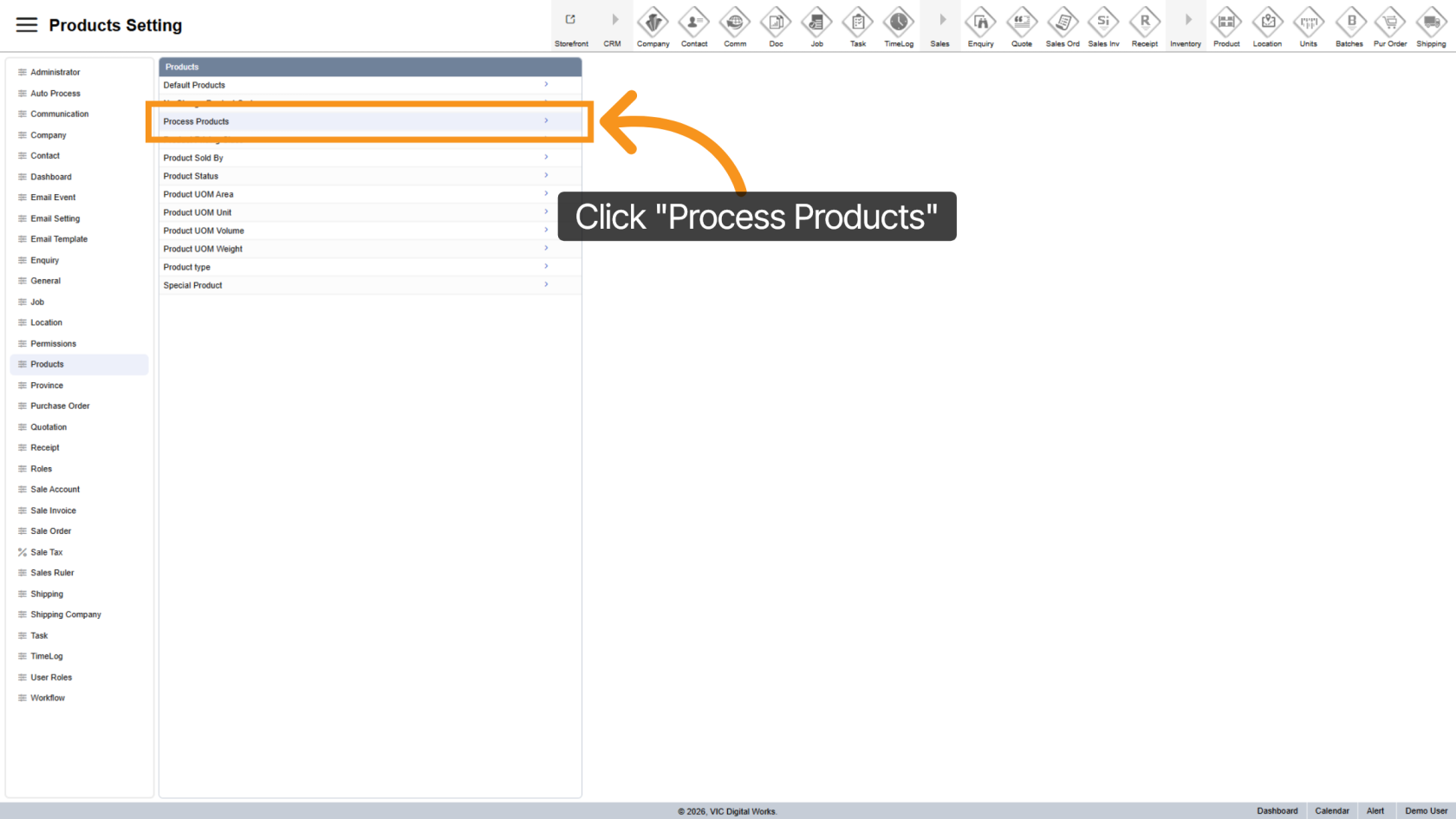
4. Open Process Products Section
Click the "Process Products" option to access the product processing configurations within the application.
5. View Process Product List
The list of process products will appear on the right side.
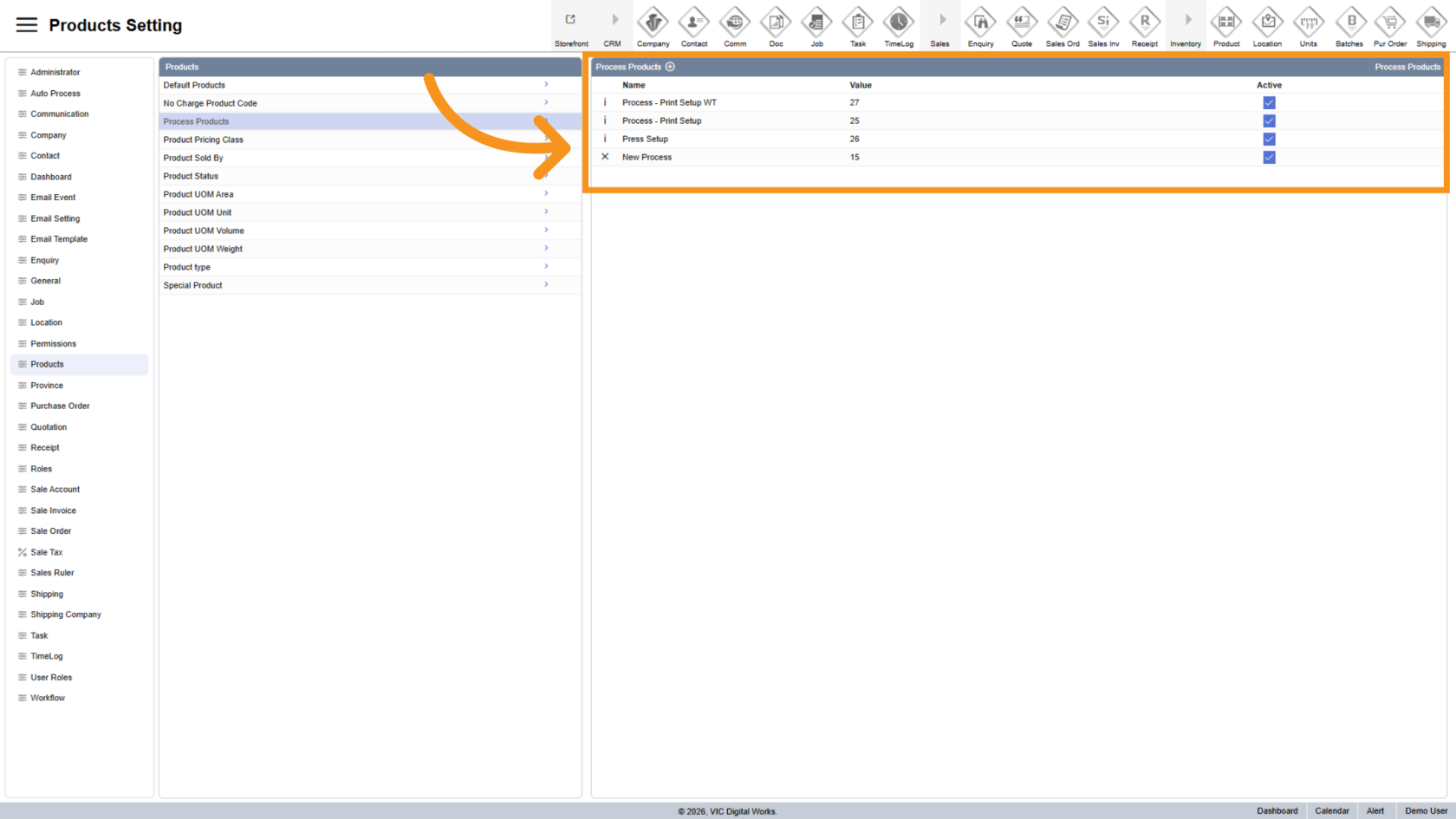
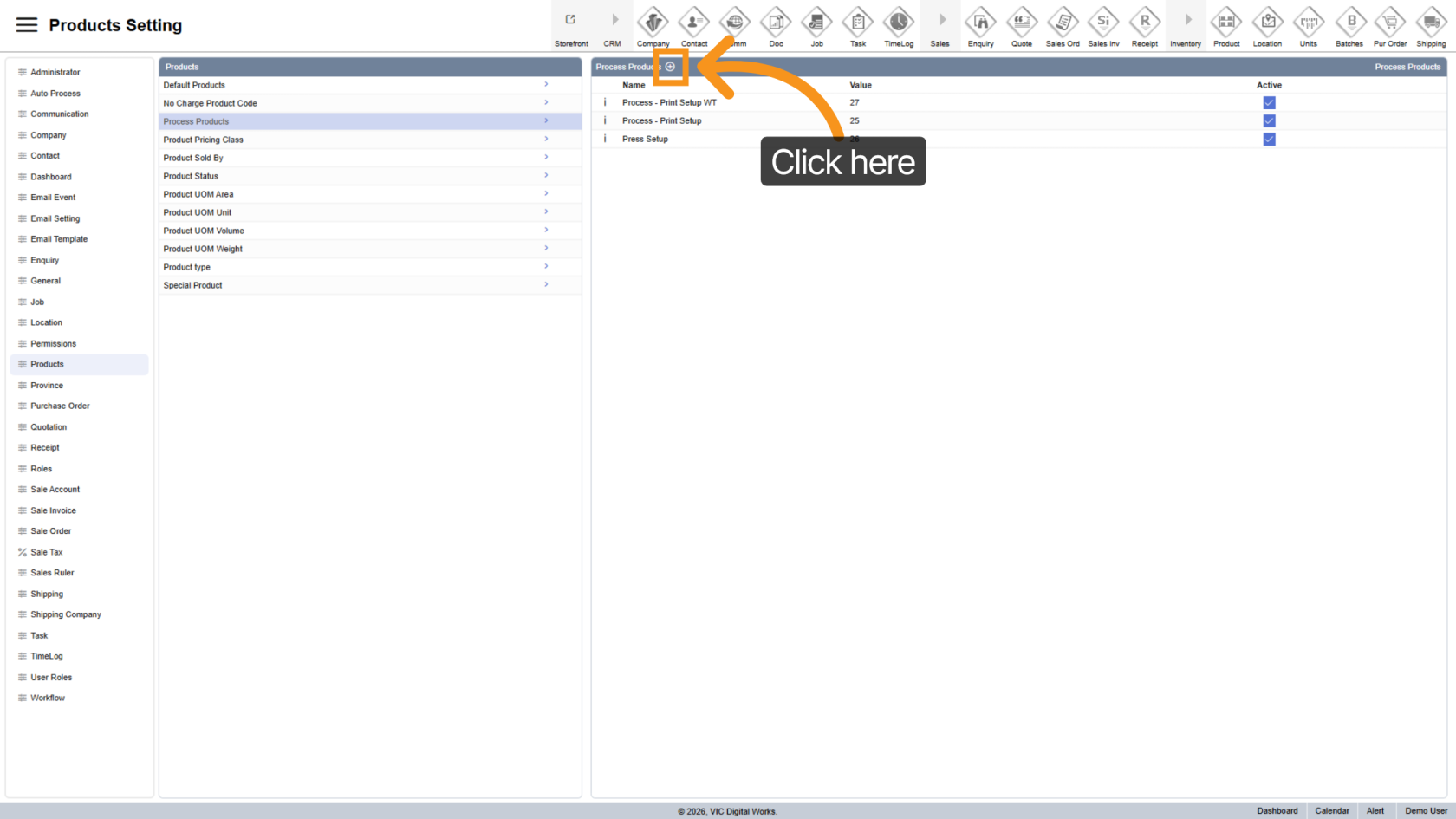
6. Add a New Process Product
Click the  plus icon to add a new product to the list.
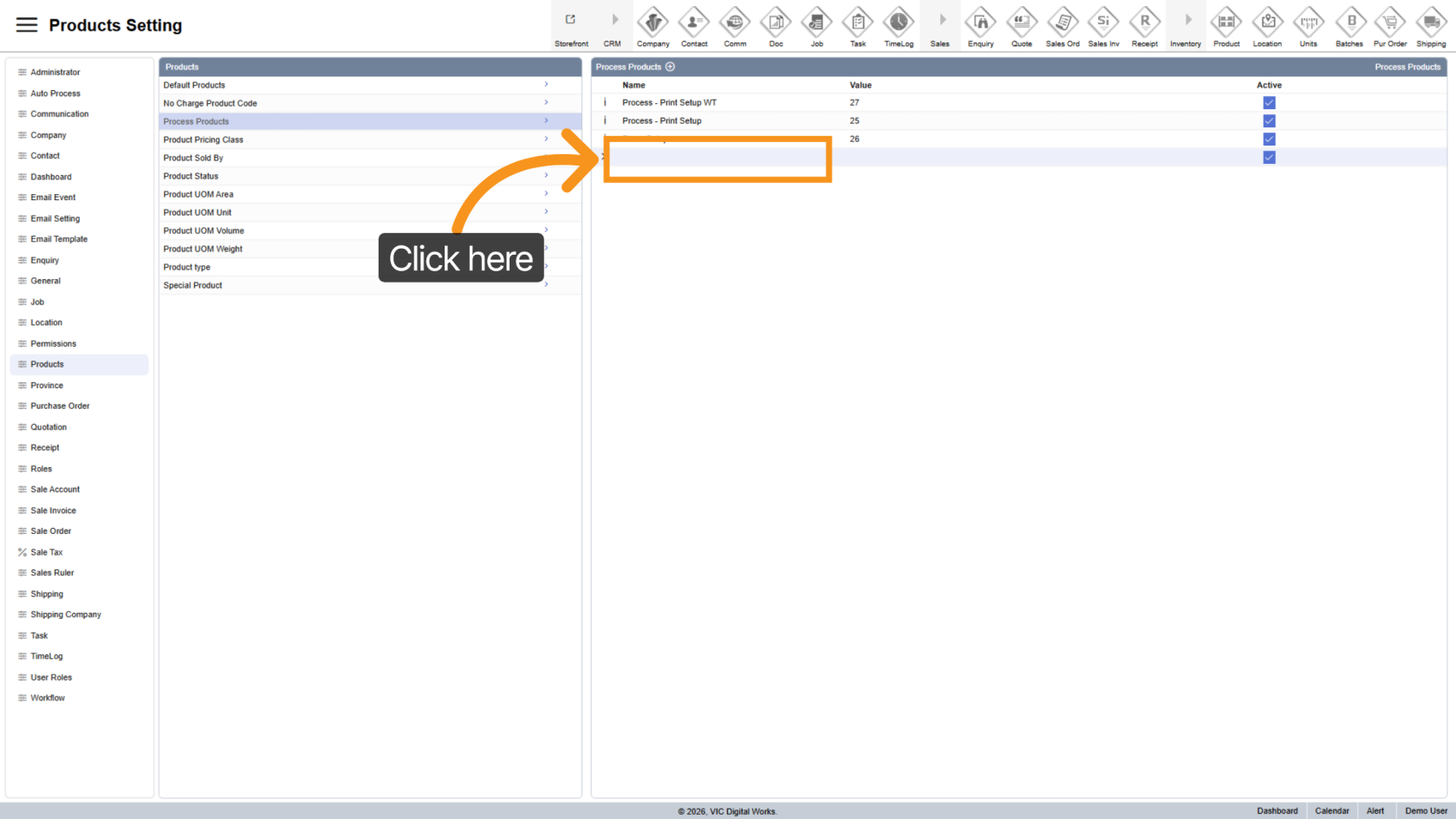
7. Enter Product Name
Click the name field and enter the product name.
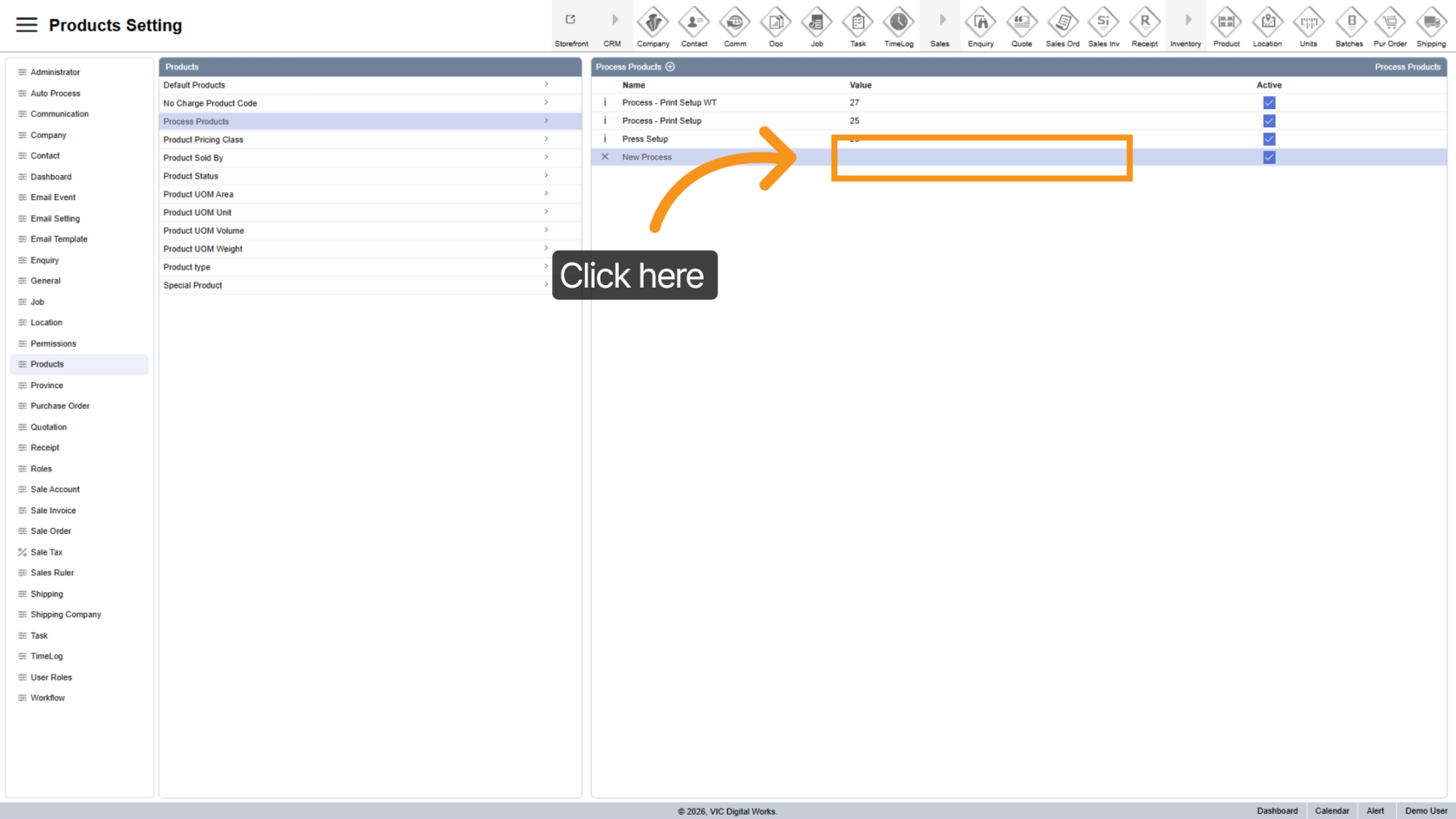
8. Add Product Value
Enter the correct product code in the value field. This ensures the system accurately recognizes and links the product.
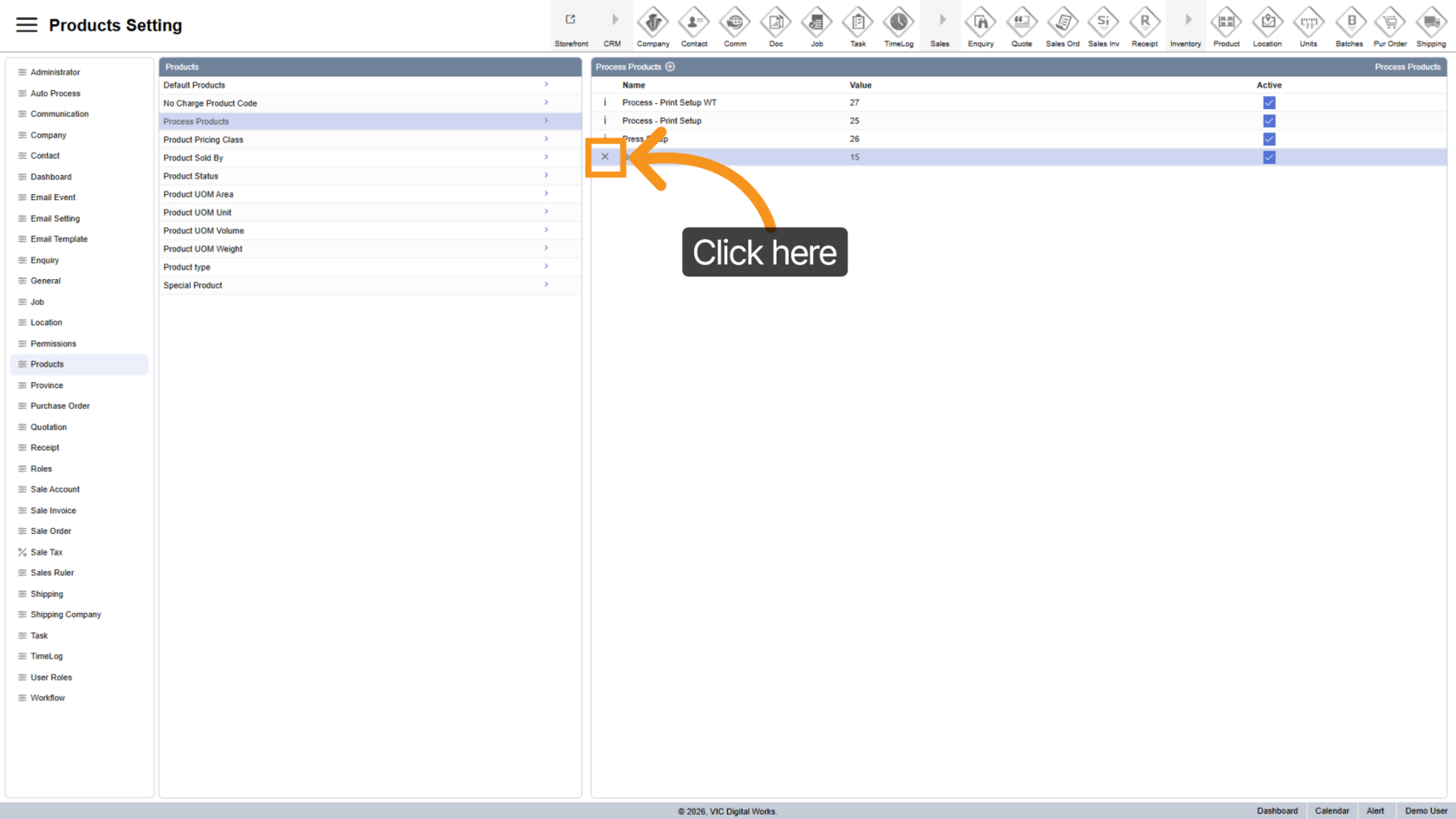
9. Delete a Product
Click the X delete icon to remove a product from the list.
You have successfully configured the Process Product settings in the Worktraq app. Make sure all product details are entered correctly to ensure accurate pricing and smooth system operation.