
Asset Workflow Settings
This tutorial walks you through how to configure asset workflow settings in the Worktraq App.
Video Tutorial
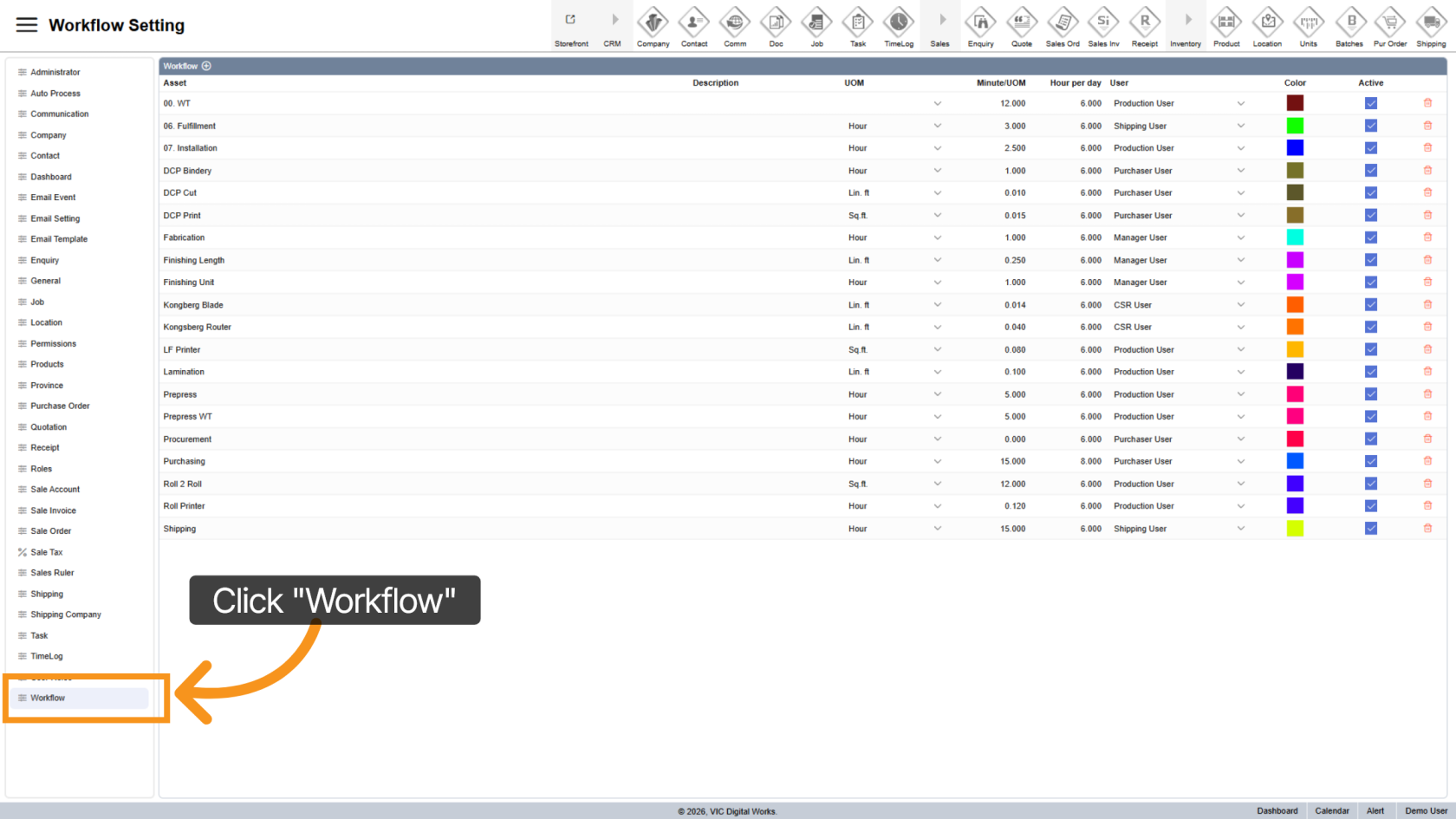
1. Navigate to Workflow Tab
Open the Workflow tab to access and manage workflow configurations.
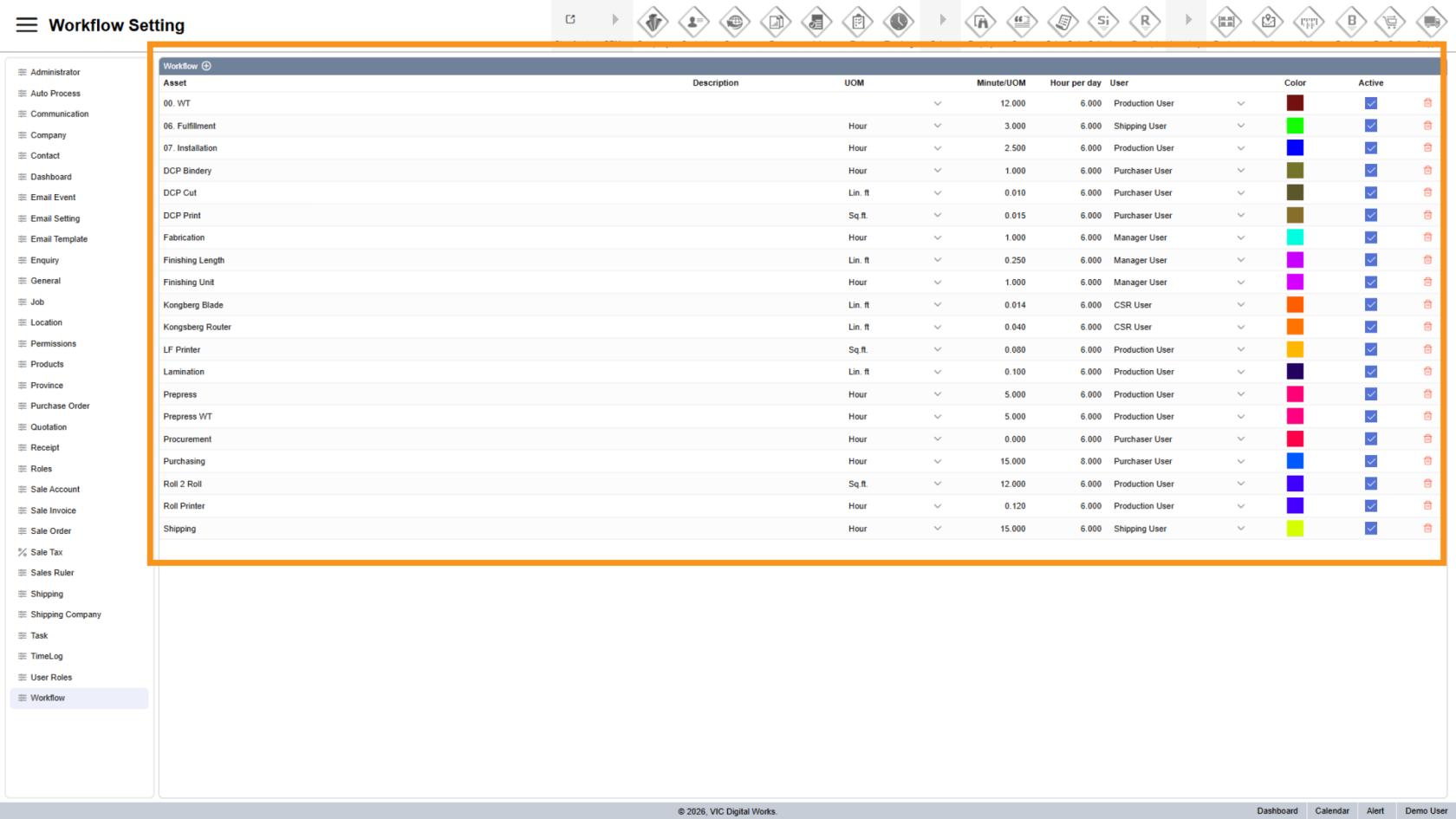
2. Workflow List
All existing workflows are displayed on the right-hand side.
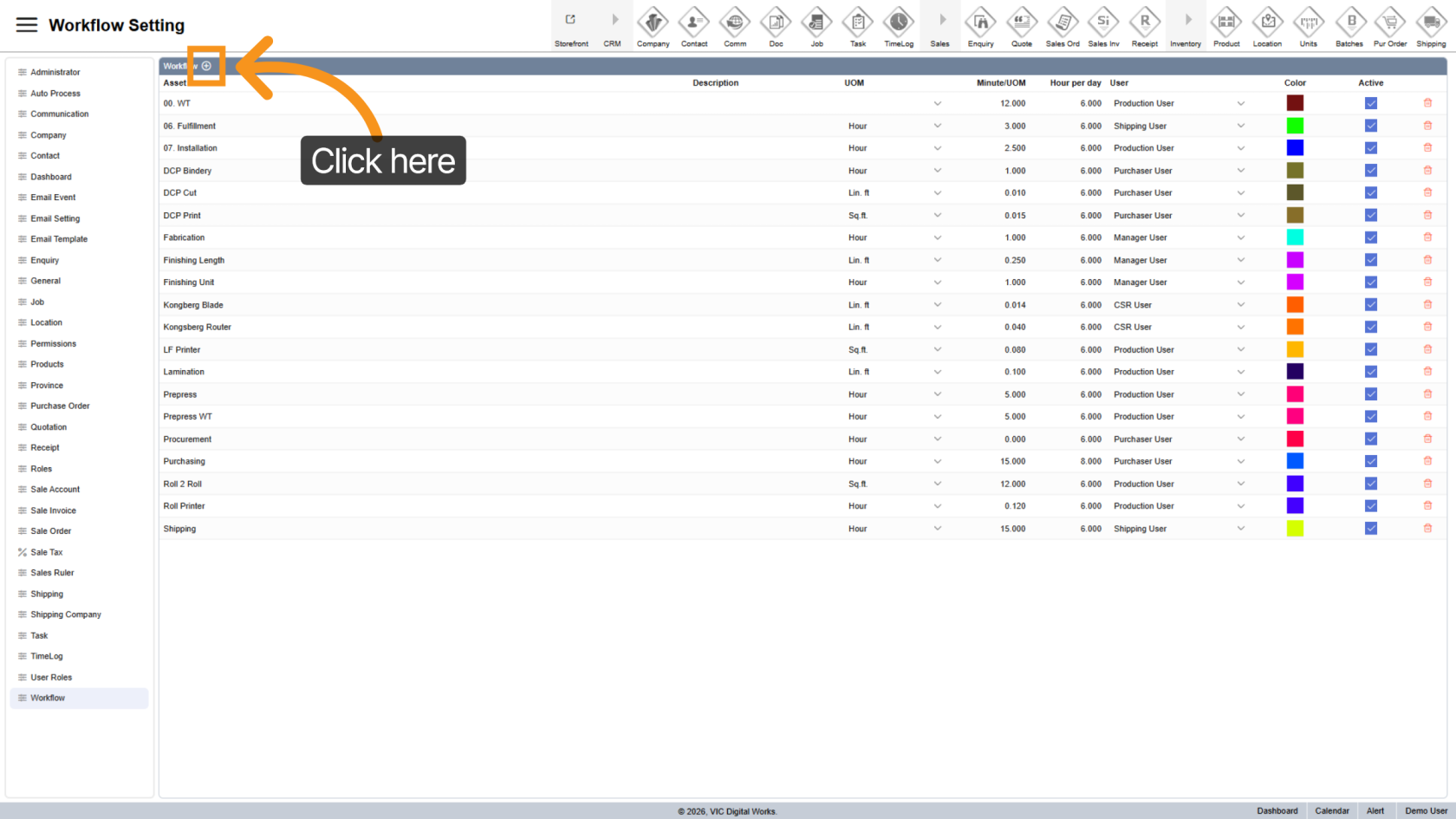
3. Add New Workflow
Click the  plus icon to create a new workflow.
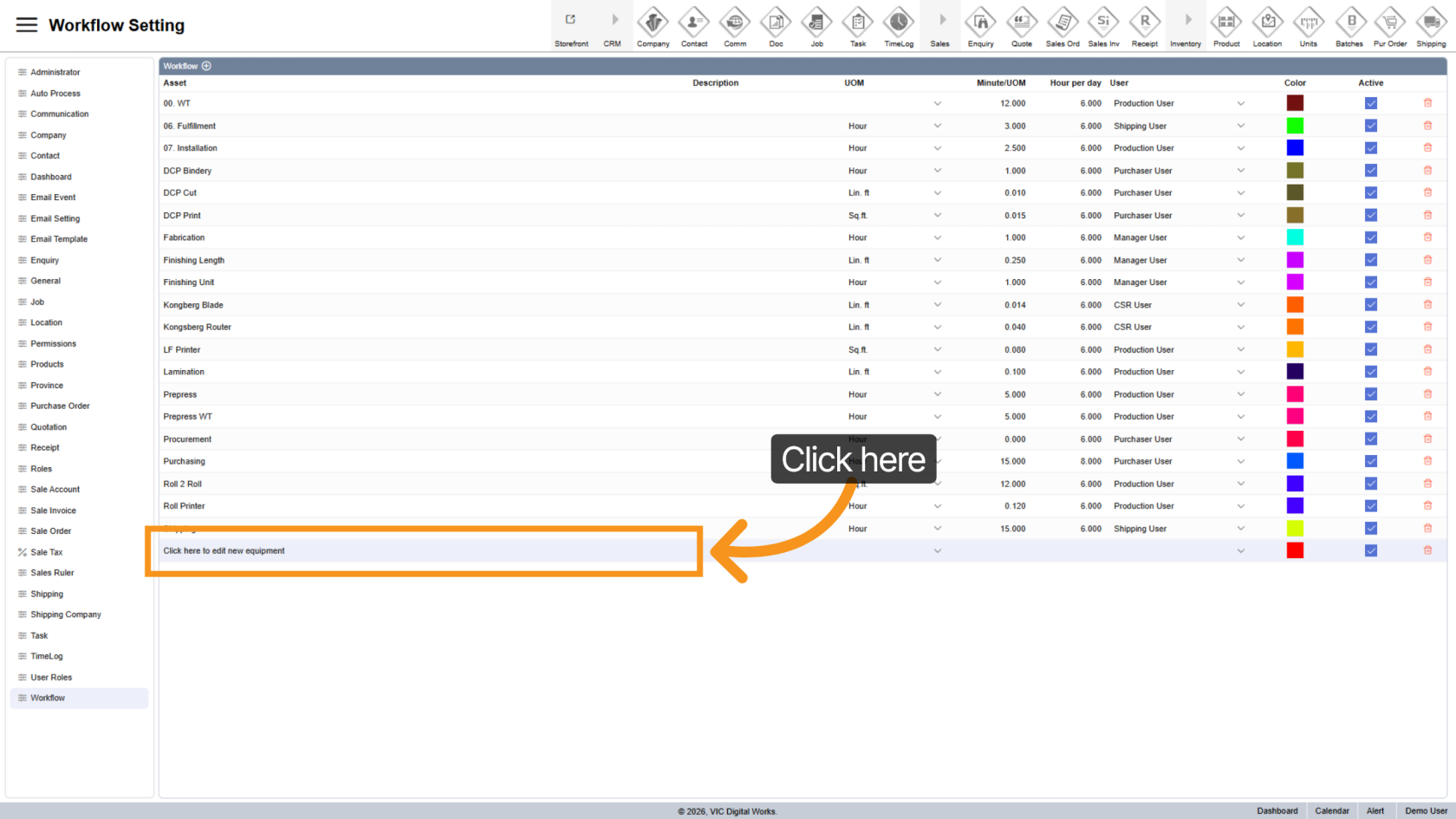
4. Enter Workflow Name
Click on the newly added row to enter a name for the workflow.
5. Set UOM (Unit of Measurement)
Select the unit of measurement used for the asset.
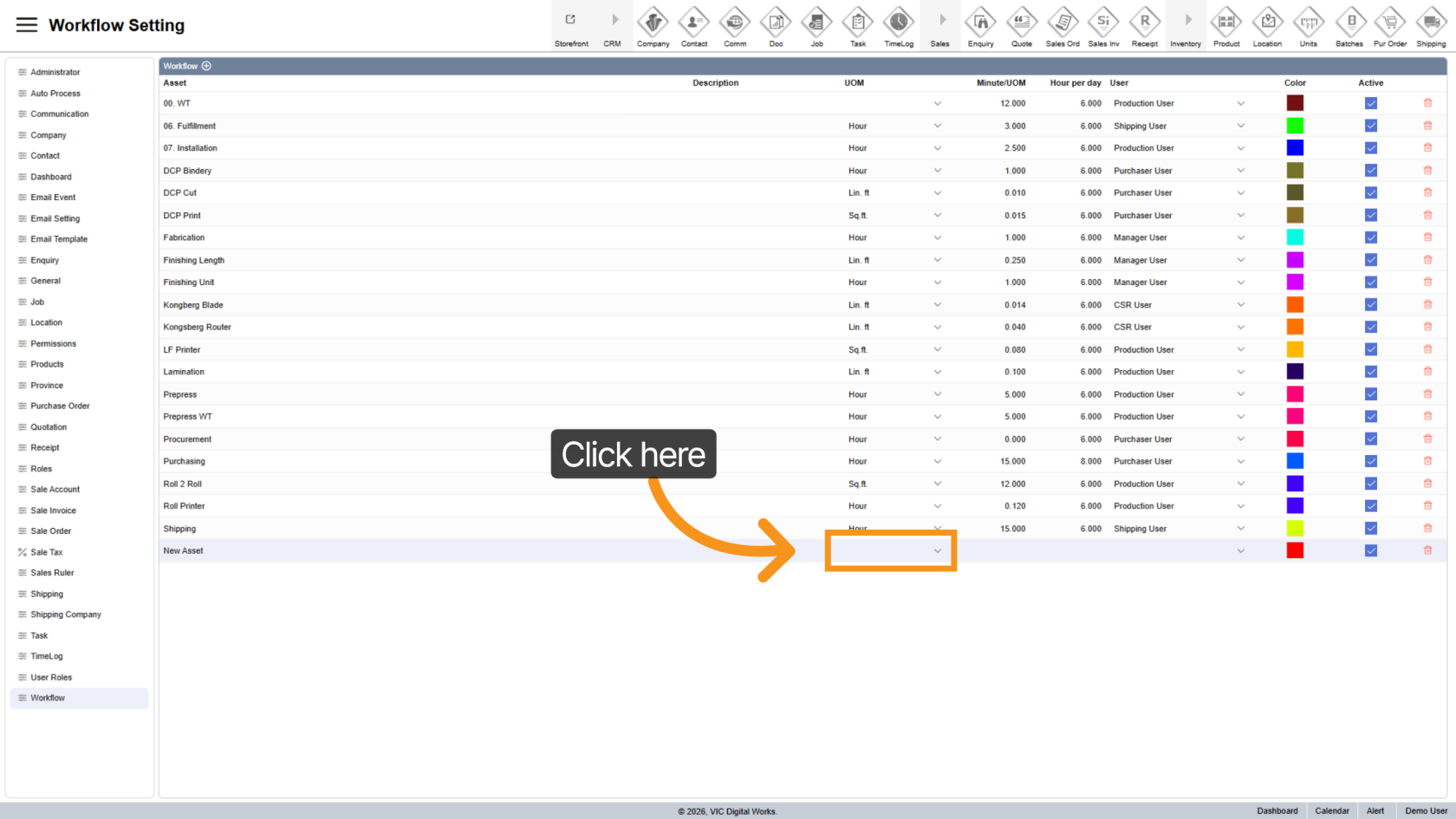
6. Define Time per UOM
Enter the time (in minutes) required to complete one unit of work.
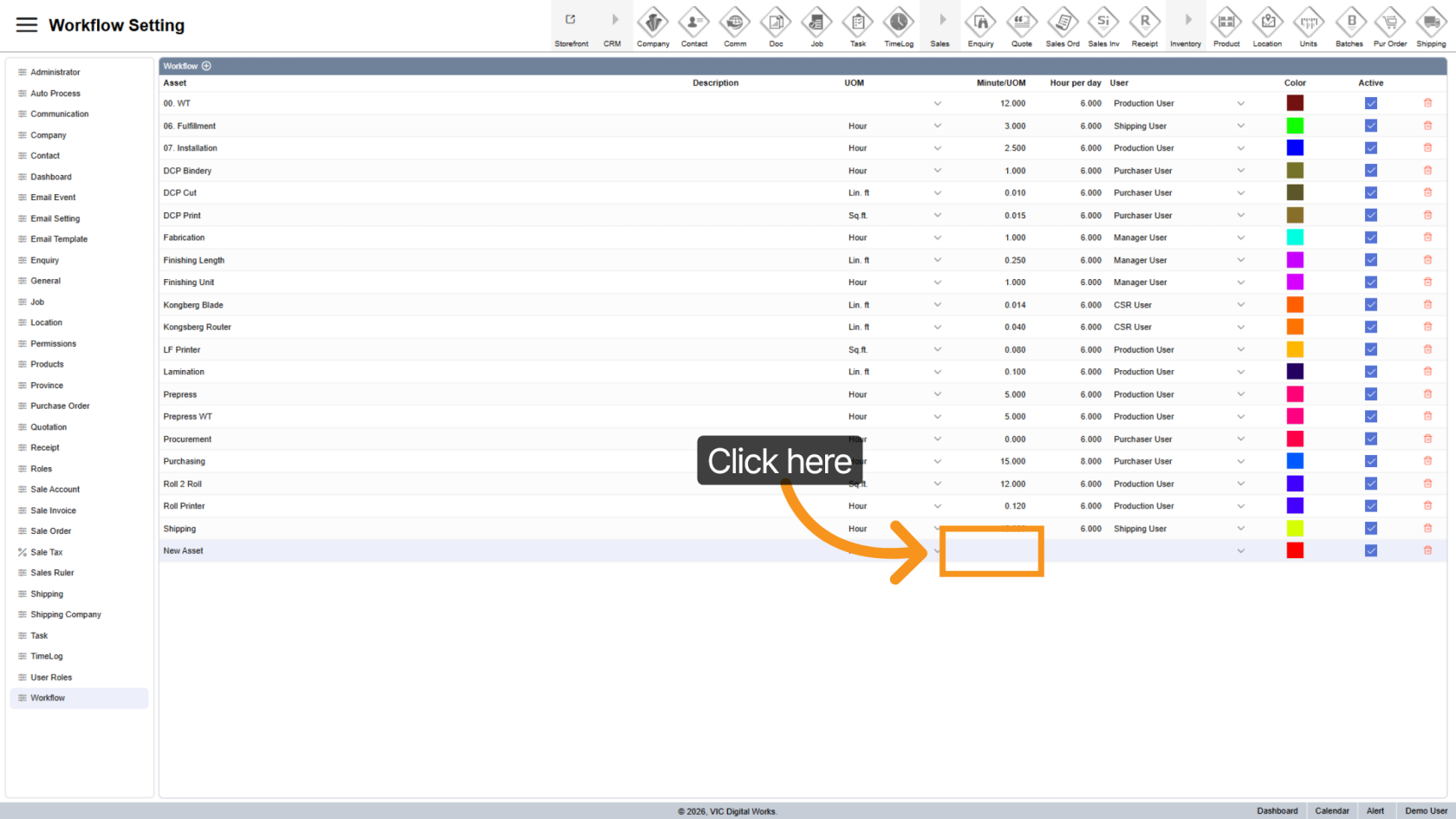
7. Set Working Time
Specify how many minutes this workflow operates per day.
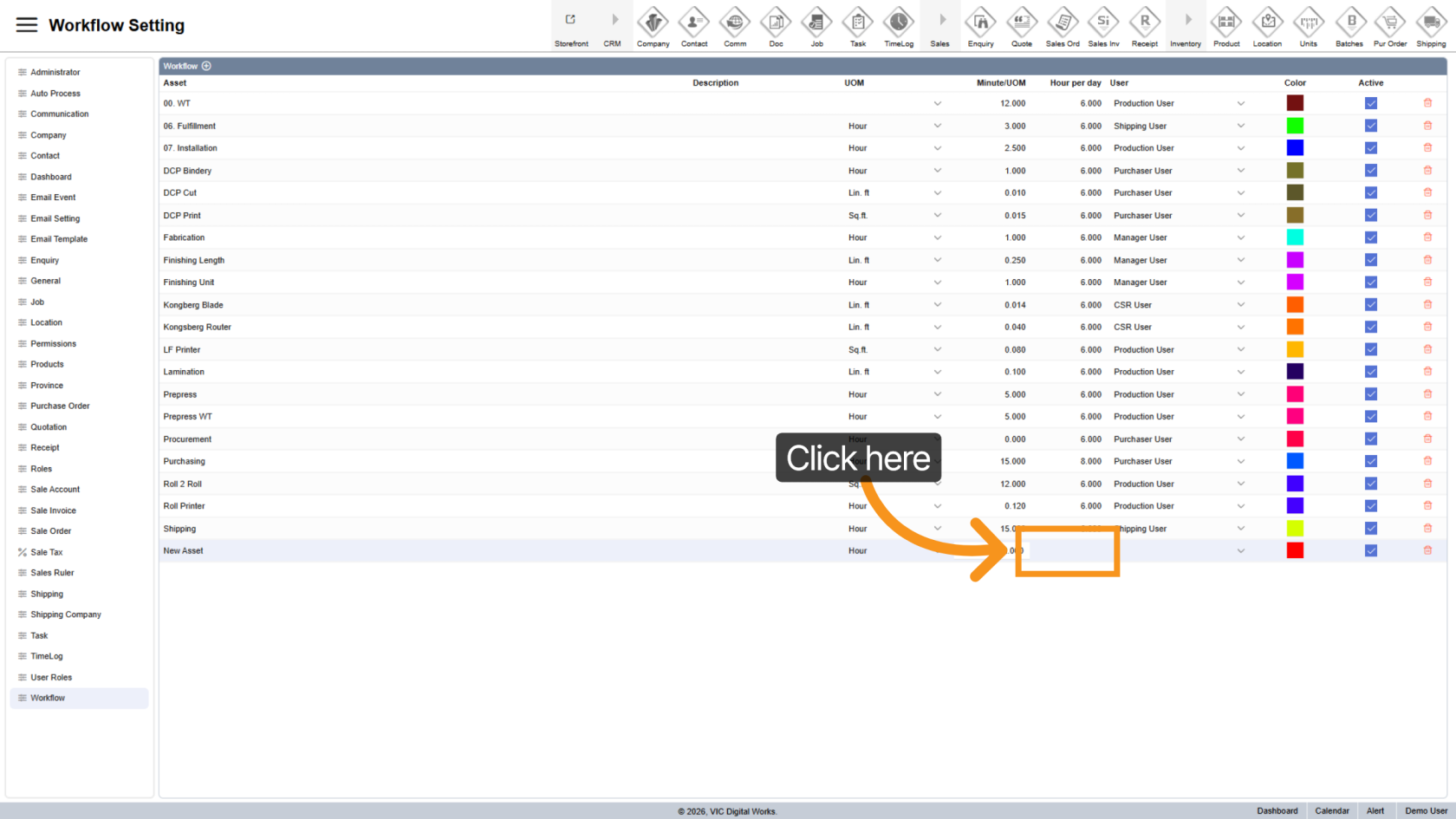
8. Assign Responsible User
Select the user responsible for managing this workflow.
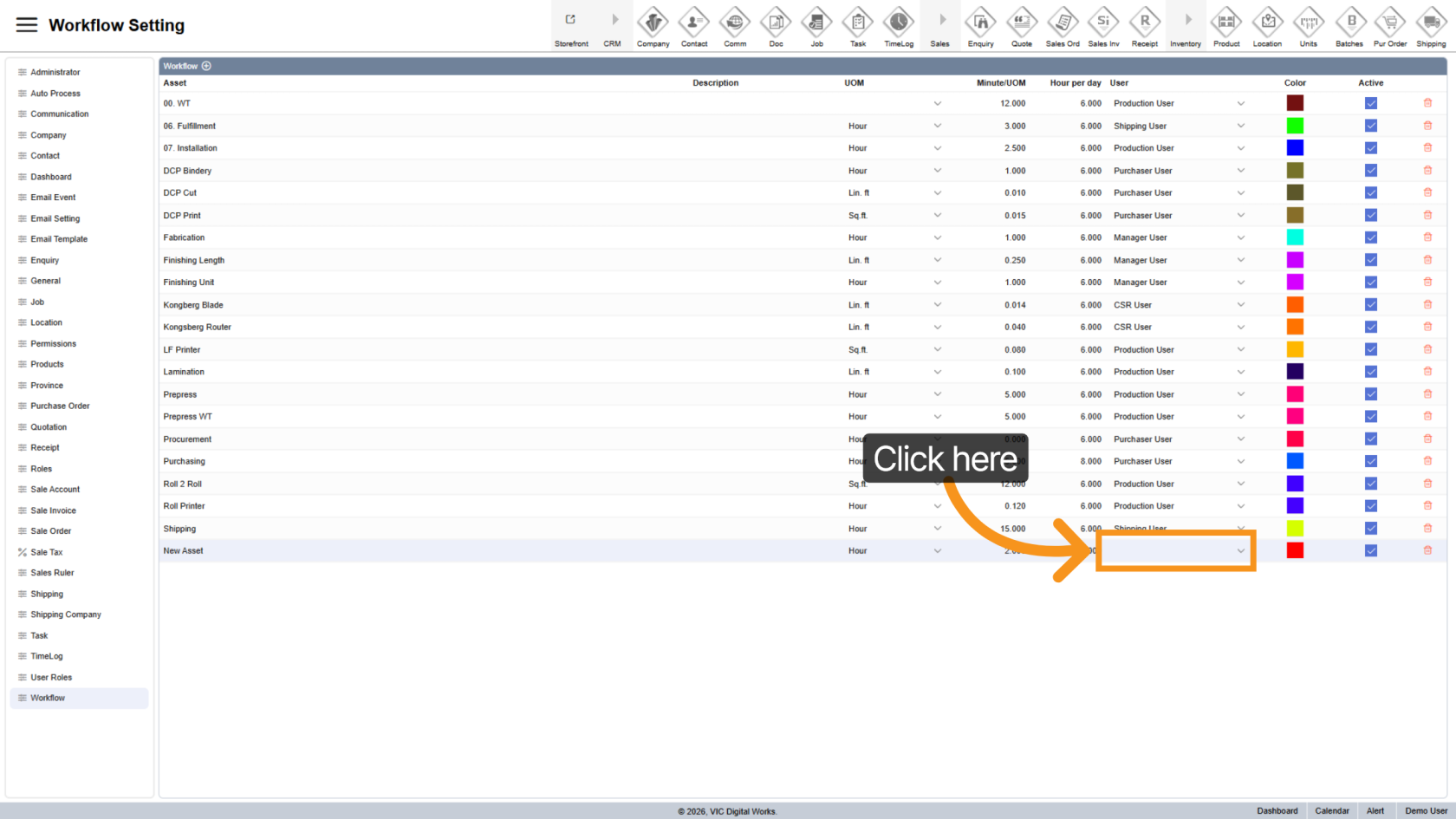
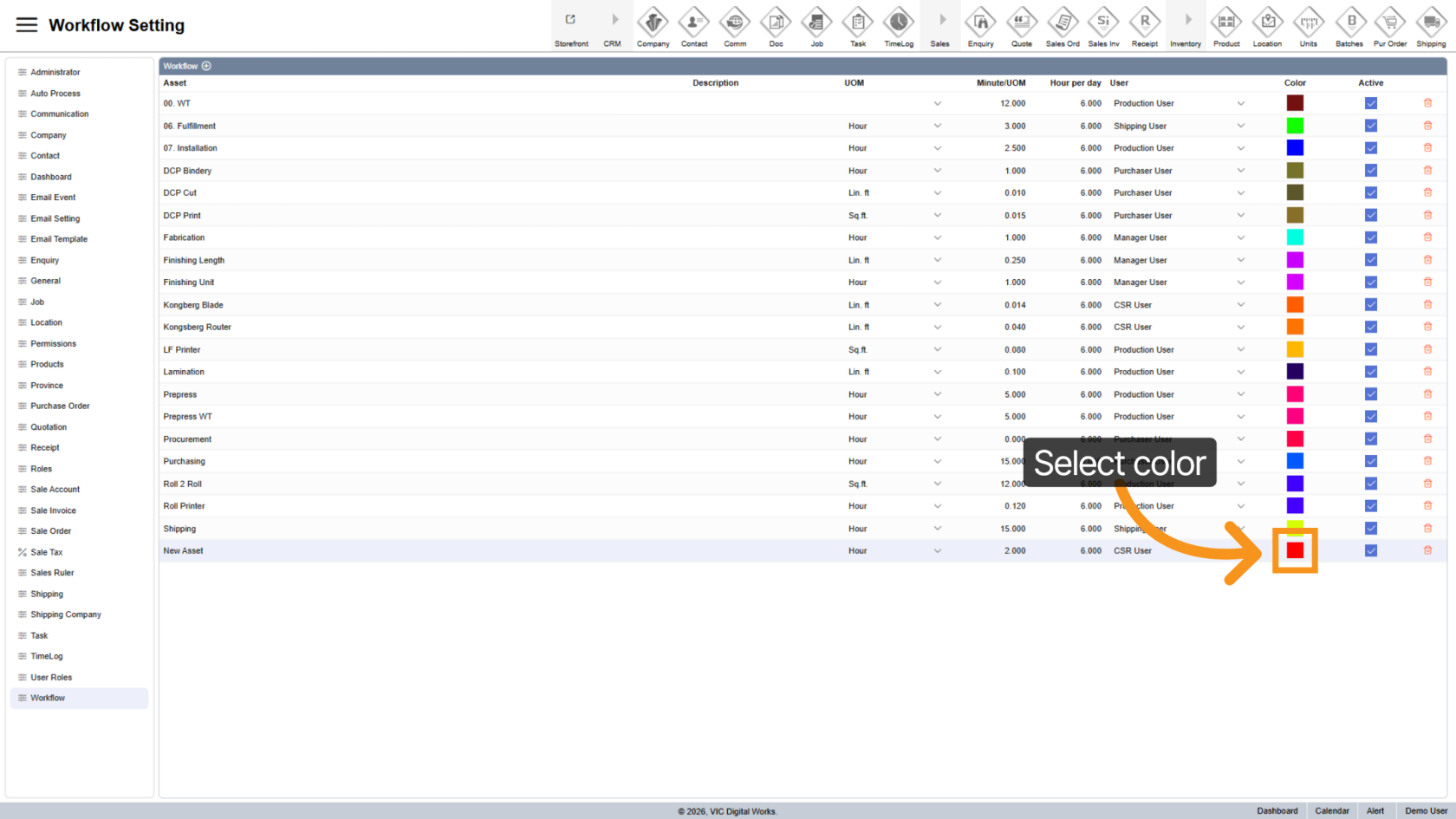
9. Select Display Color
Choose a color to visually represent this workflow.
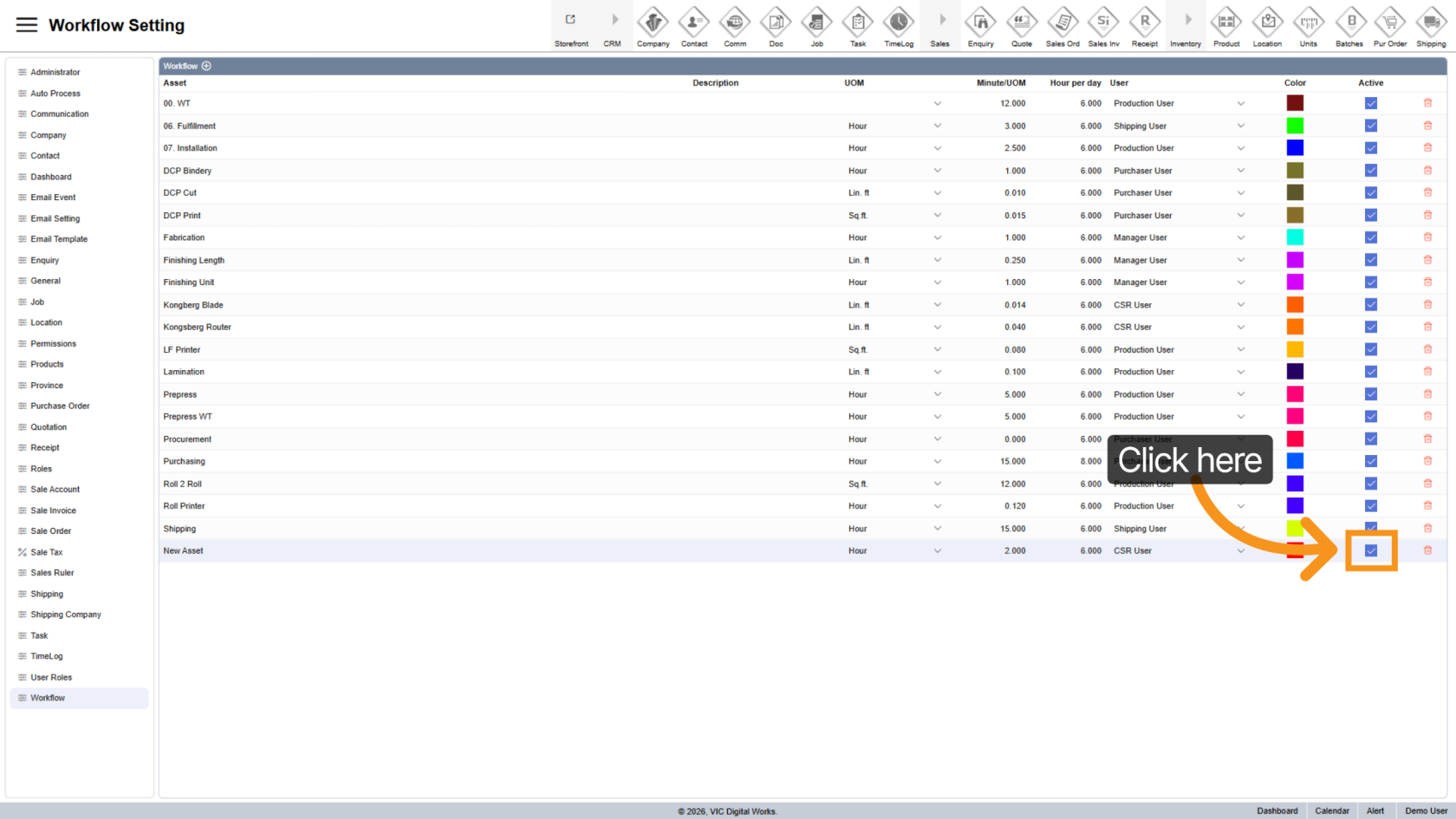
10. Active Workflow
Enable the workflow by selecting the Active option.
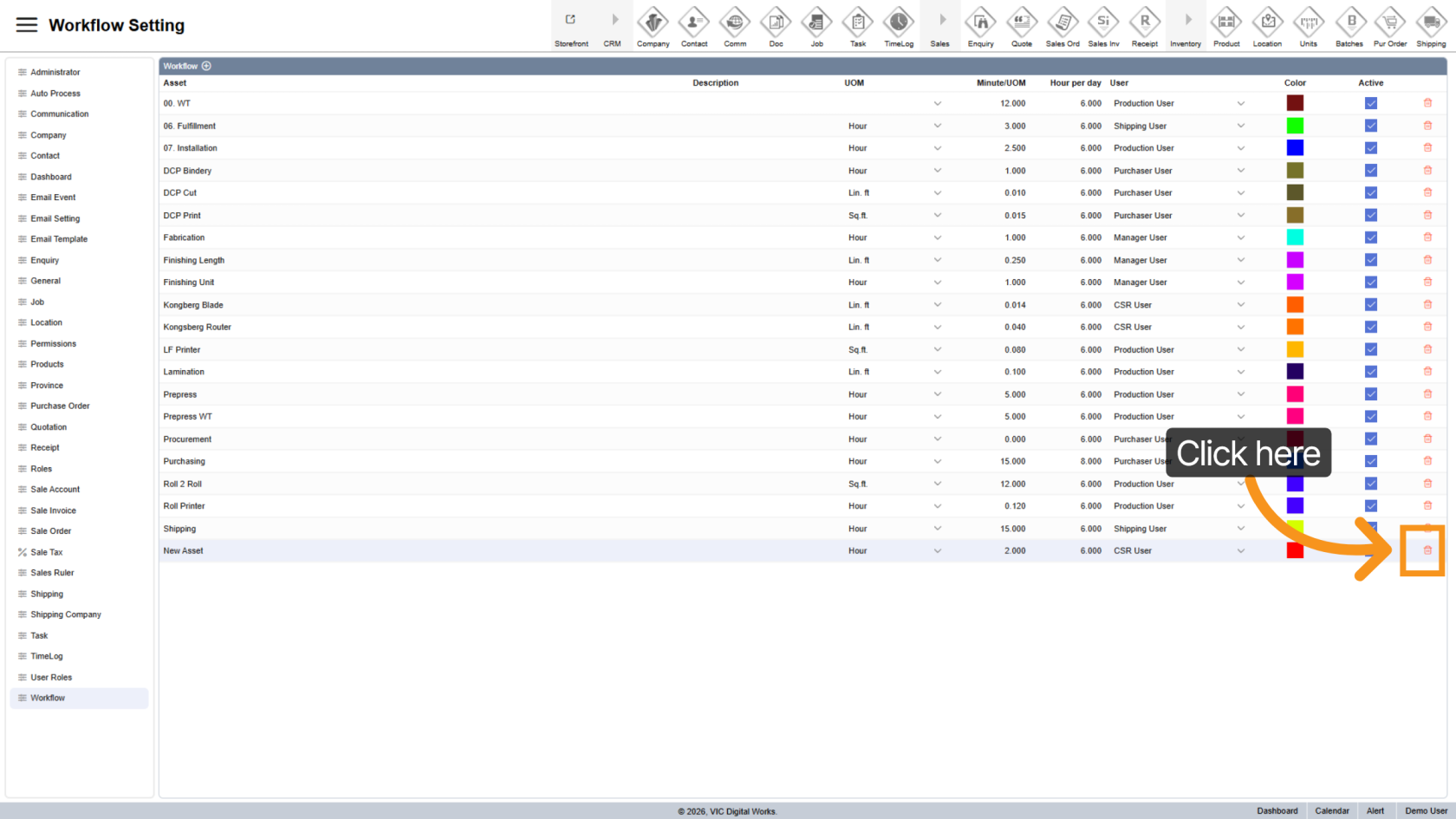
11. Delete Workflow
Click the  delete icon to remove the workflow from the system.
You have successfully configured asset workflow settings in the Worktraq App.Make sure all details are accurate to ensure smooth and efficient operations.