
Invoice by Customer Detailed
This tutorial walks you through how to generate an Invoice by Customer Detailed report in the Worktraq App.
Video Tutorial
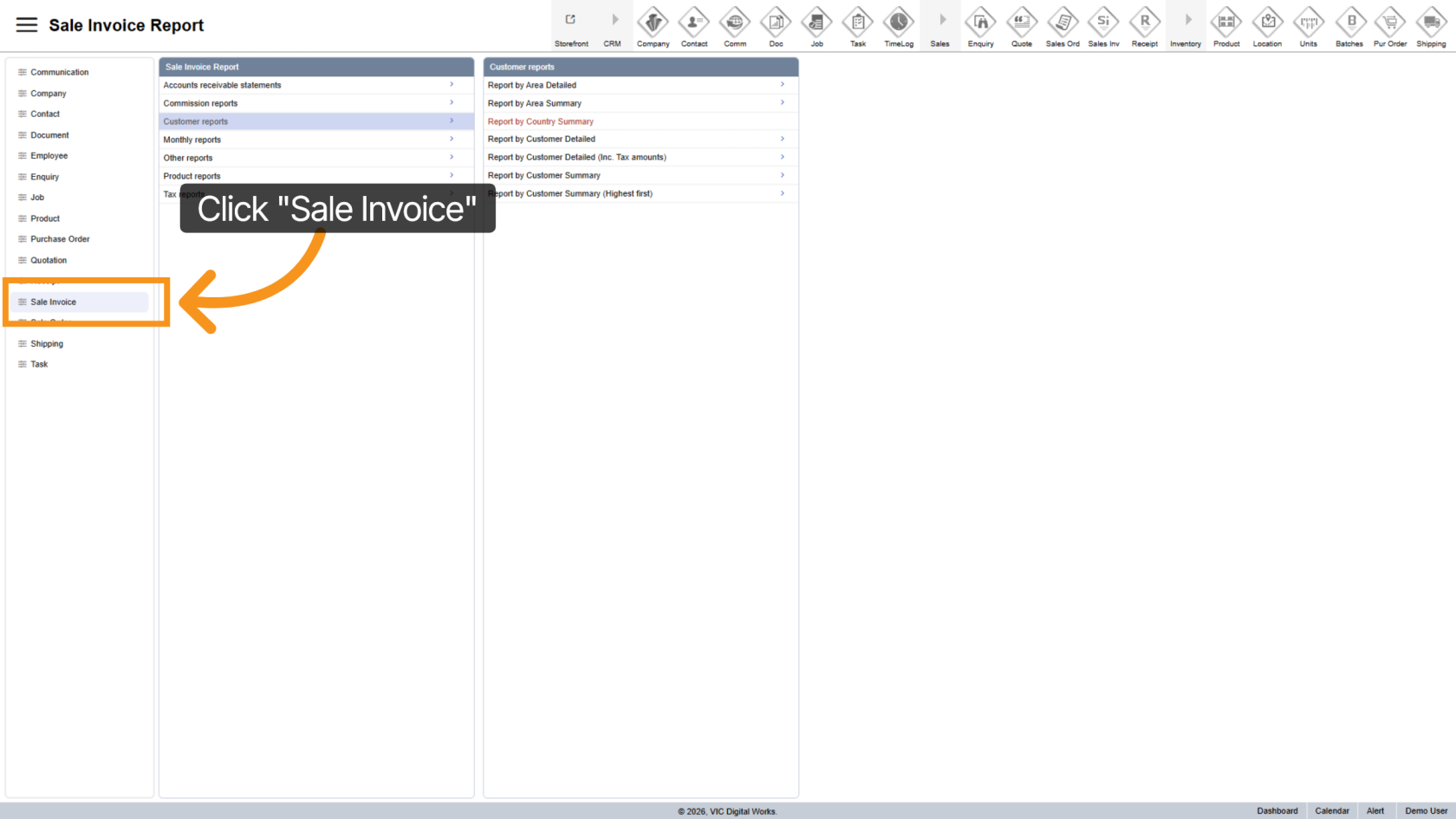
1. Open Sales Invoice
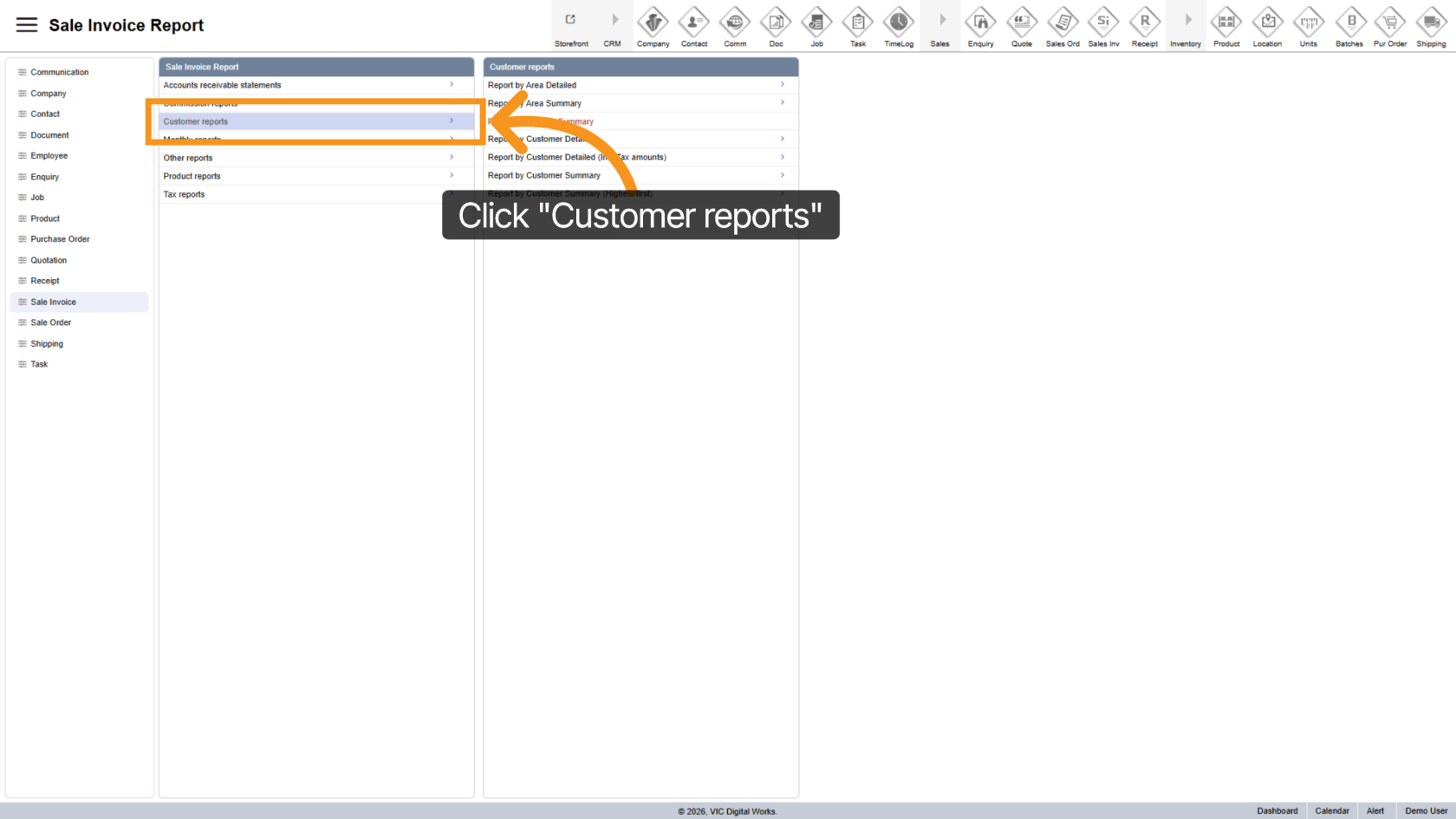
2. Go to Customer Reports
Select "Customer Reports" to view available reporting options.
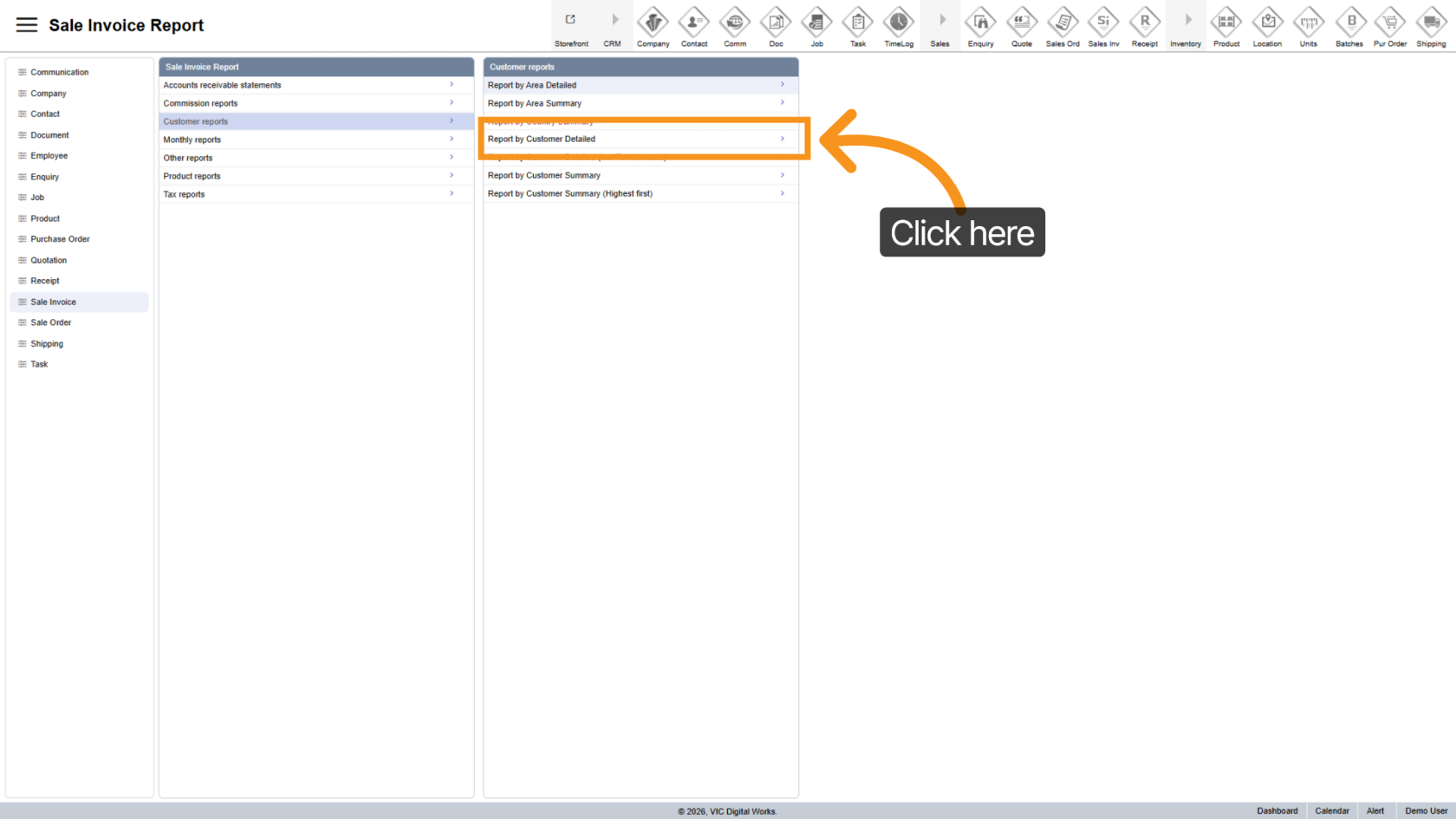
3. Open Report Options
Click "Report by Customer Detailed" to open the report configuration panel.
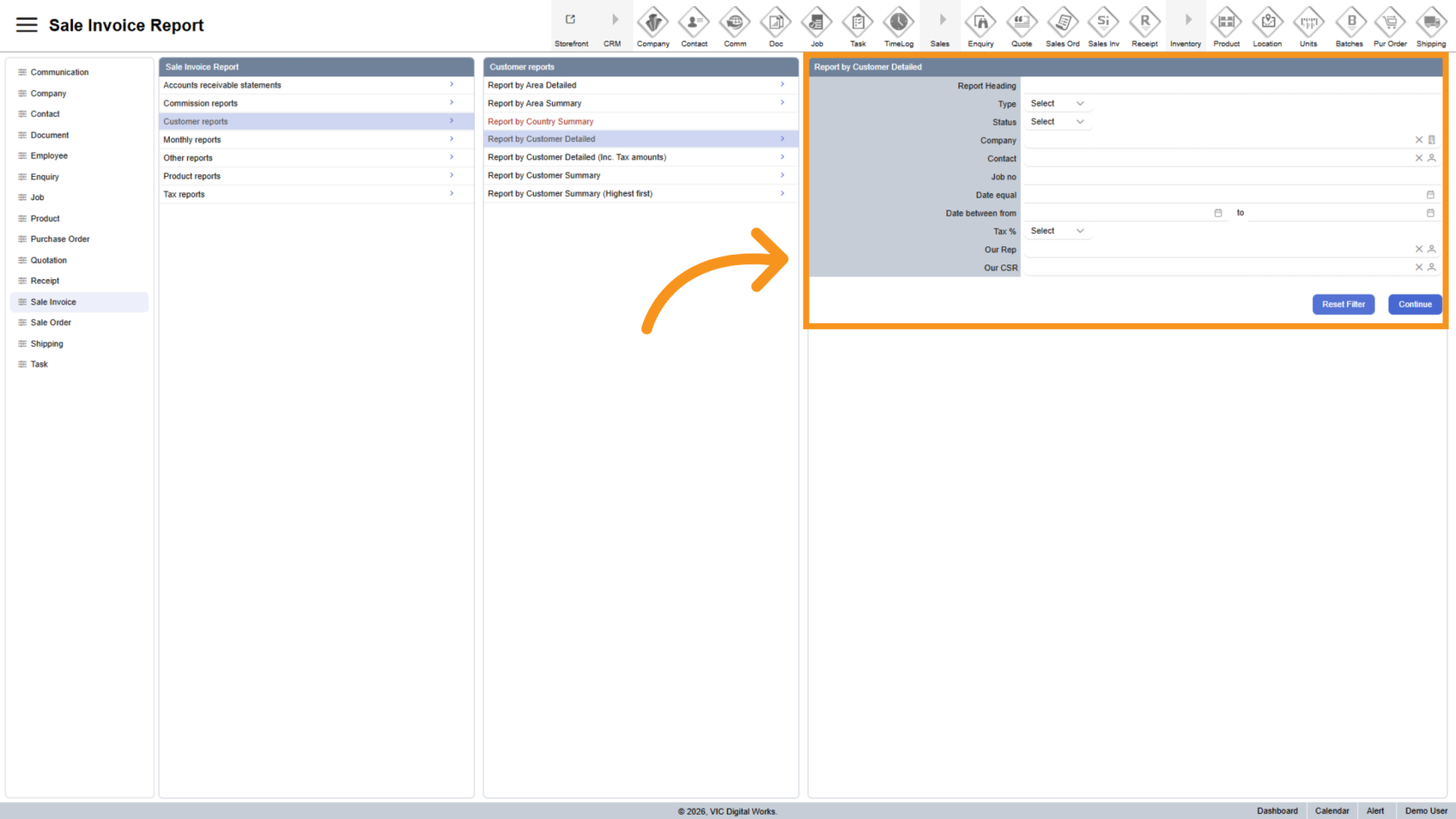
4. Use the Report Form
A filter panel will appear on the right.
Use this form to refine your report by combining multiple filters for more accurate results.
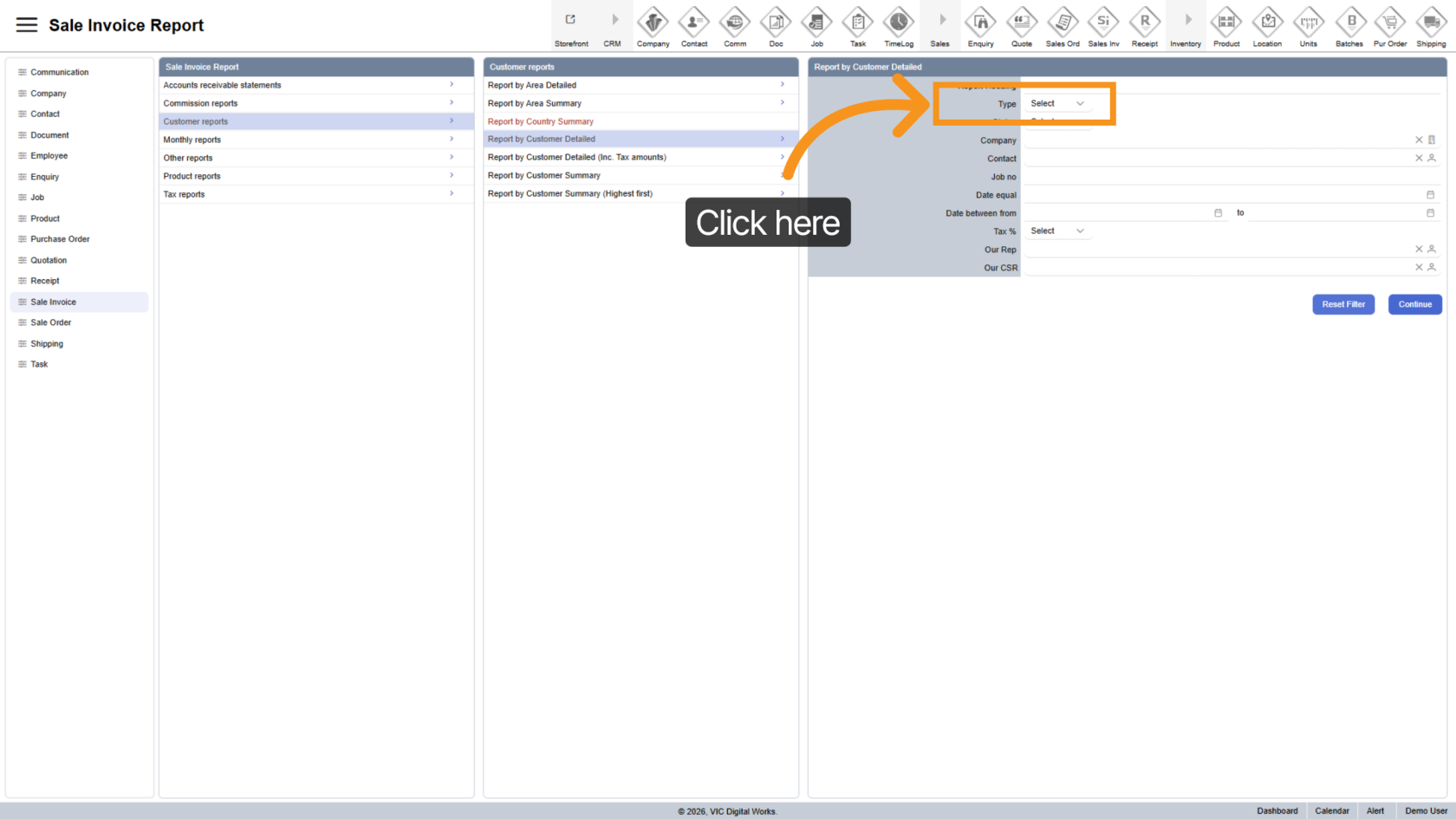
5. Select Report Type
Choose the "Type" of report you want to generate.
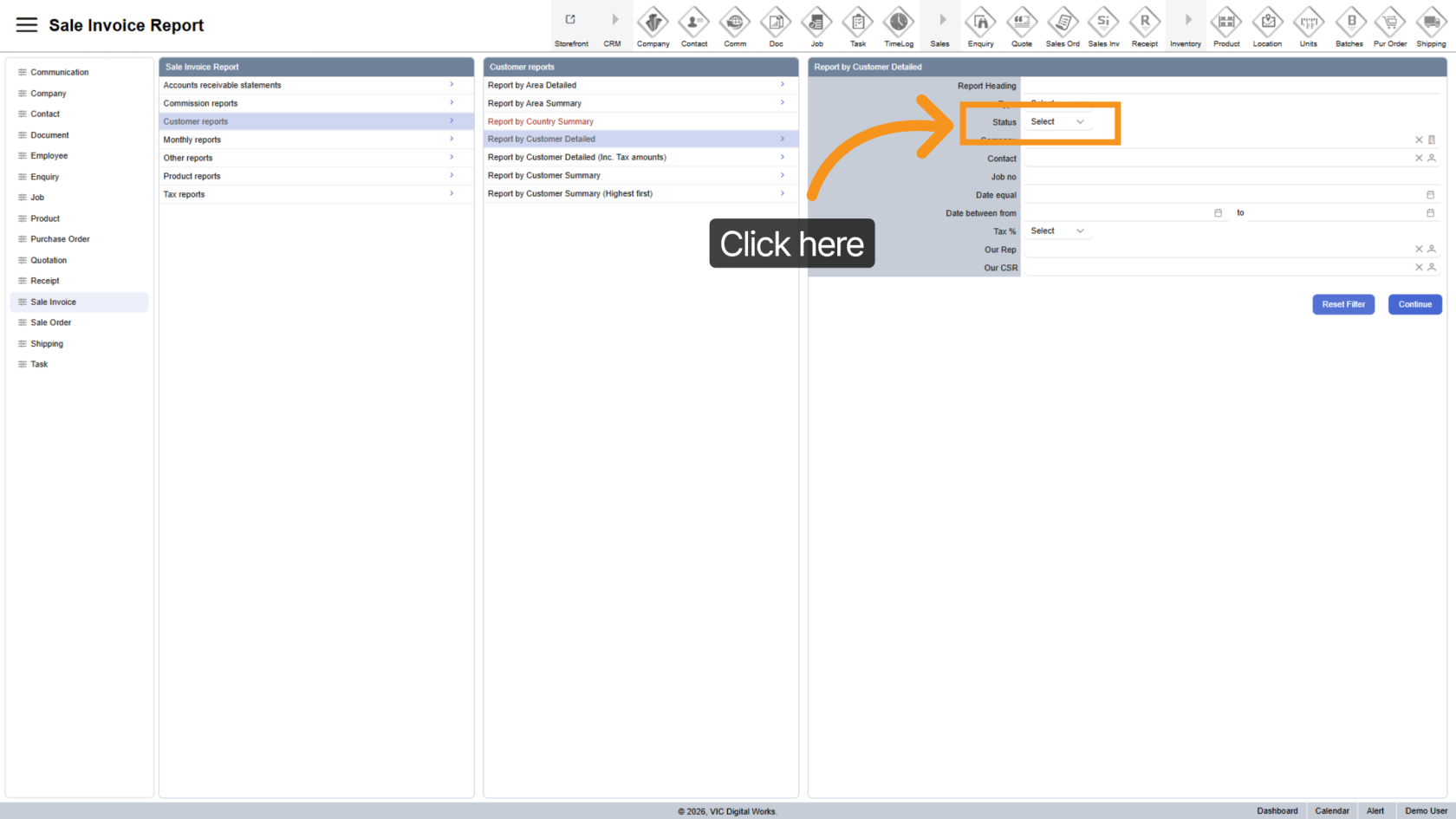
6. Filter by Status
Use the "Status" field to display invoices based on their current status.
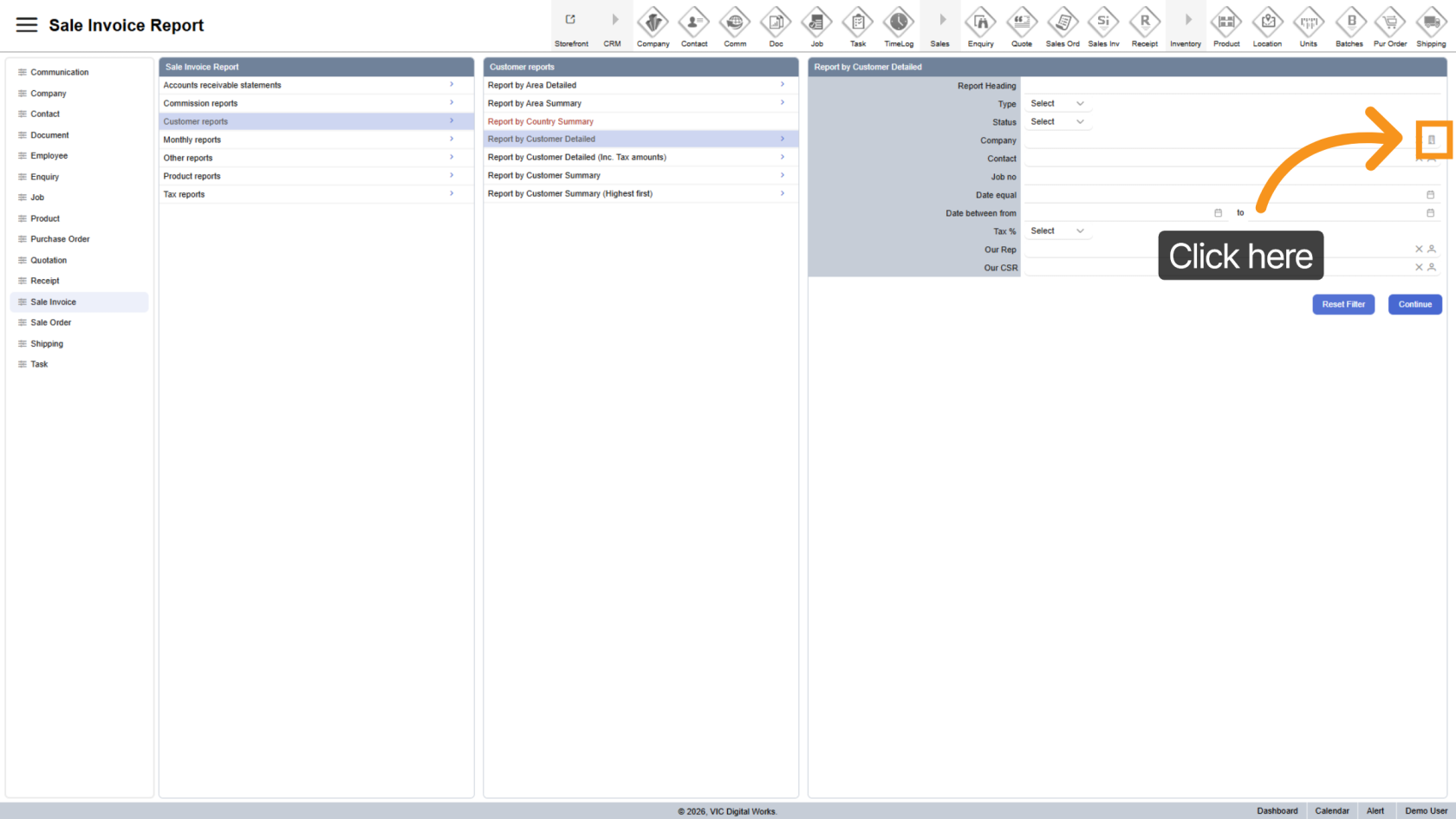
7. Select Company
Click the  company icon to choose a specific company.
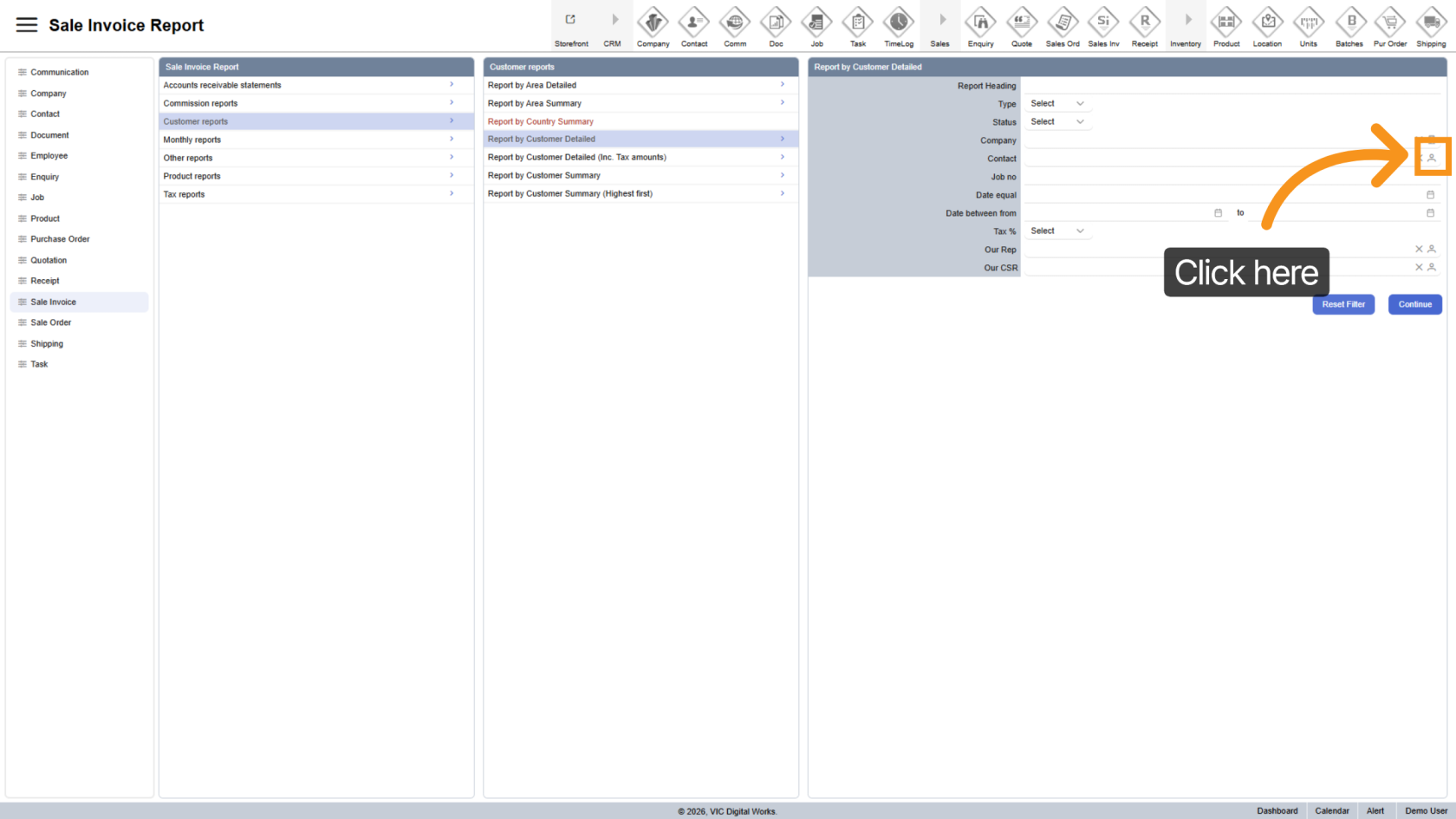
8. Select Contact
Click the  contact icon to filter by a specific contact.
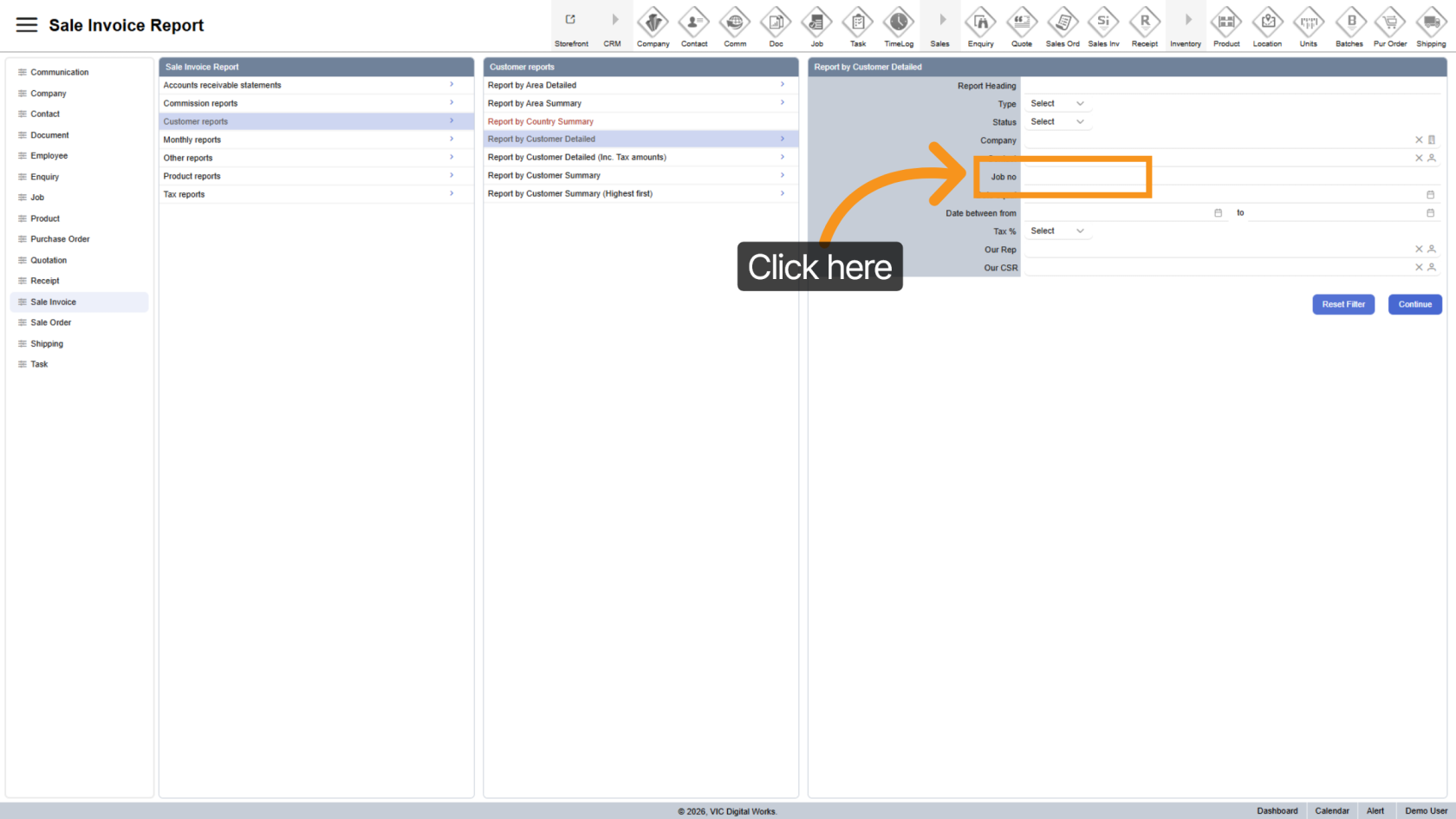
9. Filter By Job Number
Enter a "Job No" to narrow down results to specific jobs.
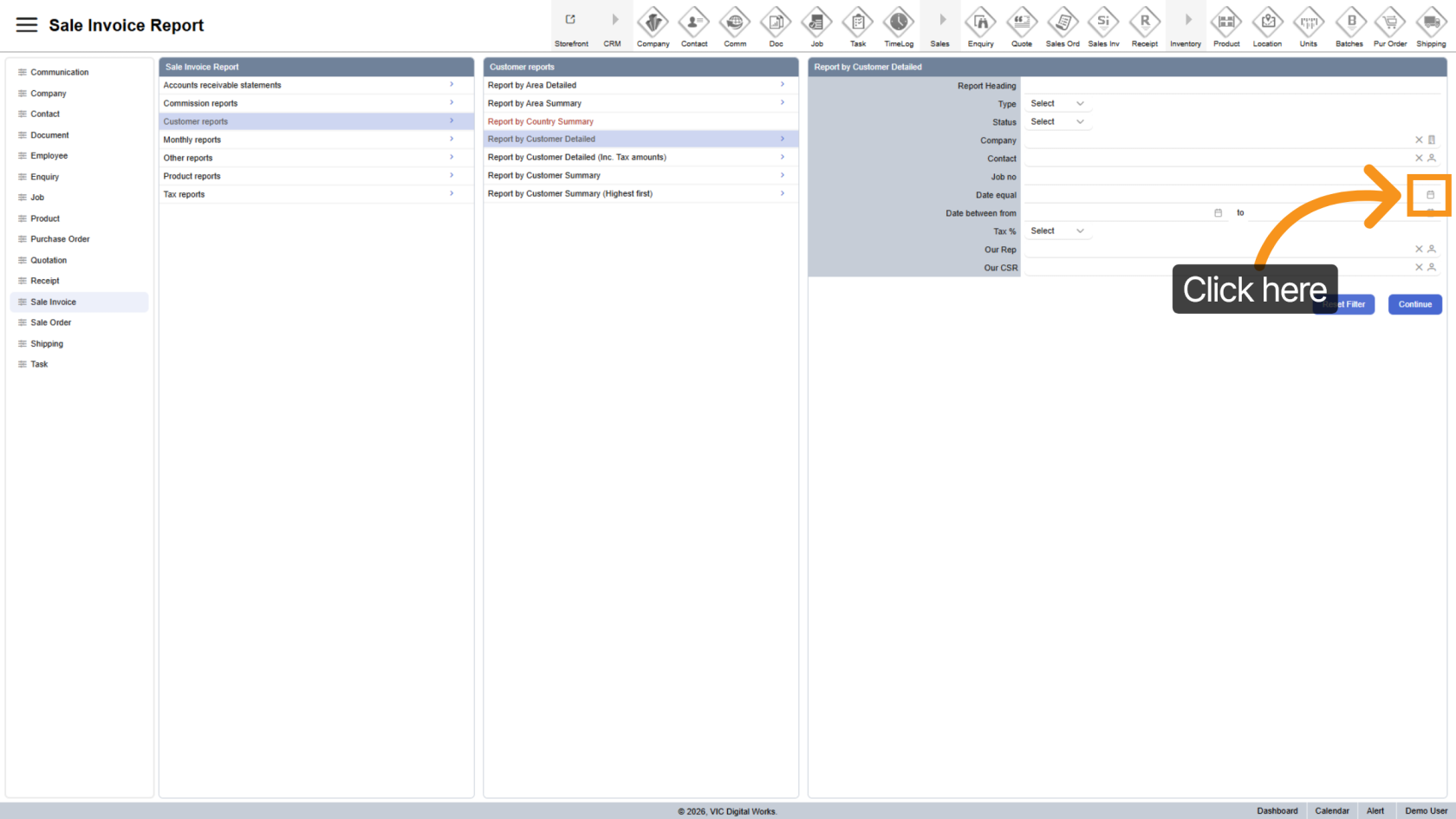
10. Select Specific Date
Use the  date picker to filter results by a single date.
Note: Do not use this if you plan to apply a Date Range.
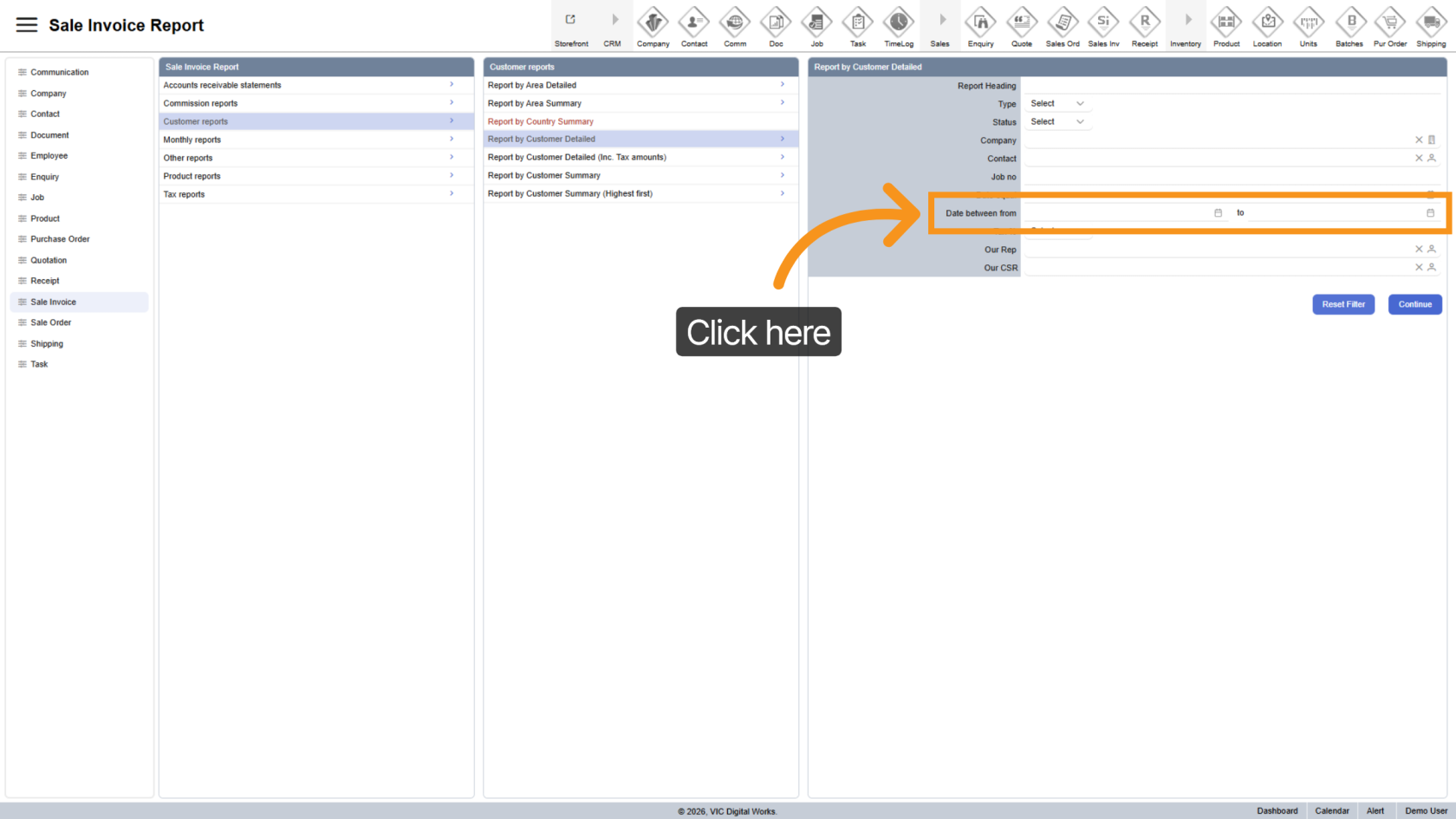
11. Apply Date Range
Select a date range option to filter invoices over a period of time.
Note: Use this instead of Specific Date, not together.
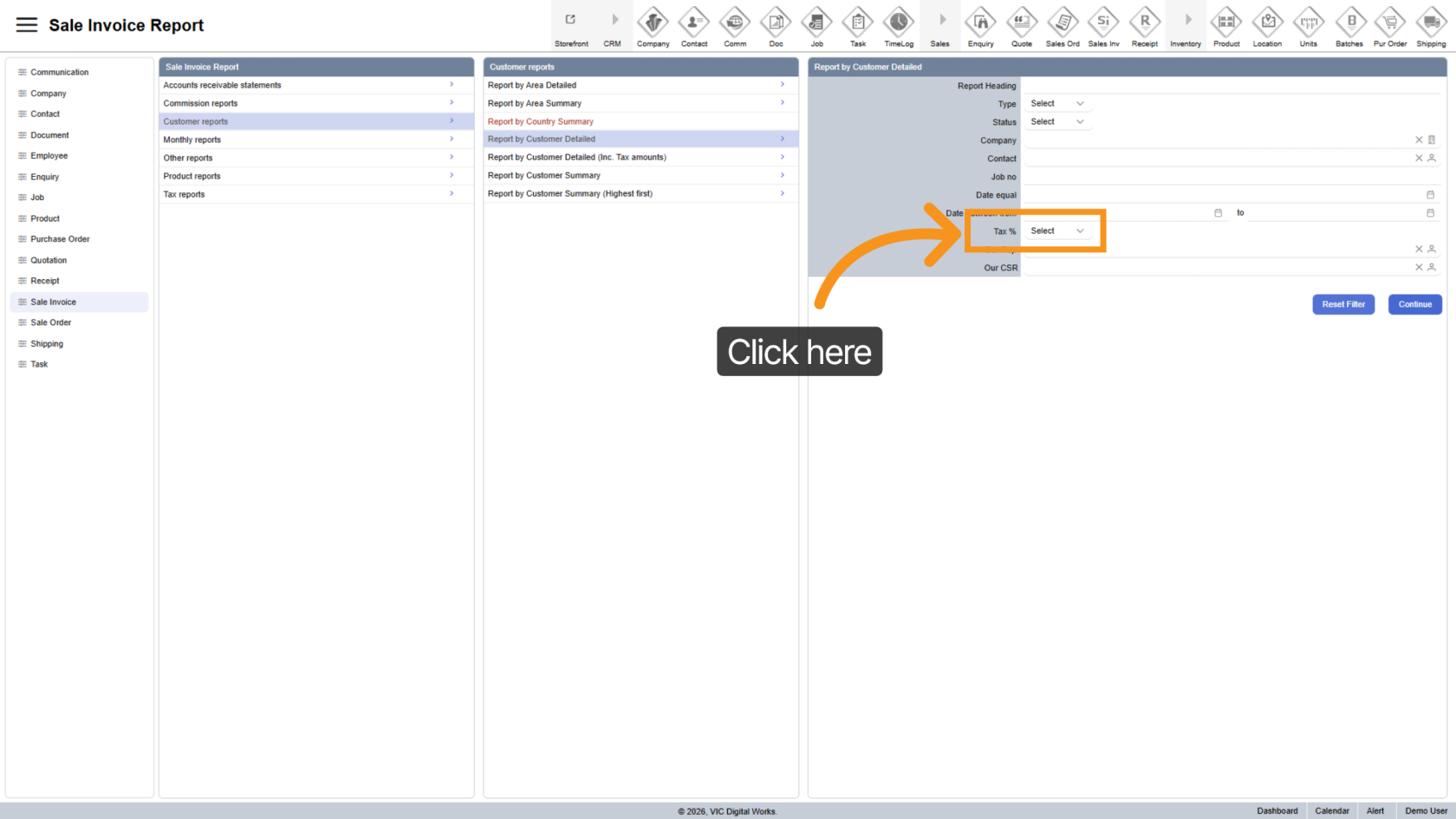
12. Apply Tax Filter
Choose a "Tax" option to include specific tax conditions.
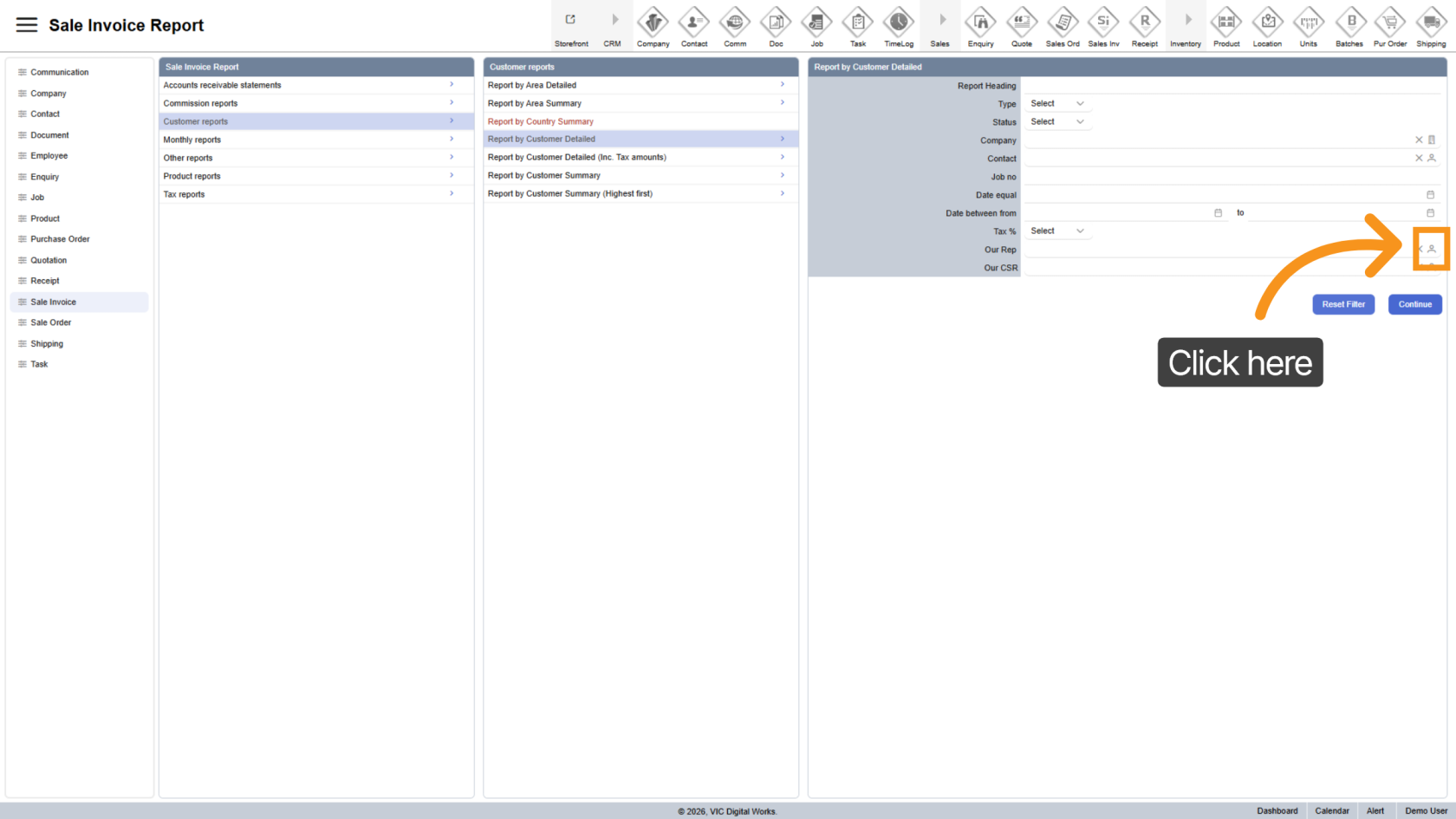
13. Select Sales Representative
Use the contact icon to filter by a specific sales representative.
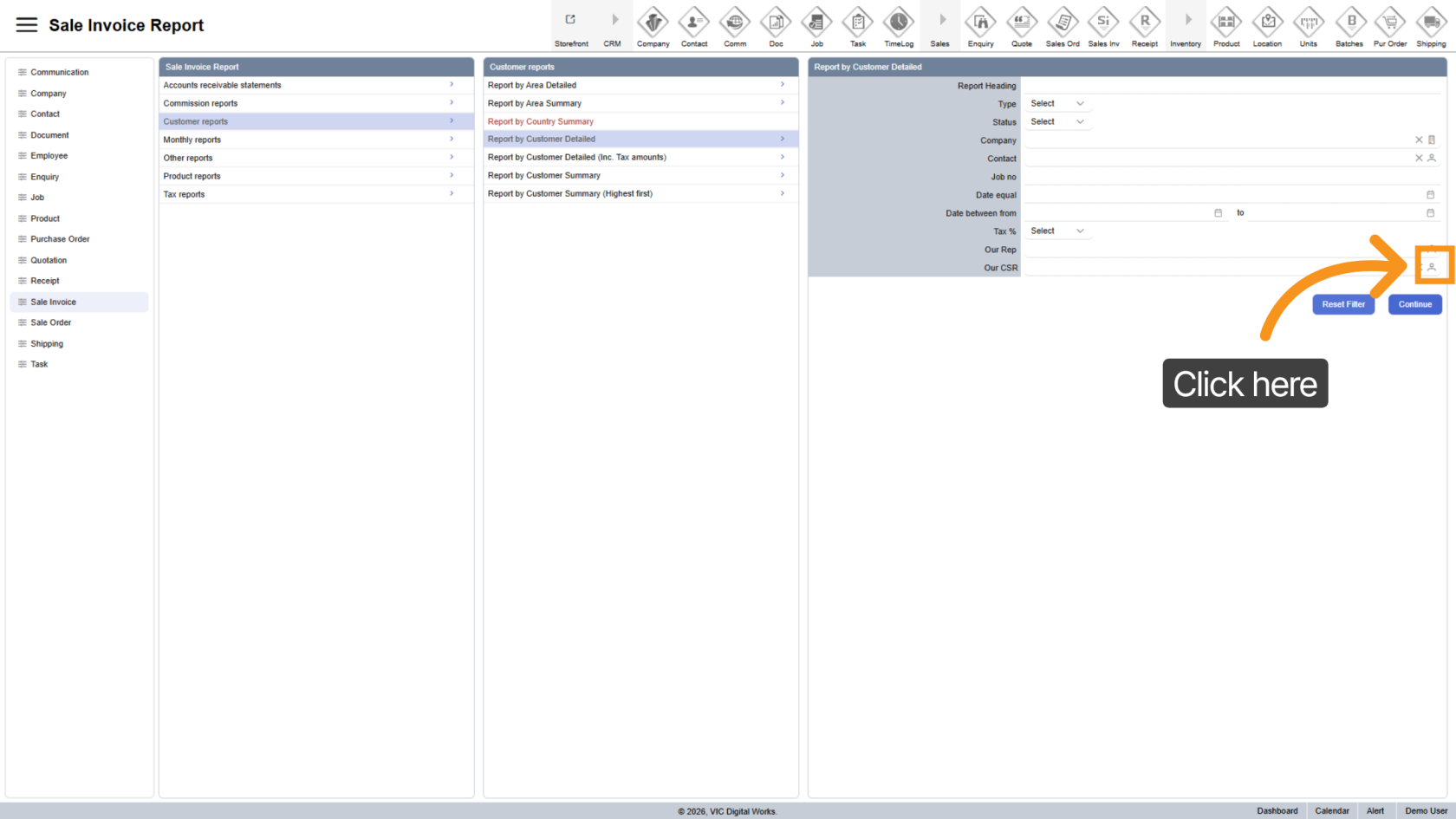
14. Select CSR
Use the contact icon to choose a Customer Service Representative (CSR) for more refined results.
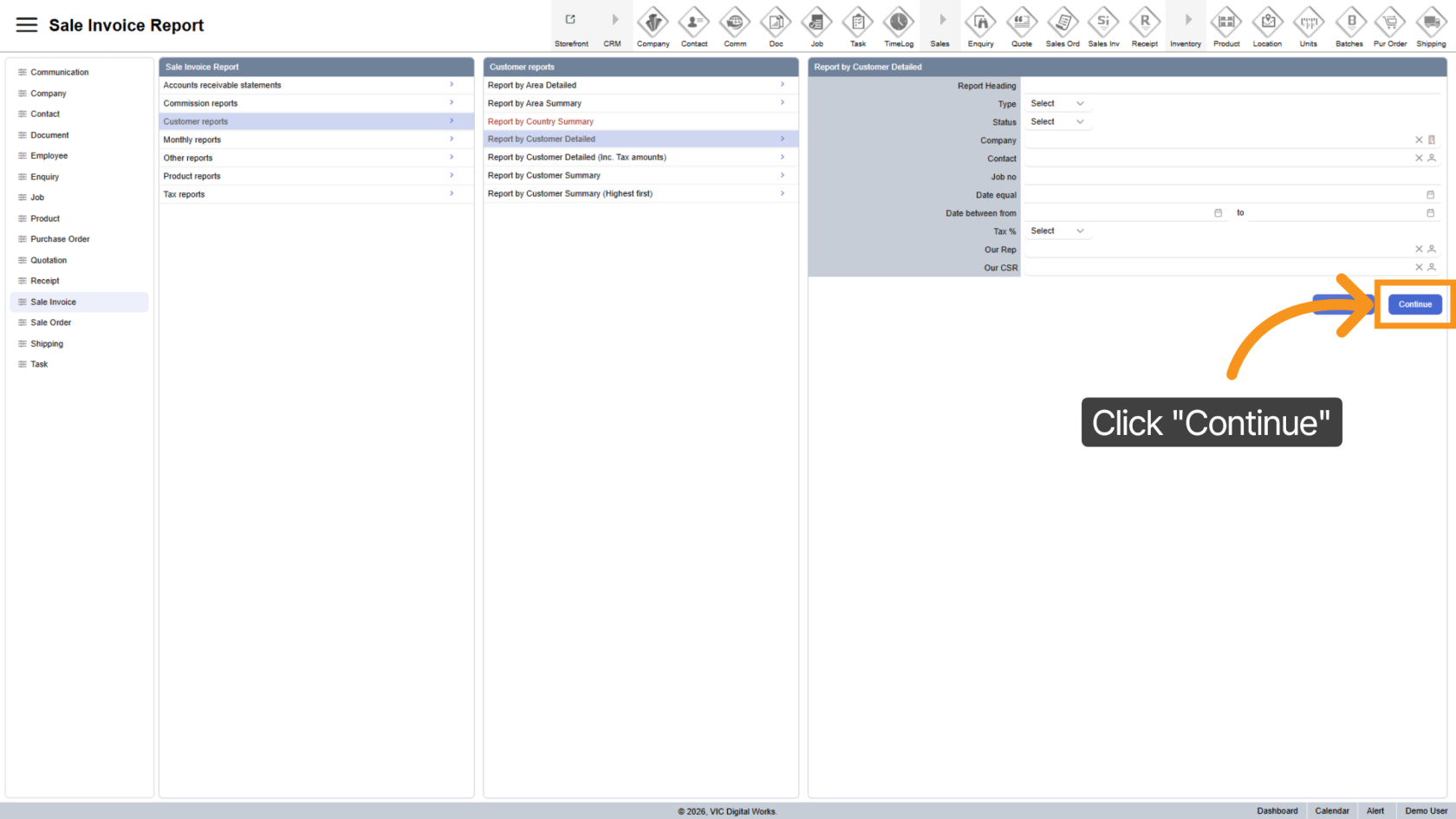
15. Generate Report
Click "Continue" to generate the report based on your selected filters.
16. Export Report
- Excel
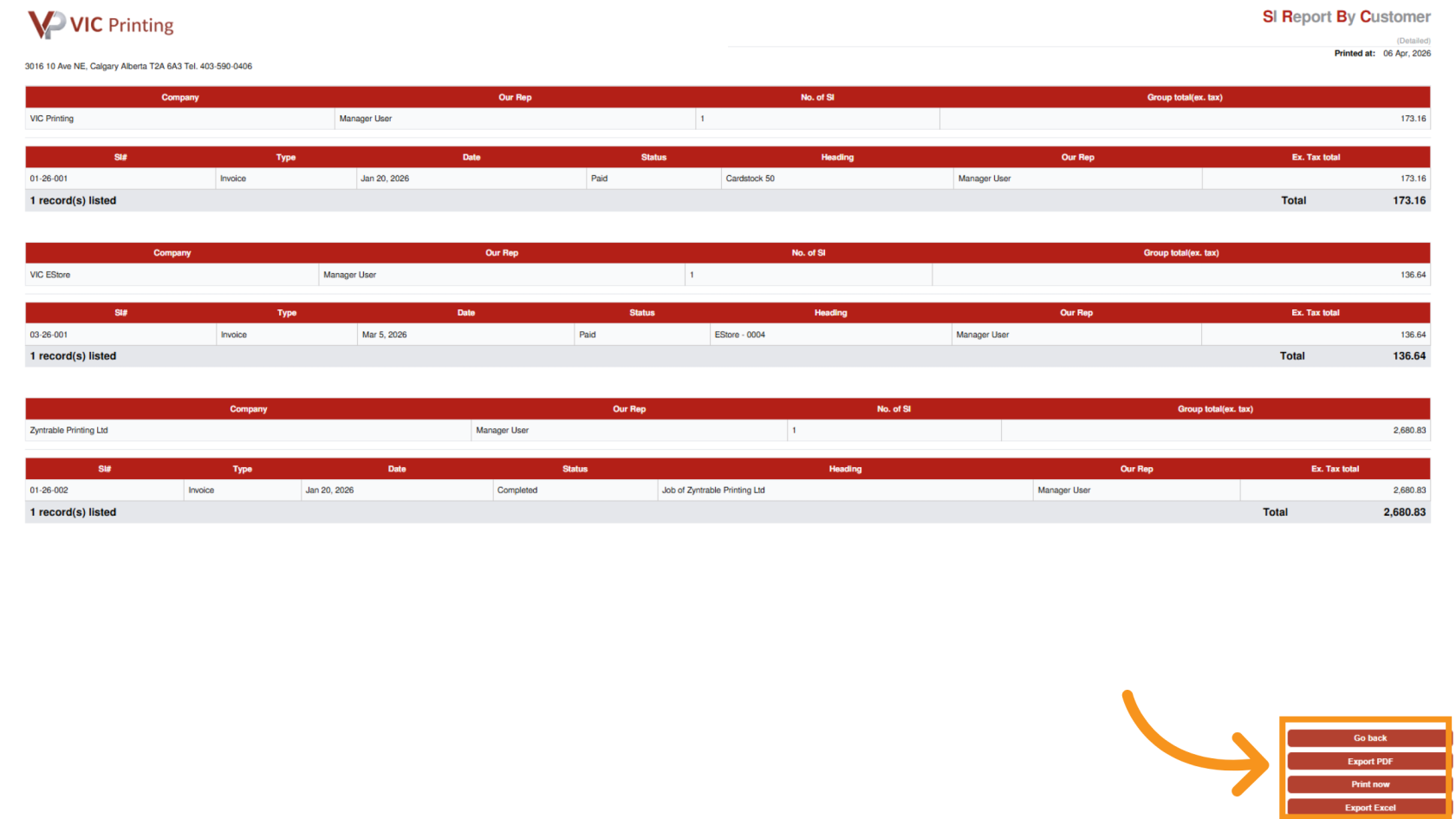
You have successfully generated an Invoice by Customer Detailed report using Worktraq.