
Sync Data to QuickBooks
This tutorial shows you how to synchronize WorkTraq data with QuickBooks Online by syncing either individual records or multiple records. Access to this feature is permission-based. If the Sync option is unavailable, ask your administrator to grant the required permission. To learn how, watch Set QuickBooks Sync Permissions.
Video Tutorial
1. Synchronization Rules
Each WorkTraq record can be synchronized to QuickBooks only once. After a record has been synchronized, running the synchronization again - either individually or through multiple synchronizations - will not update the existing QuickBooks record.
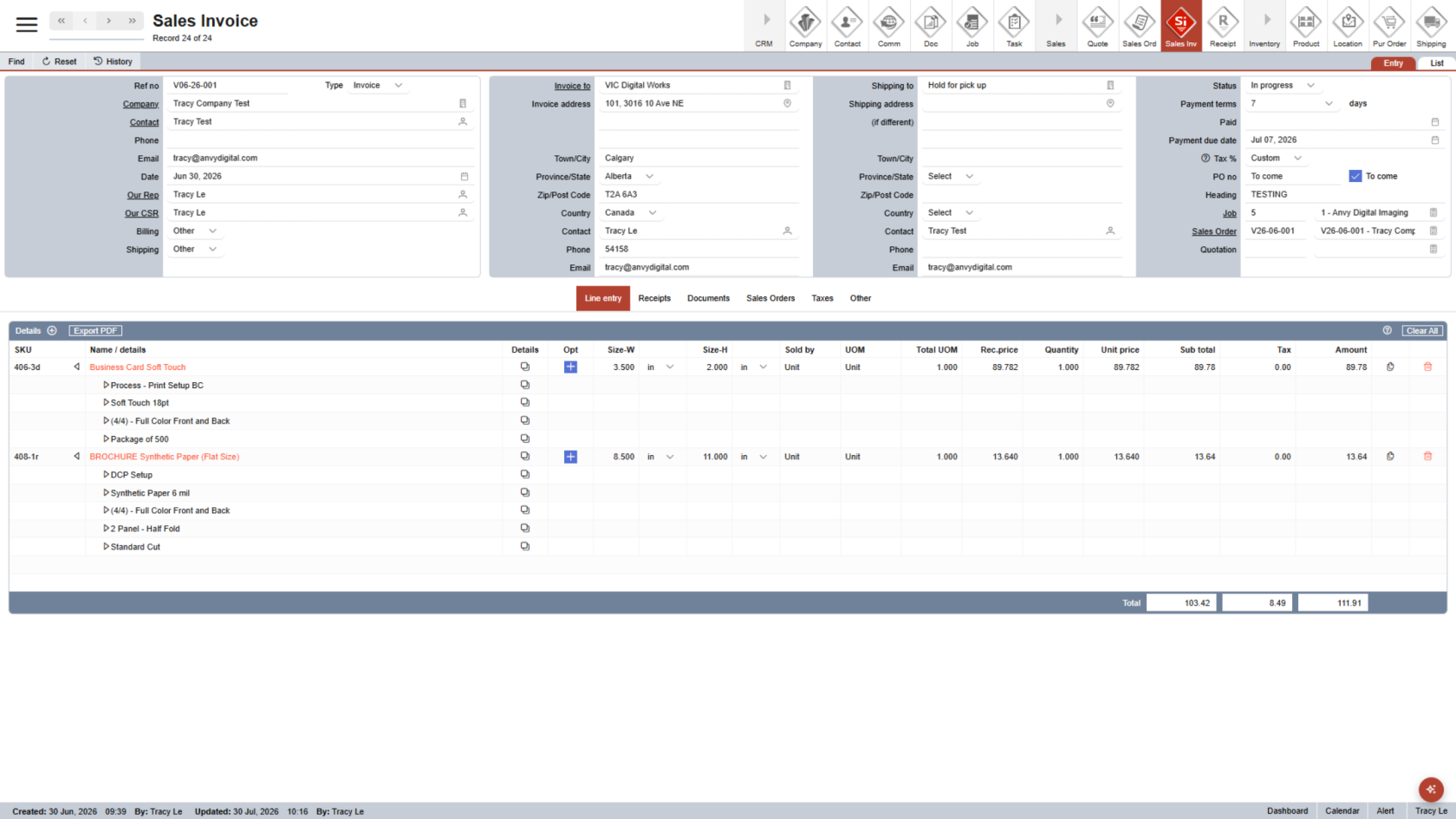
2. Sync an Individual Record
To synchronize a single record, open the Sales Invoice or Purchase Order you want to synchronize with QuickBooks, then click Other.
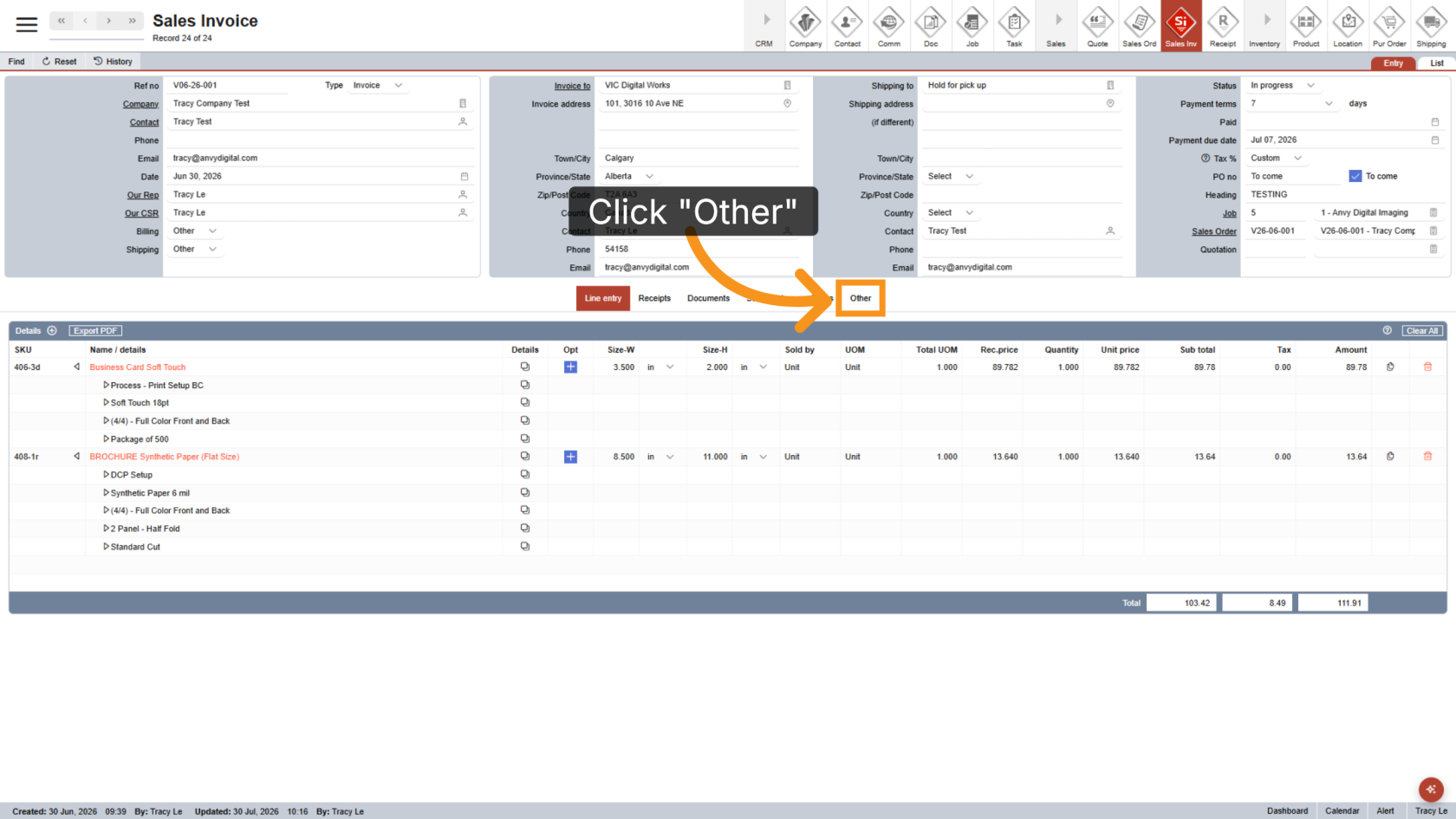
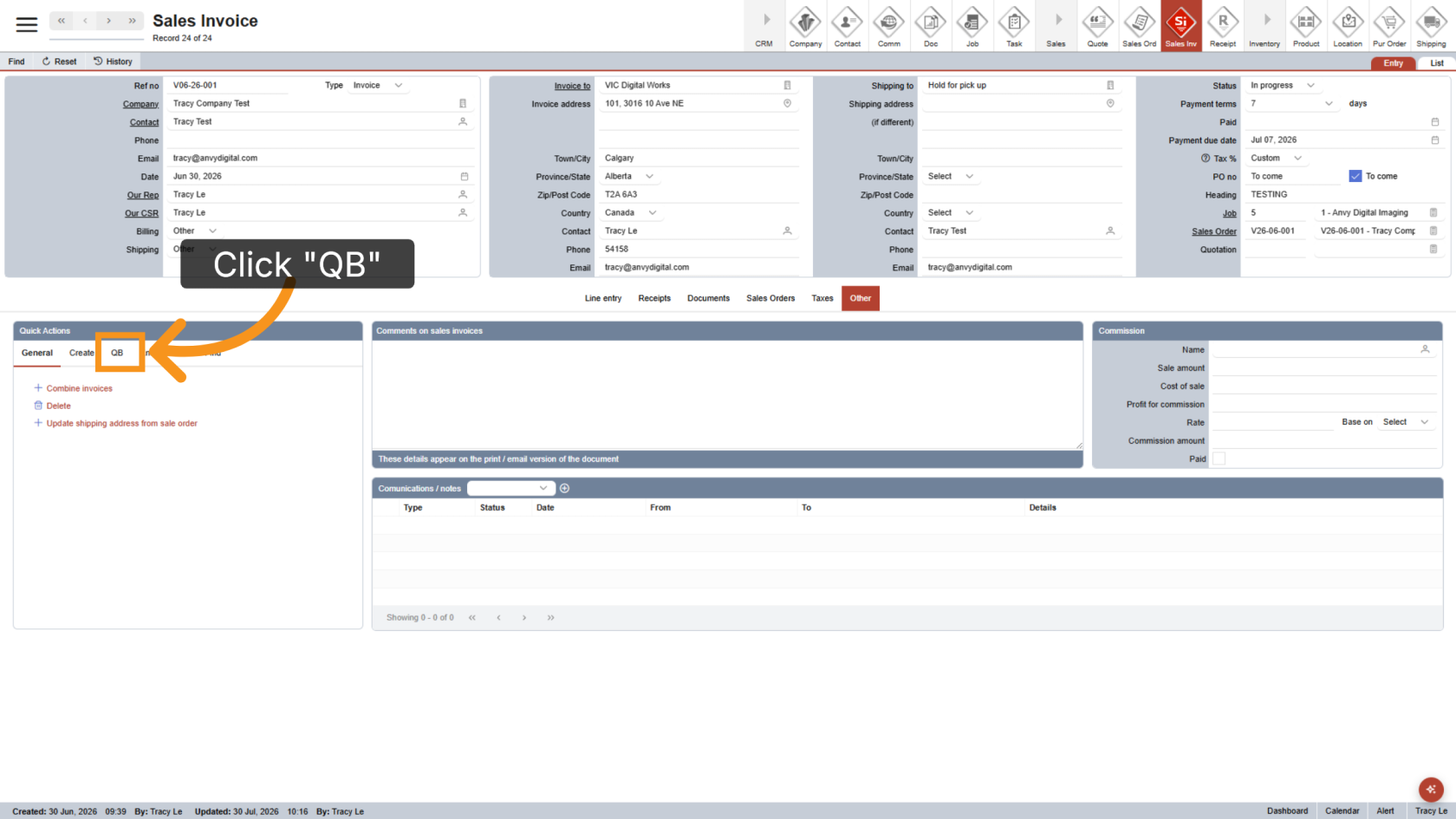
3. Open the QB Tab
In the Quick Action menu, select the QB tab.
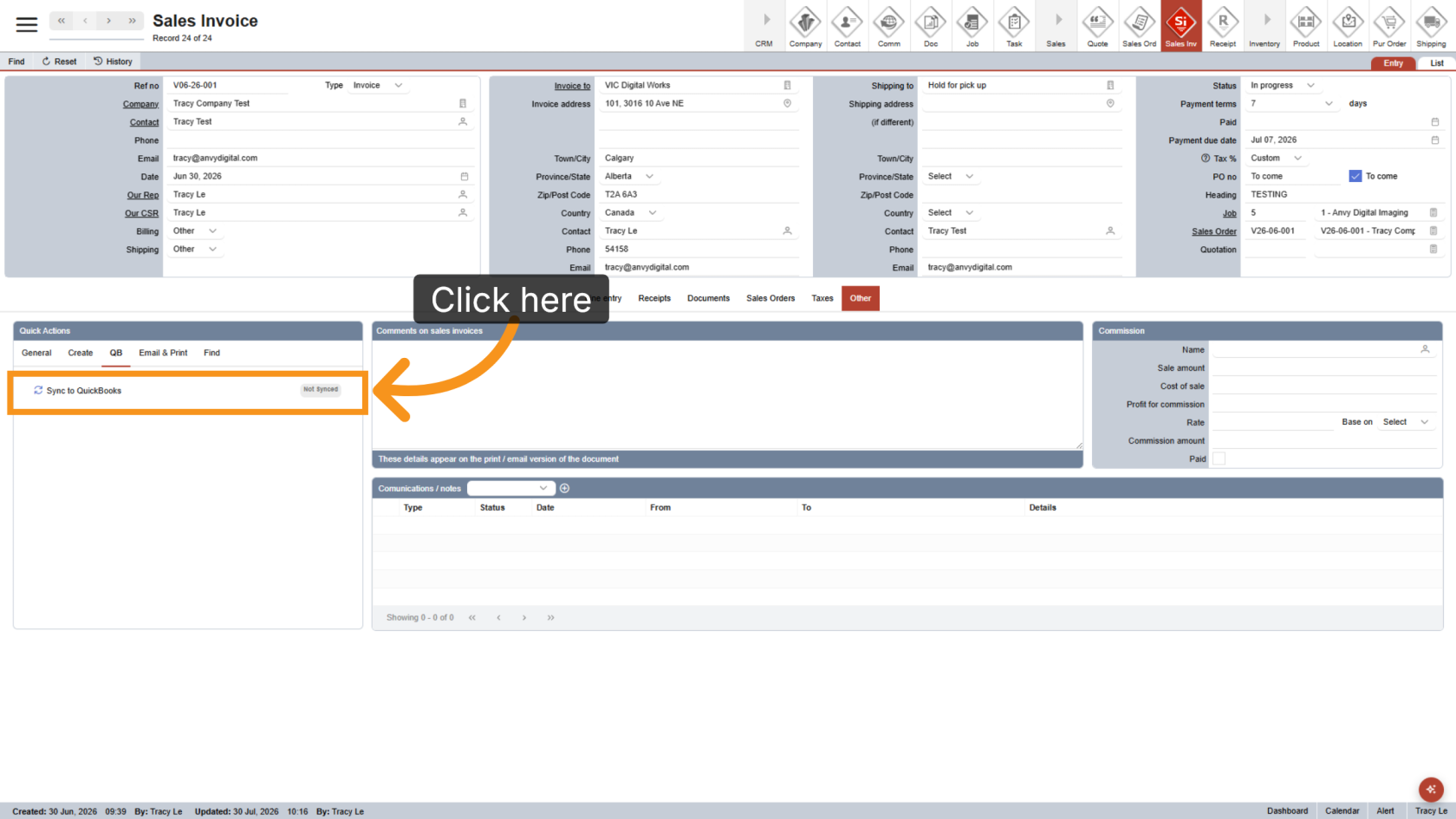
4. Sync the Record
Click Sync to QuickBooks to synchronize the selected record.
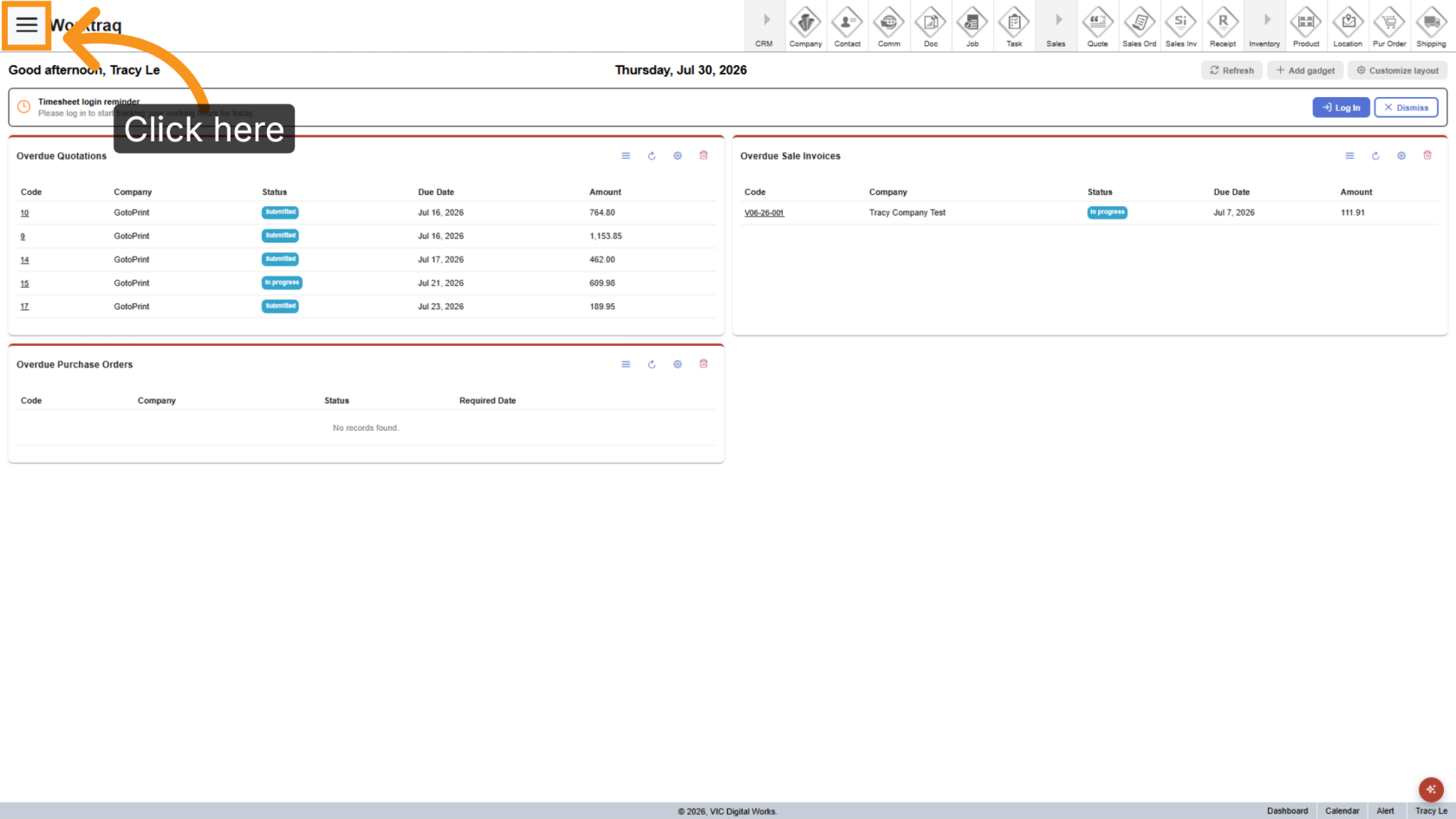
5. Start a Bulk Sync
To synchronize multiple records at once, click the  Main Menu icon.
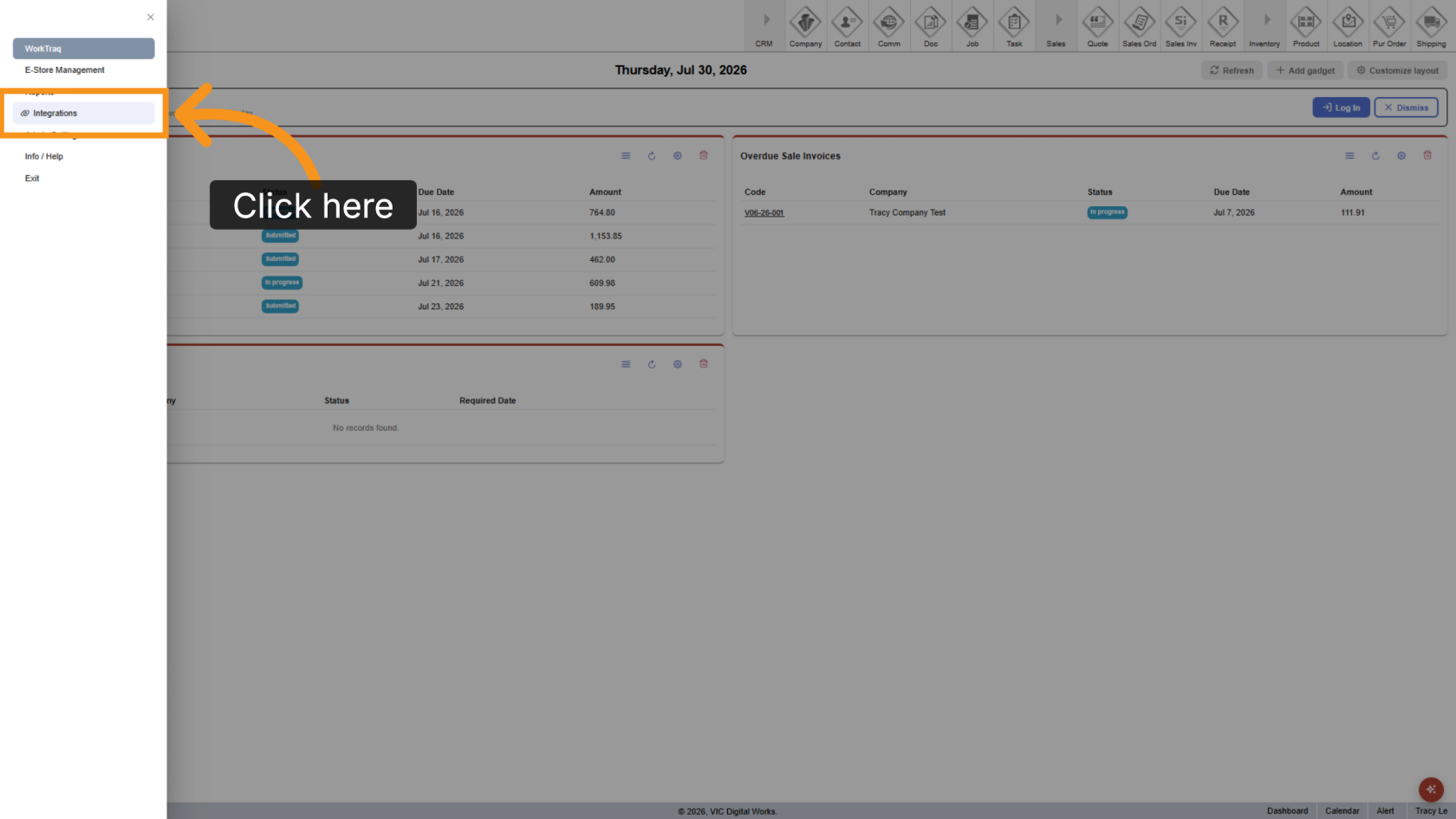
6. Open Integrations
Select Integrations.
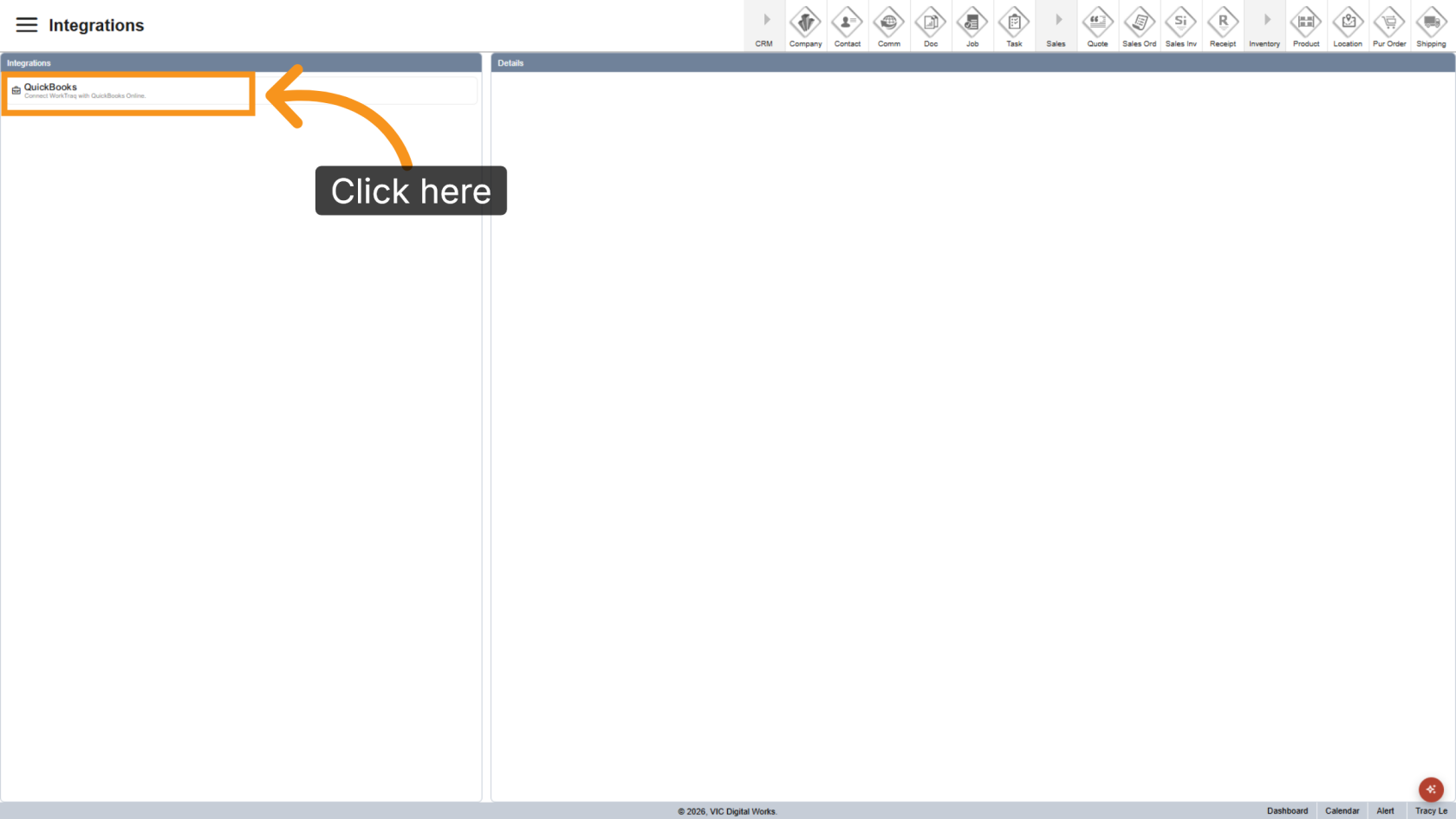
7. Open QuickBooks
Select QuickBooks.
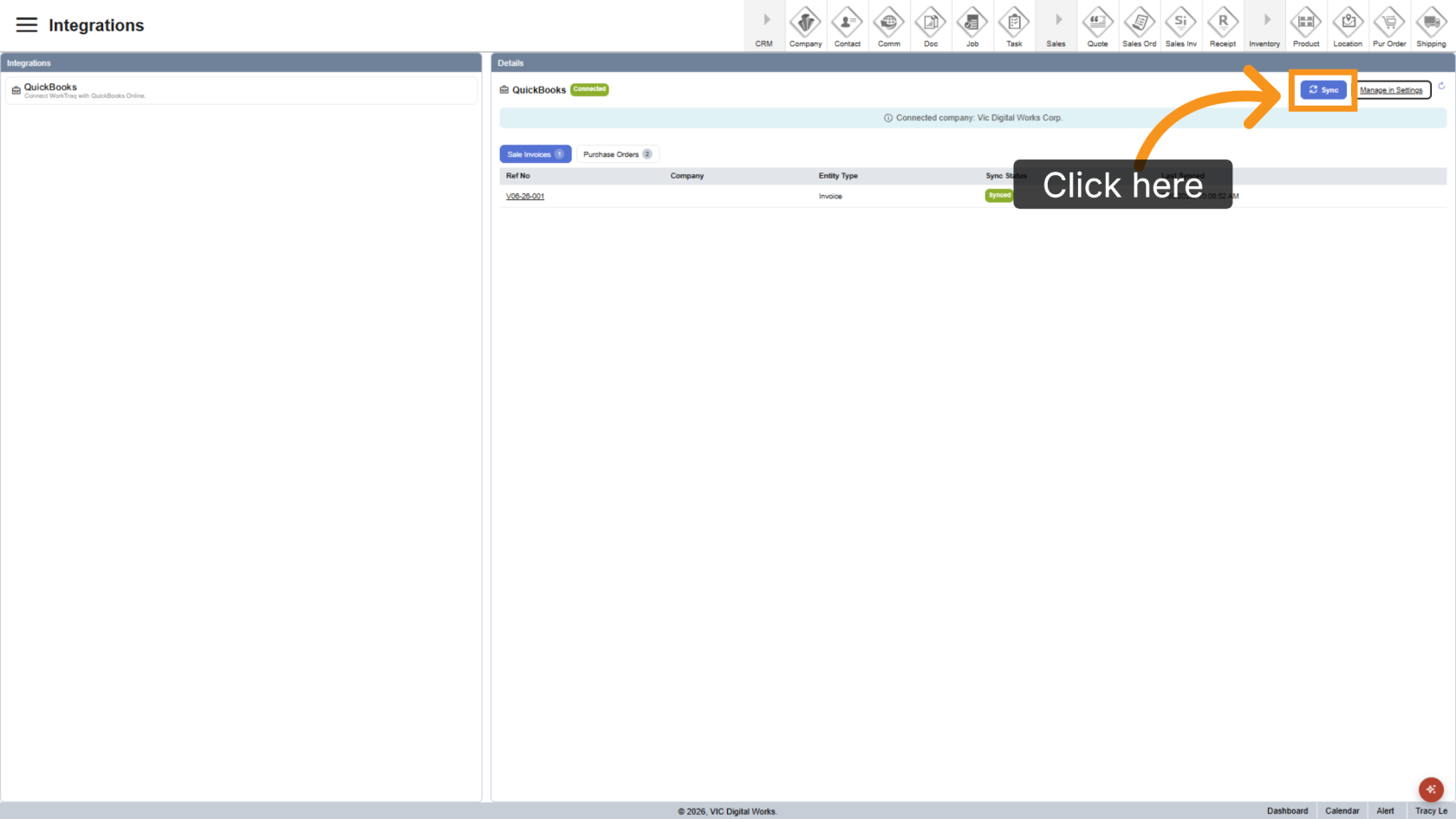
8. Start Multiple Sync
Click Sync to open the multiple synchronization window.
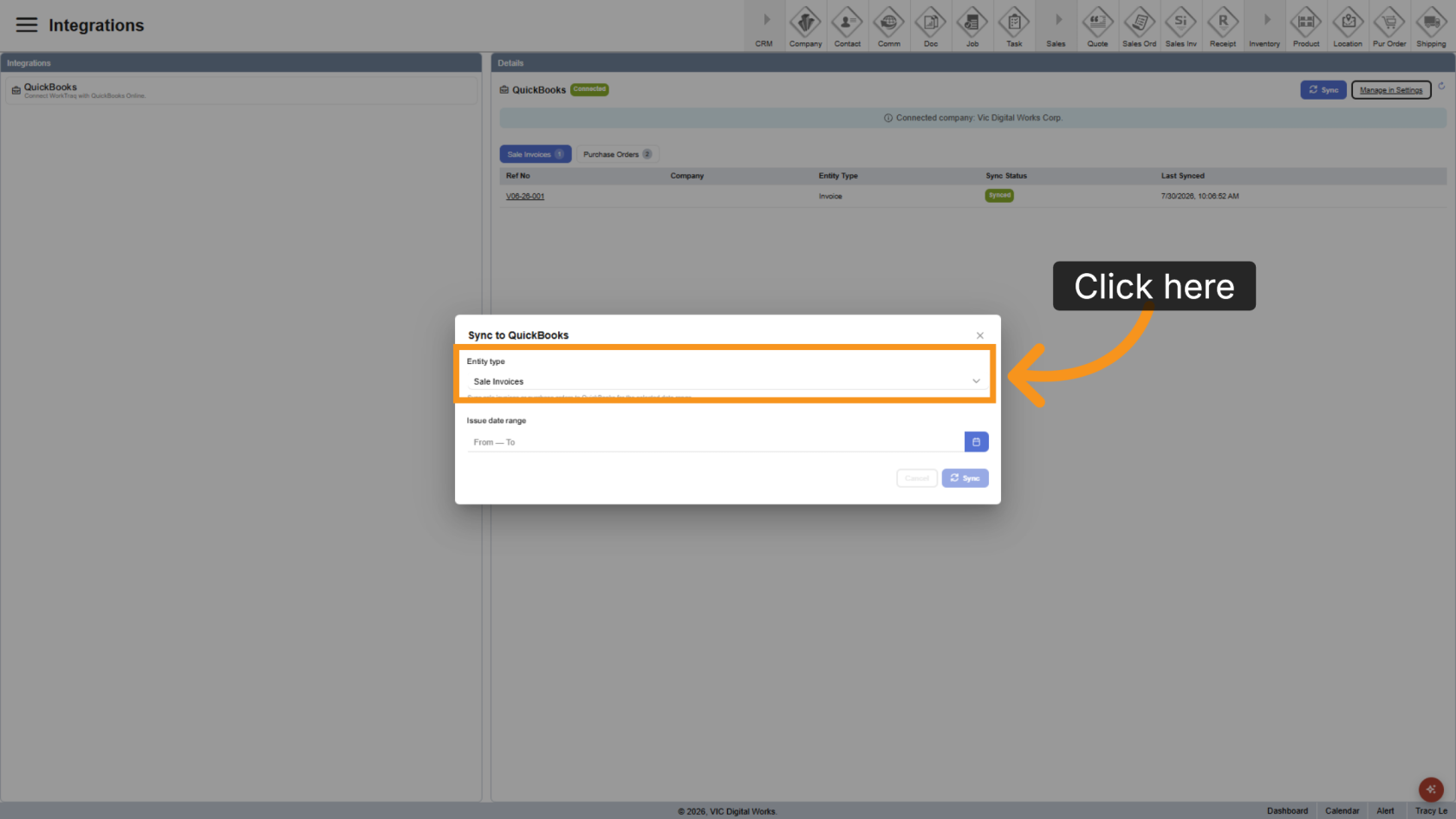
9. Select the Module
Choose the module you want to synchronize.
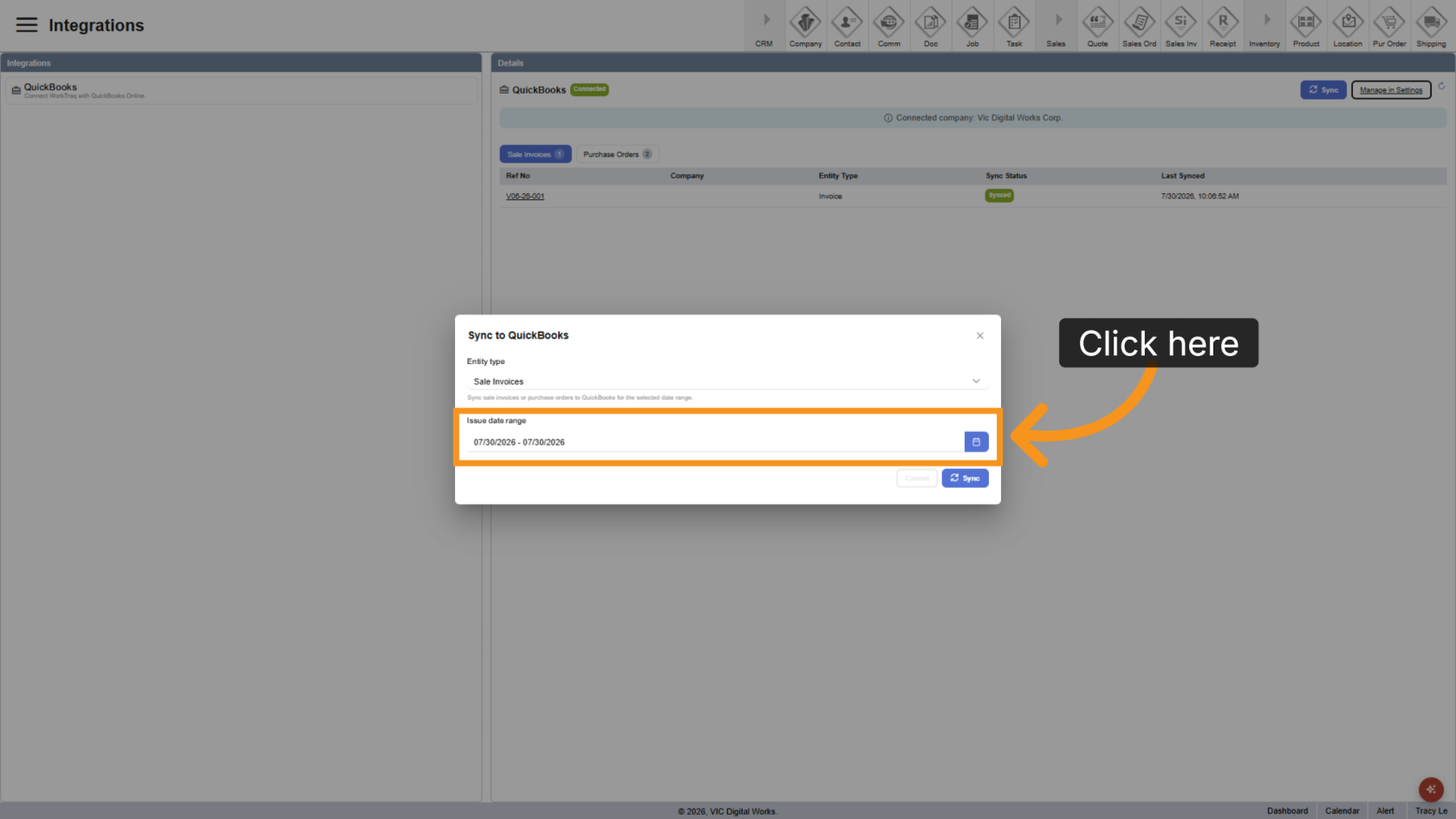
10. Select a Date Range
Choose the date range. All records created within the selected date range will be synchronized to QuickBooks.
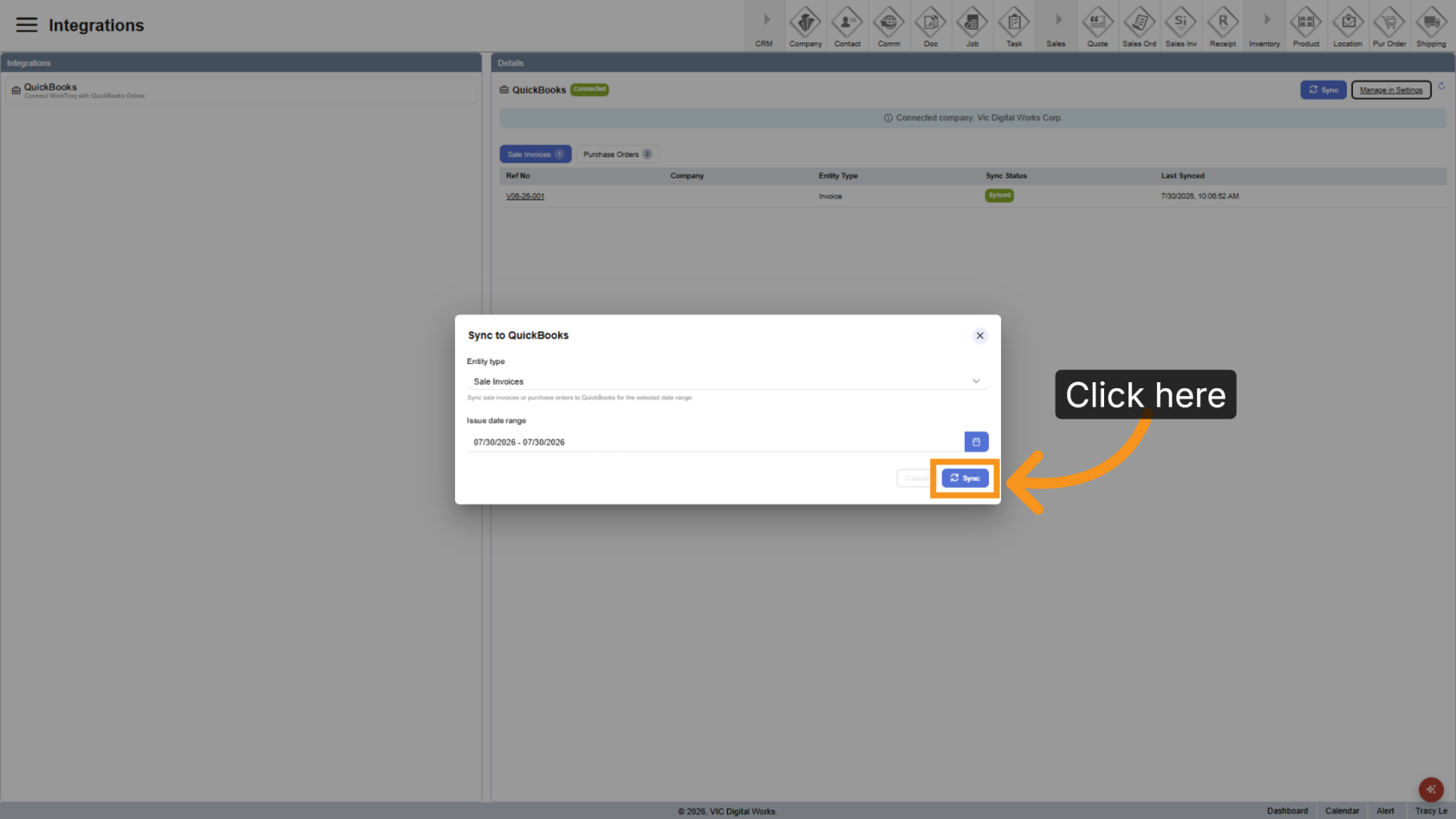
11. Synchronize the Data
Click Sync to begin the synchronization process.
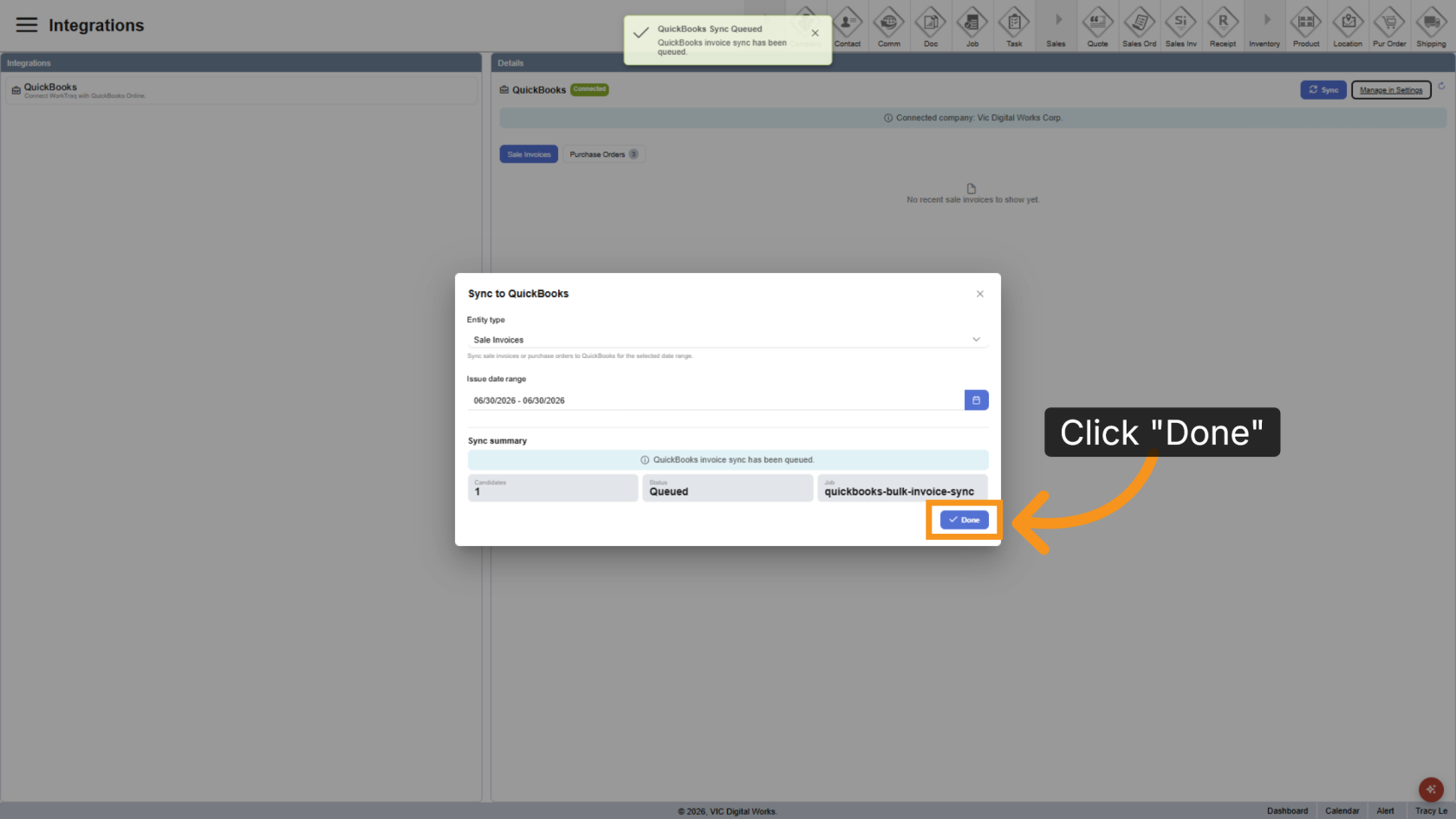
12. Complete Sync Process
After synchronization is complete, click Done to finalize the synchronization and close the dialog.
13. Review Sync History
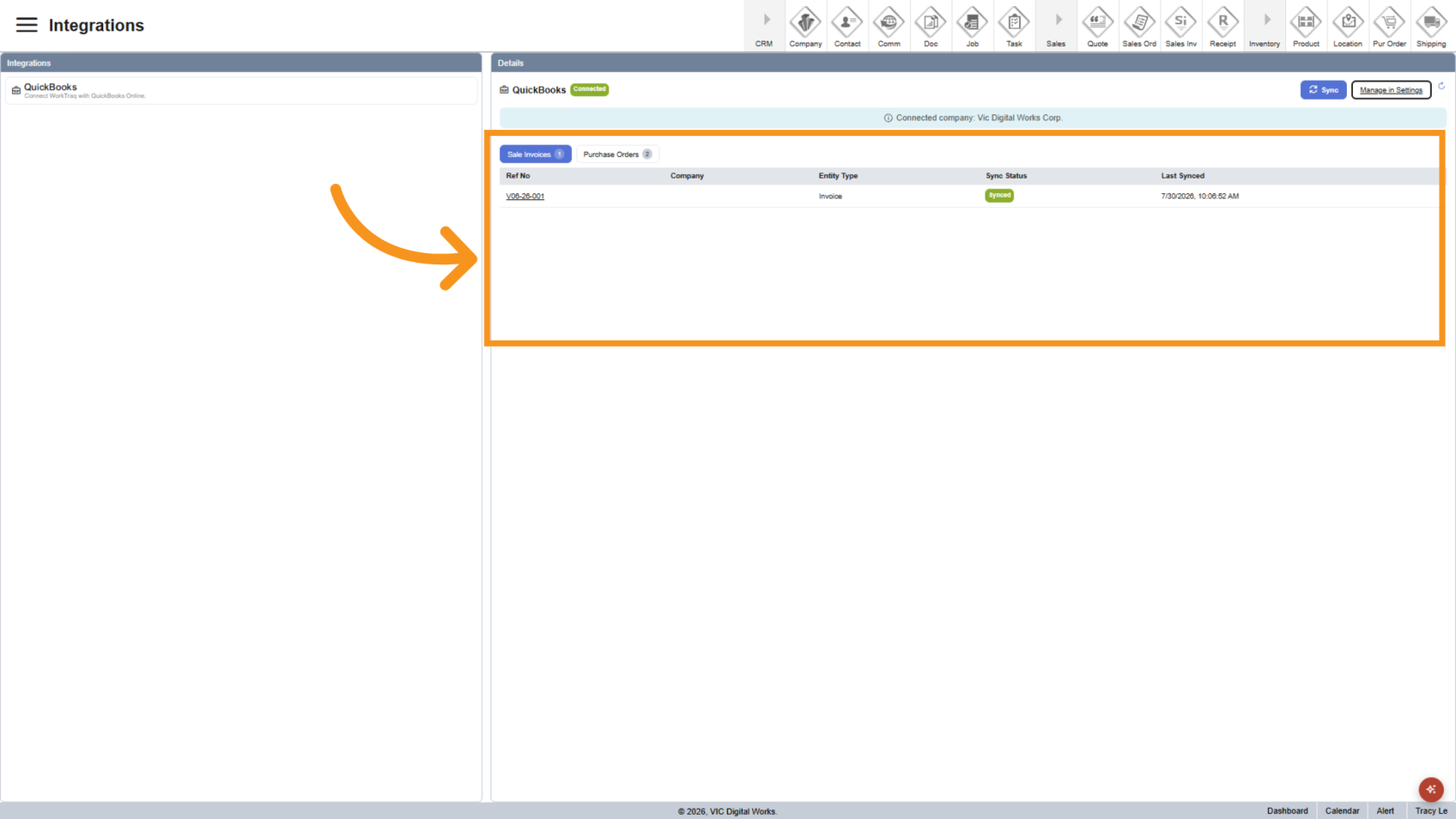
Review the Sync History table, which displays the history of both individual and multiple synchronization activities.
You can compare the synchronized records with QuickBooks:
- Sale Invoices are QuickBooks Invoices.
- Purchase Orders are QuickBooks Bills.
You have successfully synchronized WorkTraq data with QuickBooks. You can synchronize individual records or multiple records directly from WorkTraq and review all synchronization activities in the Sync History table.