
Configure Email Events
This tutorial guides you through configuring Email Events in the App. Email events define when and how emails are automatically sent by the system.
Video Tutorial
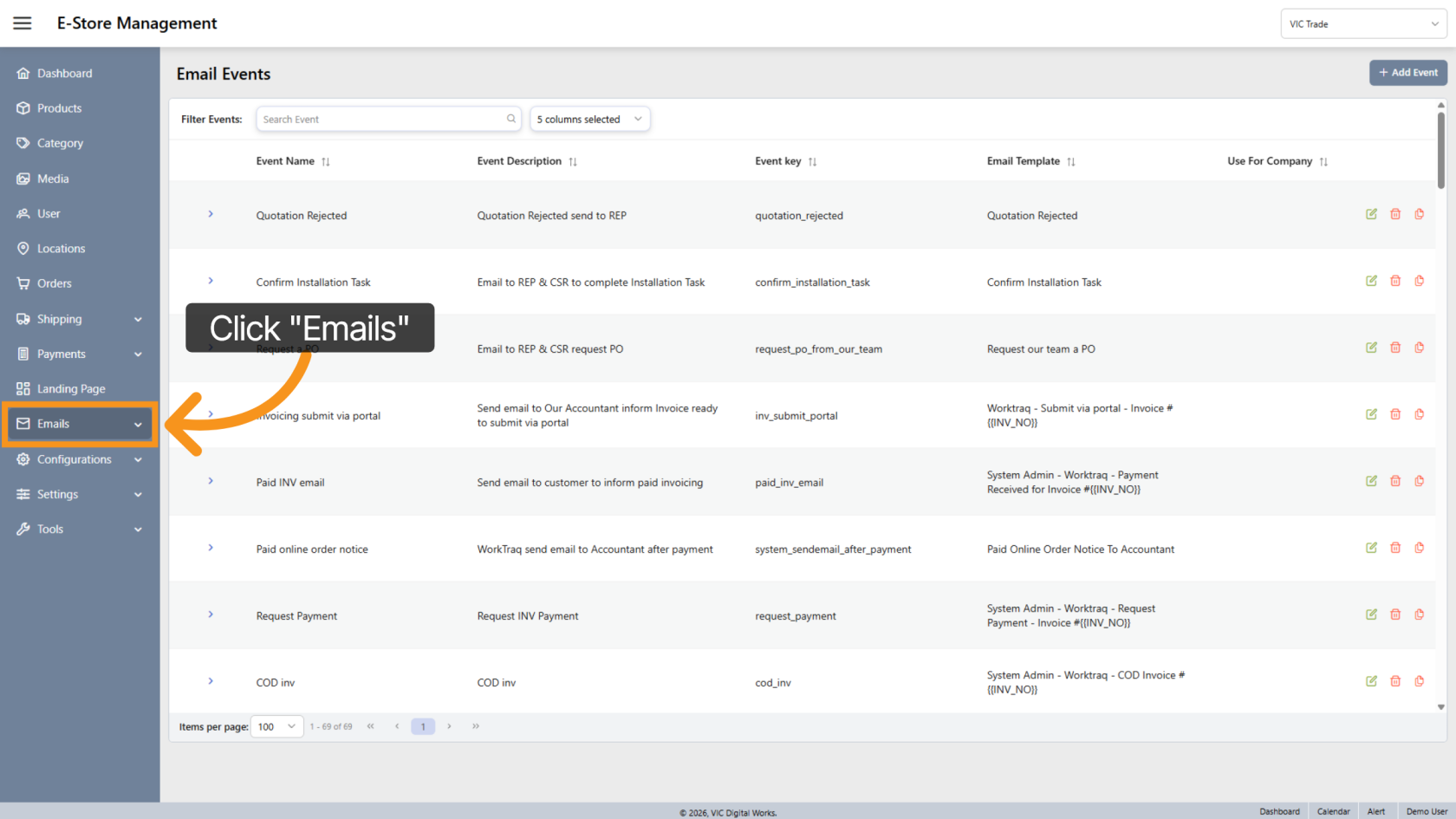
1. Open the Emails Menu
Click "Emails" to access the email configuration options.
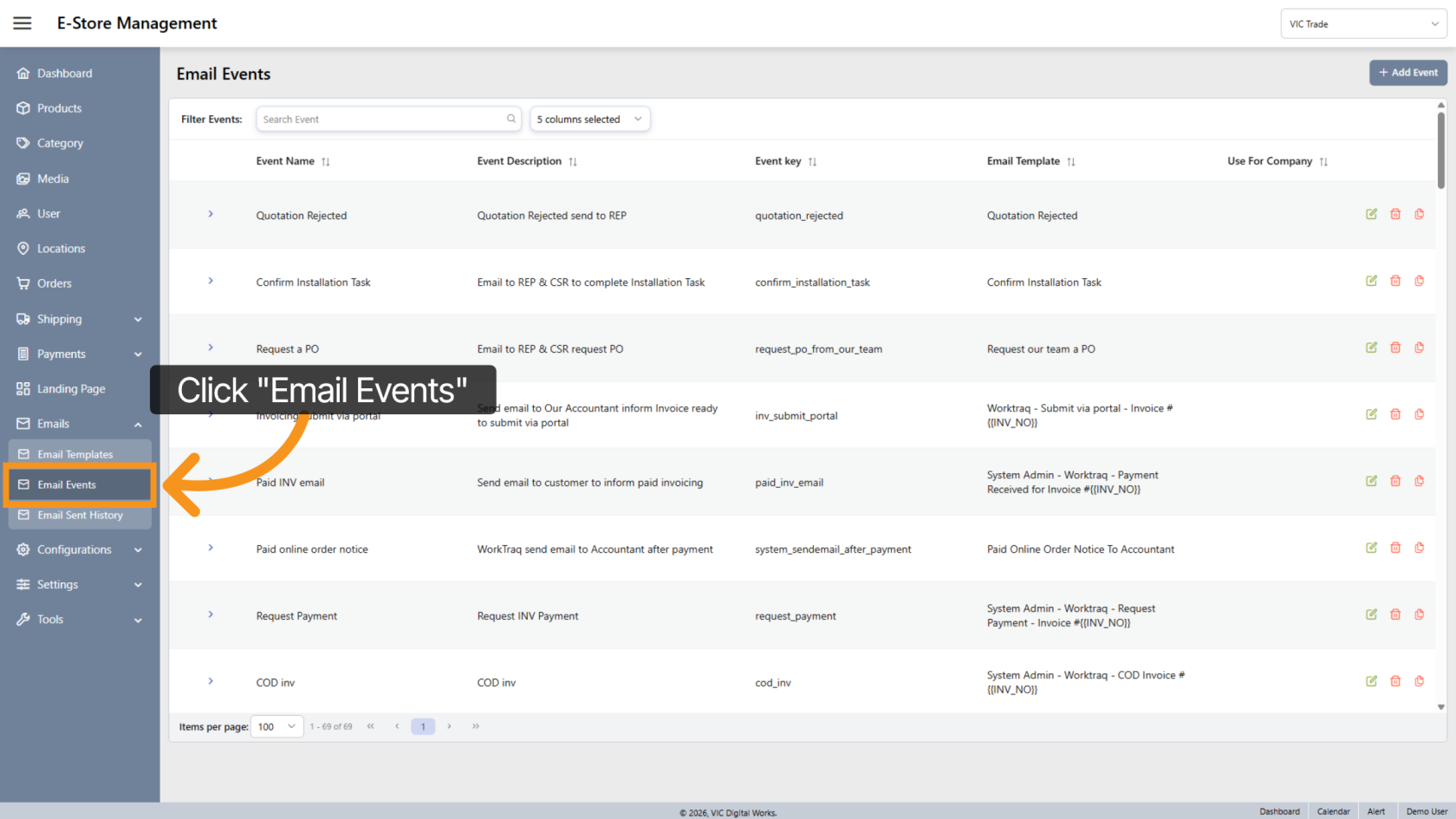
2. Navigate to Email Events
Click "Email Events" to view and manage the list of system email events.
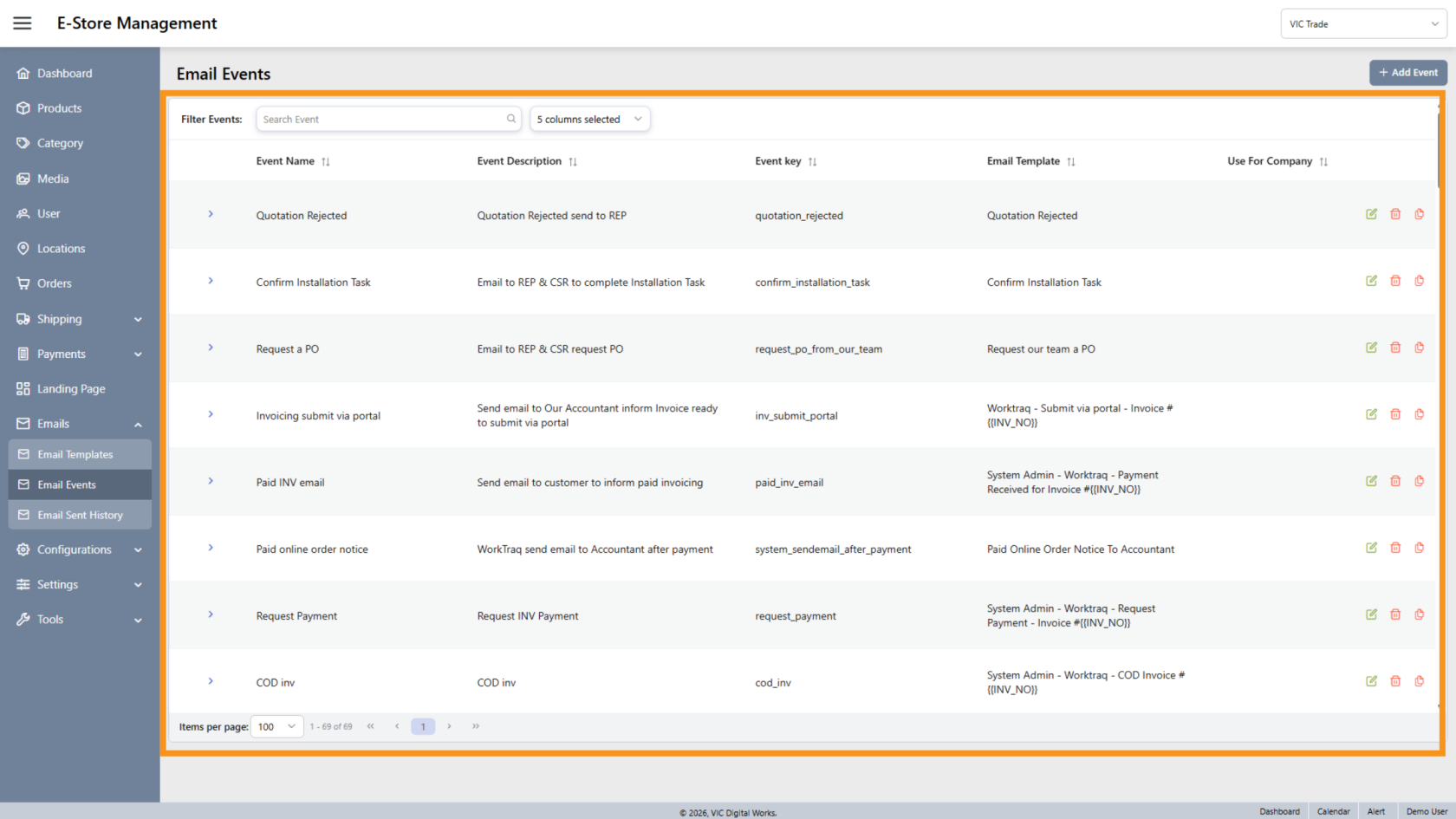
3. View All Events
This section displays all email events available in the system.
You do not need to select a company store to view these events.
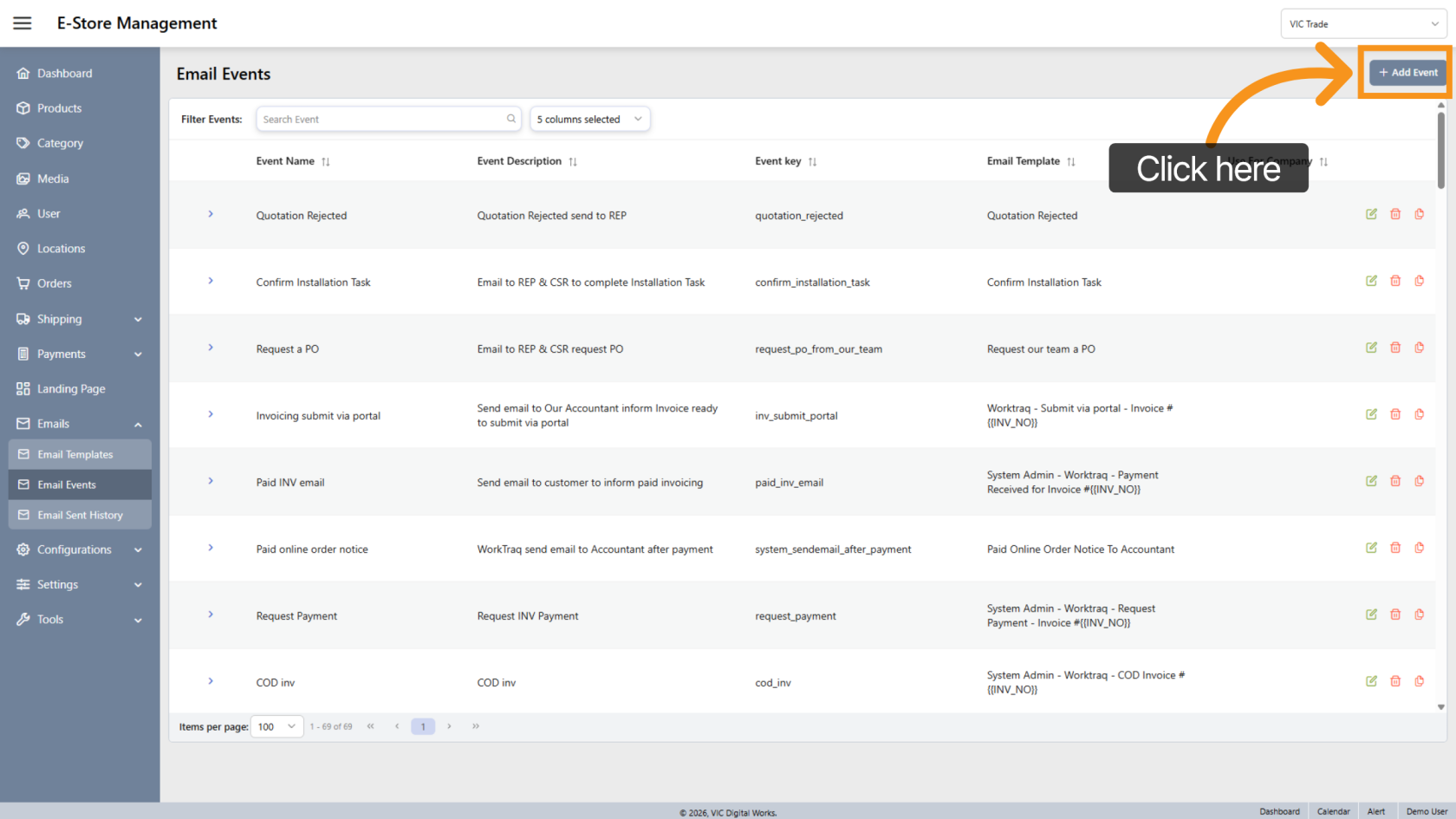
4. Add a New Event
Click "Add Event" to create a new email event.
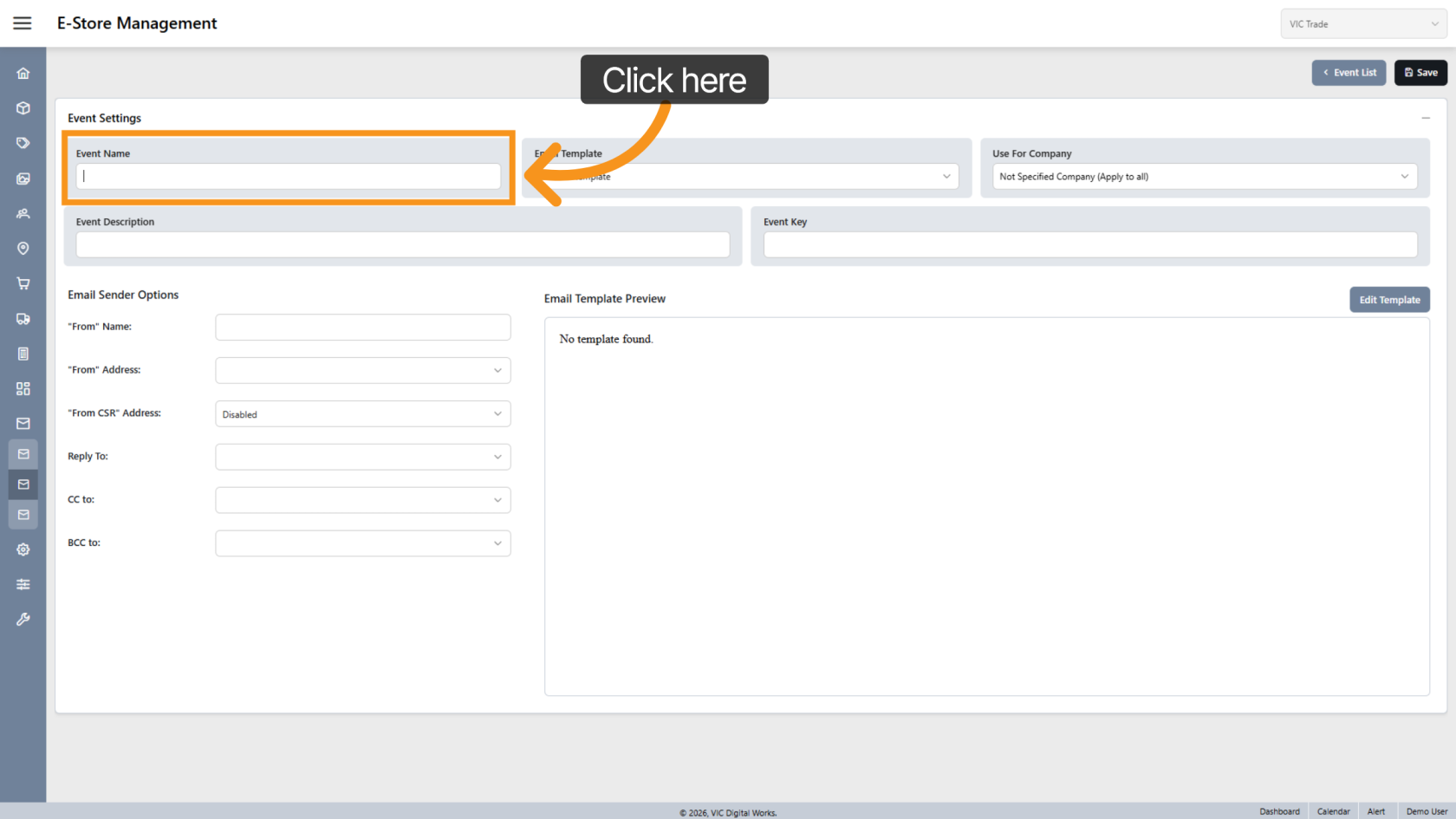
5. Enter Event Name
Enter a name that clearly identifies the purpose of the email event.
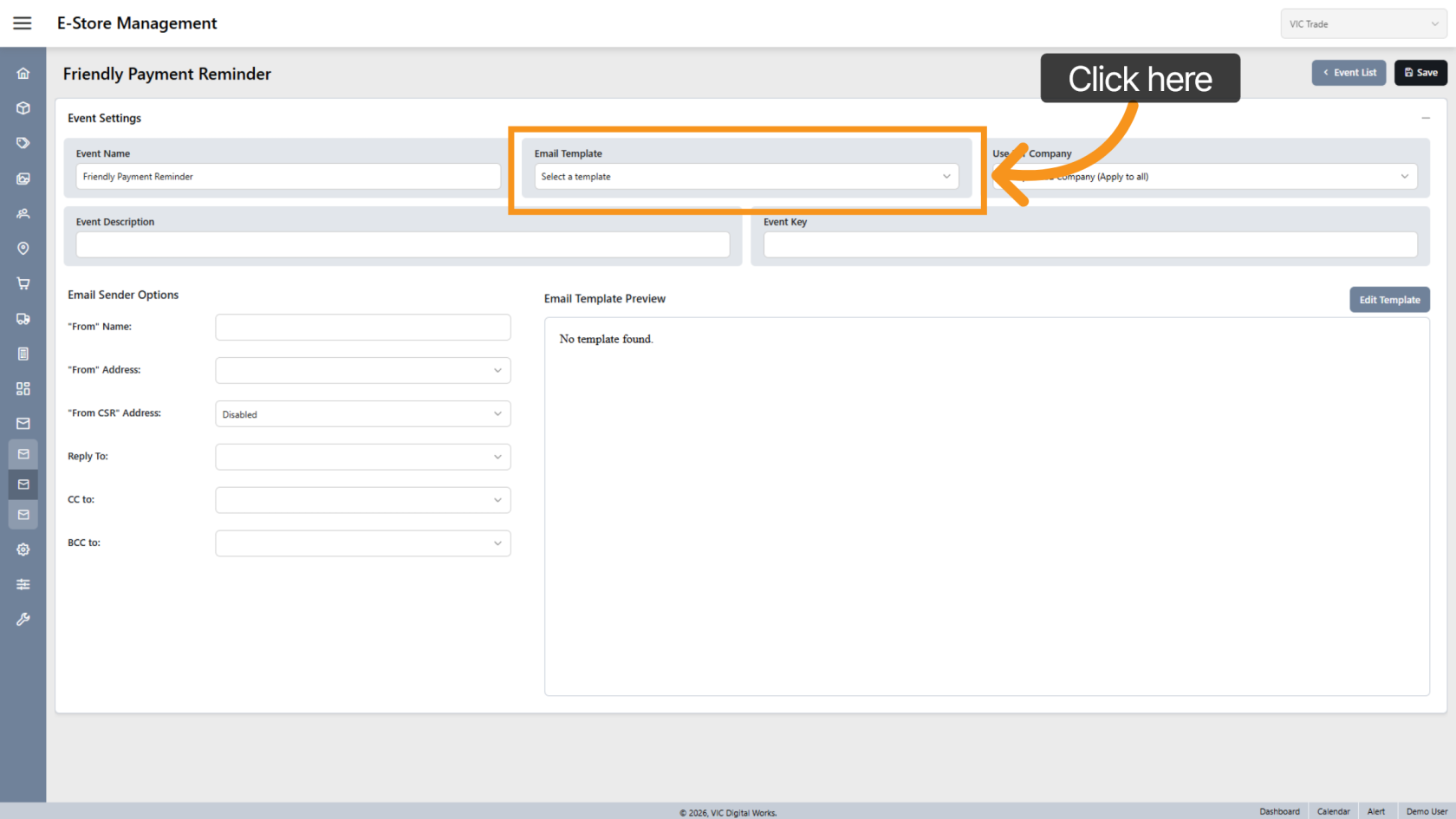
6. Select Email Template
Choose the email template that will be used when this event is triggered.
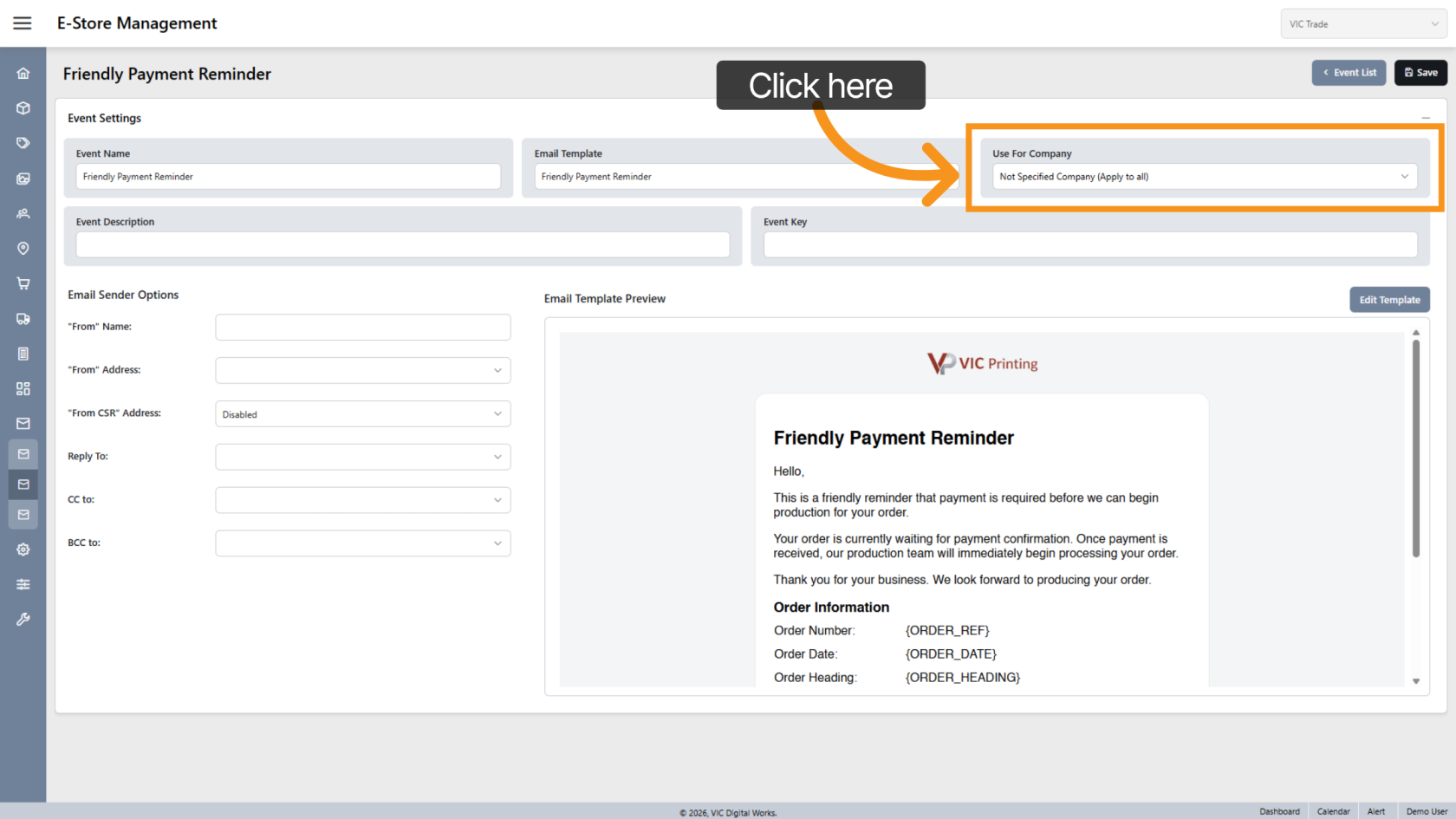
7. Apply Event to Company
Select the company that will use this event.
A single event can be applied to multiple companies.
Leave this field blank if the event should apply to all companies.
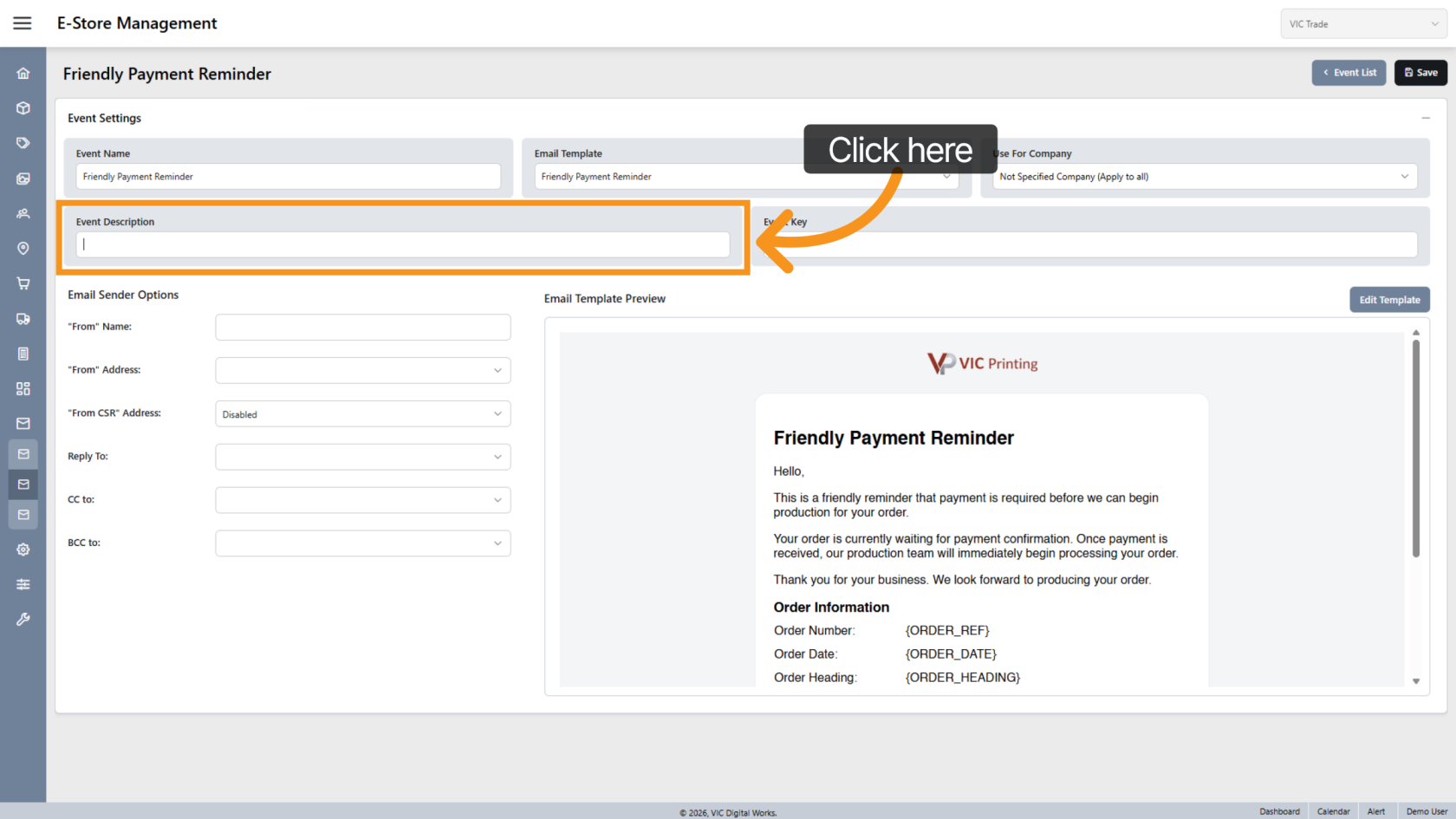
8. Enter Event Description
Add a description to help explain the purpose of the event.
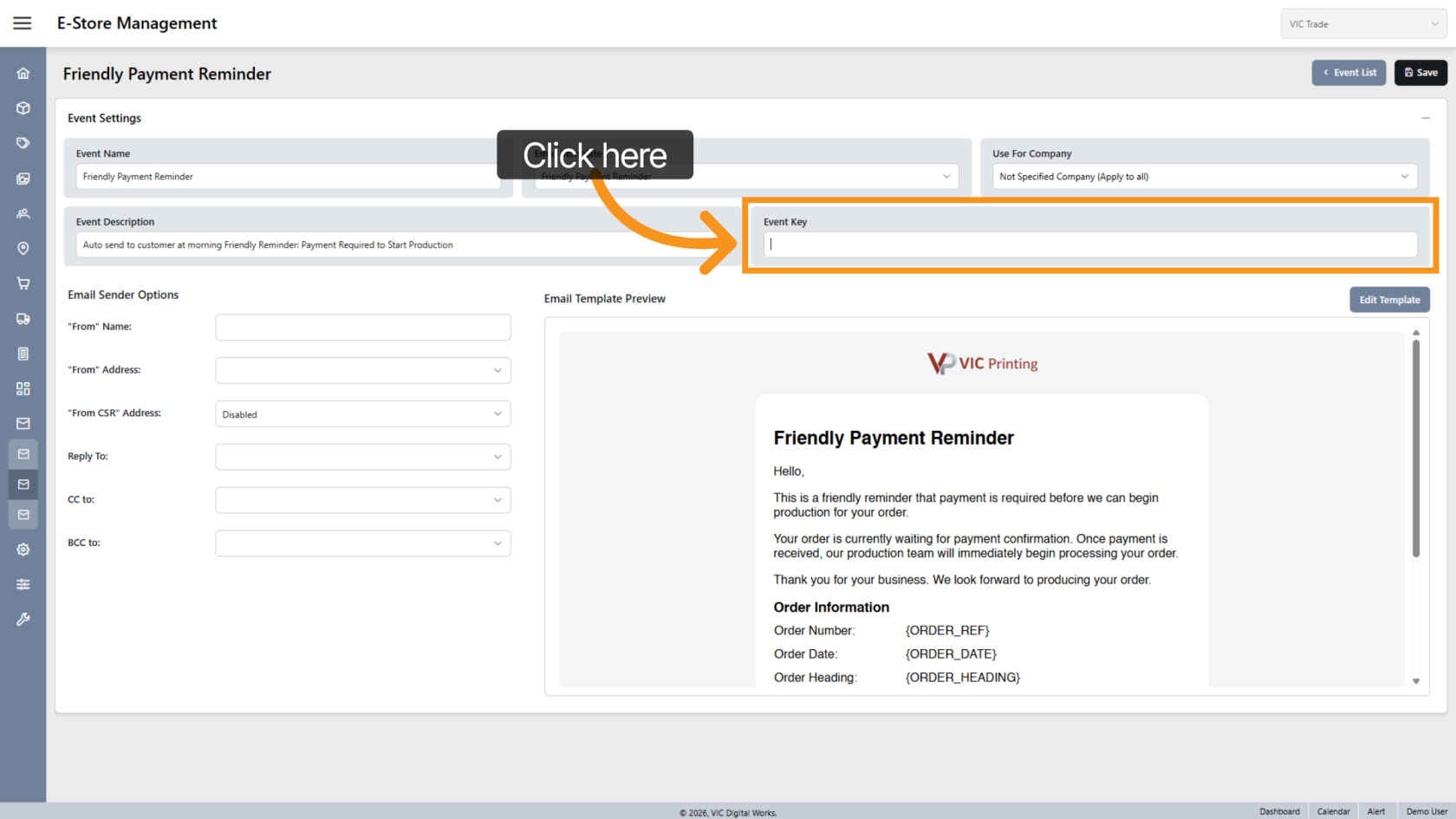
9. Event Key
The Event Key is defined during system development and determines when the email will be triggered.
Do not modify the Event Key unless instructed by a developer.
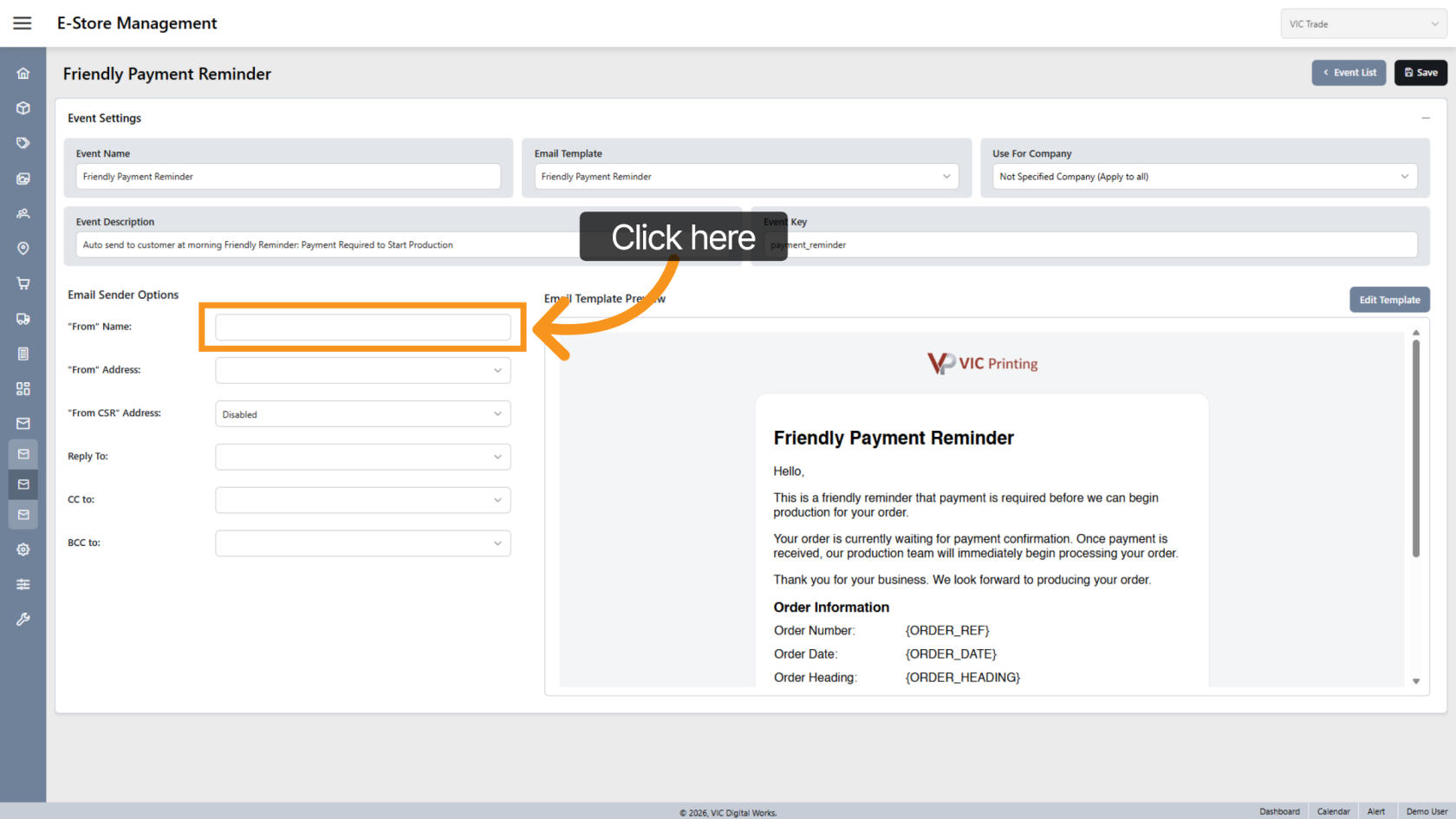
10. Enter From Name
Enter the From Name that will appear as the sender name in the email.
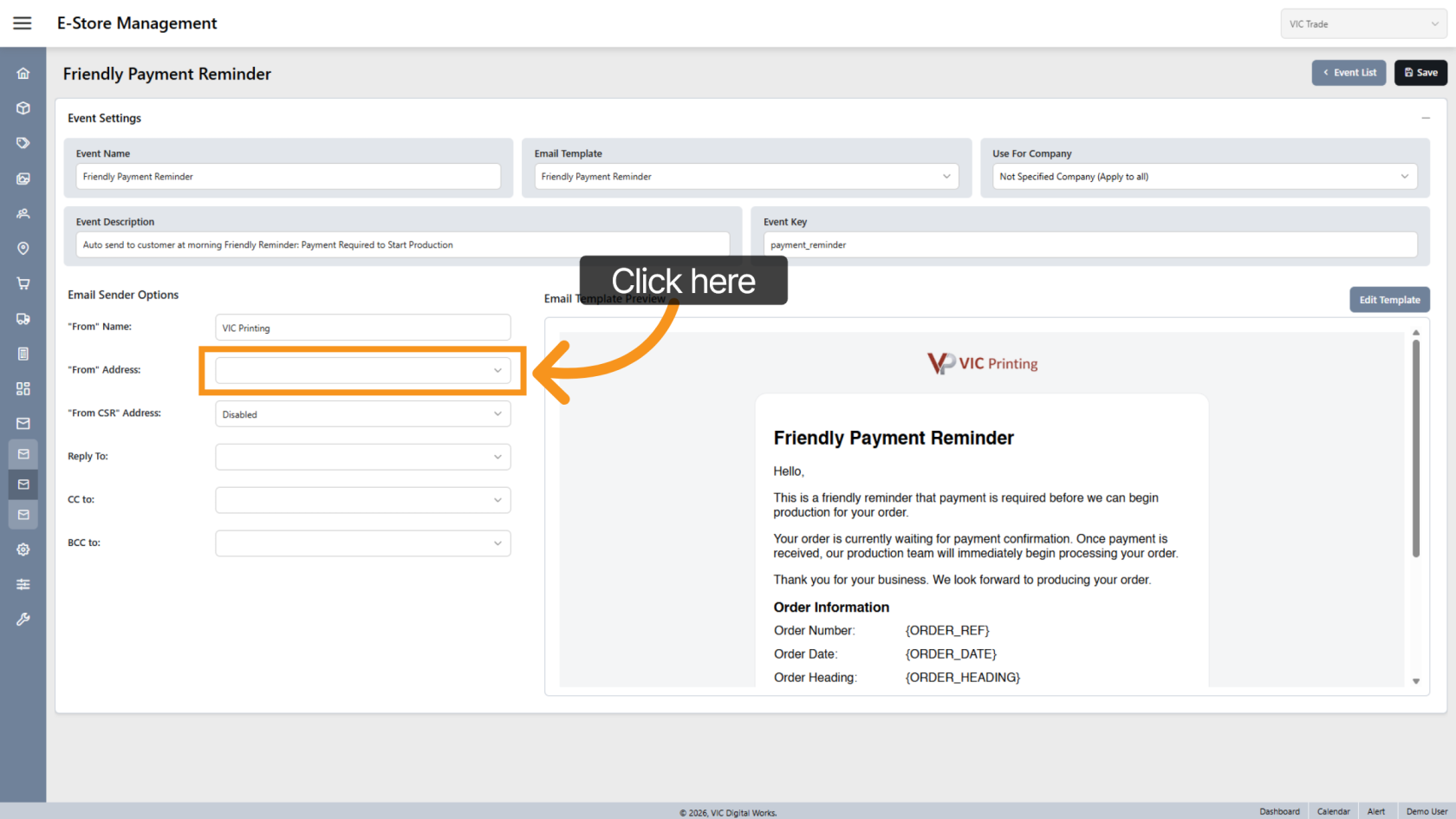
11. Select Email Address
Choose the email address that will send the email.
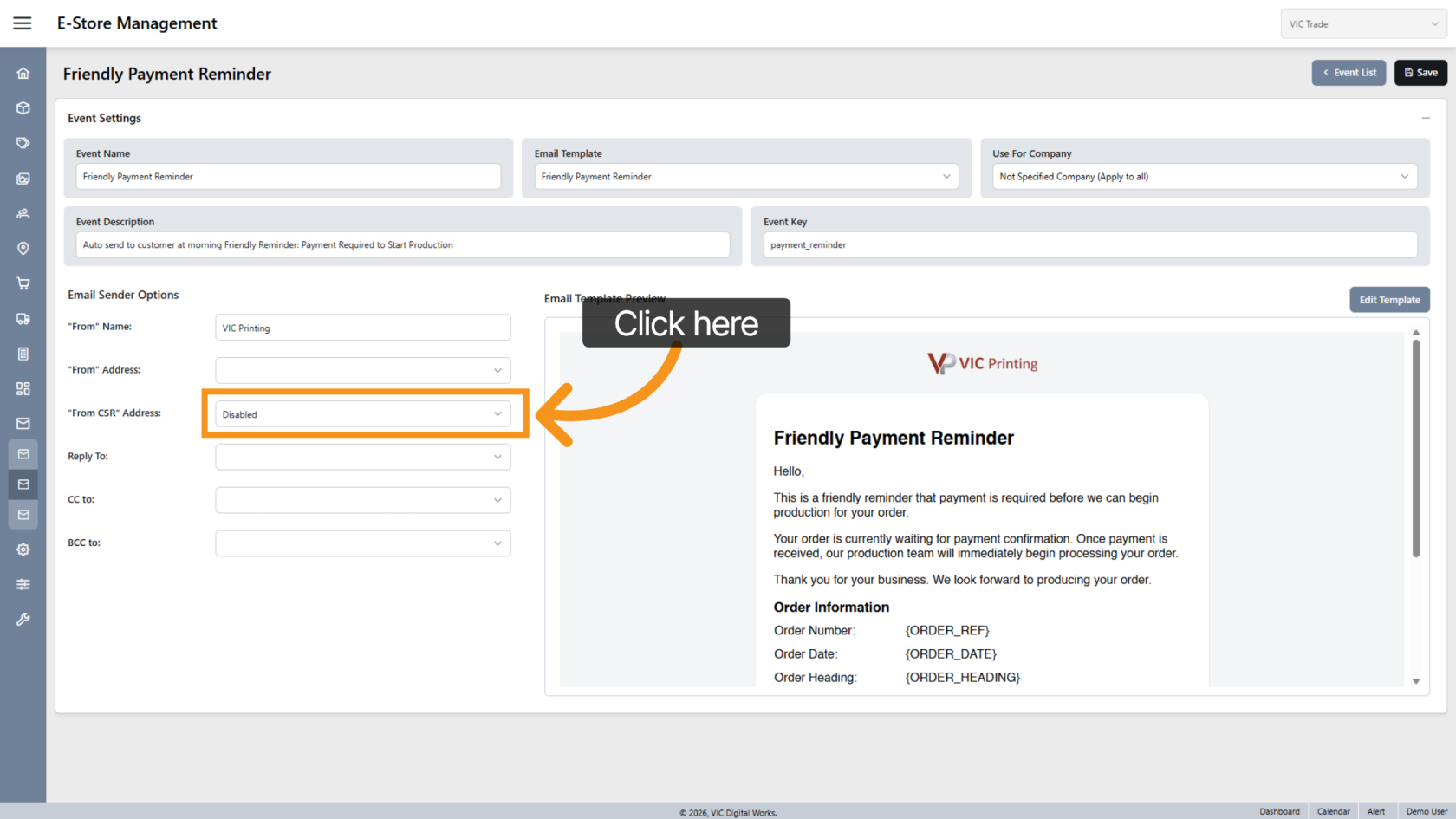
12. Use CSR Email Address
Enable this option if each company uses a custom sender email (CSR email).
When enabled, the system will automatically use the company’s configured email address and override the sender email selected above.
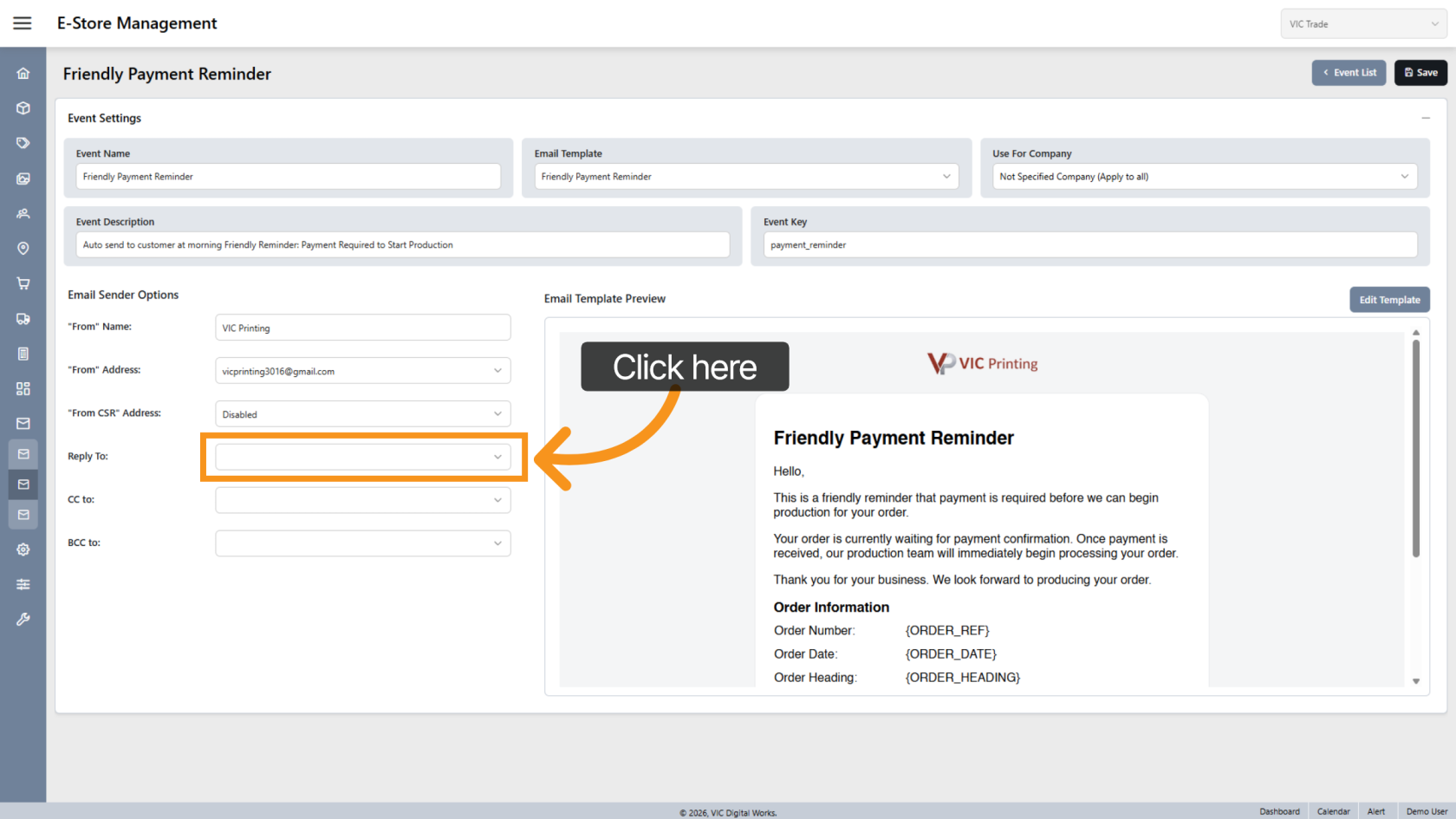
13. Reply-To Email
In some cases, replies should go to a different email address than the sender.
Select the Reply-To email address if needed.
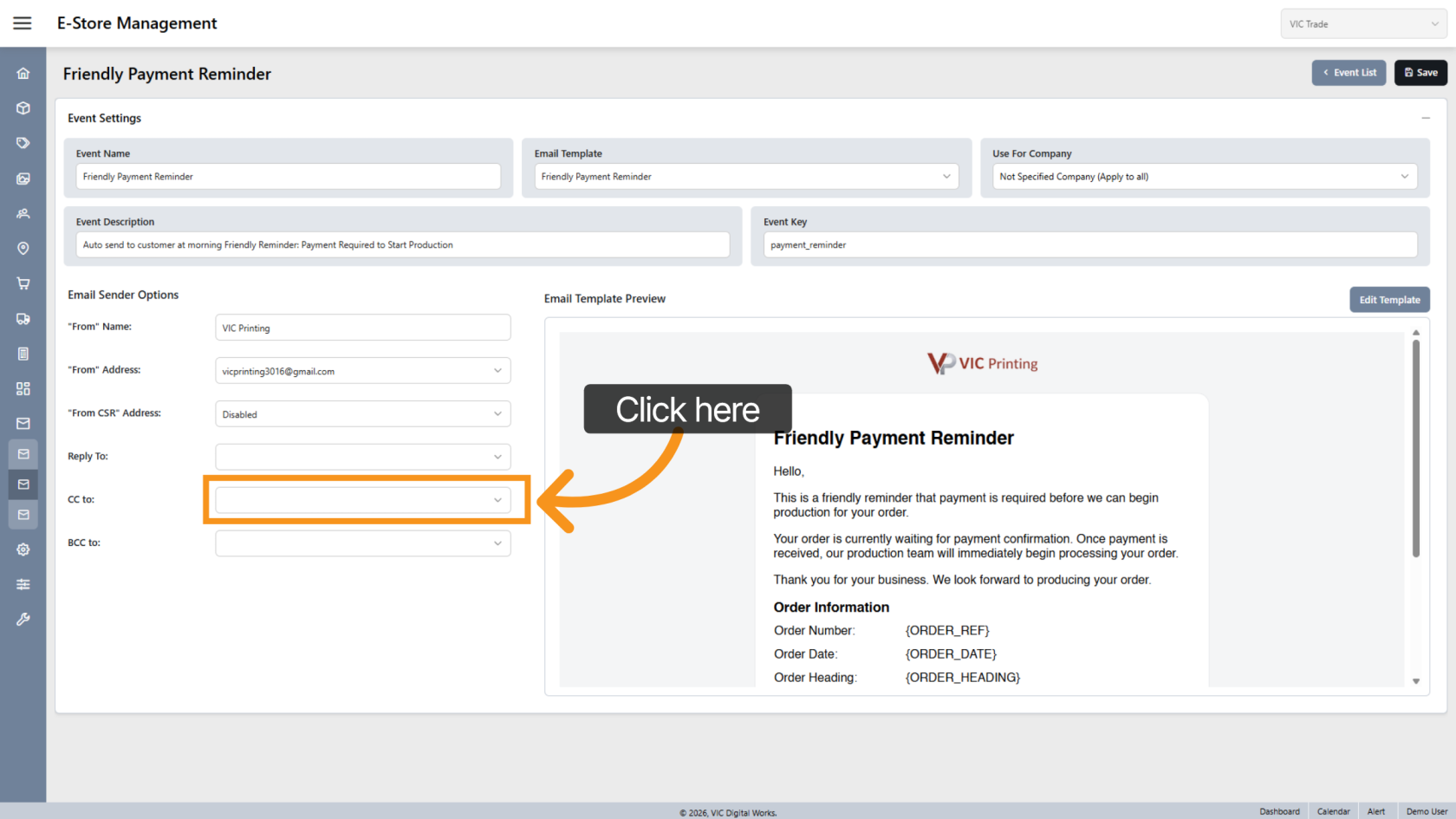
14. Select CC Emails
Choose any CC email addresses related to this event. Multiple addresses can be selected.
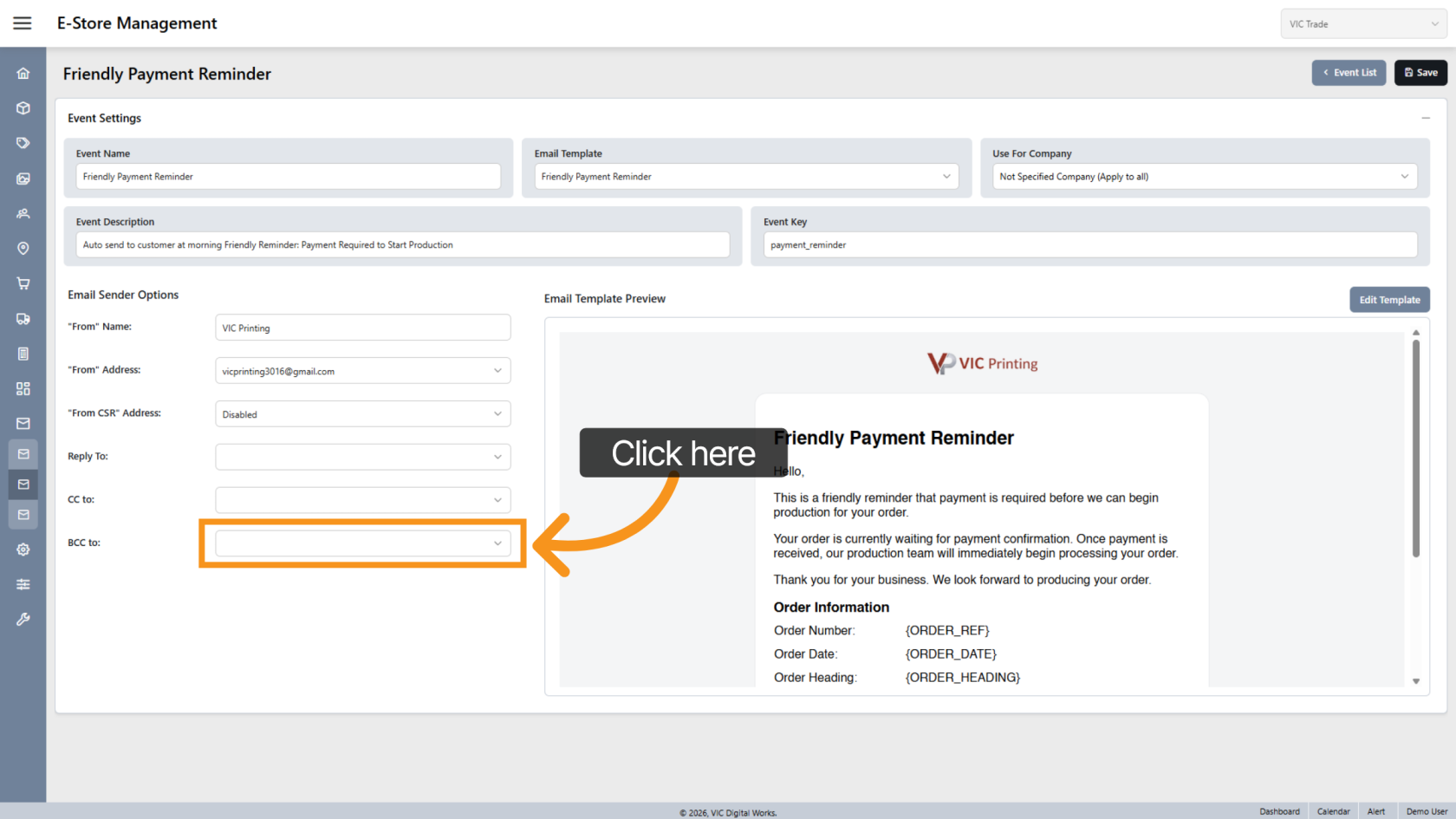
15. Select BCC Emails
Choose any BCC email addresses related to this event. Multiple addresses can be selected.
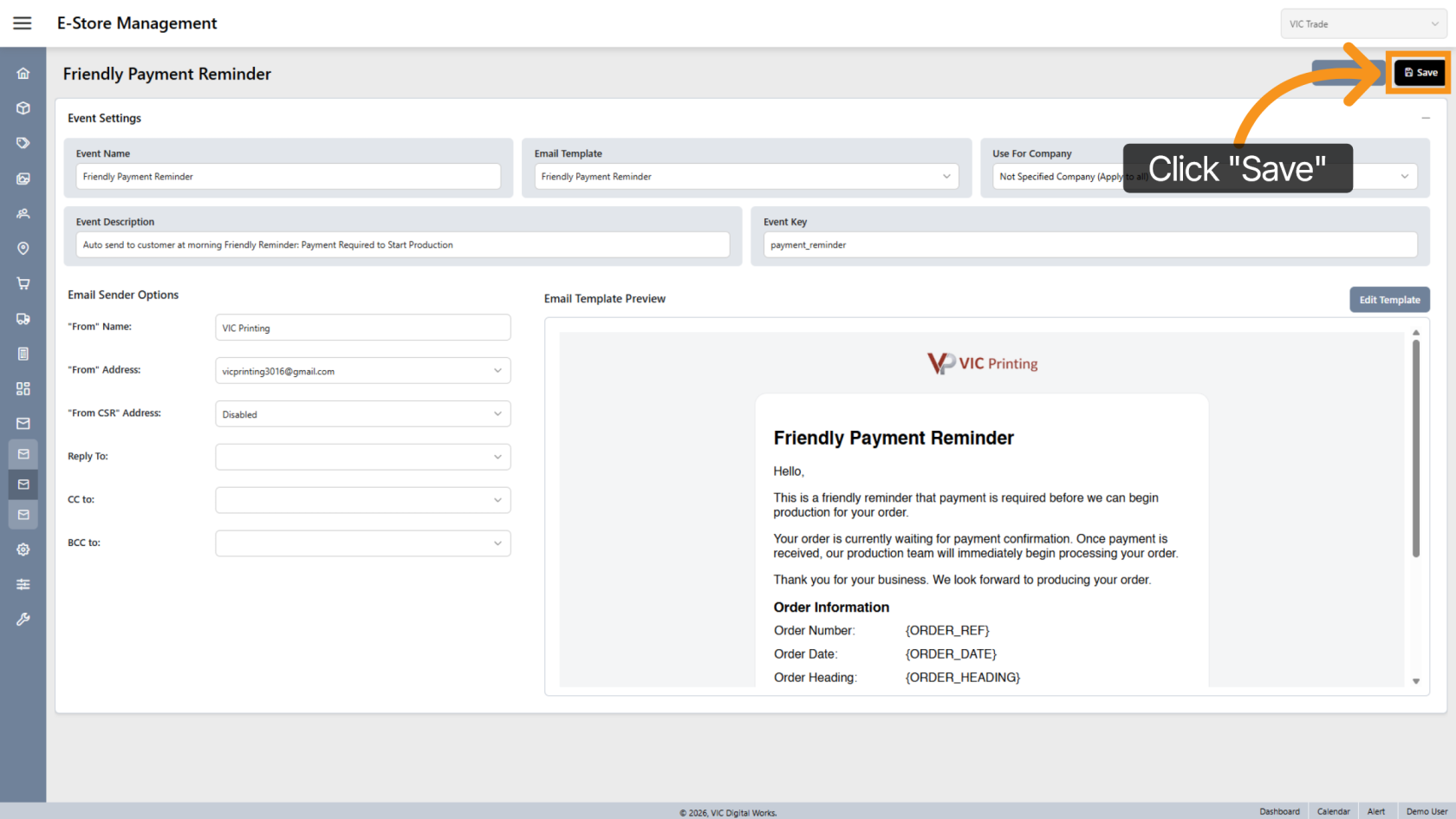
16. Save the Email Event
Click "Save" to store the new email event and its settings.
17. Return to Event List
Click "Event List" to return to the list of configured email events.
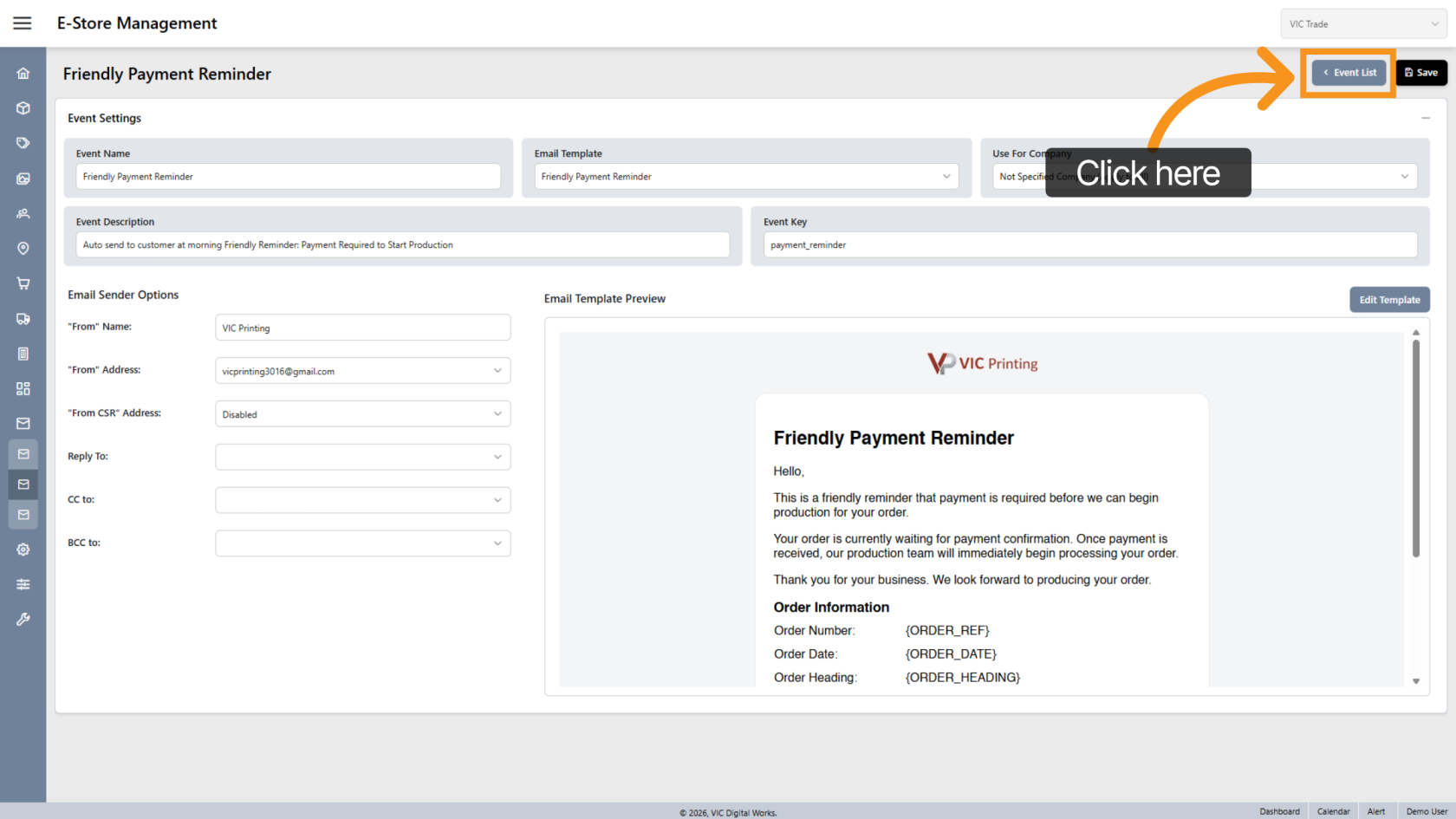
You have successfully configured a new Email Event with customized templates and sender options. This allows the system to automatically send emails and helps streamline your communication workflow.