
Create Location
This tutorial explains how to create and configure a new location in the App.
Video Tutorial
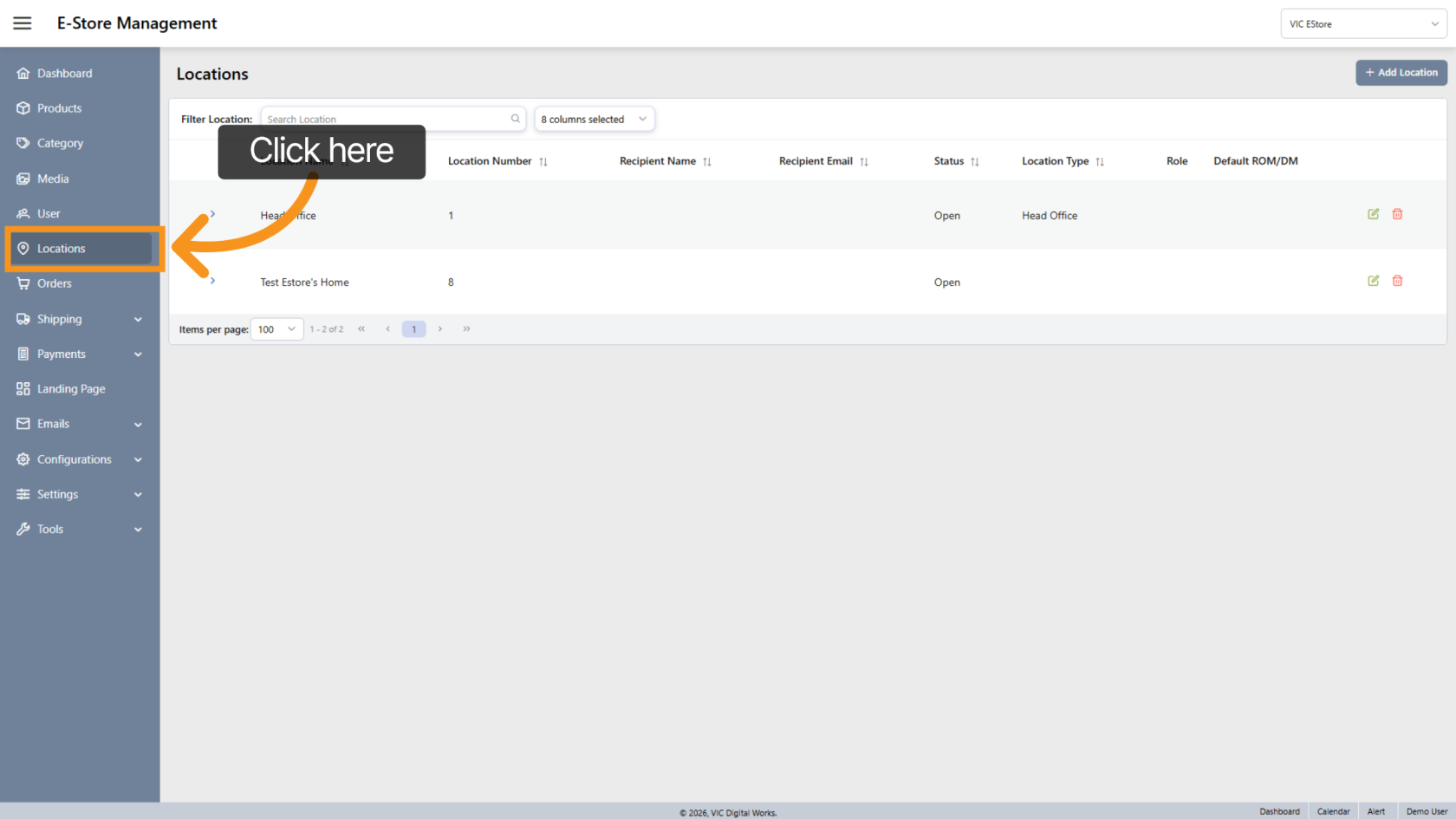
1. Open Locations
Click Locations to view and manage existing locations.
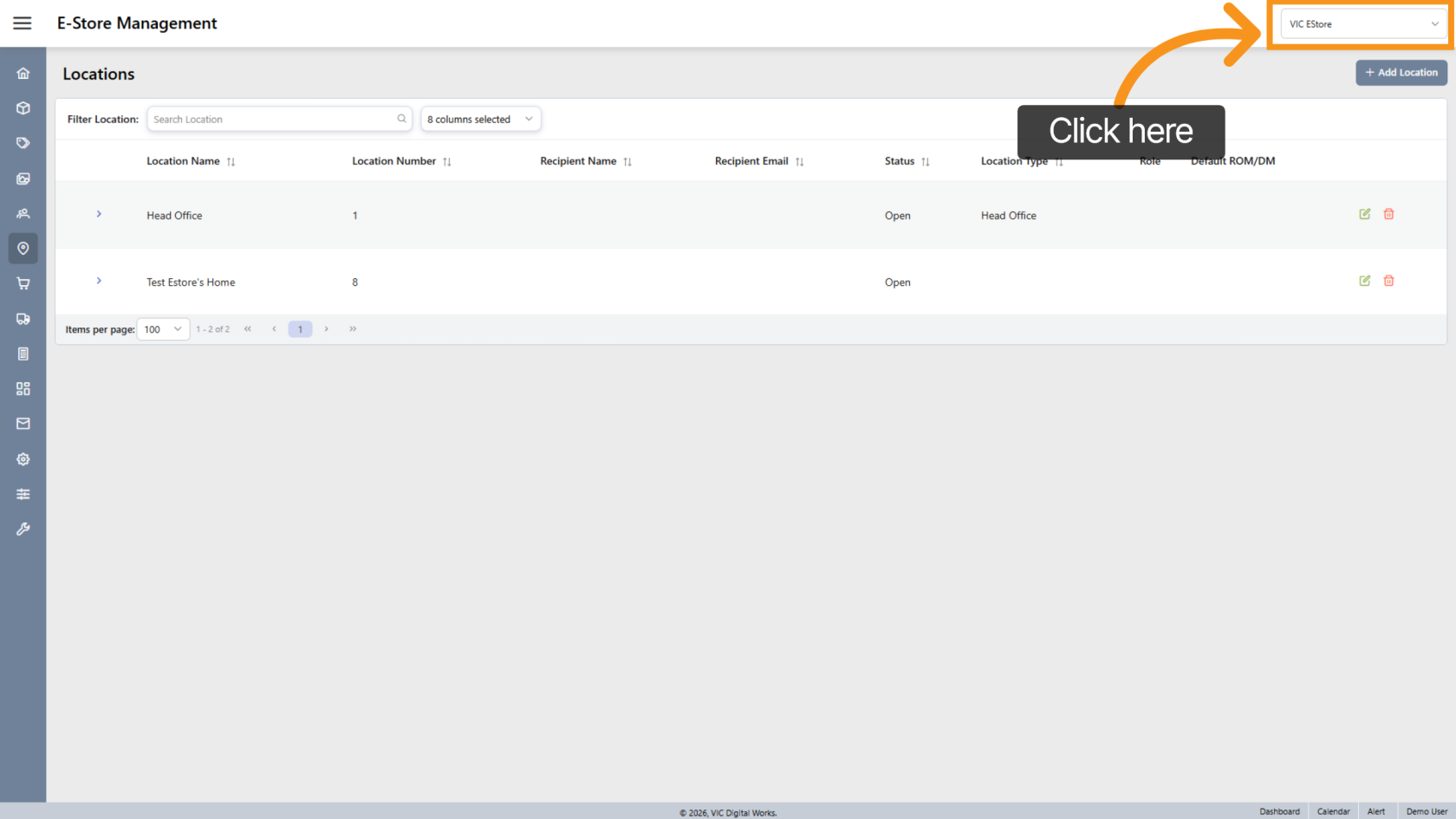
2. Select Company Store
Choose the correct Company Store where you want to create the new location.
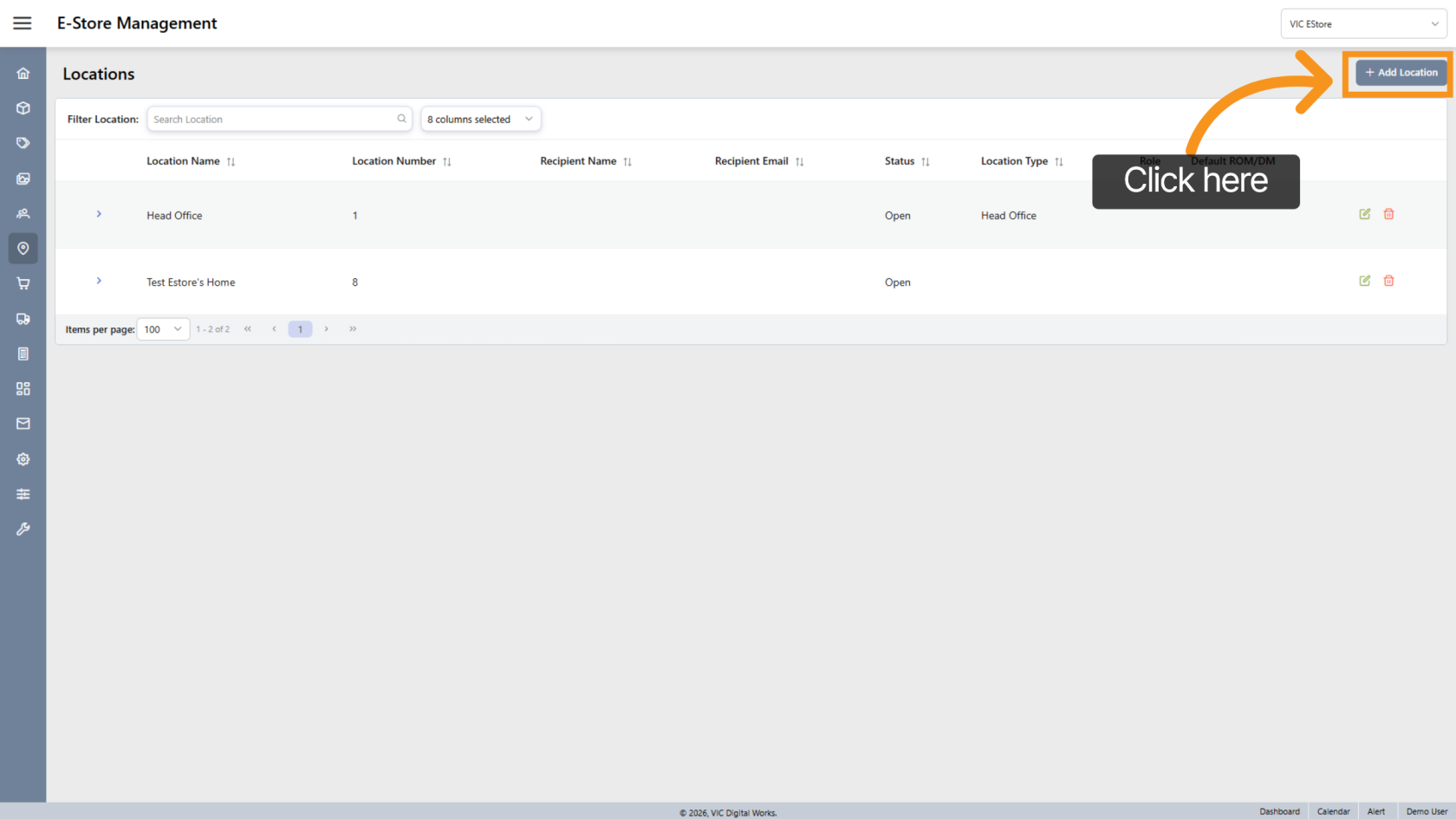
3. Add Location
Click "Add Location" to begin creating a new location.
4. Enter Location Name
Enter the name for the new location.
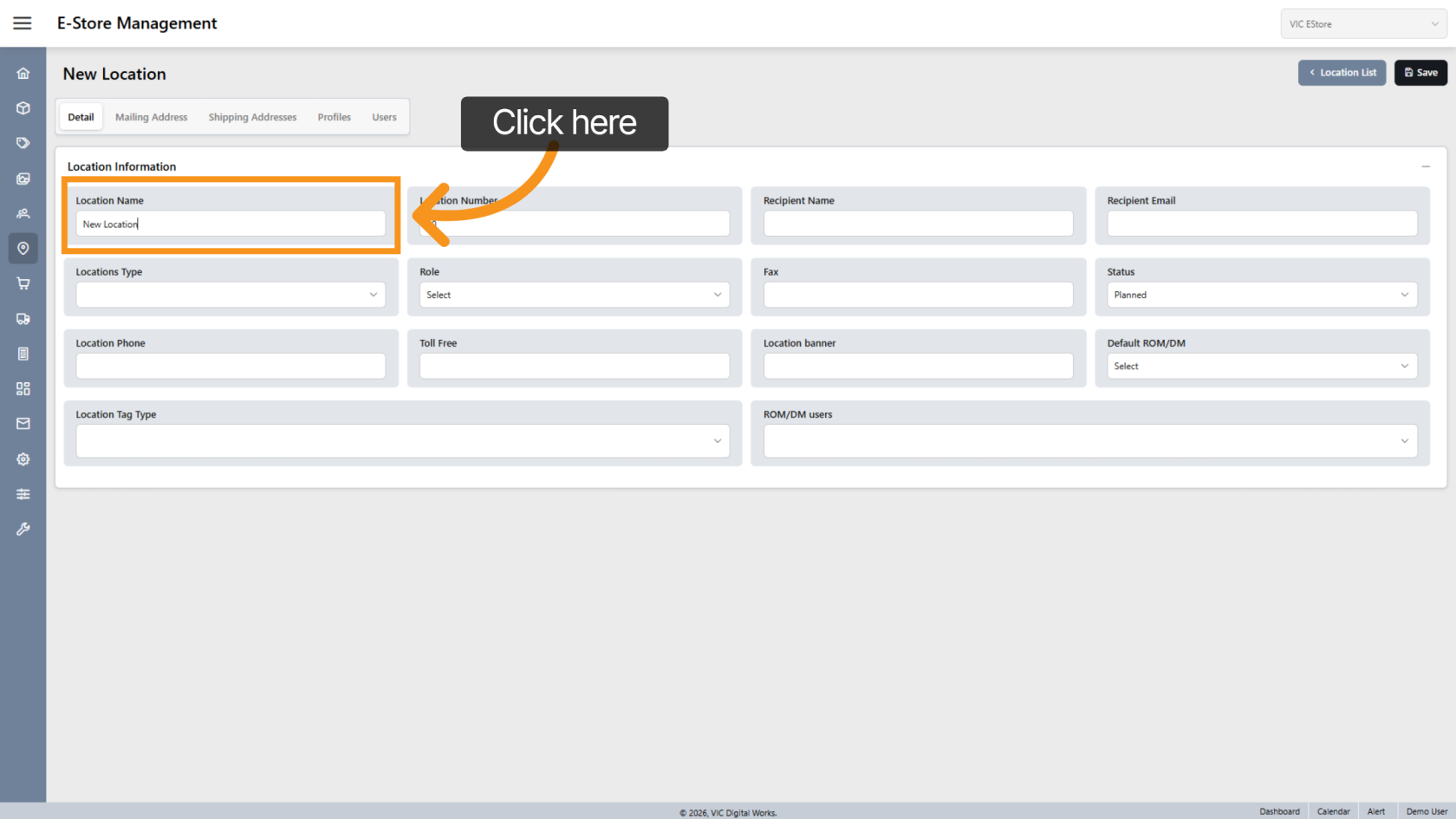
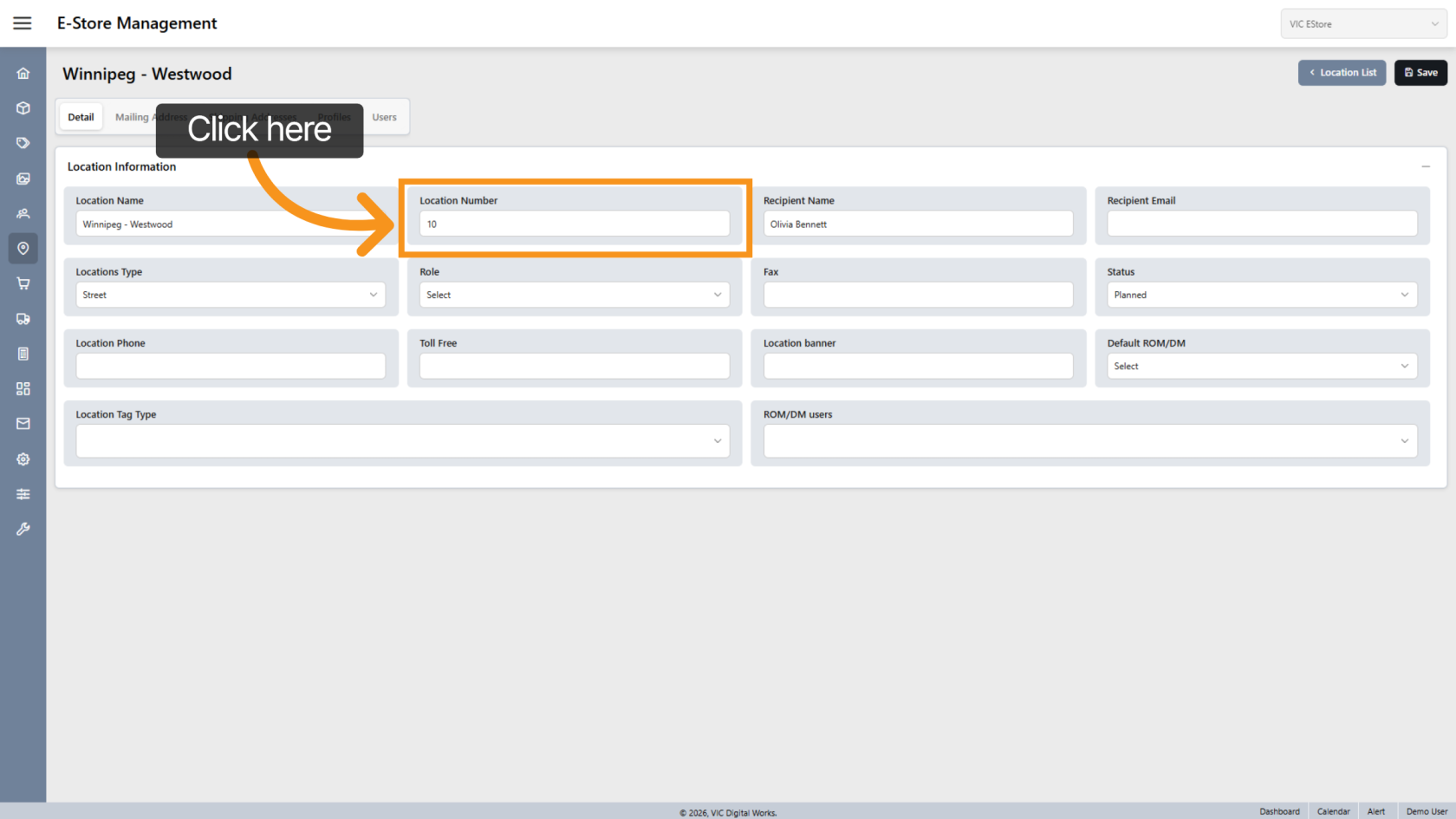
5. Location Number
The system automatically generates a Location Number, but you can modify it if needed.
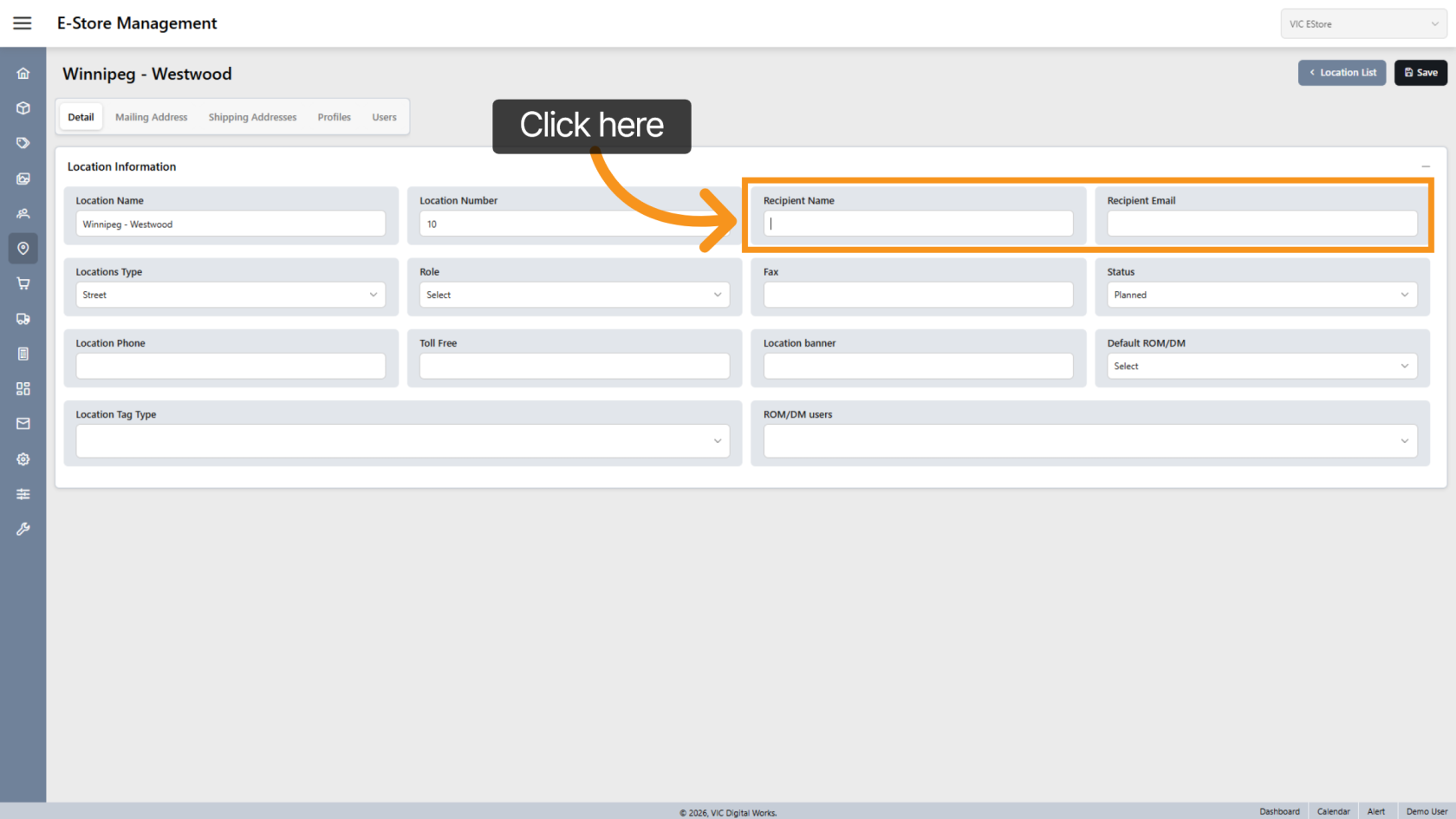
6. Recipient Details
Enter recipient contact details (name and email) if required for shipping.
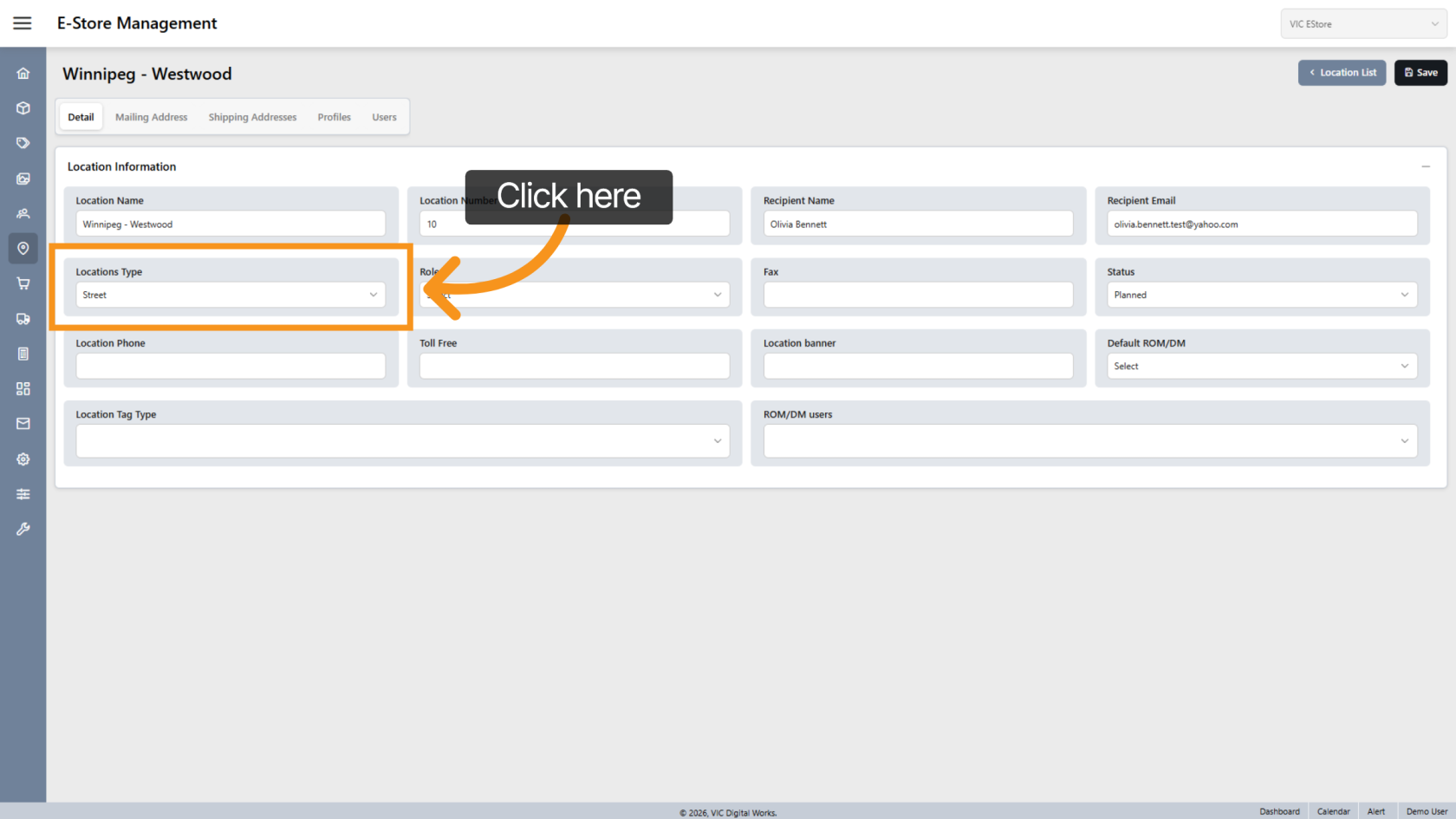
7. Select Location Type
Choose the appropriate Location Type.
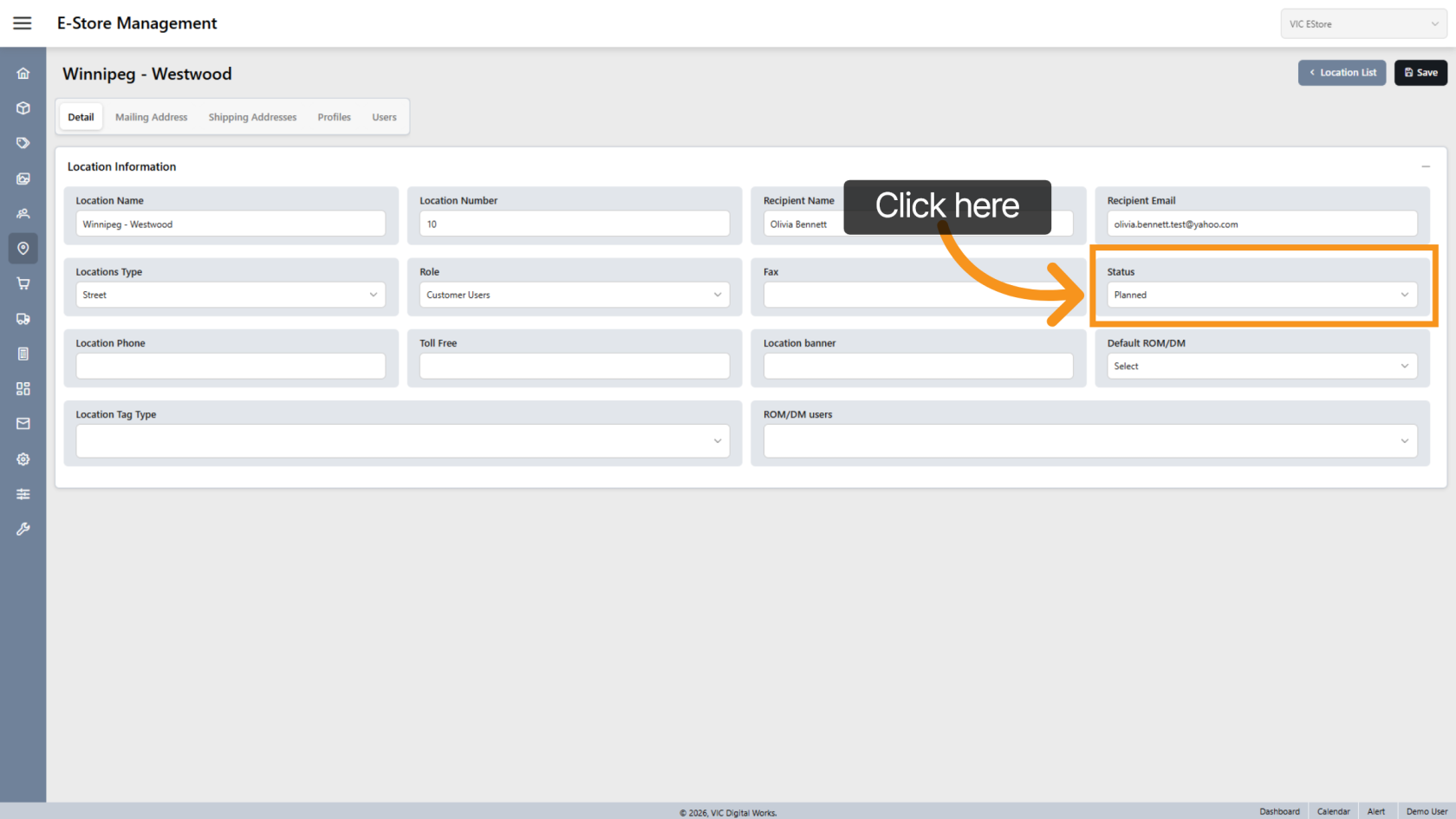
8. Set Location Status
- Select Opened if the location is active
- Select Planned if it is not yet ready
9. Location Phone
Enter the location’s phone number.
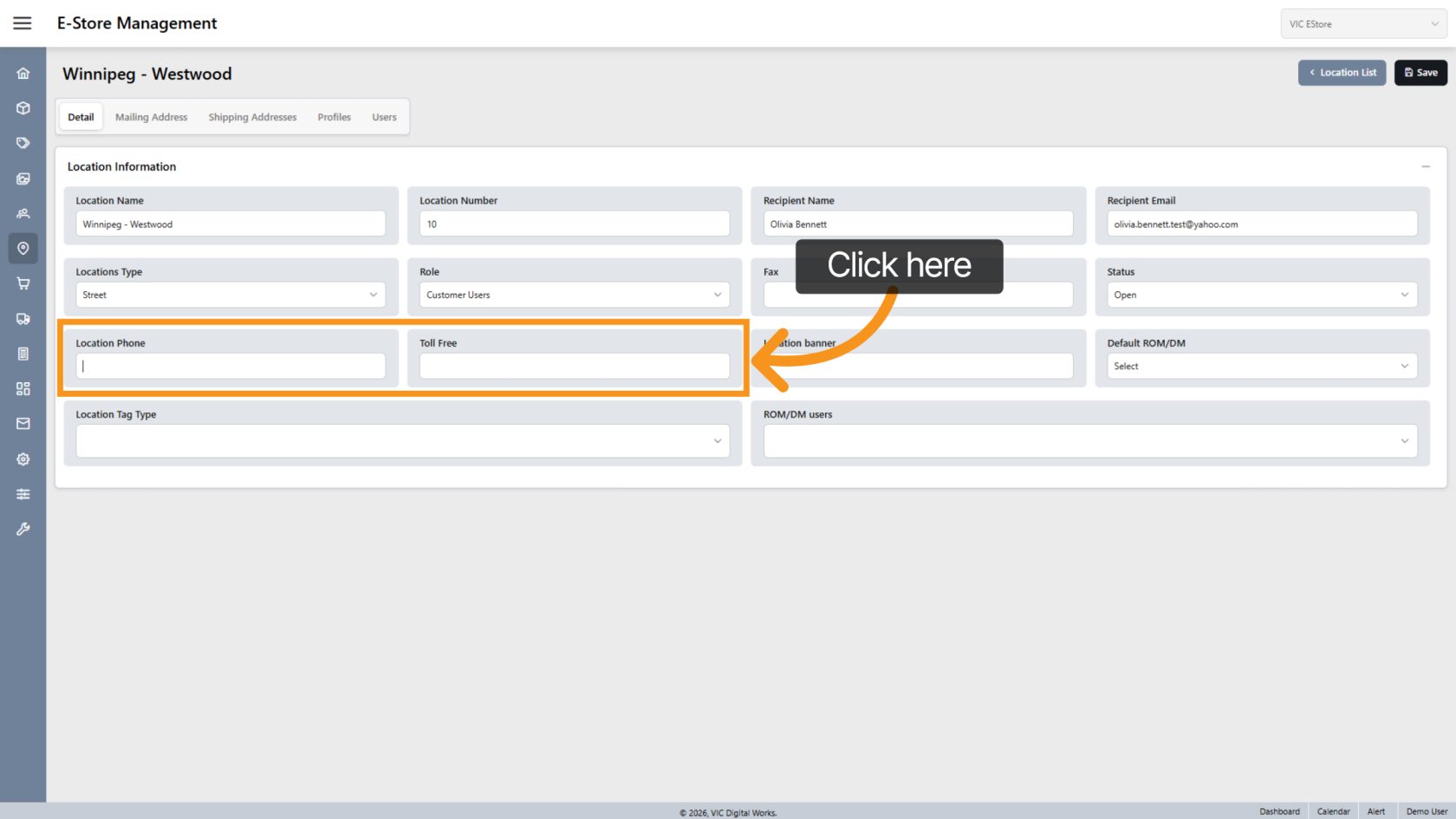
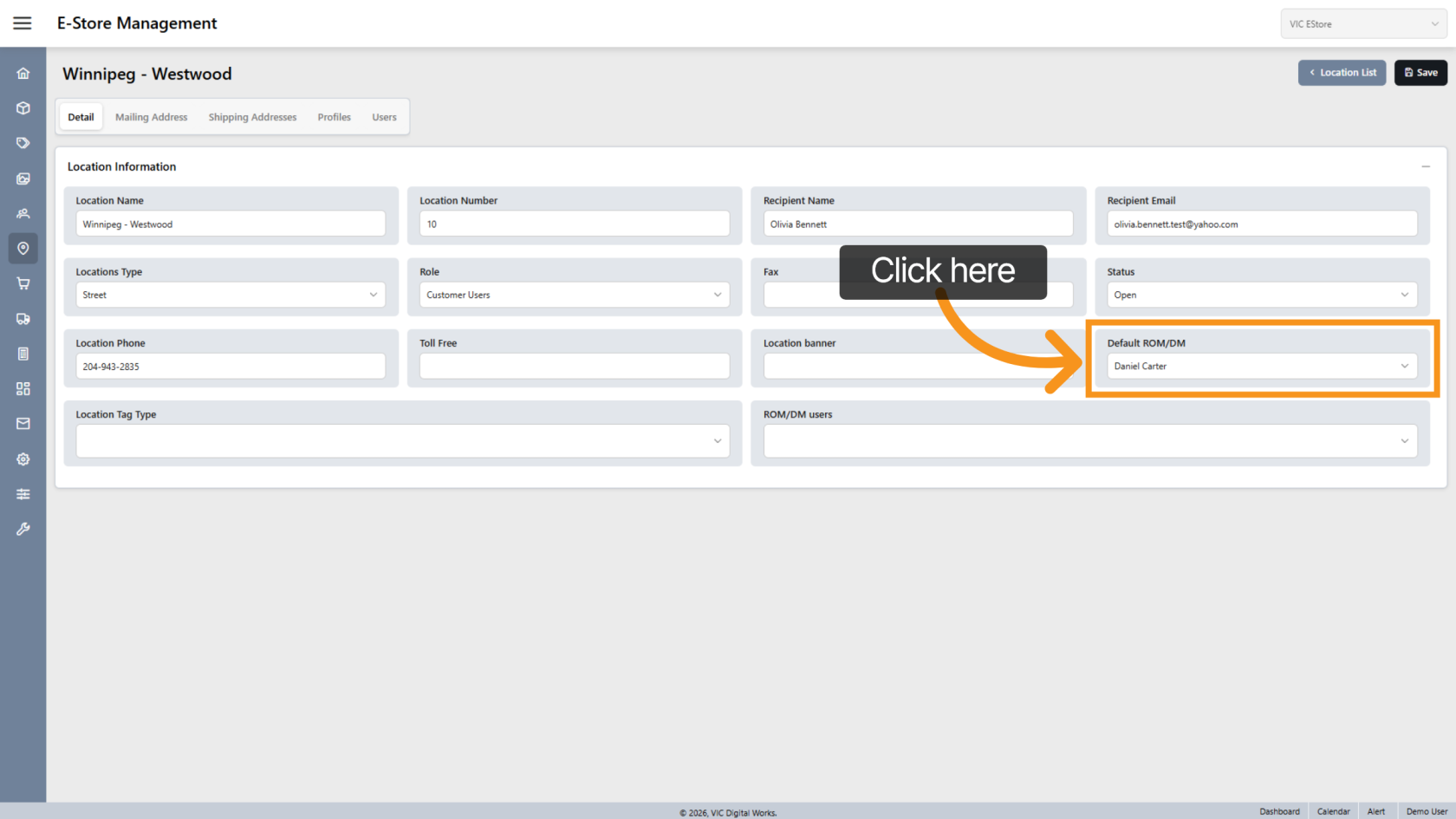
10. Select Default Retail Operations Manager
Choose the default Retail Operations Manager (ROM/DM) for the location.
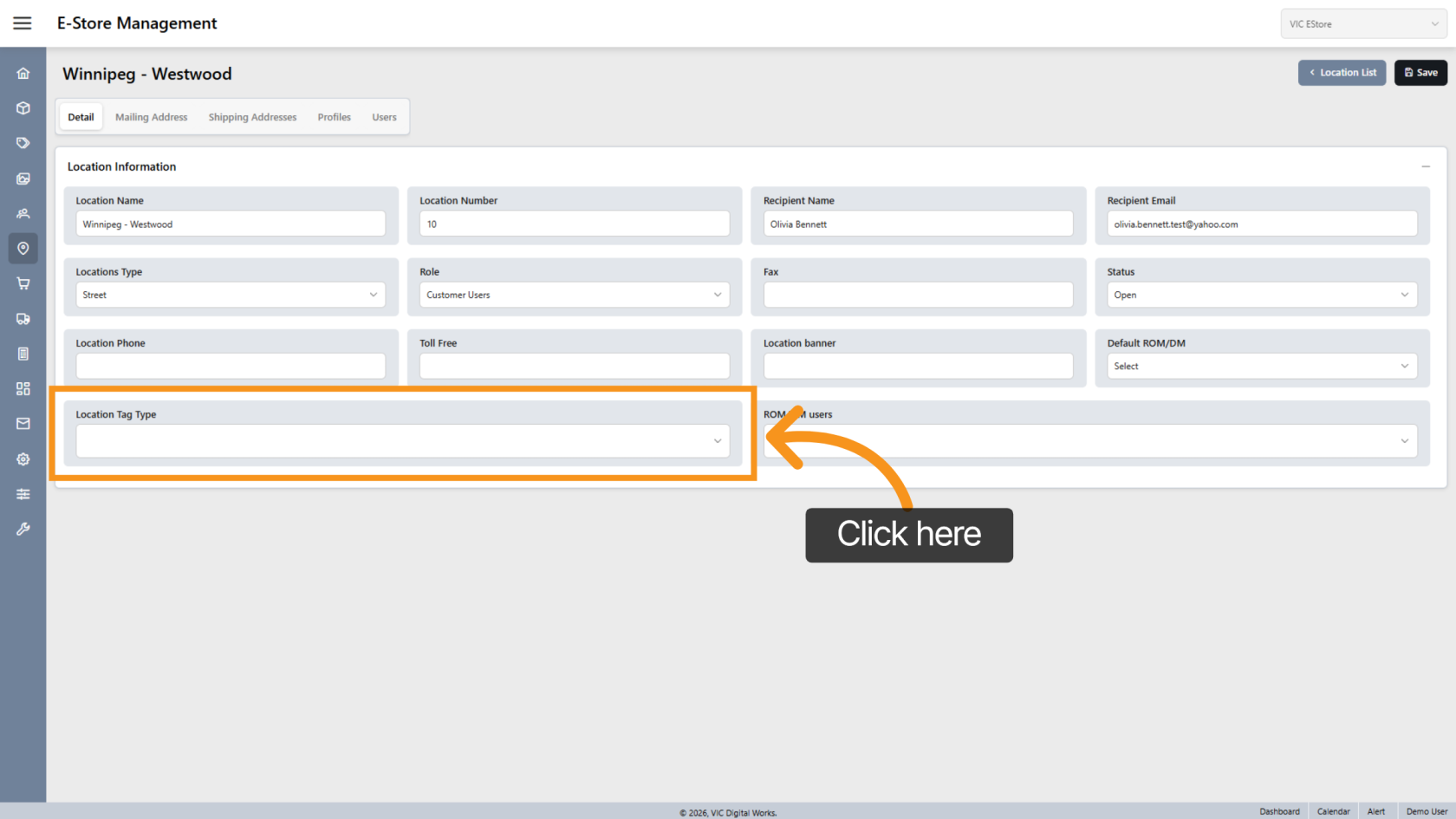
11. Select Location Tag
Assign a Location Tag if required.
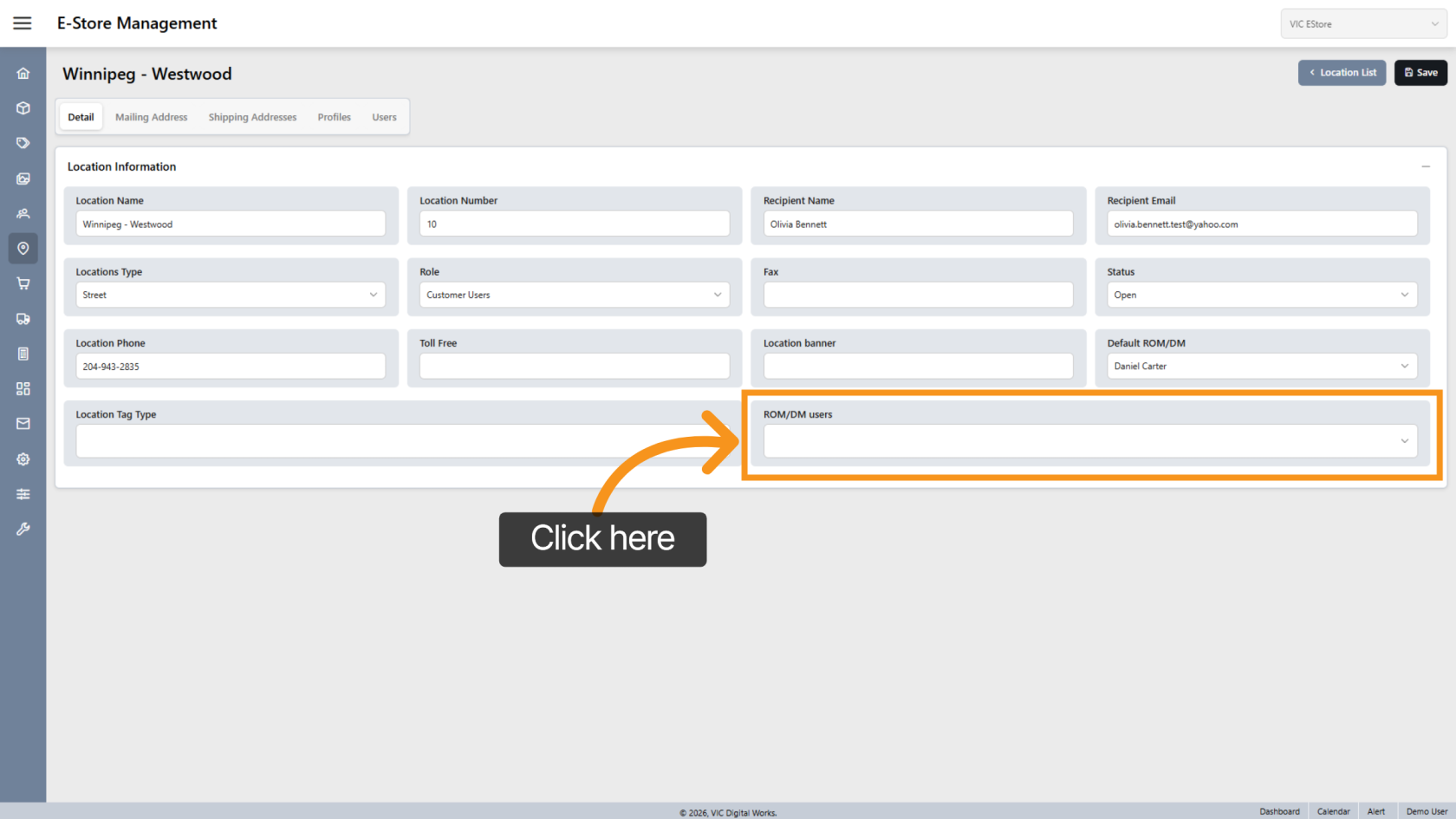
12. Assign Additional Retail Operations Manager
Add more Retail Operations Manager (ROM/DM) users if necessary.
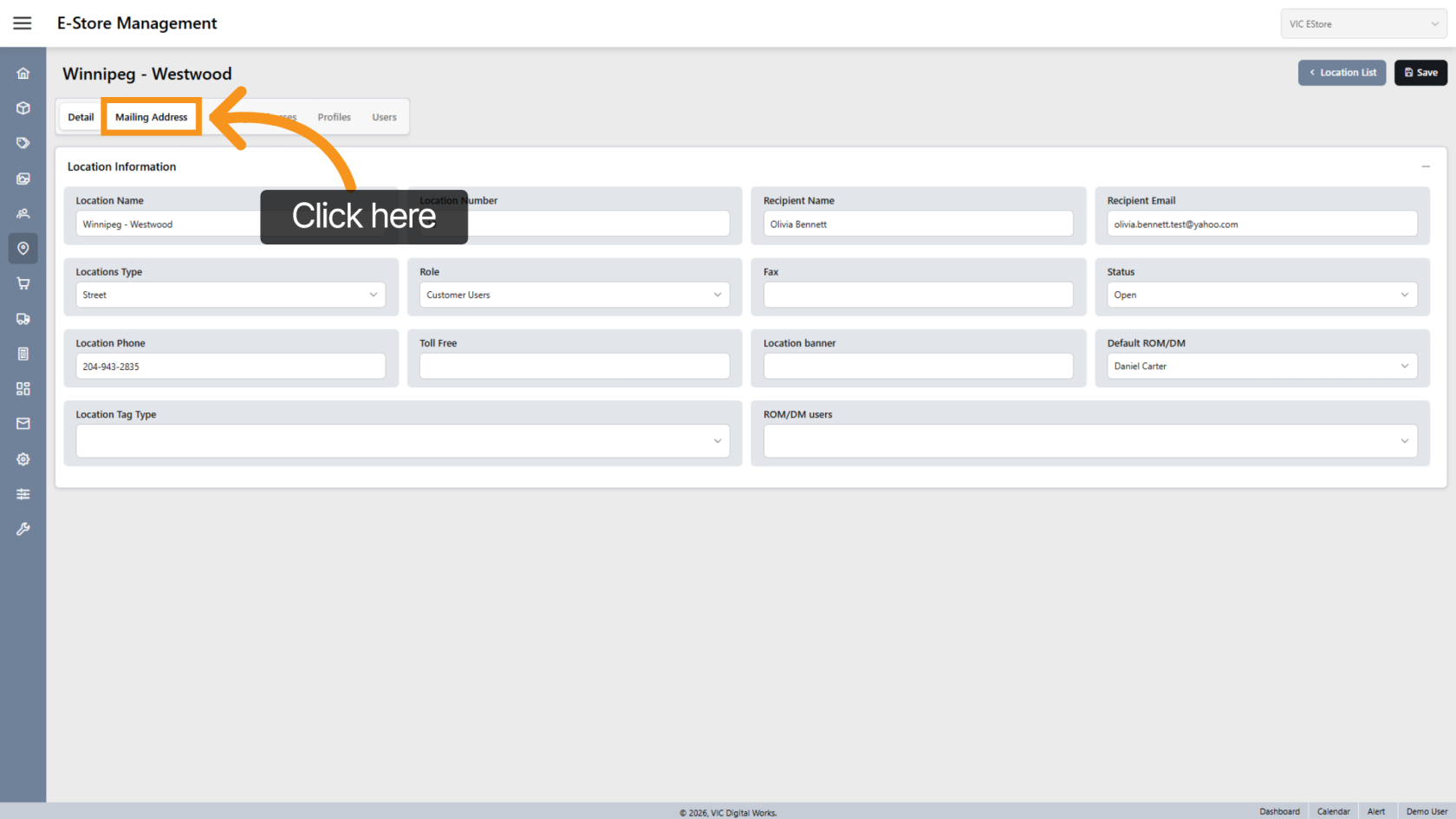
13. Open Mailing Address
Click Mailing Address to enter address details.
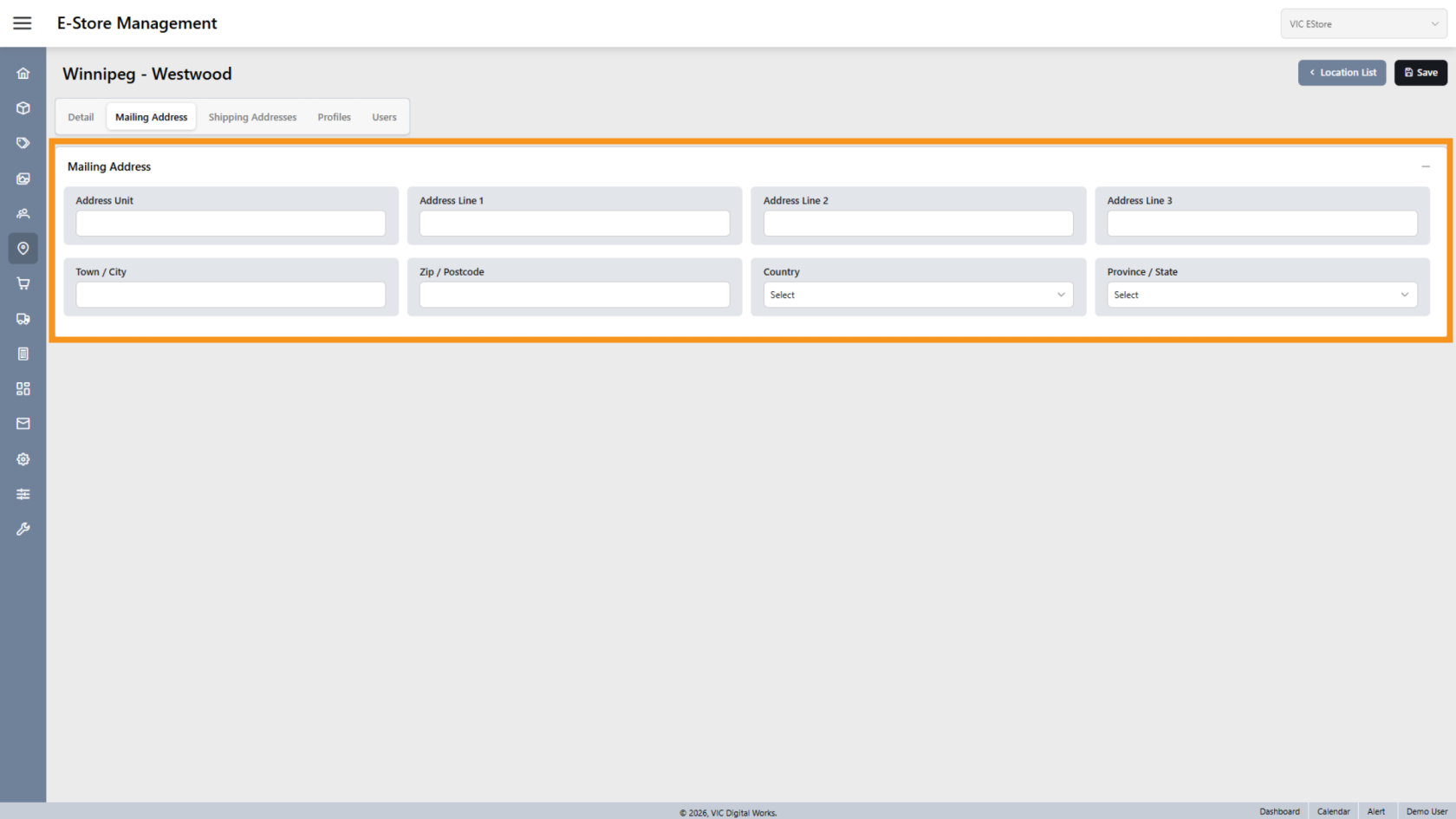
14. Enter Address Information
Fill in all required mailing address fields.
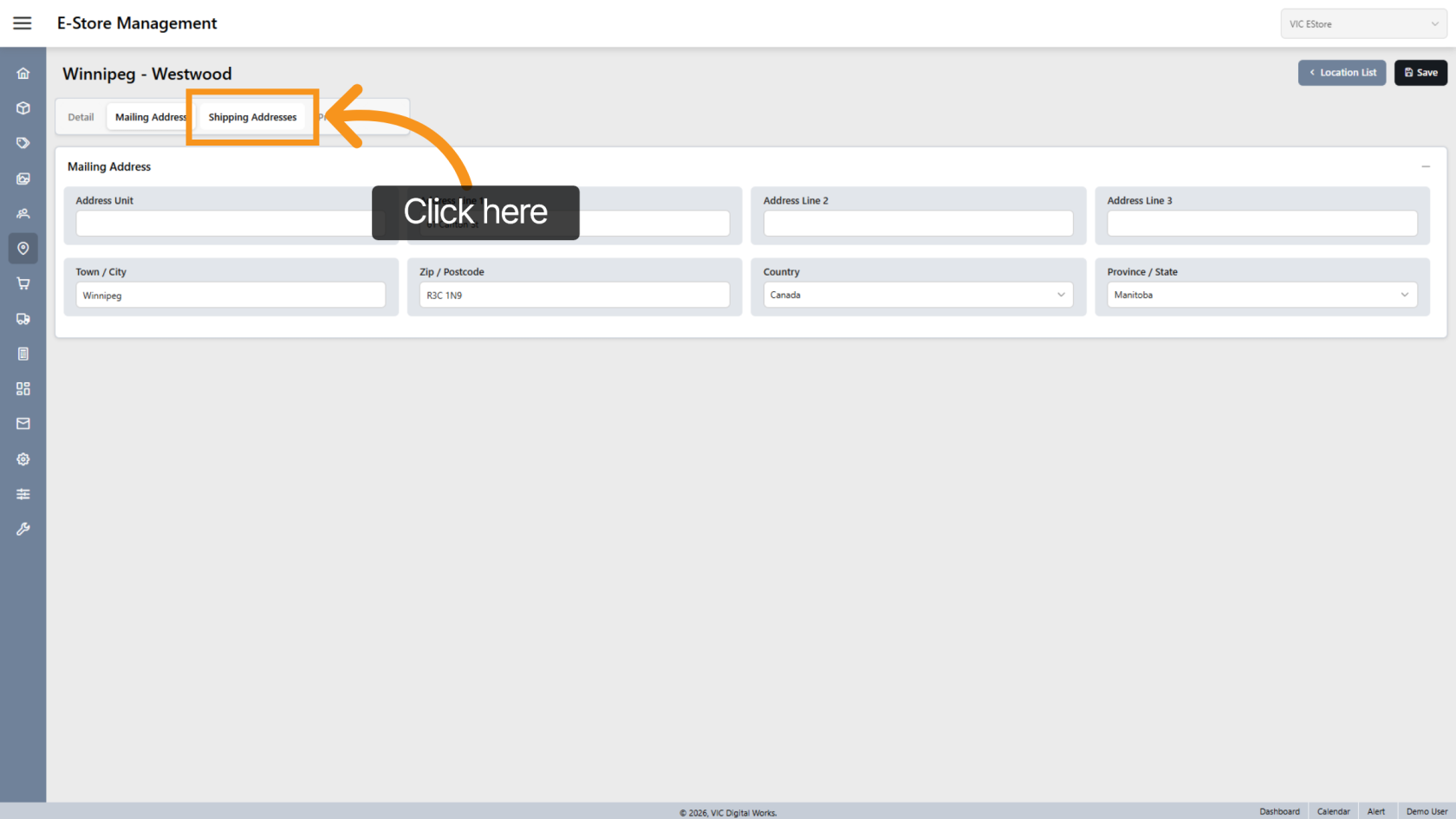
15. Open Shipping Addresses
Click Shipping Addresses to manage shipping information.
16. Enable Same as Mailing Address
Enable Same as Mailing Address to copy the mailing address to shipping.
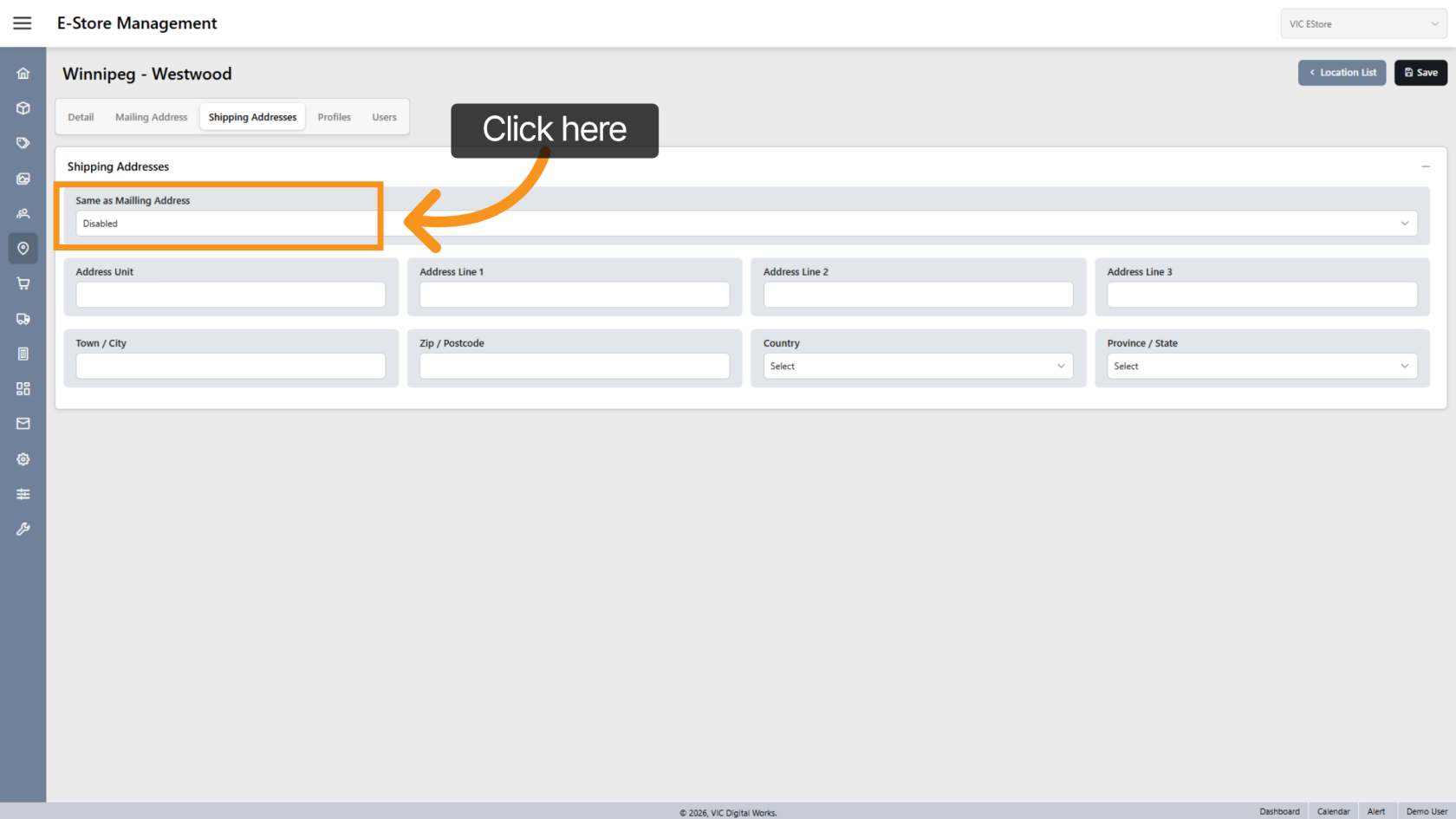
17. Confirm Shipping Address
Once enabled, the system will automatically fill the shipping address fields.
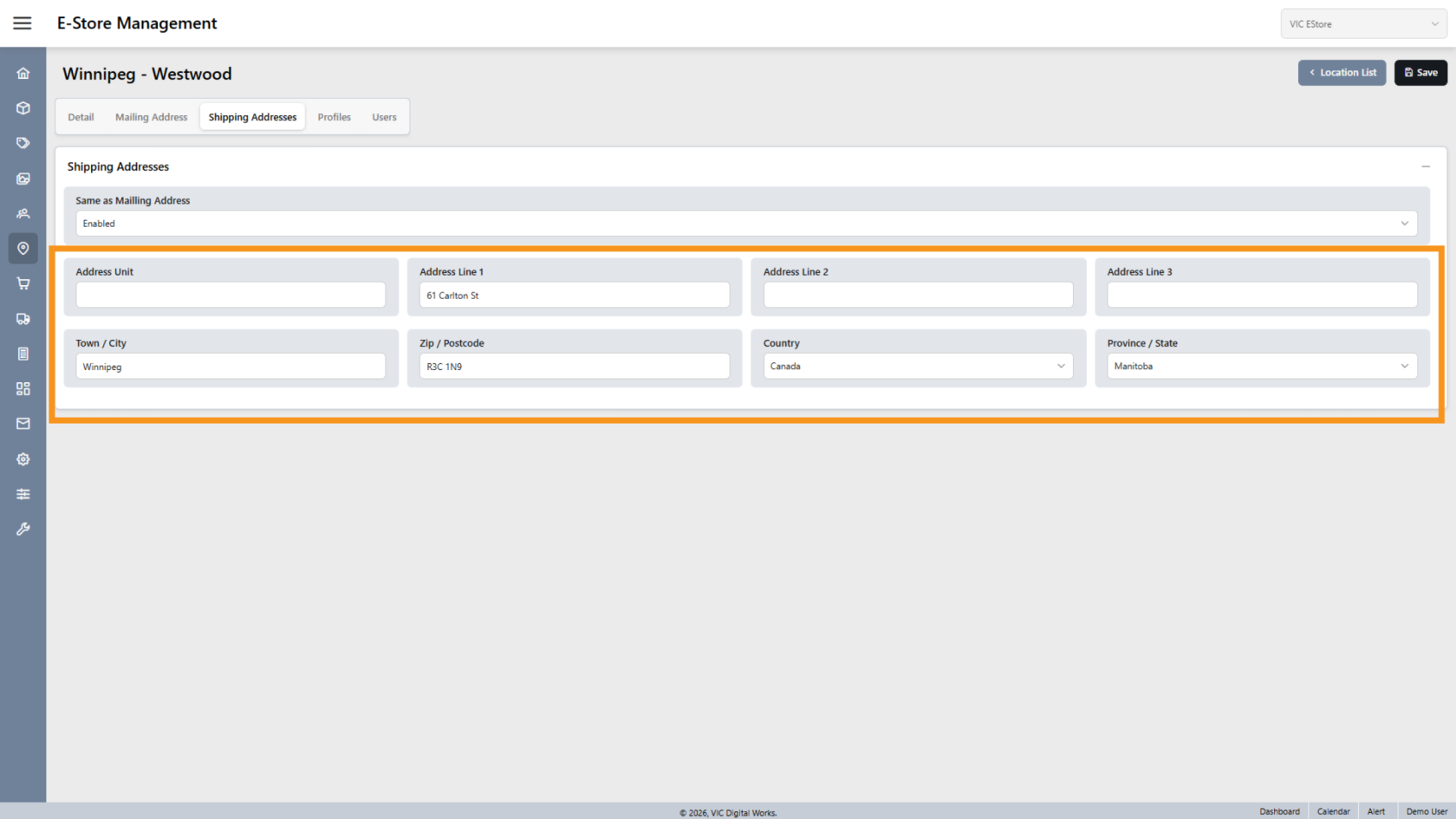
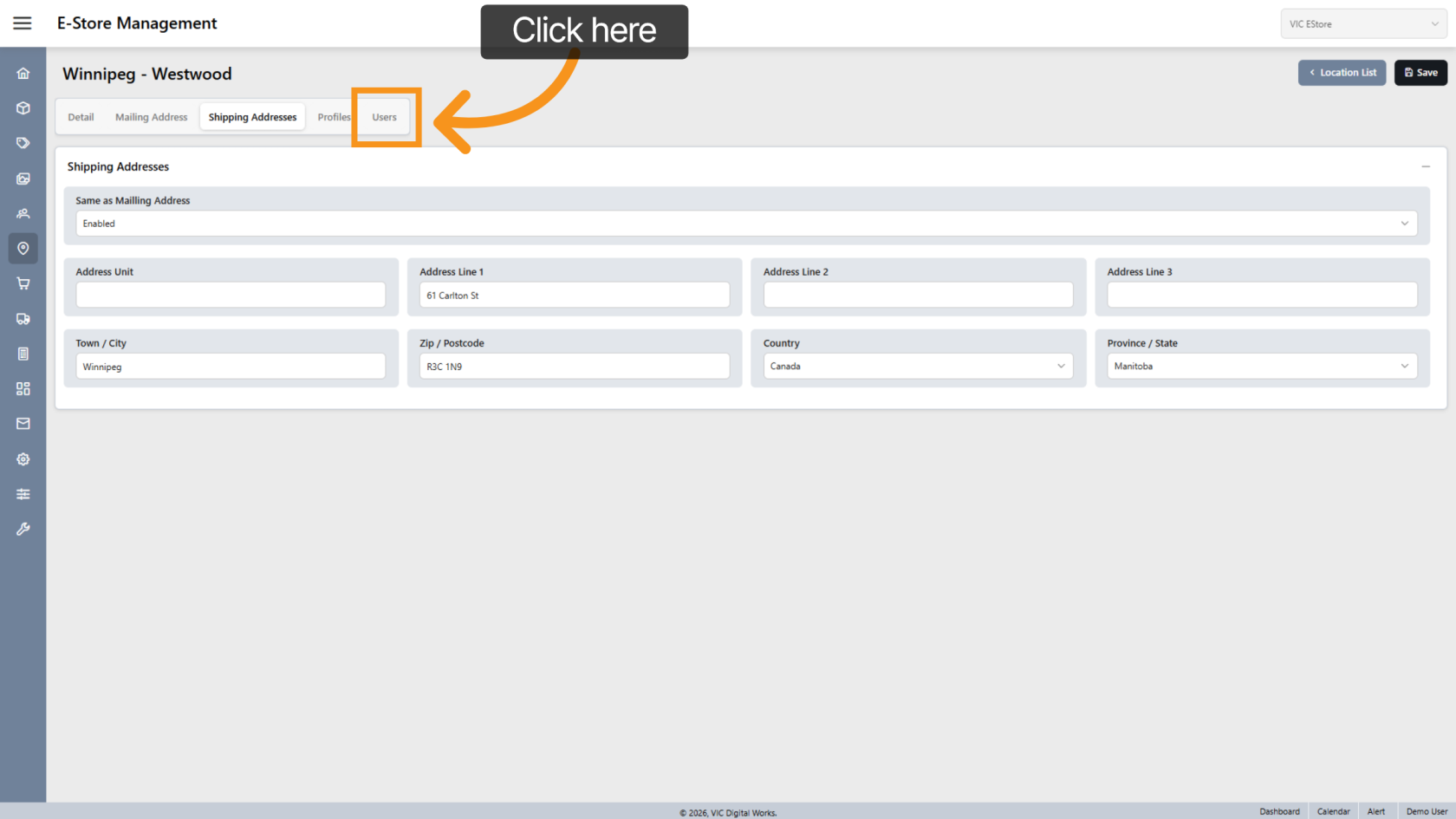
18. Open Users Section
Click Users to manage users assigned to this location.
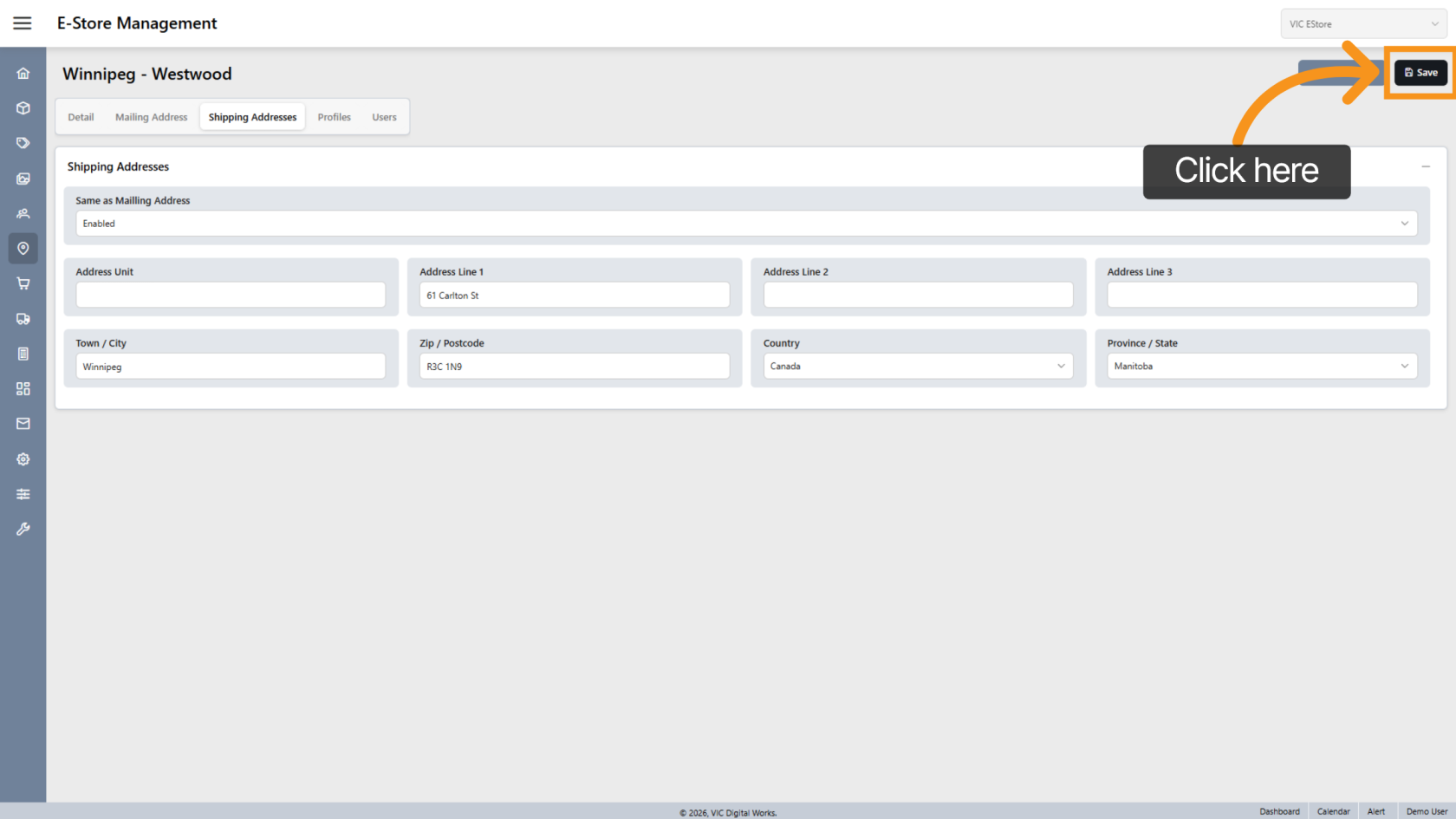
19. Save Location
Click Save to apply all changes.
You have successfully created and configured a new location, including address details, roles, and user assignments.