
Email Workplace
This tutorial guides you through managing the Email Workplace in the App, including Email Templates, Email Events, and Email History.
Video Tutorial
1. Open the Email Section
The Email Section is where you manage all email-related settings in the system for both WorkTraq and E-store modules.
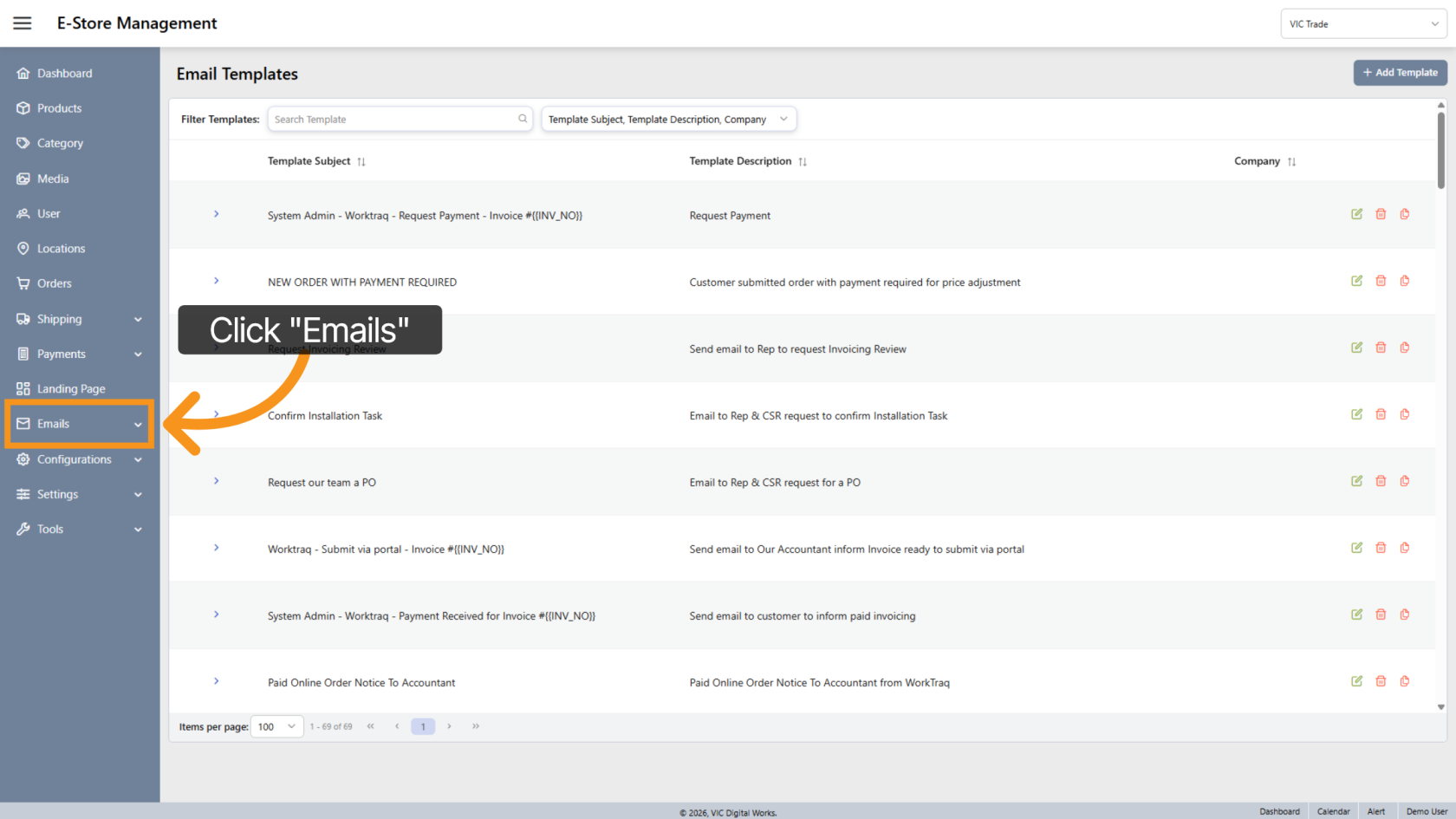
2. Email Menu Overview
- Email Templates – Manage all email templates used by the system.
- Email Events – Configure events that trigger automatic emails.
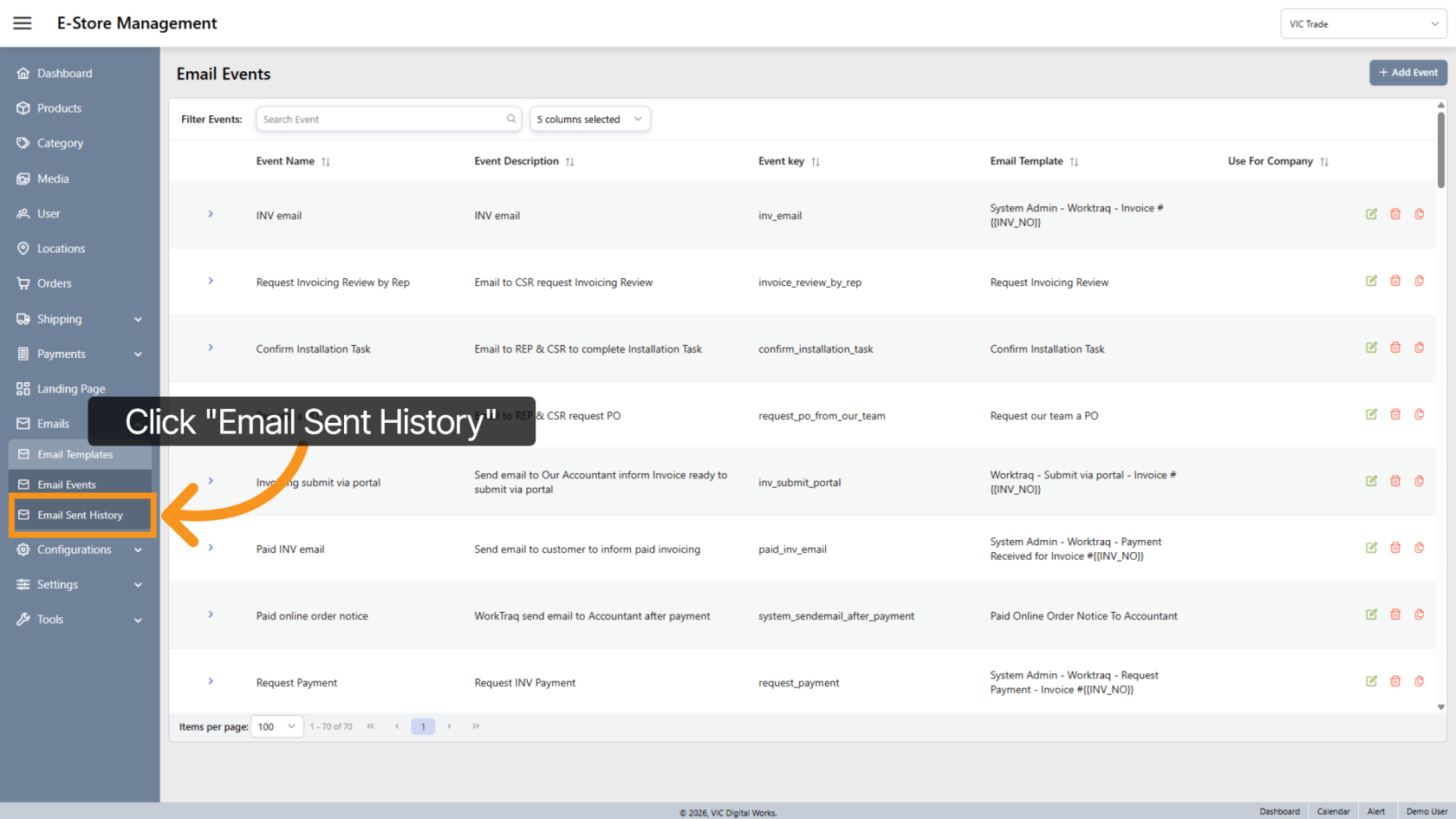
- Email Sent History – View all emails that have been automatically sent by the system
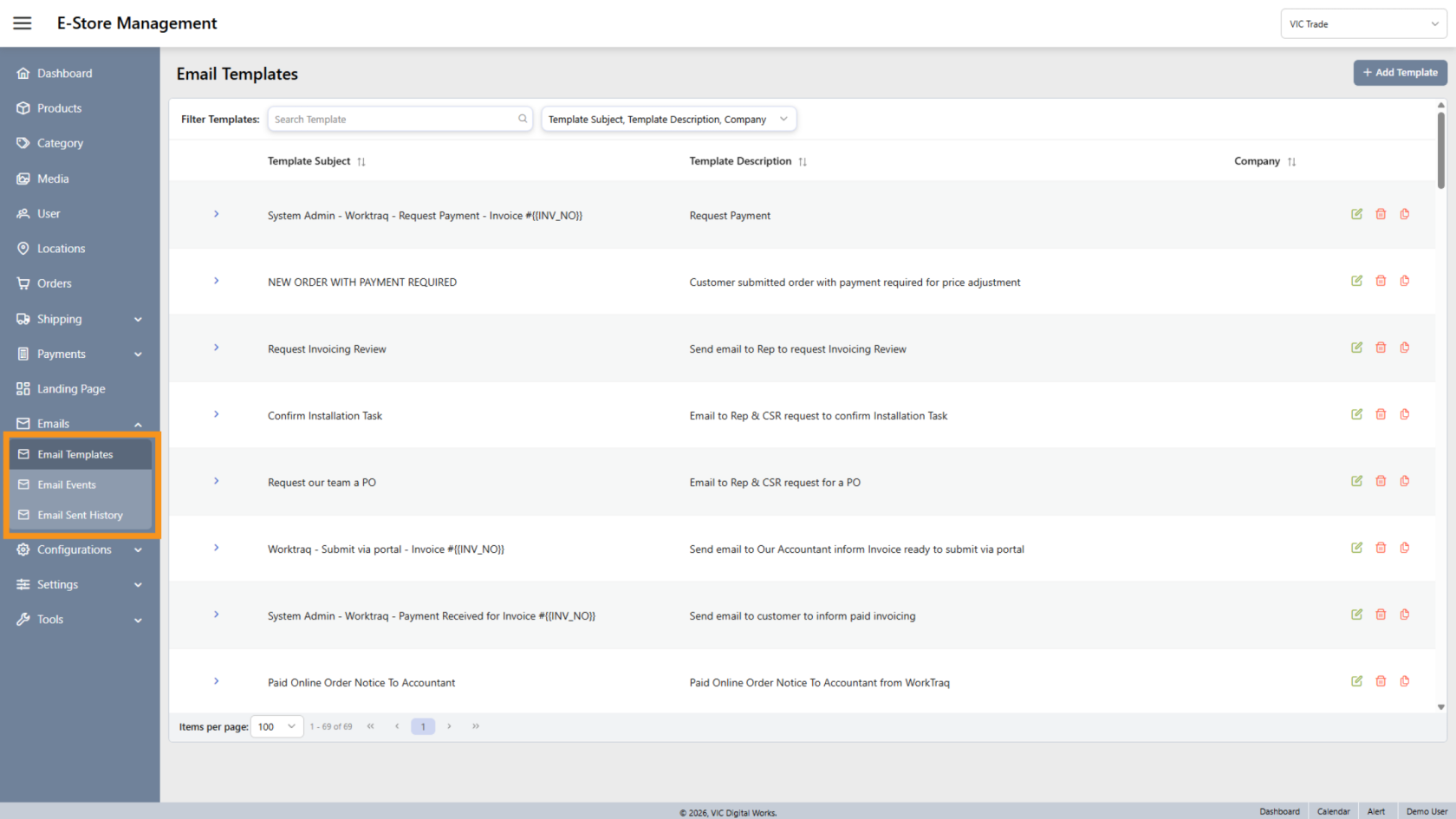
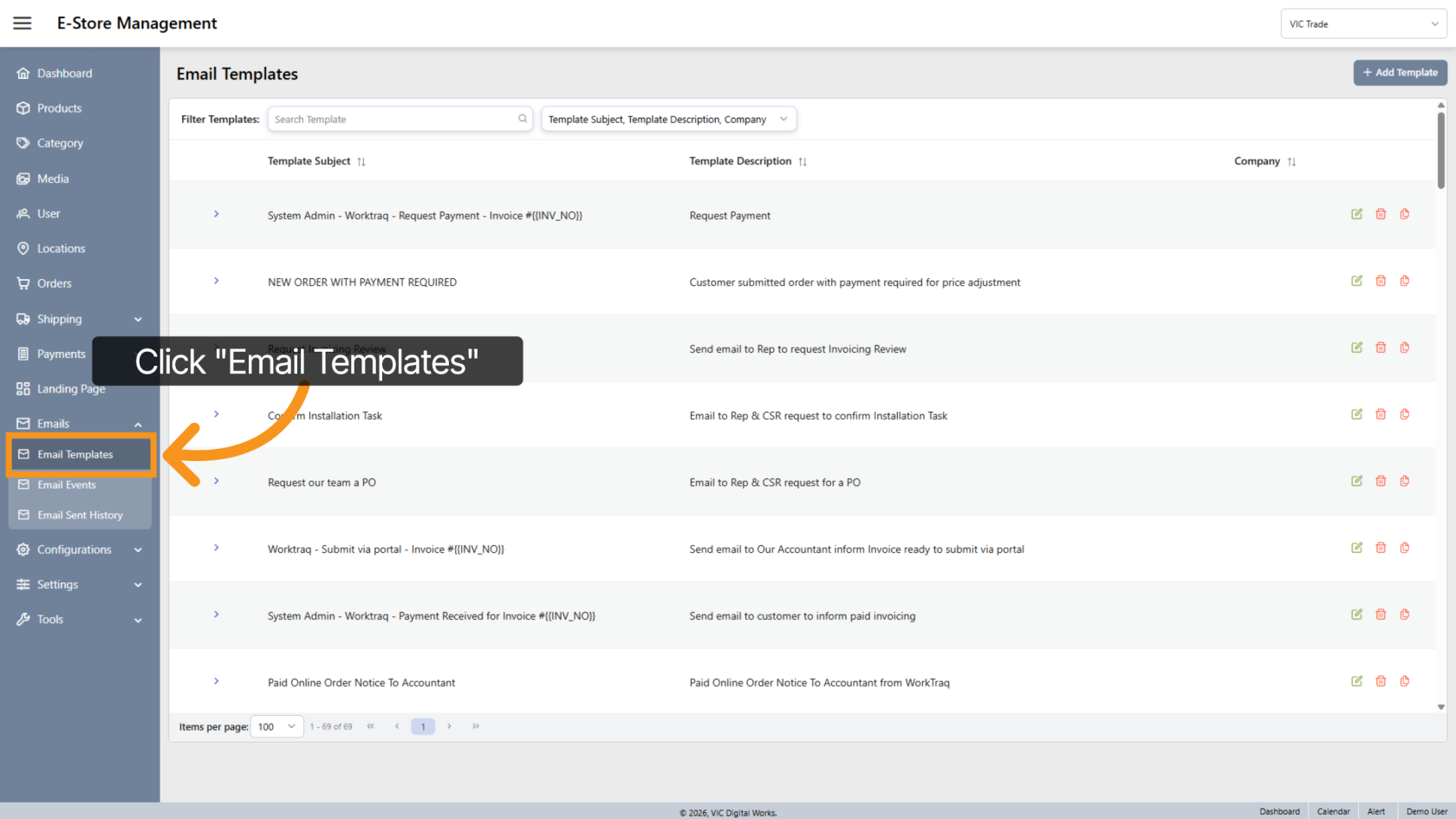
3. Open Email Templates
Click "Email Templates" to view all available templates.
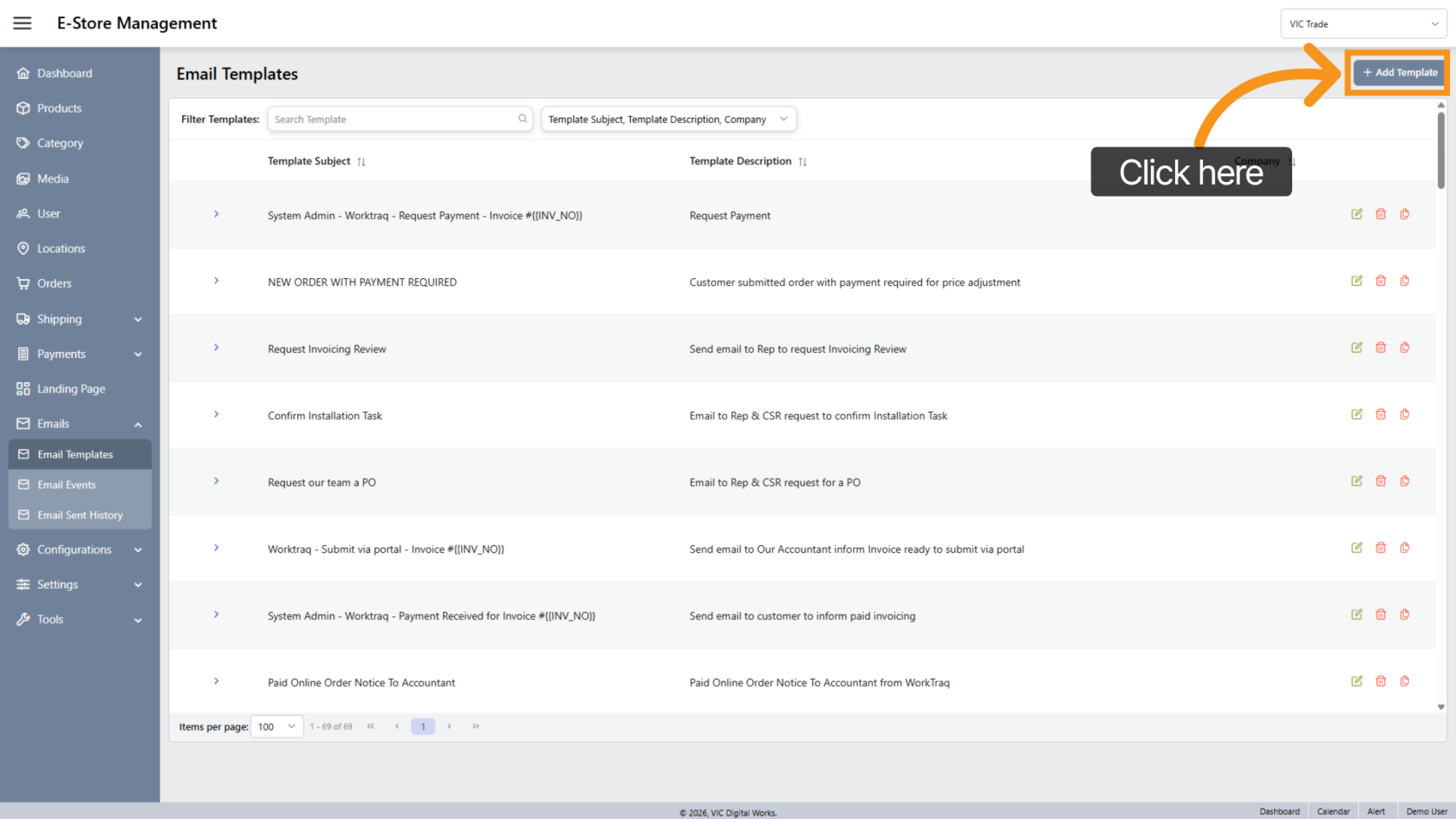
4. Add a New Email Template
Click "Add Template" to create a new email template.
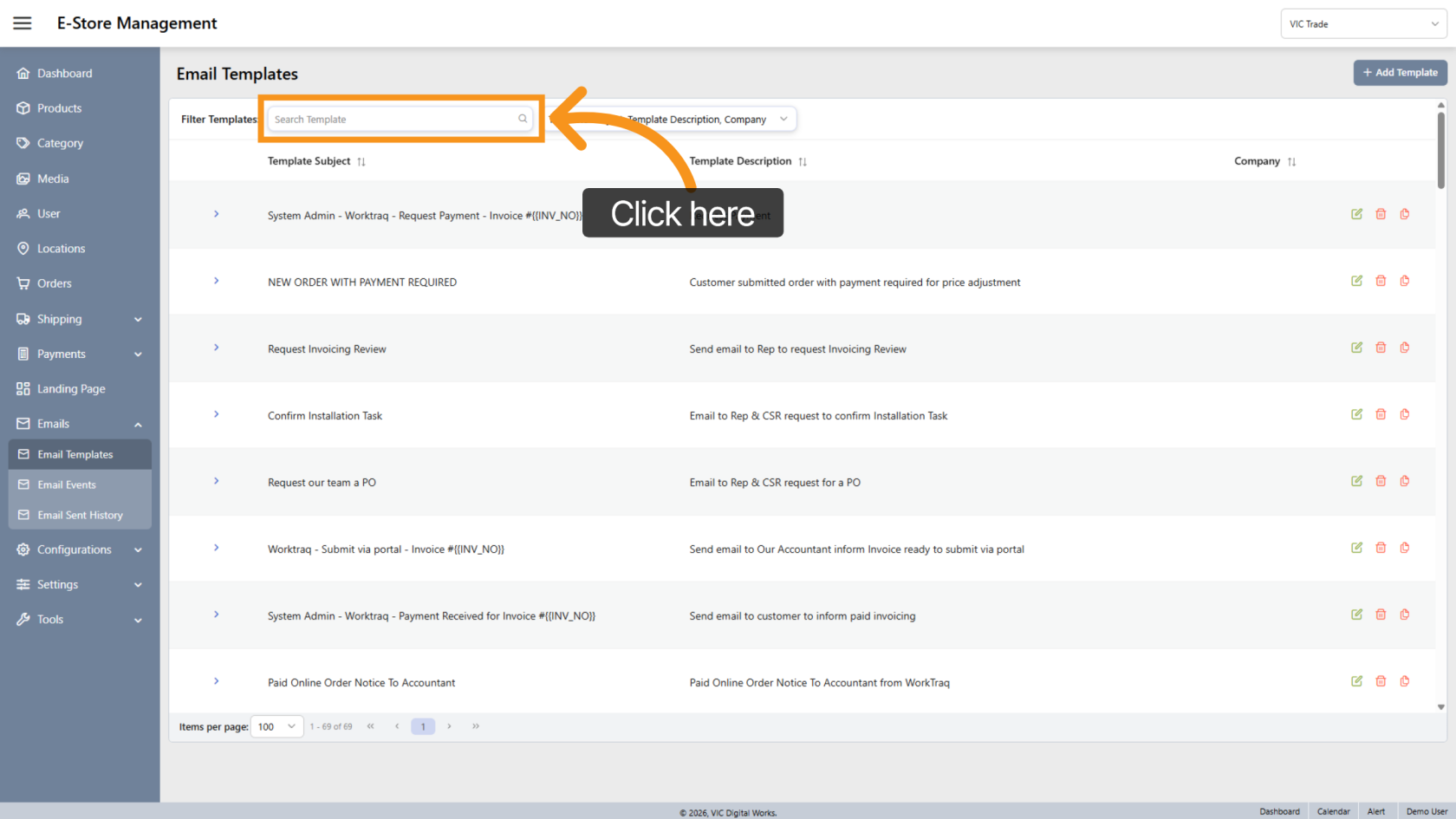
5. Search Email Templates
Use the search field to find templates by subject.
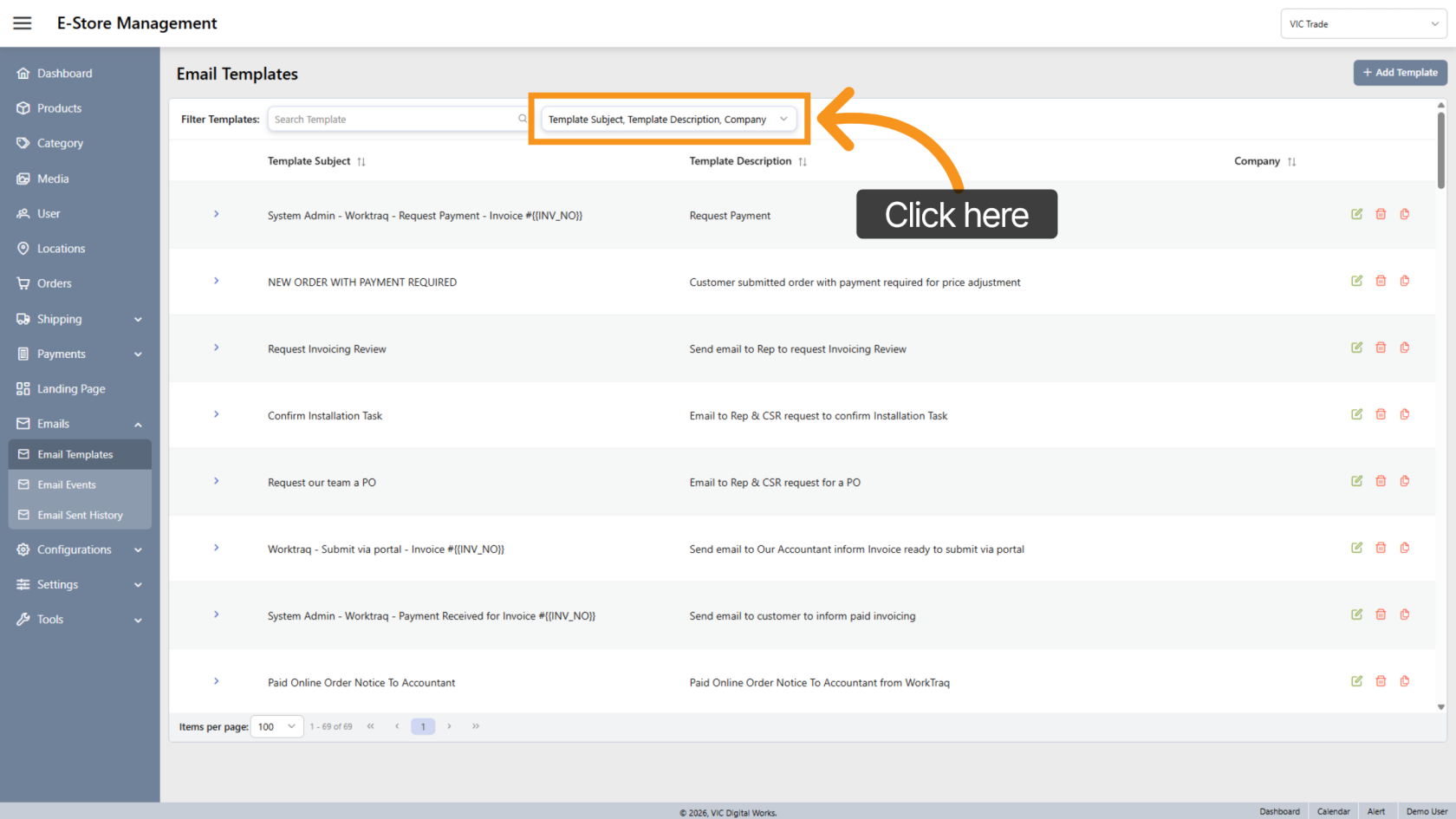
6. Customize List View
Click View Modify to choose which columns are displayed in the template list.
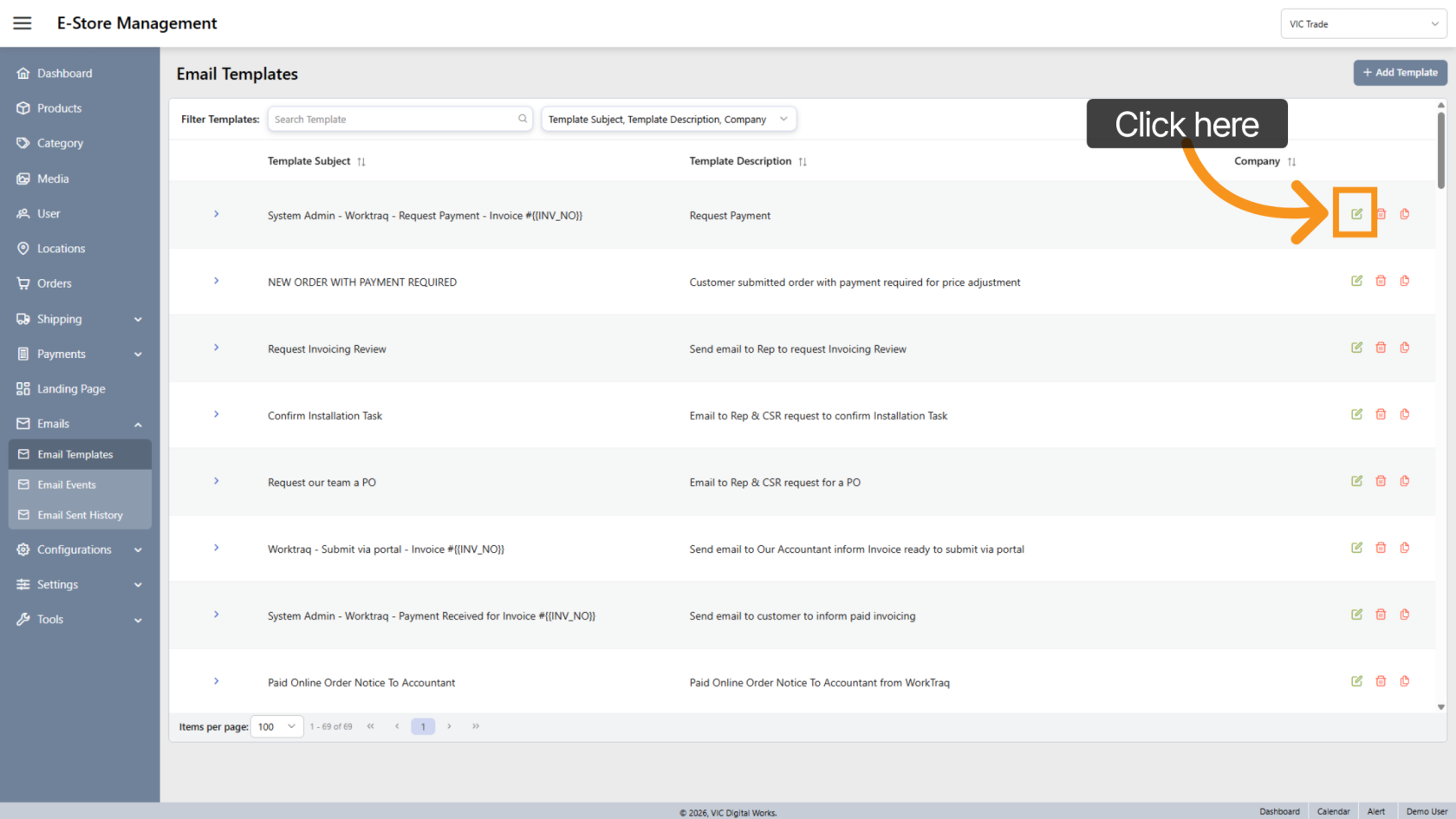
7. Edit Template
Click the  edit icon to modify an existing template.
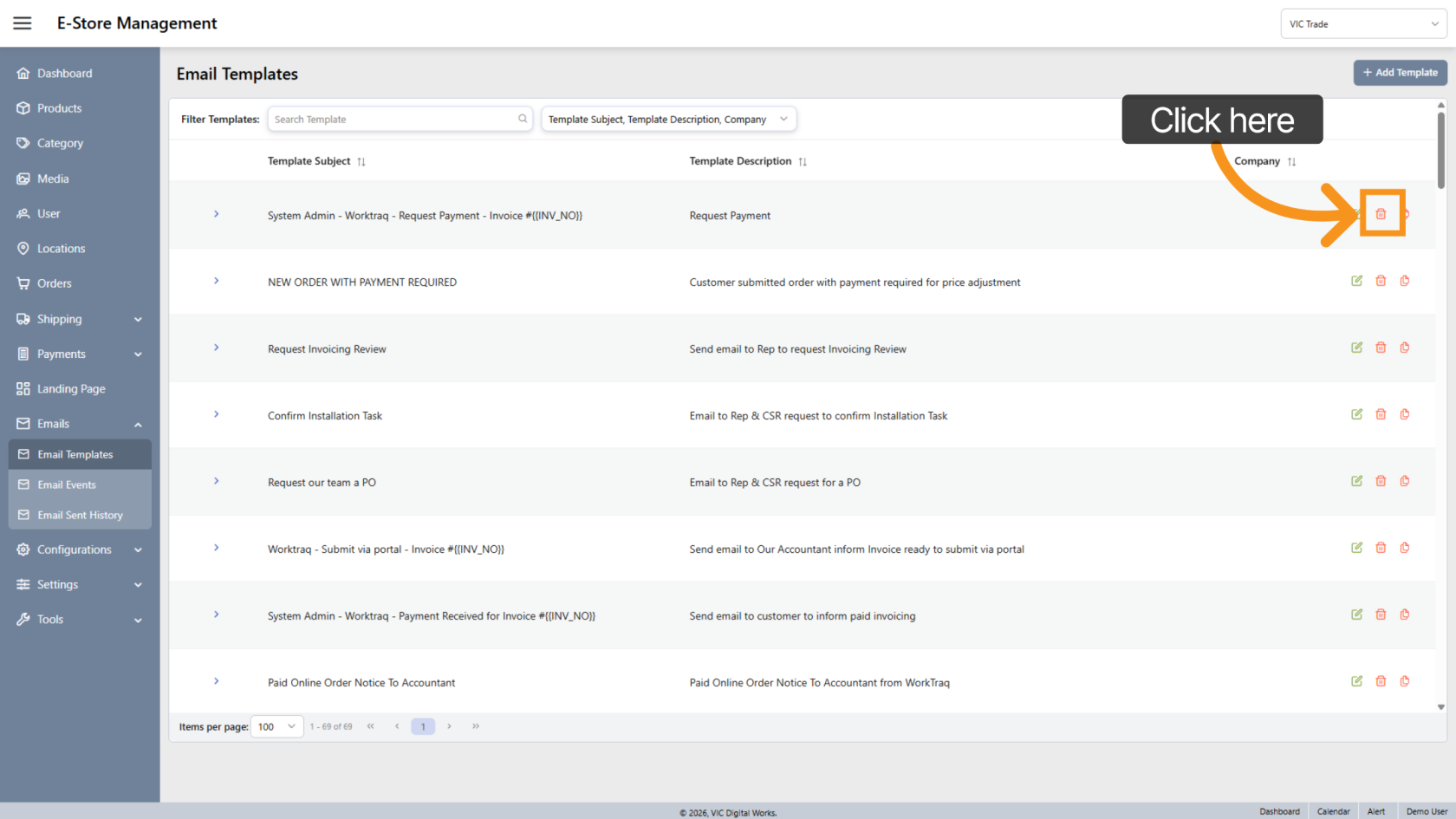
8. Delete Template
Click the  delete icon to remove a template from the system.
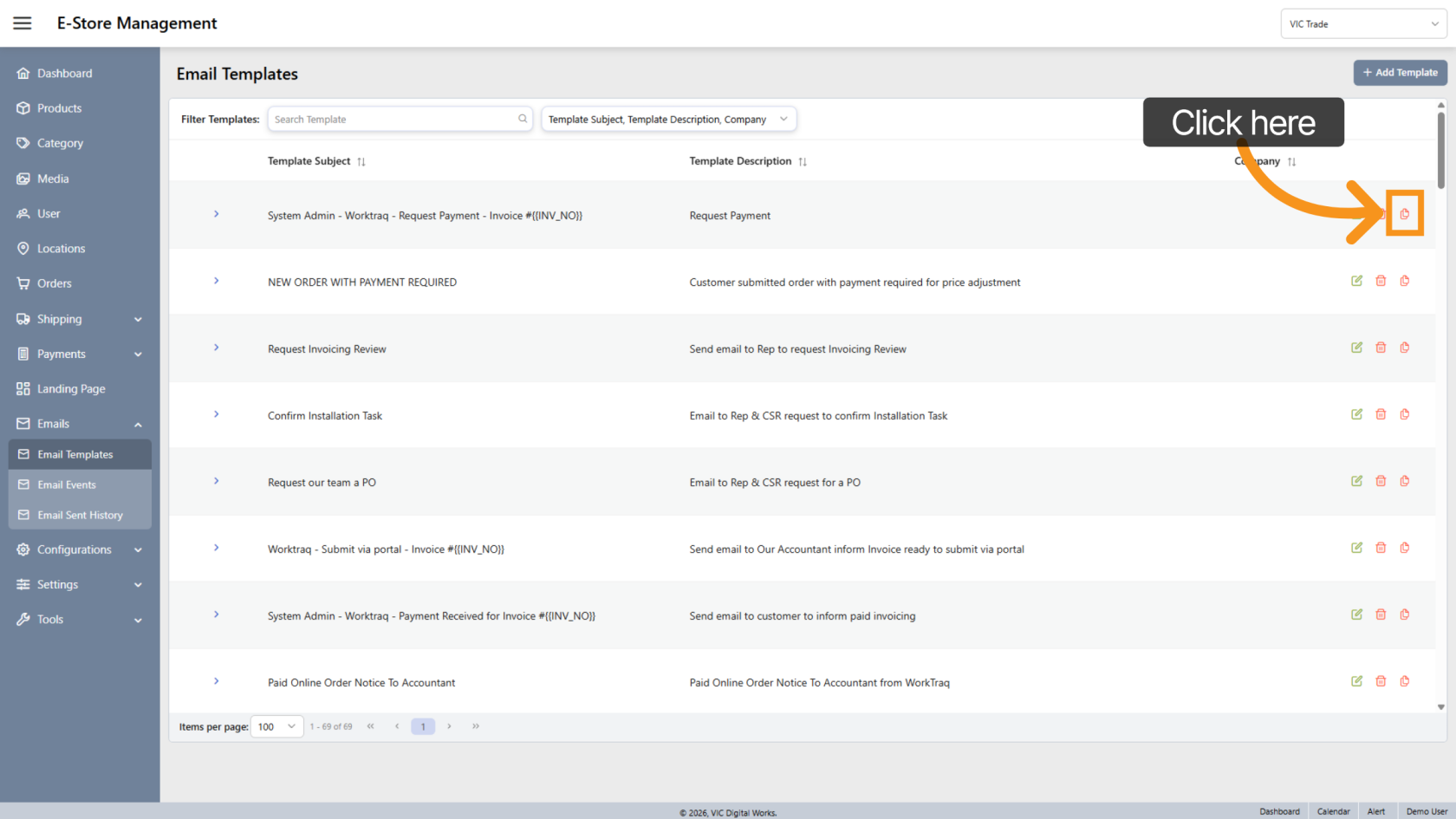
9. Duplicate the Template
Click  duplicate to clone an existing template. This helps save time when creating similar templates.
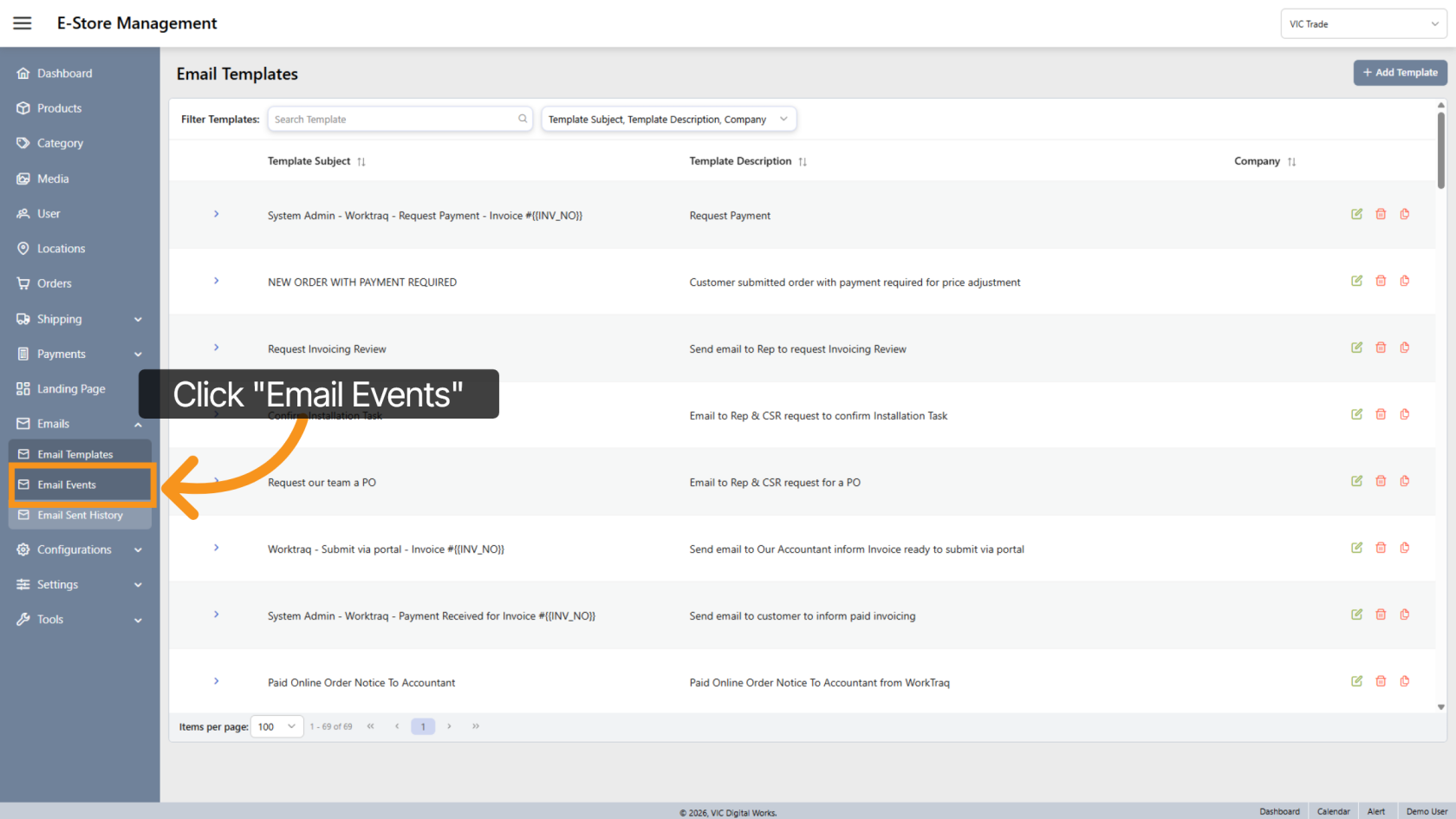
10. Open Email Events
Click "Email Events" to access the email event management area.
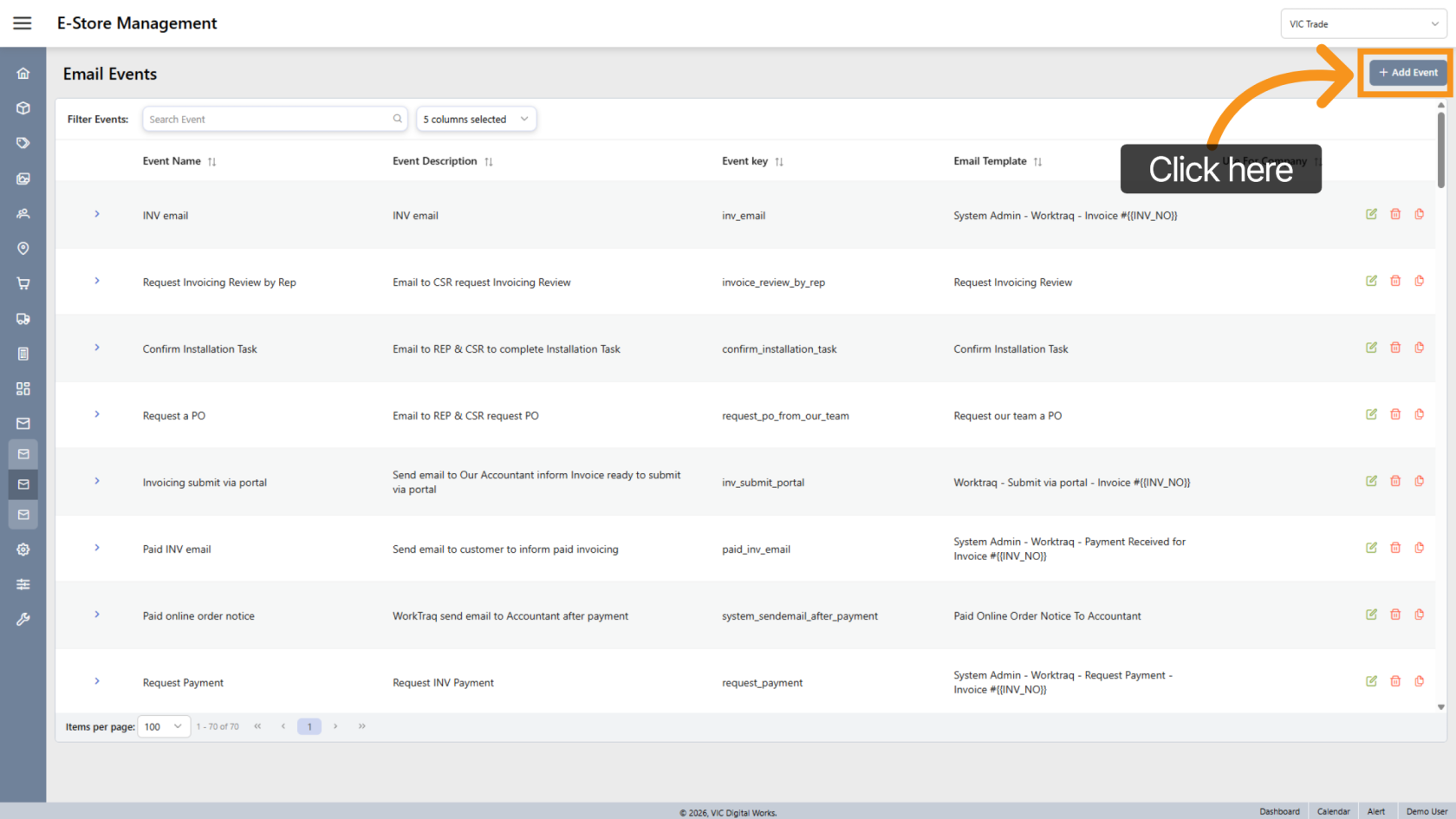
11. Add a New Email Event
Click "Add Event" to create a new email event.
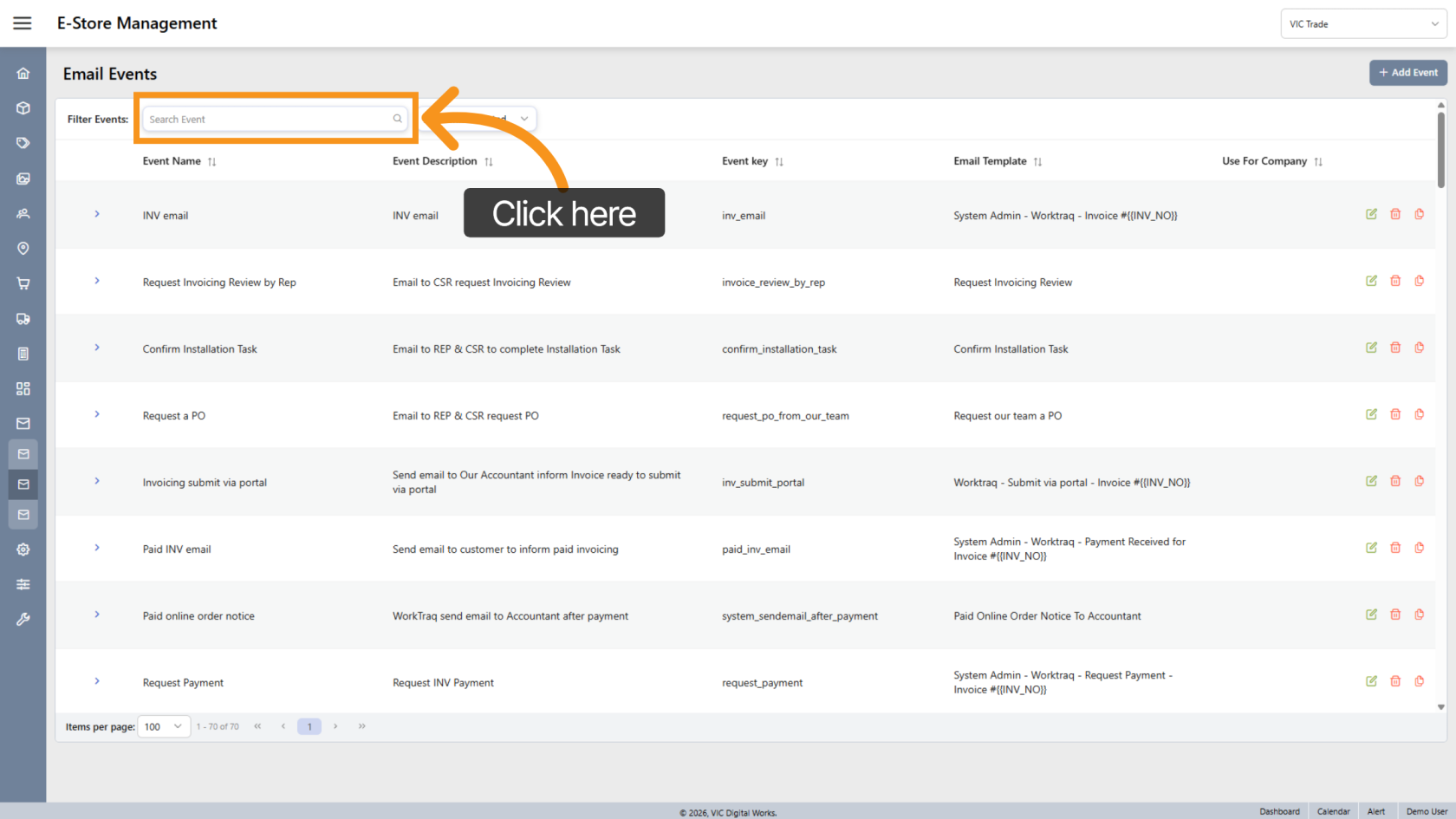
12. Search Email Events
Use the search field to find events by name.
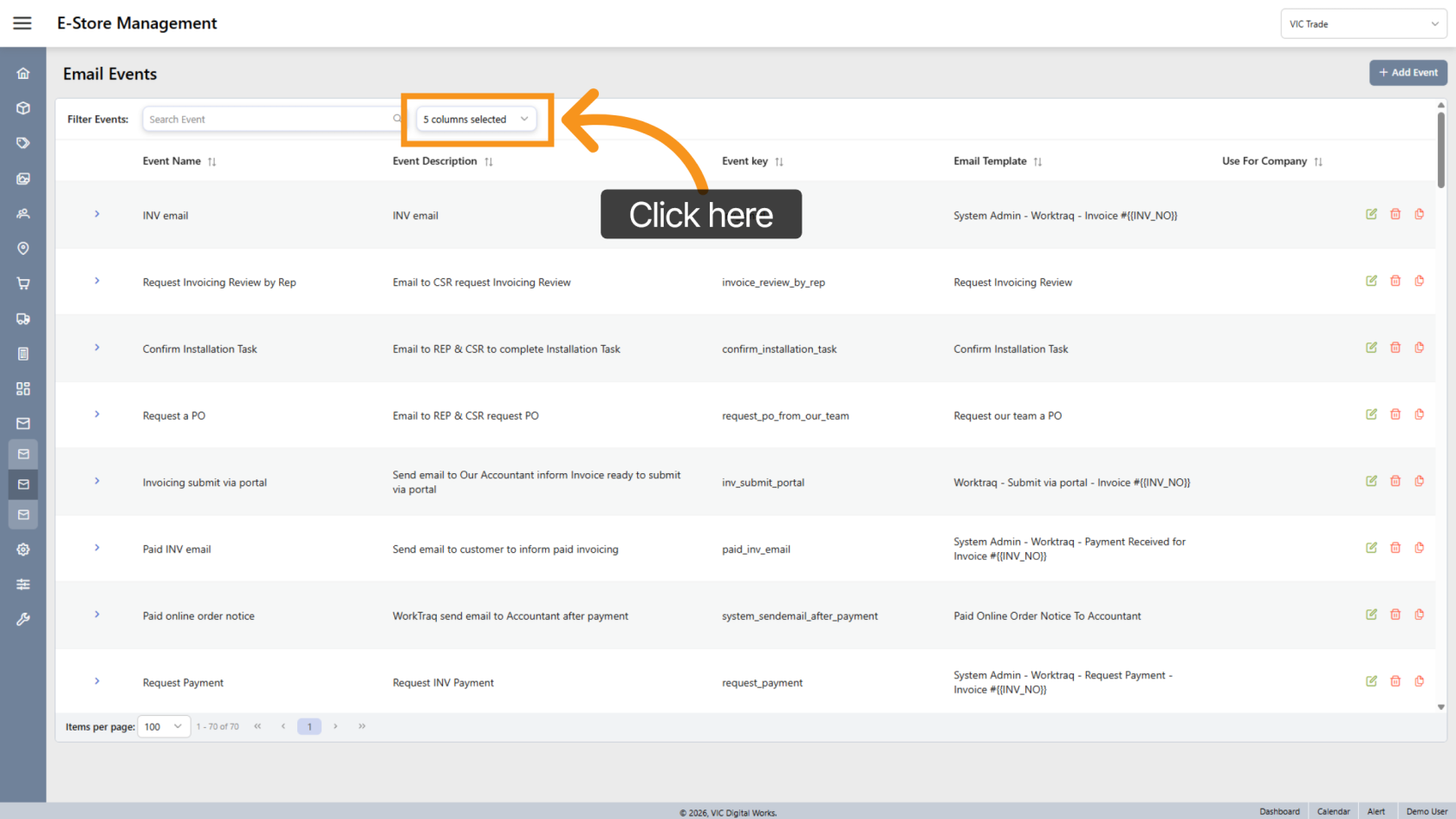
13. Customize List View
Select the columns you want to display in the event list.
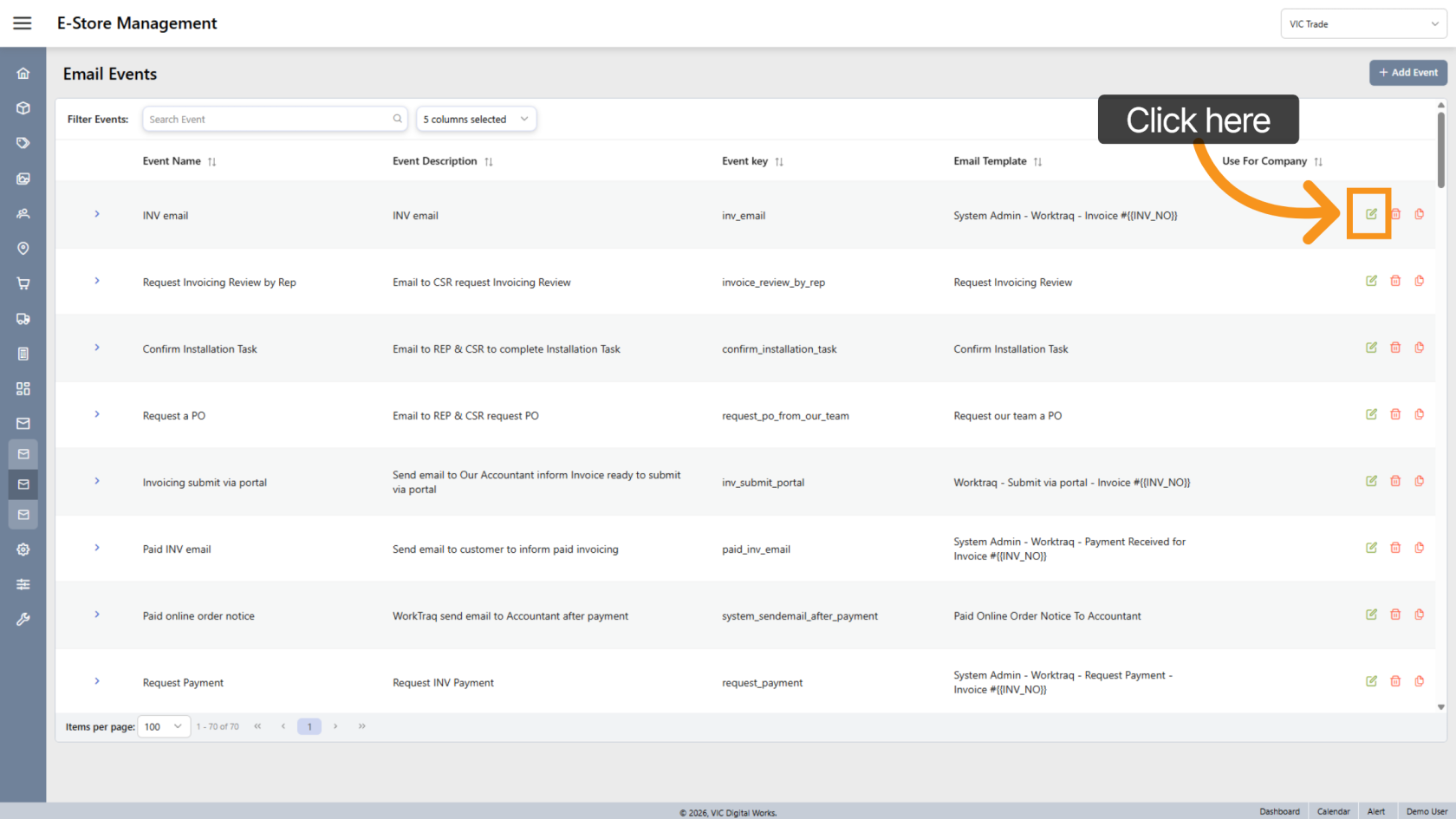
14. Edit Email Event
Click the edit icon to modify an event.
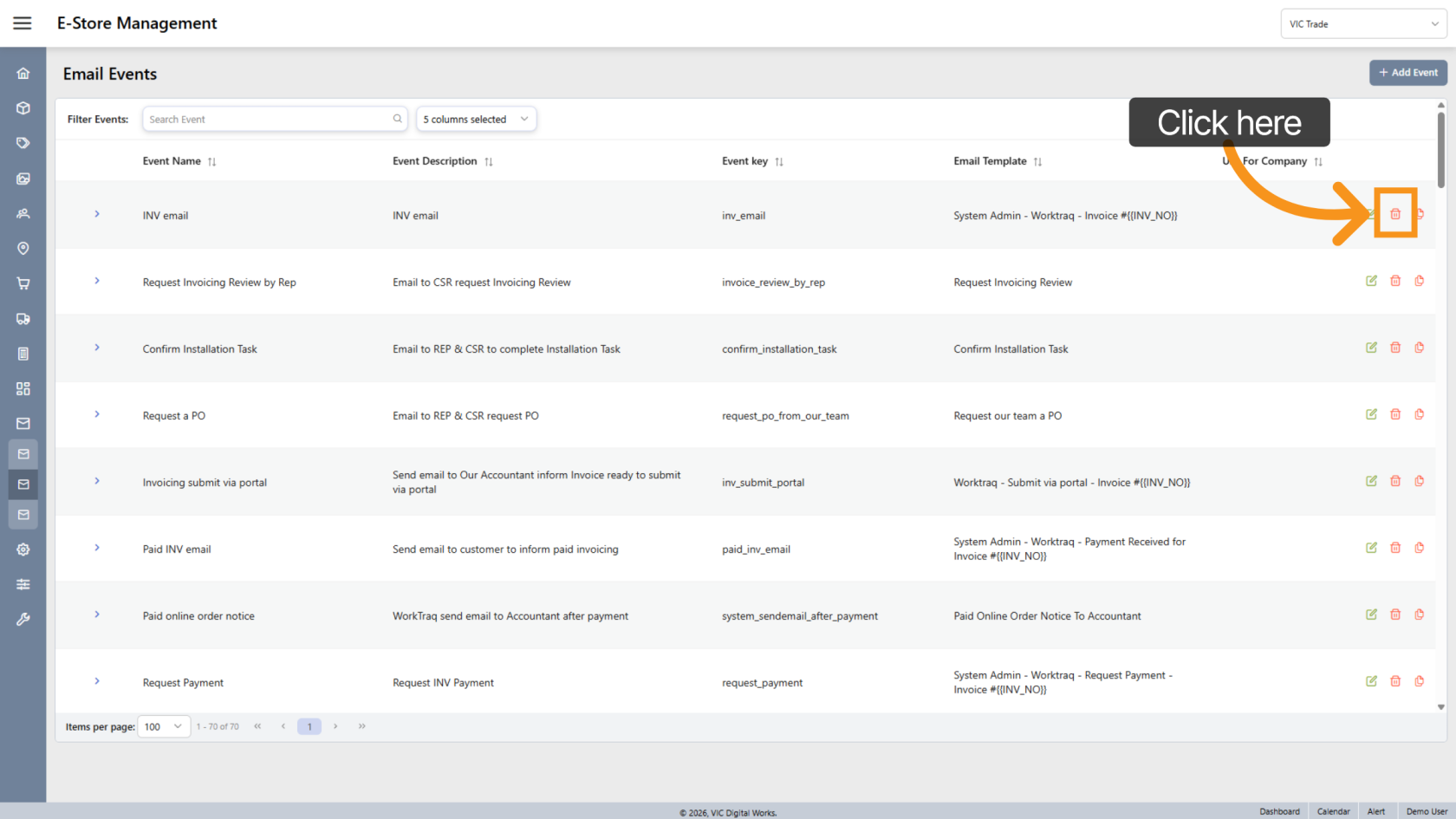
15. Delete Email Event
Click the delete icon to remove an event.
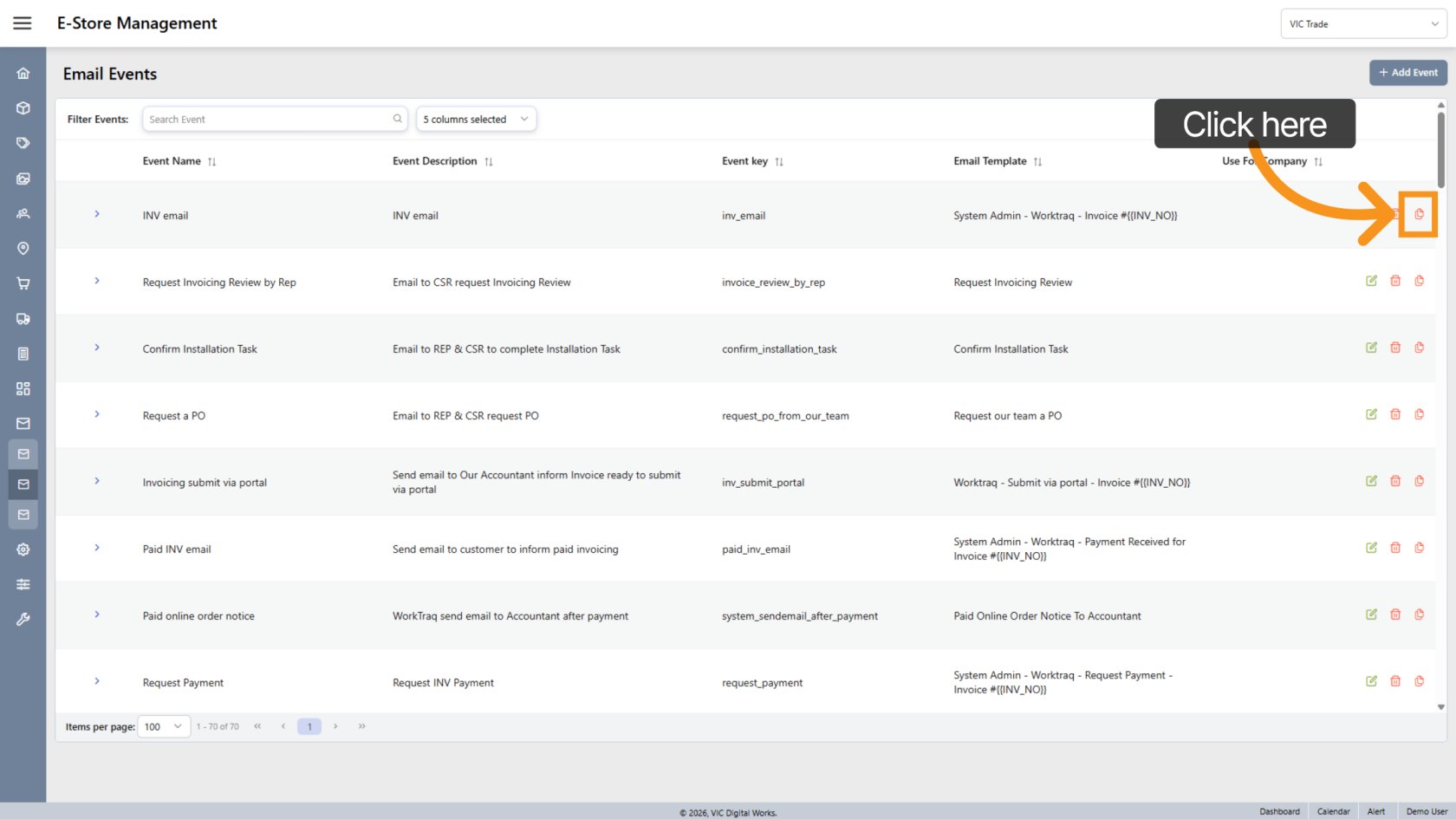
16. Duplicate Email Event
Click the duplicate icon to quickly clone an existing event.
17. Open Email Sent History
Click "Email Sent History" to view the record of emails sent by the system.
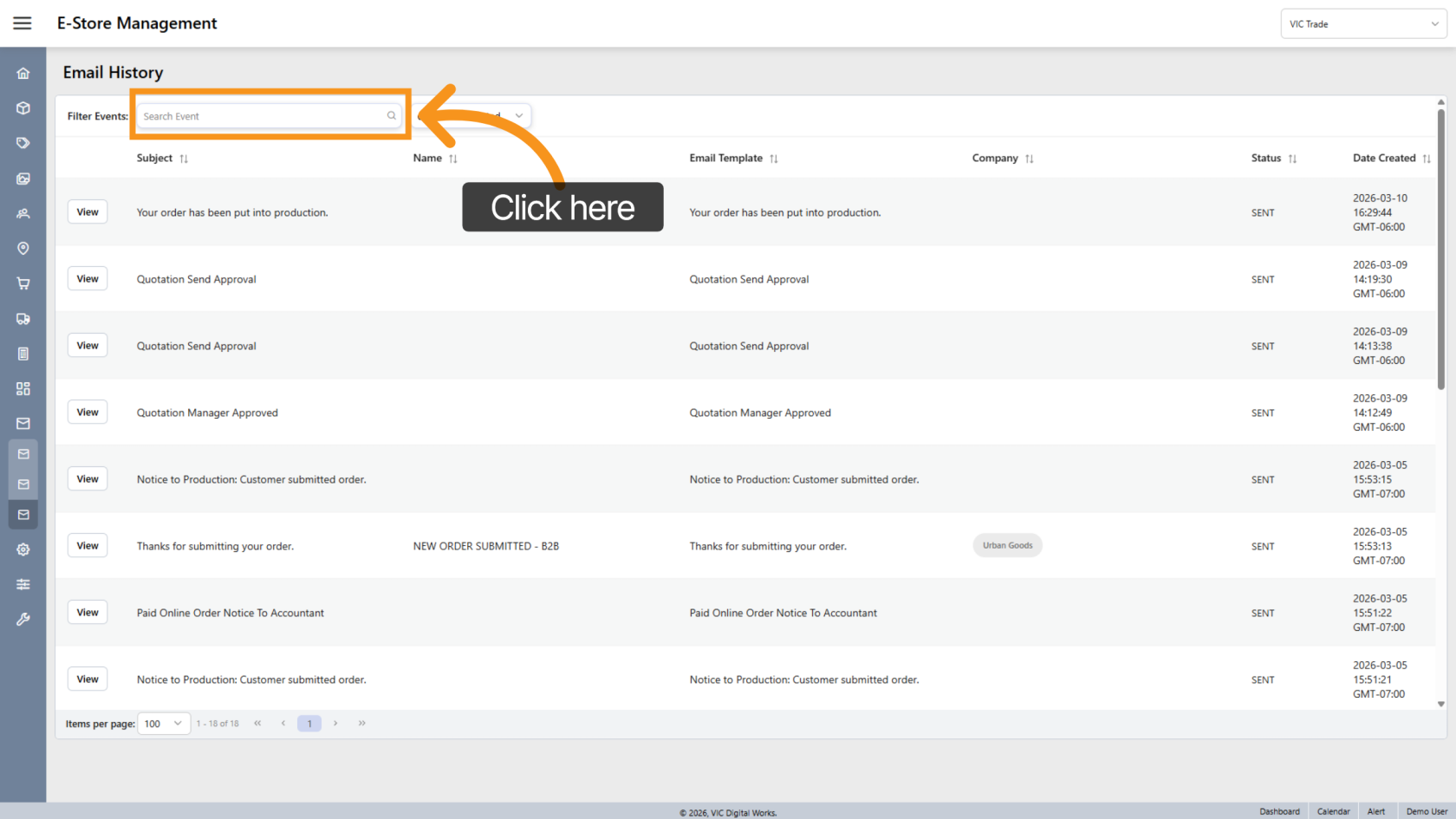
18. Search Emails
Use the search field to find emails by subject.
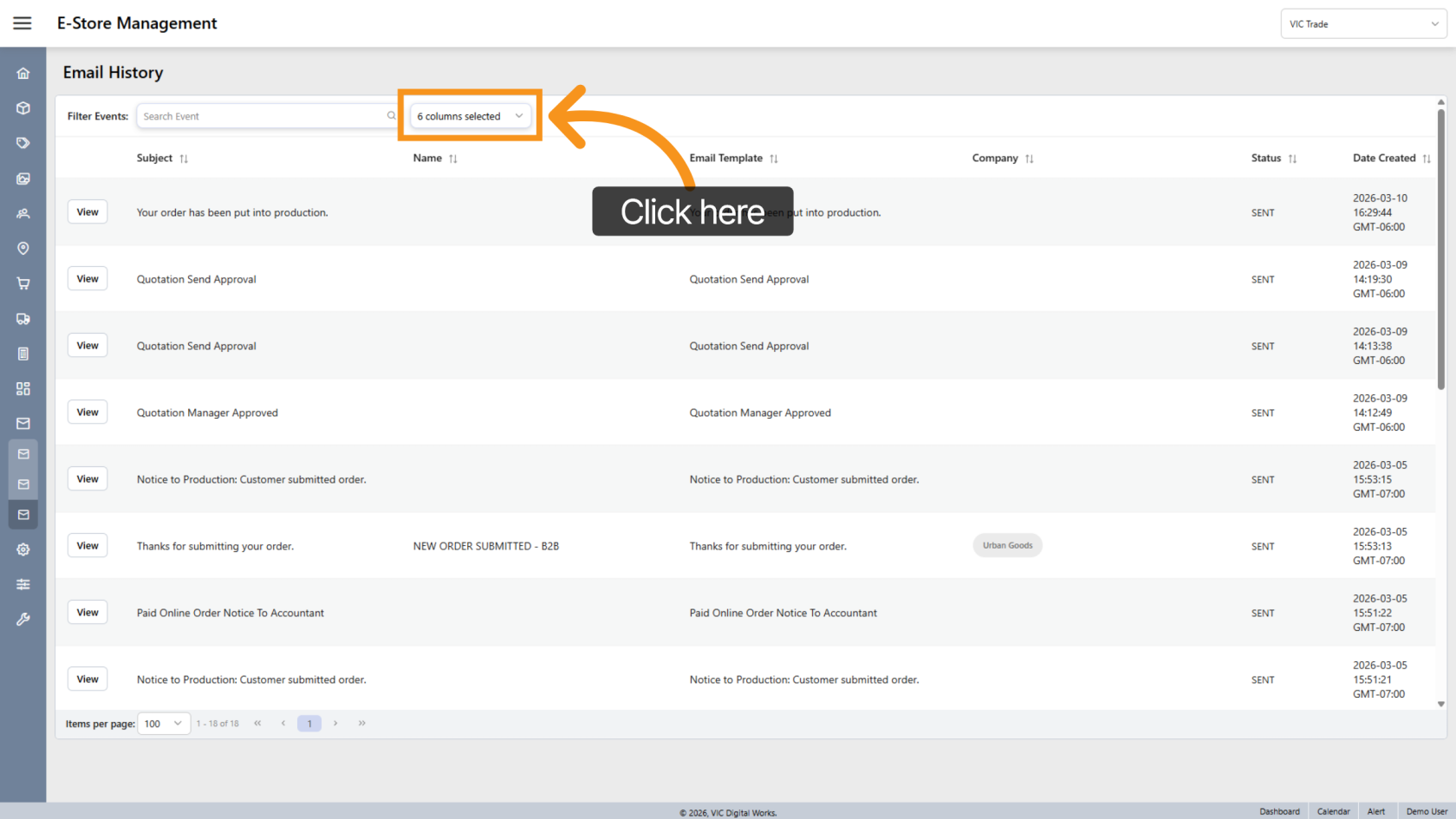
19. Custom List View
Select the columns you want to display in the history list.
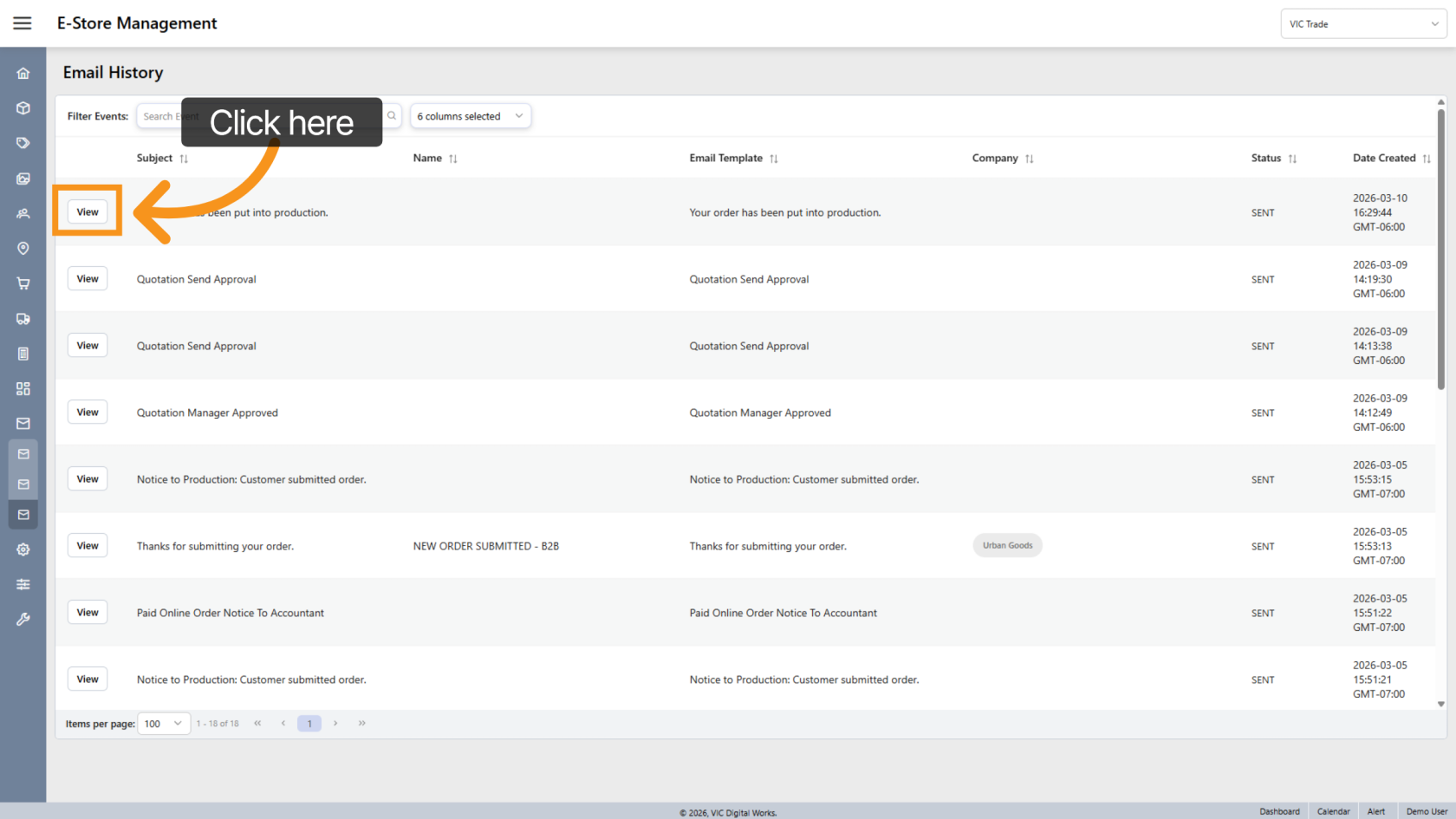
20. View Email Details
Click "View" to open detailed information about a specific email record.
You have successfully learned how to manage Email Templates, Email Events, and Email History within the App.