
Manage User Workspace
This tutorial explains how to manage users in the App.
Video Tutorial
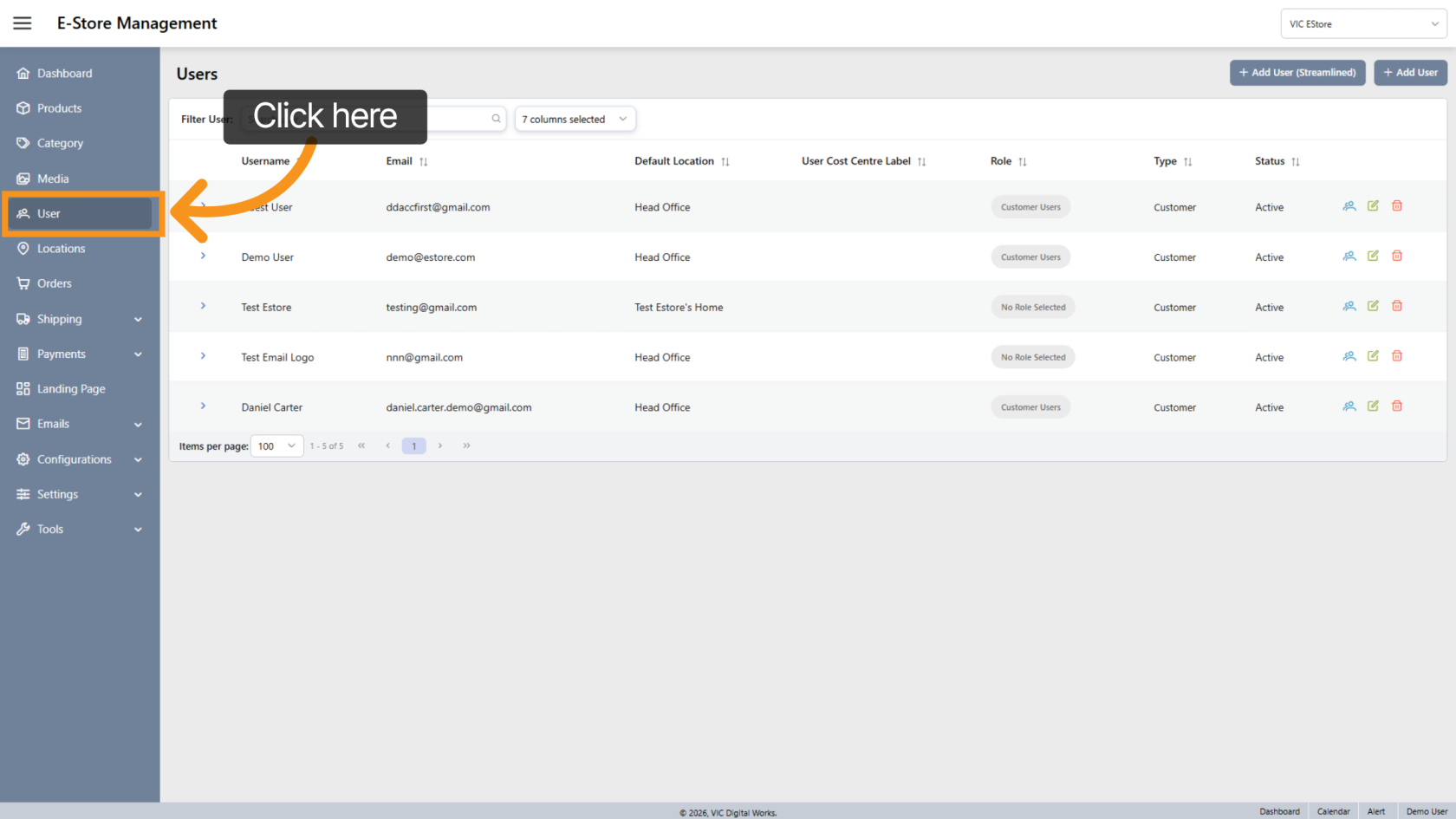
1. Open User Section
Click User in the sidebar to open the user management area.
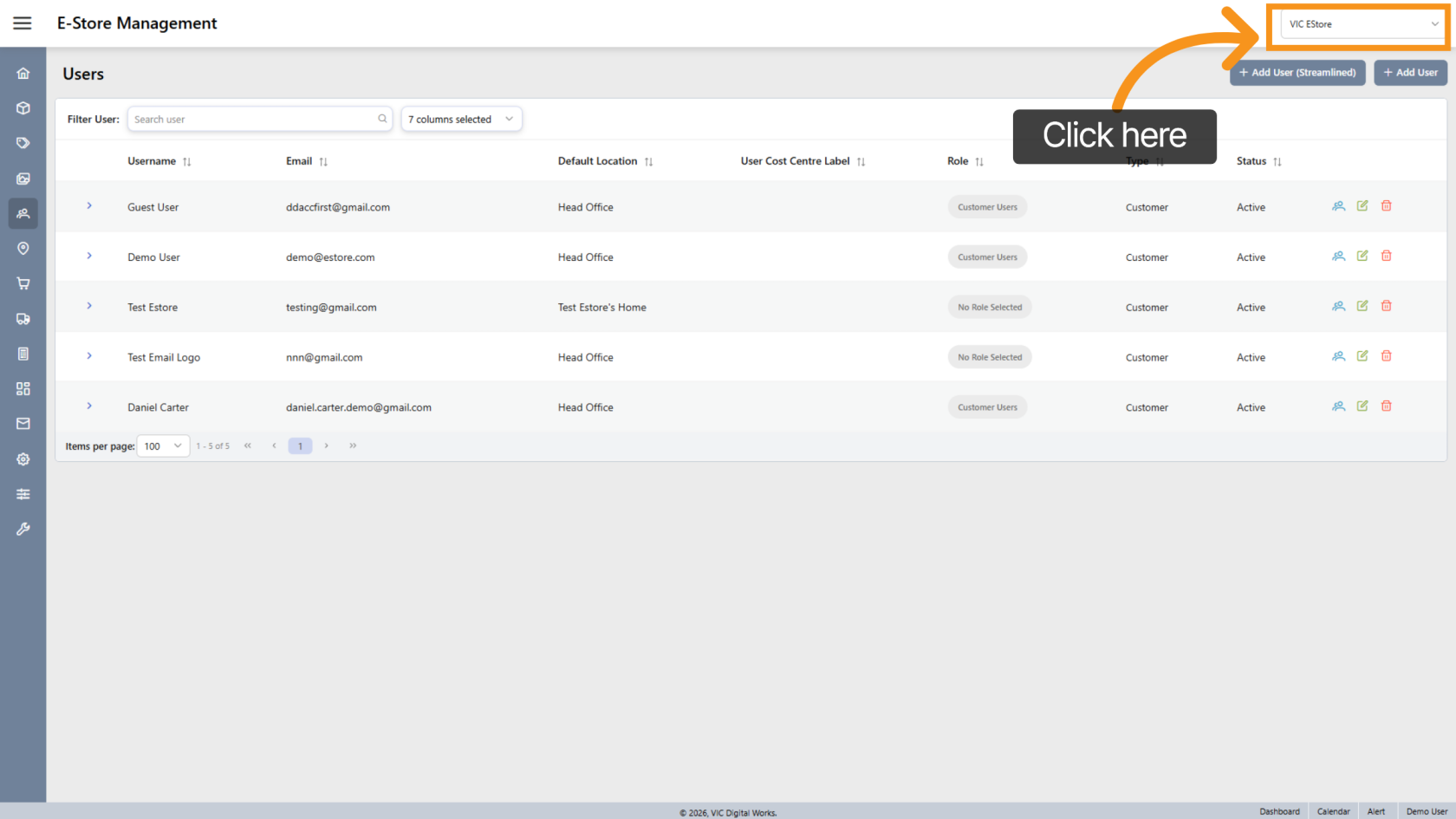
2. Select Company Store
Choose the correct Company Store to manage E-Store users.
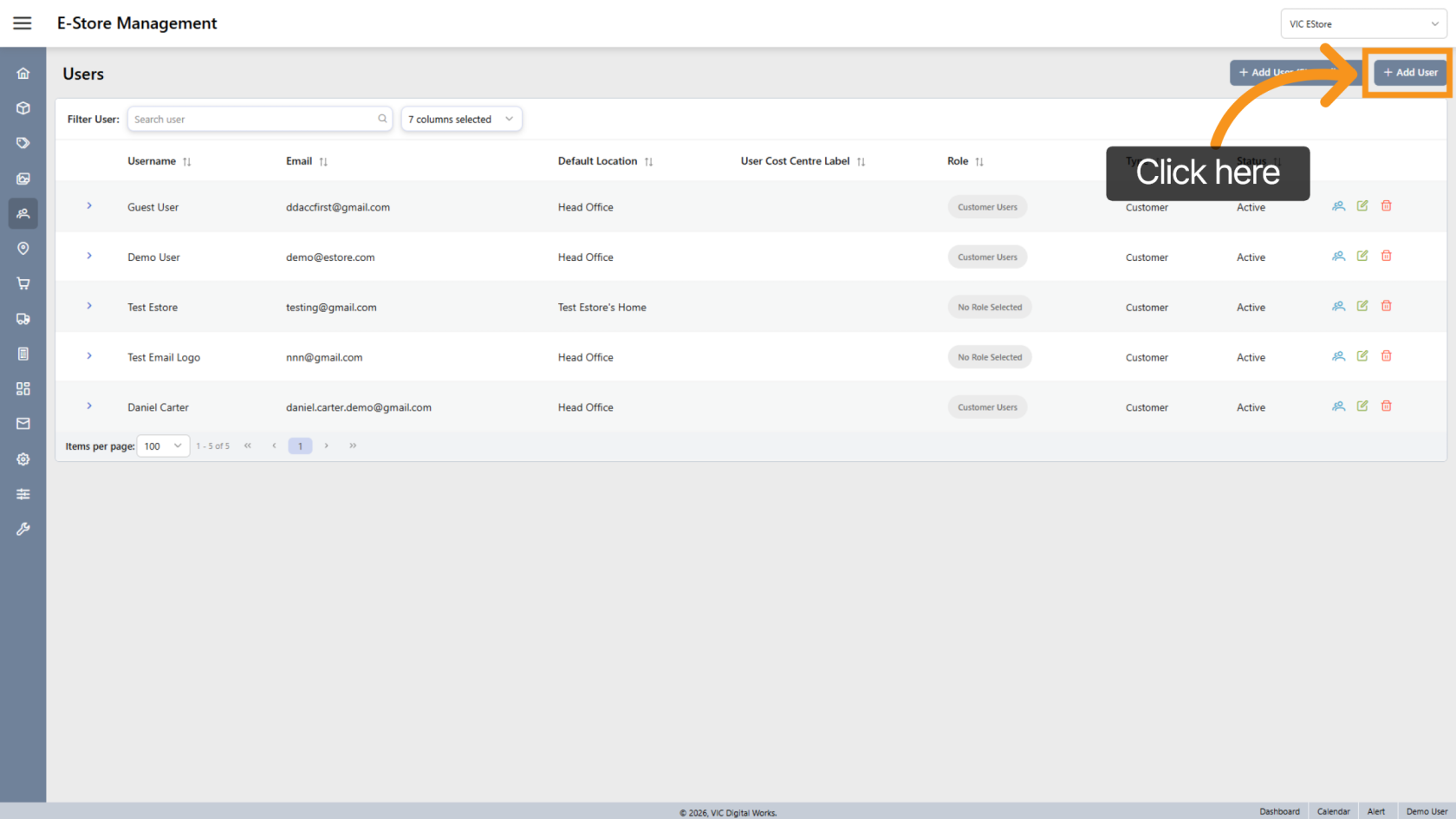
3. Add User
Click Add User to create a new user.
(Click here to see how to Create User)
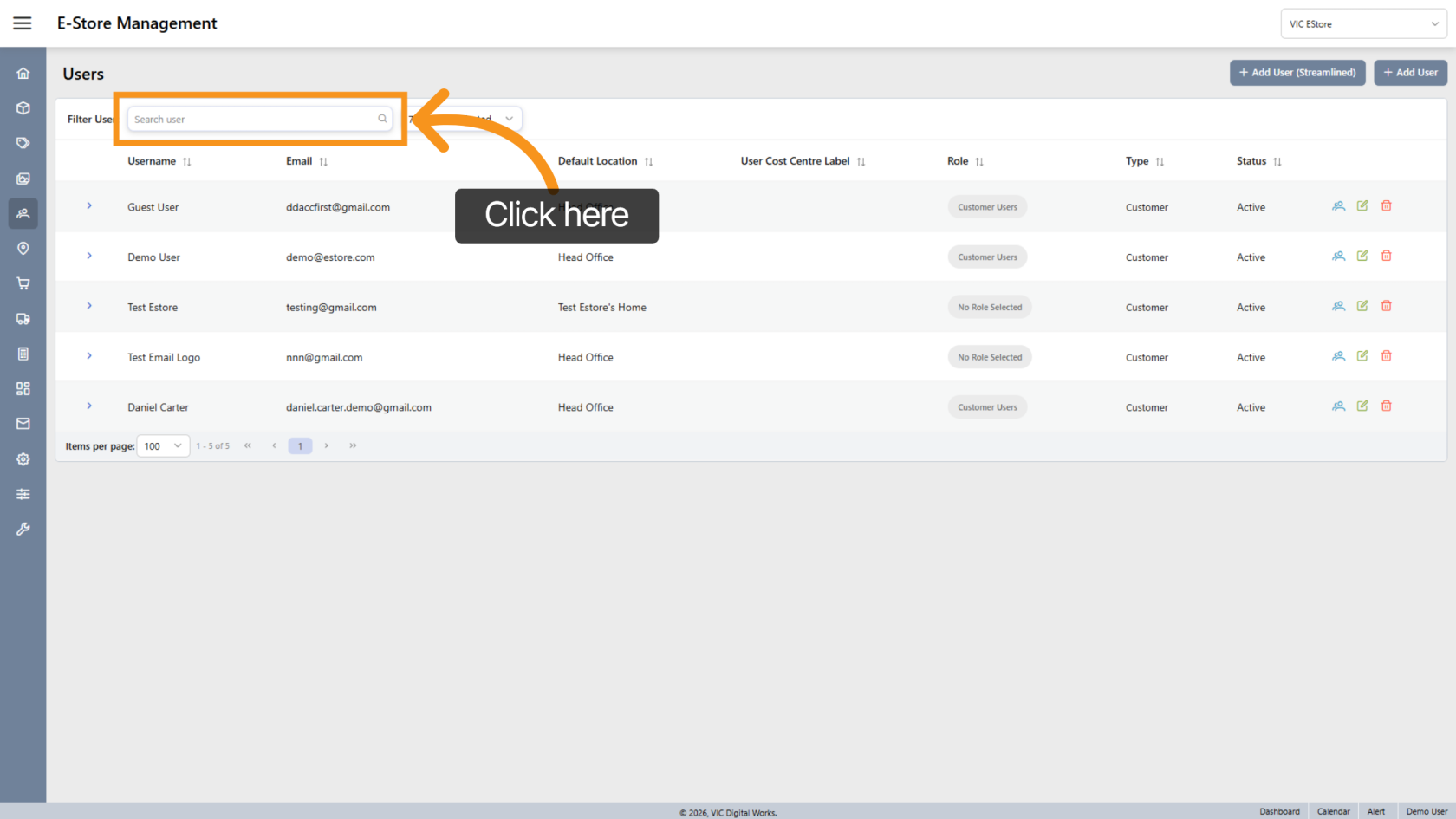
4. Search User
Use the Search User field to find users by: Username, Email
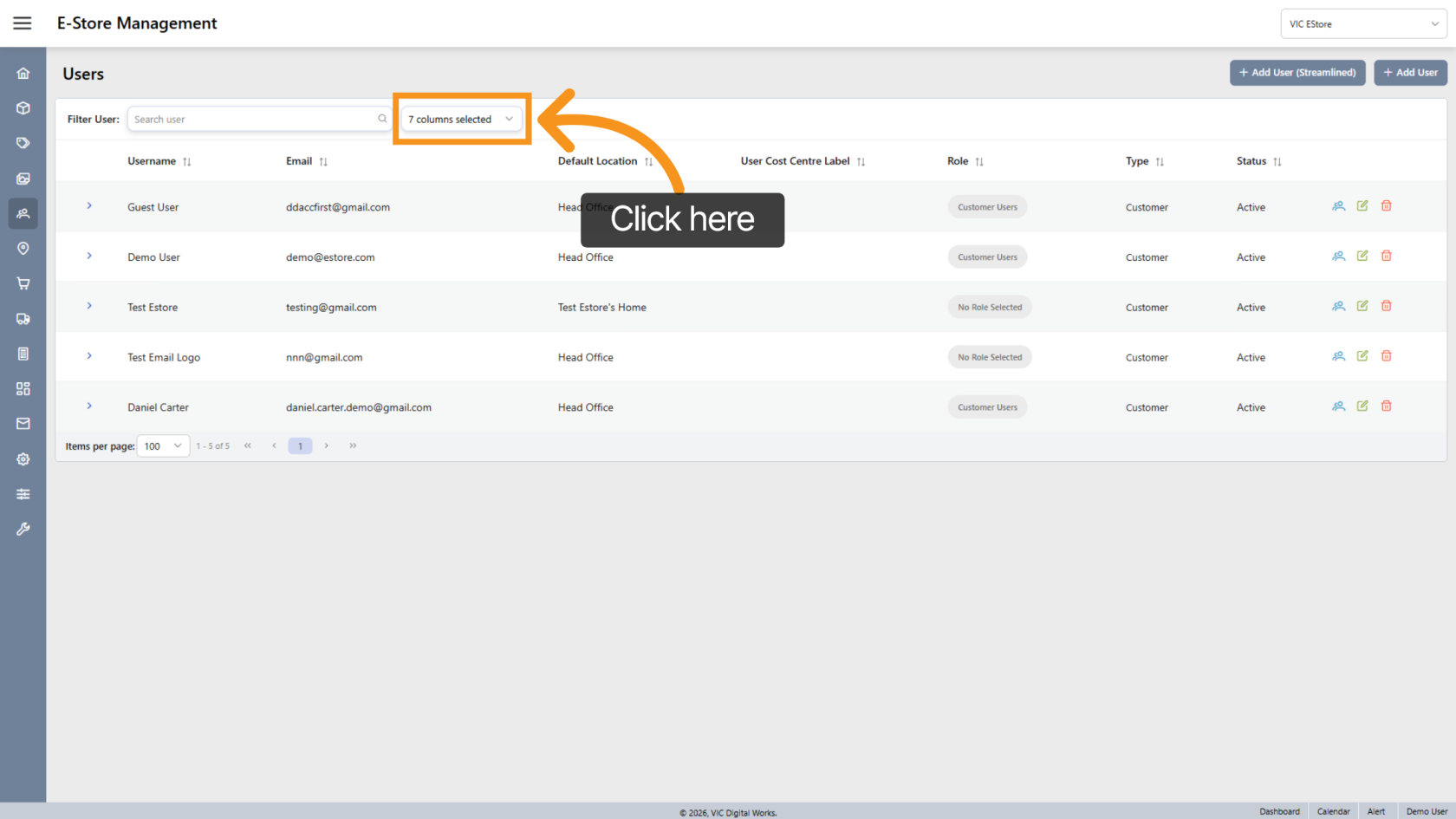
5. Customize List View
Click the  arrow icon to adjust how the user list is displayed.
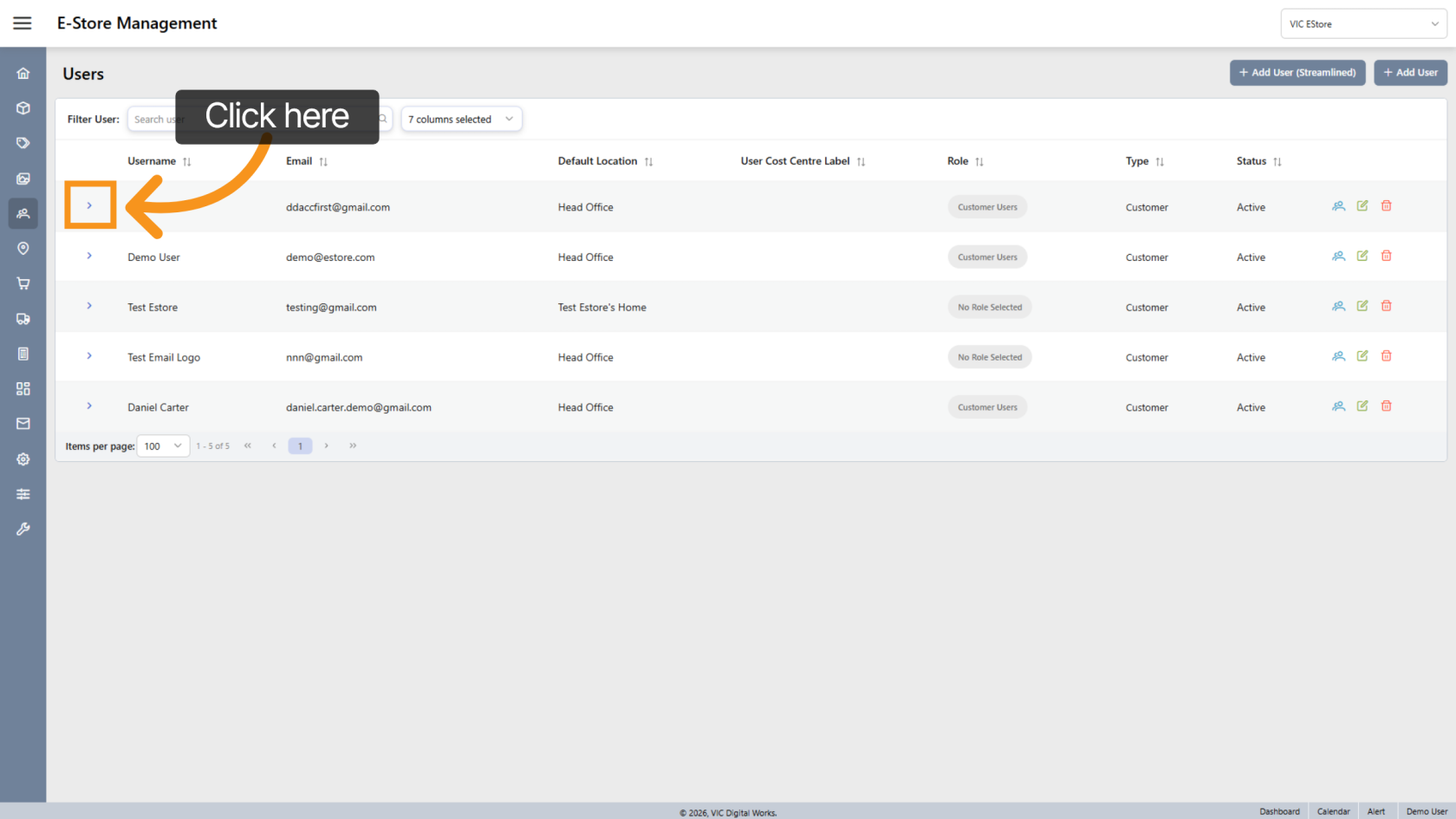
6. View User
Click the  arrow icon to open a specific user’s details.
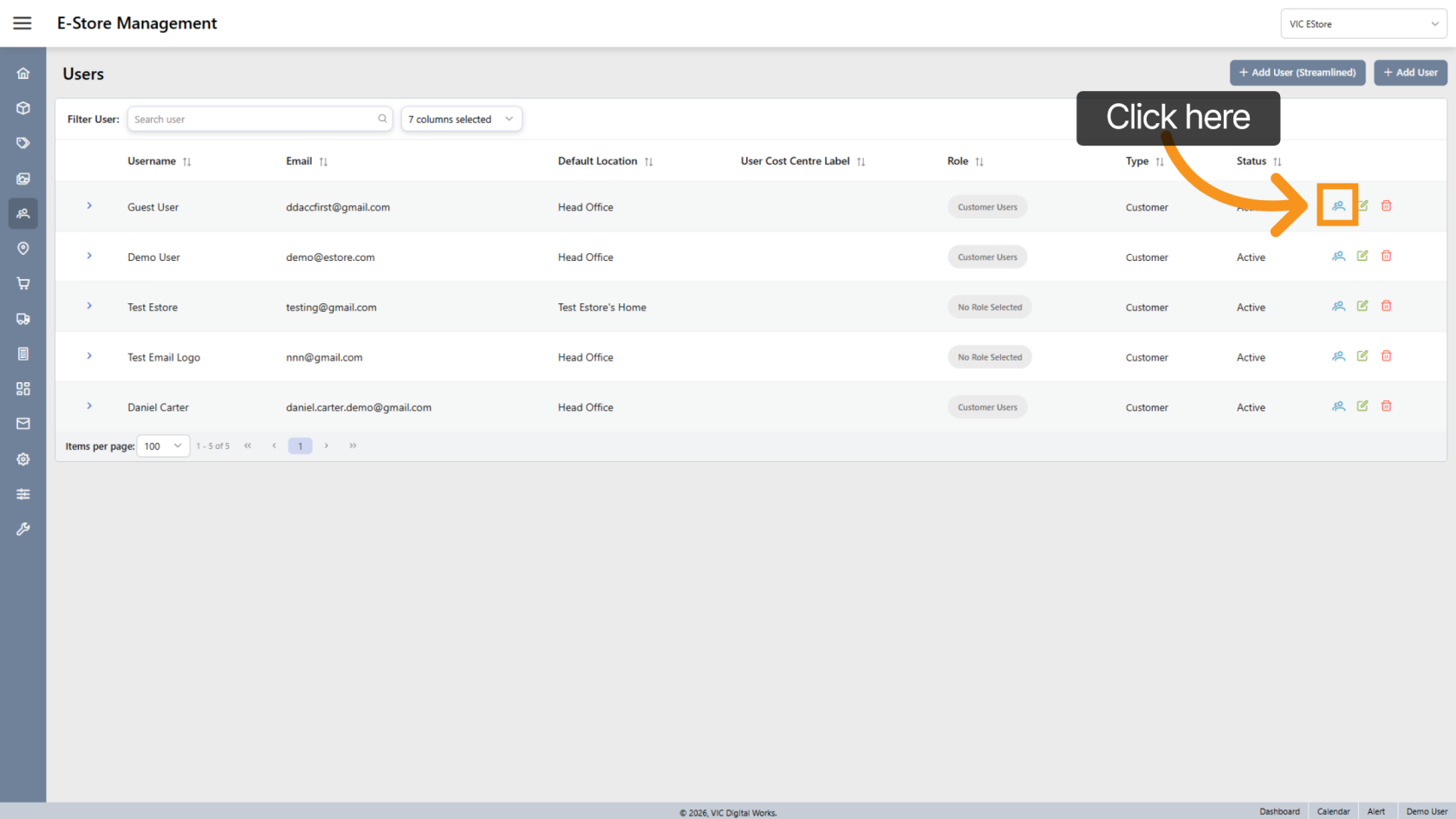
7. Switch User
Click the  switch icon to log in as that user and preview their store access.
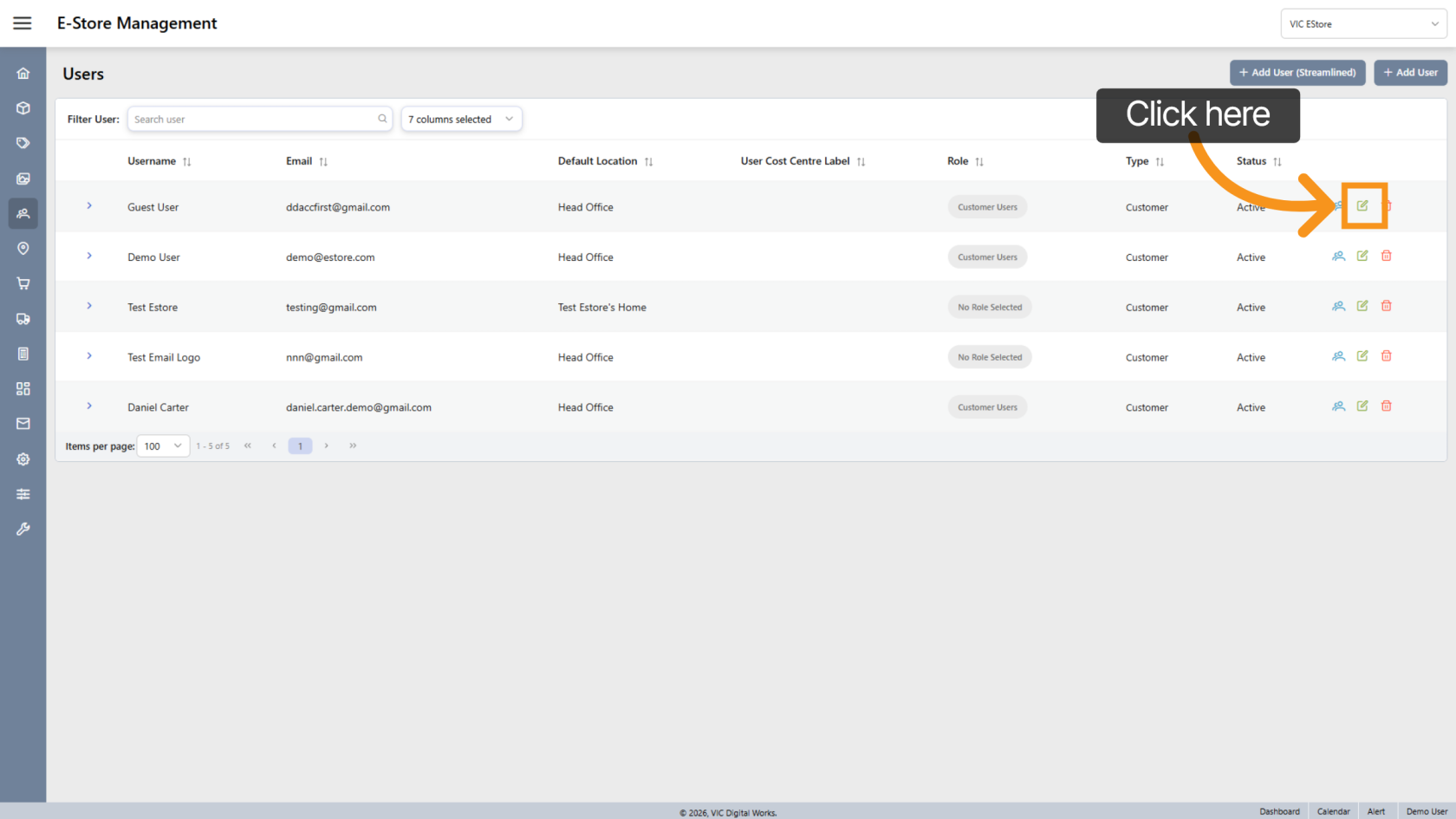
8. Edit User
Click the  edit icon to update user information or settings.
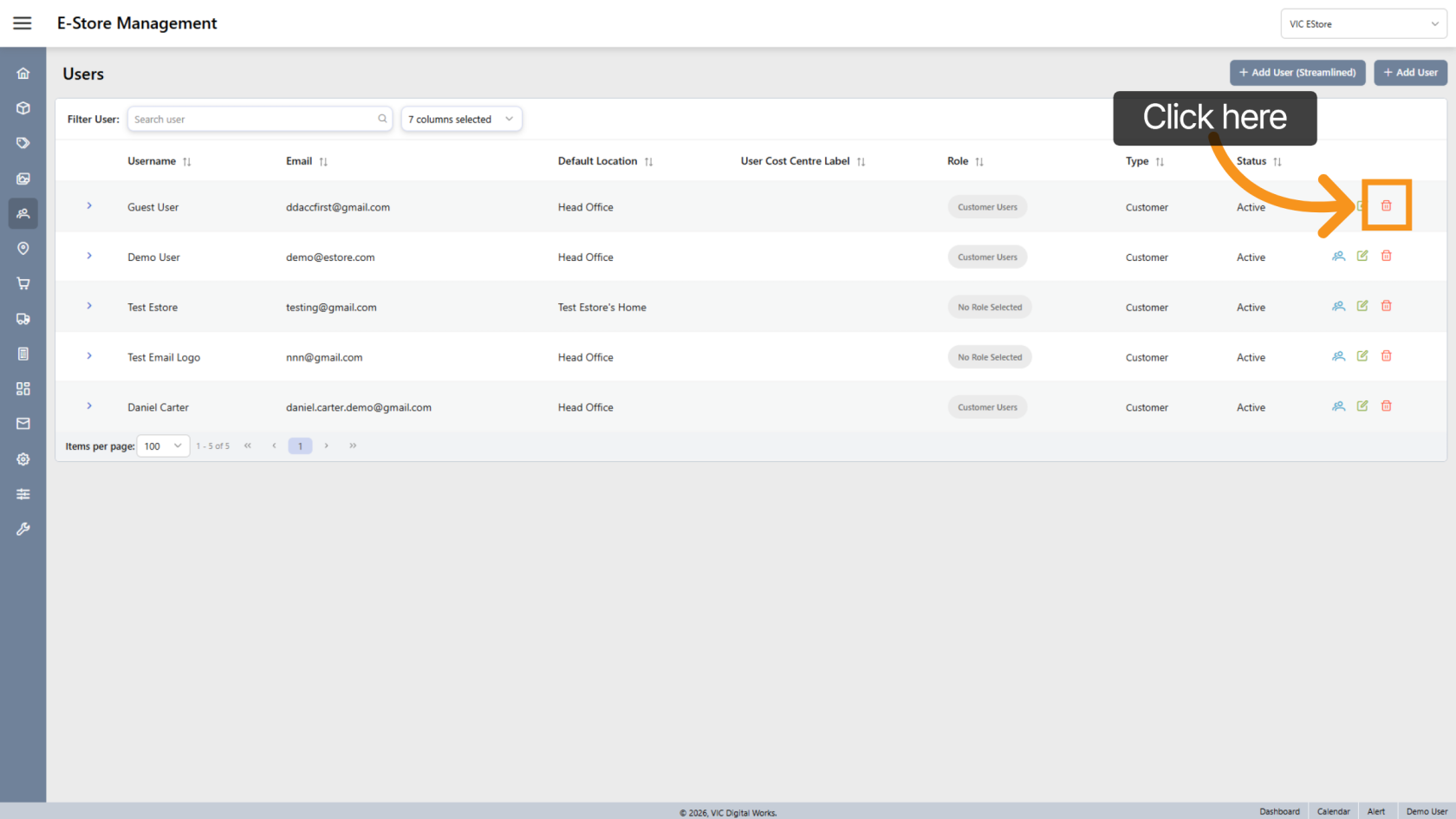
9. Delete User
Click the  delete icon to remove a user from the store.
You have successfully managed users by navigating menus, searching users, and adjusting user settings in the App.