
Product Marketing
This tutorial explains how to configure product marketing settings in the E-Store.
Video Tutorial
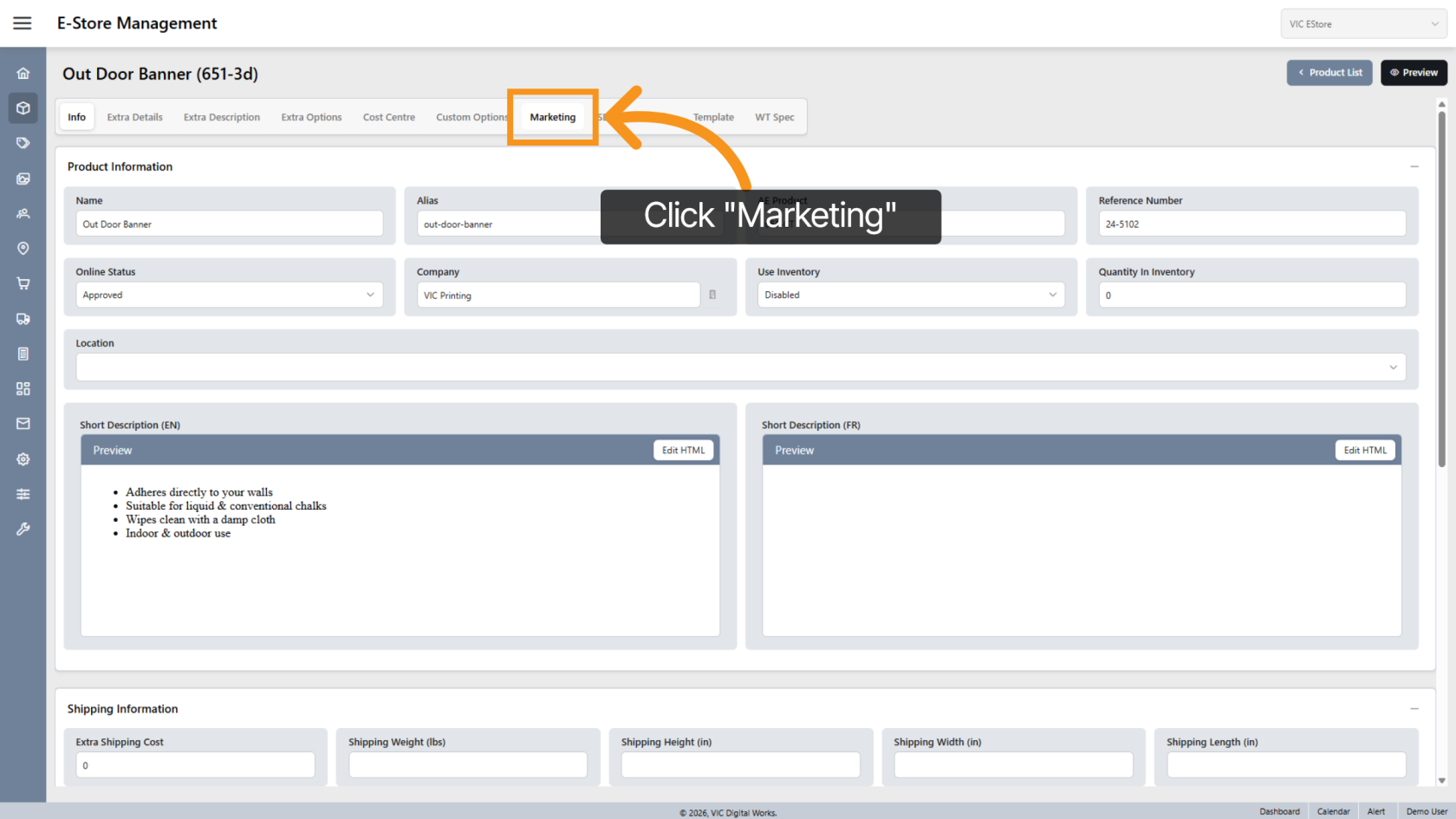
1. Open Marketing Section
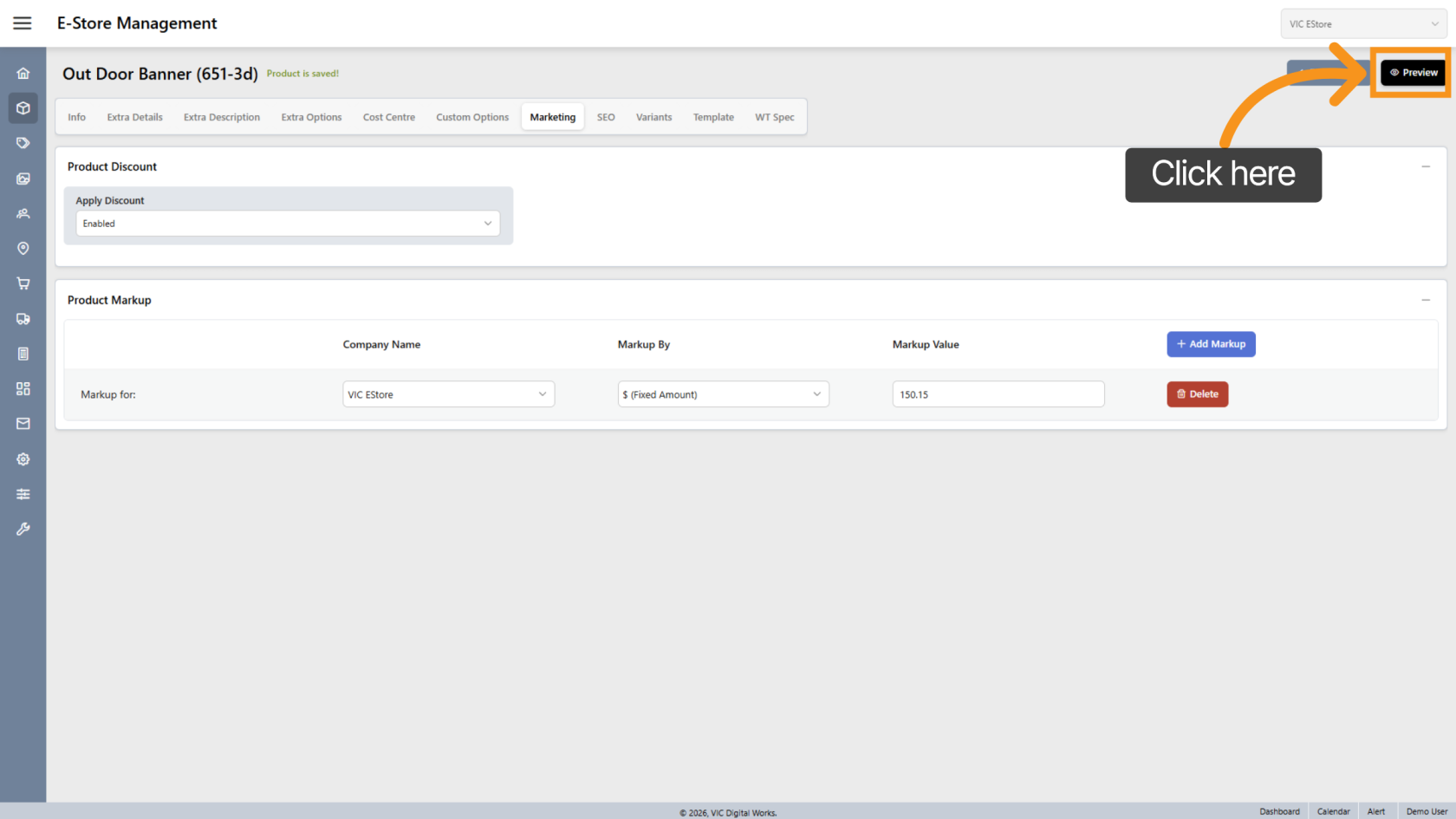
Click "Marketing" to access product marketing settings.
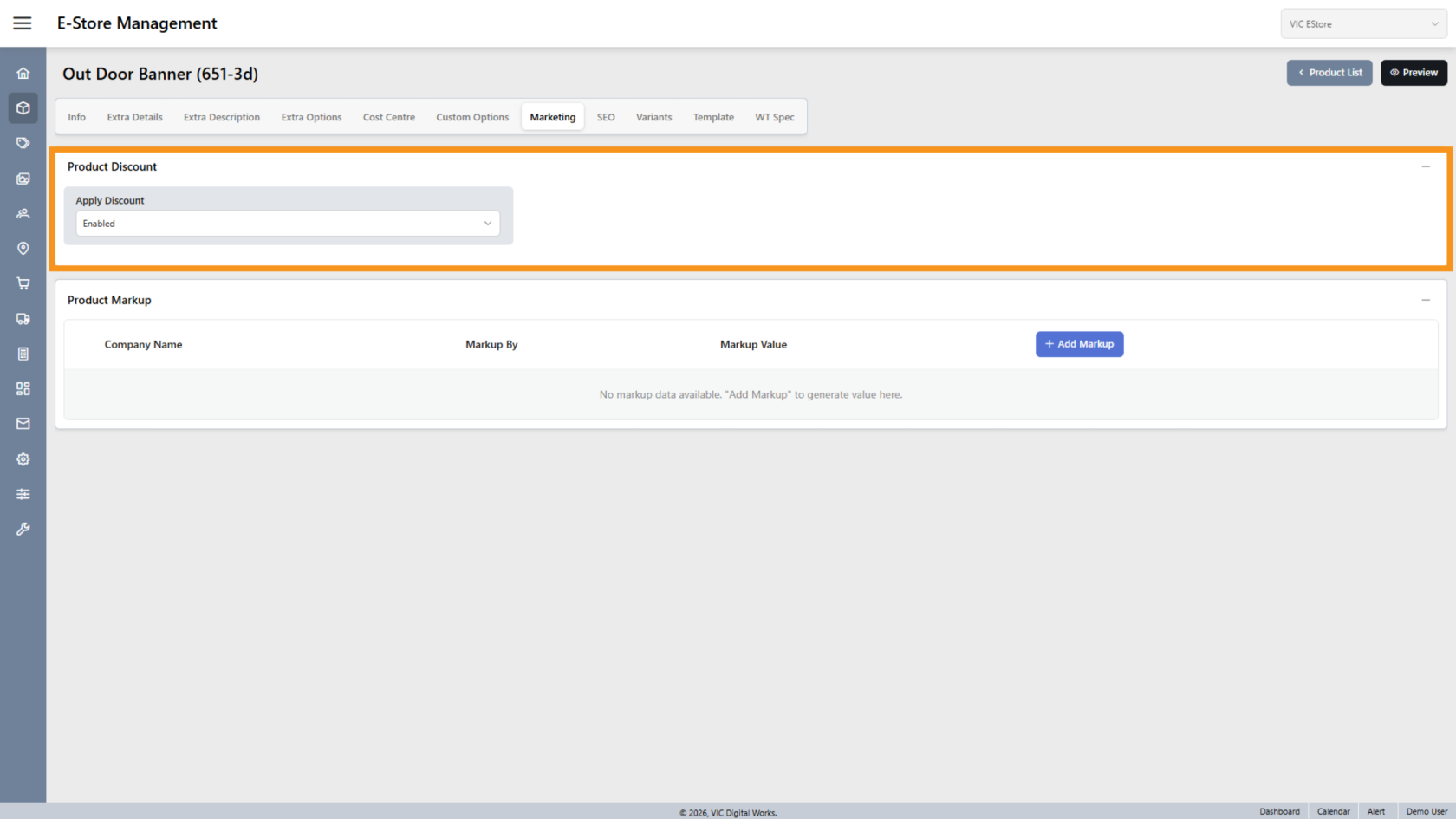
2. Product Discount
This option is enabled by default and will override the discount setting from WorkTraq.
Select Disable if you do not want to apply the WorkTraq discount to the E-Store.
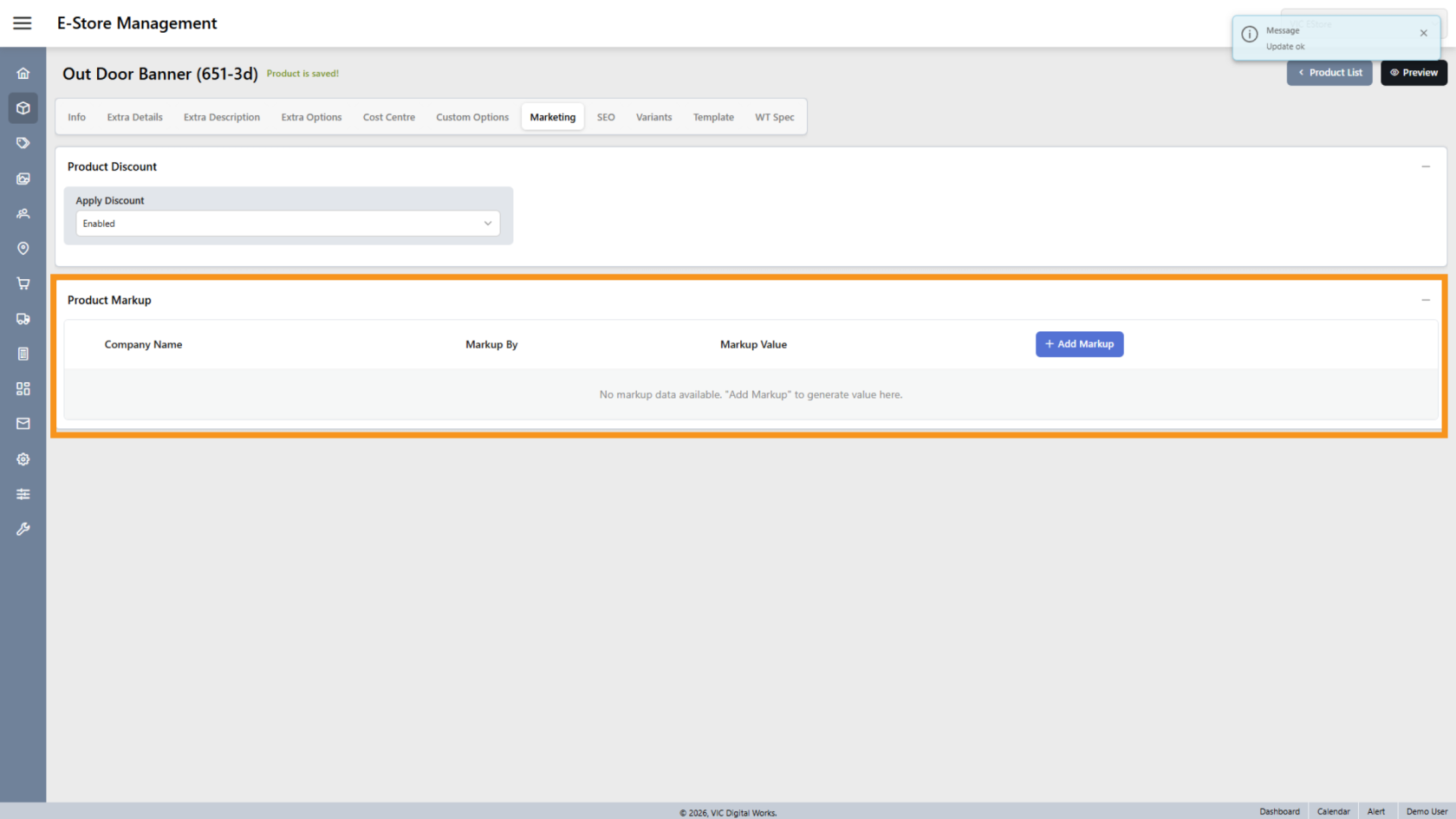
3. Product Markup Details
This section allows you to create a markup that displays as a discount in the store.
It can make a product appear discounted, even if the base price has not changed.
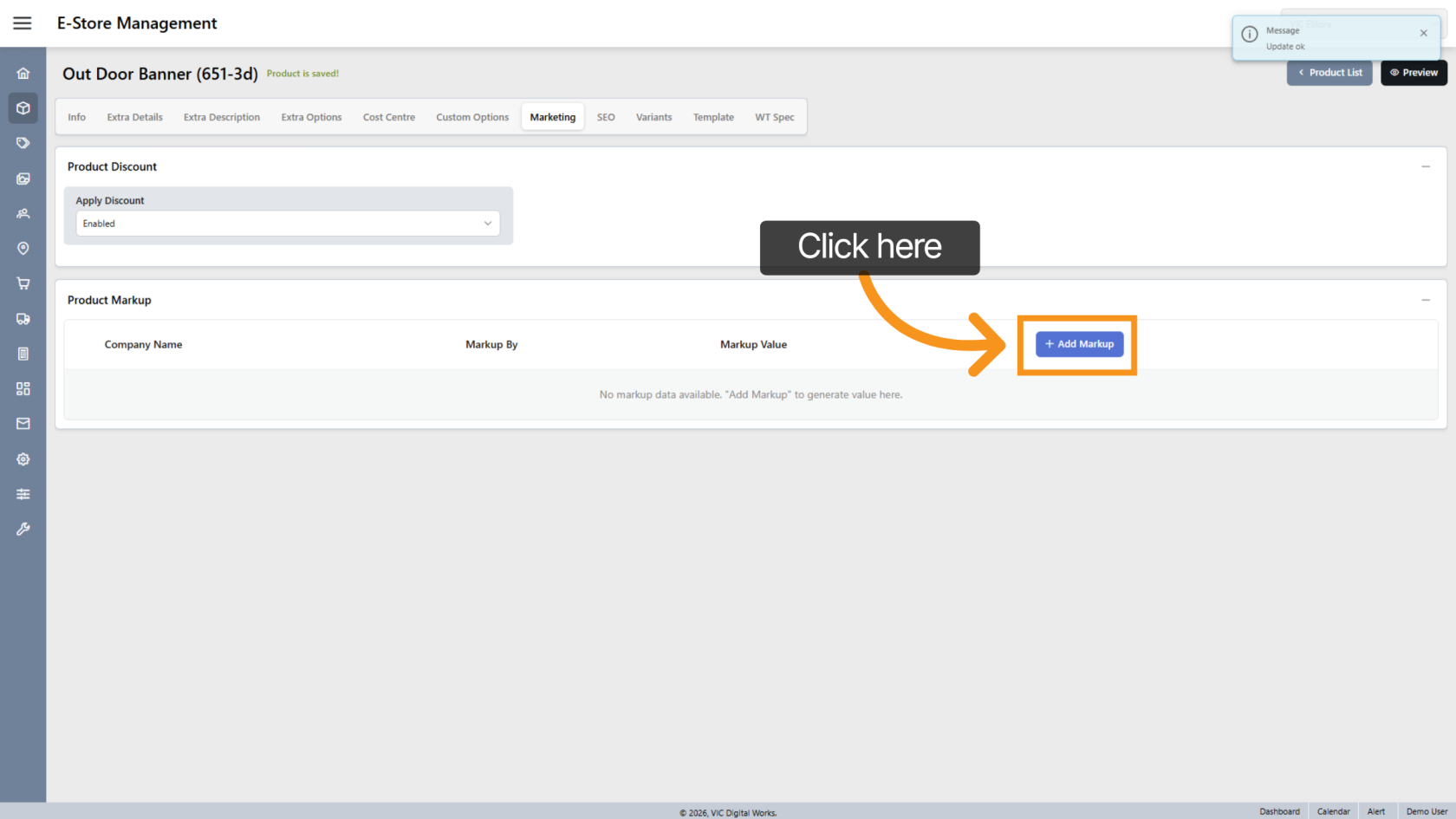
4. Add Product Markup
Click Product Markup to add a new markup configuration.
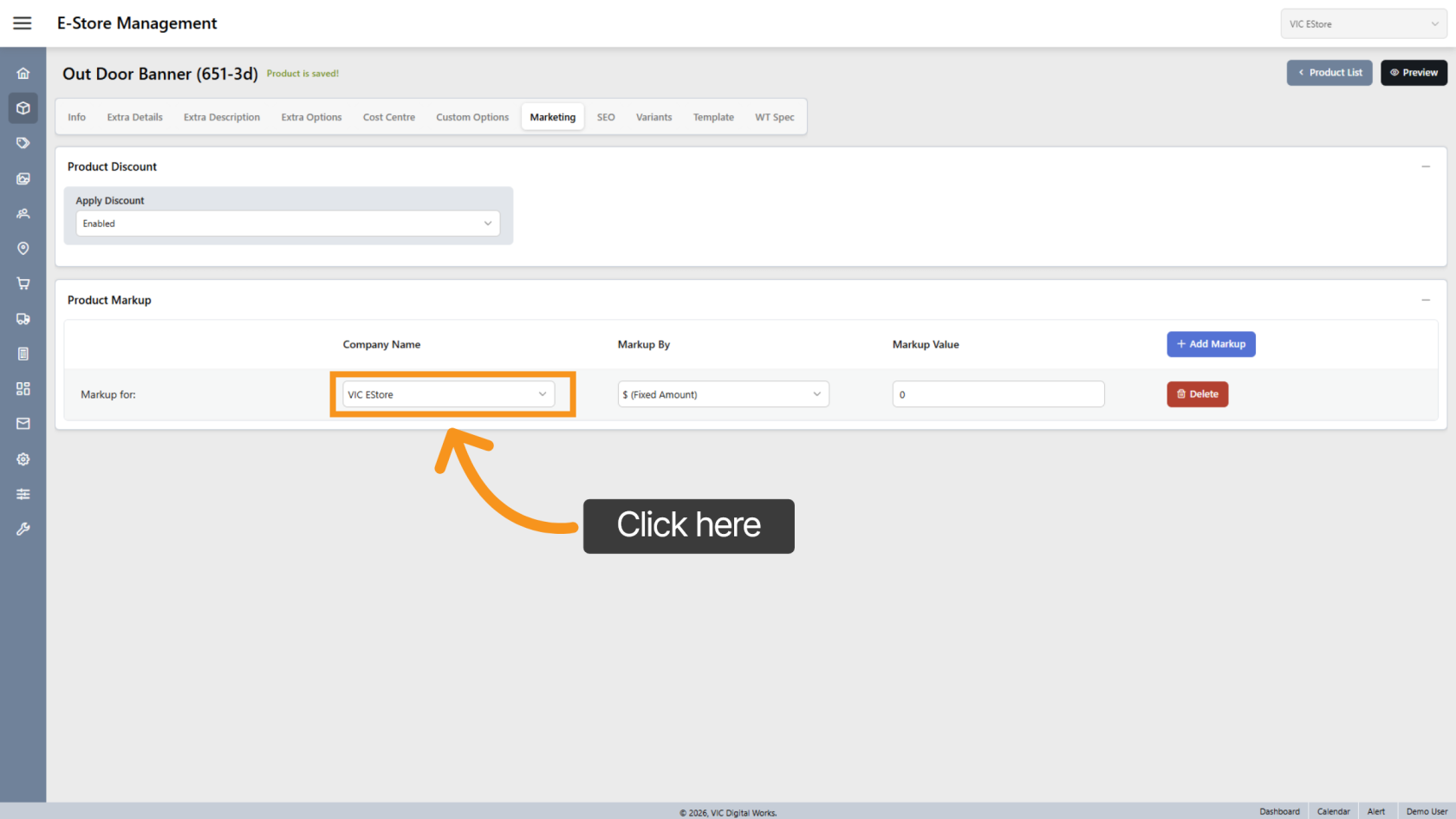
5. Select Company
Choose the specific company/store where the markup will apply.
6. Choose Markup Type
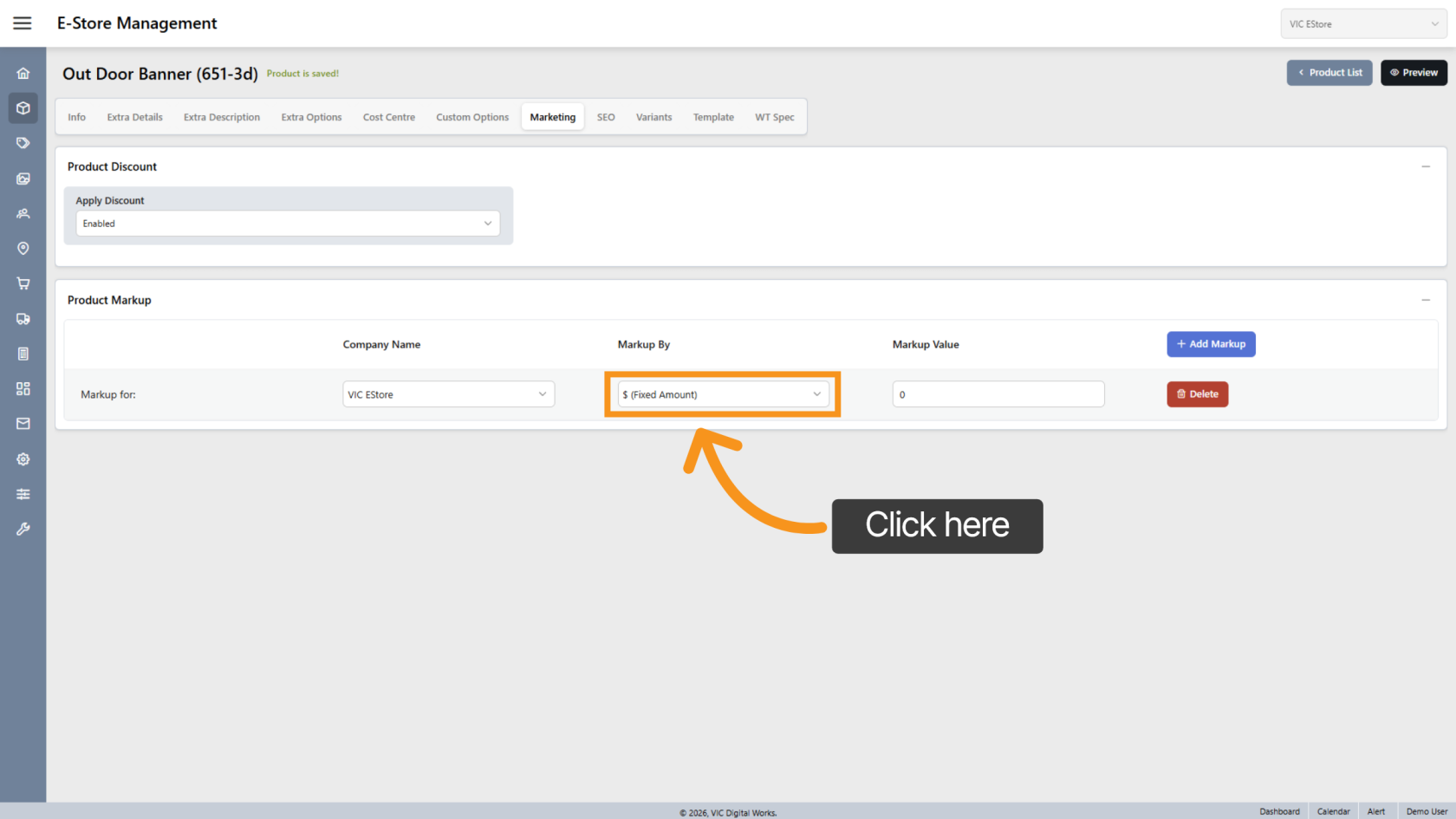
Click Markup By and select whether the markup is:
- A fixed amount
- A percentage
7. Enter Markup Value
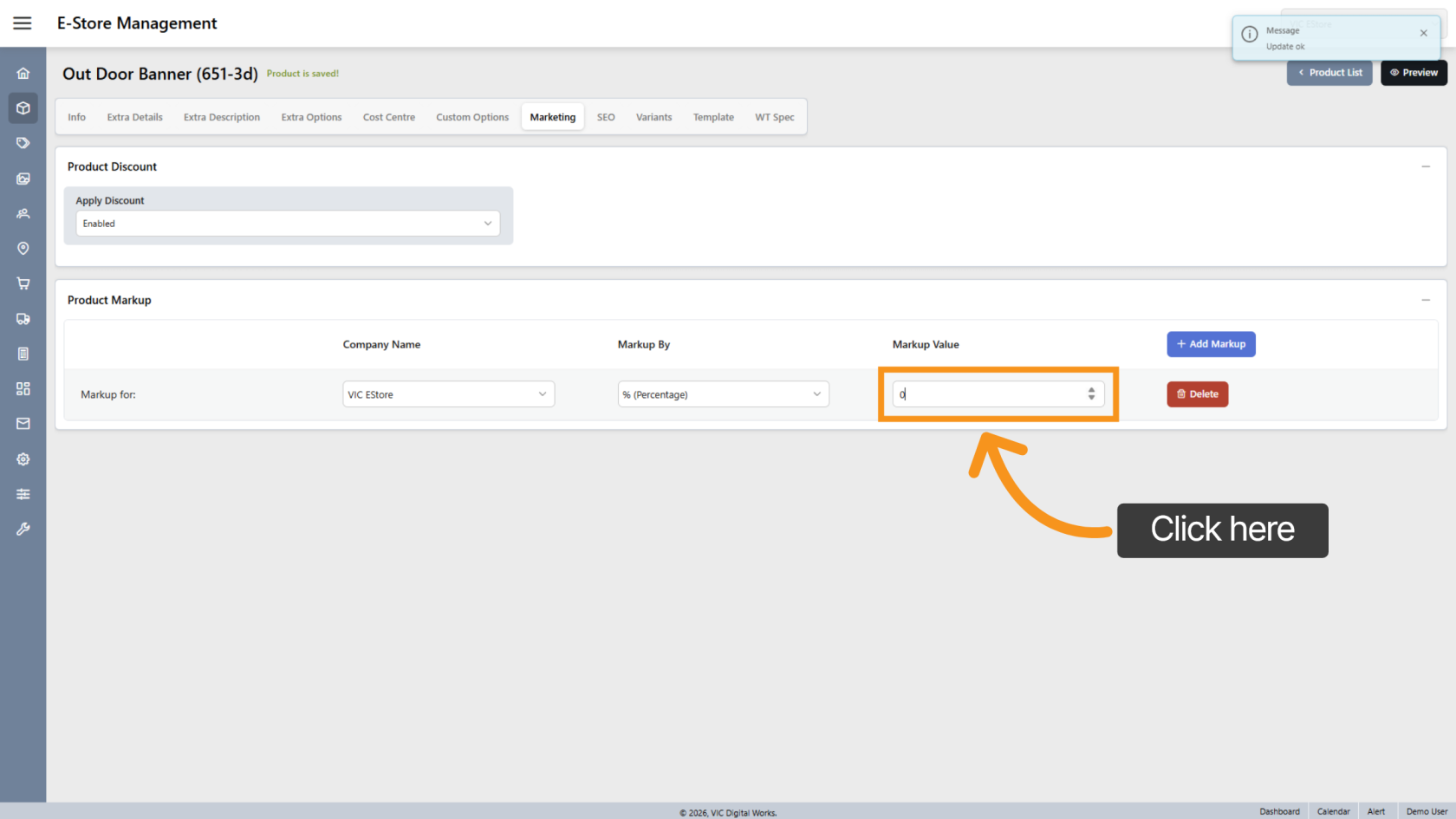
Enter the markup amount or percentage in the Markup Value field.
8. Delete Markup
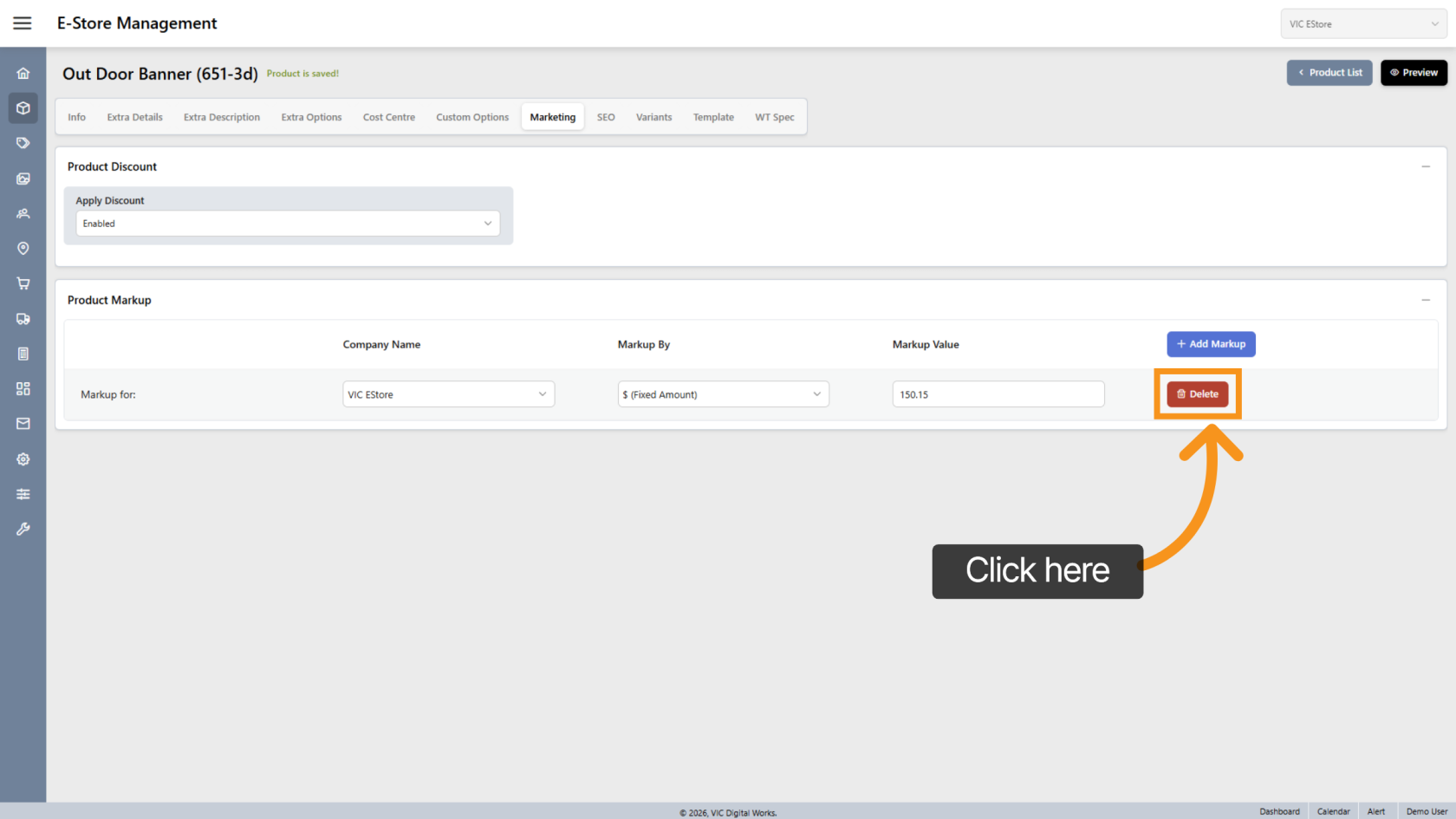
Click the  delete icon to remove the markup line.
9. Preview Changes
Click Preview to see how the discount and markup will appear on the product page.
10. Final Check
Review how the pricing is displayed to ensure it appears correctly in the store.
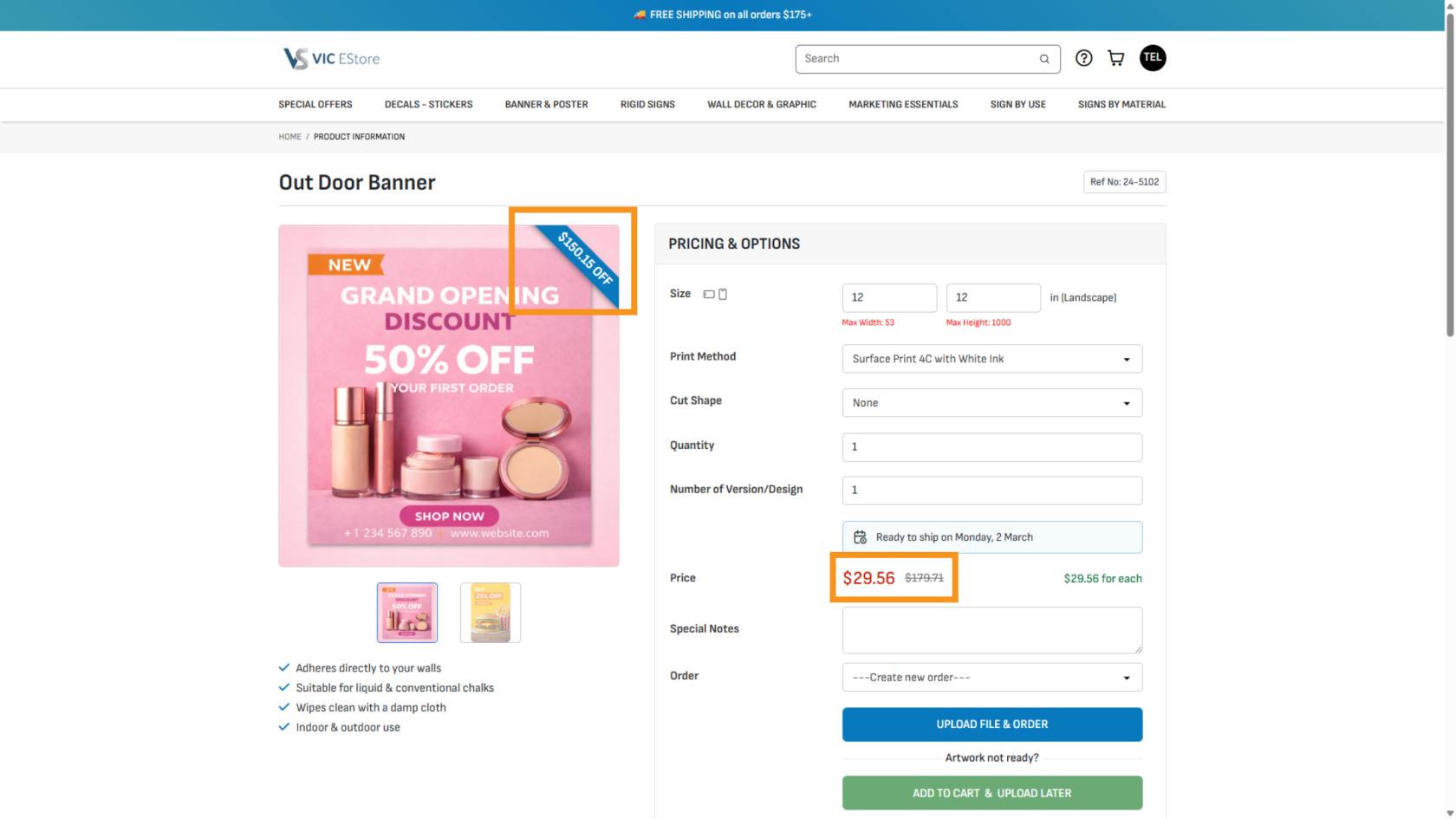
You have successfully configured product discounts and markups. Always preview and review the live store to confirm your pricing updates are displayed correctly.