
Create Shipping Methods
This tutorial walks you through setting up and managing shipping methods in the E-store.
Video Tutorial
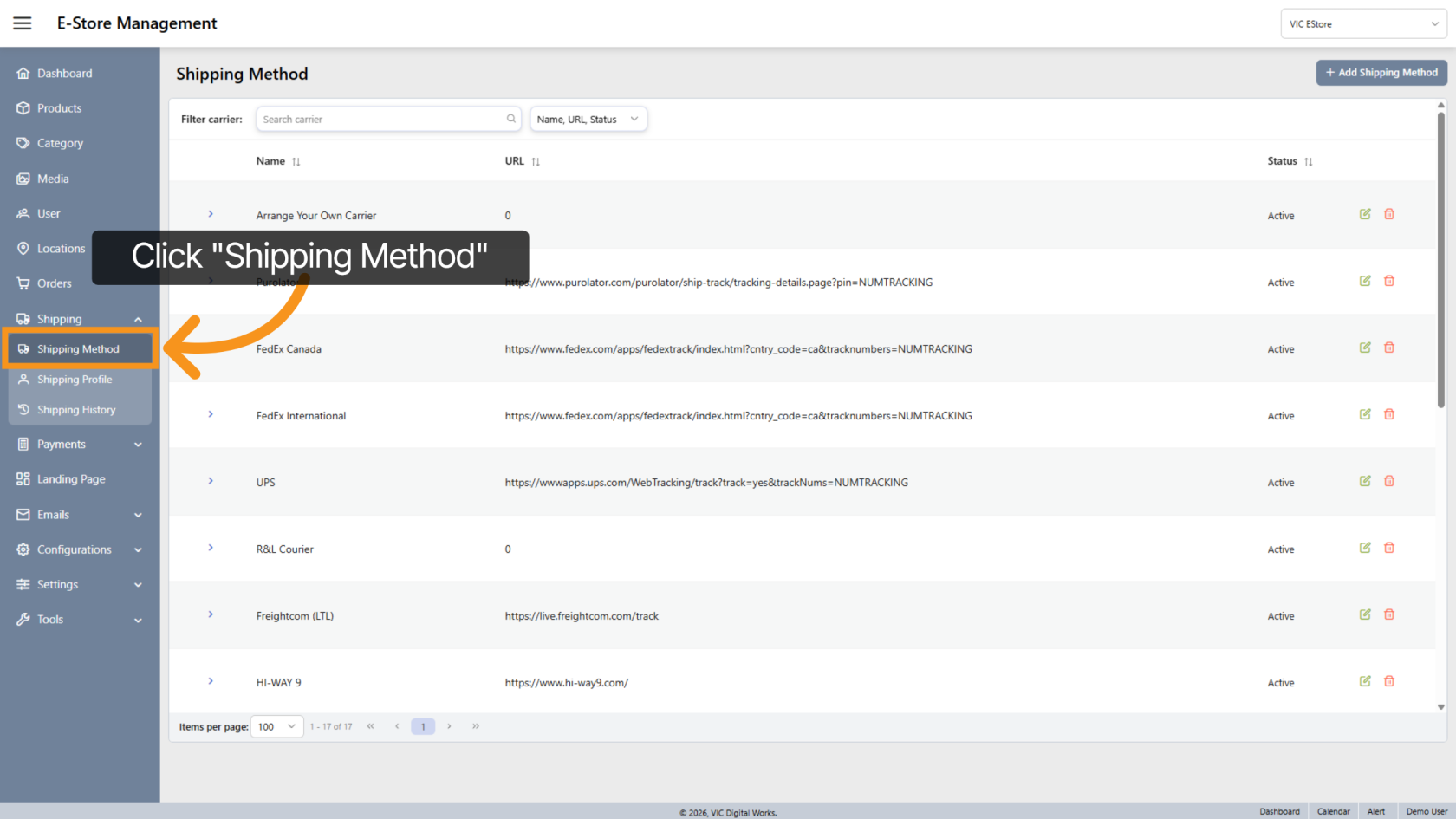
1. Open Shipping Method Menu
Click "Shipping Method" from the side menu to access the shipping management interface.
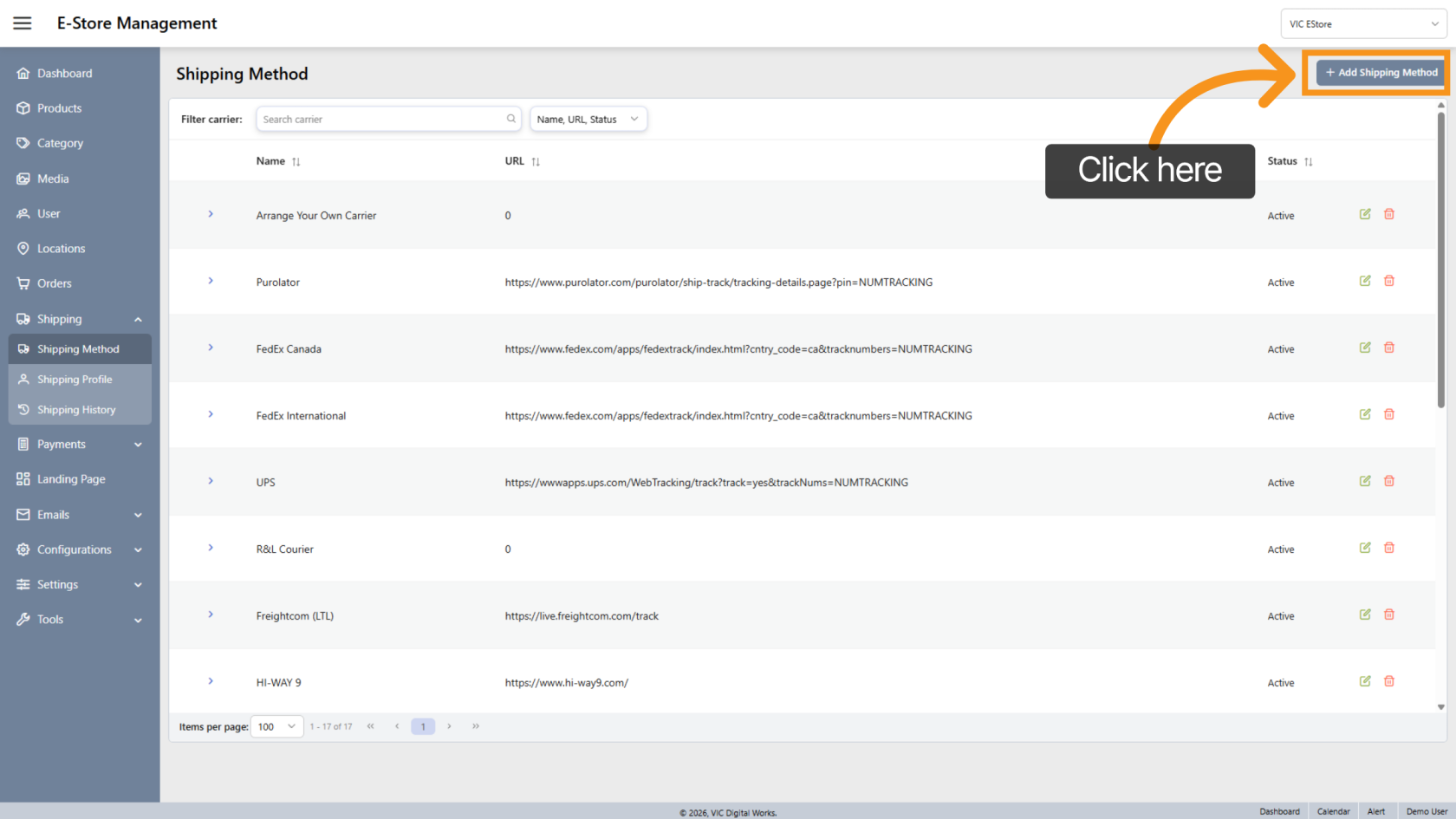
2. Add Shipping Method
Click "Add Shipping Method" to create a new carrier setup.
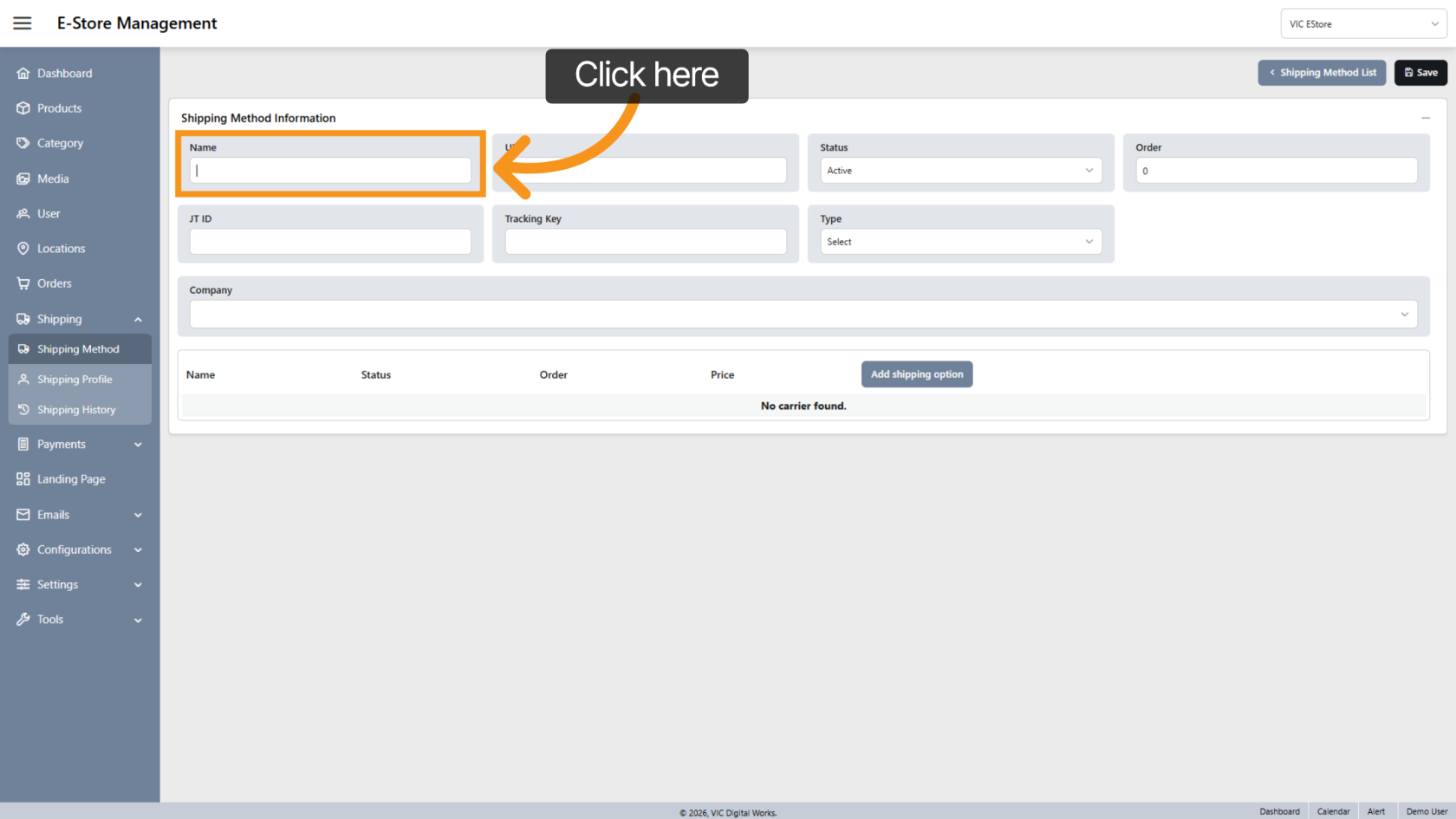
3. Enter Shipping Name
Enter the shipping name associated with the carrier, such as UPS, FedEx, or Local Delivery.
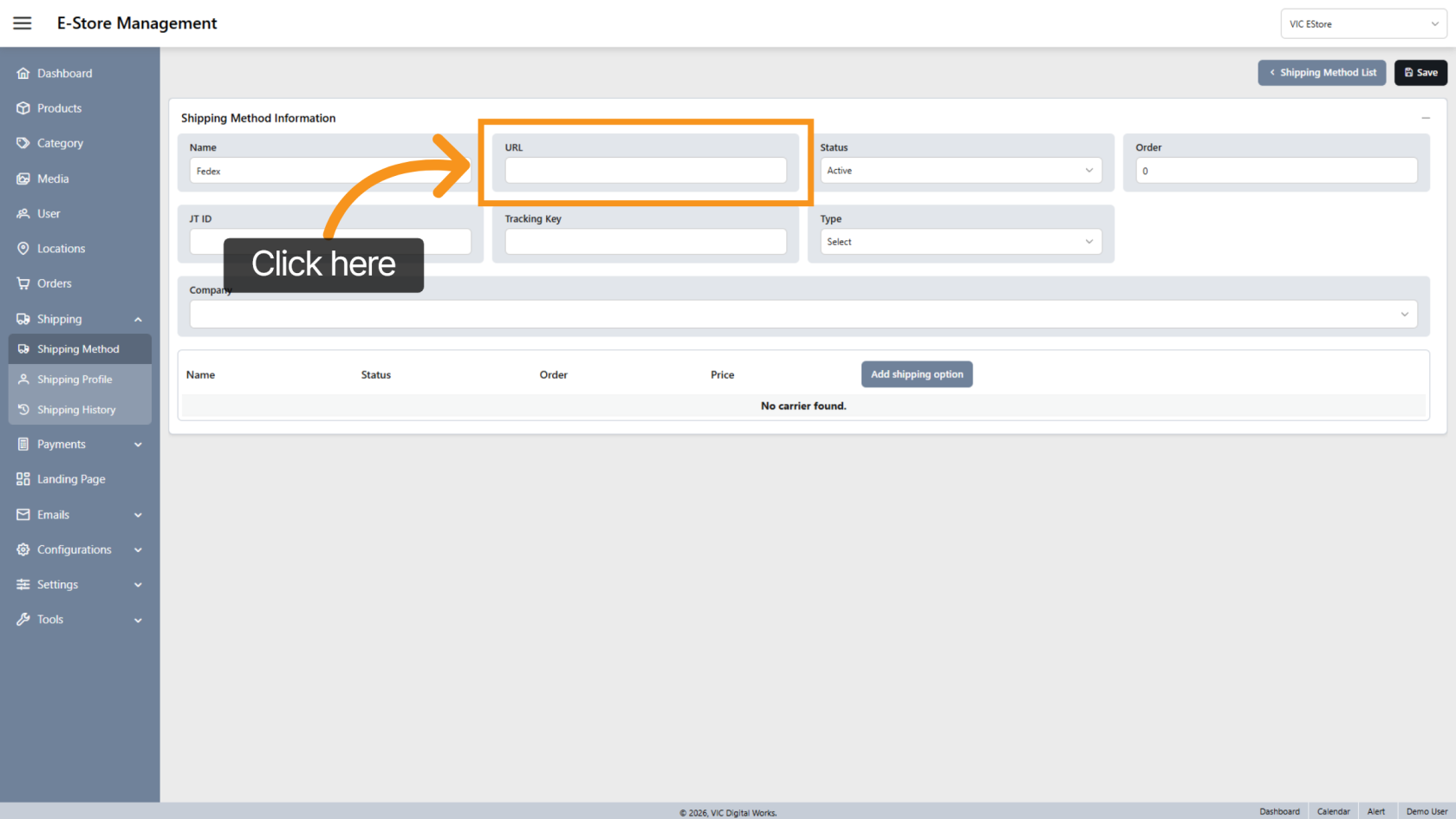
4. Enter Tracking URL
Input the tracking URL for the carrier.
This link will be included in customer emails after the order is completed so customers can track their shipment.
Example: https://carrierwebsite.com/track?number={tracking_number}
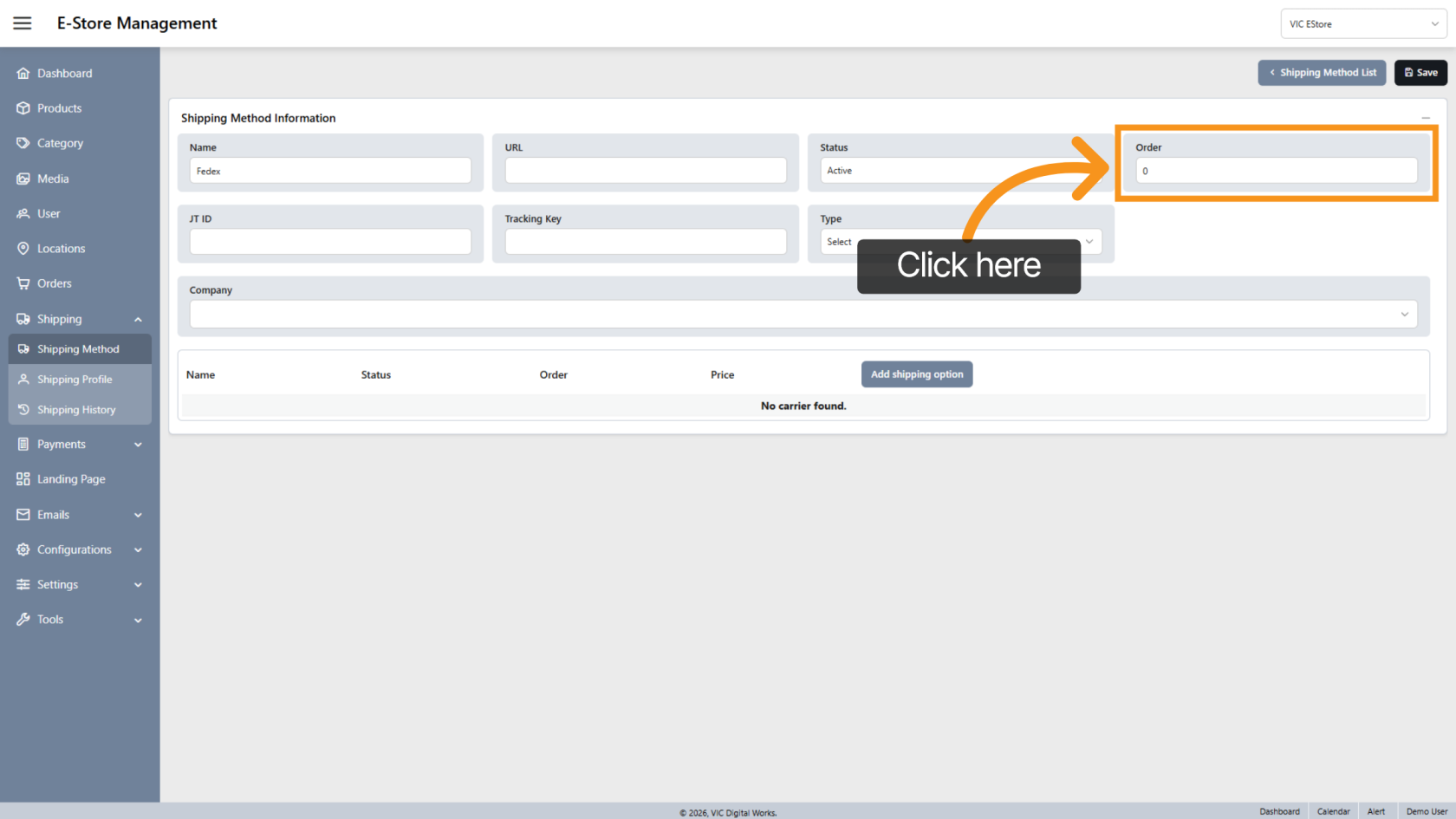
5. Set Display Order
The system automatically orders shipping methods, but you can adjust the display order as needed.
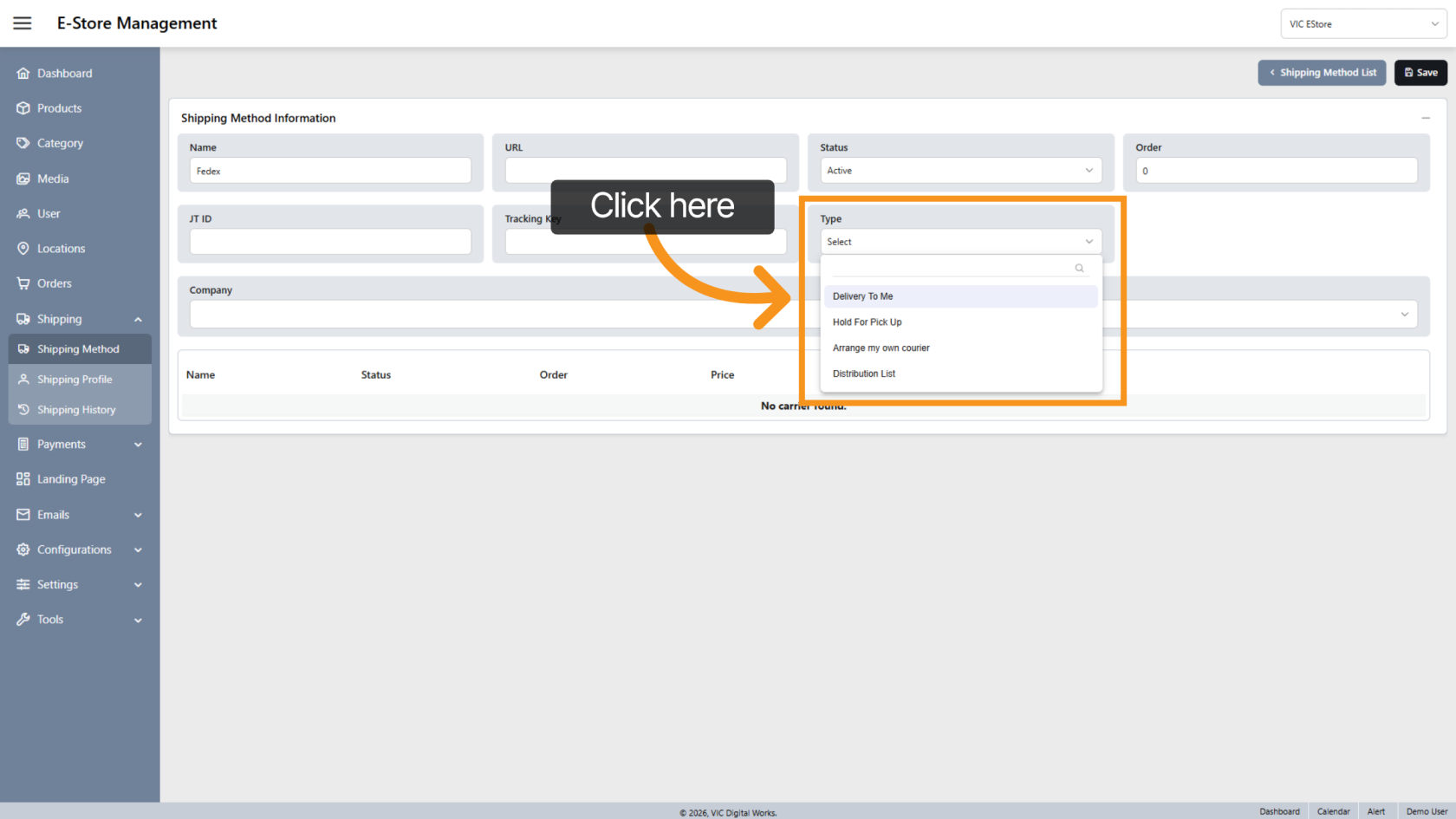
6. Select shipping type
Choose the appropriate shipping type, such as:
- Delivery to Me
- Hold for Pickup
- etc
This helps control how the shipping method appears during checkout.
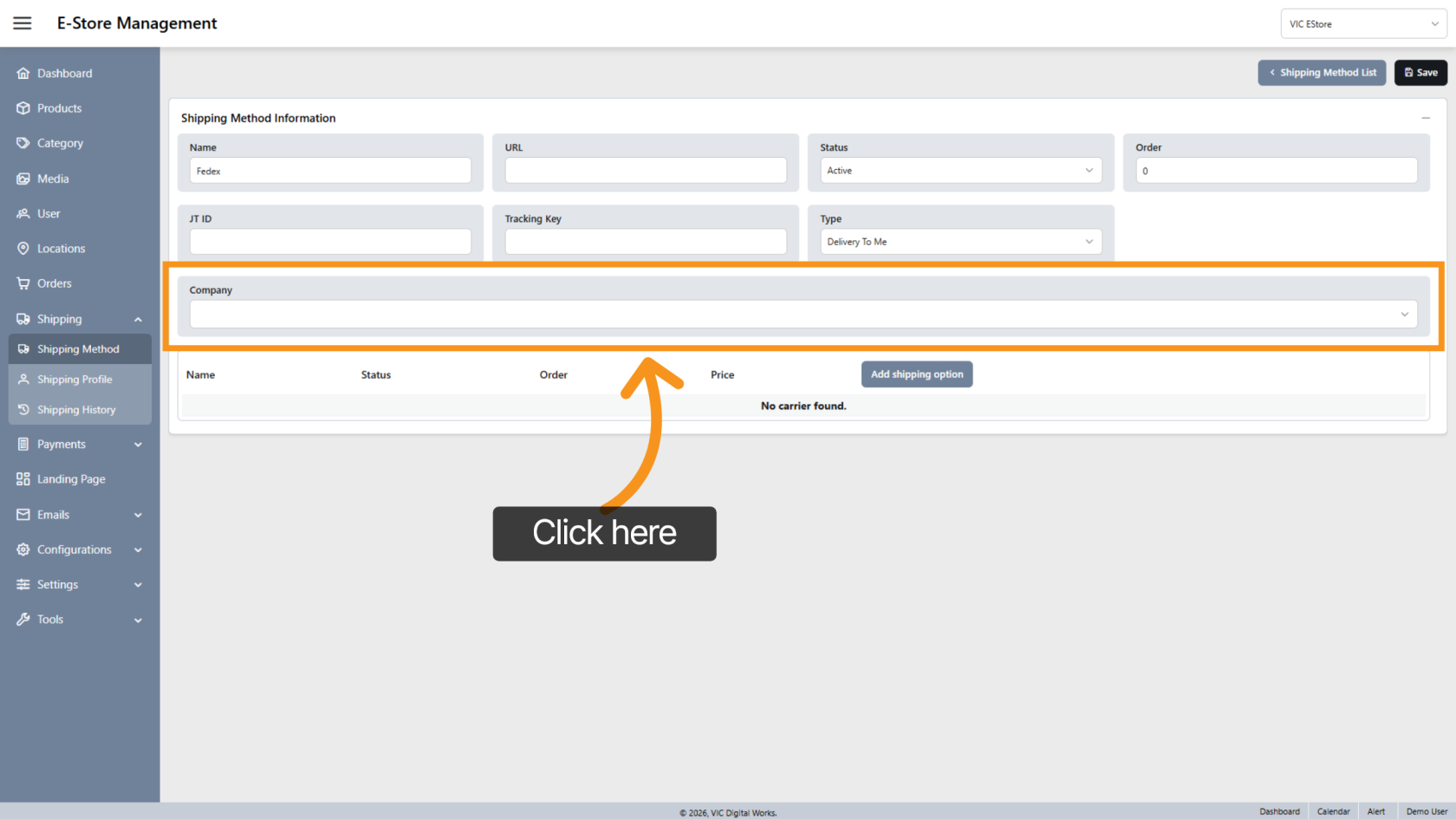
7. Select Company Store
Choose which Company Store this shipping method applies to.
This allows different stores to have different shipping configurations.
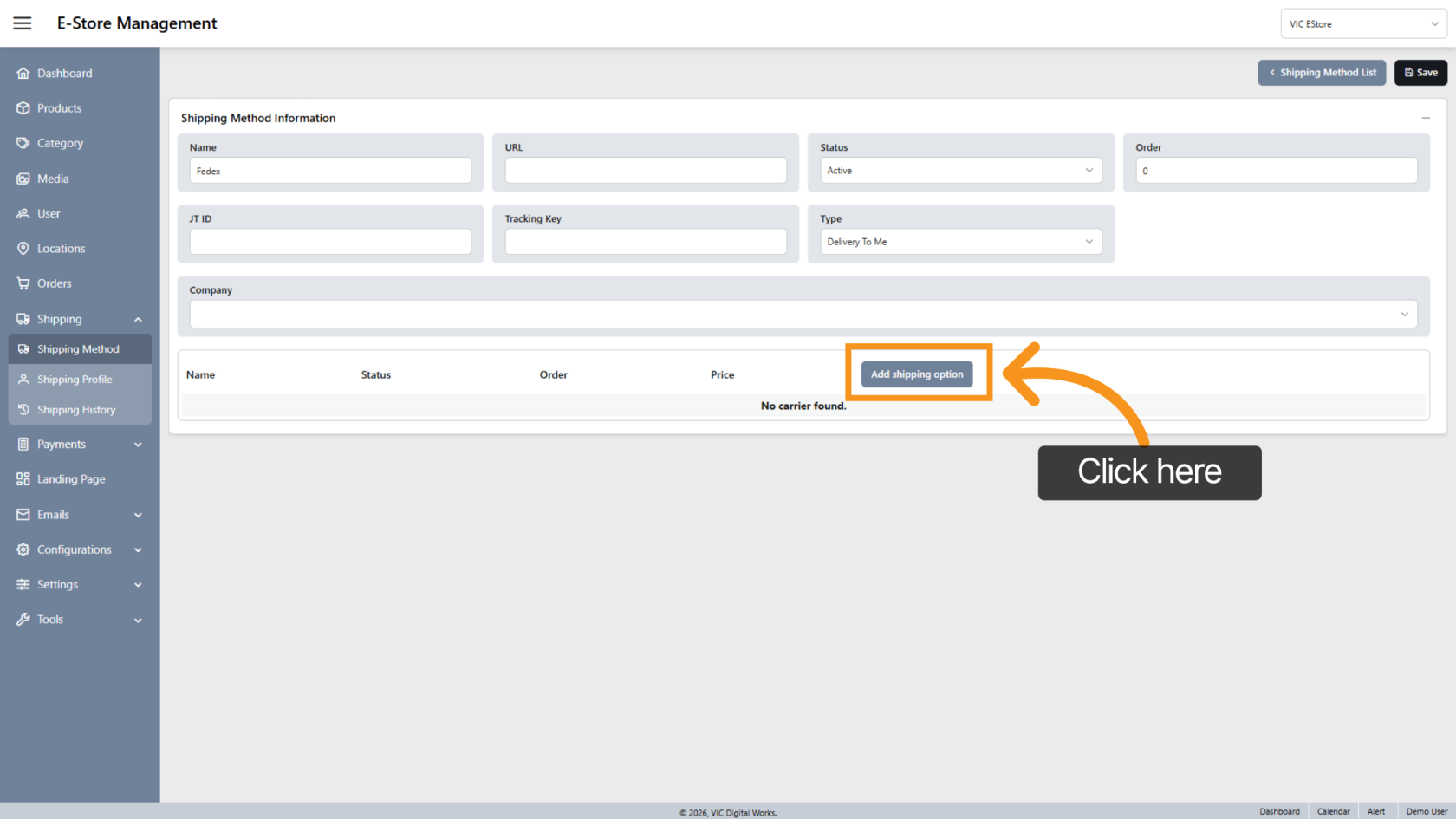
8. Add Shipping Options
Click "Add Shipping Option" to create specific service levels under the carrier.
For example: Standard, Express, Overnight, etc.
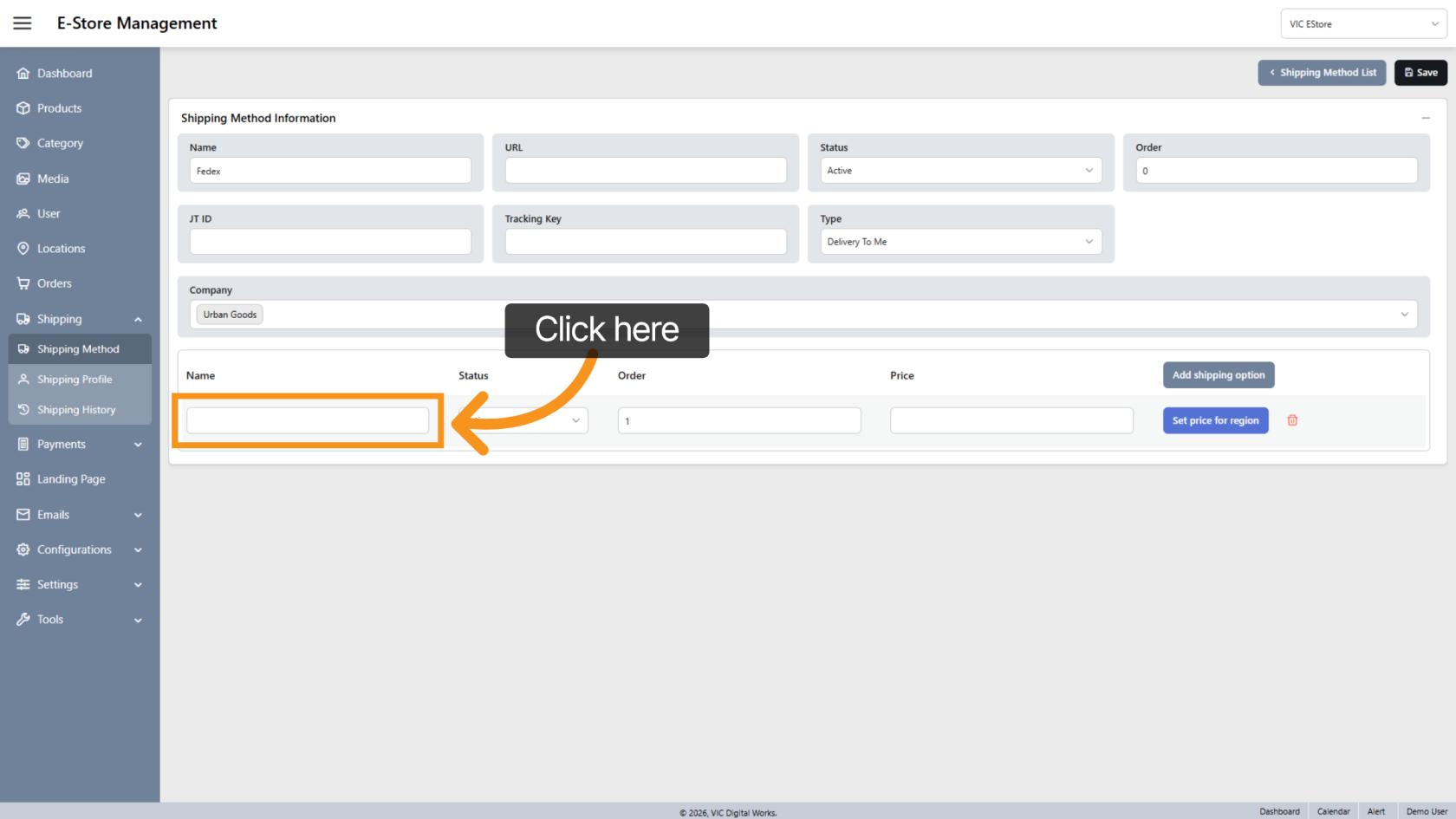
9. Enter Option Name
Provide a clear name for the shipping option.
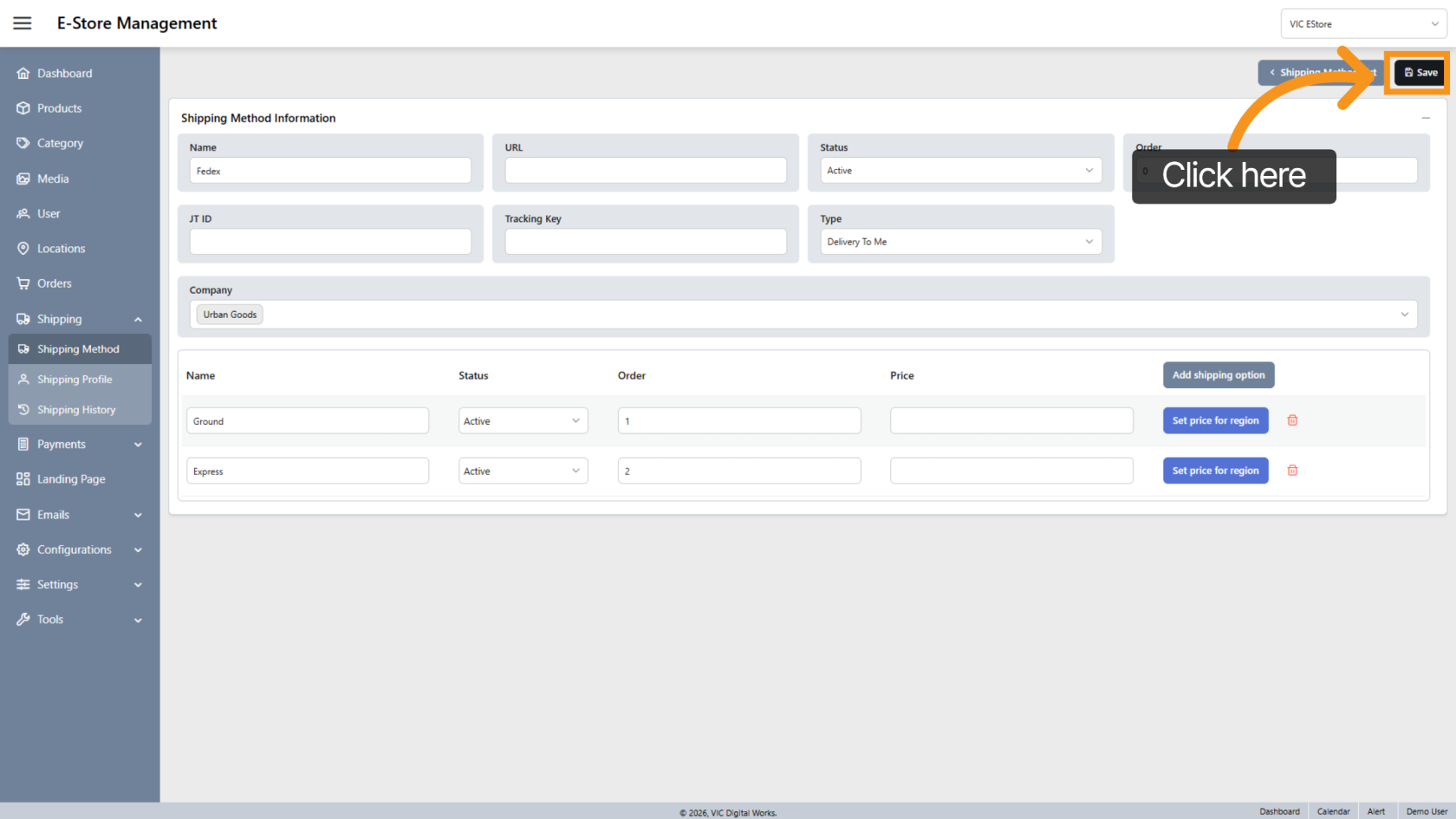
10. Save Shipping Method
Click "Save" to apply all changes.
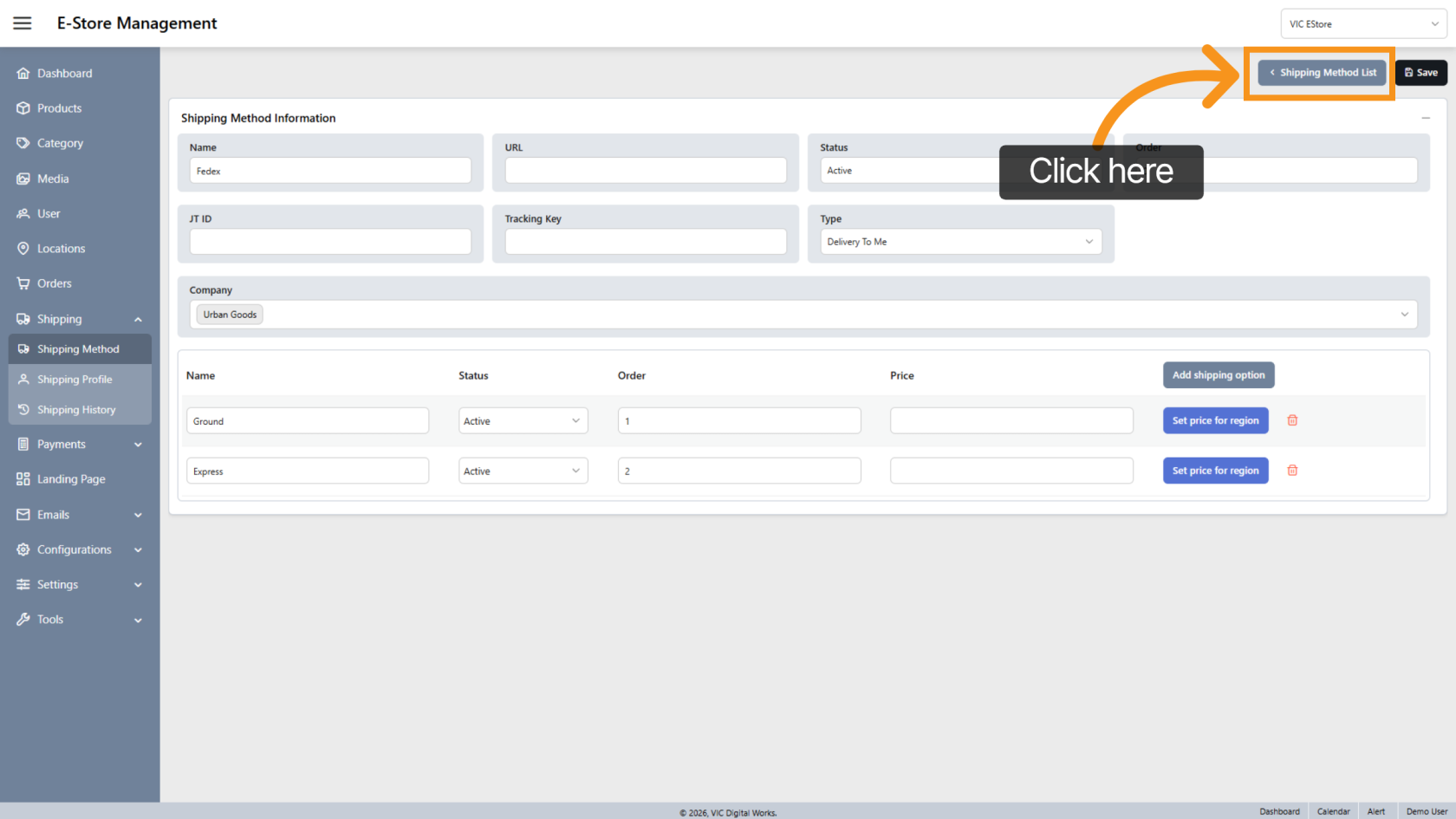
11. Back to Shipping Method list
Click "Shipping Method" List to return to the overview page.
You have successfully configured shipping methods and options in the E-store.