
Manage E-store Orders
This tutorial explains how to manage and review E-Store orders.
Video Tutorial
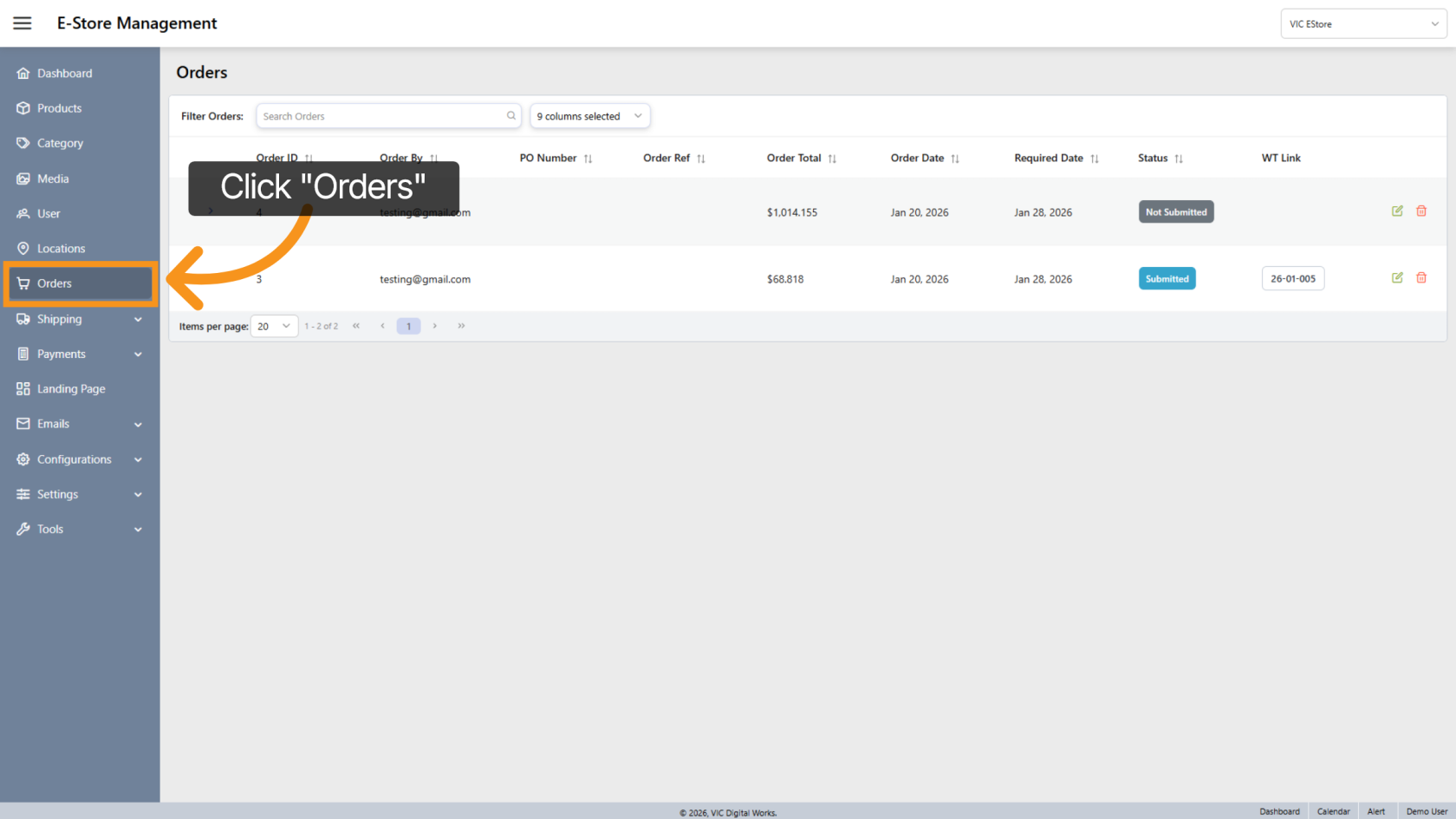
1. Access Orders Section
Click "Orders" in the side menu to open the order management area.
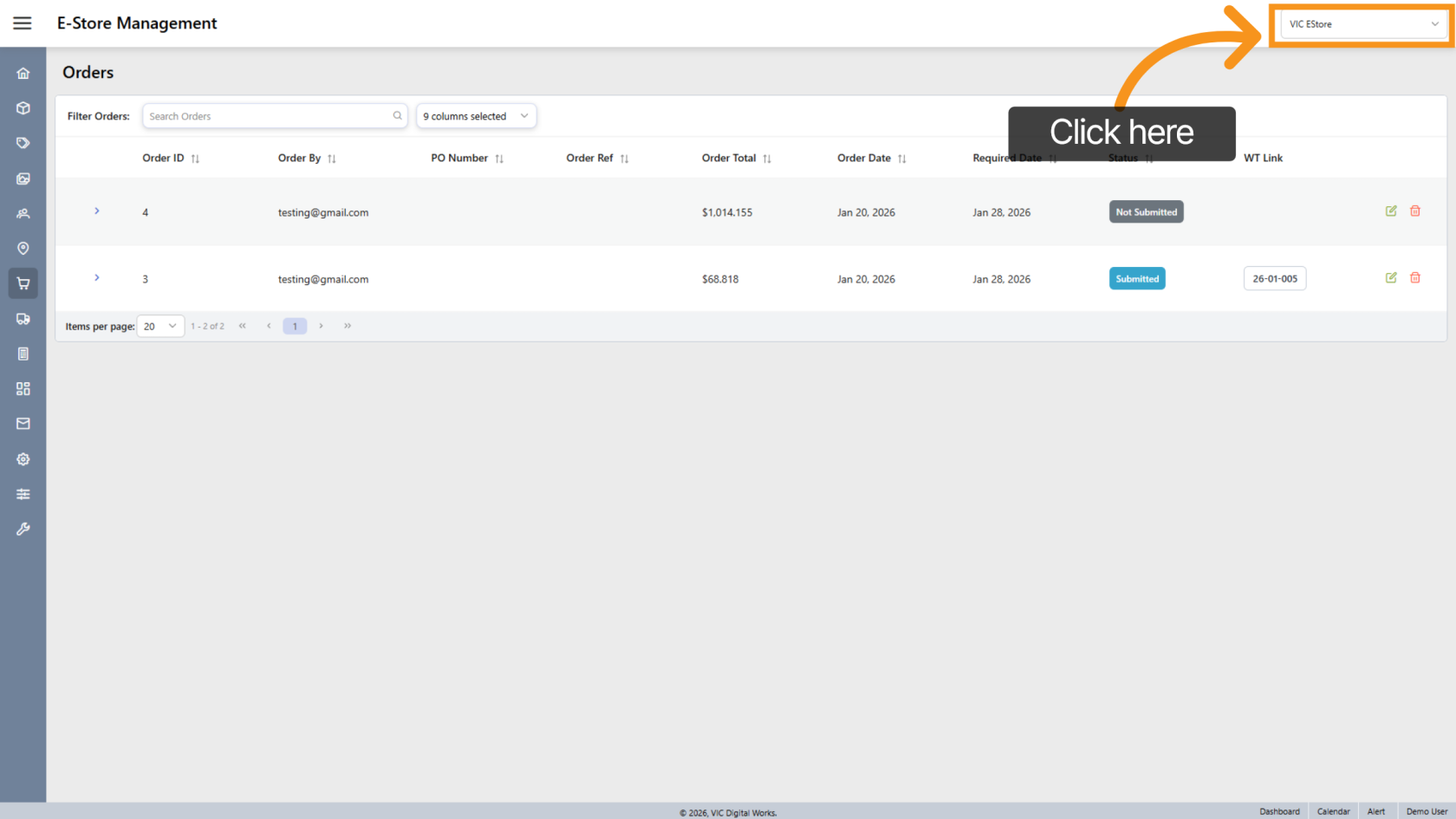
2. Select Company E-store
Click Company E-Store to access the E-store order management interface.
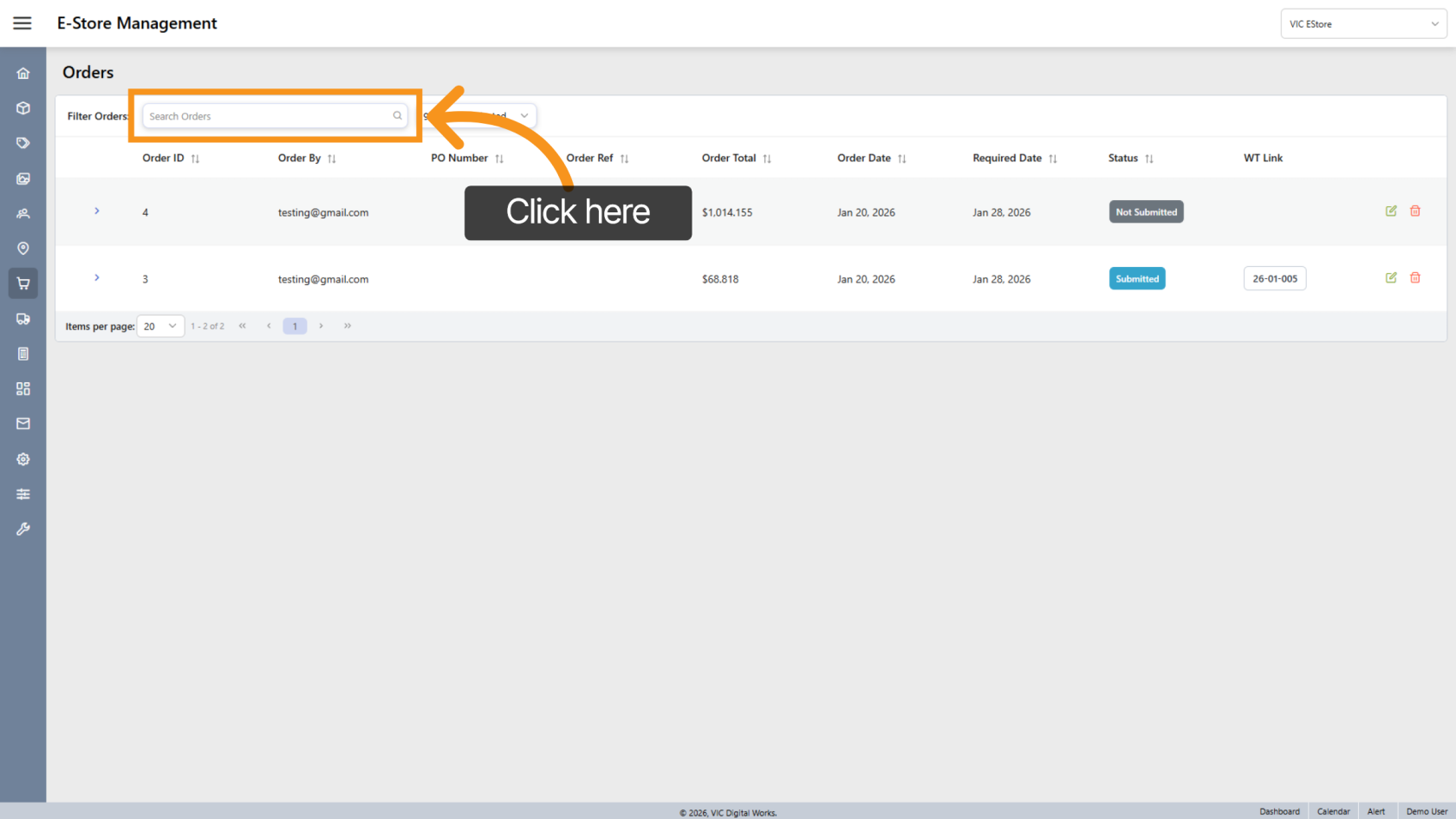
3. Search Orders
Click Search Orders to locate specific orders within the system.
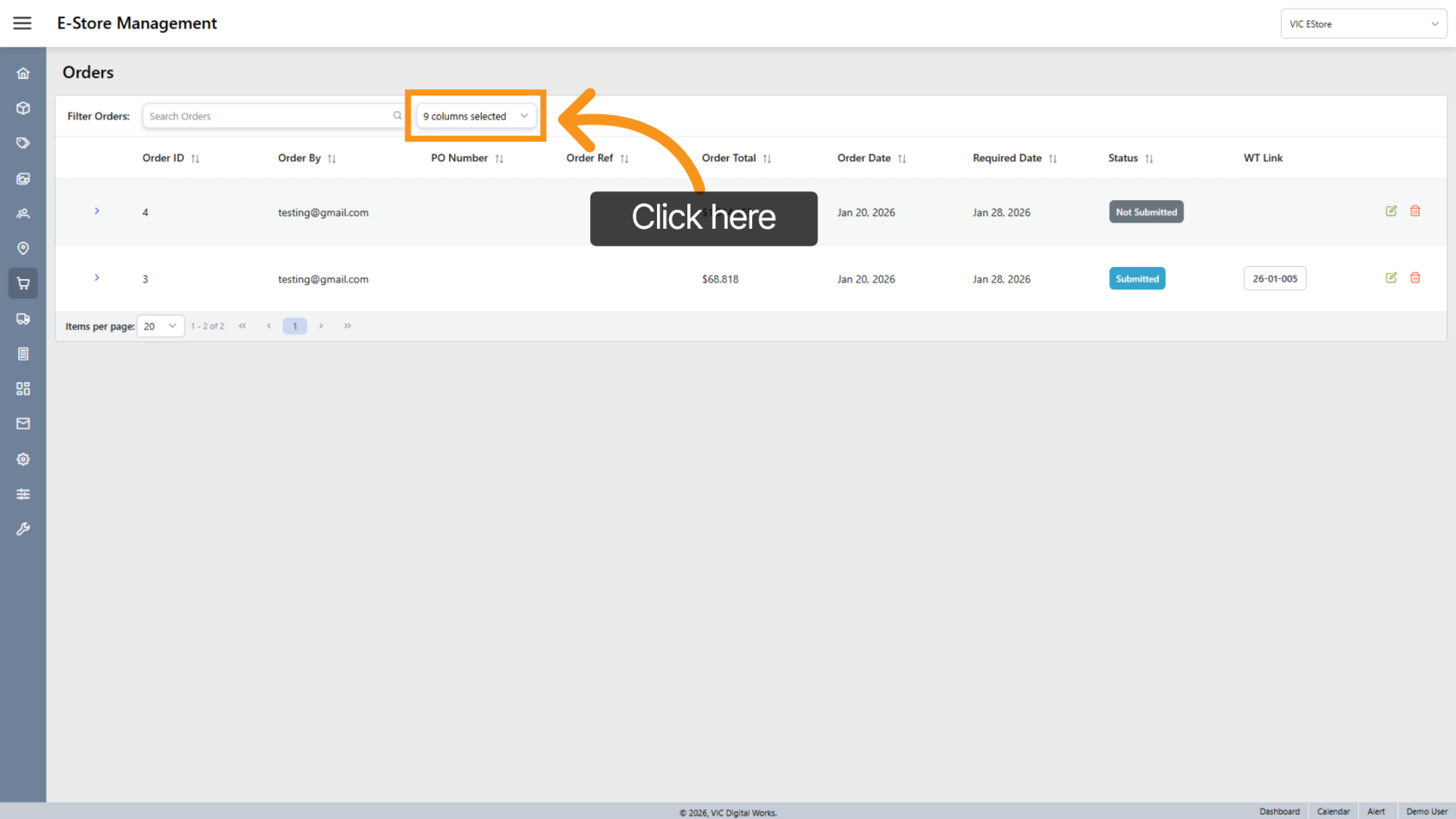
4. Customize List View
Click the  arrow to adjust which fields appear in the order list.
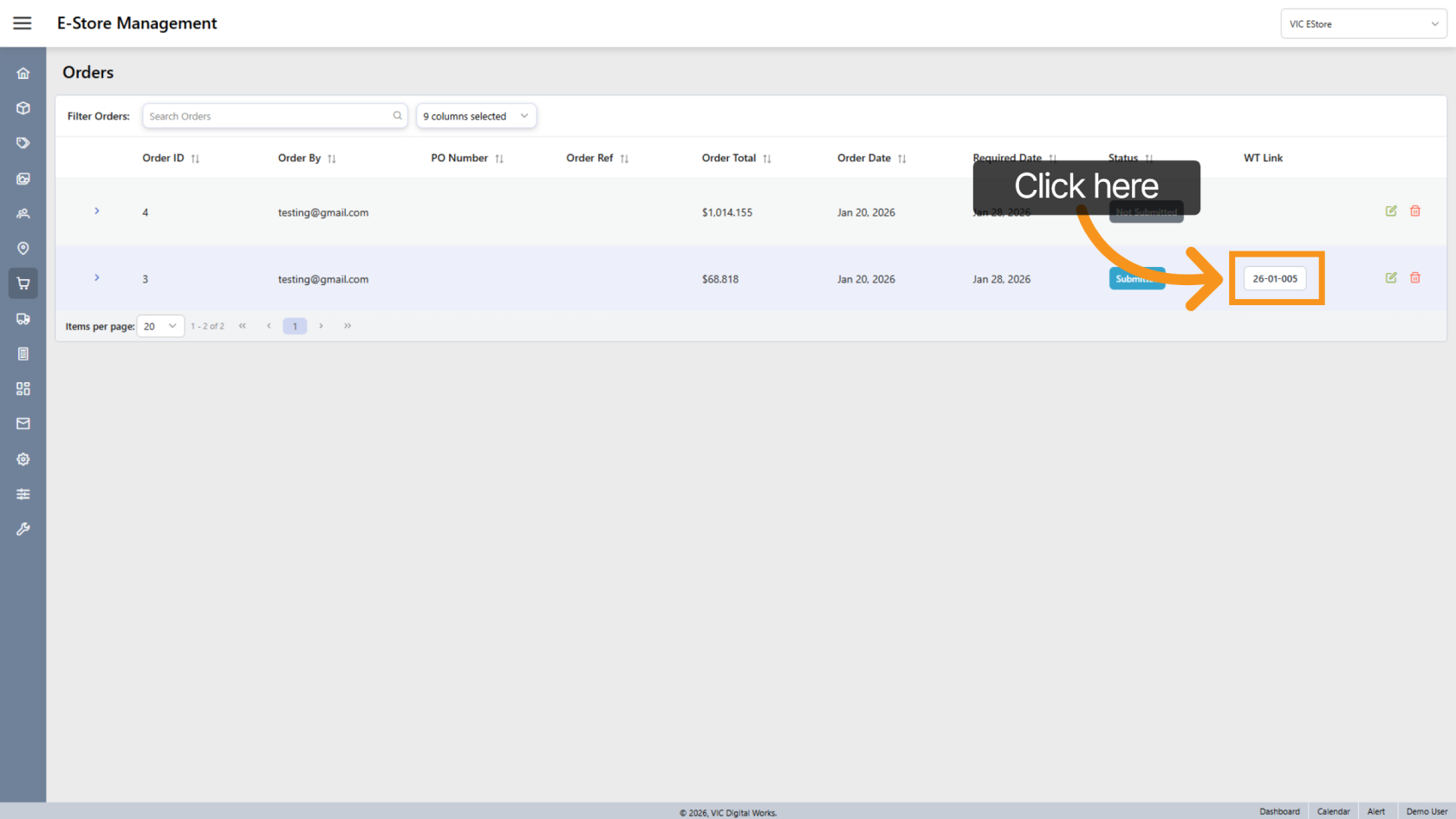
5. Open WorkTraq Order
Click the WorkTraq Order Number to view detailed order information inside the WorkTraq system.
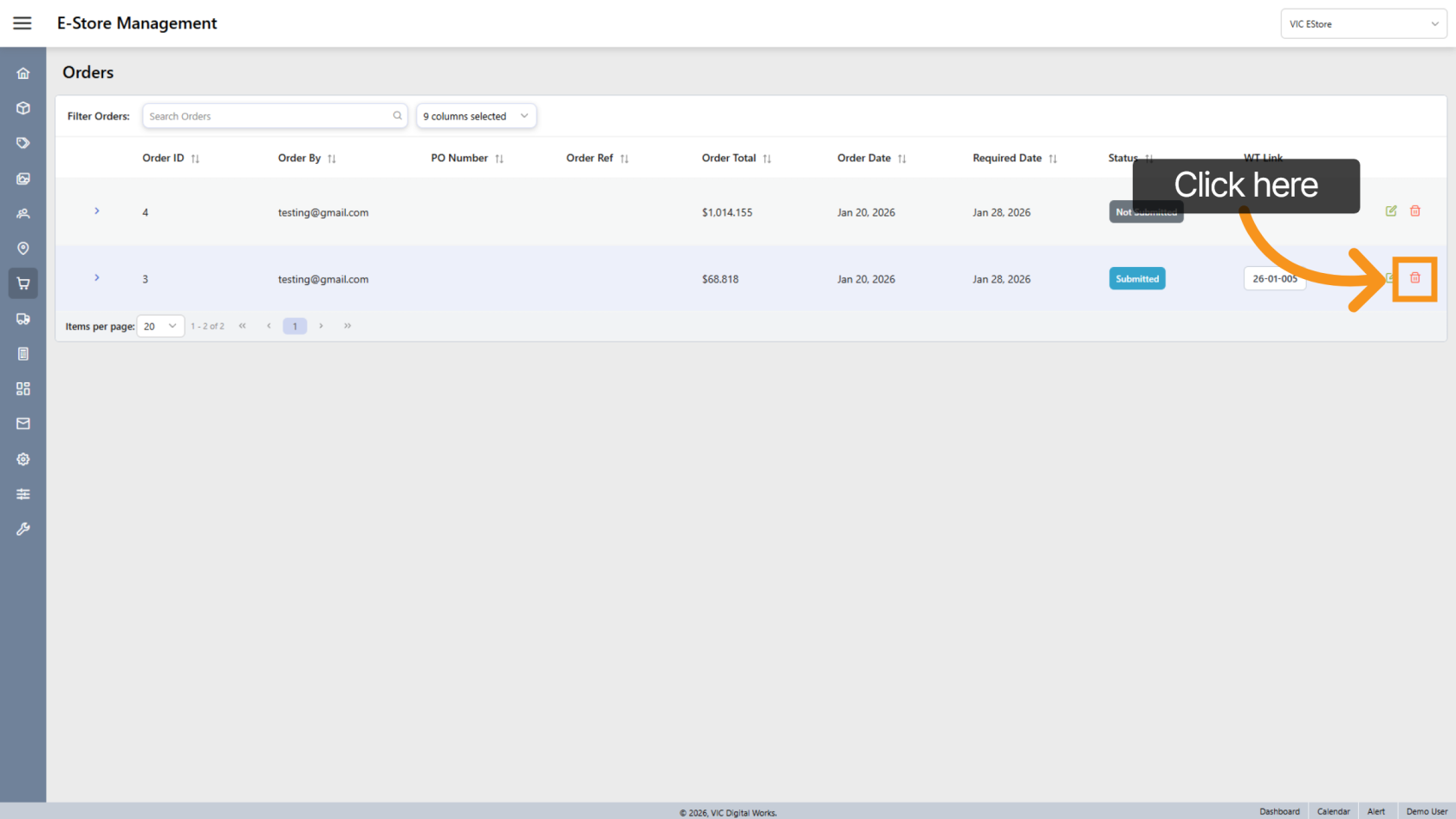
6. Delete an Order
Click the  delete icon to remove an order from the system.
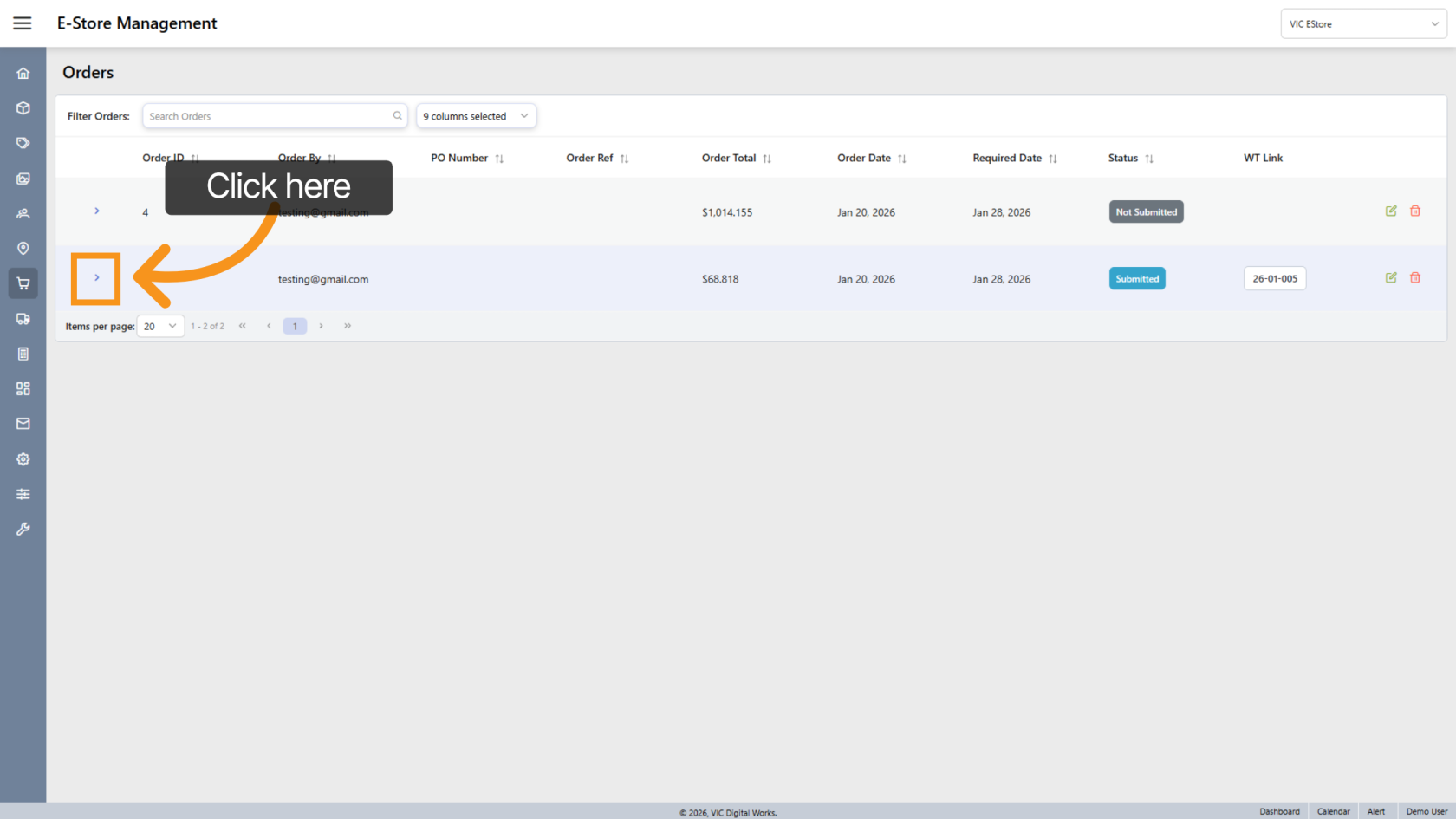
7. View Order Details
Click the  arrow next to an order to preview summary details.
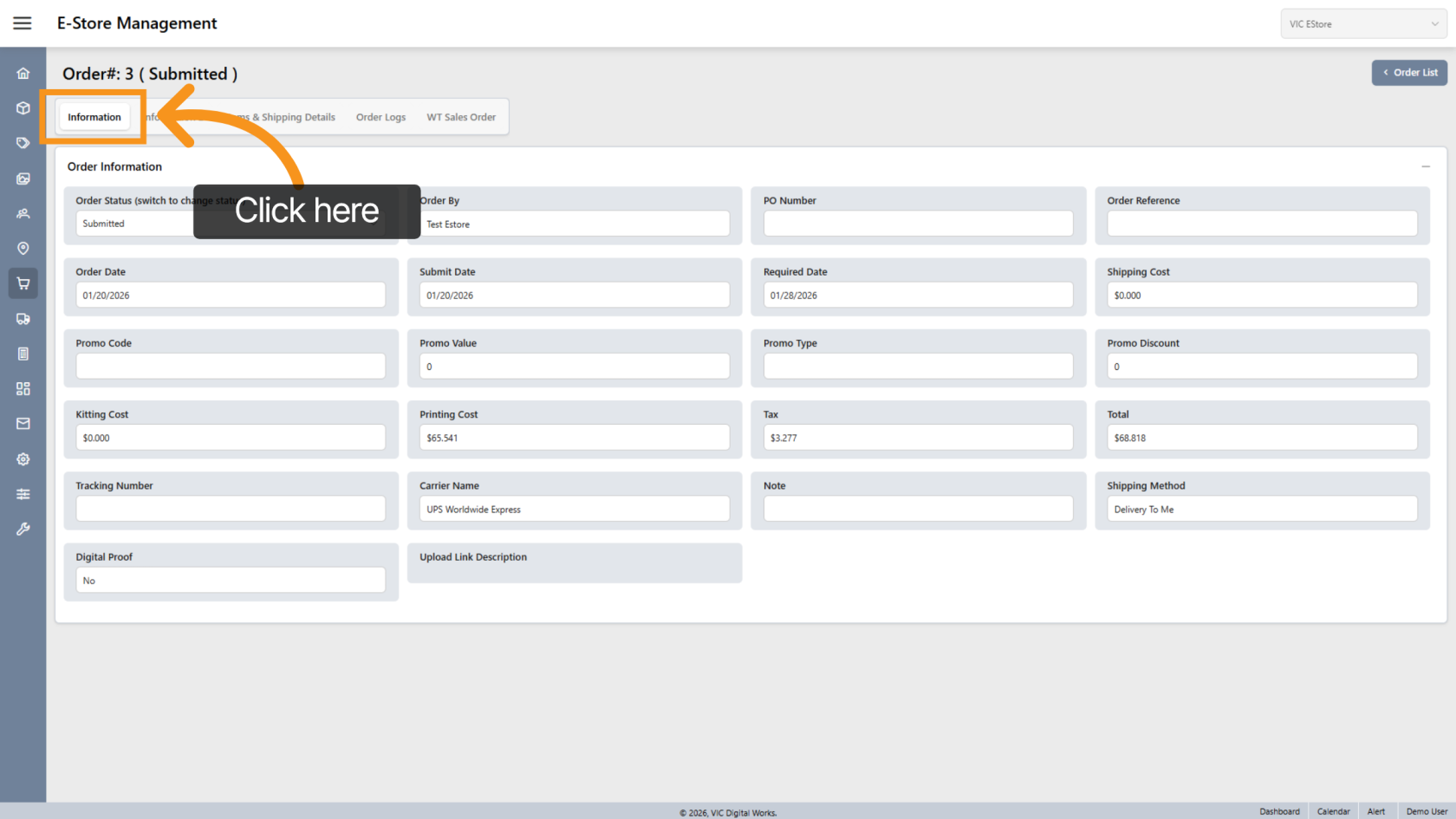
8. Review Order Information
Select "Information" to view the main order details.
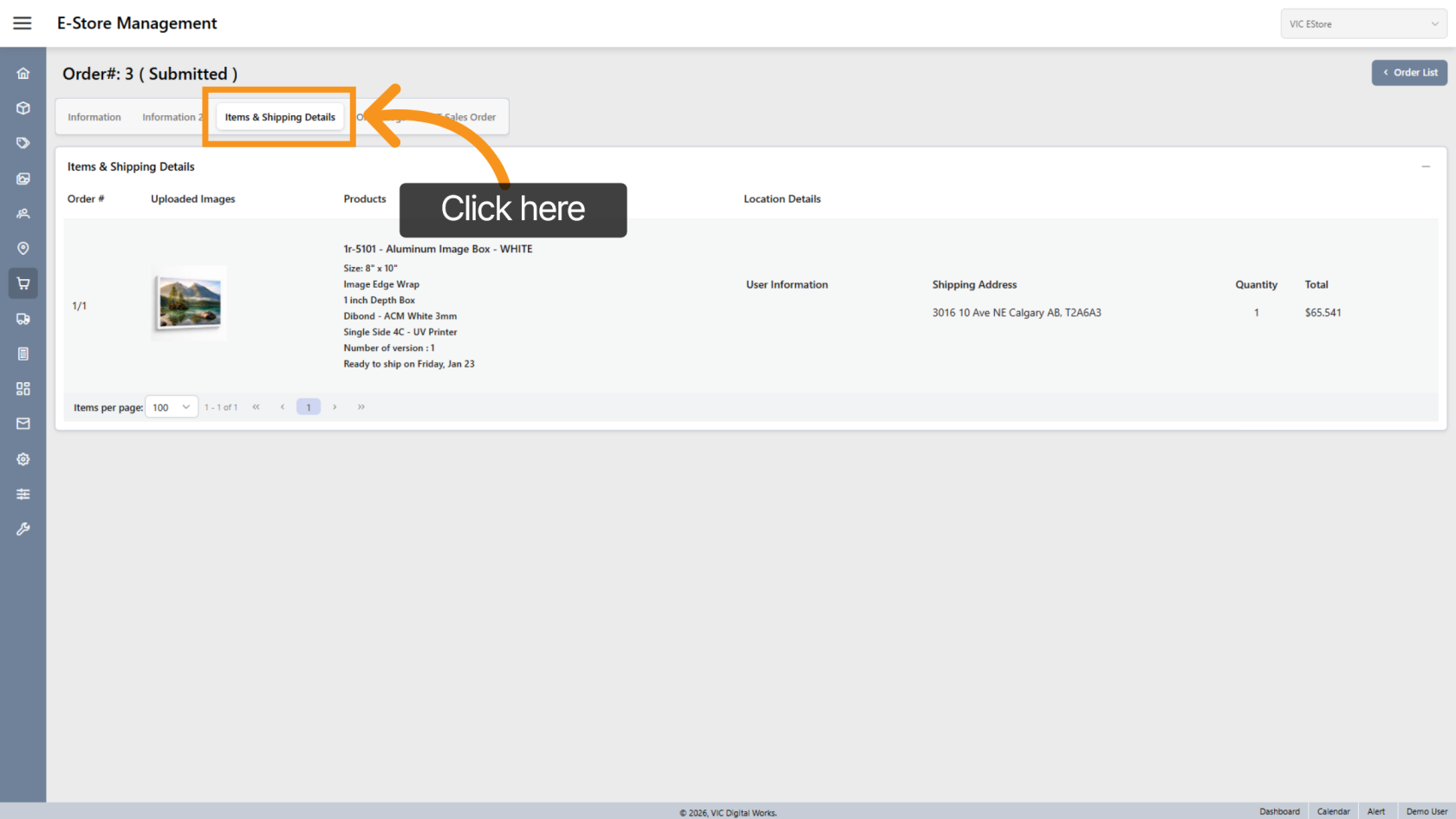
9. View Items & Shipping
Click "Items & Shipping Details" to review included products and shipping information.
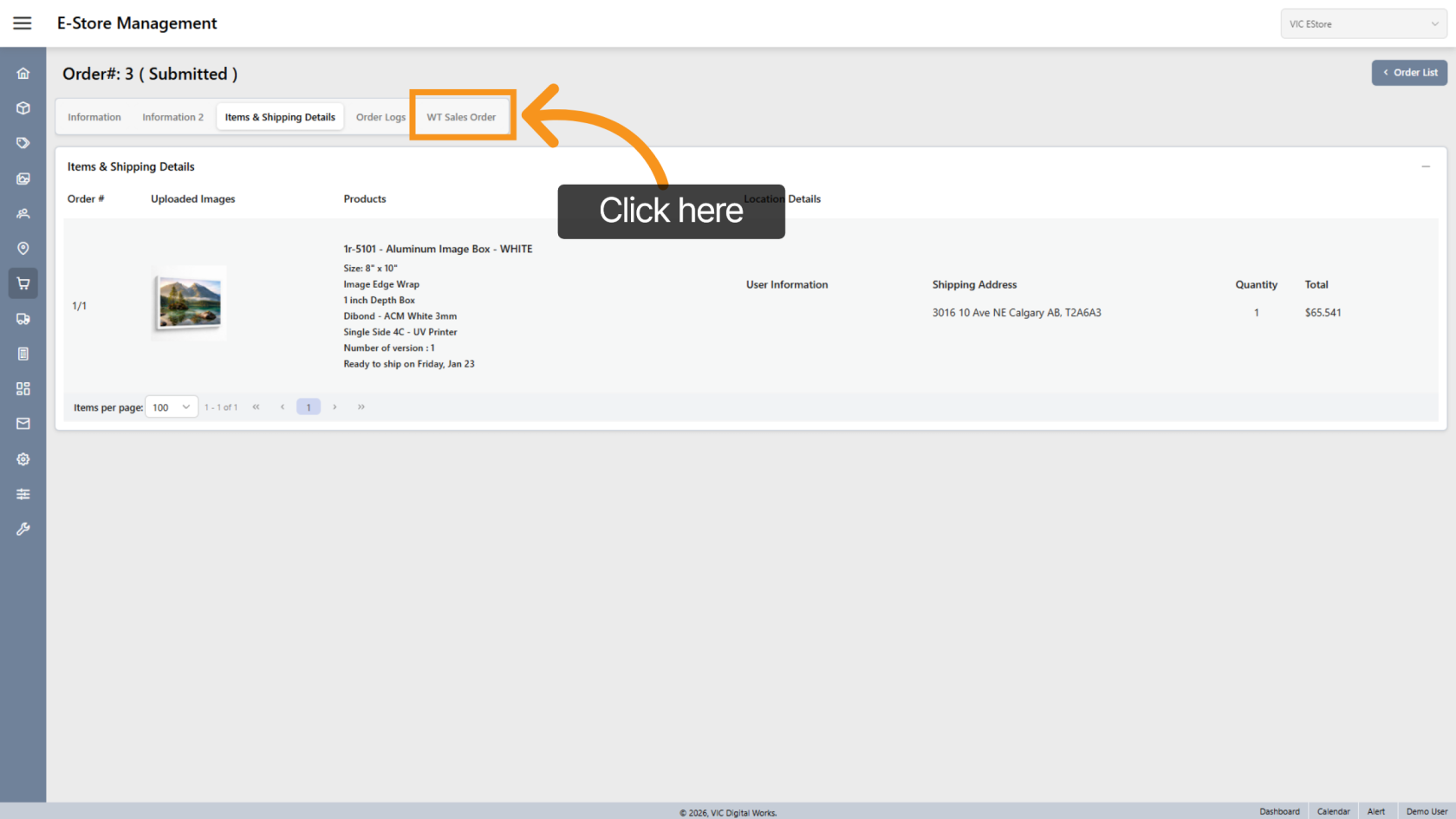
10. Open WorkTraq Sales Order
Click "WT Sales Order" to navigate directly to the corresponding Sales Order inside WorkTraq.
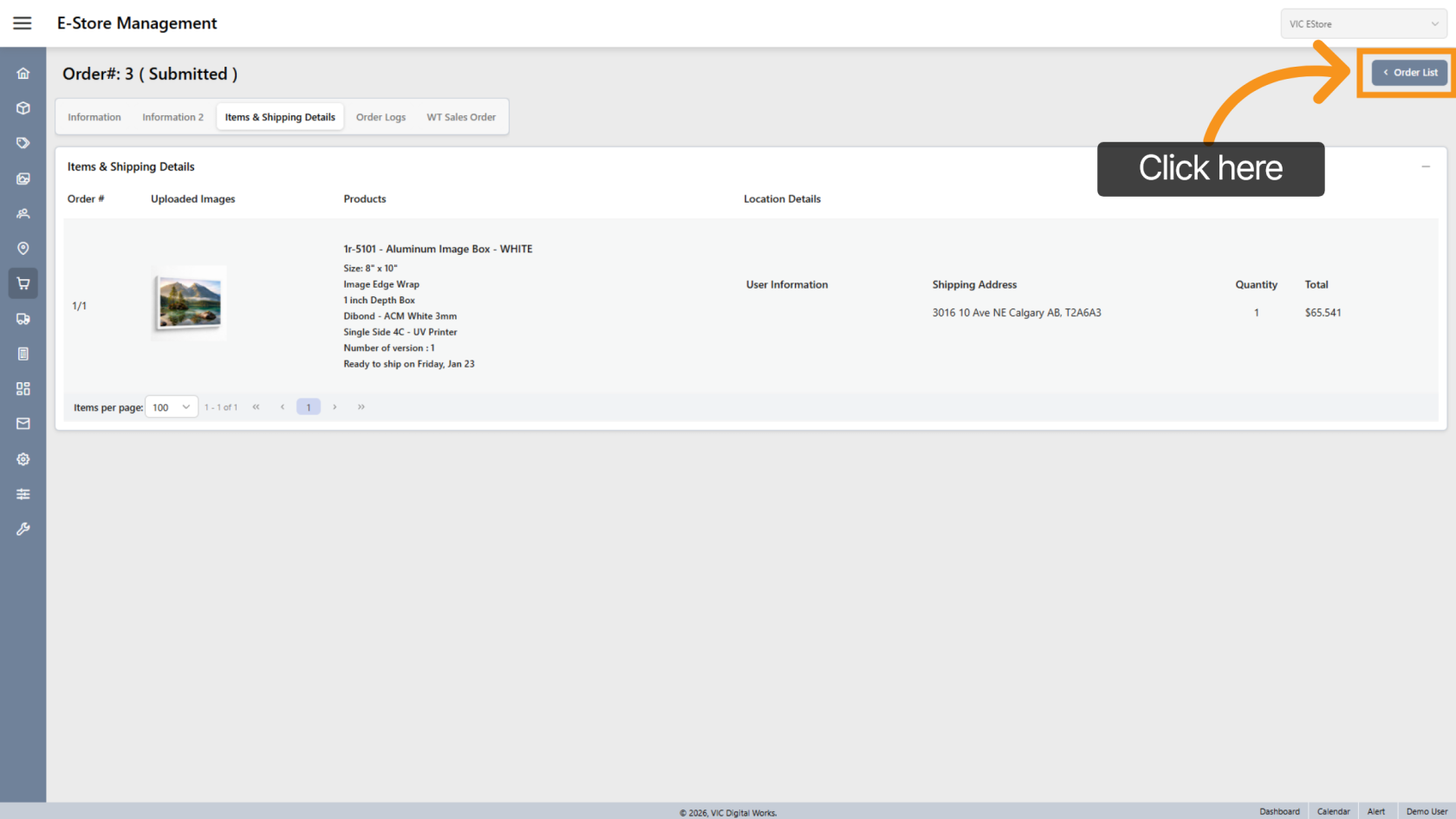
11. Return to Order List
Click "Order List" to return to the main orders overview page.
You have successfully managed, reviewed, and tracked E-Store order information efficiently.