
Manage Products Workspace
This tutorial explains how to manage products in the E-Store workspace.
Video Tutorial
1. Open Products
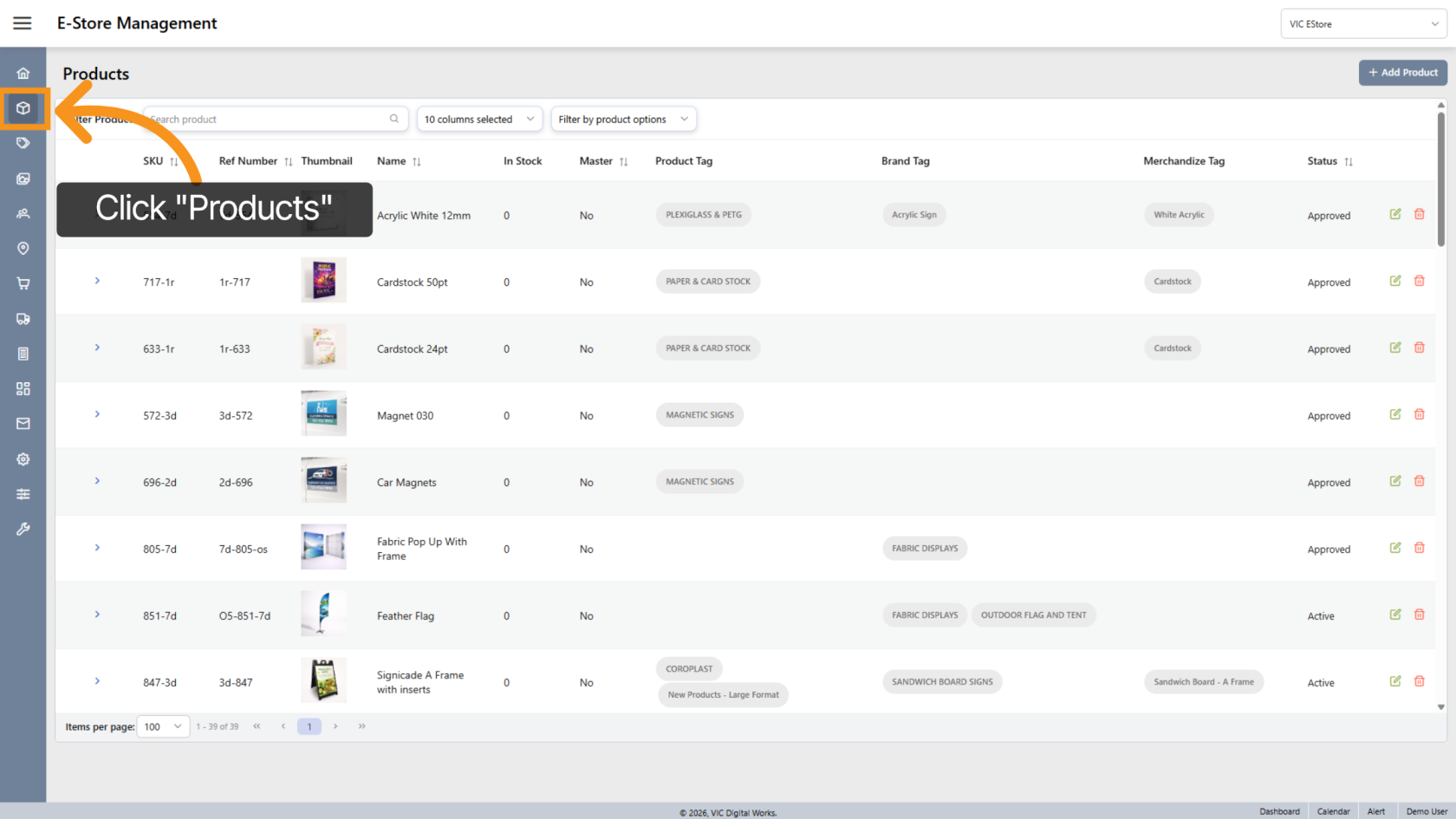
Click "Products" in the sidebar to view all store-related products.
This list shows only web-enabled products and their child products.
2. Select Product Store
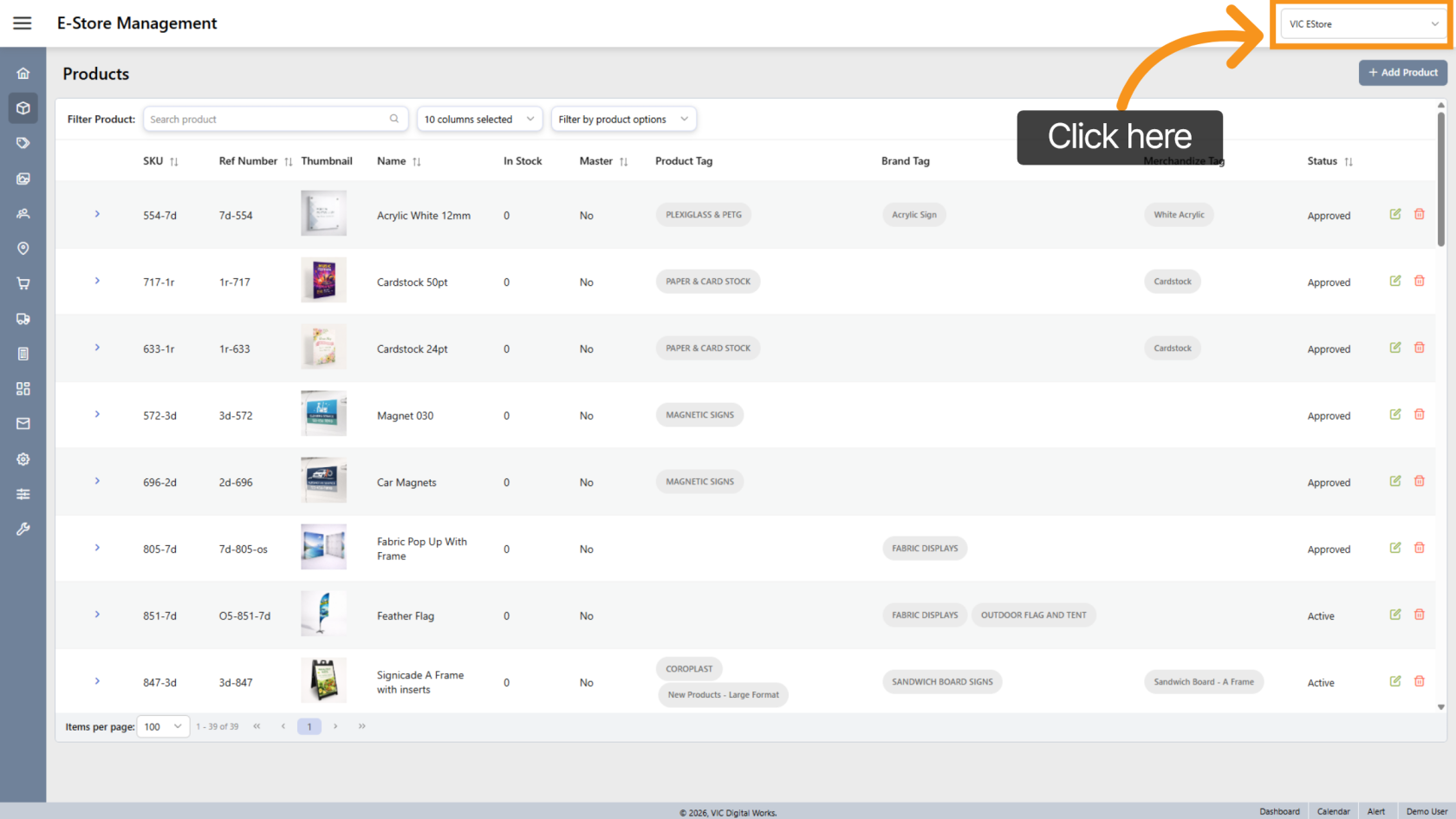
At the top, choose the store you want to manage.
Each store may have a different product list.
3. Add New E-Store Product
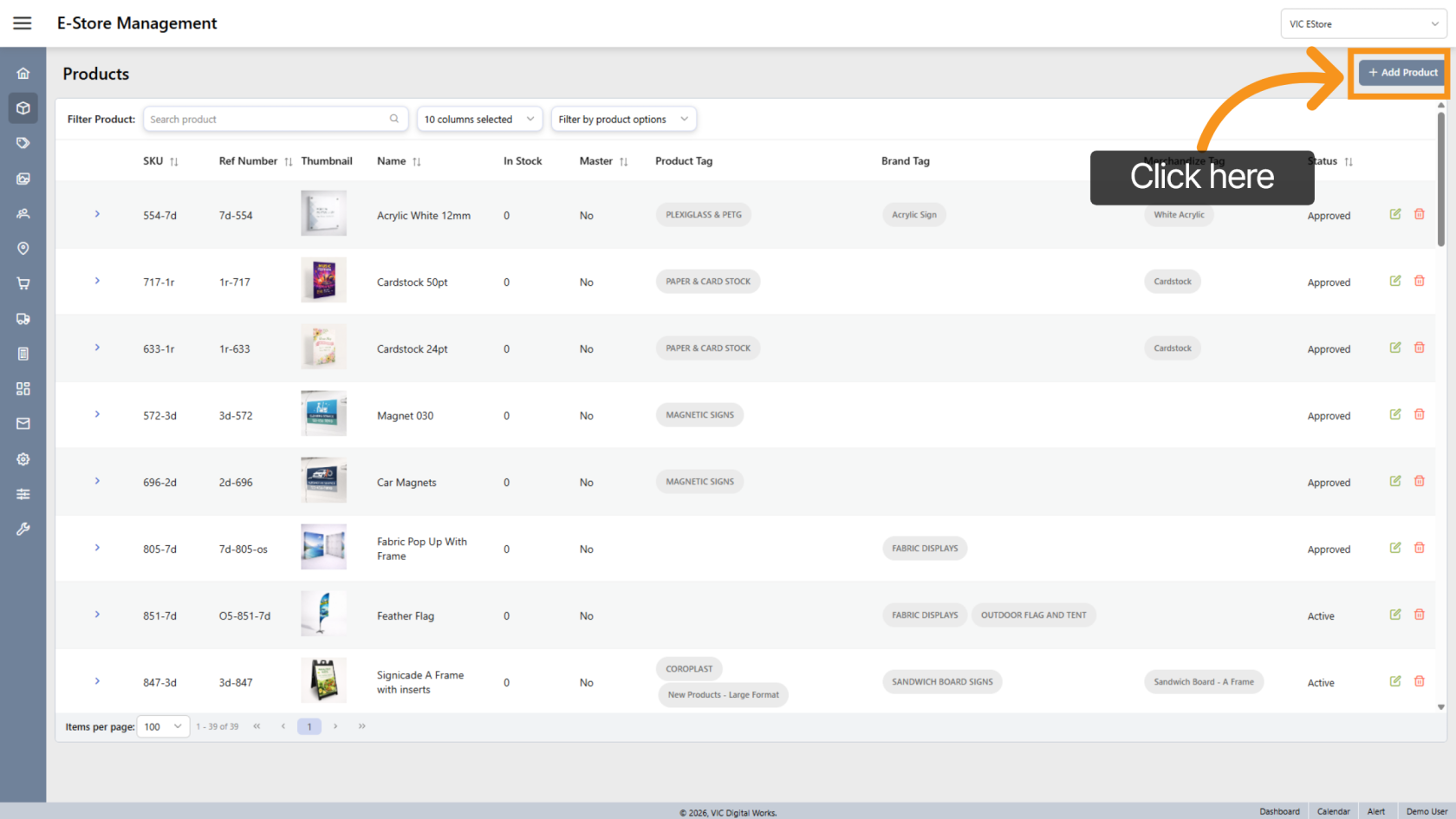
Click "Add Product" to create a new E-Store product.
(Refer to the Create E-Store Product guide for detailed steps.)
4. Search for a Product
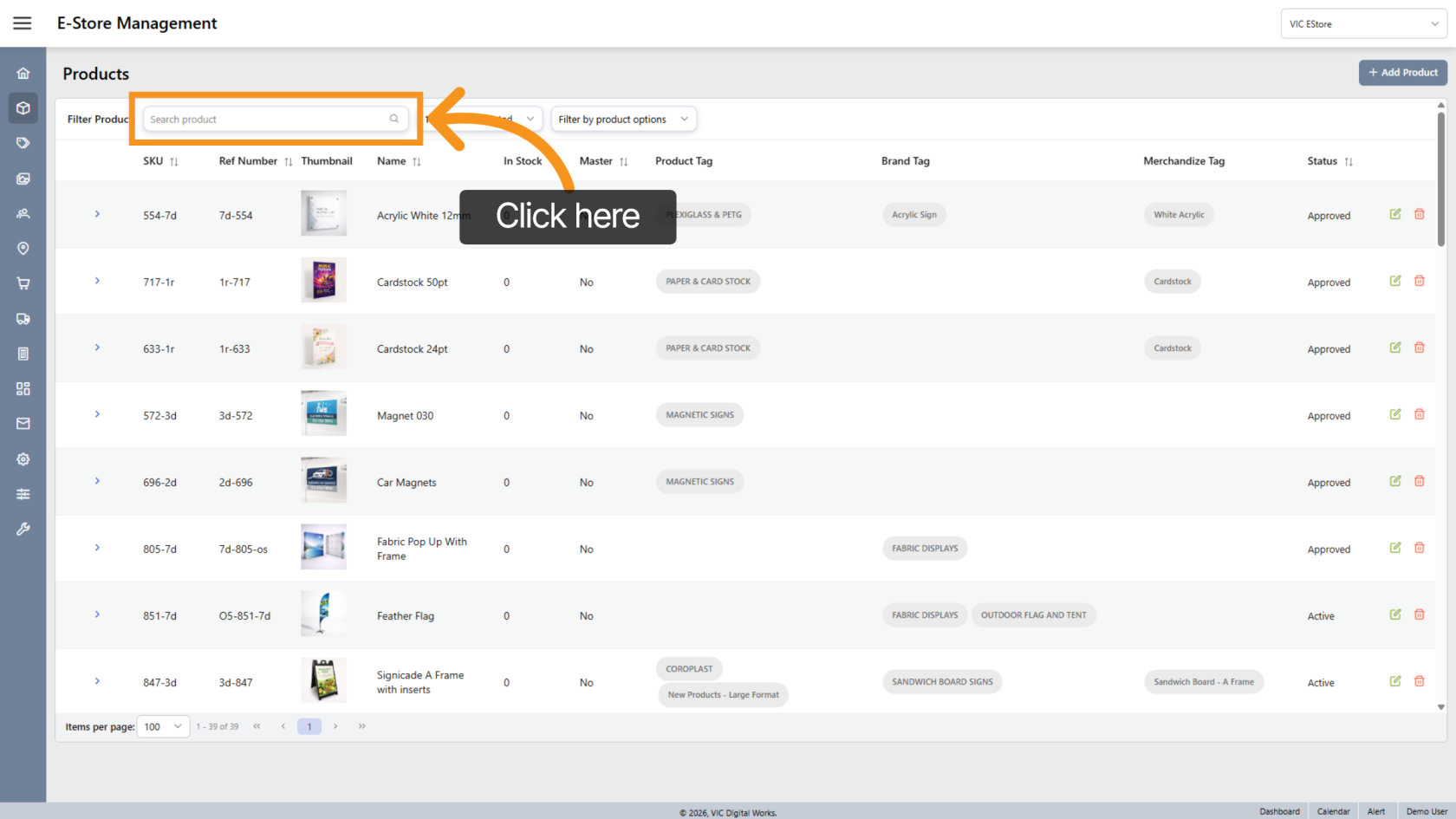
Enter a value in the Search Product field to find products by:
- Product name
- SKU
- Reference number
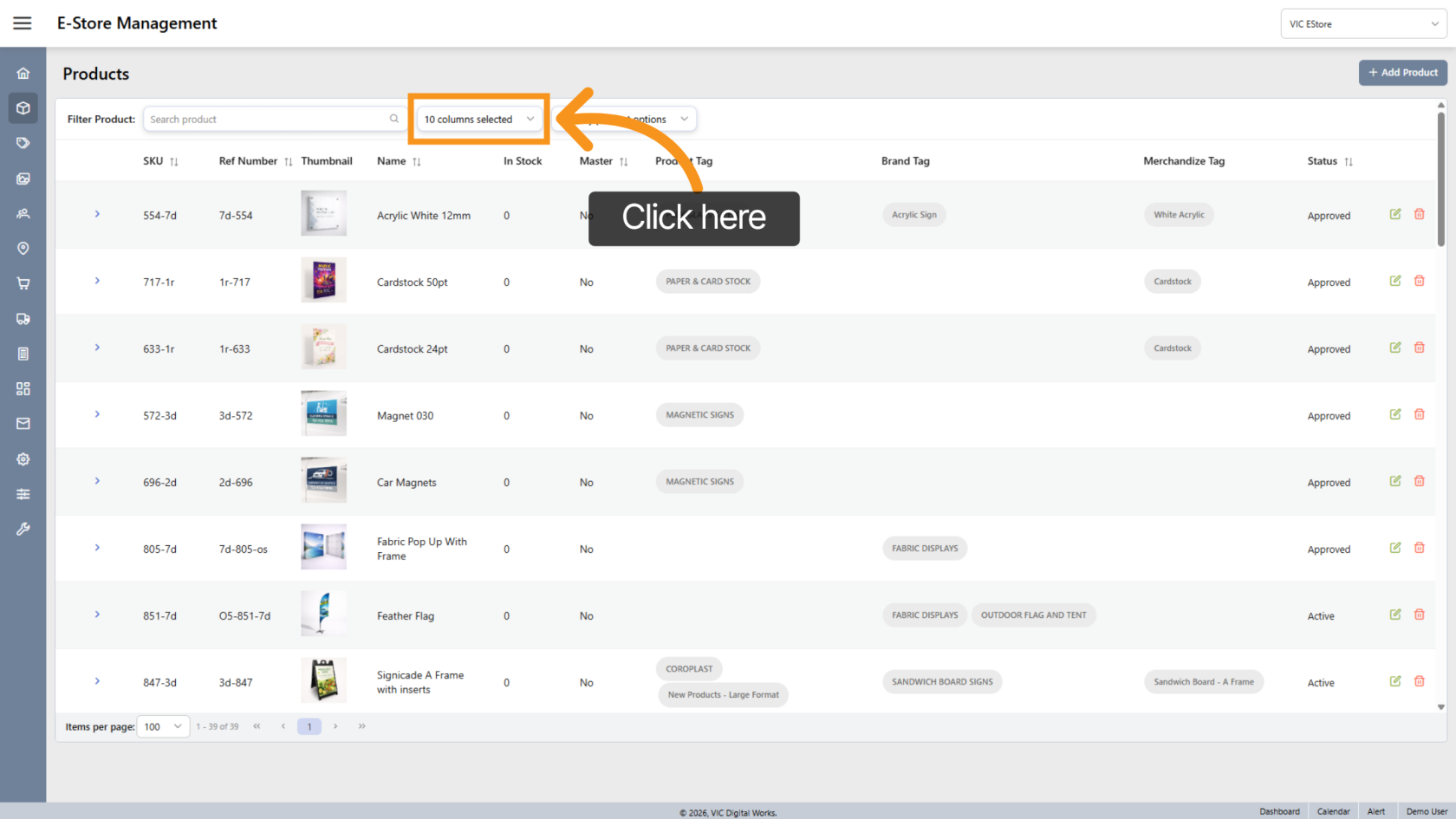
5. Customize List View
Click the  arrow icon to adjust how the product list is displayed.
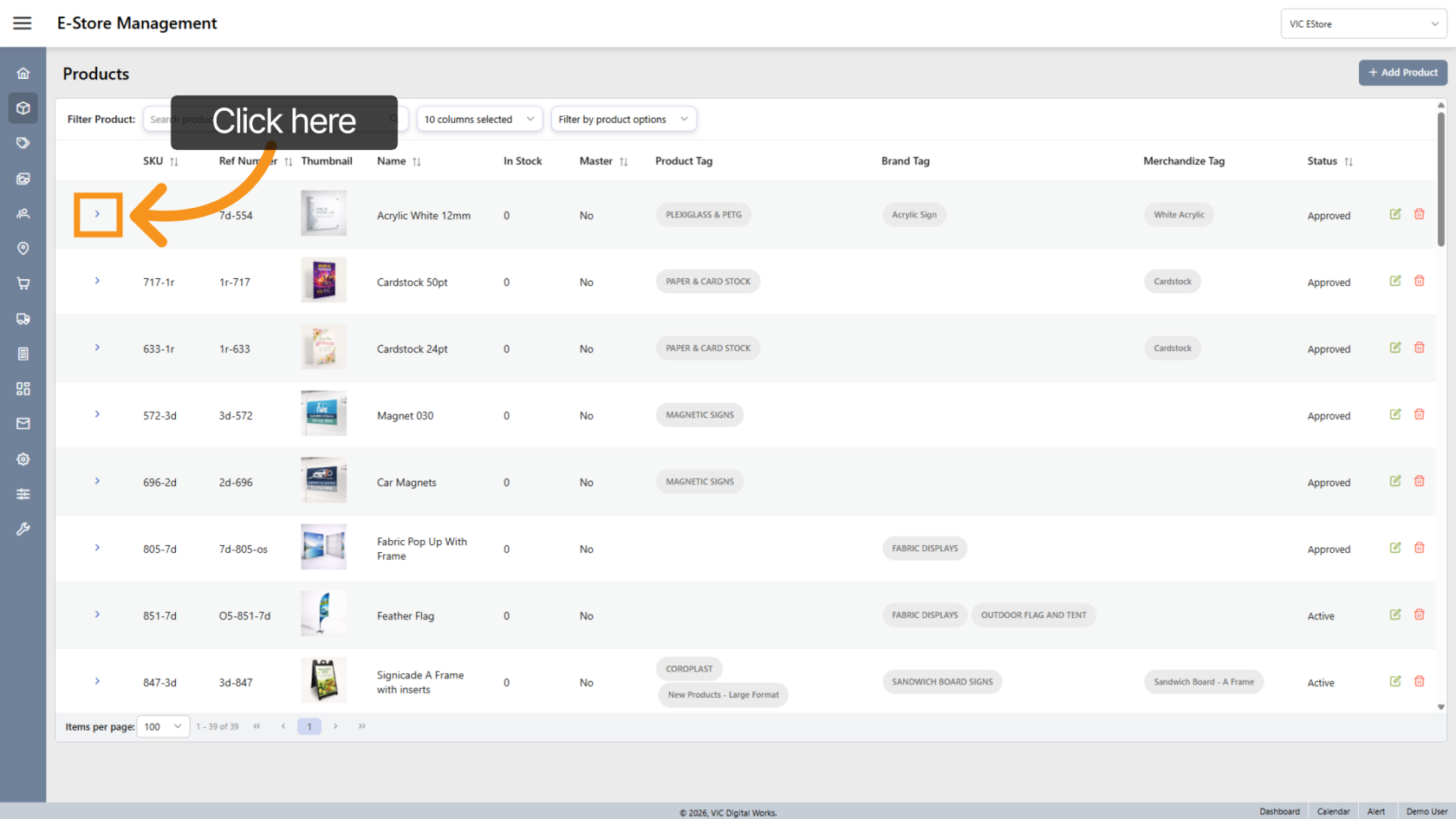
6. View Product
Click the  arrow icon next to a product to open and view its details.
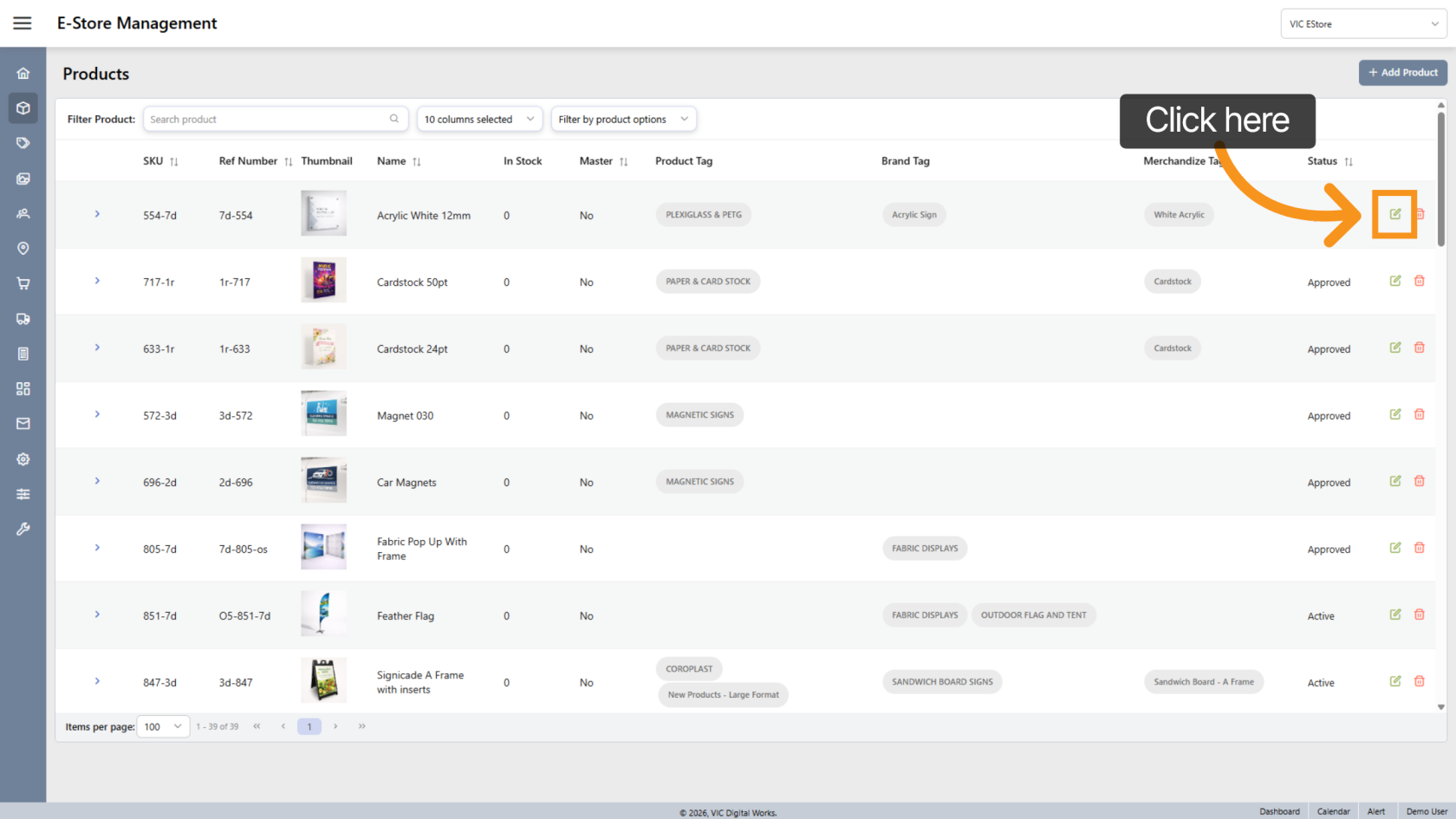
7. Edit Product
Click the  edit icon to modify the product.
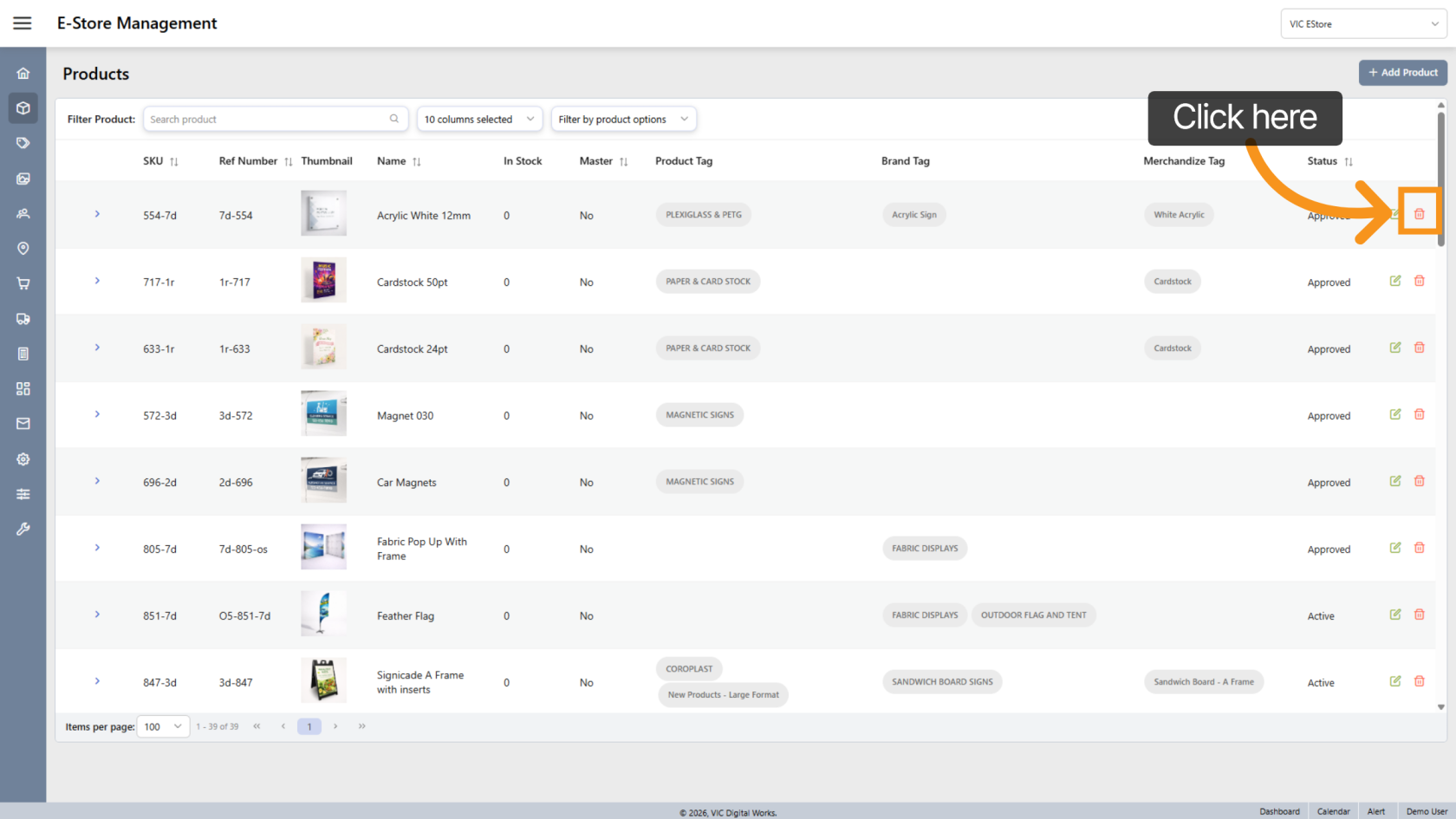
8. Deleted Product
Click the  delete icon on the product line you want to remove.
You have successfully managed products by adding, searching, and customizing your E-Store product workspace. Next, proceed to Create a New E-Store Product.