
Email Invoice
This tutorial explains how to send an invoice by email from the system.
Video Tutorial
1. Open the Other Section
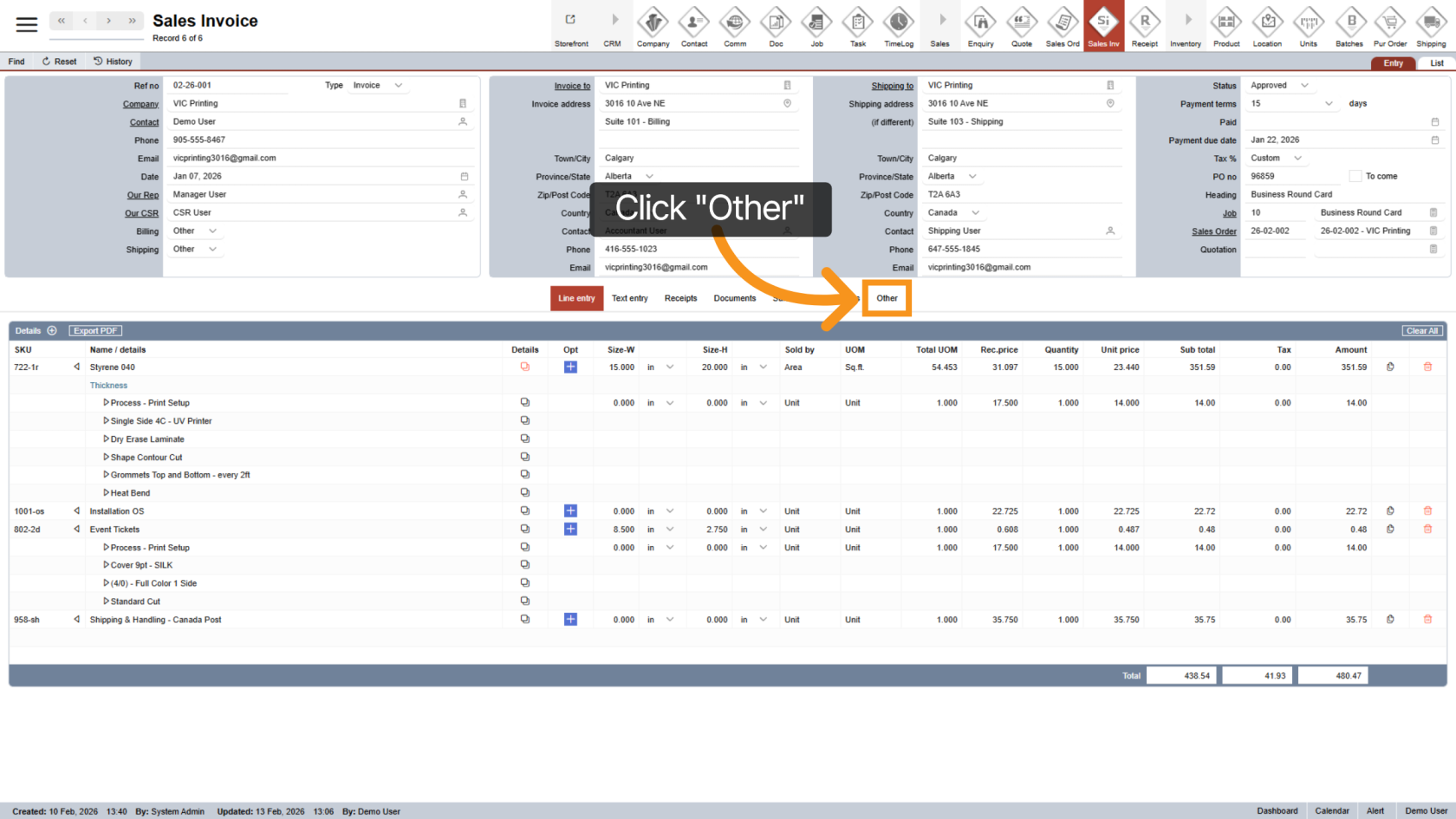
2. Select Email & Print
Click "Email & Print" to open the sending options.
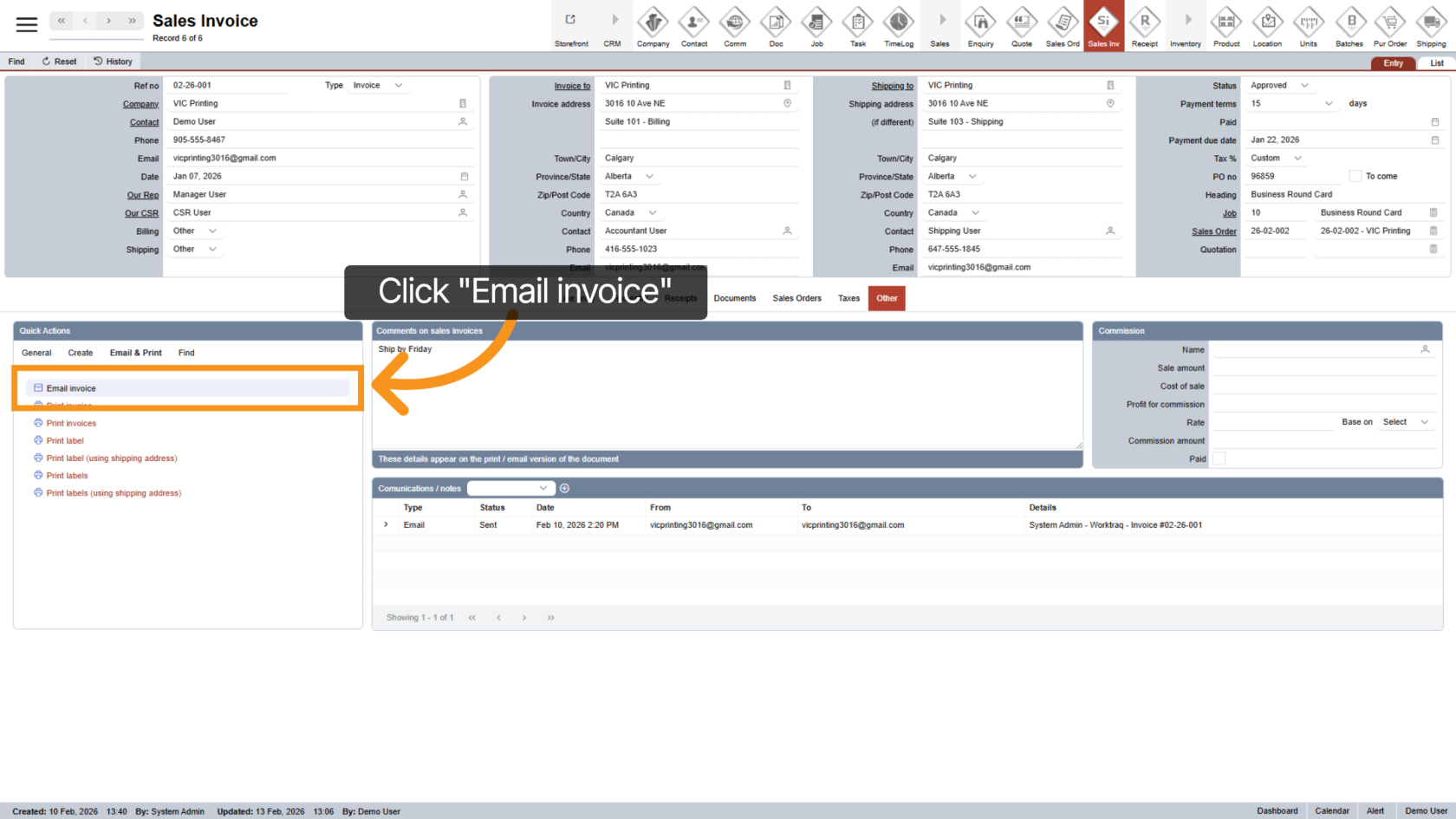
3. Choose Email Invoice
Click "Email Invoice" to begin sending the invoice by email.
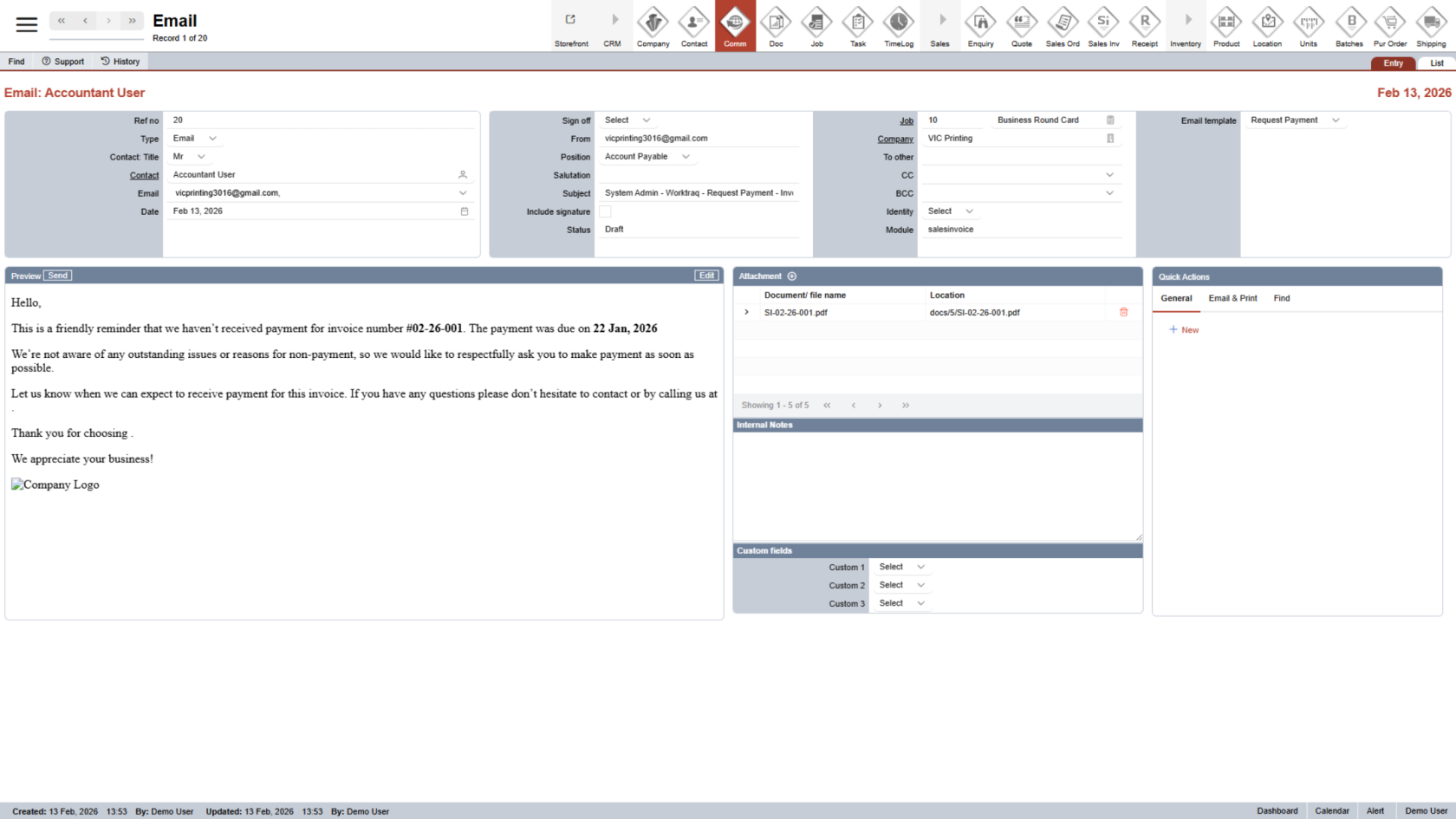
4. Review Communication Screen
The system will automatically open the email communication screen
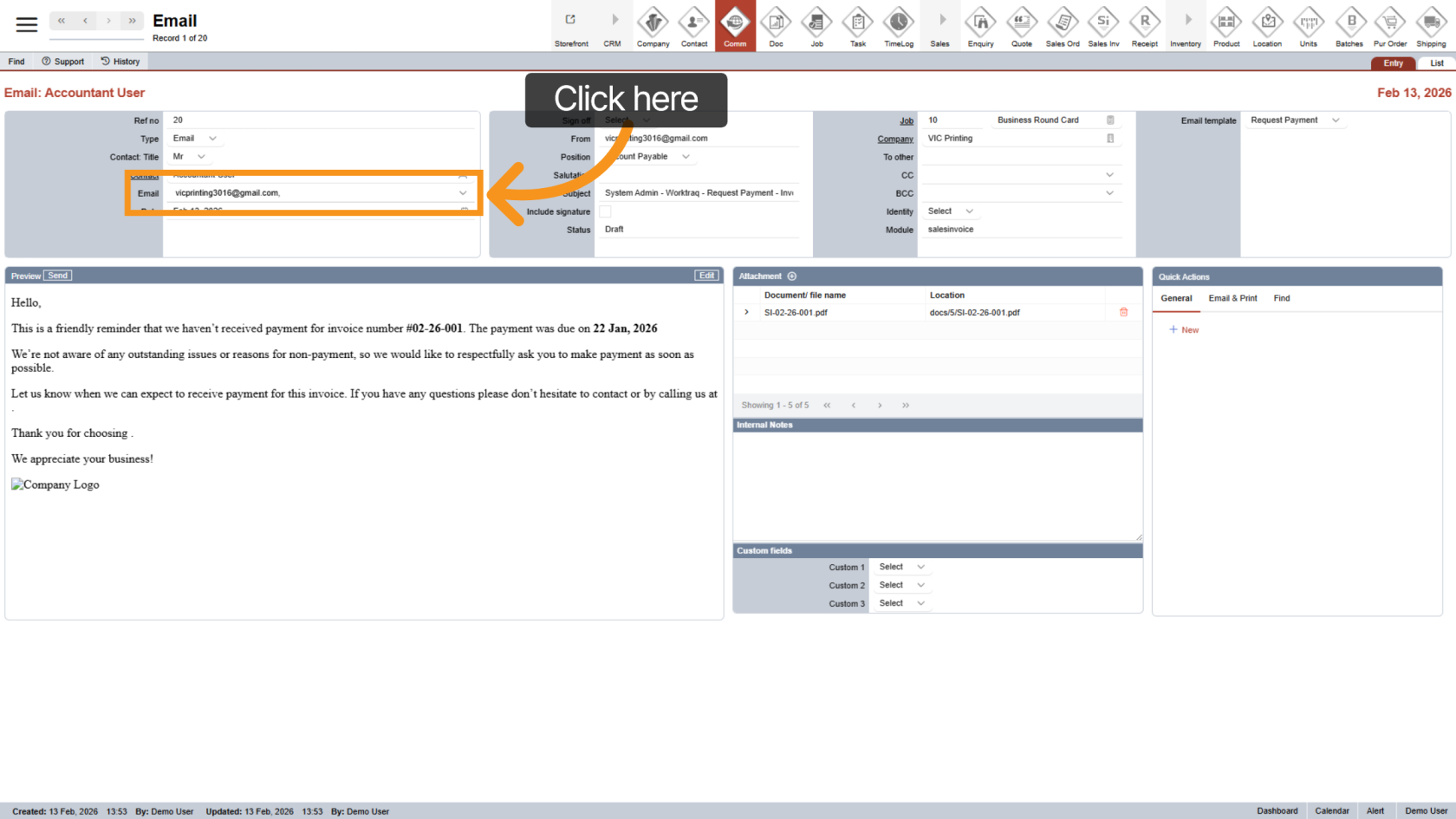
5. Check Recipient Email
The recipient email address is automatically selected based on:
- The invoice billing contact
- The billing contact set up in the company.
You can add additional recipients using the dropdown if needed.
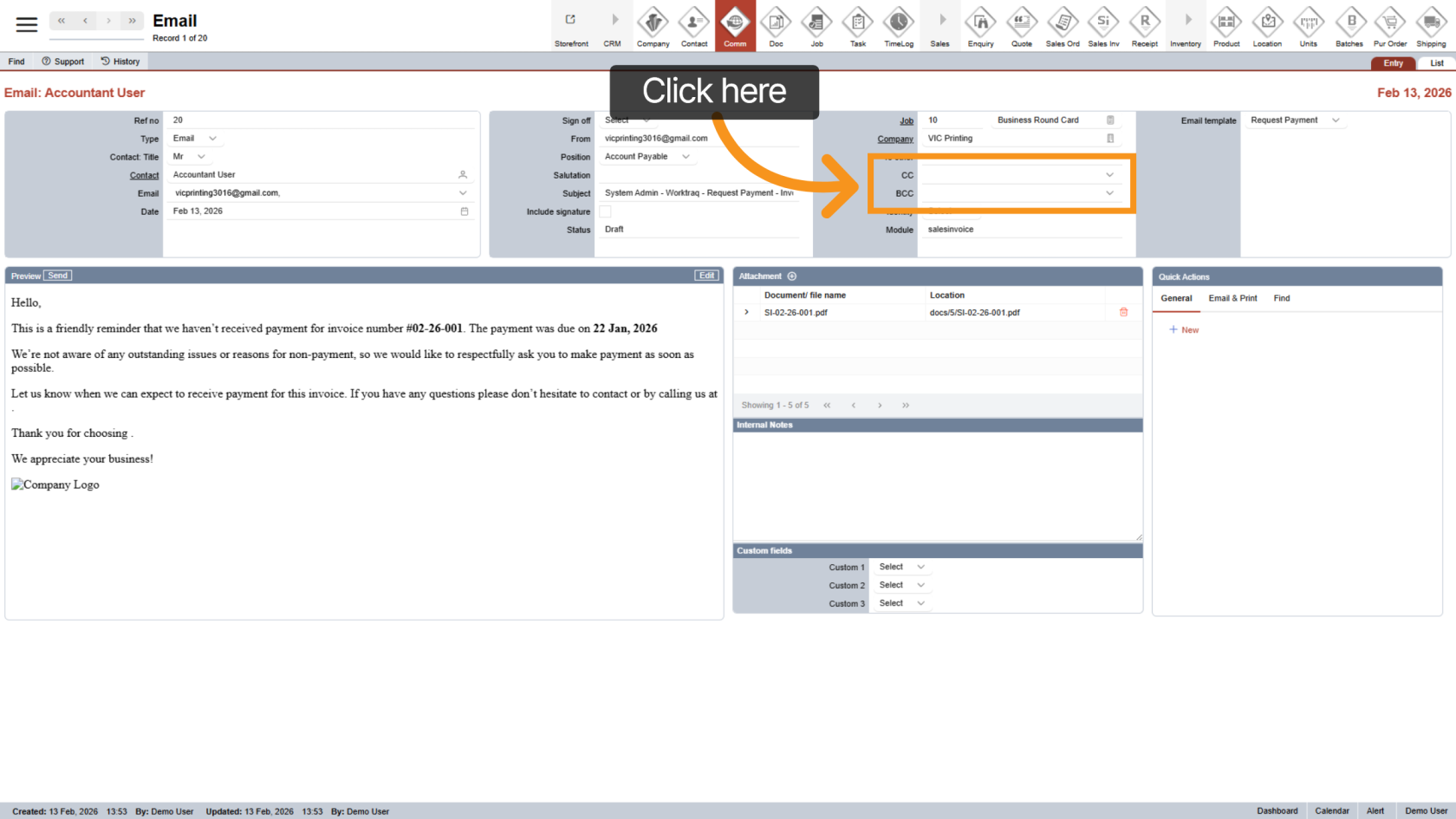
6. Add CC or BCC (Optional)
Use the CC or BCC fields to include additional recipients.
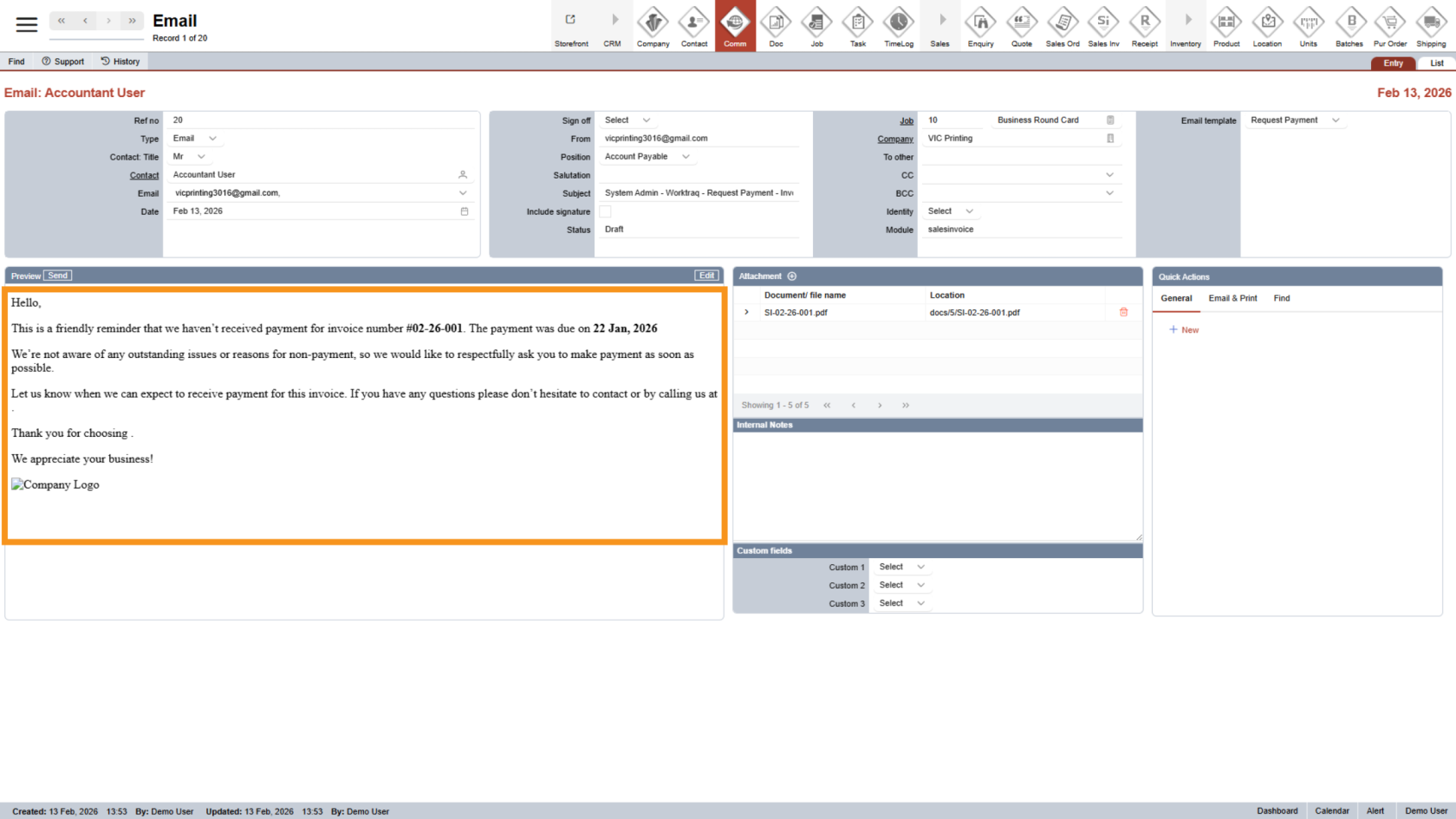
7. Review Email Content
Preview the email message to ensure everything looks correct.
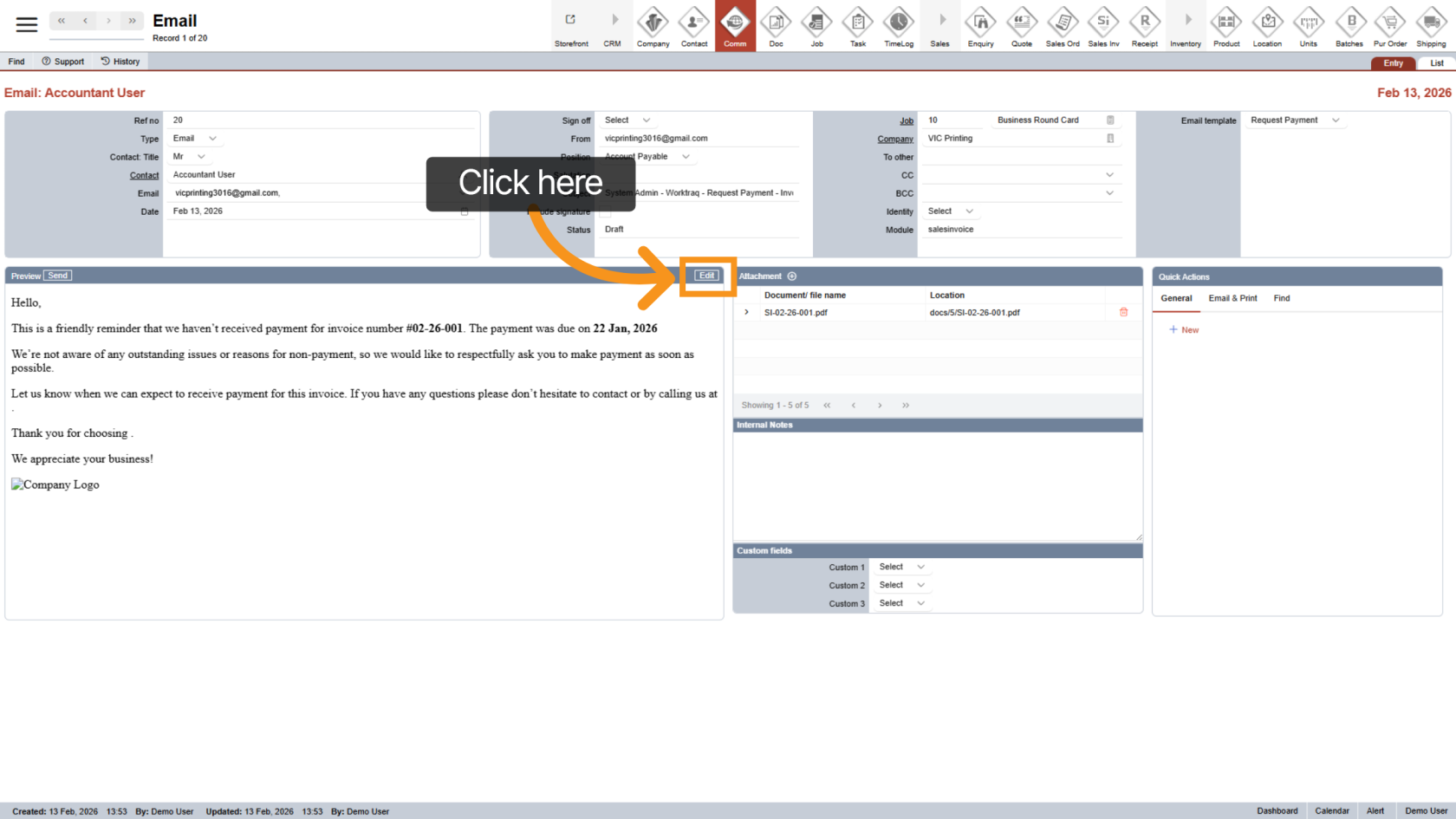
8. Edit Email Content
Click "Edit" if you wish to modify the email content.
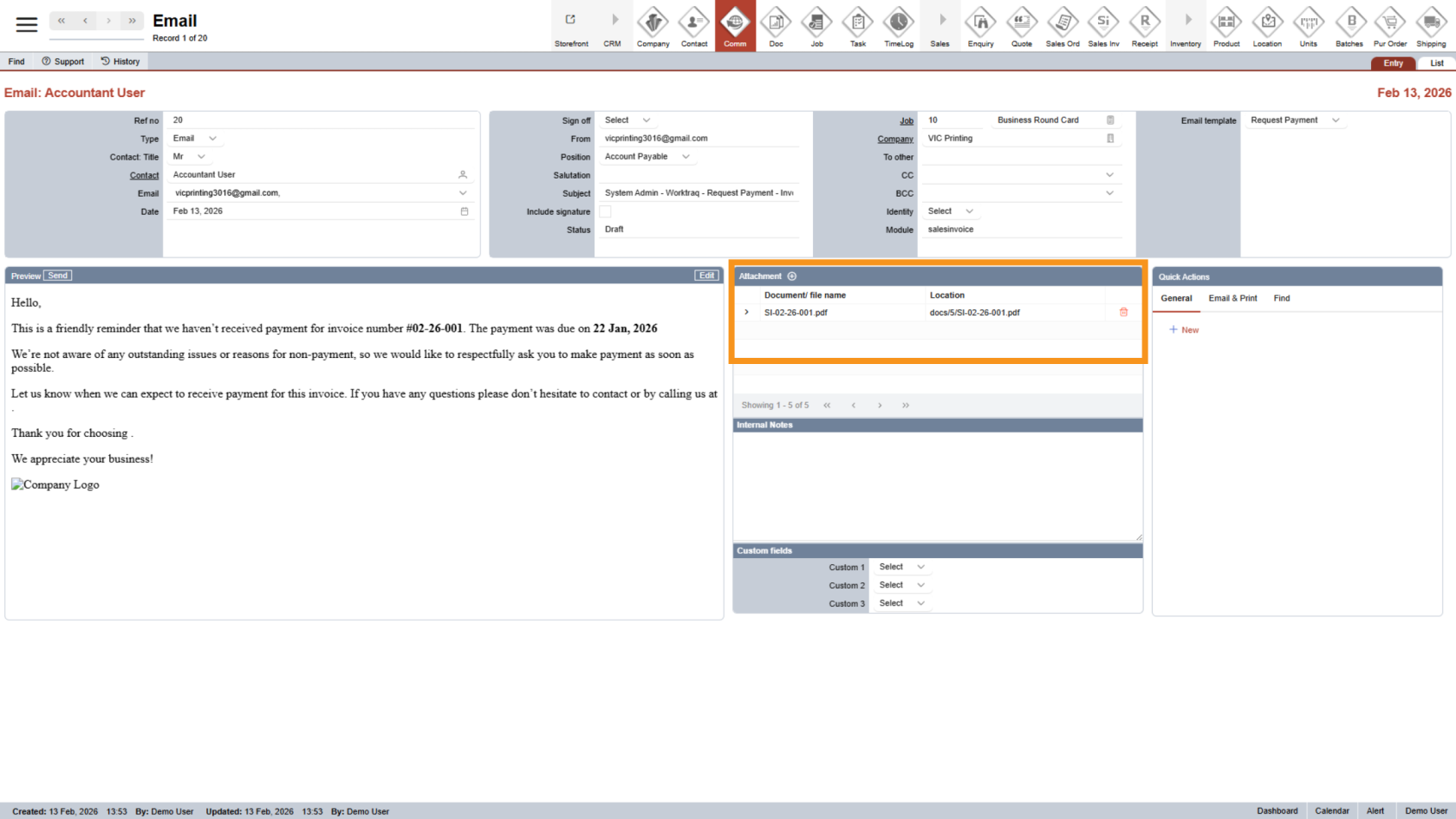
9. Review Attachments
The invoice PDF will automatically be generated and attached to the email.
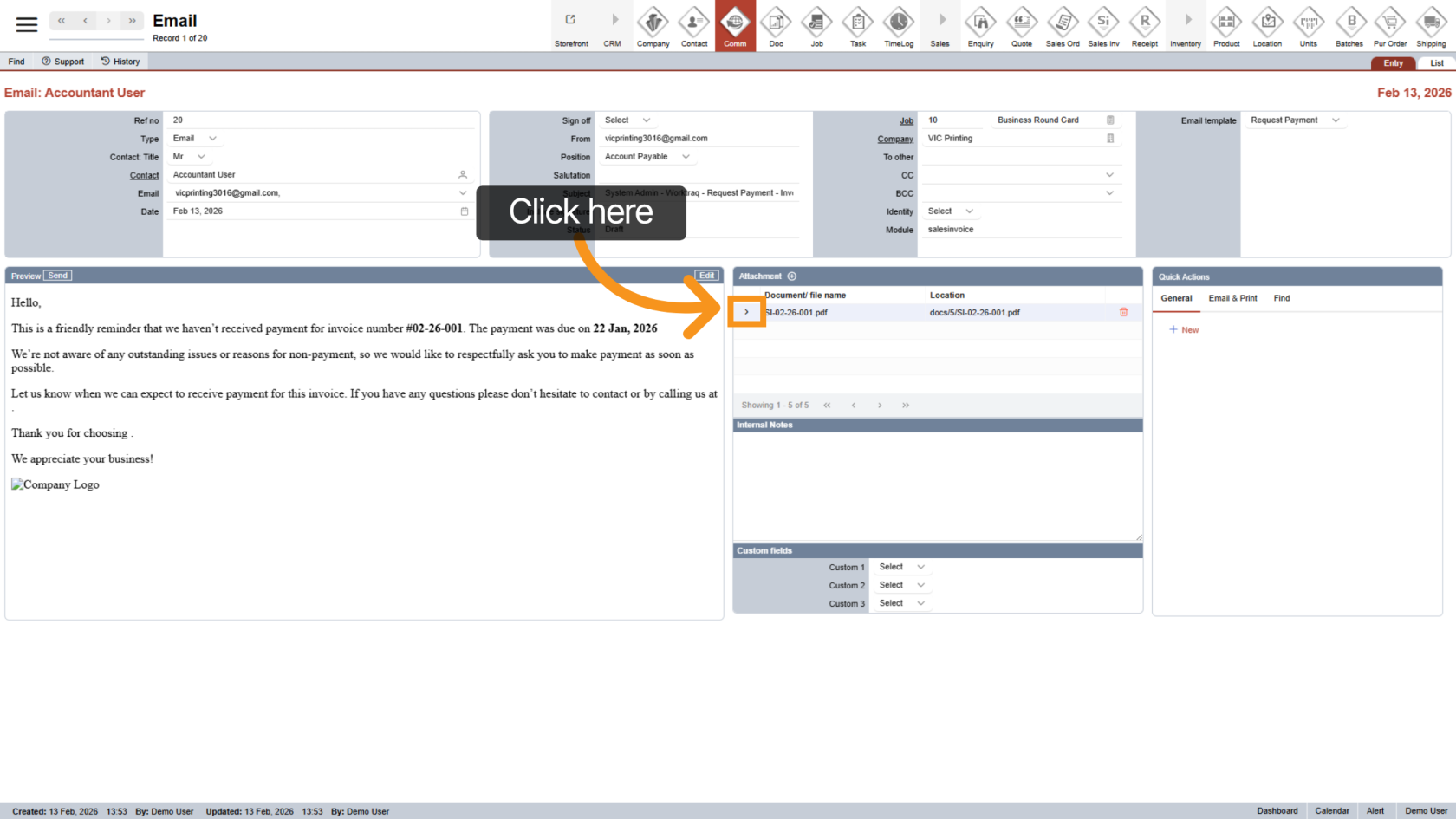
10. View Attachment
Click the  arrow icon to preview the attached invoice file.
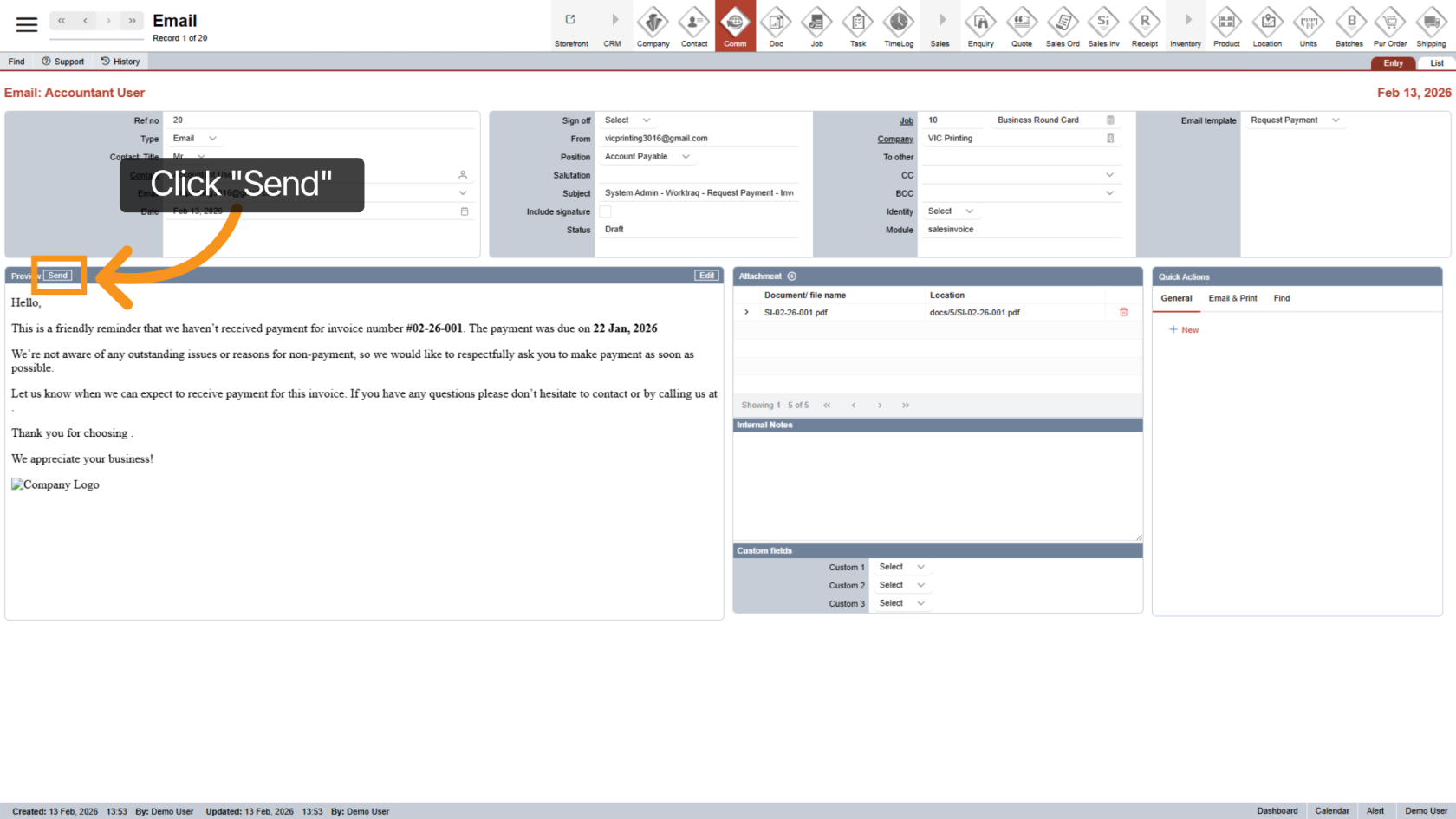
11. Send the Email
Click "Send" to deliver the invoice to the selected recipients.
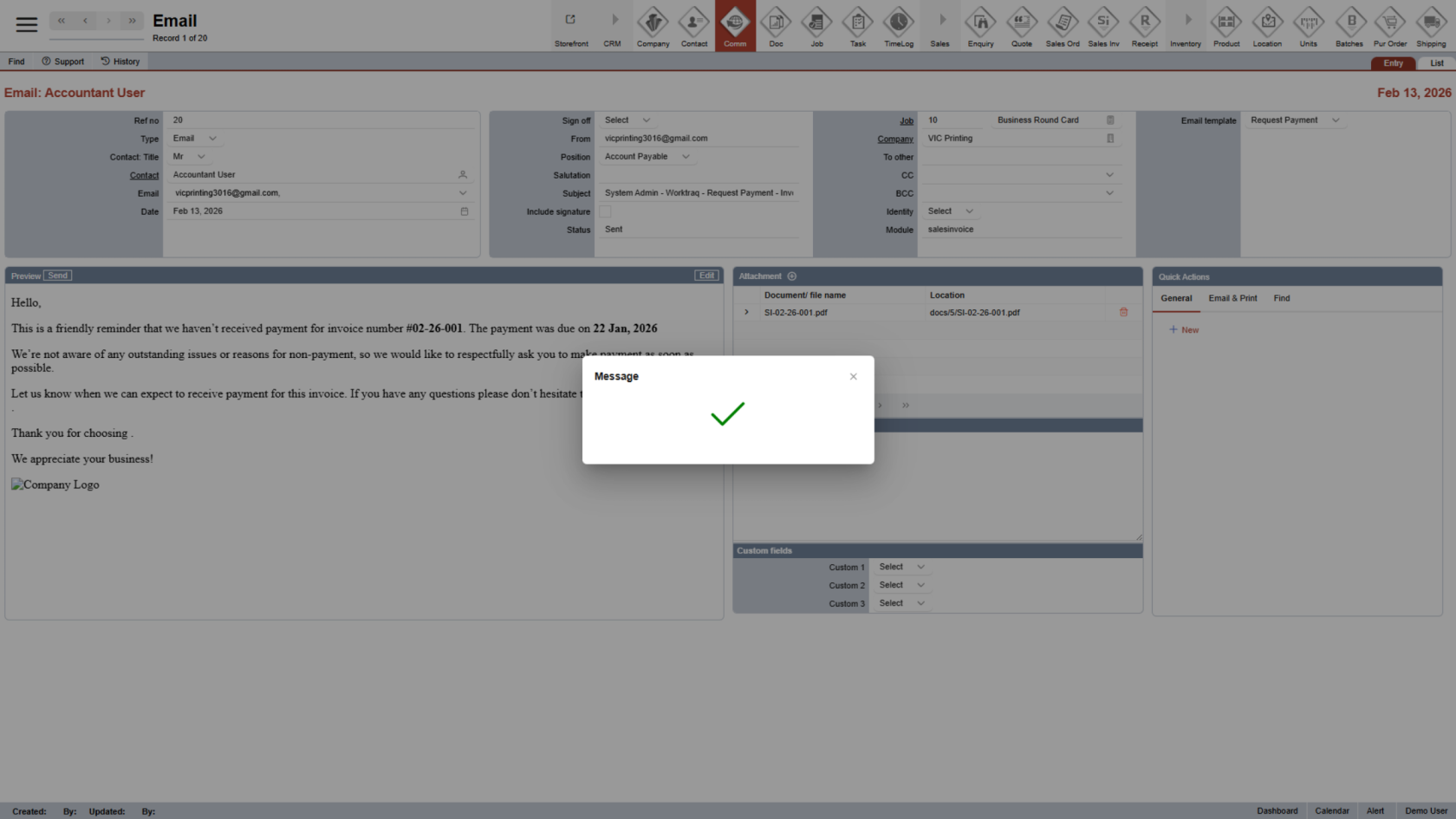
12. Confirm Success
A confirmation message will appear once the email has been successfully sent.
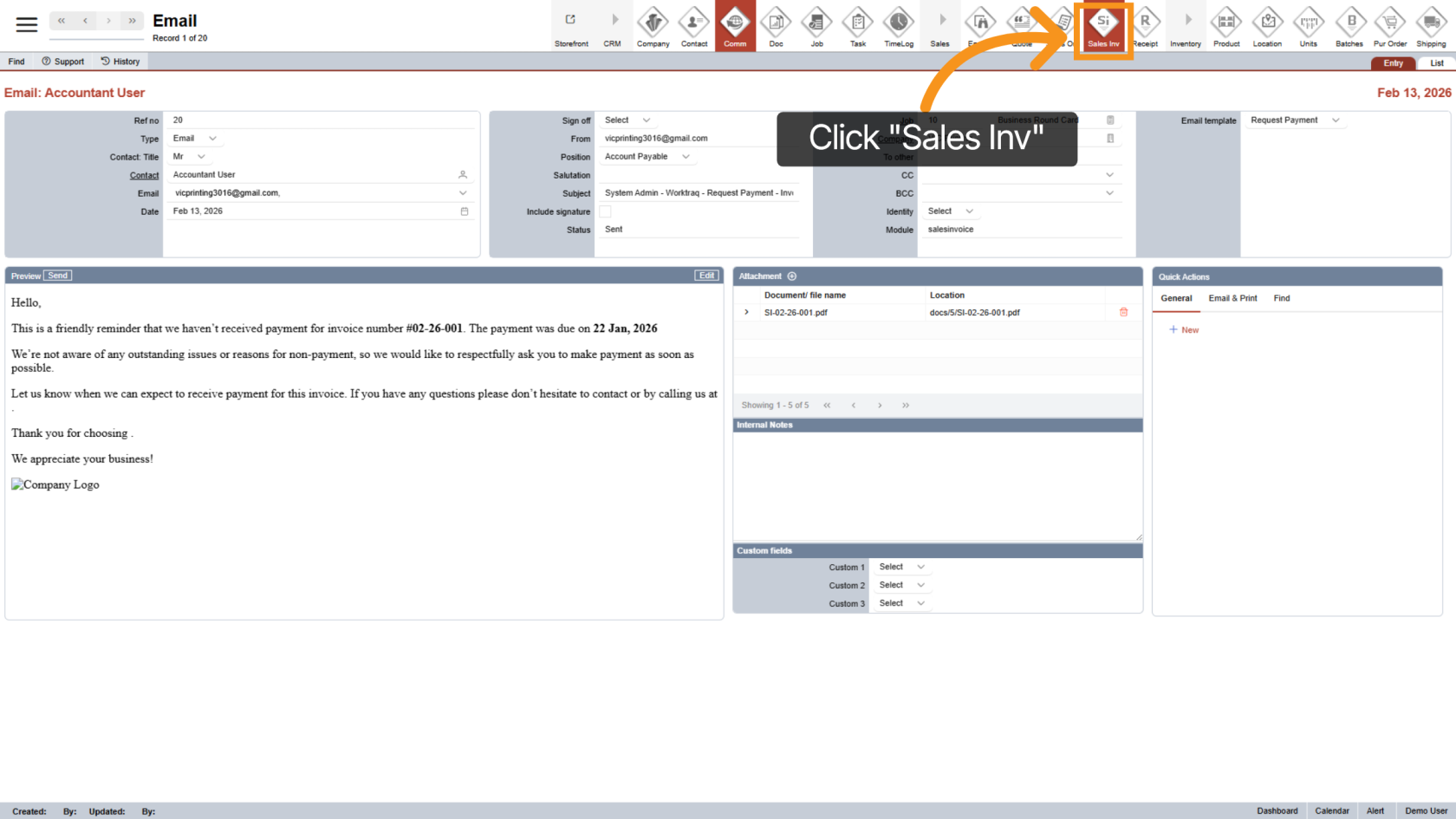
13. Return to Sales Invoice
Click "Sales Invoice" to return to the invoice.
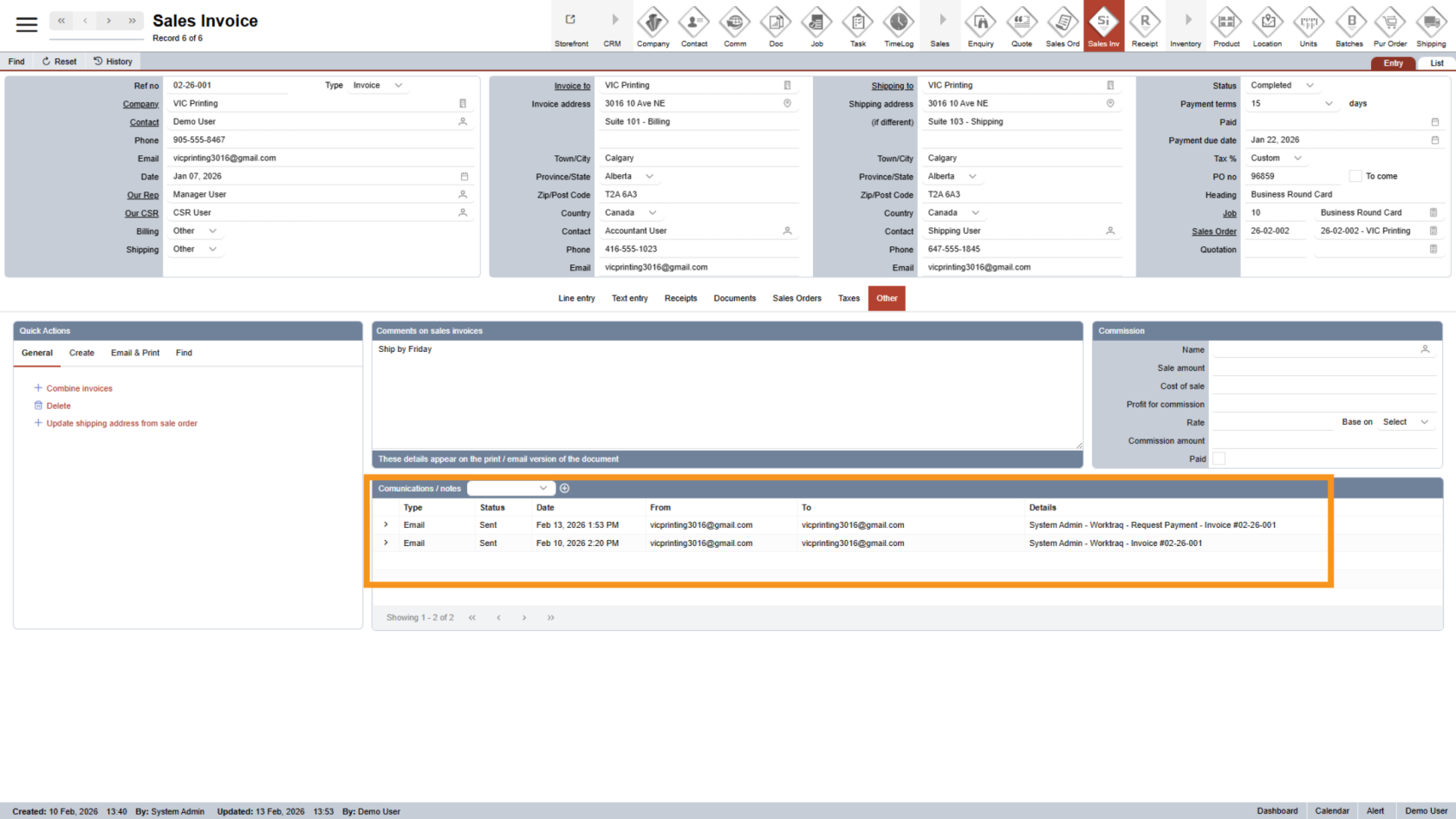
14. View Communication History
All email communication related to the invoice will be recorded in the communication section.
You have successfully emailed the invoice by reviewing the details and sending it to the intended recipients.