
Track Shipments
This tutorial shows you how to track shipments in the Worktraq app.
Video Tutorial
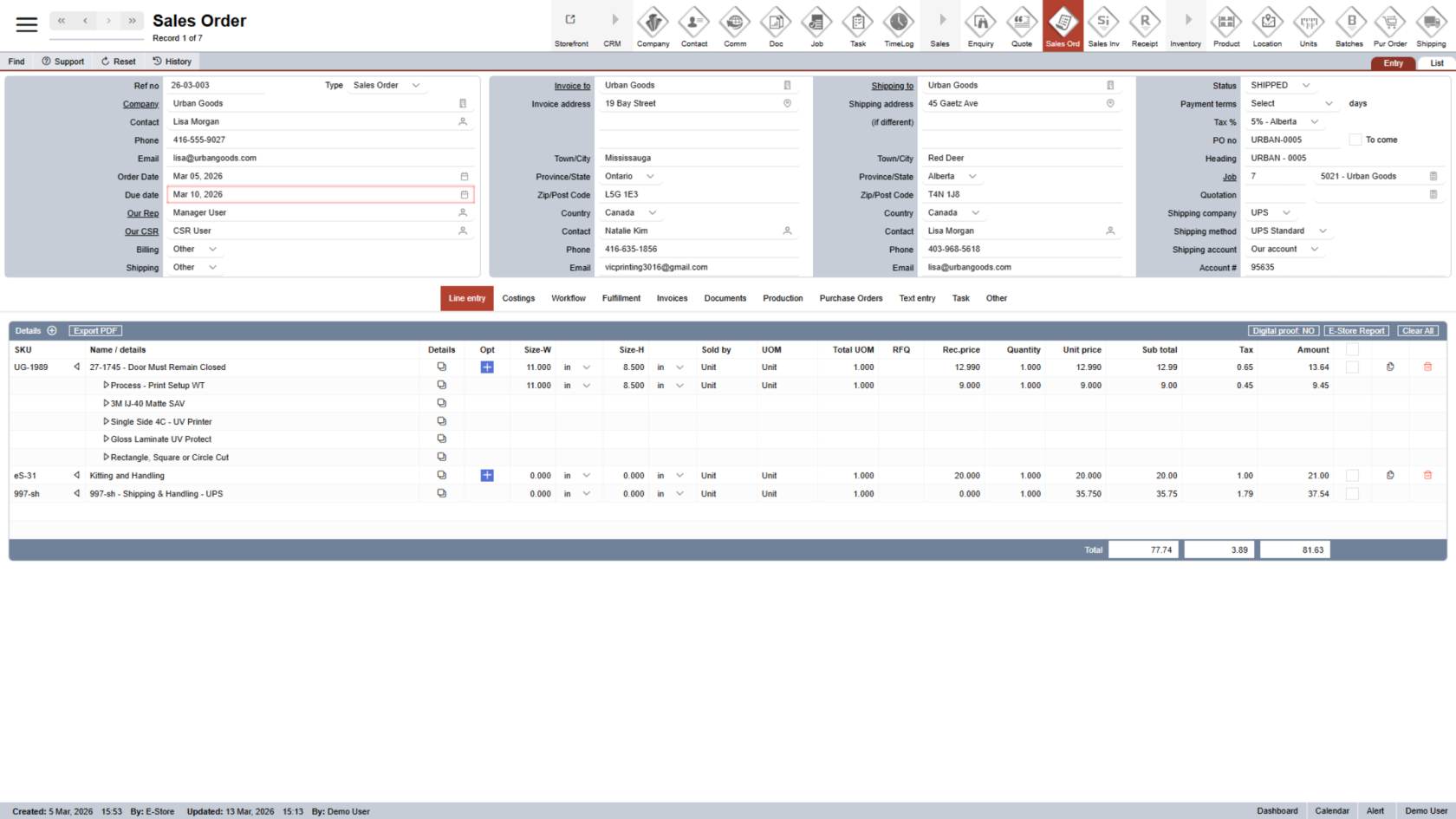
1. Access Sales Order Details
Find the sales order you want to track.
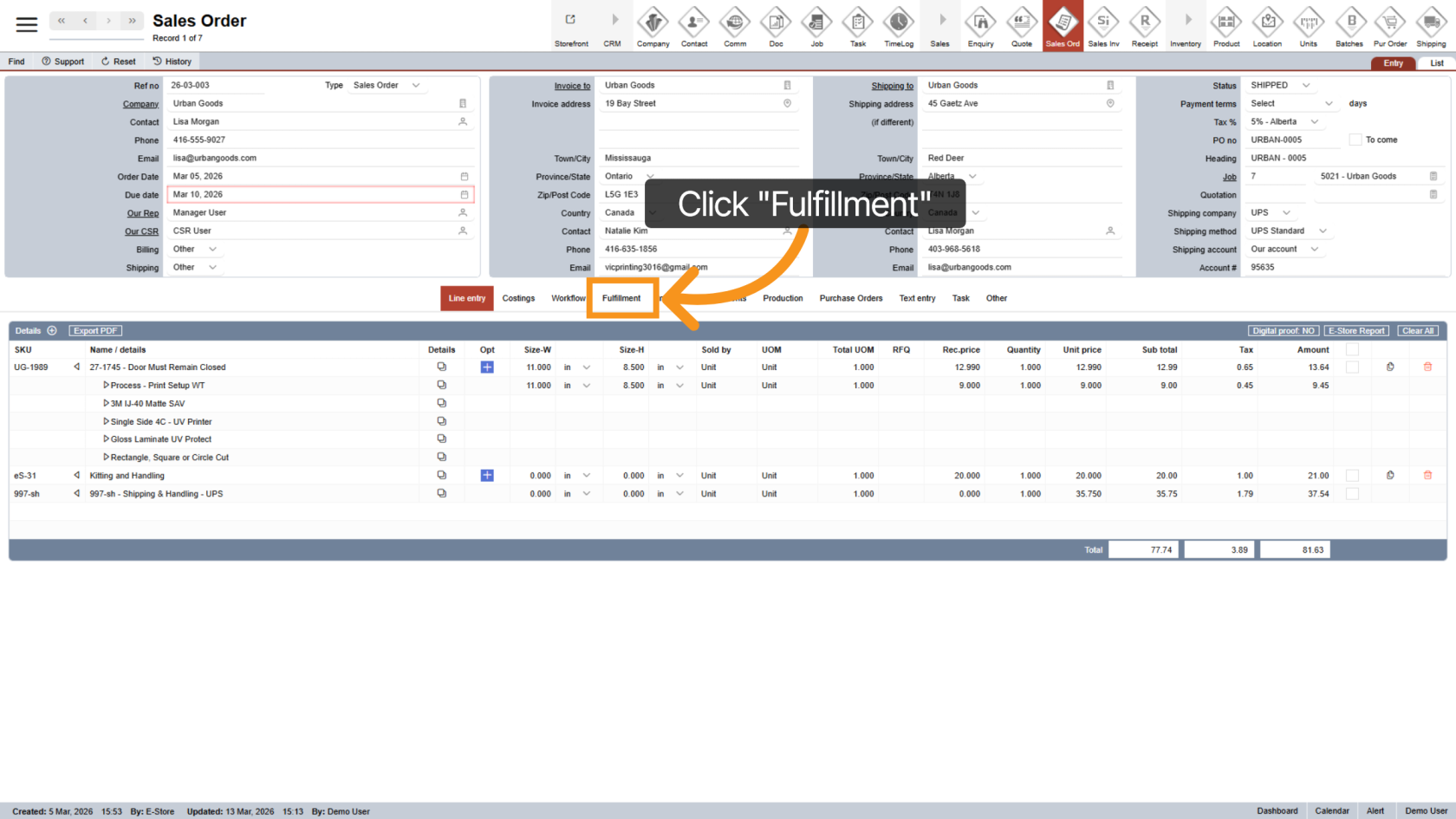
2. Open Fulfillment Options
Click the "Fulfillment" tab in the sales order to view the shipping details.
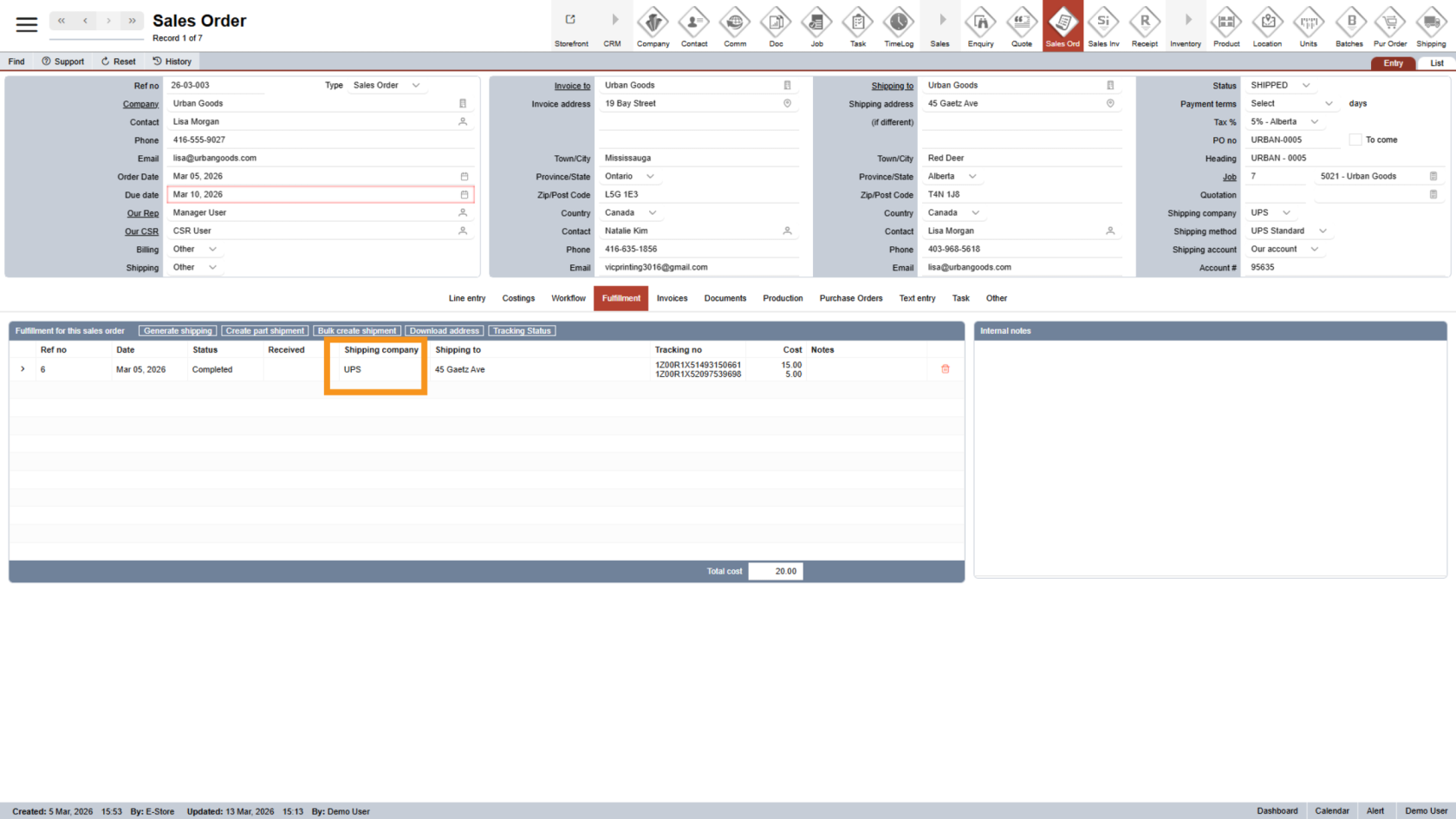
3. Check Shipping Company
At this time, the system supports shipment tracking for UPS and Purolator only.
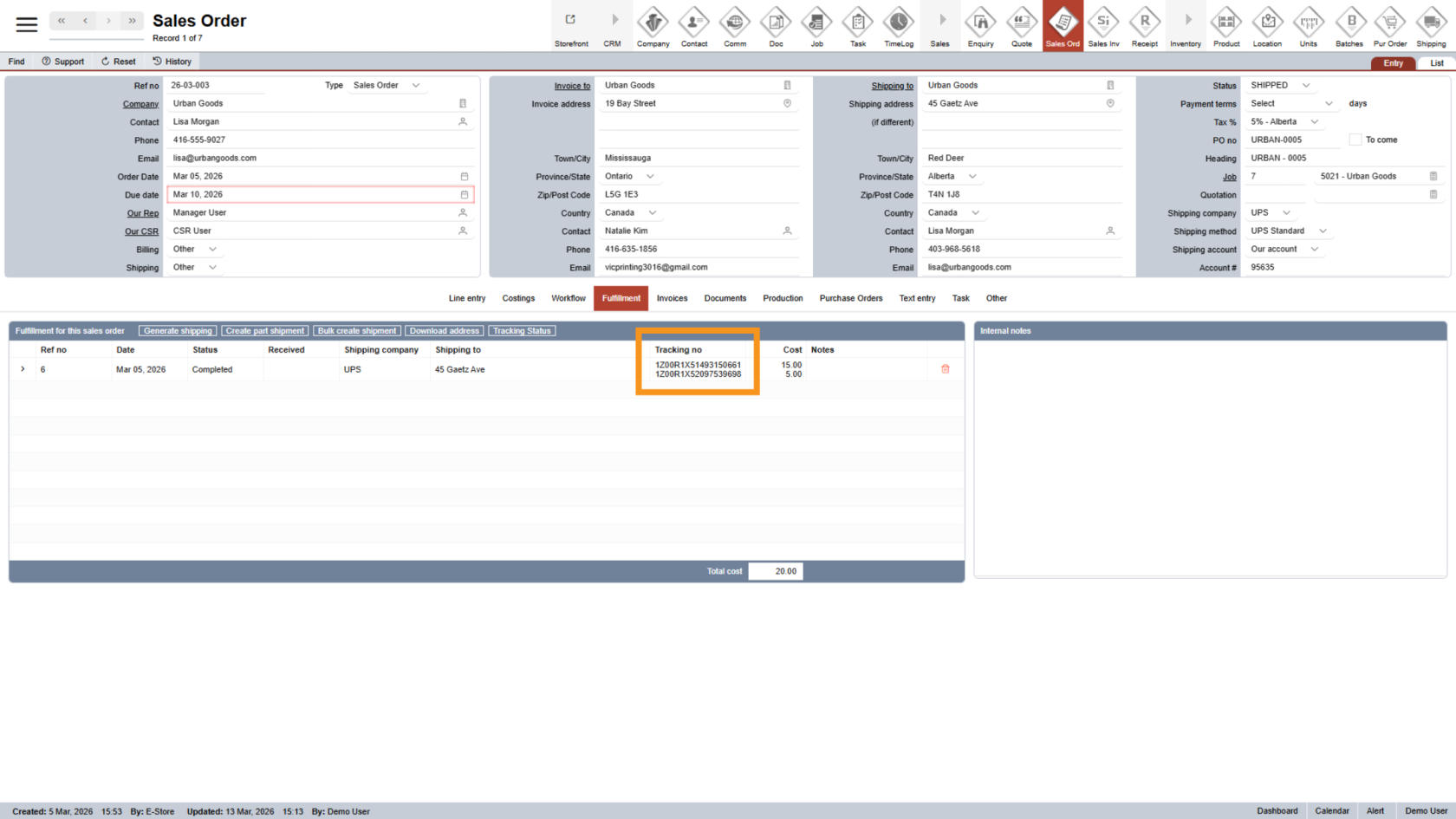
4. Verify Tracking Number
The system can only check tracking numbers entered in the correct format.
In other cases, you will need to track them manually, which can also be done within the system.
This is shown in the steps below.
5. Check Tracking Status
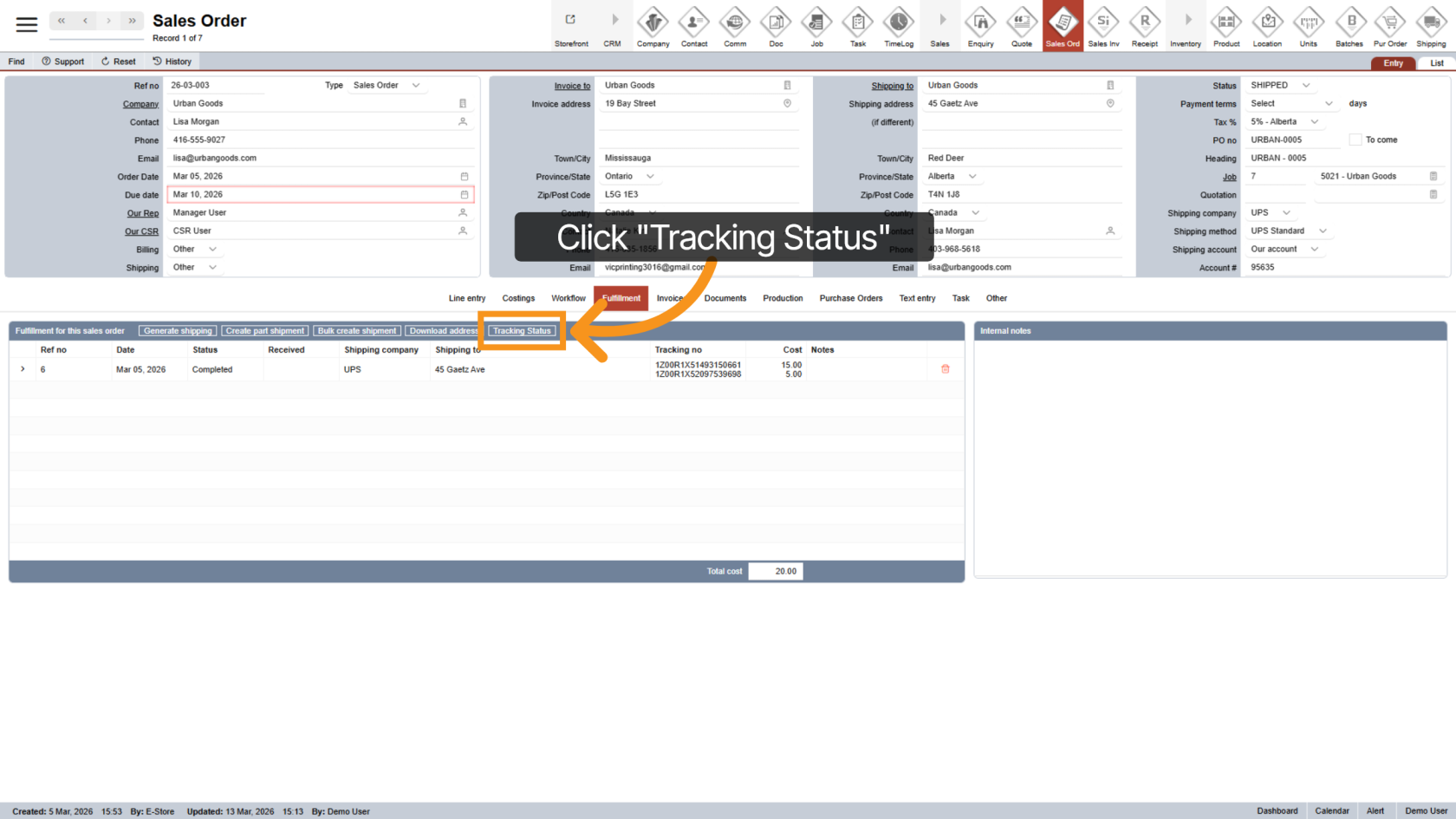
Click "Tracking Status" to check the current shipment status.
The system can check multiple shipments within the same sales order in one click.
6. View Tracking Summary
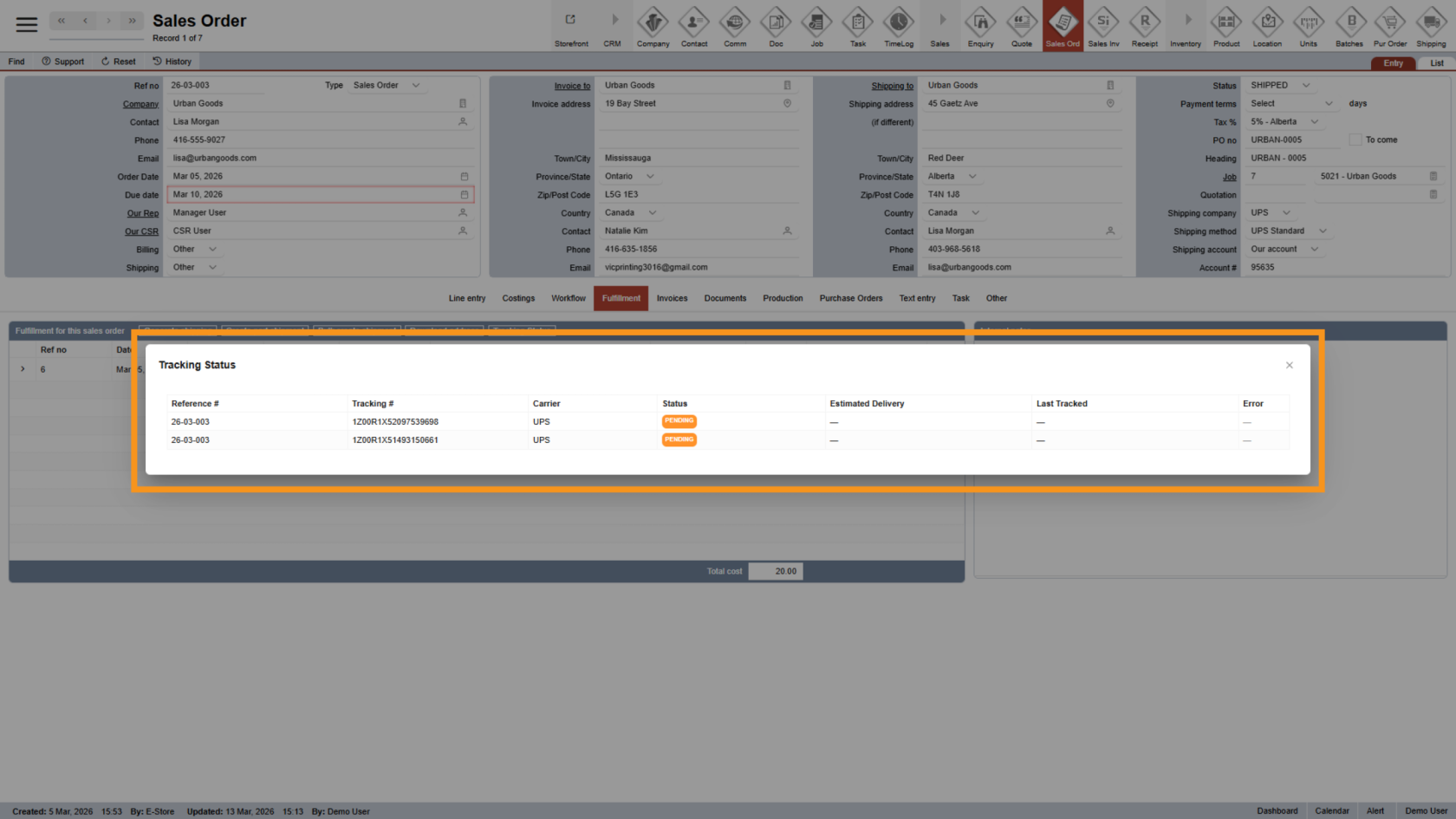
A pop-up will display a summary of all shipments in the sales order, including each package's status.
7. Detailed Tracking (Manual Tracking)
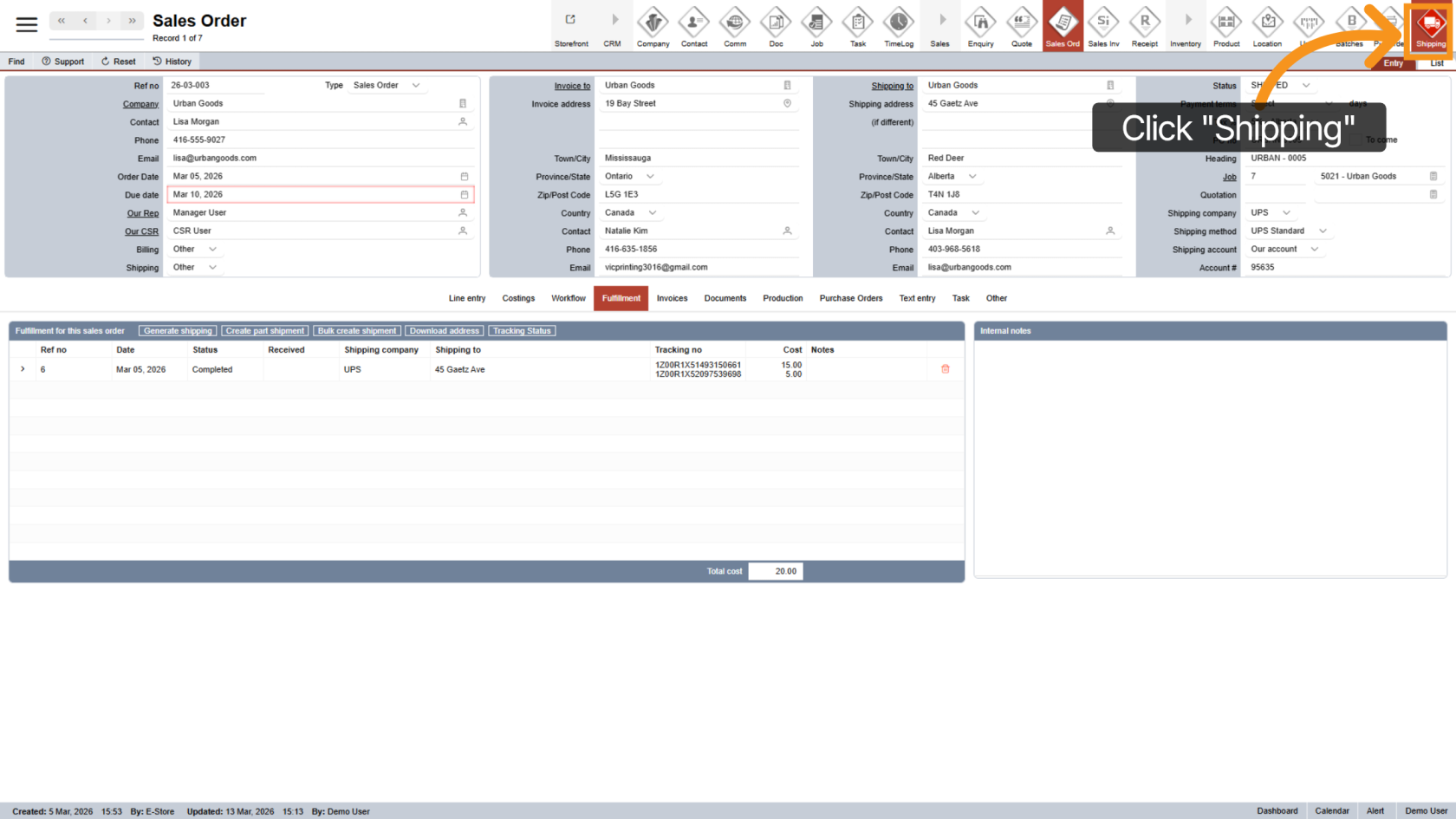
For more details or manual tracking, copy the tracking number you want to check.
Then click "Shipping" to open the shipping module.
8. Open the Tracking Feature
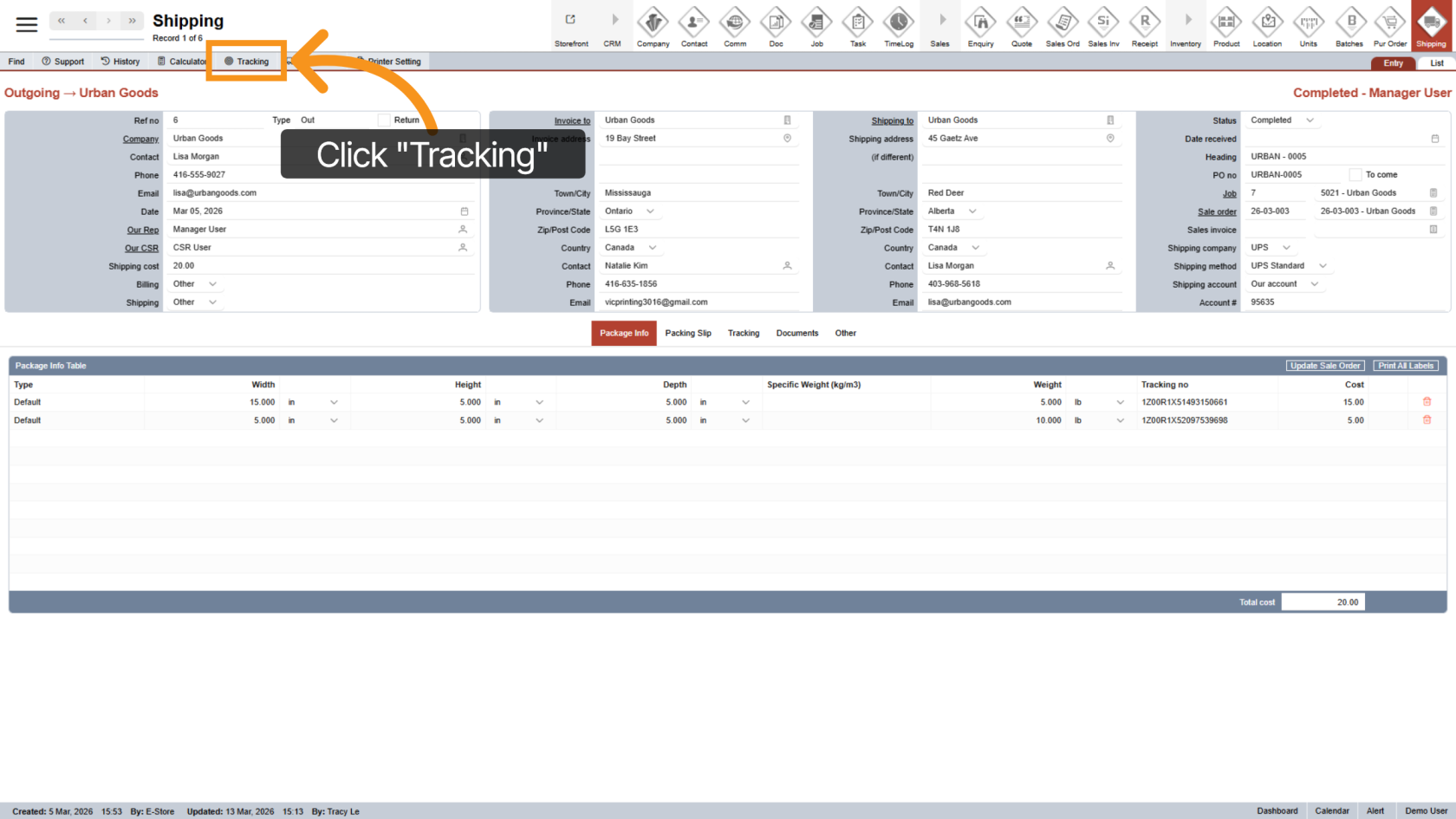
Click "Tracking" to open the tracking function.
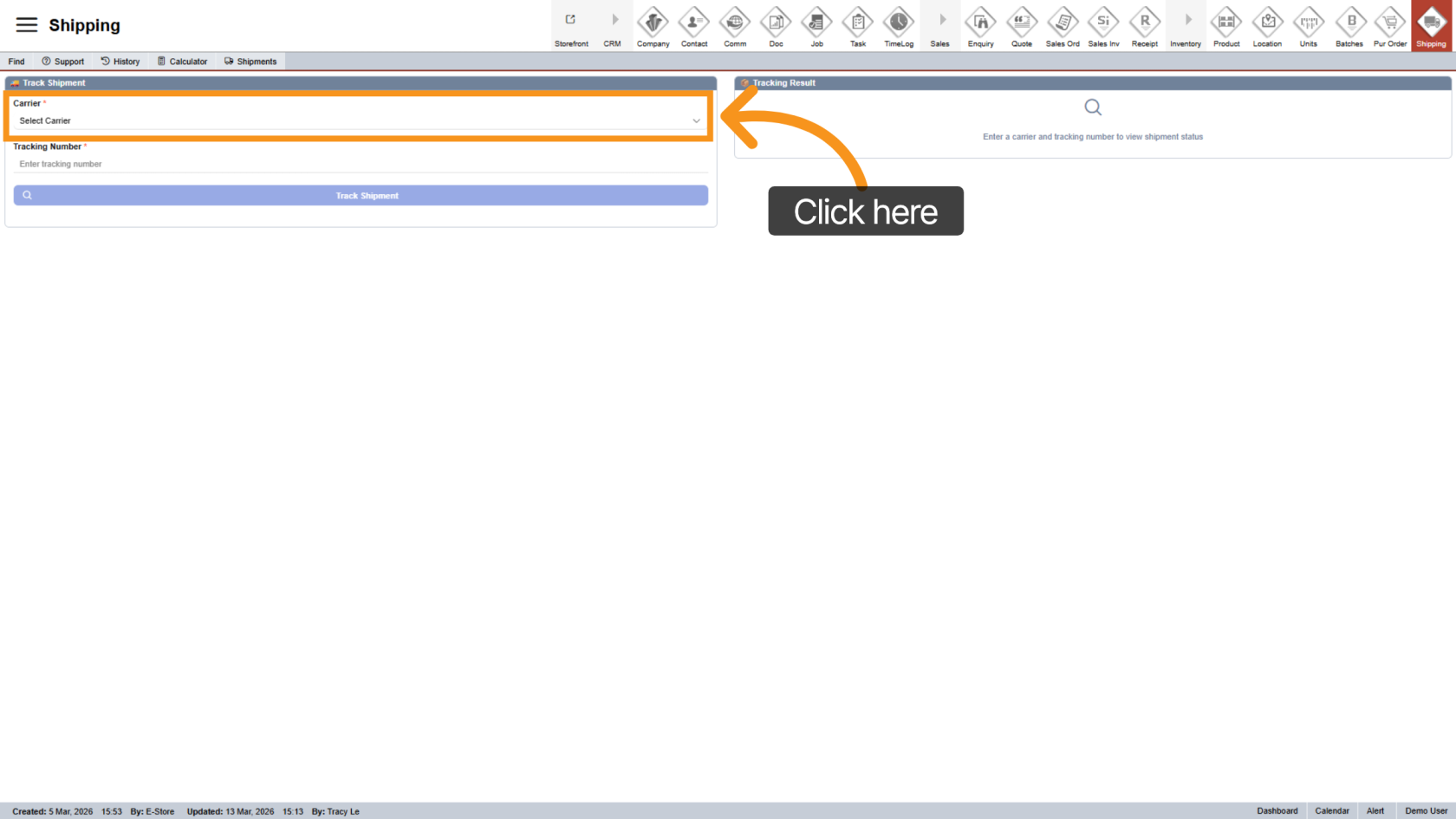
9. Select Carrier
Choose the appropriate carrier for the shipment.
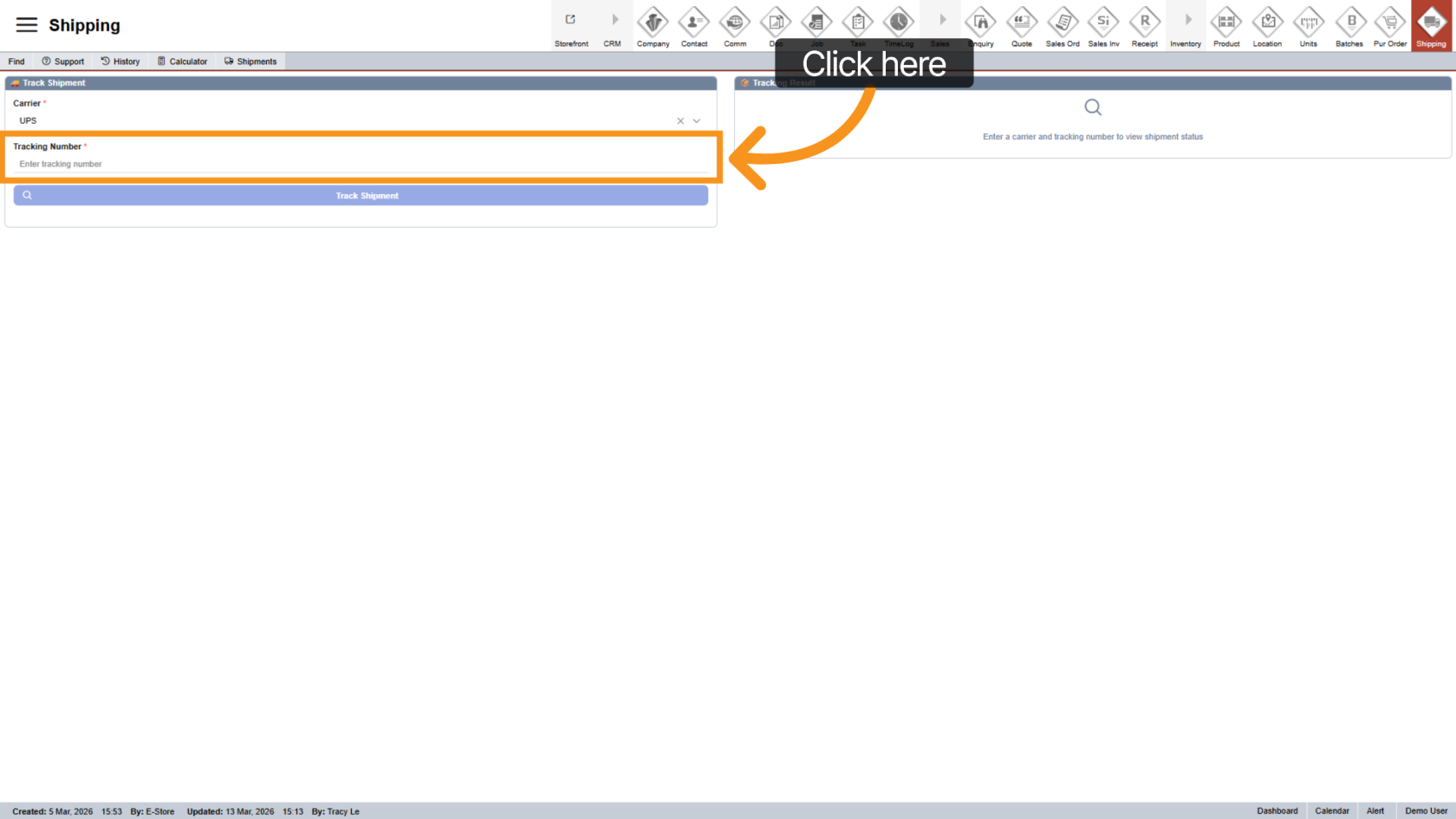
10. Enter Tracking Number
Paste the tracking number you copied earlier.
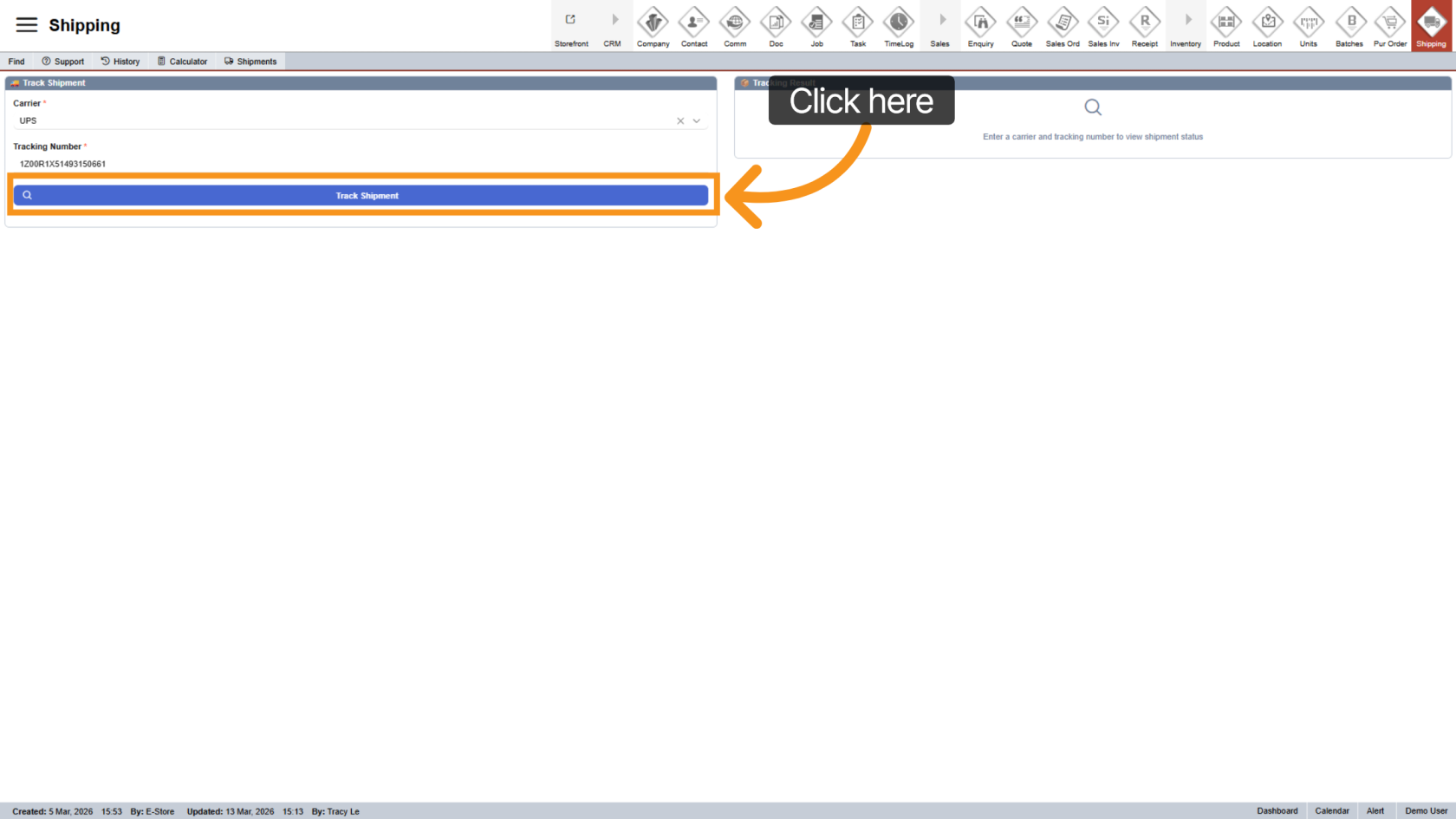
11. Track Shipment
Click "Track Shipment" to start the tracking process and view the shipment status.
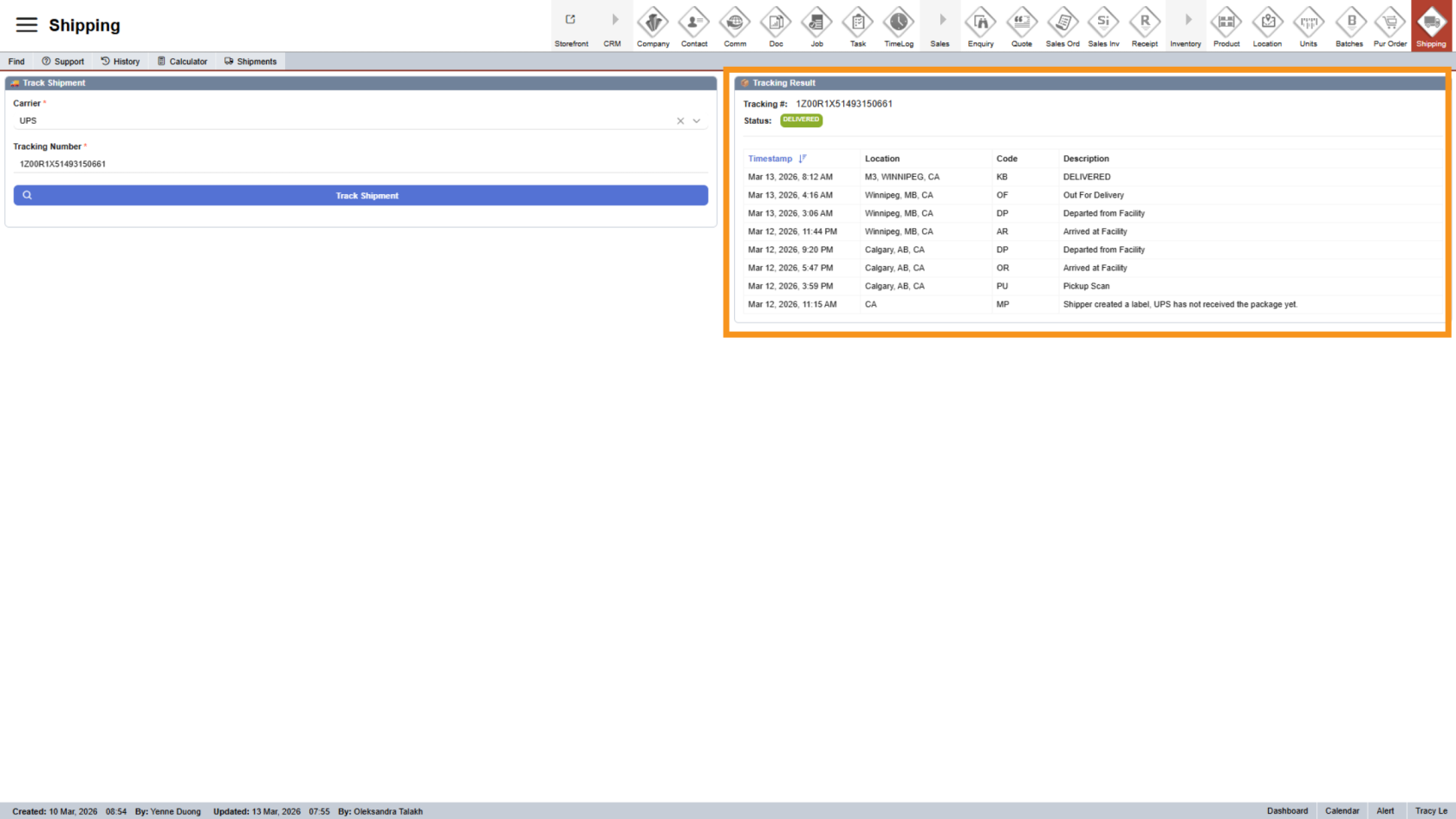
12. View Tracking Details
The shipment details will appear on the right side.
You have now successfully tracked a sales order shipment and manually tracked a package in the Worktraq app.